ASUS è un marchio ben noto per i suoi laptop da gioco, come ASUS TUF e ASUS ROG. Poiché questo marchio si concentra maggiormente sui giocatori, ha un'elevata richiesta di funzionalità di screenshot affidabili da utilizzare durante il gioco. Se sei uno dei suoi utenti più accaniti, puoi scoprire come fare uno screenshot su un laptop ASUS in diversi modi. Questo articolo mostra le scorciatoie principali per attivare l'opzione screenshot, nonché l'utilizzo di varie applicazioni integrate per sfruttare qualsiasi attività online senza limitazioni.
Parte 1. I metodi migliori per fare screenshot su un laptop ASUS con Windows
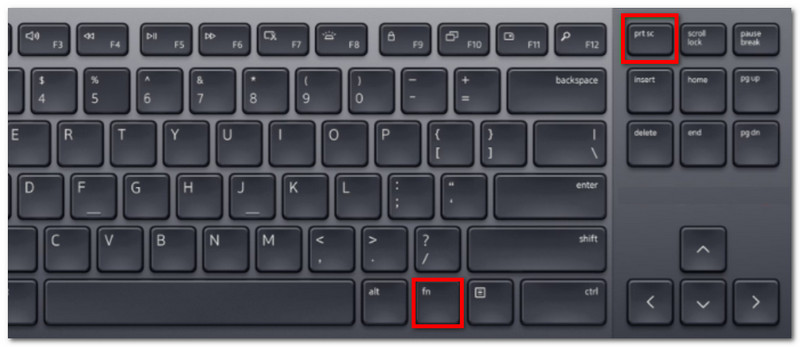
Ecco cosa devi sapere su come fare uno screenshot su un Chromebook ASUS: esistono diversi metodi predefiniti per farlo. Come suggerisce il nome, il tasto Stamp (o PrintScreen) sulla tastiera è l'opzione integrata per gli screenshot, ma può essere piuttosto limitata. In altre parole, può catturare solo l'intero schermo o una porzione specifica. Tuttavia, Stamp è comunque utile, ma puoi scoprire altri modi per fare screenshot leggendo la sezione seguente.
1. Utilizzo delle scorciatoie da tastiera standard di Windows
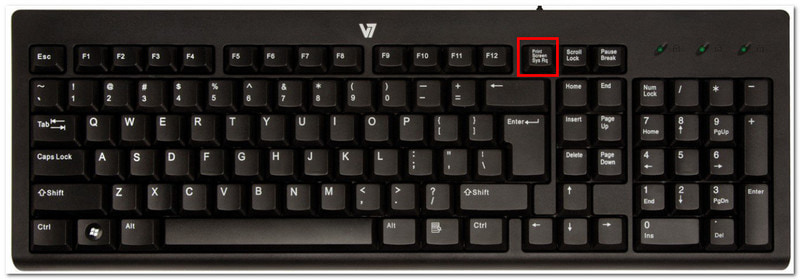
• PrtSc (Print Screen)
Premere PrintScreen o PRT SC Il tasto sulla tastiera si trova solitamente in alto a destra. Apparirà un menu a barre nella parte superiore centrale dello schermo con le opzioni per la modalità a schermo intero, finestra e cattura libera. Scegline una per acquisire uno screenshot.
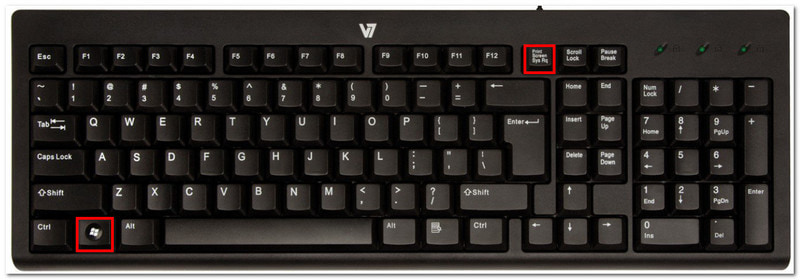
• Windows + Stamp
Premendo contemporaneamente il finestre e Screenshot Premendo i pulsanti, hai acquisito uno screenshot a schermo intero. Tuttavia, invece di salvare automaticamente l'immagine in una cartella, il sistema la salva negli appunti, da cui puoi poi incollarla in una chat, in un documento, ecc.
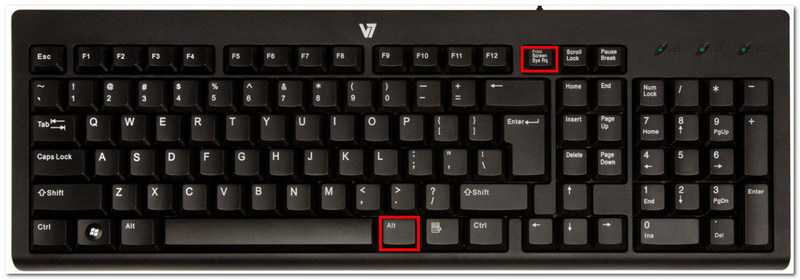
• Alt + PrtSc
Un altro metodo che dovresti provare è il Alt e PrtSc Scorciatoia. Con questa opzione, il computer catturerà solo la finestra attiva. Successivamente, potrai incollarla ovunque, poiché verrà salvata solo negli appunti. Assicurati di aver cliccato sulla finestra desiderata prima di utilizzare Alt + PrtSc.
• Fn + PrtSc
Questa opzione ha la stessa funzione del solo tasto PrtSc. Permette di accedere al menu a barre con diverse modalità di acquisizione schermata. Tuttavia, rappresenta una valida alternativa se il tasto PrtSc a volte non funziona.
2. Utilizzo dello Strumento di cattura di Windows e di Cattura e annota.
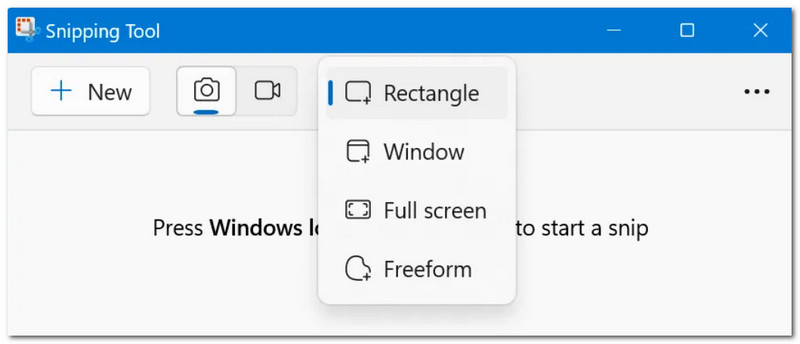
Se stai cercando un modo per fare screenshot su un ASUS Vivobook, puoi utilizzare lo Strumento di cattura e Cattura e annota integrati. Questi due strumenti preinstallati sono perfetti per acquisire schermate e offrono anche funzionalità di disegno che ti permettono di evidenziare e annotare l'immagine prima di salvarla o incollarla. Inoltre, è possibile impostare un ritardo fino a 10 secondi prima di scattare uno screenshot. Se il tuo ASUS non li ha preinstallati, puoi scaricarli gratuitamente dal Microsoft Store.
3. Utilizzo della Xbox Game Bar (per i giocatori)
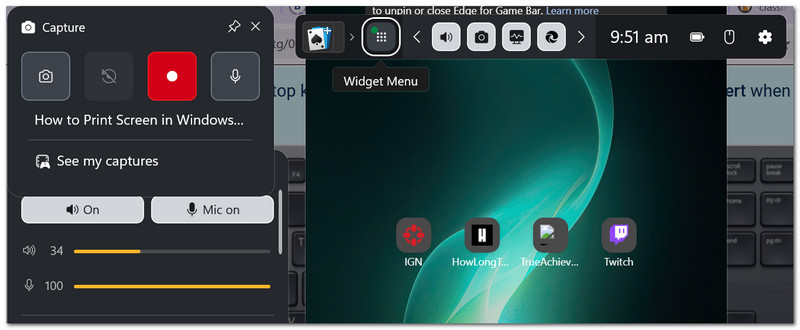
Xbox Game Bar è un altro strumento preinstallato per Windows 10 e versioni successive. Offre diverse funzionalità gratuite, tra cui la possibilità di acquisire schermate. Essendo pensato per i giocatori, può catturare schermate senza interrompere il gioco. Puoi attivare Game Bar premendo finestre e G sulla tastiera, quindi puoi premere Windows + Alt + PrtSc per fare uno screenshot a schermo intero.
4. Utilizzo di strumenti di terze parti
Dopo aver imparato come fare uno screenshot su un laptop ASUS in modo semplice, puoi comunque migliorare la tua esperienza di screenshot utilizzando AVAide Screen RecorderSi tratta di una soluzione completa per acquisire schermate, registrare video e audio. Cattura foto di alta qualità a piacimento e consente di salvarle in diversi formati immagine, come JPG, PNG, TIFF, BMP e GIF. Offre opzioni di disegno integrate, che permettono di disegnare con vari colori o aggiungere annotazioni all'immagine.
Passo 1Scarica AVAide Screen Recorder sul tuo computer e installalo completando la procedura di installazione.

DOWNLOAD GRATUITO Per Windows 7 o successivo
 Download sicuro
DOWNLOAD GRATUITO Per Mac OS X 10.13 o successivo
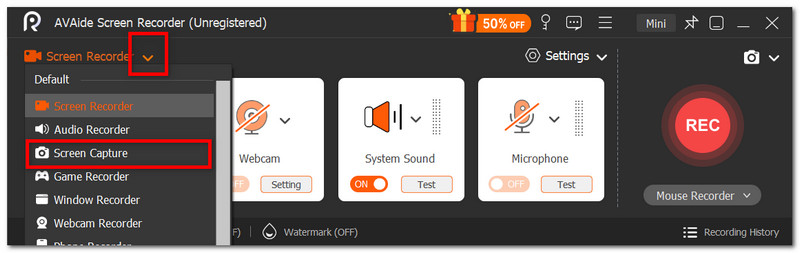
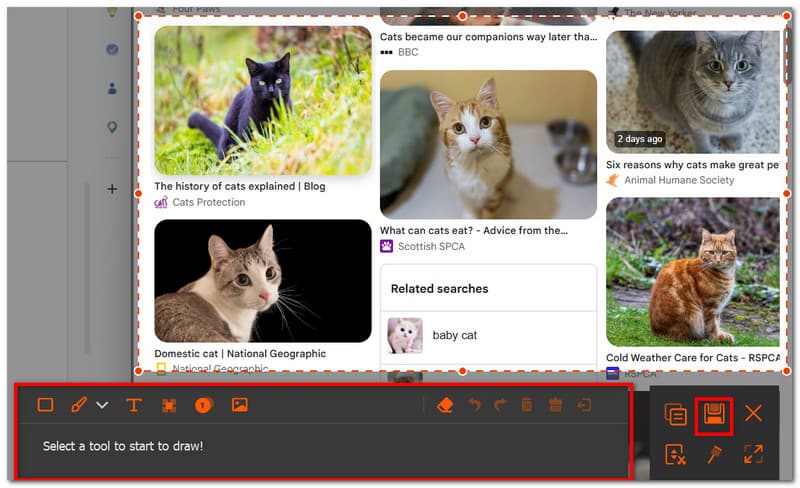
Download sicuroPasso 2Dal menu a tendina, scegli il Cattura schermo opzione. Questa funzione può essere utilizzata immediatamente per acquisire uno screenshot. Trascina il cursore sul punto dello schermo che desideri catturare.
Passaggio 3Utilizza le funzioni di modifica per disegnare o annotare sull'immagine. Infine, fai clic su Salva pulsante per salvare lo screenshot nella cartella designata.
Parte 2. Metodi di acquisizione schermata specifici per ASUS (scorciatoie nascoste)
Questa sezione illustra i metodi per acquisire schermate esclusivi dei laptop ASUS. Si tratta di un'ottima soluzione alternativa nel caso in cui il tasto Stamp non funzioni.
1. Metodi di acquisizione schermata specifici per ASUS (scorciatoie nascoste)
Innanzitutto, se il tuo modello ASUS si trova tra le linee di gioco ROG o una determinata serie Zenbook, Fn + F11 È possibile accedere allo Strumento di cattura sul proprio dispositivo. Tuttavia, se si tenta questa opzione e la finestra attiva viene visualizzata a schermo intero, è possibile che il laptop non rientri nella serie menzionata.
La seconda scorciatoia nascosta è Windows + Maiusc + S, che puoi utilizzare su qualsiasi modello ASUS. Ecco come fare uno screenshot su un laptop ASUS senza il tasto Stamp, in quanto è un metodo alternativo per accedere allo Strumento di cattura.
2. Utilizzo dell'app MyASUS (per modelli selezionati)
Se il tuo ASUS appartiene alla serie Zenbook S o Vivobook S, utilizzare l'app MyASUS è un buon metodo. Tuttavia, l'app stessa non offre un'opzione per acquisire schermate, ma mette a disposizione funzionalità aggiuntive come Perfect Screenshot e ScreenXpert. Permette anche di personalizzare le scorciatoie da tastiera, risultando utile se il tasto Stamp (PrtSc) non è presente sulla tastiera.
Parte 3. Come fare uno screenshot su un Chromebook ASUS
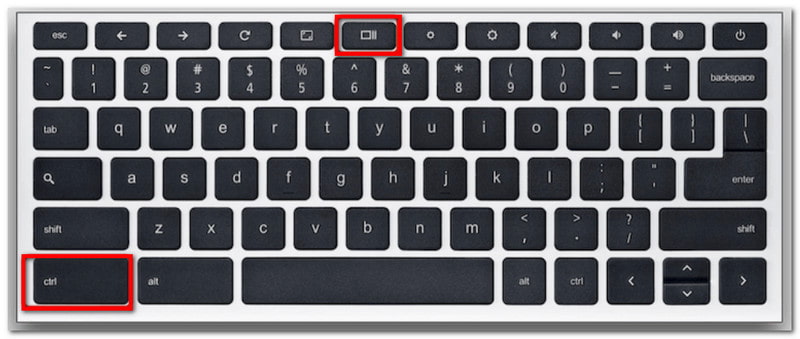
Con un Chromebook, la procedura per acquisire schermate è leggermente diversa rispetto agli altri modelli ASUS. Potresti notare che la tua tastiera non ha il tasto PrtSc, ma puoi comunque attivare la funzione di acquisizione seguendo questi passaggi:
Passo 1Premere Ctrl + Mostra Premi contemporaneamente i pulsanti per scattare una schermata a schermo intero.
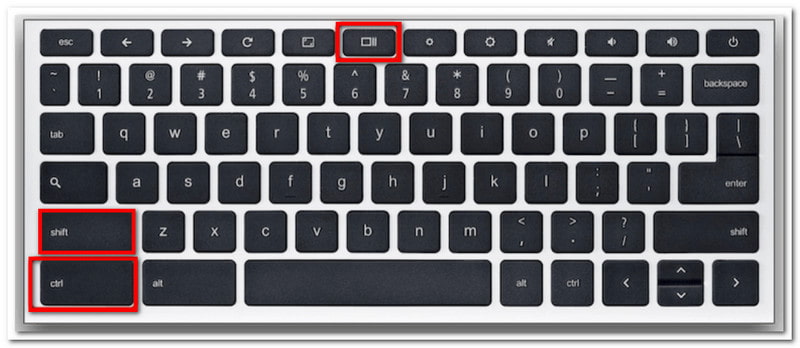
Passo 2Per la modalità screenshot parziale, premere Maiusc + Ctrl + Mostra, quindi trascina e fai clic sulla regione desiderata.
Parte 4. Tabella comparativa rapida: scegli il metodo più adatto a te.
Esistono molti metodi per acquisire schermate sul tuo laptop ASUS, e potresti avere difficoltà a scegliere quello più adatto alle tue esigenze. Per questo motivo, abbiamo preparato una tabella che riassume tutti i metodi menzionati in questo articolo, in modo che tu possa vederne le differenze.
| Metodi di acquisizione schermata | Ideale per | Dove va il file |
| Scorciatoie da tastiera standard di Windows | Screenshot predefinito su tutti i modelli ASUS | Appunti, Immagini > Cartella Screenshot |
| Strumento di cattura di Windows e Cattura e annota | Modificare, evidenziare, disegnare e annotare screenshot. | Appunti |
| Barra di gioco Xbox | Screenshot con gameplay ininterrotto | Video > Cartella Acquisizioni |
| Scorciatoie nascoste specifiche di ASUS | Tasti di scelta rapida personalizzati | Cartella dei download o della cache delle app di MyASUS |
| AVAide Screen Recorder | Cattura schermo a 360°; salva gli screenshot in formato BMP, TIFF, JPEG, ecc. | cartella di AVAide Studio |
Con le istruzioni fornite su come fare uno screenshot su un notebook ASUS, non ti mancheranno i metodi per catturare le attività sullo schermo. Questo articolo ha mostrato i tasti di scelta rapida e le applicazioni integrate sul tuo dispositivo. Inoltre, AVAide Screen Recorder è stato presentato come un'alternativa migliore, non solo per gli screenshot, ma anche come il migliore videoregistratoreScopri il software di registrazione definitivo per Windows e Mac semplicemente cliccando sul pulsante Download.
INFORMAZIONI SULL'AUTORE

Registra schermo, audio, webcam, gameplay, riunioni online e schermo iPhone/Android sul tuo computer.
Registrazione dello schermo
- Registrazione schermo su Windows
- Registra Instagram Live
- Copia video da Tubi
- Converti i video di YouTube in MP3
- Scarica video da Fansly
- Scaricare i video di JW Player
- Scarica i video di Bilibili
- Scarica i video di Patreon
- Scarica i video di SpankBang
- Scarica i video di Discord
- Scarica il video di DoodSream