Il nome ScreenPal Potrebbe essere una novità per te. Ma che dire del suo vecchio nome, Screencast-O-Matic? Sì, è lo stesso programma. La domanda ora è: cambiare nome lo ha migliorato? Se sei curioso, scopri la risposta qui.
In questa recensione, analizzeremo le sue caratteristiche principali, i vantaggi e gli svantaggi, e vi mostreremo anche come utilizzarlo passo dopo passo. C'è molto da imparare. Quindi, non andate via e scoprite se ScreenPal vale davvero la pena.
Parte 1. Cos'è ScreenPal?
Iniziamo rispondendo alla domanda: cos'è ScreenPal?
ScreenPal è una piattaforma video completa. Ti permette di registrare lo schermo, la webcam o entrambi contemporaneamente. Puoi poi modificare il video e condividerlo online. Supporta anche l'hosting cloud, il che significa che puoi salvare e gestire i tuoi video in un unico posto.
La storia del rebranding (Screencast-O-Matic)
Nel marzo 2023, Screencast-O-Matic ha cambiato nome in ScreenPal. Il vecchio nome era difficile da pronunciare e da scrivere, e molti utenti lo digitavano in modo errato. Anche lo strumento si è evoluto nel tempo: inizialmente era un semplice registratore dello schermo, mentre ora è una suite video completa con funzionalità di editing e hosting. Il nuovo nome "ScreenPal" suona più amichevole e presenta lo strumento come un semplice assistente video.
Scopo principale
ScreenPal vuole rendere la creazione di video accessibile a tutti. Aiuta gli utenti a creare rapidamente tutorial, demo e video di formazione, migliorando al contempo il flusso di lavoro. È possibile acquisire, modificare e condividere i video in un unico luogo. Inoltre, migliora la comunicazione, grazie a video, quiz, sondaggi e strumenti basati sull'intelligenza artificiale, per mantenere vivo l'interesse degli spettatori.
A chi è destinato
ScreenPal, registratore dello schermo ed editor video, è pensato per un'ampia gamma di utenti. Insegnanti e studenti lo utilizzano per lezioni e compiti scolastici. Molte scuole si affidano a questo strumento per l'apprendimento. I team aziendali lo usano per la formazione e l'inserimento dei nuovi dipendenti. I creatori di contenuti lo utilizzano per video e dimostrazioni. Gli utenti comuni possono usarlo per messaggi rapidi o semplici guide.
Parte 2. Caratteristiche principali
Gli strumenti di qualità dovrebbero far risparmiare tempo ed essere facili da usare. Questo, in particolare, semplifica le cose dall'inizio alla fine.
1. Registrazione dello schermo e della webcam
Con ScreenPal puoi registrare lo schermo, la webcam o entrambi. Puoi scegliere di registrare l'intero schermo o una piccola area. Puoi anche disegnare, ingrandire ed evidenziare. L'intelligenza artificiale può sfocare o modificare lo sfondo.
2. Strumenti di editing video
Ritaglia, taglia e dividi le clip. Aggiungi musica e voce. Usa testo, forme e transizioni. Modifica la velocità del video. Una libreria di immagini offre musica, immagini e clip di repertorio.
3. Funzionalità basate sull'intelligenza artificiale
L'intelligenza artificiale è in grado di convertire il parlato in testo. È possibile modificare il testo, aggiungere sottotitoli in diverse lingue, eliminare le parole superflue e i silenzi. Inoltre, può produrre voci fuori campo e script.
4. Hosting e condivisione video sicuri
Archivia i video in un cloud sicuro e senza pubblicità. Organizzali con cartelle e canali. Imposta i video come pubblici, privati o protetti da password. Condividili tramite link, email o incorporandoli. Monitora le visualizzazioni con analisi e mappe di calore.
5. Elementi interattivi
Aggiungi quiz e sondaggi per monitorare gli spettatori. Aggiungi pulsanti e link all'interno dei video. L'intelligenza artificiale può creare automaticamente domande per i quiz.
6. API e strumenti per sviluppatori
Gli sviluppatori possono utilizzare l'API o l'SDK di ScreenPal. Ciò consente loro di aggiungere strumenti di registrazione e modifica alle proprie app. È compatibile con i sistemi LMS e altri sistemi. Offre inoltre opzioni di configurazione e archiviazione personalizzate.
Parte 3. Disponibilità della piattaforma
ScreenPal è compatibile con Windows e Mac e offre un utilizzo completo su desktop. È disponibile anche un'app per Chromebook, compatibile con il sistema operativo Chrome. Le app per dispositivi mobili sono compatibili con iOS e Android. Inoltre, offre un'estensione per Chrome per la registrazione immediata dello schermo e l'acquisizione di video.
Parte 4. Piani tariffari
Il prezzo di ScreenPal varia a seconda del piano scelto. Offre un piano gratuito per l'utilizzo di base e piani a pagamento per strumenti di intelligenza artificiale più avanzati, maggiore spazio di archiviazione e funzionalità per i team.
| Piano | Prezzi |
| Libero | $0/mese |
| Deluxe | $4/mese (fatturazione annuale) |
| Massimo | $10/mese (fatturazione annuale) |
| Attività di squadra (Max) | $8/utente/mese (fatturazione annuale, 20% disattivato) |
Parte 5. Sicurezza e privacy
I tuoi dati sono al sicuro quando usi ScreenPal per registrare e condividere video? E ScreenPal è sicuro per l'uso quotidiano? Non preoccuparti, perché ScreenPal si concentra sulla sicurezza e sulla privacy dei dati. Utilizza sistemi di condivisione sicuri e controllati per proteggere tutti i contenuti degli utenti all'interno della piattaforma.
Inoltre, è conforme alle certificazioni standard del settore. Ciò contribuisce a garantire che ScreenPal rispetti le norme di sicurezza sia per l'uso didattico che professionale. È progettato per proteggere video e dati degli utenti, consentendo al contempo una facile condivisione quando necessario.
Parte 6. Pro e contro
- Professionisti
- Interfaccia intuitiva, ideale per principianti, e tutorial rapidi.
- È disponibile un piano gratuito, non è necessaria alcuna registrazione per l'utilizzo di base.
- Potenti strumenti di modifica come script, immagini di repertorio, sottotitoli, traduzione e rimozione dello sfondo.
- Condivisione rapida tramite link e semplici opzioni di hosting.
- Piani a pagamento convenienti con un buon rapporto qualità-prezzo per le funzionalità extra.
- contro
- Il piano gratuito ha un limite di 15 minuti, una filigrana e non include l'audio di sistema.
- Funzionalità di editing avanzate limitate, adatte a lavori di livello professionale.
- Alcuni problemi includono ritardi, problemi di riproduzione e difficoltà nella configurazione audio del Mac.
- Non è prevista l'opzione di pagamento a vita, ma solo abbonamenti annuali.
Parte 7. Cosa dicono gli utenti
Gli utenti affermano che ScreenPal è facile da usare. L'interfaccia è semplice e non spaventa nemmeno i principianti. Molti apprezzano la possibilità di iniziare a registrare e modificare video immediatamente. Gli utenti apprezzano anche gli strumenti di editing, che consentono di tagliare i video, aggiungere testo, sfocare parti e gestire l'audio con facilità.
Anche il piano gratuito è molto apprezzato. Offre registrazione, editing e hosting senza costi aggiuntivi. Lo strumento "Narrazione" è molto utile, perché permette di aggiungere o modificare la voce senza dover rifare l'intero video. Anche le funzionalità basate sull'intelligenza artificiale, come i sottotitoli e la conversione da parlato a testo, sono utili per velocizzare il lavoro.
Parte 8. Come usare ScreenPal (Guida rapida)
La lettura di questo articolo non sarebbe completa senza aver imparato a usare ScreenPal. Scopri come funziona qui di seguito!
Passo 1Accedi al sito web principale di ScreenPal tramite un browser. Scarica e installa il programma per usufruire di tutte le funzionalità. Dopodiché, accedi utilizzando il tuo account Google, Apple o il tuo indirizzo email. Infine, apri il programma dalla barra delle applicazioni o dai menu.
Passo 2Clic Disco Per iniziare, scegli schermo, webcam o entrambi. Puoi anche selezionare la modalità picture-in-picture. Scegli la modalità a schermo intero oppure trascina per selezionare un'area personalizzata.
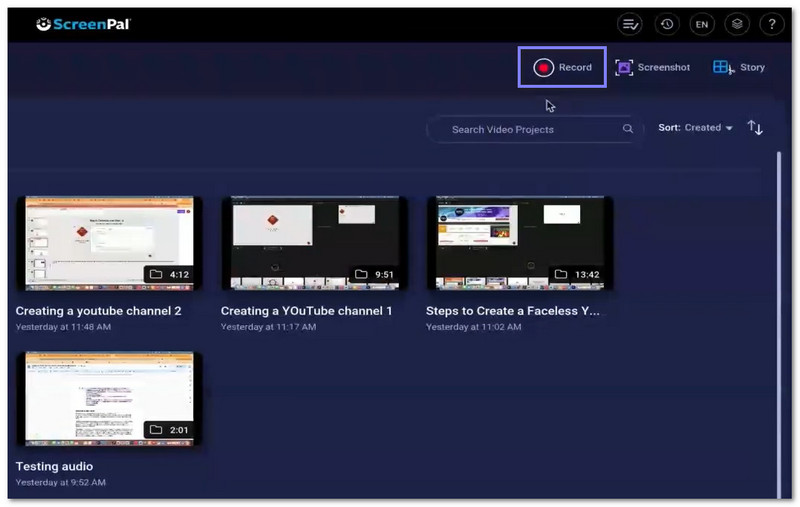
Passaggio 3 Scegli il microfono per la narrazione. Se necessario, puoi anche attivare l'audio di sistema. Regola le dimensioni e la posizione della fotocamera se utilizzi una webcam. Quindi premi Disco iniziare.
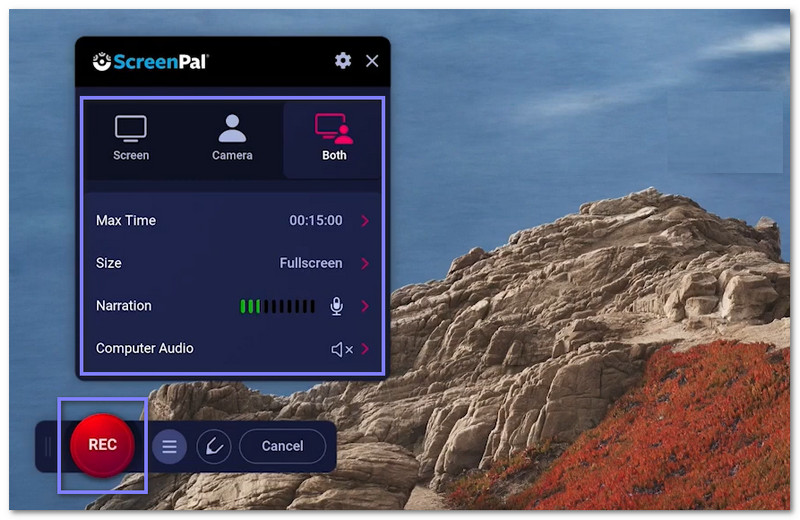
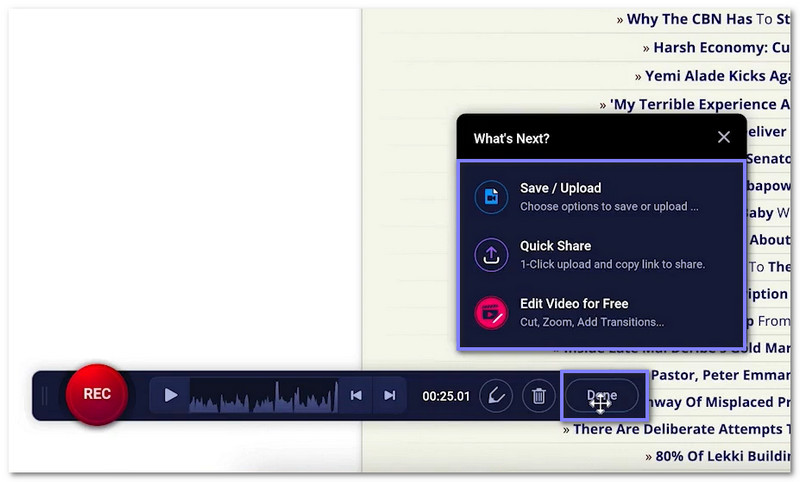
Passaggio 4Durante la registrazione, puoi disegnare, evidenziare, ingrandire o scrivere sullo schermo. Fai clic su pausa in qualsiasi momento. Una volta terminato, fai clic Fatto per interrompere la registrazione. Visualizza l'anteprima del video prima di salvarlo.
Passaggio 5Puoi salvare o caricare il tuo video. Puoi anche copiare un link di condivisione. Apri l'editor per tagliare, aggiungere testo, musica, sottotitoli o sovrapposizioni. Una volta terminato, esporta o carica su YouTube, Google Drive o ScreenPal Cloud.
Parte 9. Alternative a ScreenPal
1. DISPONIBILE Registratore schermo
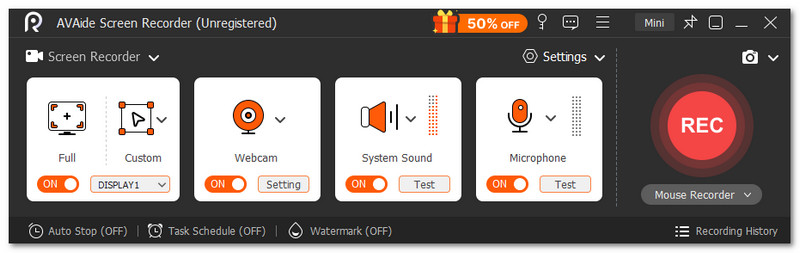
Ideale per: Ideale per studenti, giocatori, insegnanti e creatori di contenuti che necessitano di una registrazione dello schermo semplice e nitida, con audio, webcam e strumenti di editing.
Puoi usare AVAide Screen Recorder È ideale per registrare tutorial, sessioni di gioco, riunioni, lezioni online e presentazioni. Questo lo rende la migliore alternativa a ScreenPal, in quanto permette di gestire quasi tutte le esigenze di registrazione in un unico programma. È possibile scegliere tra la registrazione a schermo intero o di un'area personalizzata. Registra inoltre contemporaneamente l'audio di sistema e quello del microfono.
- Funzionalità di editing video integrate, disponibili dopo la registrazione.
- È possibile scattare schermate in qualsiasi momento durante la registrazione.
- Registrazione fluida, di lunga durata e senza ritardi.
- Registrazione dello schermo di alta qualità con risoluzione 4K o 1080p.
- Sono supportati numerosi formati di esportazione, come MP4, WMV, MOV, AVI e GIF.

 Download sicuro
Supporta anche la registrazione tramite webcam. Puoi mostrare il tuo viso mentre registri lo schermo. Sono inoltre disponibili strumenti di annotazione. Puoi aggiungere testo, frecce, forme ed evidenziazioni durante la registrazione. Puoi usarli per spiegare i passaggi o indicare le parti importanti sullo schermo. La cosa migliore è che offre registrazioni nitide senza filigrana.
Compatibilità: Funziona su Windows 11, 10, 8 e 7. Supporta anche il sistema operativo Mac X 10.12 o versioni successive.
2. Snagit
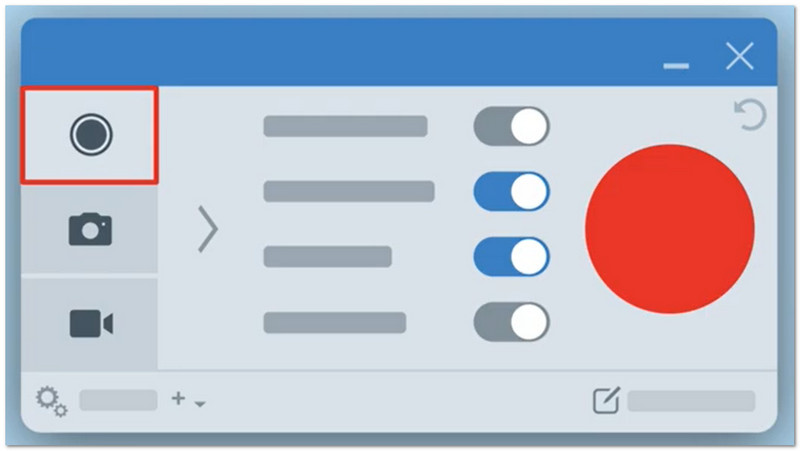
Ideale per: Realizzazione di video tutorial, scattare schermate e semplici istruzioni visive.
Snagit è un programma semplice ma potente per catturare e spiegare ciò che appare sullo schermo. Permette di acquisire screenshot, pagine lunghe e persino registrare video con la fotocamera. È possibile aggiungere frecce, testo ed evidenziazioni per rendere il tutto più chiaro. Dispone inoltre di funzionalità basate sull'intelligenza artificiale che trasformano i clic in guide passo passo. Molti utenti lo apprezzano perché semplifica e rende più chiara la condivisione delle idee.
Compatibilità: Funziona su Windows e Mac.
Prezzo: Il piano individuale costa circa 14,39 TP all'anno. Il piano aziendale costa circa 4,48 TP per utente all'anno. Il piano studenti costa circa 20 TP all'anno. Il piano insegnanti costa circa 39,36 TP per utente all'anno.
3. Tella
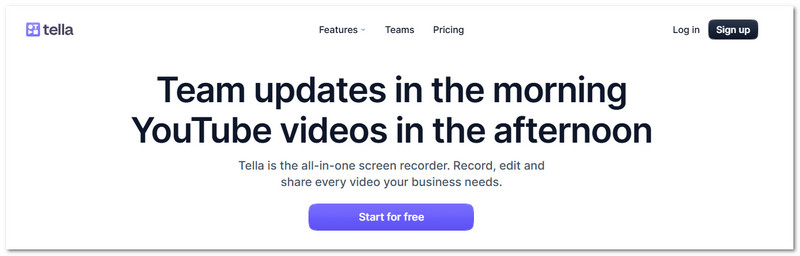
Ideale per: Creazione di demo di prodotto, video tutorial e aggiornamenti video del team.
Funziona all'interno di un browser, Tella risulta veloce e semplice per il lavoro video quotidiano. È uno schermo moderno e registratore webcamEsatto, ti permette di registrare contemporaneamente lo schermo e la webcam. Puoi anche cambiare il layout, aggiungere effetti zoom e correggere gli errori con semplici strumenti di editing. Inoltre, ti aiuta a eliminare facilmente silenzi e parole di riempimento. I tuoi video possono essere condivisi rapidamente tramite un link.
Compatibilità: Funziona tramite browser web ed è disponibile anche come applicazione per il sistema operativo Mac e come estensione per Chrome.
Prezzo: Il piano Pro costa circa $13 per utente al mese. Il piano Premium costa circa $19 per utente al mese. Il piano Enterprise prevede prezzi personalizzati per team numerosi ed esigenze particolari.
Da Screencast-O-Matic Per quanto riguarda ScreenPal, è chiaro che ha mantenuto la sua promessa. Aiuta gli utenti a registrare, modificare e condividere video dello schermo.
Nel caso in cui ti serva un'altra opzione, puoi anche provare AVAide Screen RecorderSnagit o Tella. Ognuno ha le sue caratteristiche principali a seconda delle esigenze!
INFORMAZIONI SULL'AUTORE

Registra schermo, audio, webcam, gameplay, riunioni online e schermo iPhone/Android sul tuo computer.
Registrazione dello schermo
- Registrazione schermo su Windows
- Registra Instagram Live
- Copia video da Tubi
- Converti i video di YouTube in MP3
- Scarica video da Fansly
- Scaricare i video di JW Player
- Scarica i video di Bilibili
- Scarica i video di Patreon
- Scarica i video di SpankBang
- Scarica i video di Discord
- Scarica il video di DoodSream