Se sei un utente Mac e hai bisogno di registrare lo schermo e l'audio, non devi cercare altrove. Tutto ciò di cui hai bisogno è già incluso in QuickTime Player.
In questo Registrazione schermo QuickTime In questa guida, ti insegneremo come usarlo dall'inizio alla fine. Dall'apertura del programma all'interruzione e al salvataggio della registrazione. Iniziamo subito!
Parte 1. Breve introduzione alla registrazione dello schermo con QuickTime
QuickTime Player è un programma gratuito per il sistema operativo Mac. Viene preinstallato in modo da poterlo utilizzare subito. Sebbene sia noto come lettore multimediale, funziona anche come... registratore dello schermo per MacGrazie a ciò, è possibile catturare lo schermo senza bisogno di applicazioni di terze parti. Inoltre, l'interfaccia è semplice e intuitiva.
1. Capacità principali
- Può registrare
Per l'uso quotidiano, offre le funzionalità di base. È possibile registrare l'intero schermo o selezionare un'area specifica. Allo stesso tempo, è possibile registrare video dalla webcam utilizzando la funzione "Nuova registrazione video". Permette anche di acquisire l'audio dal microfono e di visualizzare i clic del mouse sullo schermo. - Impossibile registrare (in formato nativo)
Purtroppo non è possibile registrare l'audio di sistema. Ciò è dovuto alle misure di sicurezza del sistema operativo Mac. Inoltre, non è possibile registrare contemporaneamente lo schermo e la webcam. - Limitazioni
Perché è un elemento fondamentale Lettore video 4K Sebbene sia un programma di registrazione, mancano alcune funzionalità. Ad esempio, salva i video solo in formato .mov. Di conseguenza, le dimensioni dei file possono essere elevate. Inoltre, non dispone di funzionalità di editing avanzate. Pertanto, non è possibile modificare la timeline. Non è nemmeno possibile aggiungere annotazioni o effetti.
Parte 2. Come avviare una registrazione dello schermo con QuickTime
Se vuoi sapere come usare QuickTime Player per registrare lo schermo con l'audio, ti basterà una semplice configurazione prima di iniziare.
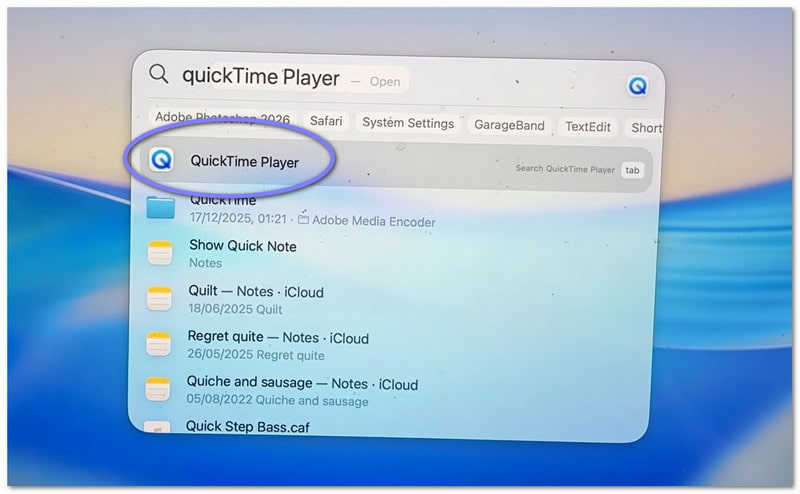
Passo 1Per prima cosa, vai al tuo Applicazioni cartella e apri il programma. Se vuoi un modo più veloce, usa la ricerca Spotlight. Premi Comando + Spazio, quindi digita Giocatore QuickTime. Premere accedere per aprirlo.
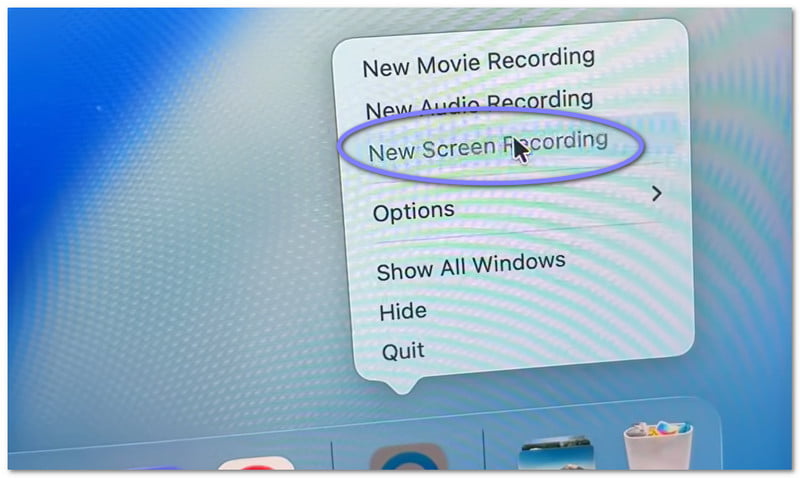
Passo 2Una volta aperto il programma, spostati sulla barra dei menu in alto. Fai clic File, quindi scegli Nuova registrazione dello schermo. Vedrai apparire una piccola schermata di registrazione. Se desideri una scorciatoia, premi Comando + Controllo + NIl programma di registrazione dello schermo si apre immediatamente.
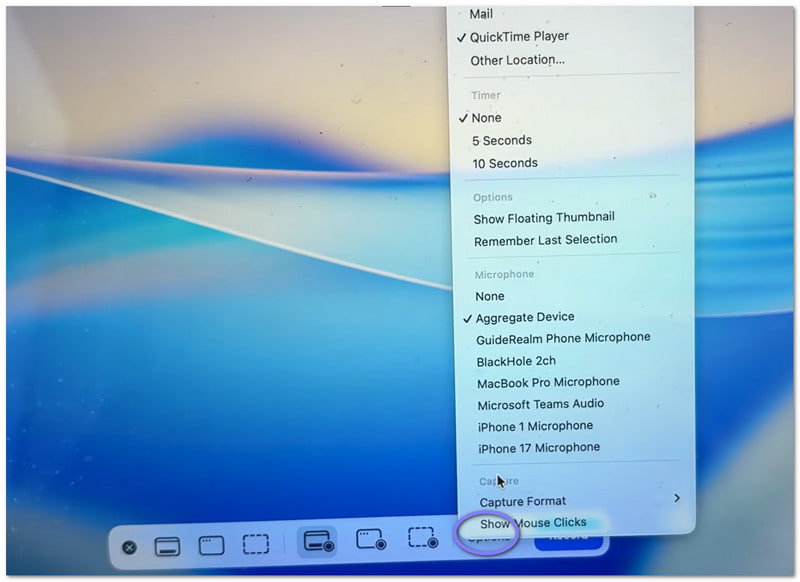
Passaggio 3Prima di iniziare, prenditi un momento per controllare le impostazioni. Fai clic su Opzioni Pulsante sul pannello di registrazione. Qui puoi scegliere il microfono se desideri registrare la tua voce. Puoi anche impostare un breve timer se hai bisogno di tempo per prepararti. Inoltre, puoi scegliere dove salvare il file dopo la registrazione.
Passaggio 4Ora, decidi cosa vuoi riprendere. Se vuoi riprendere tutto, clicca in un punto qualsiasi dello schermo. Verrà registrato l'intero schermo. Se invece ti serve solo una parte, seleziona l'area desiderata e trascina il mouse.
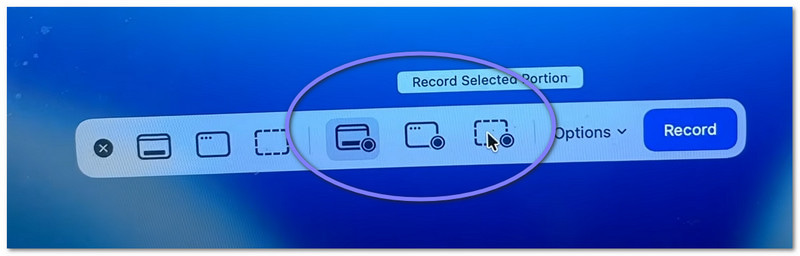
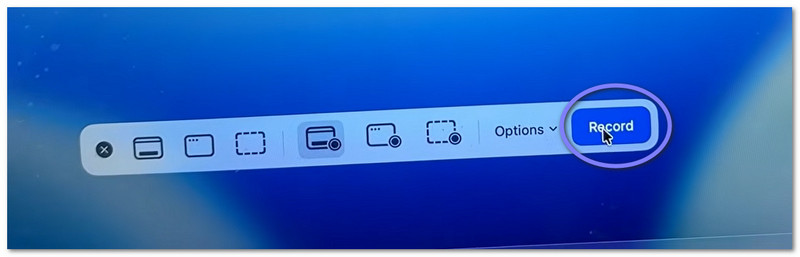
Passaggio 5Infine, fai clic su Disco Fai clic sul pulsante per iniziare. Dopo un breve ritardo, la registrazione avrà inizio. Durante la registrazione, svolgi le tue attività secondo necessità.
Parte 3. Come interrompere e salvare una registrazione QuickTime
Di seguito, ti spiegheremo come interrompere la registrazione dello schermo con QuickTime e come salvare correttamente il file:
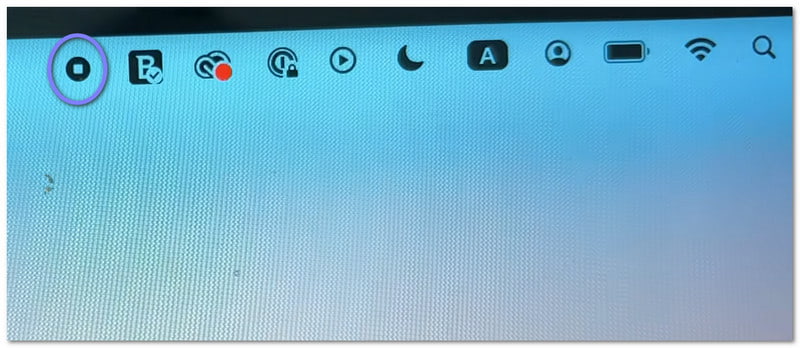
Passo 1Innanzitutto, sposta il cursore in alto a destra dello schermo. Cerca il Fermare pulsante. Ha l'aspetto di un cerchio con un piccolo quadrato all'interno. Cliccaci sopra per terminare la registrazione. In alternativa, puoi premere Comando + Controllo + Esc sulla tua tastiera.
Passo 2Dopo aver interrotto la registrazione, potrebbe apparire una piccola anteprima nell'angolo dello schermo. Si tratta della registrazione stessa. Puoi cliccarci sopra immediatamente se desideri aprire e rivedere il video. Se la ignori, il file verrà comunque salvato automaticamente.
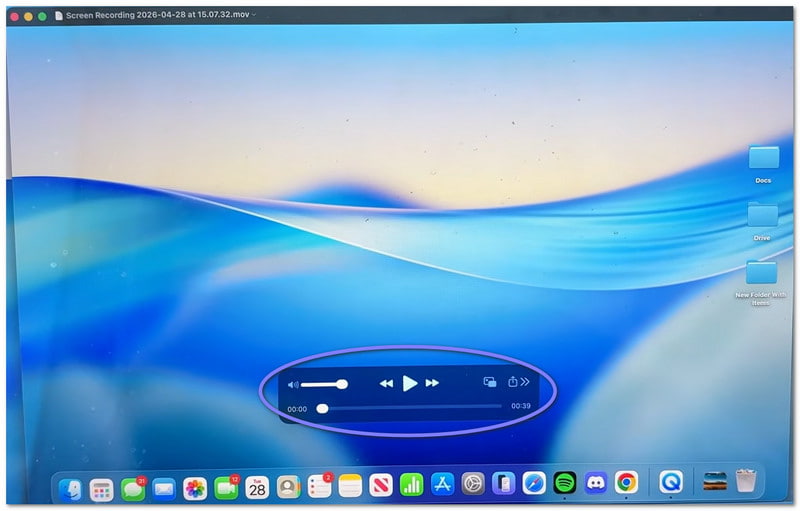
Passaggio 3Per impostazione predefinita, il video viene salvato sul desktop o nella posizione scelta. Se si desidera salvarlo manualmente, aprire prima il video. Quindi, andare alla barra dei menu e fare clic su File, poi SalvaDopodiché, digita un nome per il tuo file. Scegli dove vuoi salvarlo, quindi fai clic Salva.
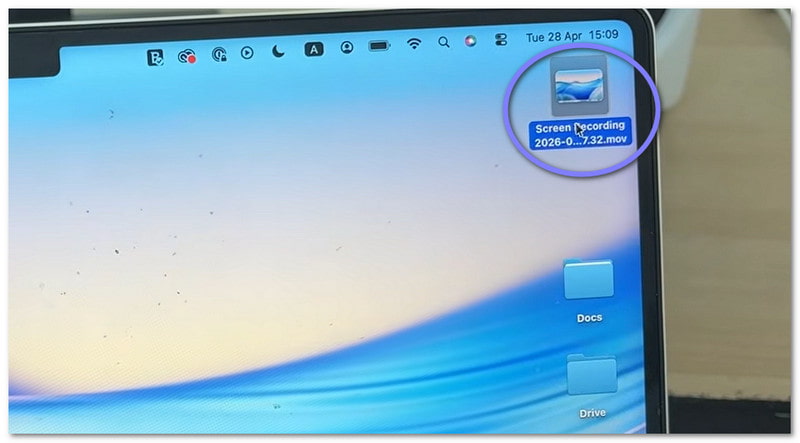
Passaggio 4Una volta aperto il video, è possibile effettuare semplici modifiche. Ad esempio, si può tagliare l'inizio o la fine. È anche possibile ruotare il video, se necessario. Inoltre, è possibile condividerlo direttamente dall'applicazione.
Parte 4. Risoluzione dei problemi
A volte, la registrazione dello schermo non va come previsto. Possono verificarsi piccoli problemi. La buona notizia è che la maggior parte di essi è facile da risolvere in QuickTime Player.
1. "QuickTime Player ha riscontrato un errore durante la registrazione dello schermo."
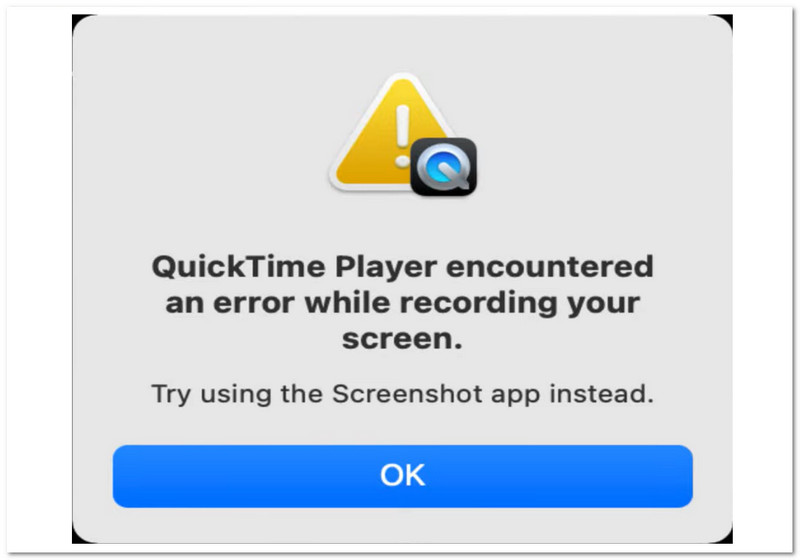
Esistono diverse ragioni principali per cui può comparire l'errore "QuickTime Player ha riscontrato un errore durante la registrazione dello schermo".
Innanzitutto, controlla la posizione di salvataggio. Se stai salvando su un'unità esterna, prova a passare al Desktop. Spesso risolve il problema. Successivamente, controlla lo spazio di archiviazione disponibile. Se il disco è pieno, la registrazione potrebbe non riuscire.
Assicurati inoltre che le autorizzazioni siano attive. Vai a Impostazioni di sistema > Privacy e sicurezza > Registrazione dello schermo. Quindi, verifica se QuickTime Player è consentito.
2. La mia registrazione QuickTime non ha audio!
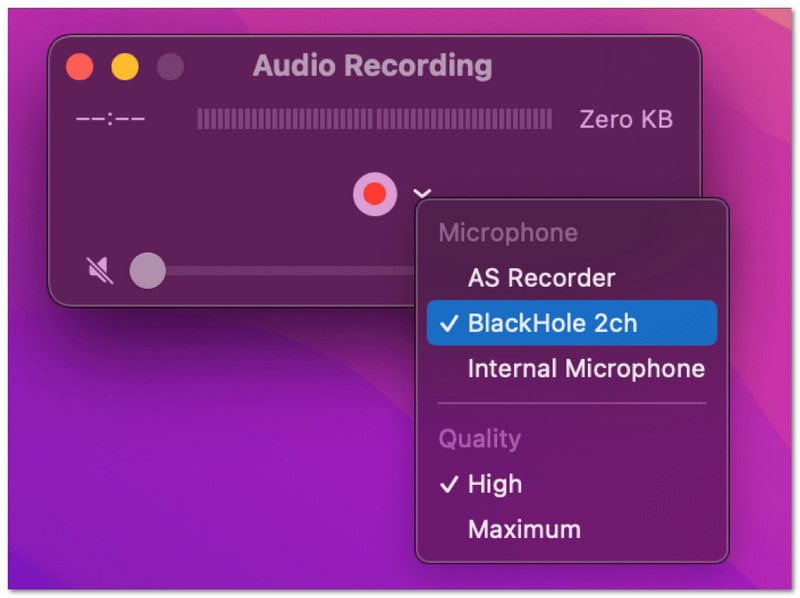
Se il tuo video non ha audio, controlla le impostazioni prima di registrare. Apri il Opzioni menu. Quindi, scegli un microfono, ad esempio "Microfono integrato". Se non viene selezionato alcun microfono, non verrà registrato alcun suono. Inoltre, testa prima il microfono per assicurarti che funzioni.
3. QuickTime non registra l'audio di sistema
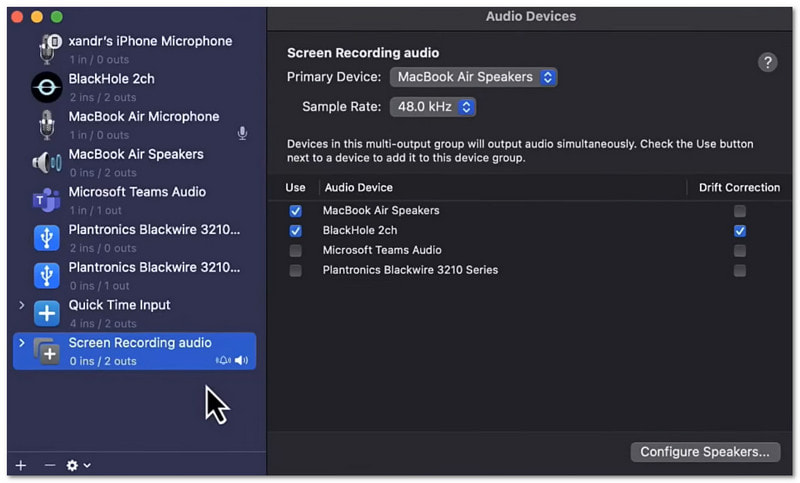
È normale. QuickTime Player non può registrare l'audio di sistema per impostazione predefinita. Ciò è dovuto alle regole del sistema operativo Mac. Per registrare l'audio di sistema, sono necessari strumenti aggiuntivi. Ad esempio, è possibile utilizzare Background Music o Loopback.
Parte 5. Esiste un'alternativa a QuickTime per Windows?
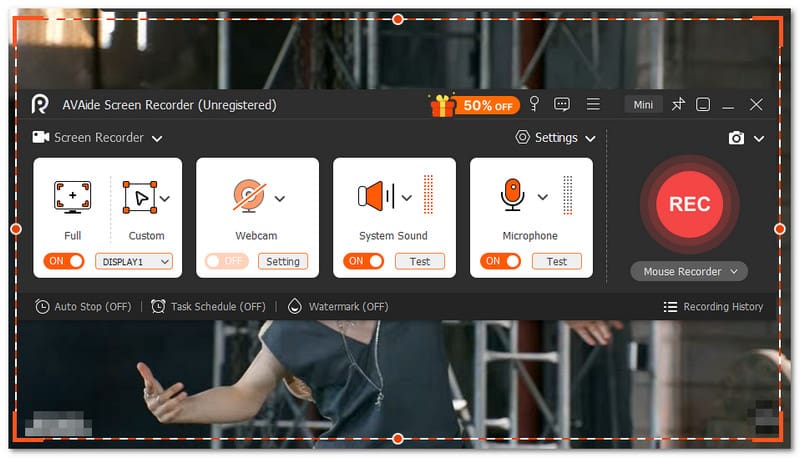
Sì, esiste un'alternativa a QuickTime per registrare lo schermo su Windows. E non è altro che AVAide Screen Recorder.

DOWNLOAD GRATUITO Per Windows 7 o successivo
 Download sicuro
DOWNLOAD GRATUITO Per Mac OS X 10.13 o successivo
Download sicuroCon questo strumento, puoi scegliere facilmente tra la registrazione a schermo intero o personalizzata. Puoi anche attivare la webcam, l'audio di sistema e il microfono. Non è necessaria una configurazione complessa: basta attivare ciò che ti serve con un solo clic. Inoltre, ti permette di registrare video dello schermo in alta qualità senza ritardi. Supporta risoluzioni fino a 4K, garantendo immagini nitide e fluide.
Quindi, qualsiasi cosa tu registri, come tutorial, sessioni di gioco, riunioni o video online, può catturarla con buona nitidezza e prestazioni stabili.
Caratteristiche principali:
- È possibile impostare un orario per l'avvio e l'arresto automatico della registrazione da parte dello strumento.
- È possibile registrare per lunghe ore senza interruzioni o problemi di prestazioni.
- Puoi guardare la registrazione subito dopo e registrare di nuovo se non sei soddisfatto.
- Durante la registrazione è possibile aggiungere testo, immagini, una lavagna e indicatori di messa a fuoco per evidenziare i punti chiave.
- Dopo la registrazione è possibile ritagliare, tagliare, comprimere, unire e convertire i video, nonché regolare o amplificare l'audio.
Com'è stato l'apprendimento? come utilizzare QuickTime Player per registrare lo schermoÈ davvero facile, vero? Puoi iniziare subito e finire senza problemi.
L'unico problema è che ha funzionalità limitate. Non ha la potenza di un registratore completo come AVAide Screen Recorder.
Quindi, che siate utenti Windows o Mac, potete affidarvi ad AVAide Screen Recorder. Scaricatelo subito e godetevi le sue funzionalità e la fluidità delle registrazioni!
INFORMAZIONI SULL'AUTORE

Cattura il momento migliore con AVAide Screen Recorder. Screencast, personalizza e condividi in pochi secondi.
Registrazione dello schermo
- Registrazione schermo su Windows
- Registra Instagram Live
- Copia video da Tubi
- Converti i video di YouTube in MP3
- Scarica video da Fansly
- Scaricare i video di JW Player
- Scarica i video di Bilibili
- Scarica i video di Patreon
- Scarica i video di SpankBang
- Scarica i video di Discord
- Scarica il video di DoodSream