ASUS je dobro poznat kao brend po svojim prijenosnim računalima za igranje, kao što su ASUS TUF i ASUS ROG. Budući da se ovaj brend više fokusira na igrače, postoji velika potražnja za pouzdanim značajkama snimanja zaslona koje se mogu koristiti u igranju. Ako ste jedan od njegovih strastvenih korisnika, možete otkriti Kako napraviti snimku zaslona na ASUS prijenosnom računalu na različite načine. Ovaj članak prikazuje ključne prečace za pokretanje opcije snimke zaslona, kao i korištenje raznih ugrađenih aplikacija za korištenje bilo koje online aktivnosti bez ograničenja.
Dio 1. Najbolji načini za snimanje zaslona na ASUS Windows prijenosnom računalu
Ono što trebate znati o snimanju zaslona na Chromebooku ASUS jest da postoji više zadanih metoda za to. S obzirom na svoje ime, gumb PrintScreen na tipkovnici je ugrađena opcija za snimanje zaslona, ali može biti jednostavan. To znači da može snimiti samo cijeli zaslon ili željeno područje. Ipak, PrintScreen obavlja posao, ali možete otkriti i druge načine za snimanje zaslona čitajući odjeljak u nastavku.
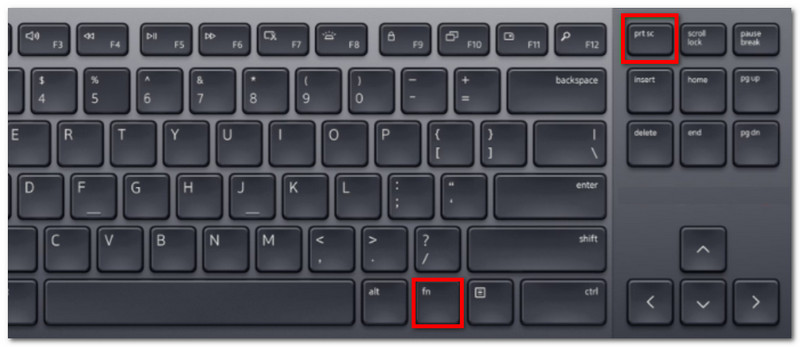
1. Korištenje standardnih prečaca na tipkovnici sustava Windows
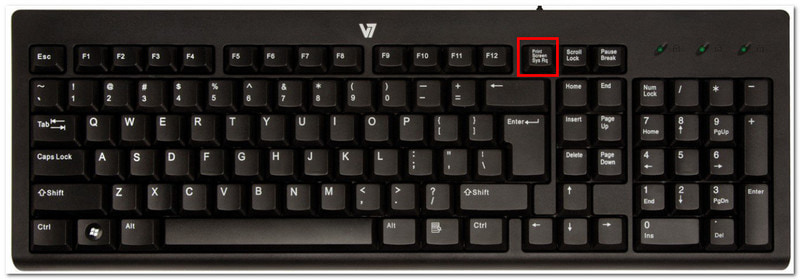
• PrtSc (Ispis zaslona)
Pritisnite PrintScreen ili PRT SC gumb na tipkovnici. Obično se nalazi u gornjem desnom dijelu. U gornjem srednjem kutu zaslona pojavit će se izbornik s opcijama za cijeli zaslon, prozor i slobodno izrezivanje. Odaberite jednu od njih za snimanje zaslona.
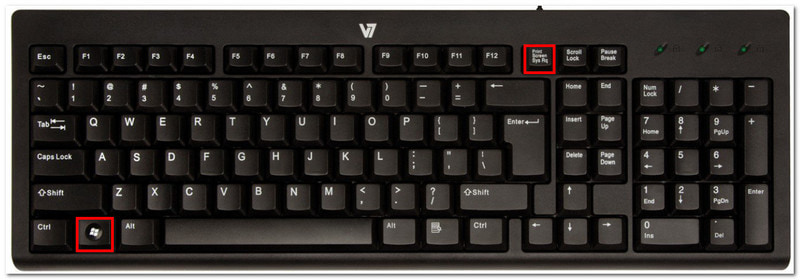
• Windows + PrtSc
Istovremenim pritiskom na Windows i Ispis zaslona gumbe, snimili ste snimku zaslona cijelog zaslona. Ali umjesto da sustav automatski spremi sliku u mapu, ona se sprema u vaš međuspremnik, koji možete zalijepiti u poruku, chat, dokument itd.
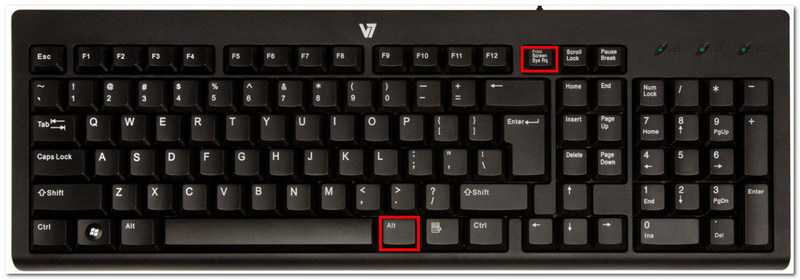
• Alt + PrtSc
Druga metoda koju biste trebali isprobati je Alt i PrtSc prečac. S ovom opcijom vaše računalo će snimiti samo jedan aktivni prozor. Zatim ga možete zalijepiti bilo gdje jer se sprema samo u međuspremnik. Prije korištenja Alt + PrtSc provjerite jeste li kliknuli na željeni prozor.
• Fn + PrtSc
Ova opcija ima istu funkciju kao i sama tipka PrtSc. Omogućit će vam pristup izborniku s različitim načinima snimanja zaslona. Međutim, bit će dobra alternativa ako vaš PrtSc ponekad ne radi.
2. Korištenje alata za izrezivanje u sustavu Windows i alata za izrezivanje i skiciranje
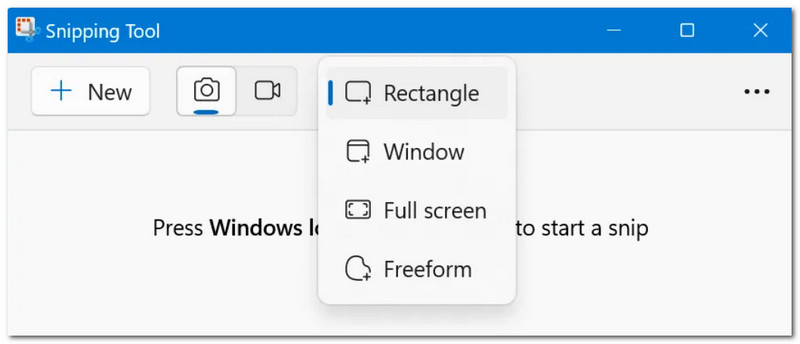
Kada tražite način za snimanje zaslona na ASUS Vivobooku, imate ugrađeni alat za izrezivanje i alat za izrezivanje i skiciranje. Unaprijed instalirana dva alata idu ruku pod ruku za snimanje zaslona, a nude i značajke crtanja koje vam omogućuju označavanje i označavanje fotografije prije spremanja ili lijepljenja. Štoviše, može postaviti raspored odgode do 10 sekundi prije snimanja zaslona. Ako vaš ASUS nema tu opciju, možete je besplatno preuzeti iz Microsoftove trgovine.
3. Korištenje Xbox Game Bara (za igrače)
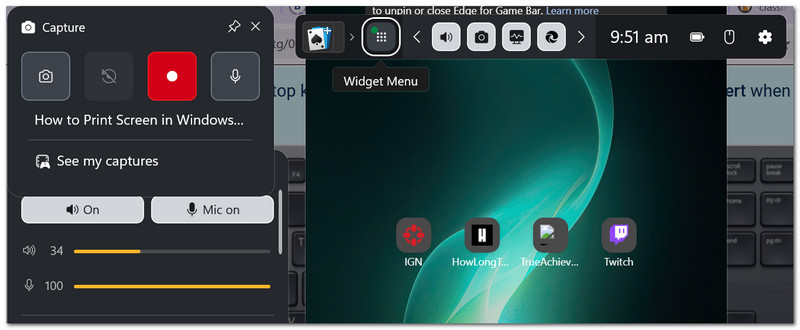
Xbox Game Bar je još jedan unaprijed instalirani alat za Windows 10 i novije verzije. Nudi razne besplatne značajke, uključujući snimanje zaslona. Budući da je namijenjen igračima, može snimiti zaslon bez prekidanja igranja. Game Bar možete aktivirati pritiskom na Windows i G na tipkovnici, zatim možete pritisnuti Windows + Alt + PrtSc za snimanje zaslona preko cijelog zaslona.
4. Korištenje alata treće strane
Nakon što naučite kako napraviti snimku zaslona na ASUS prijenosnom računalu na osnovne načine, i dalje možete poboljšati svoje iskustvo snimanja zaslona pomoću AVAide Screen RecorderTo je sveobuhvatno rješenje kada je u pitanju snimanje zaslona, video i audio zapisa. Snima visokokvalitetne fotografije u slobodnom rasponu, a možete ih spremiti u različitim formatima slika, kao što su JPG, PNG, TIFF, BMP i GIF. Nudi ugrađene opcije crtanja, tako da možete crtati raznim bojama ili dodavati napomene slici.
Korak 1Preuzmite AVAide Screen Recorder na svoje računalo i instalirajte ga dovršetkom postupka instalacije.

BESPLATNO PREUZIMANJE Za Windows 7 ili noviji
 Sigurno preuzimanje
BESPLATNO PREUZIMANJE Za Mac OS X 10.13 ili noviji
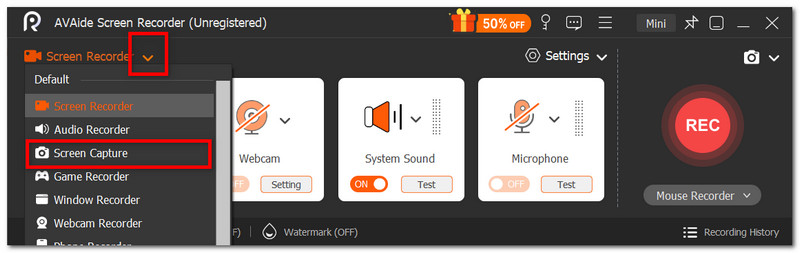
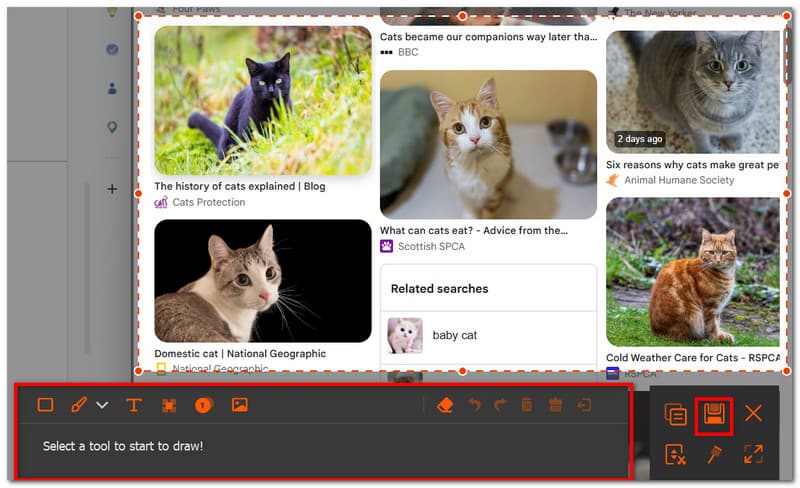
Sigurno preuzimanjeKorak 2Iz padajućeg izbornika odaberite Snimanje zaslona opcija. Funkcija se odmah može koristiti za snimanje zaslona. Povucite kursor na zaslon gdje želite snimiti.
Korak 3Pomoću funkcija uređivanja crtajte ili dodajte bilješke na sliku. Na kraju kliknite Uštedjeti gumb za spremanje snimke zaslona u određenu mapu.
Dio 2. Metode snimanja zaslona specifične za ASUS (skriveni prečaci)
Ovaj dio raspravlja o metodama snimanja zaslona koje su dostupne isključivo za ASUS prijenosna računala. To će biti izvrsno rješenje ako gumb Print Screen ne radi.
1. ASUS-specifične metode snimanja zaslona (skriveni prečaci)
Prvo, ako je vaš ASUS model između ROG gaming linija ili određene Zenbook serije, Fn + F11 može pristupiti Alatu za izrezivanje na vašem uređaju. Međutim, ako isprobate ovu opciju i ona pretvori aktivni prozor u cijeli zaslon, vaše prijenosno računalo možda nije uključeno u spomenutu seriju.
Drugi skriveni prečac je Windows + Shift + S, koji možete koristiti na bilo kojem ASUS modelu. Ovako možete napraviti snimku zaslona na ASUS prijenosnom računalu bez gumba za ispis zaslona, jer je to alternativni način pristupa alatu za izrezivanje.
2. Korištenje aplikacije MyASUS (za odabrane modele)
Ako je vaš ASUS iz serije Zenbook S ili Vivobook S, korištenje aplikacije MyASUS je dobra metoda. Međutim, sama aplikacija ne nudi opciju snimanja zaslona, već pruža značajke snimanja zaslona poput Perfect Screenshot i ScreenXpert. Također prilagođava tipke prečaca, pa može biti korisna kada PrtSc nedostaje na tipkovnici.
Dio 3. Kako napraviti snimku zaslona na ASUS Chromebooku
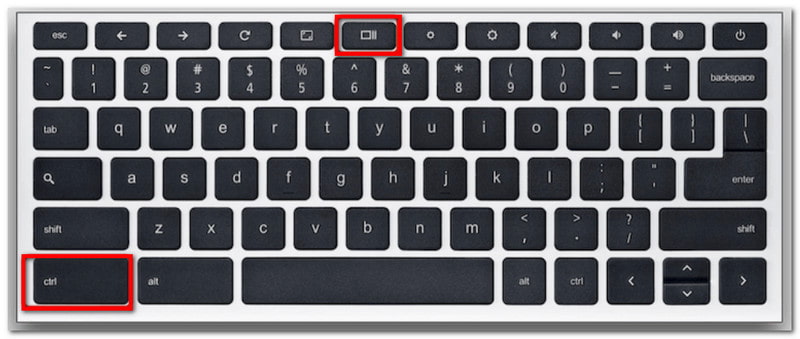
Snimanje zaslona na Chromebooku malo se razlikuje od ostalih ASUS modela. Možda ćete primijetiti da vaša tipkovnica nema PrtSc, ali i dalje možete aktivirati značajku snimanja na sljedeći način:
Korak 1Pritisnite Ctrl + Prikaži tipke istovremeno za snimanje zaslona u načinu rada preko cijelog zaslona.
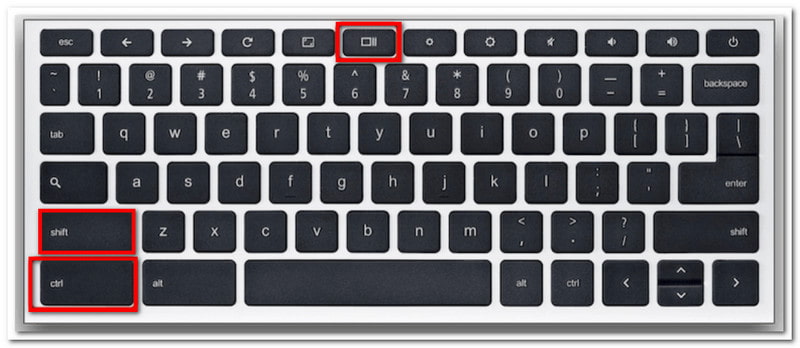
Korak 2Za djelomični način snimanja zaslona pritisnite Shift + Ctrl + Prikaži, a zatim povucite i kliknite na željeno područje.
Dio 4. Tablica brze usporedbe: Odaberite svoju najbolju metodu
S obzirom na mnoge metode za snimanje zaslona na vašem ASUS prijenosnom računalu, možete se zbuniti oko toga koja je najbolja za korištenje za određene potrebe. Pa, pripremili smo tablicu sa svim metodama spomenutim u ovom članku kako biste vidjeli razliku.
| Metode snimanja zaslona zaslona | Najbolje za | Kamo datoteka ide |
| Standardne tipkovničke prečace za Windows | Zadano snimanje zaslona na svim ASUS modelima | Međuspremnik, Slike > Mapa snimki zaslona |
| Alat za izrezivanje u sustavu Windows i alat za izrezivanje i skiciranje | Uređivanje, isticanje, crtanje i označavanje snimaka zaslona | Međuspremnik |
| Xbox Game Bar | Snimka zaslona s neprekinutim igranjem | Videozapisi > Mapa snimki |
| Skriveni prečaci specifični za ASUS | Prilagođene tipke prečaca | MyASUS preuzimanja ili mapa predmemorije aplikacija |
| AVAide Screen Recorder | Snimanje zaslona u svim smjerovima; Sprema snimke zaslona kao BMP, TIFF, JPEG itd. | Mapa AVAide Studija |
S priloženim uputama na Kako napraviti snimku zaslona na ASUS prijenosnom računalu, neće vam ponestati metoda za snimanje aktivnosti na zaslonu. Ovaj članak je prikazao tipke prečaca i ugrađene aplikacije na vašem uređaju. Nadalje, AVAide Screen Recorder predstavljen je kao bolja alternativa, ne samo za snimke zaslona, već i kao najbolji video rekorderIsprobajte vrhunski softver za snimanje na Windowsima i Macu jednostavnim klikom na gumb Preuzmi.
O AUTORU

Snimanje zaslona, zvuka, web kamere, igranja, mrežnih sastanaka, kao i iPhone/Android zaslona na vašem računalu.
Snimanje zaslona
- Snimanje zaslona u sustavu Windows
- Snimanje uživo na Instagramu
- Ripni videozapise s Tubija
- Pretvori YouTube videozapise u MP3
- Preuzmite videozapise s Fanslyja
- Preuzimanje JW Player videa
- Preuzmite Bilibili videozapise
- Preuzmite Patreon videozapise
- Preuzmite SpankBang videozapise
- Preuzmite Discord videozapise
- Preuzmite DoodSream video