YouTube je dom milijunima videozapisa koji prikazuju kreativnost ljudi putem blogova, korisnih savjeta ili recenzija. No, budući da želi zaštititi sadržaj na web stranici, YouTube svojim korisnicima zabranjuje preuzimanje videozapisa izvan platforme. Budući da postoje ljudi koji prenose sadržaj koji nije njihov i ne obavještavaju pravilno izvornog autora, to se smatra zlonamjernim ponašanjem. Ako je za osobnu upotrebu, jedan od načina da imate vlastitu kopiju je snimanje. Ovaj članak će vas voditi kroz kako snimati YouTube videozapise na raznim uređajima, kao što su računalo ili telefon.
- Dio 1. Snimanje YouTube videa na PC ili Mac (način za stolna računala)
- Dio 2. Snimanje YouTube videa na iPhoneu ili Androidu (mobilni način)
- Dio 3. Snimanje YouTube videa na Xboxu (način konzole)
- Dio 4. Kako snimiti zvuk s YouTubea (samo izdvajanje zvuka)
- Dio 5. Kako snimiti visokokvalitetni sadržaj za svoj YouTube kanal
Dio 1. Snimanje YouTube videa na PC ili Mac (način za stolna računala)
1. Ugrađeni alati (najjednostavniji i besplatni)
Kako snimiti YouTube video na računalu? Bez obzira koristite li računalo s operativnim sustavima Windows ili Mac, možete besplatno snimati videozapise s YouTubea i drugih web stranica. Pogledajte sljedeće korake kako to učiniti.
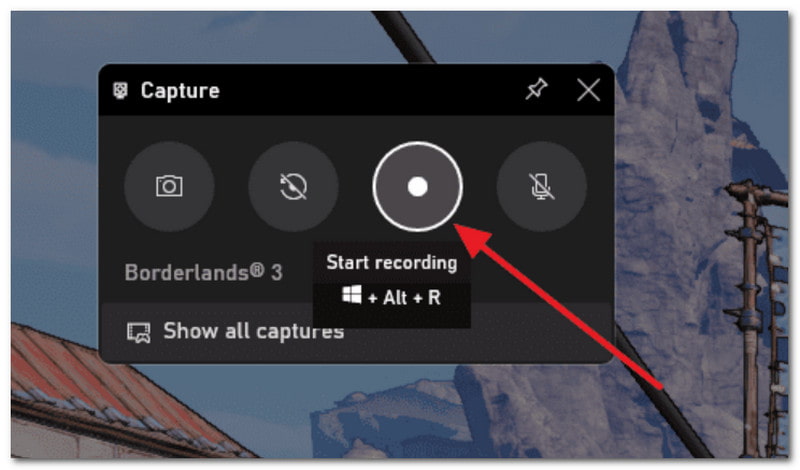
Windows - Xbox traka za igre
Provjerite je li vaše računalo ažurirano na Windows 10 ili noviji kako biste dobili Xbox Game Bar. Zatim učinite sljedeće:
Korak 1Otvorite YouTube i pronađite videozapis koji želite snimiti. Istovremeno pritisnite Windows i G tipke na vašoj tipkovnici.
Korak 2U desnom kutu kliknite na Krug gumb za početak snimanja. Zatim možete kliknuti isti gumb za zaustavljanje nakon što završite.
Mac - QuickTime Player
Iako se QuickTime Player koristi za reprodukciju medijskih datoteka na Macu, može se koristiti i kao YouTube video snimač. Evo koraka koje treba slijediti:
Korak 1Otvorite QuickTime Player na računalu i kliknite Datoteka. Odaberi Novo snimanje ekrana opcija.
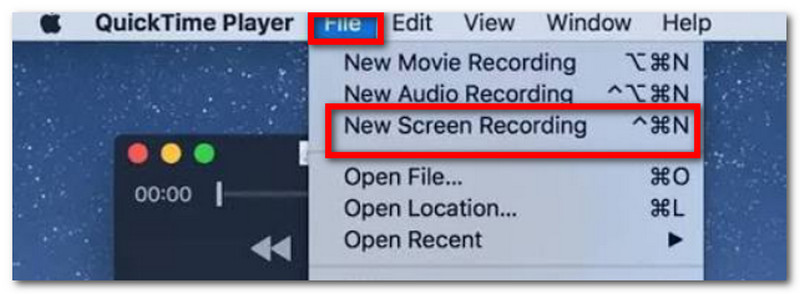
Korak 2Pomoću male strelice pored snimača možete podesiti nekoliko postavki. Zatim kliknite Snimiti gumb za snimanje YouTube videa.
2. Proširenja preglednika (najjednostavnije za jedan video)
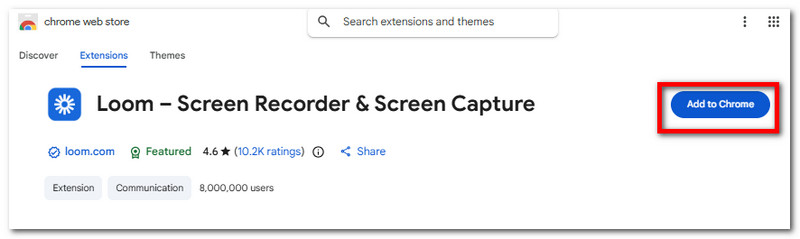
Loom je jedan od najlakših načina za snimanje YouTube videa kao proširenje. Nudi brzu krivulju učenja za snimanje sadržaja na zaslonu i generiranje poveznice za dijeljenje s ljudima. Njegove značajke također uključuju istovremeno snimanje videa, mikrofona i internog zvuka, kao i automatsko spremanje videa u oblak. Uz to rečeno, evo kako koristiti Loom kao snimač zaslona na YouTubeu:
Korak 1Otvorite Chrome web-trgovinu i preuzmite Loom kako biste ga dodali u svoj preglednik. Iz Ekstenzije ikonu, možete prikvačiti Loom kako biste ga mogli koristiti bilo kada.
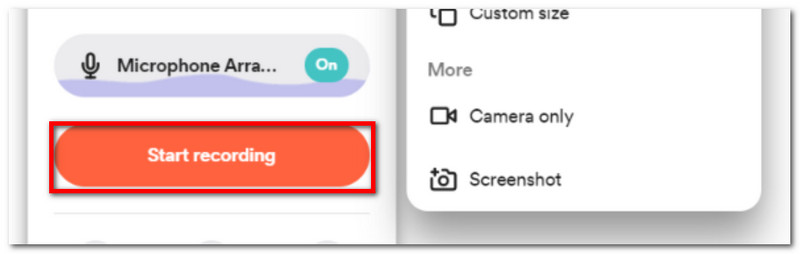
Korak 2Postavite snimač zaslona prema želji, a zatim kliknite Započni snimanje za snimanje YouTube videa. Vaši će se videozapisi spremiti na račun registriran na Loomu.
3. AVAide Snimač zaslona
Osim videozapisa, možda biste htjeli naučiti i kako zasebno snimati zvuk s YouTubea. AVAide Screen Recorder je vrhunski izbor za snimanje visokokvalitetnog sadržaja na Windowsima i Macu. Softver je dizajniran s elegantnim sučeljem koje vam omogućuje upoznavanje s alatima. Naravno, nudi razne načine snimanja, kao što su putem mikrofona, web kamere, online sastanka i na zaslonu. Naravno, Screen Recorder sprema snimljeni sadržaj u popularne izlazne formate, podržavajući MP3, MP4, MOV, M4A i druge. Nadalje, omogućuje vam dodavanje napomena, postavljanje rasporeda za snimanje i prilagodbu područja zaslona koje želite snimiti. Doista, AVAide Screen Recorder je pravi izbor za izvrsno snimanje videa i zvuka!
Korak 1Preuzmite AVAide Screen Recorder na svoj uređaj. Pažljivo pročitajte upute kako biste uspješno instalirali softver.

BESPLATNO PREUZIMANJE Za Windows 7 ili noviji
 Sigurno preuzimanje
BESPLATNO PREUZIMANJE Za Mac OS X 10.13 ili noviji
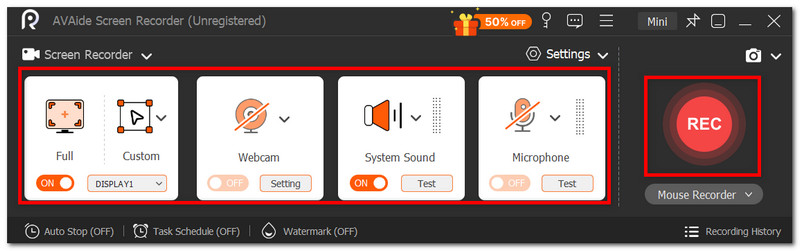
Sigurno preuzimanjeKorak 2U izborniku Postavke možete postaviti veličinu zaslona, audio ulaz itd. Nakon što završite, kliknite gumb SNIMI za snimanje zaslona na YouTubeu.
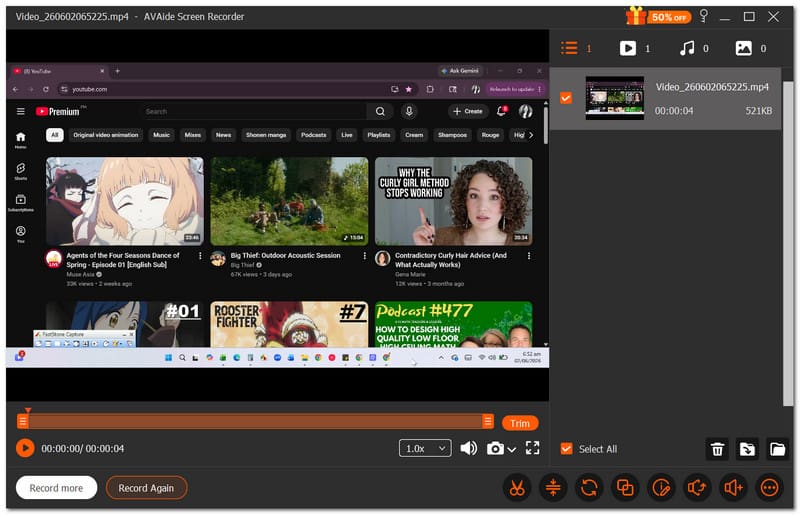
Korak 3Kliknite na Stop gumb ako ste završili sa snimanjem. Pregledajte rezultat ili ga spremite u lokalnu mapu/pogon.
Dio 2. Snimanje YouTube videa na iPhoneu ili Androidu (mobilni način)
Ne postoji težak način za naučiti snimati YouTube video na iPhoneu ili Androidu, jer vaš telefon ima ugrađeni snimač zaslona za snimanje sadržaja na zaslonu. Međutim, imajte na umu da snimač zaslona na vašem telefonu ne snima video sa zvukom. Aplikacija treće strane može biti jedina opcija za snimanje zaslona sa zvukom.
Za iPhone:
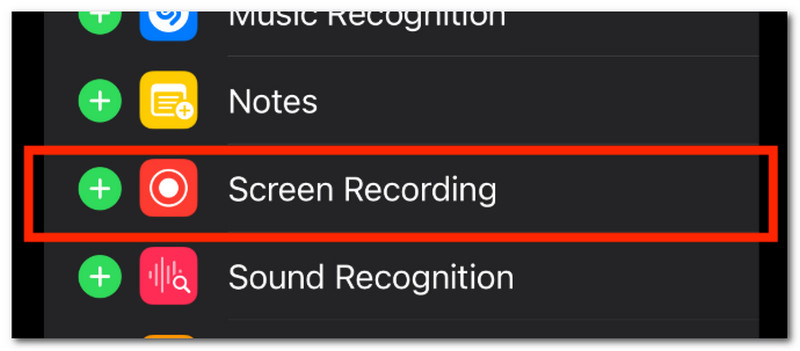
Korak 1Idite u Postavke na telefonu i idite na Kontrolni centar. Dodirnite Plus gumb za dodavanje Snimača zaslona u Kontrolni centar.
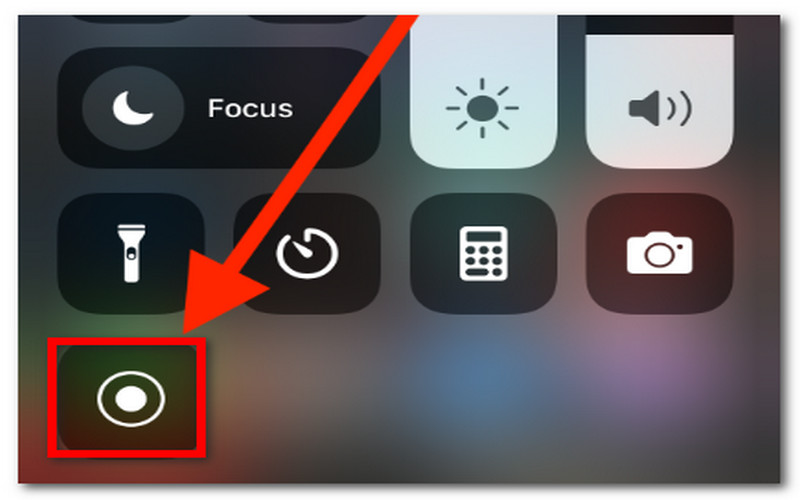
Korak 2Iz gornjeg desnog kuta zaslona prijeđite prstom prema dolje i dodirnite Snimiti gumb. Nakon što završite sa snimanjem, ponovno dodirnite gumb iz Kontrolnog centra. Snimljeni videozapis možete pogledati u aplikaciji Fotografije.
Za Android:
Korak 1Prijeđite prstom od gornjeg dijela telefona za pristup Brzoj ploči. Dodirnite Snimanje zaslona.
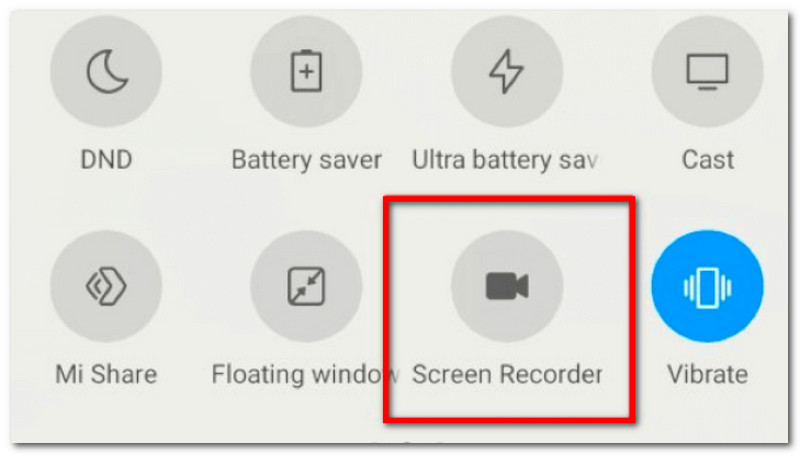
Korak 2Po želji možete konfigurirati snimanje zvuka uređaja u videozapisu. Zatim dodirnite obavijest Snimač zaslona da biste zaustavili snimanje.
Dio 3. Snimanje YouTube videa na Xboxu (način konzole)
Jedan od načina snimanja YouTube videa pomoću konzole je korištenje PC kartice za snimanje. Omogućit će vam prikaz sadržaja računala na konzoli, koji možete snimati pomoću ugrađenog snimača zaslona Xboxa. Pogledajte sljedeći vodič o snimanju YouTube videa na Xboxu:
Korak 1Umetnite HDMI kabel u HDMI ulazni priključak vanjske kartice za snimanje. Zatim priključite USB kabel kartice za snimanje u računalo.
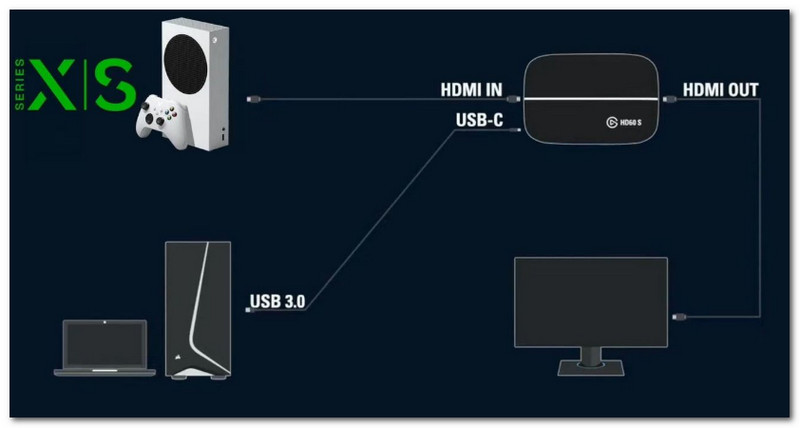
Korak 2S kartice za snimanje HDMI izlazni priključak, spojite još jedan HDMI kabel na monitor. Na računalu morate imati softver poput OBS Studija kako biste dodali karticu za snimanje kao Uređaj za video snimanje.
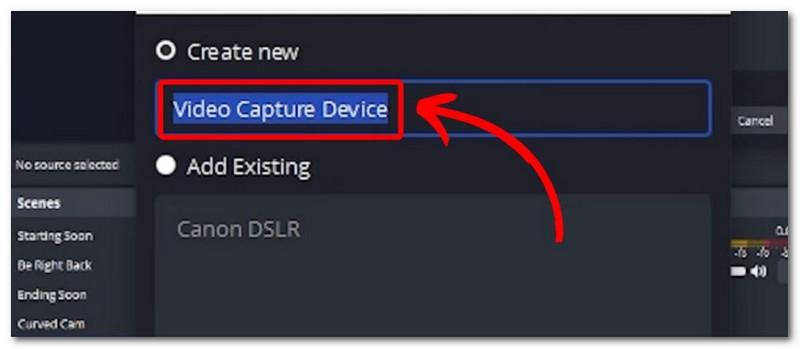
Korak 3Otvorite YouTube, a zatim pritisnite Xbox gumb za navigaciju do Snimi i podijeli prozor. Klik Započni snimanje za snimanje YouTube videa.
Dio 4. Kako snimiti zvuk s YouTubea (samo izdvajanje zvuka)
Za snimanje zvuka s YouTubea postoje dva pouzdana načina. Ovaj dio će pokazati kako koristiti Audacity, besplatno rješenje za snimanje zvuka koje možete nabaviti na Windowsima i Macu, te YouTube u MP3 pretvarač za preuzimanje YouTube videa kao audio datoteka.
Metoda 1: Softver za snimanje zvuka sustava (Audacity)
Korak 1 Preuzmite i instalirajte Audacity na svoje računalo. Otvorite softver i postavite postavke prema svojoj želji.
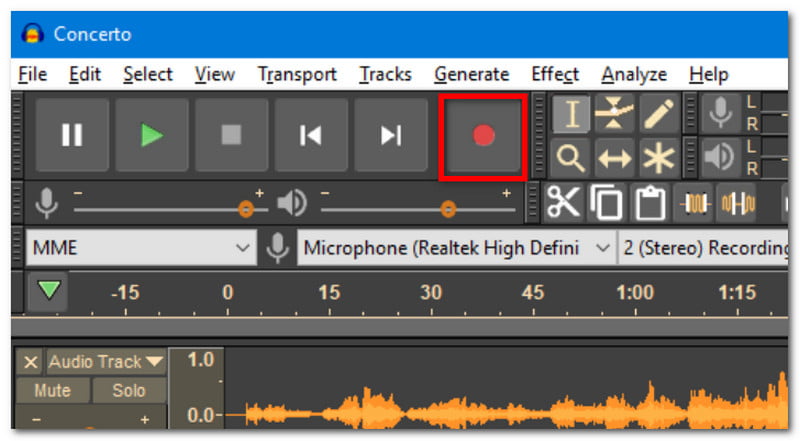
Korak 2Klik Snimiti za snimanje YouTube videa. Možete uredi audio zapis obrezivanjem početka i kraja audio isječka i njegovim izvozom u mapu.
Metoda 2: Online pretvarač s YouTubea u MP3
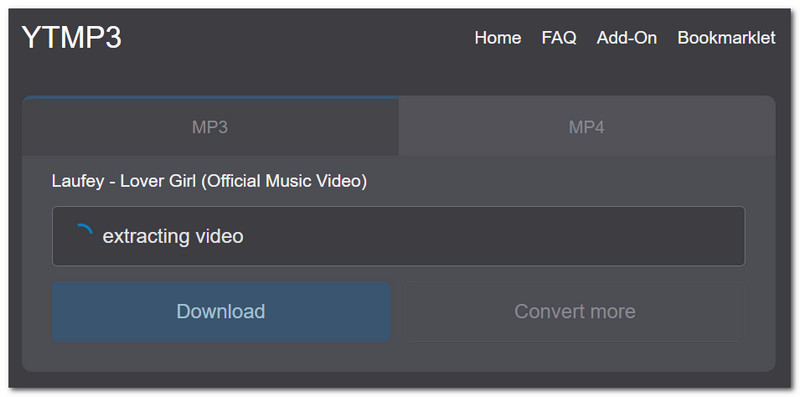
Korak 1Otvorite aplikaciju YouTube i potražite videozapis koji želite pretvoriti u audio. Kopirajte poveznicu, a zatim potražite YouTube to MP3 Converter da biste zalijepili poveznicu.
Korak 2Zatim kliknite Pretvoriti da biste videozapis pretvorili u zvuk i pričekajte da se postupak dovrši. Kliknite preuzimanje datoteka za spremanje audio datoteke.
Dio 5. Kako snimiti visokokvalitetni sadržaj za svoj YouTube kanal
Možda ste se na Redditu pitali: "Treba li mi stativ za snimanje YouTube videa?" kada planirate snimati vlastiti sadržaj. Trebat će vam nekoliko komada opreme za početak snimanja, a ako ste početnik, možda biste trebali početi sa sljedećim:
Preporuke za opremu
Posjedovanje pametnog telefona već je dobar početak za snimanje. Ali kako učinkovito snimati YouTube videozapise na iPhoneu? Počnite ulagati u male alate poput stativa i svjetlosnog prstena za dobar svjetlosni efekt.
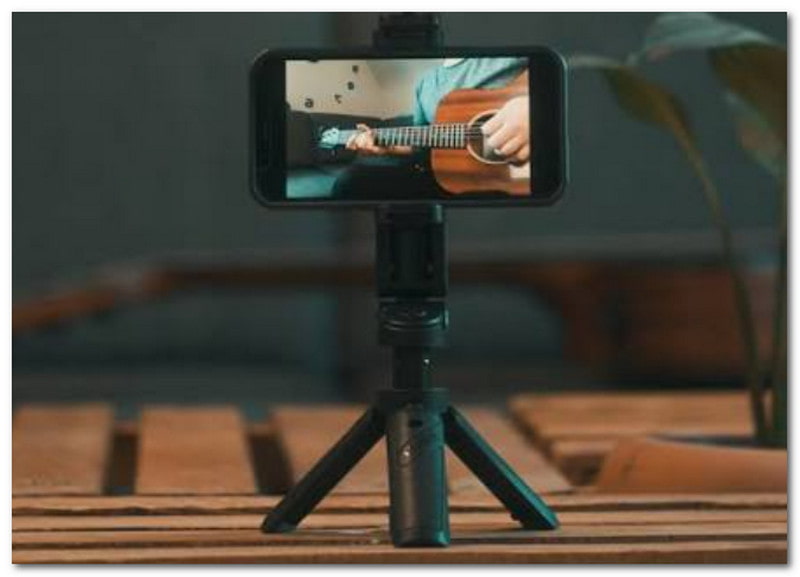
Potrebno je nekoliko pokušaja da se uključite u snimanje. Do tada se možete dublje upoznati s profesionalnim alatima poput zelenog ekrana, postavljanja rasvjete i kamere za snimanje YouTube videa.
Kako snimiti zaslon + Face Cam za tutorijale
Ako se odlučite za temu tutorijala ili igranja na Twitchu s video s prednje kamere u ogledalu, preporučuje se provjeriti softver koji podržava istovremeno snimanje sadržaja na zaslonu i web kamere. OBS Studio će biti dobar prijedlog, ali zbog složene krivulje učenja nije prikladan za početnike. Umjesto toga, možete isprobati AVAide Screen Recorder za jednostavno snimanje zaslona kamerom za lice putem web kamere. Ovaj softver za snimanje zaslona za YouTube nudi visokokvalitetne videozapise i jednostavnu krivulju učenja.
Zaključno, moguće je snimati YouTube videozapise na različite načine. Ovaj članak vas je također uputio u kako snimiti zvuk s YouTube videa s jednostavnim metodama. Ali u stvarnosti, sve to možete lakše postići s AVAide Screen Recorderom jer je opremljen da vam pomogne snimiti visokokvalitetne videozapise i zvuk s računala u samo nekoliko klikova. Isprobajte ga već danas preuzimanjem sveobuhvatnog softvera za snimanje zaslona na Windows ili Mac.
O AUTORU

Snimite aktivnosti na ekranu uz zvuk, sastanke na mreži, videozapise igranja, glazbu, web kameru itd.
Snimanje zaslona
- Snimanje zaslona u sustavu Windows
- Snimanje uživo na Instagramu
- Ripni videozapise s Tubija
- Pretvori YouTube videozapise u MP3
- Preuzmite videozapise s Fanslyja
- Preuzimanje JW Player videa
- Preuzmite Bilibili videozapise
- Preuzmite Patreon videozapise
- Preuzmite SpankBang videozapise
- Preuzmite Discord videozapise
- Preuzmite DoodSream video