Minecraft est l'un des jeux les plus populaires aujourd'hui, avec plus de 151 millions d'utilisateurs actifs quotidiens. Disponible sur différentes plateformes comme PlayStation, PC, Xbox et téléphones, il doit sa popularité à la multitude d'activités qu'il propose. On peut y cultiver la terre, jouer avec des amis, partir à la chasse aux trésors et même créer son propre monde. Autant de moments forts que vous aurez envie d'immortaliser. Selon la plateforme utilisée, prendre Captures d'écran de Minecraft C'est aussi simple que les méthodes rassemblées dans cet article. Alors, n'hésitez plus et commençons !
Partie 1. Comment prendre une capture d'écran dans Minecraft
Minecraft propose deux versions PC avec des méthodes différentes pour capturer des images en jeu. Consultez les éditions Java et Bedrock et découvrez comment faire des captures d'écran dans Minecraft sur PC.
1. Édition Java - La méthode F2 classique
Cette version de Minecraft est la version originale du jeu sur ordinateur et elle intègre une fonction de capture d'écran. Voici comment faire une capture d'écran de Minecraft Java :
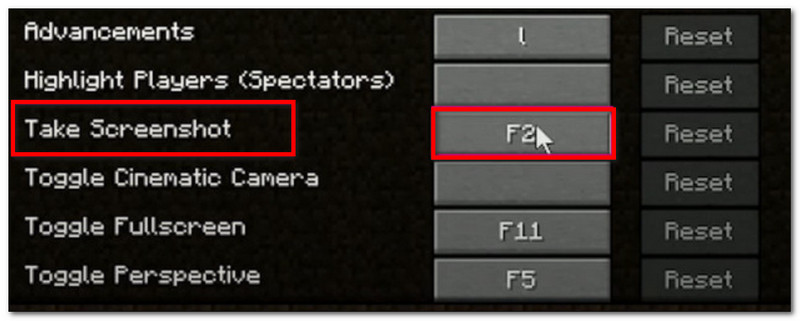
Étape 1Préparez la partie du jeu que vous souhaitez capturer, puis appuyez sur F2 sur votre clavier.
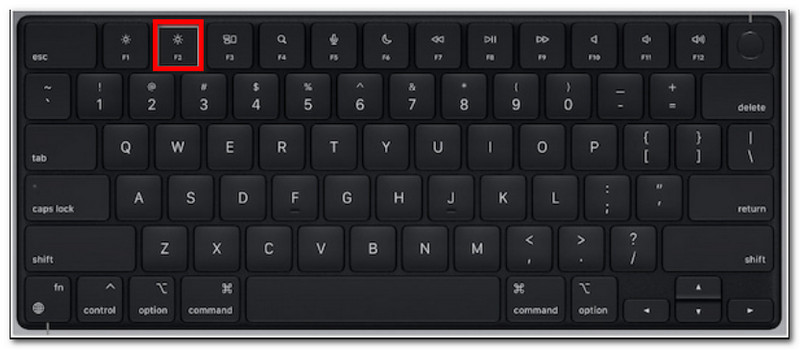
Étape 2Lorsqu'un message contenant un nom de fichier apparaît, cliquez dessus pour prévisualiser la capture d'écran.
2. Édition Bedrock - Deux méthodes différentes
L'édition Bedrock met l'accent sur le jeu multiplateforme. Ainsi, même si vous utilisez un PC, vous pouvez jouer avec des amis qui utilisent des appareils différents. Par ailleurs, cette édition propose deux méthodes populaires pour la capture d'écran.
Méthode A (Barre de jeu Xbox)
Étape 1Presse Windows + G simultanément sur votre clavier. Votre écran s'assombrira, puis cliquez sur Appareil photo icône pour prendre une capture d'écran.
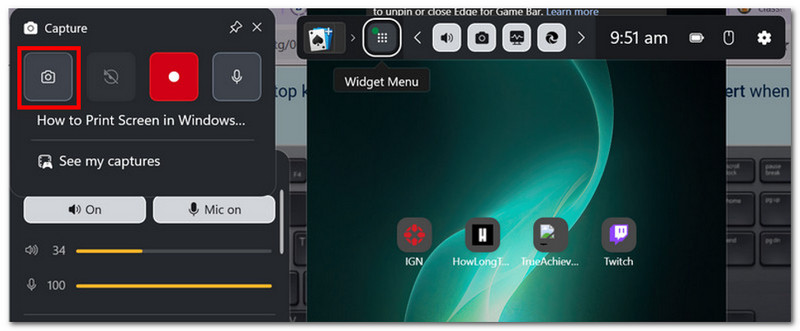
Étape 2Vous pouvez accéder au dossier des captures d'écran de Minecraft depuis Vidéos > Captures, où se trouvent les photos prises par Game Bar.
Méthode B (Caméra intégrée au jeu)
Étape 1Ouvrez Minecraft et entrez dans un monde. Cliquez sur le Capture d'écran de Minecraft appuyez sur le bouton ou sur F2 à l'écran pour effectuer une capture.
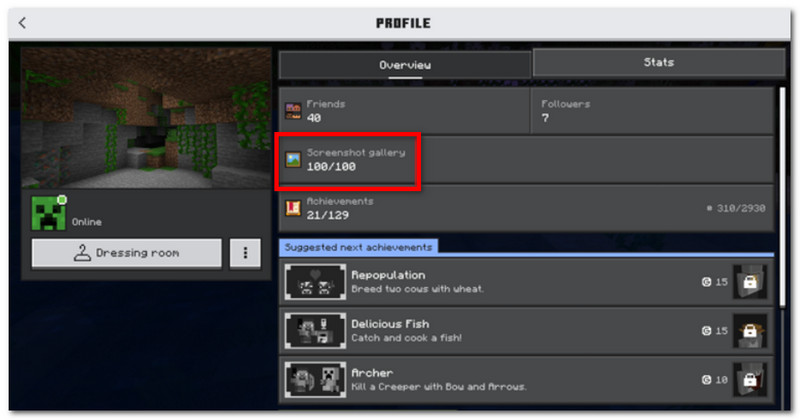
Étape 2Pour trouver l'emplacement de la capture d'écran Minecraft, il suffit d'aller à Profil et ouvert Galerie de captures d'écran.
3. Enregistreur d'écran AVAide
AVAide Enregistreur d'écran AVAide est un outil alternatif pour les éditions Java et Bedrock de Minecraft. Solution tout-en-un, il permet de réaliser des captures d'écran, des enregistrements vidéo et audio. Sa fonction de capture d'écran intuitive offre différents modes : plein écran, fenêtre active et mode libre, grâce à des raccourcis personnalisables. De plus, il permet d'exporter les captures d'écran dans des formats d'image courants tels que JPEG, PNG et GIF. AVAide se distingue par son option d'édition intégrée, permettant de modifier les captures d'écran avec des outils de dessin, d'annotation et autres. Enfin, le logiciel propose un enregistrement d'écran de haute qualité, idéal pour immortaliser vos sessions de jeu sur PC et appareils mobiles.
Étape 1Téléchargez et installez l'enregistreur d'écran. Ouvrez-le et choisissez le Capture d'écran Dans le menu en haut à gauche, assurez-vous que Minecraft est installé sur votre ordinateur.

TÉLÉCHARGEMENT GRATUIT Pour Windows 7 ou version ultérieure
 Téléchargement sécurisé
TÉLÉCHARGEMENT GRATUIT Pour Mac OS X 10.13 ou version ultérieure
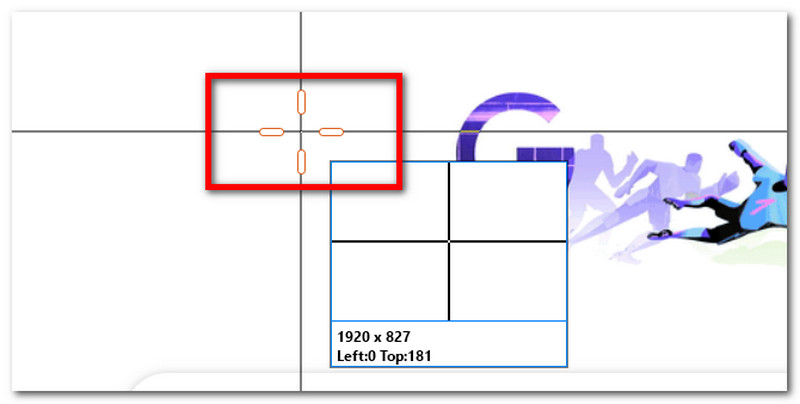
Téléchargement sécuriséÉtape 2Lorsque votre curseur de souris se transforme en réticule, sélectionnez la zone que vous souhaitez capturer. Appuyez sur Esc si vous souhaitez quitter la capture d'écran.
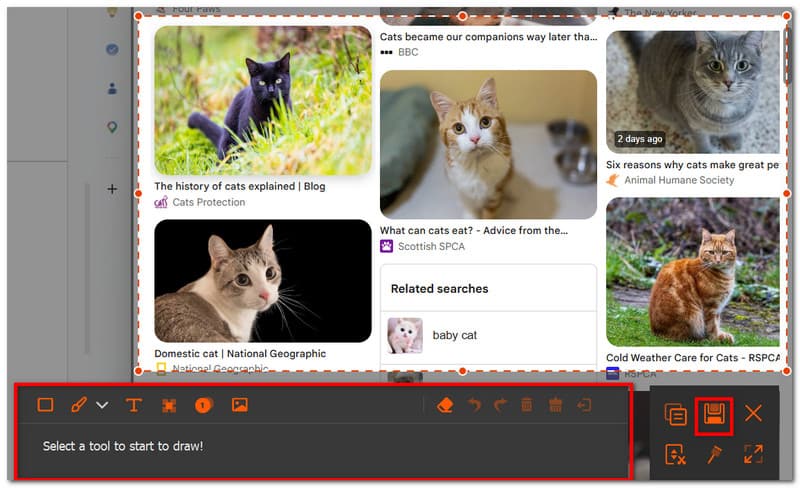
Étape 3Utilisez les options d'édition pour modifier l'image. Ensuite, cliquez Sauvegarder pour enregistrer la capture d'écran sur votre appareil. Le répertoire des captures d'écran Minecraft serait : Studio AVAide > Enregistreur d'écran AVAide.
Partie 2. Où trouver des captures d'écran
Comme Minecraft est disponible sur presque toutes les plateformes, vous vous demandez peut-être : « Où sont enregistrées les captures d’écran de Minecraft ? » Cette section vous indiquera l’emplacement exact du dossier contenant les captures d’écran une fois prises sur le système d’exploitation concerné.
Windows 10/11 (Édition Java)
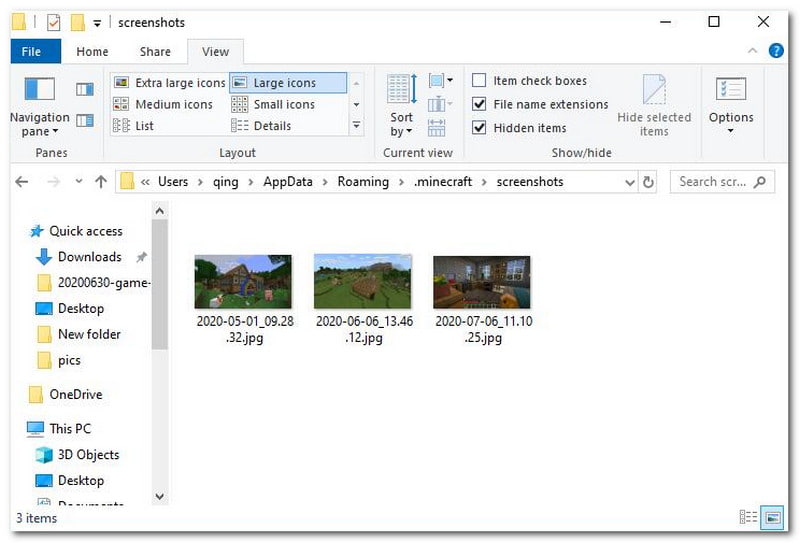
Après avoir pris la capture d'écran, vous pouvez y accéder depuis la conversation. Si vous l'avez manquée, rendez-vous dans la barre de recherche et saisissez « Rechercher ». %appdata%, ensuite aller à dossier .minecraft > captures d'écran.
Windows 10/11 (Édition Bedrock)
La galerie de captures d'écran de Minecraft Bedrock Edition sur Windows se trouve dans le jeu, à l'emplacement suivant : Profil > Galerie de captures d'écran.
Mac
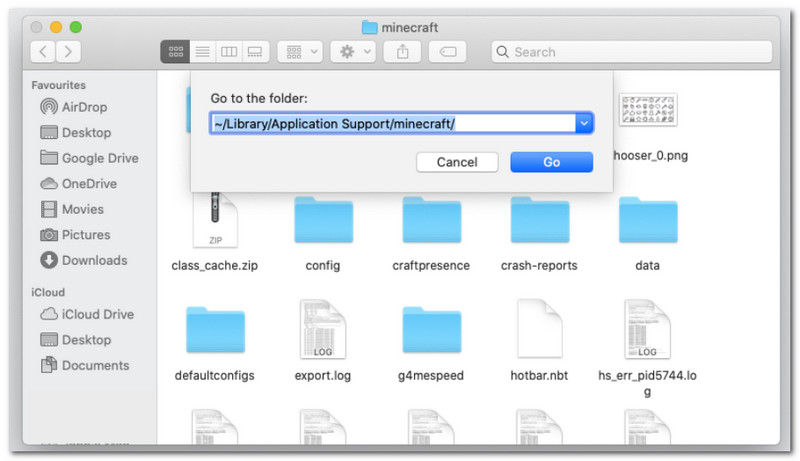
Si vous jouez à Minecraft et apprenez Comment faire une capture d'écran sur Mac, on peut le trouver dans ~/Bibliothèque/ApplicationSupport/minecraft/screenshots.
Linux
Vous pouvez accéder aux captures d'écran du jeu depuis le répertoire d'installation de Minecraft. ~/.minecraft/screenshots.
Chromebook
Le dossier des captures d'écran Minecraft sur Chromebook est identique à celui des autres systèmes d'exploitation lorsque vous utilisez la touche F2 pour prendre des captures d'écran. Vous pouvez y trouver les photos. Galerie de captures d'écran dans le jeu.
Partie 3. Captures d'écran console et mobile
Après avoir appris comment prendre des captures d'écran de Minecraft sous Windows 11 et autres systèmes d'exploitation, vous pouvez également le faire sur des appareils plus petits et des consoles. Suivez les étapes correspondant à la plateforme sur laquelle vous jouez.
Nintendo Switch
Étape 1Utilisez le Joy-Con gauche et appuyez sur Appareil photo bouton pour prendre une capture d'écran du jeu.
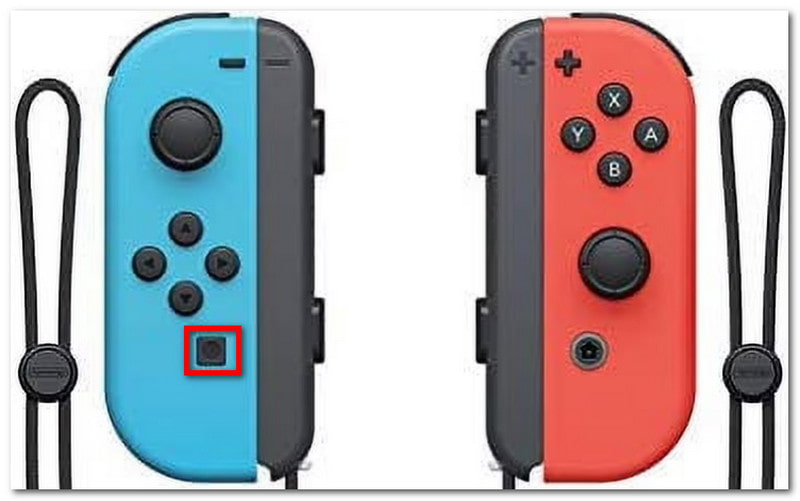
Étape 2Pour voir la capture d'écran, quittez le jeu et rendez-vous à Album où sont enregistrées les captures d'écran de Minecraft.
PlayStation
Étape 1Comment prendre une capture d'écran de Minecraft avec la manette DualShock 4 sur PS4 ? Appuyez et maintenez la touche enfoncée. Partager appuyez sur le bouton pendant environ une seconde. Si vous possédez une manette PS5 DualSend, appuyez sur le bouton. Créer bouton.
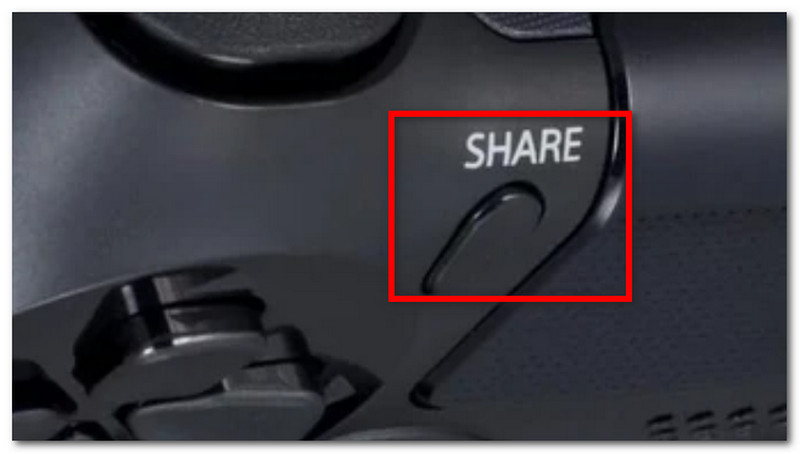
Étape 2Vous pouvez voir la capture d'écran en accédant à Galerie de captures ou en utilisant l'application ou en utilisant l' PlayStation application à consulter sur votre téléphone.
Xbox
Étape 1Pour une manette Xbox standard, il suffit d'appuyer deux fois sur le bouton. Xbox bouton dans la partie centrale et appuyez Oui pour capturer. Sur Xbox Series, appuyez sur Partager Appuyez une fois sur le bouton pour prendre une capture d'écran.
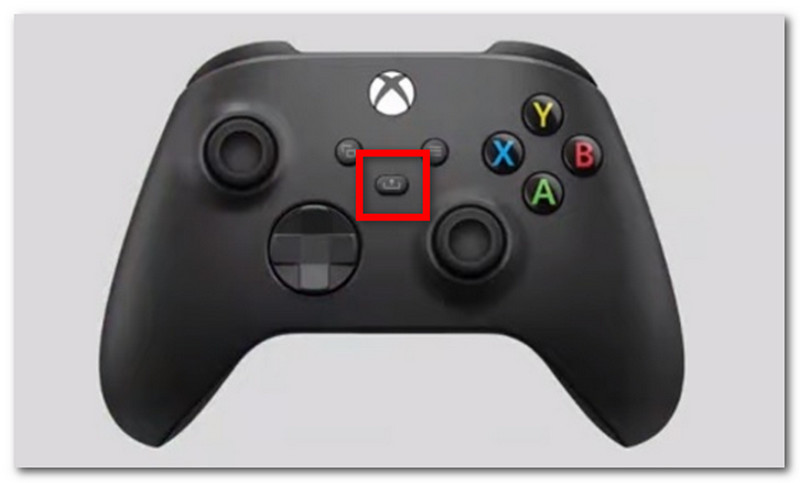
Étape 2Si vous ne savez pas comment accéder aux captures d'écran de Minecraft, appuyez simplement sur Xbox bouton et allez à la Capturez et partagez languette.
iOS
Étape 1appuie sur le Pouvoir et Augmenter le volume Utilisez les boutons de votre iPhone pour prendre une capture d'écran.
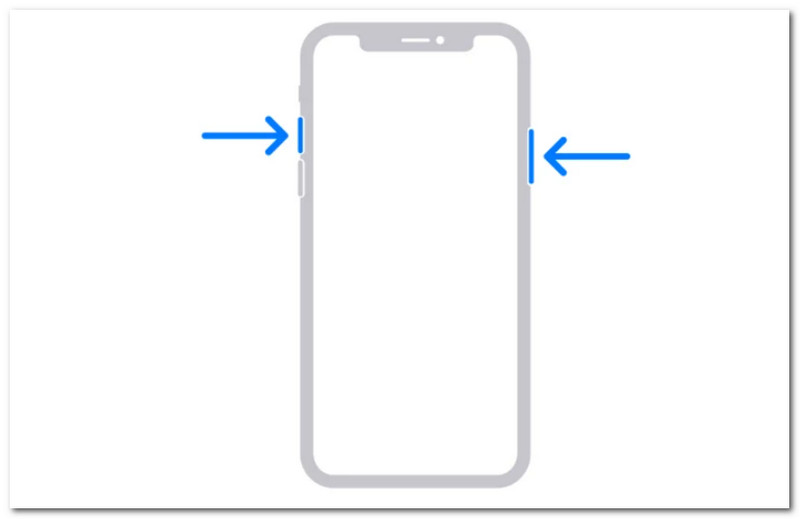
Étape 2Comment retrouver des captures d'écran de Minecraft sur iPhone ? Vous pouvez les localiser dans l'application Photos.
Android
Étape 1Préparez la partie et la zone que vous souhaitez capturer. Appuyez et maintenez la touche enfoncée. Pouvoir et Baisser le volume boutons sur votre téléphone.
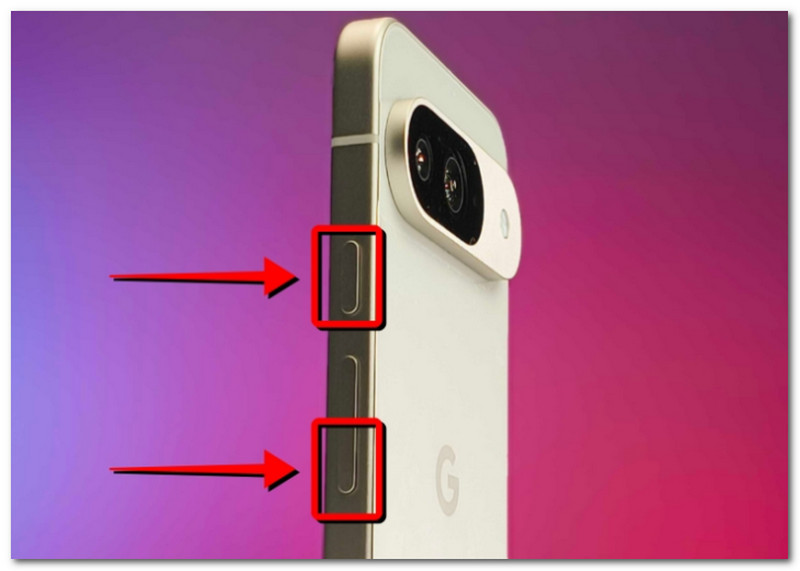
Étape 2Lorsque l'écran clignote, la capture d'écran est prête et vous pouvez la retrouver dans l'application Galerie.
Partie 4. Gestion de votre collection de captures d'écran
Outre le partage de captures d'écran avec vos amis, vous pouvez aussi en profiter pour suivre votre progression dans Minecraft. Cependant, prendre des captures d'écran au hasard ne fera qu'encombrer votre collection et la rendre confuse. Si vous ne savez pas par où commencer, suivez ces quelques règles de base pour bien gérer vos captures d'écran.
1. Comprendre les noms de fichiers
Lorsque vous utilisez la méthode F2 sur Minecraft, il est important de comprendre le nom du fichier, car cela peut vous aider à déterminer la date de la capture d'écran. Le nom de fichier par défaut sera : AAAA-MM-JJ_HH.MM.SS.png, ce qui correspond à l'année, au mois, au jour, à l'heure, à la minute et à la seconde où la capture d'écran a été prise.
2. Créer des sous-dossiers
Ne rangez pas vos captures d'écran dans un seul dossier, car cela vous ralentira lors de la recherche de captures spécifiques. Créez des sous-dossiers avec des catégories telles que « création d'univers », « projet » et « fonctionnalités ».
3. Renommer les fichiers
Vous pouvez renommer vos captures d'écran Minecraft pour les identifier non seulement par la date, mais aussi en fonction de votre progression dans le jeu. Choisissez toujours un nom de fichier qui reflète votre progression dans Minecraft.
4. Sauvegardez vos tirs
Pour éviter de perdre vos captures d'écran en cas de plantage de votre appareil, veillez à les sauvegarder sur un service cloud comme OneDrive ou sur un disque dur externe.
5. Partager des captures d'écran
Après avoir organisé vos captures d'écran, partagez votre progression dans Minecraft sur différentes plateformes. Vos spectateurs apprécieront ces images bien organisées qui retracent votre progression.
Minecraft est un jeu très apprécié de tous, et apprendre à faire des captures d'écran vous permettra d'immortaliser les meilleurs moments de vos parties. Cet article présente non seulement les différentes méthodes pour capturer la beauté du monde du jeu, mais aussi… Comment visualiser les captures d'écran de Minecraft ? sur différentes plateformes. En guise d'alternative, cet article recommande l'utilisation d'AVAide Screen Recorder, car il permet de prendre des captures d'écran sur ordinateur, téléphone et consoles de jeux. Procurez-vous l'un des meilleurs enregistreurs de jeu Téléchargez-les gratuitement sur Windows et Mac et commencez l'enregistrement de vos parties sans limite.
À PROPOS DE L'AUTEUR

Enregistrez l'écran, l'audio, la webcam, le gameplay, les réunions en ligne, ainsi que l'écran iPhone/Android sur votre ordinateur.
Enregistrement d'écran
- Enregistrement d'écran sous Windows
- Enregistrer un live sur Instagram
- Extraire des vidéos de Tubi
- Convertir des vidéos YouTube en MP3
- Téléchargez des vidéos depuis Fansly
- Téléchargement de vidéos JW Player
- Télécharger les vidéos Bilibili
- Télécharger des vidéos Patreon
- Télécharger les vidéos SpankBang
- Télécharger des vidéos Discord
- Télécharger la vidéo DoodSream