


L'enregistreur d'écran intégré à Android peut manquer de fonctionnalités. Cependant, il existe des astuces pratiques pour réaliser des enregistrements plus simples et plus variés sur l'écran de votre téléphone. Cet article vous présentera des conseils complets. Enregistrement d'écran Android tutoriel.
Si vous préférez un enregistrement d'écran avancé pour les jeux, les tutoriels ou les démonstrations professionnelles, nous pouvons également vous aider à contourner la multitude d'options pour vous proposer les meilleures méthodes et applications d'enregistrement d'écran Android disponibles aujourd'hui, avec des tutoriels étape par étape pour vous aider à obtenir des résultats nets et en haute définition.
- Partie 1 : Comment utiliser l’enregistreur d’écran intégré d’Android
- Partie 2 : Quelques outils d’enregistrement Android spécifiques à certaines marques
- Partie 3 : 4 autres façons polyvalentes d’enregistrer l’écran sur Android
- Bonus : Enregistrement d’écran sur ordinateur et téléphone portable en qualité optimale
- Partie 4 : FAQ sur l’enregistrement d’écran sur Android
Partie 1 : Comment utiliser l’enregistreur d’écran intégré d’Android
La plupart des appareils fonctionnant sous Android 11 ou une version ultérieure intègrent une application d'enregistrement d'écran, accessible depuis le panneau des paramètres rapides. Il vous suffit de l'utiliser pour enregistrer l'écran de votre téléphone.
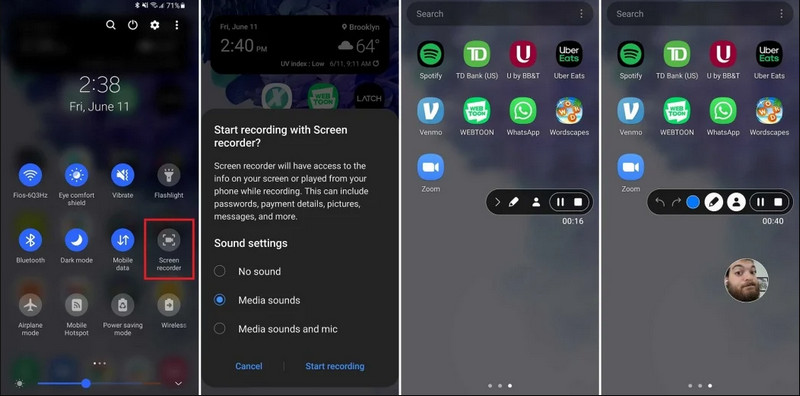
Étape 1Accéder aux paramètres rapides
Faites glisser votre doigt deux fois vers le bas depuis le haut de votre écran pour afficher le menu complet des paramètres rapides.
Étape 2Sélectionnez Enregistreur d'écran
Rechercher Enregistrement d'écranSi vous ne le voyez pas, appuyez sur le Éditer Cliquez sur le bouton (avec une icône en forme de crayon) et faites glisser la vignette Enregistrement d'écran dans votre grille active.
Étape 3Configurer les paramètres d’enregistrement
Lorsque vous trouvez l'Android Enregistreur d'écran Cet outil vous offre plusieurs options d'enregistrement. Choisir la bonne option vous permettra d'enregistrer efficacement votre écran Android.
- Aucun son : Enregistrez uniquement l'écran du téléphone, sans le son du système ni les sons externes.
- Sons des médias : Enregistrez l'écran avec tous les sons système, y compris les sons de toutes les applications de votre téléphone.
- Sons et micro des médias : Enregistrez à la fois les sons du système et les sons externes (micro intégré du téléphone ou micro de vos écouteurs).
Étape 4Démarrer et arrêter l'enregistrement d'écran
Faites votre choix et appuyez sur Démarrer l'enregistrement bouton. Un compte à rebours s'affichera dans la barre d'état. Pour arrêter l'enregistrement d'écran Android, appuyez sur le bouton. Arrêter bouton (s'il y a une barre d'état d'enregistrement) ou faites glisser le panneau de notifications vers le bas et appuyez sur le bouton rouge Arrêter bouton.
Partie 2 : Quelques outils d’enregistrement Android spécifiques à certaines marques
De nombreux fabricants de téléphones Android proposent des enregistreurs d'écran propriétaires dotés de fonctionnalités avancées, comme la superposition d'effets pour la caméra selfie. Découvrez les fonctionnalités d'enregistrement spécifiques de quelques marques Android populaires :
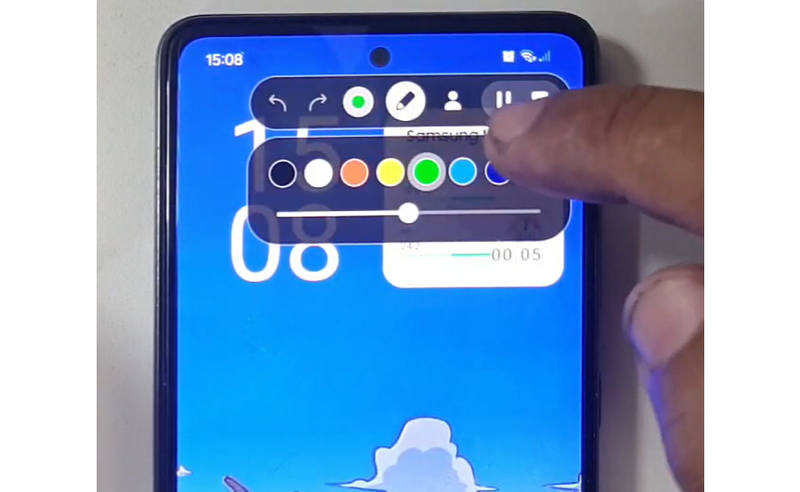
Samsung (One UI) : Inclut un enregistreur d'écran avec une barre d'outils permettant de dessiner sur l'écran en temps réel.
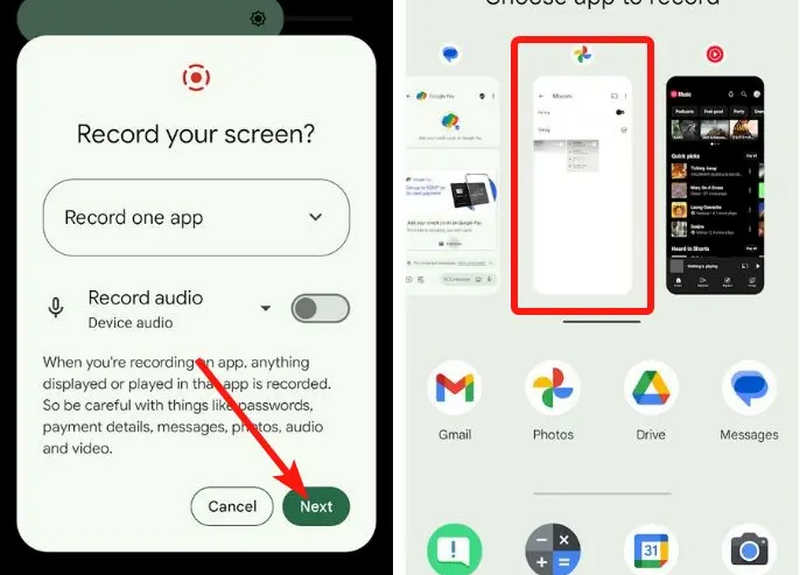
Google Pixel : Vous pouvez sélectionner une application spécifique (par exemple, une application bancaire ou WhatsApp) à enregistrer. Si vous quittez l'application ou si vous déroulez le panneau de notifications pendant l'enregistrement, ces actions n'apparaîtront pas dans la vidéo finale.
Xiaomi (MIUI/HyperOS) : Comprend une application « Enregistreur d'écran » dédiée avec une personnalisation poussée des fréquences d'images (FPS) et des débits binaires.
Huawei et Honor (HarmonyOS / MagicOS) : Une intégration matérielle et logicielle unique qui vous permet de démarrer ou d'arrêter un enregistrement simplement en tapotant deux fois l'écran avec vos deux phalanges.
OPPO, vivo et realme (ColorOS / OriginOS) : Lors du lancement d'un jeu, l'enregistreur d'écran optimise automatiquement les ressources du processeur et de la carte graphique afin de garantir que l'enregistrement d'un clip 4K/60 FPS ne provoque pas de ralentissements ou de chutes d'images en jeu.
Partie 3 : 4 autres façons polyvalentes d’enregistrer l’écran sur Android
Si votre téléphone Android ne propose pas une fonction d'enregistrement d'écran satisfaisante, vous pouvez consulter les quatre applications d'enregistrement d'écran Android disponibles. Elles offrent des fonctionnalités pratiques et fonctionnelles.
1. Enregistreur d'écran AZ
Enregistreur d'écran AZ Cette application d'enregistrement d'écran Android est très populaire sur le Play Store. Elle permet d'enregistrer des vidéos haute résolution sur l'écran de votre téléphone Android. L'application vous permet également d'ajuster la résolution, la fréquence d'images et le débit binaire en fonction de vos besoins d'enregistrement.
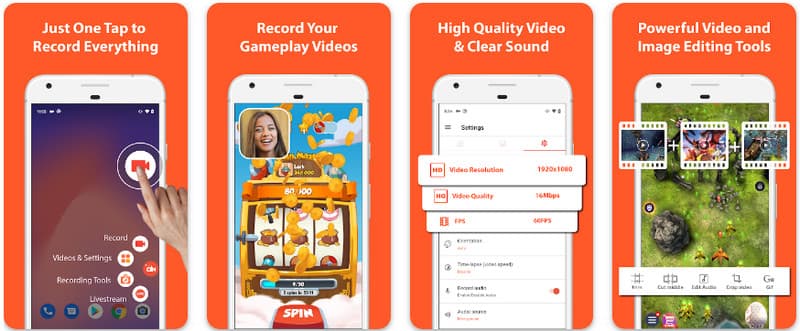
De plus, l'enregistreur d'écran AZ permet aux utilisateurs d'enregistrer le son diffusé sur l'appareil à l'aide d'un microphone. Cela permet d'enregistrer même les enregistrements les plus complexes et les plus standard. Sa disposition simple des boutons et ses performances constantes font de l'application une favorite pour beaucoup. Apprenez à enregistrer un écran Android avec cette application en utilisant le didacticiel ci-dessous.
Étape 1Après avoir téléchargé l'application sur votre Android, lancez-la. Ensuite, cliquez sur le bouton caméra bouton pour accéder à la fonction d'enregistrement d'écran.
Étape 2Robinet Commencez maintenant Pour démarrer l'enregistrement d'écran sur votre appareil Android, un compte à rebours apparaîtra sur votre écran.
Étape 3Pour arrêter l'enregistrement d'écran sur votre téléphone Android, appuyez sur Disque Appuyez à nouveau sur le bouton. Avec cette application, vous pouvez également enregistrement d'écran sur votre iPhone avec des sons activé.
2. Enregistreur d'écran Mobizen
Enregistreur d'écran Mobizen Mobizen est une autre application d'enregistrement d'écran pour Android, disponible gratuitement sur le Play Store. Elle promet un enregistrement simple et de haute qualité. Elle offre des options d'enregistrement haute définition avec des paramètres ajustables et un enregistrement propre pour supprimer les filigranes. De plus, Mobizen intègre un enregistrement audio, utilisable pendant l'enregistrement, ainsi qu'une webcam et la possibilité de créer des GIF pour enrichir vos vidéos. Son interface intuitive permet d'accéder facilement aux différentes fonctionnalités et commandes, facilitant ainsi le lancement de l'enregistrement d'écran et le montage du contenu. Découvrez comment enregistrer votre écran sur Android avec cette application.
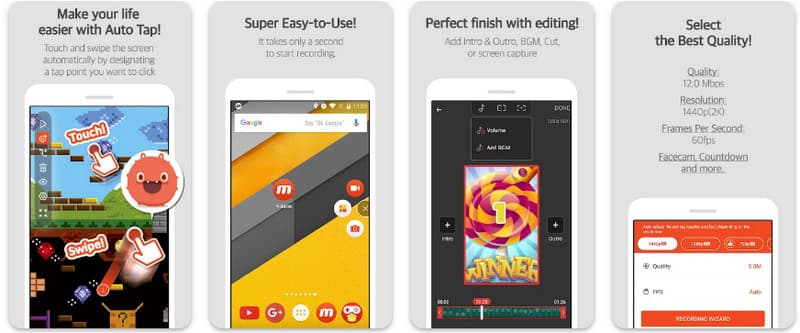
Étape 1Téléchargez-le maintenant sur votre Android et ouvrez l'application.
Étape 2Effectuez la configuration requise avant d'utiliser l'enregistreur d'écran. Une barre d'enregistrement flottante apparaîtra sur votre écran. Appuyez sur caméra bouton, puis Commencez maintenant pour lancer l'enregistrement d'écran.
Étape 3Lorsque vous avez terminé, appuyez sur le M et le arrêt bouton pour arrêter l'enregistrement d'écran sur votre téléphone Android.
3. Enregistreur d'écran - XRecorder par Inshot
Enregistreur d'écran - XRecorder est une application Android tout-en-un et performante qui simplifie la capture d'écran grâce à un enregistrement haute définition jusqu'à 1080p à 60 images par seconde, sans accès root ni filigrane. Solution de choix pour l'enregistrement d'écran sur Android 17/16, elle offre une expérience utilisateur fluide grâce à une fenêtre de contrôle flottante permettant de démarrer, mettre en pause et dessiner en temps réel sur l'écran avec un outil pinceau intégré. Au-delà de la simple capture vidéo, elle prend en charge l'enregistrement audio interne, les superpositions de webcam pour les streamers et le montage vidéo intégré, ce qui en fait le choix idéal pour tous ceux qui souhaitent créer des tutoriels professionnels, des extraits de gameplay ou des démonstrations claires directement depuis leur appareil mobile.
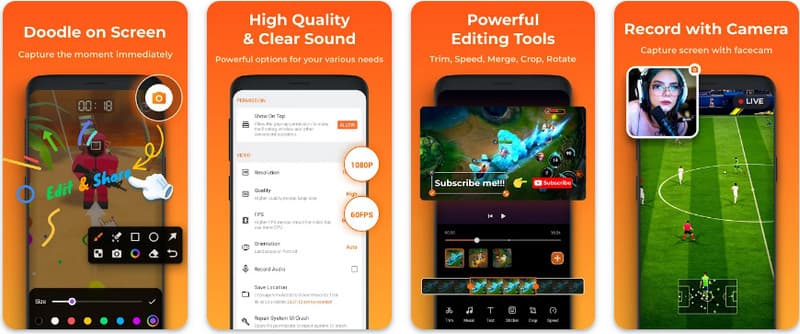
Étape 1Une fois le téléchargement du XRecorder terminé, ouvrez-le et appuyez sur le bouton Activer l'icône flottante.
Étape 2Après cela, appuyez sur le Disque bouton pour lancer l'enregistrement et Commencez maintenant confirmer.
Étape 3Comme vous pouvez le voir, la durée de l'enregistrement apparaît sous la forme d'une icône flottante ; appuyez sur l'icône arrêt bouton pour sauvegarder l'enregistrement.
4. Super Screen Recorder
Super enregistreur d'écran Super Screen Recorder est une solution de premier ordre pour tous ceux qui recherchent un moyen professionnel d'enregistrer leur écran sur Android avec une flexibilité maximale. Cette application performante offre une capture haute définition et se distingue par l'absence de filigrane, même dans sa version gratuite, garantissant ainsi un contenu propre et professionnel. Elle intègre une webcam pour capturer les réactions en temps réel et un outil pinceau polyvalent permettant de dessiner sur l'écran pendant l'enregistrement, une fonction essentielle pour créer des tutoriels ou des présentations captivants. Que vous soyez débutant ou utilisateur avancé, Super Screen Recorder offre les options de personnalisation poussées nécessaires pour maîtriser facilement l'enregistrement d'écran sur Android.
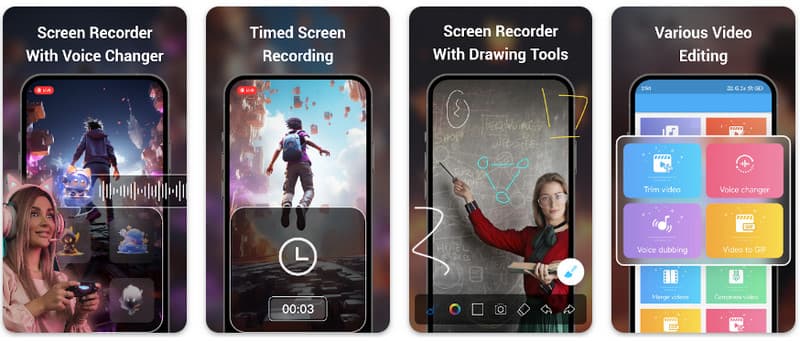
Étape 1Ouvrez le Super Screen Recorder sur votre Android, puis activez la fonction flottante de l'application pour l'utiliser.
Étape 2Sur votre écran, appuyez sur le caméra bouton, confirmez les paramètres et appuyez sur Commencez maintenant. Ensuite, un compte à rebours de trois secondes apparaîtra avant le début de l'enregistrement.
Étape 3Appuyez sur le carré bouton pour terminer l'enregistrement et le sauvegarder sur votre appareil Android.
Bonus : Enregistrement d’écran sur ordinateur et téléphone portable en qualité optimale
Pensez-vous qu'il soit possible d'enregistrer l'écran de votre téléphone Android sur un ordinateur ? AVAide Enregistreur d'écran Ce logiciel est principalement conçu pour l'enregistrement d'écran sous Windows et Mac. Il peut également enregistrer l'écran complet de votre téléphone Android. Ceci est particulièrement utile pour créer un tutoriel expliquant certaines opérations sur Android, puis monter directement la vidéo sur votre Mac ou Windows.
Pour l'enregistrement d'écran sous Windows et Mac, AVAide Screen Recorder prend en charge les codecs AV1 et HEVC, permettant une compression optimale tout en préservant une qualité vidéo maximale. L'accélération matérielle complète permet d'enregistrer de longues vidéos avec une utilisation minimale du processeur. De plus, son microphone amélioré optimise la clarté en supprimant les bruits de fond et l'écho. Le logiciel réalise d'excellents enregistrements grâce à une navigation simple et des fonctions d'édition intuitives, comme le découpage et l'ajout d'annotations. Bien que son prix soit élevé, il est fortement recommandé pour un usage personnel et professionnel.
- Enregistrez votre appareil Android ou iOS avec la meilleure qualité vidéo possible.
- Créez facilement des tutoriels vidéo grâce aux fonctions de dessin et d'annotation.
- Prise en charge des codecs de sortie AV1 et HEVC pour une compression vidéo élevée.
- Offre des fonctionnalités de montage vidéo faciles à utiliser pour éditer vos enregistrements sur Android.
Étape 1Vous pouvez maintenant télécharger l'enregistreur d'écran sur votre PC en cliquant sur le bouton de téléchargement ici. Ensuite, installez l'application en suivant les instructions sur votre écran et lancez-la pour passer à l'étape suivante.

TÉLÉCHARGEMENT GRATUIT Pour Windows 7 ou version ultérieure
 Téléchargement sécurisé
TÉLÉCHARGEMENT GRATUIT Pour Mac OS X 10.13 ou version ultérieure
Téléchargement sécuriséÉtape 2Maintenant qu'il est déjà en cours d'exécution sur votre système, placez le cadre d'enregistrement dans la zone où vous souhaitez démarrer l'enregistrement. Ici, vous pouvez enregistrer l'intégralité de votre écran en sélectionnant l'option Plein écran au lieu de l'option Région.

Étape 3Ensuite, le système et l'enregistrement du microphone peuvent être configurés si nécessaire. Si vous souhaitez ajouter votre visage à l'enregistrement, activez l'option Webcam ici. Cliquez ensuite sur REC pour démarrer le compte à rebours et commencer l'enregistrement.

Étape 4Lorsque vous avez terminé l'enregistrement, cliquez sur le bouton arrêt bouton, qui est un carré rouge. Dans la fenêtre suivante qui apparaît, vous pouvez modifier l'enregistrement que vous avez pris plus tôt avec les options disponibles ici, puis placez votre curseur sur l'enregistrement et appuyez sur le bouton Télécharger bouton pour l'enregistrer. Cette application prouve sa valeur en tant que meilleur enregistreur open source disponible.

Partie 4 : FAQ sur l’enregistrement d’écran sur Android
Où puis-je trouver l'option d'enregistrement d'écran dans mes paramètres ?
Pour accéder à la fonctionnalité intégrée enregistrement d'écran sur Android sans applications tierces, faites glisser votre doigt deux fois du haut vers le bas de votre écran pour ouvrir l'application. Paramètres rapides panneau et recherchez le Enregistrement d'écran (ou l'icône « Enregistrement d'écran »). Si elle n'est pas visible, appuyez sur l'icône. Éditer Utilisez le bouton en forme de crayon pour glisser l'option d'enregistrement d'écran dans vos vignettes actives. Une fois ajoutée, il vous suffit d'appuyer sur l'icône, de choisir vos préférences audio (son système, microphone, etc.) et d'appuyer sur « Démarrer » pour lancer l'enregistrement directement depuis les paramètres système.
Pourquoi est-ce que je ne trouve pas l'option d'enregistrement d'écran sur mon Android ?
L'absence d'une option native d'enregistrement d'écran sur Android est généralement due au fait que votre appareil utilise un système d'exploitation plus ancien, car cette fonctionnalité intégrée n'a été standardisée qu'avec Android. Android 11Si votre logiciel est à jour, il se peut que l'option soit simplement masquée. Paramètres rapides menu ; vous pouvez généralement l'afficher en appuyant sur le Éditer Pour activer l'enregistrement d'écran, appuyez sur le bouton dans le panneau de notifications et faites glisser la vignette correspondante dans votre écran actif. Notez que certains appareils d'entrée de gamme « Go Edition » ou certaines surcouches constructeur peuvent désactiver cette fonctionnalité afin d'économiser des ressources système. Dans ce cas, l'utilisation d'une application tierce comme XRecorder ou Super Screen Recorder constitue la solution la plus efficace.
Pourquoi le bouton d'enregistrement d'écran a-t-il disparu ?
Le bouton d'enregistrement d'écran disparaît généralement parce qu'il a été déplacé accidentellement hors de la zone active des paramètres rapides ; vous pouvez souvent le faire réapparaître en appuyant sur le bouton. Modifier (icône crayon) Dans votre panneau de notifications, faites glisser la vignette vers la droite. Elle peut également être masquée en raison du mode d'économie d'énergie, d'une restriction liée à un profil professionnel, ou nécessiter un redémarrage du système pour actualiser l'interface utilisateur après une mise à jour logicielle.
En utilisant le didacticiel répertorié ici, vous avez appris comment enregistrer l'écran sur Android SamsungCe tutoriel vous sera très utile pour votre tâche d'enregistrement d'écran, surtout si vous êtes un utilisateur Android. Partagez ces informations avec votre ami utilisateur Android pour lui donner une idée de la façon de procéder.
À PROPOS DE L'AUTEUR

Enregistrez l'écran, l'audio, la webcam, le gameplay, les réunions en ligne, ainsi que l'écran iPhone/Android sur votre ordinateur.
Enregistrement d'écran
- Enregistrement d'écran sous Windows
- Enregistrer un live sur Instagram
- Extraire des vidéos de Tubi
- Convertir des vidéos YouTube en MP3
- Téléchargez des vidéos depuis Fansly
- Téléchargement de vidéos JW Player
- Télécharger les vidéos Bilibili
- Télécharger des vidéos Patreon
- Télécharger les vidéos SpankBang
- Télécharger des vidéos Discord
- Télécharger la vidéo DoodSream


