Kuinka äänittää ääniviesti iPhonellaÄäniviestin tallentaminen on nopea tapa jakaa ajatuksiasi tai lähettää henkilökohtaista ääntä kirjoittamatta. iPhonen sisäänrakennetun ääniviestitoiminnon avulla voit tallentaa ja jakaa äänileikkeitäsi välittömästi vain muutamalla napautuksella. Jos siis etsit kattavaa tapaa tallentaa ja lähettää ääniviesti matkapuhelimellasi, katso tämä opetusohjelma haluamasi tuloksen saavuttamiseksi.
Osa 1. Ääniviestin tallentaminen ja lähettäminen iMessagessa
iMessage ei ole vain yksinkertainen viestintätyökalu. Se voi tarjota myös ääniviestiominaisuuden. Tämän ominaisuuden avulla voit lähettää tai jakaa viestejäsi ja ajatuksiasi äänelläsi. Tämä on ihanteellinen toiminto, jos haluat lähettää viestejäsi kirjoittamatta tekstiä näppäimistöltäsi. Parasta tässä on, että ääniviestin lähettäminen on yksinkertaista, mikä tekee siitä täydellisen kaikille käyttäjille. Joten jos haluat aloittaa viestien tallentamisen ja lähettämisen, voit käyttää alla olevia ohjeita.
Kuinka tallentaa iPhone-ääniviesti
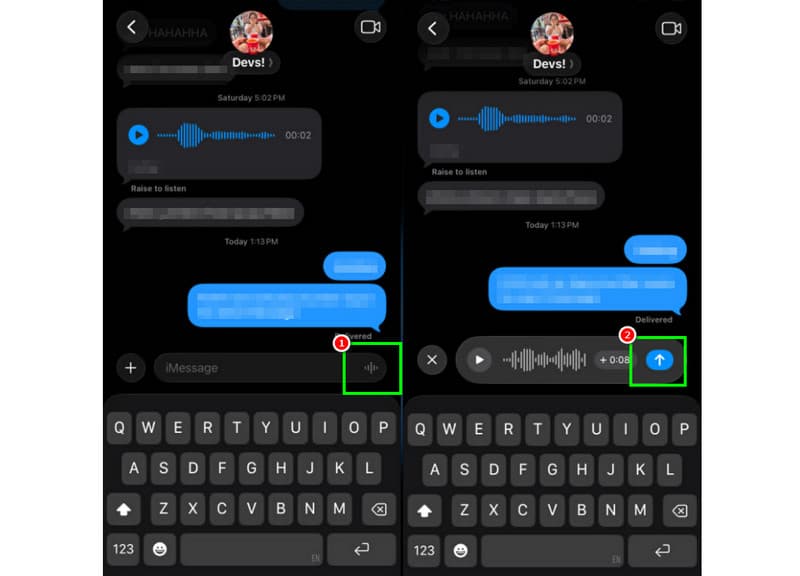
Vaihe 1Käynnistä iPhonessasi sovellus iMessage sovellus. Siirry sitten sen henkilön luo, jonka kanssa haluat kommunikoida.
Vaihe 2Paina näytöllä ja pidä painettuna Mikrofoni vaihtoehto. Pidä pohjassa, voit aloittaa viestisi tallentamisen ja puhumisen.
Vaihe 3Voit lopettaa tallennuksen nostamalla sormesi painikkeelta. Napauta sitten Lähetä nuoli painiketta viestin lähettämiseksi.
Kuuntele saapuvia ääniviestejä
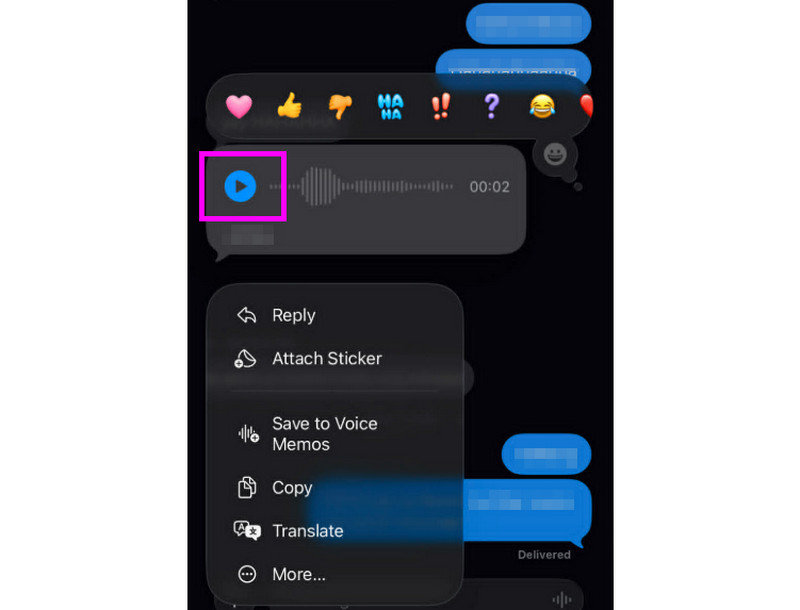
Vaihe 1Kun olet vastaanottanut ääniviestin, voit napauttaa pelata -painiketta.
Vaihe 2Voit myös säätää äänenvoimakkuutta iPhonen sivupainikkeella kuullaksesi viestin oikein.
Vaihe 3Kahden minuutin kuluttua ääniviesti vanhenee. Säilytä viesti painamalla Pitää vaihtoehto alla.
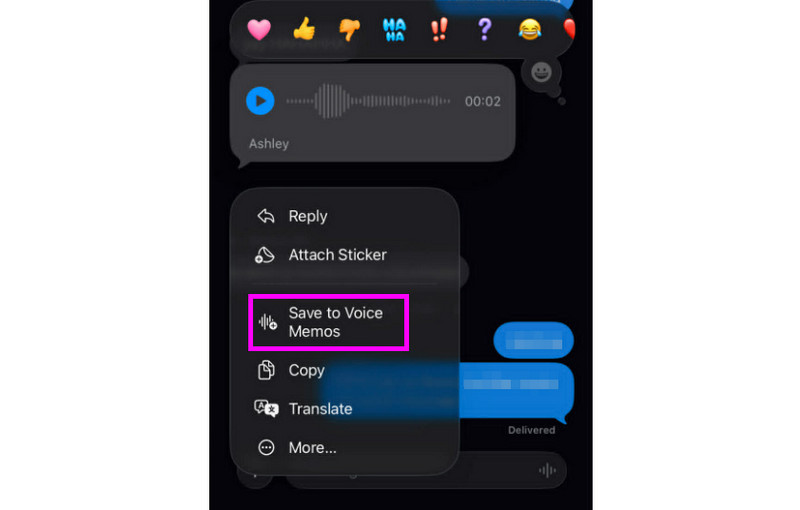
Vaihe 4Jos haluat tallentaa ääniviestin, paina sitä pitkään ja napauta Tallenna äänimuistioihin sovellus. Tämän avulla ääninauhurisovellus, voit toistaa viestin milloin ja missä tahansa.
Ääniviestien asetusten säätäminen
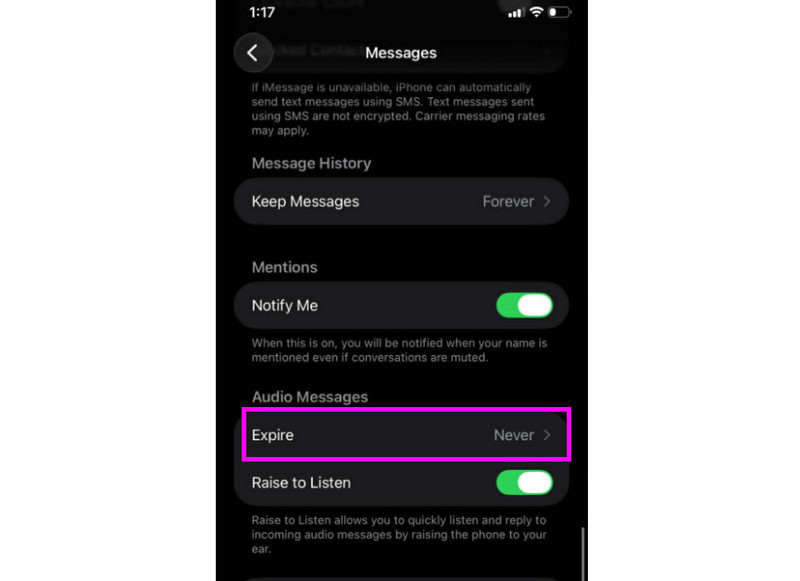
Vaihe 1Mene luoksesi asetukset sovellukseen. Siirry sitten kohtaan Viestit sovellus.
Vaihe 2Navigoi kohtaan Ääniviestit > Vanhenee osio ja napauta Ei koskaan vaihtoehto. Tällä tavoin iMessage-viestistäsi tulevat ääniviestit eivät vanhene.
Osa 2. Menetelmä vastaajaviestin tallentamiseksi iPhoneen
Kun et ole tavoitettavissa, soittajat saavat mukautetun viestin, jos tallennat vastaajaviestin iPhonellasi. Uuden tervehdyksen luominen, vanhan muokkaaminen tai poistaminen ja jopa väliaikaisen tervehdyksen käyttäminen erityistilaisuuksissa on helppoa. Voit muokata täysin sitä, miltä vastaajaviestisi kuulostaa muille ihmisille, vain muutamalla kosketuksella Puhelin-sovelluksessa. Katso menetelmät ja opi tallentamaan vastaajaviesti iPhonella.
Vastaajaviestin tervehdyksen määrittäminen
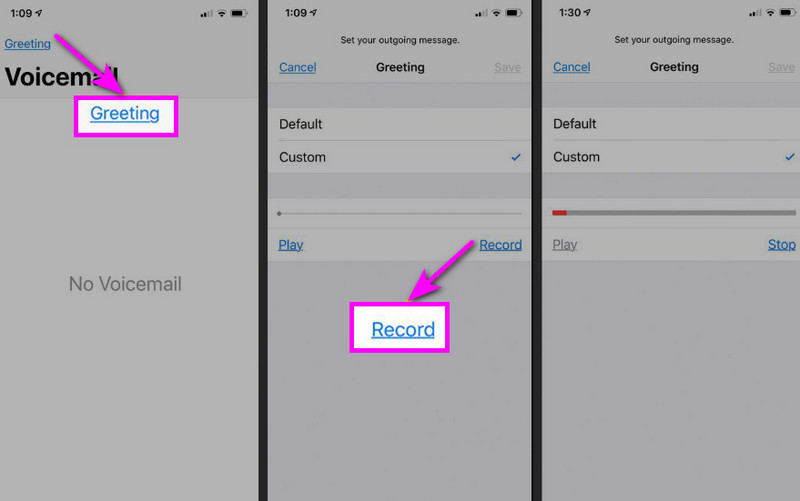
Vaihe 1Jatka kohtaan Puhelin sovellus ja napauta Vastaajaviesti vaihtoehto.
Vaihe 2Sen jälkeen paina Tervehdys toiminto näytön vasemmasta yläkulmasta. Paina Mukautettu > Ennätys aloittaa äänen tallentaminen iPhonellasi kuin tervehdys.
Vaihe 3Napauta Lopettaa viimeistelläksesi ja toistaaksesi sen uudelleen. Kun olet valmis, paina Tallentaa asettaaksesi sen aktiiviseksi tervehdykseksi.
Tervehdyksen muuttaminen tai poistaminen
Vaihe 1Voit palata takaisin Vastaajaviesti > Tervehdys -osio.
Vaihe 2Osuma Mukautettu ja nauhoita uusi tervehdys vanhan tilalle.
Vaihe 3Voit sitten palauttaa oletusasetukset valitsemalla Oletus Mukautetun sijaan.
Vinkki: Tilapäinen tervehdys
Jos et ole käytettävissä lyhyen aikaa, nauhoita väliaikainen tervehdys noudattamalla samoja ohjeita kuin kohdassa Mukautettu. Kun olet palannut, voit yksinkertaisesti vaihtaa takaisin tavalliseen tervehdykseen tai oletusasetukseen.
Osa 3. Vianmääritys - Ääniviestin tallentaminen ei onnistu
Tässä osiossa on vianmääritysopas, joka käsittelee joitakin iPhonella ääniviestin tallentamiseen tai lähettämiseen liittyviä ongelmia.
Mikrofonipainike on harmaana viesteissä
Ratkaisu: Varmista, että mikrofonin käyttö on käytössä. Voit tehdä sen siirtymällä kohtaan Asetukset > Tietosuoja ja suojaus > Mikrofoni ja sallimalla Viestit-sovellukselle käyttöoikeuden.
Ääni ei lähetä
Ratkaisu: Tarkista aina internet-yhteytesi. Varmista myös, että iMessage on käytössä kohdassa Asetukset > Viestit > iMessage.
Vastaajaviestin tervehdyksen tallentaminen ei onnistu
Ratkaisu: Tervehdys-vaihtoehto näkyy vain, jos operaattori tukee visuaalista vastaajaa. Jos sitä ei ole, voit soittaa suoraan vastaajaan painamalla puhelinsovelluksessa 1-näppäintä ja pitämällä sitä painettuna. Sen jälkeen voit alkaa tallentaa tervehdyksen operaattorin ohjeiden mukaisesti.
Vastaanottajat sanovat, etteivät kuule sinua
Ratkaisu: Voit testata mikrofonia Äänimuistiot-sovelluksella. Voit myös irrottaa kaikki kotelot tai lisävarusteet, jotka saattavat peittää mikrofonin. Toinen tapa on puhdistaa mikrofonin aukko liinalla tai miniharjalla.
Pikaopas: Ääniviesti vs. vastaaja
Haluatko tietää lisää ääniviesteistä ja vastaajasta? Sitten voit tarkistaa alla olevan yksinkertaisen taulukon.
| Ominaisuus | Ääniviesti (iMessage) | Vastaaja (operaattori) |
| Miten se lähetetään | • Tallennettu Viestit-sovellukseen • Lähetetty iMessagen kautta | • Tallennettu tervehdys • Operaattorin tallentama ääni |
| Internet tarvitaan | Kyllä (Wi-Fi tai mobiilidata) | Ei, toimii matkapuhelinverkon kautta |
| Varastointi | Tallennettu iMessage-ketjuun | Tallennettu operaattorin vastaajaan |
| Ohjaus | Käyttäjä voi lähettää uudelleen, poistaa tai tallentaa | Operaattori hallitsee pääsyä ja tallennustilaa |
Bonus: Paras työkalu äänitallenteiden muokkaamiseen
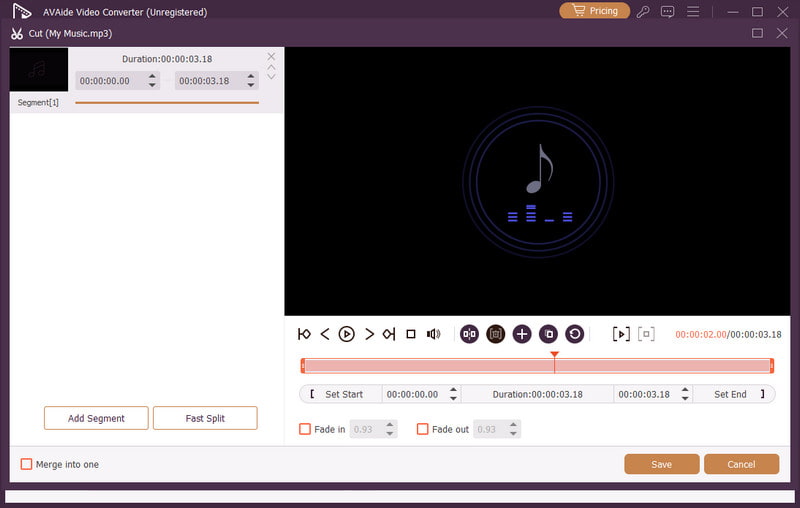
Äänitallenteen tai ääniviestin tallentamisen jälkeen on tilanteita, joissa haluat muokata sitä paremman äänentoiston saavuttamiseksi. Siksi äänen muokkaamiseen on parempi käyttää erinomaista muokkaustyökalua, kuten AVAide Video ConverterTämä ohjelma tarjoaa äänenmuokkausominaisuuden, jonka avulla voit muokata äänitiedostoasi. Voit leikata ääniraitaa, jakaa ja yhdistää sen. Voit jopa säätää äänenvoimakkuutta ja viivettä mieltymystesi mukaan. Parasta tässä on, että voit tallentaa äänen mihin tahansa muotoon ohjelman muunnosominaisuuden avulla. Voit tallentaa äänitallenteesi MP3-, WAV-, M4A-, FLAC- ja muissa muodoissa parhaalla laadulla jopa 320 kbps:n nopeudella. Jos etsit ihanteellista ohjelmistoa äänitallenteiden muokkaamiseen, AVAide Video Converter on oikea valinta.

ILMAINEN LATAAUS Windows 7 tai uudempi
 Suojattu lataus
ILMAINEN LATAAUS Mac OS X 10.13 tai uudempi
Suojattu latausLisää ominaisuuksia:
- Se voi tarjota sujuvan äänenmuokkausprosessin.
- Ohjelma voi yhdistää useita äänitiedostoja yhdeksi tiedostoksi.
- Se voi muuntaa ääni- ja videoformaatteja 120 kertaa nopeammalla muunnosnopeudella.
- Ohjelma voi tarjota myös sisäänrakennettuja videonmuokkausohjelmia, kuten yhdistämisen, jakamisen, trimmauksen, rajaamisen jne.
Ääniviestin lähettäminen iPhonella on ihanteellinen tapa, jos haluat lähettää viestisi nopeammin. Tämän opetusohjelman ansiosta olet oppinut tallentamaan ja lähettämään ääniviestin tehokkaasti. Saat jopa riittävästi tietoa siitä, miten ääniviesti tallennetaan, jotta voit toistaa sen rajoituksetta. Lisäksi, jos haluat muokata äänitallenteitasi, on parempi käyttää AVAide Video ConverterTämän ohjelman äänenmuokkaustoiminnolla voit parantaa ääntäsi, mikä johtaa parempaan ja tyydyttävämpään äänentoistoon.
TIETOA KIRJOITTAJASTA

Tallenna näytön toimintoja äänellä, online-kokouksilla, pelivideoilla, musiikilla, verkkokameralla jne.