Es posible que la grabadora de pantalla integrada de Android no tenga suficientes funciones. Sin embargo, existen algunos consejos prácticos que puedes aprender para realizar grabaciones más fáciles y versátiles de la pantalla de tu teléfono. Esta publicación te mostrará una guía completa. Grabación de pantalla de Android tutorial.
Si prefieres la grabación de pantalla avanzada para juegos, tutoriales o demostraciones profesionales, también podemos ayudarte a evitar las opciones innecesarias y ofrecerte los mejores métodos y aplicaciones de grabación de pantalla para Android disponibles en la actualidad, con tutoriales paso a paso para ayudarte a lograr resultados nítidos y de alta definición.
- Parte 1: Cómo usar la grabadora de pantalla integrada de Android
- Parte 2: Algunas herramientas de grabación para Android específicas de cada marca
- Parte 3: 4 formas más versátiles de grabar la pantalla en Android
- Extra: Graba la pantalla de tu ordenador y teléfono móvil con la mejor calidad.
- Parte 4: Preguntas frecuentes sobre cómo grabar la pantalla en Android
Parte 1: Cómo usar la grabadora de pantalla integrada de Android
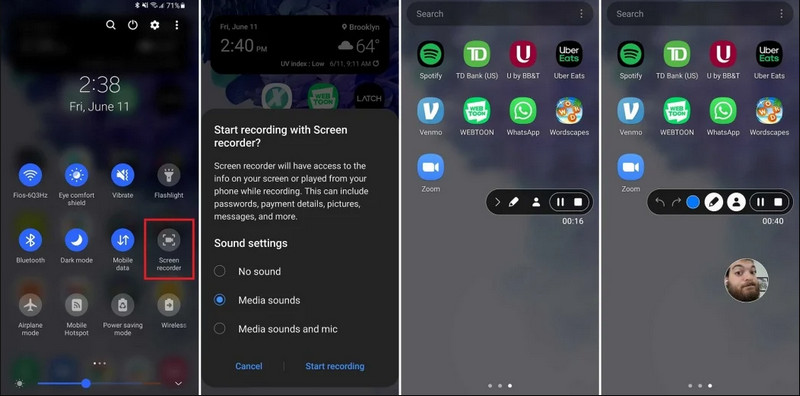
La mayoría de los dispositivos con Android 11 o superior incluyen una aplicación nativa para grabar la pantalla, ubicada en el panel de Ajustes rápidos. Simplemente úsala para grabar la pantalla de tu teléfono.
Paso 1Acceder a la configuración rápida
Desliza el dedo hacia abajo dos veces desde la parte superior de la pantalla para expandir el menú completo de Ajustes rápidos.
Paso 2Seleccionar grabador de pantalla
Buscar Grabación de pantalla. Si no lo ve, toque el Editar Haga clic en el botón (con el icono de un lápiz) y arrastre el mosaico de Grabación de pantalla a la cuadrícula activa.
Paso 3Configurar ajustes de grabación
Cuando encuentres el Android Grabador de pantalla Con esta herramienta, tienes varias opciones de grabación. Elegir la adecuada puede hacer que la grabación de pantalla de tu Android sea efectiva.
- Sin sonido: Graba únicamente la pantalla del teléfono, sin audio del sistema ni sonido externo.
- Sonidos multimedia: Graba la pantalla con todos los sonidos del sistema, incluyendo el sonido de todas las aplicaciones de tu teléfono.
- Sonidos multimedia y micrófono: Graba tanto los sonidos del sistema como los sonidos externos (el micrófono integrado del teléfono o el micrófono de tus auriculares).
Etapa 4Iniciar y detener la grabación de pantalla
Haz tu elección y pulsa el botón Iniciar recodificación botón. Aparecerá una cuenta regresiva en la barra de estado. Para detener la grabación de pantalla de Android, toque el Detener botón (si hay una barra de estado de grabación) o deslizar hacia abajo el panel de notificaciones y tocar el rojo Detener botón.
Parte 2: Algunas herramientas de grabación para Android específicas de cada marca
Muchos fabricantes de teléfonos Android ofrecen grabadoras de pantalla propias con funciones avanzadas como superposiciones para la cámara frontal. Consulta las funciones de grabación especiales de algunas marcas populares de Android:
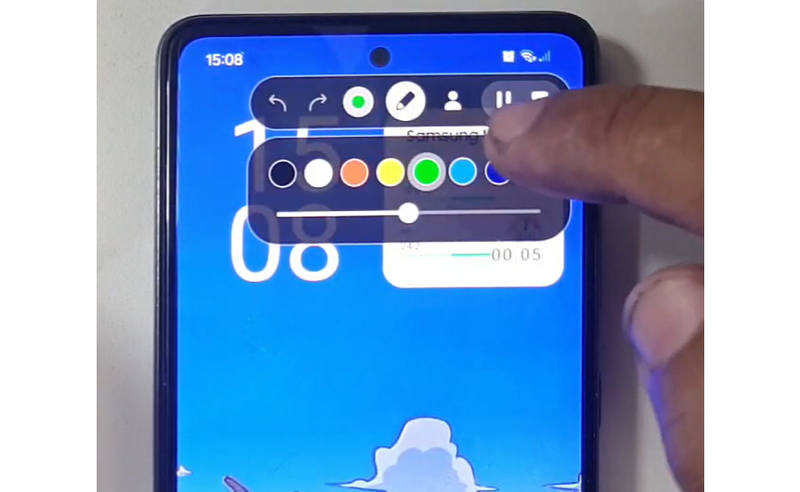
Samsung (One UI): Incluye una grabadora de pantalla con una barra de herramientas que permite dibujar en la pantalla en tiempo real.
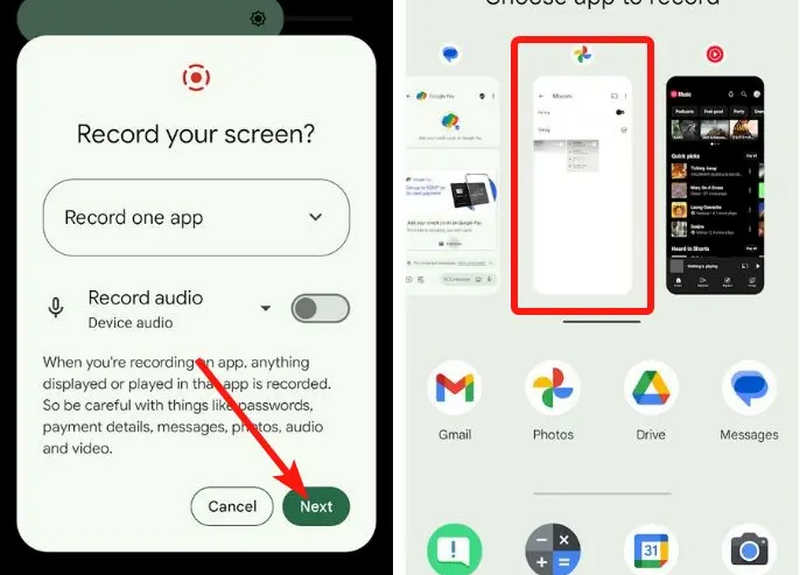
Google Pixel: Puedes seleccionar una aplicación específica (por ejemplo, una aplicación bancaria o WhatsApp) para grabar. Si sales de la aplicación o bajas el panel de notificaciones durante la grabación, esas acciones no aparecerán en el vídeo final.
Xiaomi (MIUI/HyperOS): Incluye una aplicación dedicada de "Grabación de pantalla" con amplias opciones de personalización para la velocidad de fotogramas (FPS) y la tasa de bits.
Huawei y Honor (HarmonyOS/MagicOS): Una integración única de hardware y software que permite iniciar o detener una grabación simplemente golpeando la pantalla dos veces con los nudillos.
OPPO, vivo y realme (ColorOS / OriginOS): Al iniciar un juego, la grabadora de pantalla optimiza automáticamente los recursos de la CPU/GPU para garantizar que la grabación de un clip en 4K/60FPS no provoque retrasos ni caídas de fotogramas en el juego.
Parte 3: 4 formas más versátiles de grabar la pantalla en Android
Si tu teléfono Android no cuenta con funciones de grabación de pantalla satisfactorias, puedes consultar estas cuatro aplicaciones de grabación de pantalla para Android. Ofrecen funciones prácticas y convenientes.
1. Grabador de pantalla AZ
Grabador de pantalla AZ Es una aplicación muy popular para grabar la pantalla de Android en la Play Store. Permite grabar vídeo en alta resolución de la pantalla de tu teléfono Android. Además, te permite ajustar la resolución, la velocidad de fotogramas y la tasa de bits según tus necesidades de grabación.
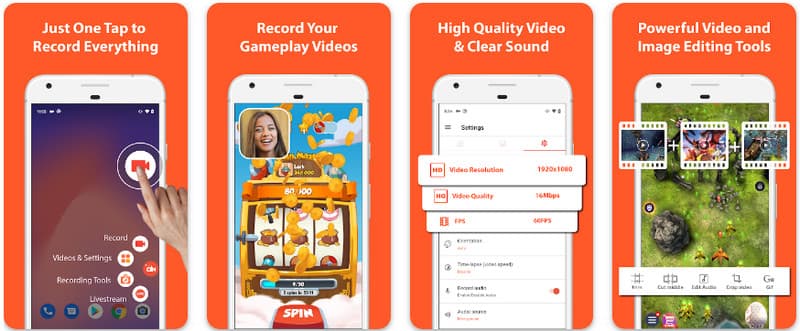
Además, AZ Screen Recorder permite a los usuarios grabar el sonido que se reproduce en el dispositivo mediante un micrófono. Esto permite grabar incluso las grabaciones más complejas y de mayor calidad. Su sencilla disposición de botones y su rendimiento constante hacen que la aplicación sea una de las favoritas de muchos. Aprenda a grabar la pantalla de un dispositivo Android con esta aplicación siguiendo el siguiente tutorial.
Paso 1Después de haber descargado la aplicación en tu Android, ejecútala. Luego, haz clic en el botón cámara Botón para acceder a la función de grabación de pantalla del mismo.
Paso 2Grifo Empezar ahora Para comenzar a grabar la pantalla en tu dispositivo Android, aparecerá una cuenta regresiva en la pantalla.
Paso 3Para detener la grabación de pantalla en su teléfono Android, toque el Registro pulsa de nuevo. Con esta aplicación, también puedes Graba la pantalla de tu iPhone con sonidos activado.
2. Grabador de pantalla Mobizen
Grabador de pantalla Mobizen es otra aplicación para grabar la pantalla en Android que está disponible gratuitamente en la Play Store y promete una grabación fácil y de alta calidad. Ofrece opciones para grabar en alta definición con parámetros ajustables y grabación limpia para eliminar marcas de agua. Además, Mobizen también cuenta con grabación de sonido interna, que se puede usar para la grabación, así como cámara web y GIF, que pueden enriquecer la grabación. También utiliza funciones y controles sencillos que ayudan al usuario a iniciar la grabación de pantalla de Android o editar el contenido sin complicaciones. Descubre cómo grabar la pantalla en Android con esta aplicación.
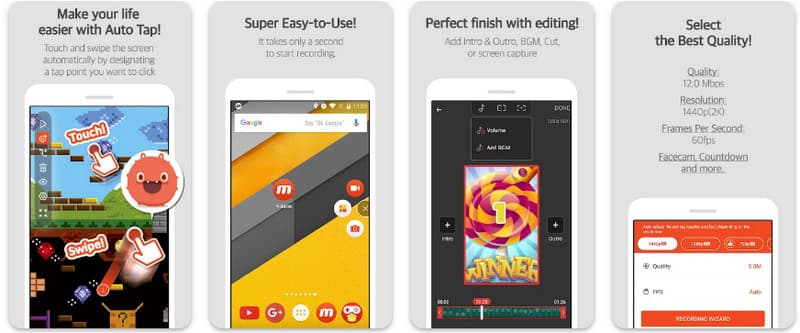
Paso 1Descárgalo ahora en tu Android y abre la aplicación.
Paso 2Realiza la configuración que se requiere antes de poder usar la grabadora de pantalla. Aparecerá una barra de grabadora flotante en tu pantalla. Toca el cámara botón, luego Empezar ahora para iniciar la grabación de pantalla.
Paso 3Cuando haya terminado, toque el METRO y el deténgase Botón para detener la grabación de pantalla en tu teléfono Android.
3. Grabador de pantalla - XRecorder de Inshot
Grabador de pantalla - XRecorder Es una potente utilidad todo en uno para Android que simplifica la captura de pantalla al ofrecer grabación en alta definición, hasta 1080p a 60 FPS, sin necesidad de acceso root ni marcas de agua. Como método principal para grabar la pantalla en Android 17/16, proporciona una experiencia de usuario fluida a través de una ventana de control flotante que permite iniciar, pausar y dibujar en la pantalla en tiempo real con una herramienta de pincel integrada. Además de la simple captura de vídeo, admite grabación de audio interna, superposiciones de cámara web para streamers y edición de vídeo integrada, lo que la convierte en la opción ideal para cualquiera que necesite crear tutoriales profesionales, clips de juegos o demostraciones claras directamente desde su dispositivo móvil.
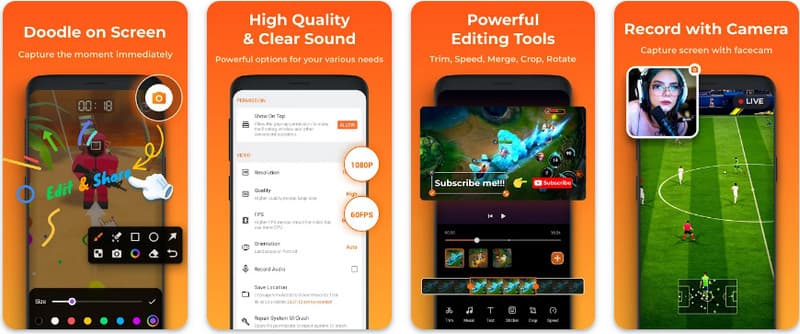
Paso 1Cuando finalice la descarga de XRecorder, ábralo y toque el botón Habilitar icono flotante.
Paso 2Después de eso, toca el Registro Botón para iniciar la grabación y Empezar ahora para confirmar.
Paso 3Como puedes ver, la duración de la grabación aparece como un ícono flotante; toca el deténgase botón para guardar la grabación.
4. Súper grabador de pantalla
Super grabador de pantalla Super Screen Recorder es una solución de primera categoría para quienes buscan una forma profesional de grabar la pantalla en Android con la máxima flexibilidad. Esta potente aplicación ofrece captura en alta definición y destaca por brindar una experiencia sin marcas de agua, incluso en su versión gratuita, garantizando que tu contenido se mantenga limpio y profesional. Incluye una cámara web integrada para capturar reacciones en tiempo real y una versátil herramienta de pincel que te permite dibujar en la pantalla durante la grabación, una función esencial para crear tutoriales o guías interactivas. Tanto si eres principiante como si eres un usuario avanzado, Super Screen Recorder te ofrece la sólida personalización necesaria para dominar la grabación de pantalla en Android con facilidad.
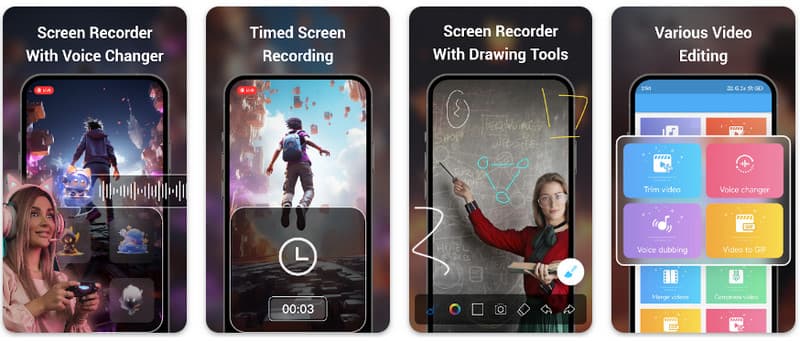
Paso 1Abre Super Screen Recorder en tu Android, luego habilita la función flotante de la aplicación para usarlo.
Paso 2En tu pantalla, toca el cámara Botón, confirme la configuración y toque Empezar ahoraLuego aparecerá una cuenta regresiva de tres segundos antes de que comience la grabación.
Paso 3Toque en el cuadrado Botón para finalizar la grabación y guardarla en su dispositivo Android.
Extra: Graba la pantalla de tu ordenador y teléfono móvil con la mejor calidad.
¿Crees que puedes grabar la pantalla de tu teléfono Android en un ordenador? Grabador de pantalla AVAide Está diseñado principalmente para grabar la pantalla en Windows y Mac. Sin embargo, también puede grabar la pantalla completa de tu teléfono Android. Esto resulta especialmente útil cuando necesitas crear un tutorial sobre ciertas operaciones en Android y luego editar el video directamente en tu Mac o Windows.
AVAide Screen Recorder, compatible con Windows y Mac, graba la pantalla con los códecs AV1 y HEVC, lo que permite comprimir la grabación manteniendo la mejor calidad de vídeo. Su aceleración por hardware permite grabar vídeos largos con un consumo mínimo de CPU. Además, cuenta con un micrófono mejorado que optimiza la claridad al cancelar el ruido de fondo y el eco. El software ofrece grabaciones excelentes con funciones de edición y navegación sencillas, como recortar y añadir anotaciones. Aunque es un software costoso, es muy recomendable, ya que puede utilizarse tanto para fines personales como profesionales.
- Graba tu dispositivo Android o iOS con la mejor calidad de vídeo.
- Crea fácilmente grabaciones de tutoriales con funciones de dibujo y anotación.
- Admite los códecs de salida AV1 y HEVC para comprimir al máximo el vídeo de salida.
- Ofrece funciones de edición de vídeo fáciles de usar para editar tus grabaciones en Android.
Paso 1Ahora puedes descargar el grabador de pantalla en tu PC marcando el botón de descarga aquí. Luego, instala la aplicación siguiendo las instrucciones en tu pantalla y ejecútala para avanzar al siguiente paso.

DESCARGA GRATUITA Para Windows 7 o posterior
 Descarga segura
DESCARGA GRATUITA Para Mac OS X 10.13 o posterior
Descarga seguraPaso 2Ahora que ya se está ejecutando en el sistema, coloque el marco de grabación en el área donde desea comenzar a grabar. Aquí, puede grabar toda la pantalla seleccionando la opción Pantalla completa en lugar de la opción Región.

Paso 3A continuación, se puede configurar la grabación del sistema y del micrófono si es necesario. Si desea agregar su rostro a la grabación, active la opción Webcam aquí. Luego, haga clic en REC para iniciar la cuenta regresiva y comenzar a grabar.

Etapa 4Cuando termine de grabar, haga clic en el deténgase botón, que es un cuadrado rojo. En la siguiente ventana que aparece, puedes editar la grabación que tomaste anteriormente con las opciones disponibles aquí, luego coloca el cursor sobre la grabación y presiona el botón descargar Botón para guardarlo. Esta aplicación demuestra su valor como la La mejor grabadora de código abierto disponible.

Parte 4: Preguntas frecuentes sobre cómo grabar la pantalla en Android
¿Dónde puedo encontrar la opción de grabar la pantalla en mi configuración?
Para acceder a la función integrada grabación de pantalla en Android Sin aplicaciones de terceros, deslice dos veces hacia abajo desde la parte superior de la pantalla para abrir la Configuración rápida panel y busque el Grabación de pantalla (o icono de "Grabación de pantalla"). Si no está visible, toque el Editar Utilice el botón (lápiz) para arrastrar el interruptor de grabación de pantalla a sus mosaicos activos. Una vez agregado, simplemente toque el ícono, seleccione sus preferencias de audio, como grabar los sonidos internos del sistema o el micrófono, y presione iniciar para comenzar a capturar la pantalla directamente desde la configuración del sistema.
¿Por qué no encuentro la opción de grabar la pantalla en mi Android?
La ausencia de una opción nativa para grabar la pantalla en Android generalmente se debe a que su dispositivo ejecuta un sistema operativo más antiguo, ya que la función integrada solo se estandarizó con Android 11. Si su software está actualizado, es posible que el interruptor simplemente esté oculto para su Configuración rápida menú; normalmente puedes revelarlo tocando el Editar Para ello, pulsa el botón en el panel de notificaciones y arrastra el icono de "Grabar pantalla" a la vista activa. Además, algunos dispositivos "Go Edition" básicos o ciertas interfaces de usuario del fabricante pueden desactivar esta función para ahorrar recursos del sistema; en ese caso, la solución más eficaz es usar una aplicación de terceros como XRecorder o Super Screen Recorder.
¿Por qué desapareció el botón de grabación de pantalla?
El botón de grabación de pantalla suele desaparecer porque se movió accidentalmente fuera del área activa de Ajustes rápidos; a menudo puede restaurarlo tocando el Editar (icono de lápiz) En el panel de notificaciones, puede arrastrar el icono hacia atrás. También puede estar oculto debido al modo de ahorro de energía, restringido por un perfil de trabajo o simplemente requerir un reinicio del sistema para actualizar la interfaz de usuario después de una actualización de software.
Usando el tutorial que se muestra aquí, has aprendido Cómo grabar la pantalla en Android SamsungEste tutorial te será de gran utilidad para la grabación de pantalla, especialmente si eres usuario de Android. Comparte esta información con tus amigos que sean usuarios de Android para que tengan una idea de cómo hacerlo.
SOBRE EL AUTOR

Grabe la pantalla, el audio, la cámara web, el juego, las reuniones en línea, así como la pantalla de iPhone/Android en su computadora.
Grabación de pantalla
- Registro de pantalla en Windows
- Grabar Instagram Live
- Copiar vídeos de Tubi
- Convertir vídeos de YouTube a MP3
- Descargar vídeos de Fansly
- Descargar vídeos de JW Player
- Descargar vídeos de Bilibili
- Descargar vídeos de Patreon
- Descargar vídeos de SpankBang
- Descargar vídeos de Discord
- Descargar el vídeo de DoodSream