Bildschirmaufnahmen sind heutzutage unerlässlich, da sie für Tutorials, virtuelle Meetings, Produktdemos und andere Schulungsaktivitäten unverzichtbar sind. Viele Anwender haben jedoch Probleme mit Apps, die Aufnahmen in geringer Qualität liefern, komplizierte Bearbeitungsoptionen bieten und langsame Freigabefunktionen erfordern. VEED.io Bildschirmrekorder Diese App vereint all diese Funktionen und ist daher bei Content-Erstellern und Unternehmen gleichermaßen beliebt. Wenn Sie die Funktionen, die Preisgestaltung, die Einschränkungen und den Installationsprozess der App verstehen, können Sie besser entscheiden, ob sie Ihren Bedürfnissen entspricht.
Teil 1. Hauptmerkmale von VEED.io
VEED Screen Recorder ist eine Online-Anwendung, mit der Nutzer Videos in wenigen Schritten aufnehmen, bearbeiten und veröffentlichen können. Sie ist besonders beliebt bei Anwendern, die Tutorials, Präsentationen und Schulungsmaterialien erstellen oder auch aus der Ferne kommunizieren möchten.
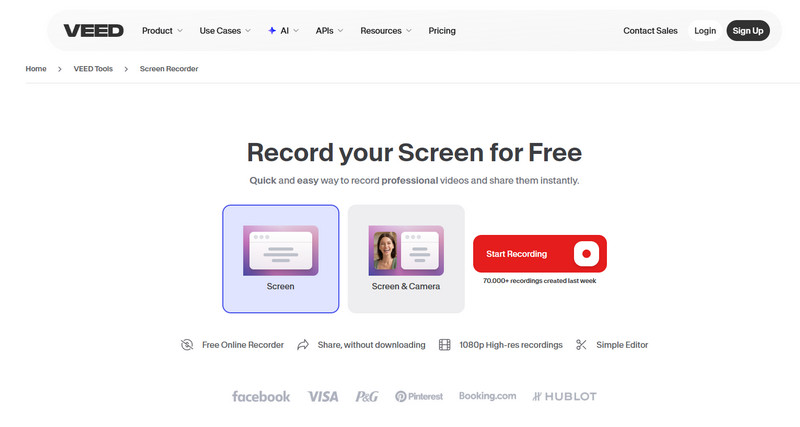
Hauptmerkmale der VEED-Bildschirmaufzeichnung:
1. Browserbasierter Zugriff auf Aufzeichnungen
Das Tool kann direkt über den Browser genutzt werden. Es ist kein Download erforderlich, wodurch die Aufnahme schnell und ohne Installation möglich ist.
2. Vollbild-, Fenster- und Tab-Aufnahme
Benutzer können den aufzuzeichnenden Bereich auswählen. Dies kann der gesamte Bildschirm, ein Fenster oder sogar ein bestimmter Tab im Browser sein.
3. Gleichzeitige Bildschirm- und Webcam-Aufnahme
Es unterstützt die gleichzeitige Aufnahme von Bildschirm und Webcam, was für Online-Unterricht, Produktdemonstrationen und persönliche Präsentationsvideos nützlich ist.
4. Integrierte Audio- und Funktionsfunktionen
Das System ermöglicht Sprachaufnahmen über ein Mikrofon und die Systemaudioanlage. Nutzer können ihre Inhalte vertonen und mithilfe der Funktionen von VEED.io aufzeichnen. Das System unterstützt Video-Tutorials, Schulungsvideos und Videokommentare.
5. Integrierte Bearbeitung nach der Aufnahme
Nachdem die Nutzer ihre Inhalte aufgenommen haben, wechseln sie zum Online-Editor, wo sie ihre Videos ohne zusätzliche Software bearbeiten können. Sie können ihre Videos schneiden, Text hinzufügen und Untertitel einfügen.
6. Automatische Untertitelgenerierung
Das System wandelt gesprochene Sprache automatisch in Untertitel um, wodurch sie zugänglicher und leichter verständlich wird.
7. KI-Verbesserungen und Rauschunterdrückung
VEED bietet KI-gestützte Technologie zur Reduzierung von Hintergrundgeräuschen und zur Verbesserung der Klangqualität. Dies gewährleistet eine hohe Klangqualität auch bei Aufnahmen in nicht-professionellen Umgebungen.
Bei der Bewertung der Bildschirmaufzeichnungstools des Videobearbeitungsunternehmens VEED vergleichen Anwender üblicherweise dessen Funktionalität als All-in-One-Plattform, als browserbasierte Plattform und dessen Bearbeitungswerkzeuge mit denen anderer verfügbarer Bildschirmaufzeichnungstools.
Teil 2. VEED.io Bildschirmrekorder – Ein genauer Blick
1. Aufnahmeoptionen
Die Plattform bietet verschiedene Aufnahmeoptionen. Dazu gehören Vollbild-, Fenster- und Tab-Aufnahmen aus dem Browser. Der Nutzer kann die Kamera-Overlay-Funktion aktivieren, die während der Präsentation der VEED.io-Informationen auf dem Bildschirm angezeigt wird. Diese Methode eignet sich am besten für Inhalte, die per Sprechertext erläutert werden. VEED.io verfügt über einen Diktiergerät mit hochwertigen Mikrofoneingängen.
2. Qualitätseinstellungen
Die VEED-Anwendung ermöglicht die Auswahl einer Aufnahmeauflösung je nach Bedarf – von Standard-HD für schnelle Uploads bis hin zu einer höheren Auflösung für den professionellen Einsatz. Audiobearbeitungssoftware kann die Audioqualität verbessern und Hintergrundgeräusche reduzieren. Diese Funktionen sind besonders hilfreich bei der Aufnahme von Podcasts mit VEED.
3. Browserbasiertes vs. App-Erlebnis
Da VEED eine Online-Anwendung ist, können Sie sofort mit der Aufnahme beginnen – eine Installation ist nicht erforderlich. Sie ist auf verschiedenen Geräten leichter zugänglich als herkömmliche Desktop-Programme. Der Recorder kann sich automatisch bearbeiten und aktualisieren, bietet aber weniger Kontrolle über das System als andere.
Teil 3. So verwenden Sie den VEED.io-Recorder
Die Inbetriebnahme des VEED-Videorekorders ist einfach und erfolgt vollständig über den Browser. Benutzer können ohne technische Schritte oder Installation direkt vom Einrichten zum Exportieren gelangen.
Schritt 1Öffnen Sie Ihren Browser und rufen Sie die Website VEED.io auf. Dort finden Sie den Bereich für die Bildschirmaufnahme. Mit dem Online-Editor können Sie sofort loslegen, da keine Installation erforderlich ist.
Schritt 2Legen Sie die Aufnahmequelle fest. Dies kann Ihr gesamter Bildschirm, eine bestimmte Anwendung oder ein Browser-Tab sein. Zusätzlich können Sie die Webcam so einstellen, dass sie den Bildschirm während der Präsentation aufzeichnet.
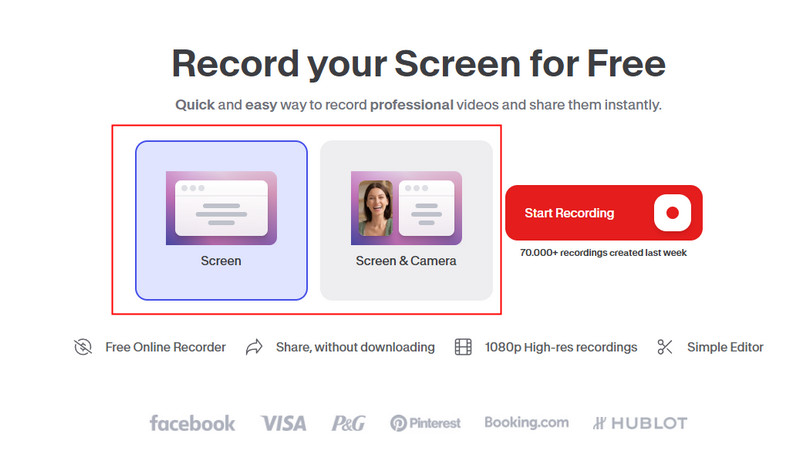
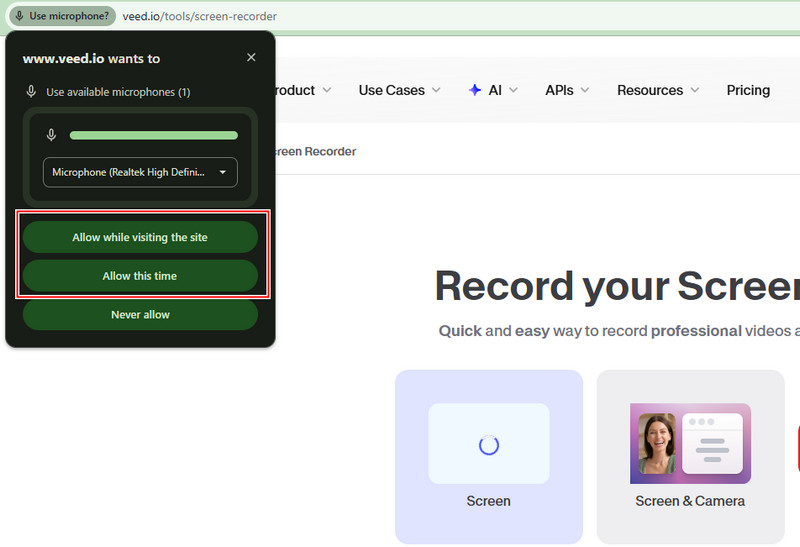
Schritt 3Erlauben Sie den Mikrofonzugriff. Je nach Inhalt können Sie außerdem die Systemaudioaufnahme aktivieren. Wenn Sie bereit sind, die Aufnahme zu starten, sprechen Sie Ihren Inhalt einfach natürlich vor.
Schritt 4Nach dem Stoppen der Aufnahme öffnet sich das Video im integrierten Editor. Hier können Sie unerwünschte Teile herausschneiden, Untertitel hinzufügen und Anpassungen vornehmen, bevor Sie die endgültige Version exportieren oder teilen. Für erweiterte Bearbeitungsmöglichkeiten steht Ihnen ein Videoeditor zur Verfügung. automatischer Video-Editor Das benötigen Sie, nachdem Sie die Aufnahme exportiert haben.
Teil 4. VEED.io-Preisgestaltung
VEED.io nutzt ein Freemium-Preismodell mit drei kostenpflichtigen Tarifen. Die Preise variieren je nach Zahlungsart (monatlich oder jährlich). Jahresabonnements sind deutlich günstiger.
Schöpferplan
Der Creator-Tarif richtet sich an Einzelnutzer, die eine Bearbeitung ohne Wasserzeichen und grundlegende KI-Werkzeuge benötigen.
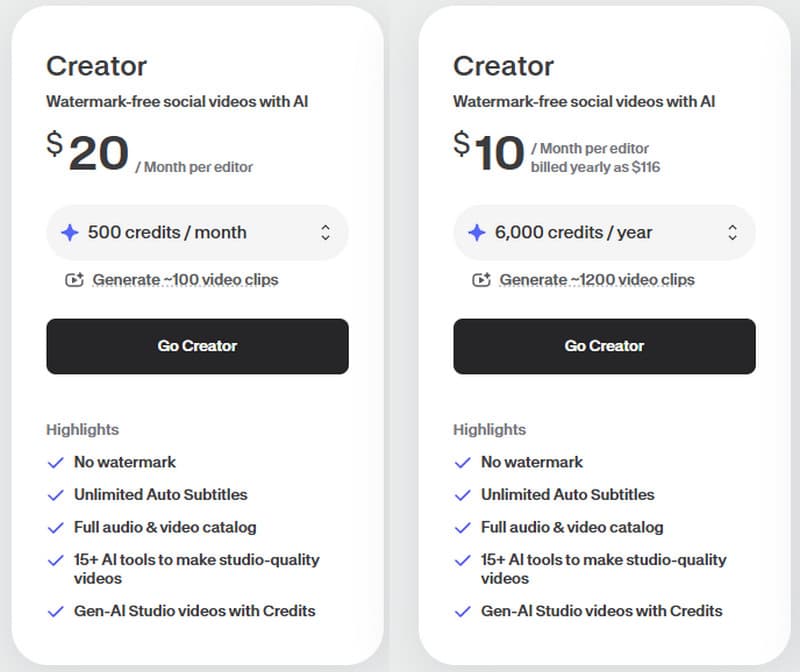
- Monatlich: $20 pro Redakteur/Monat
- Jährlich: $10 pro Redakteur/Monat (abgerechnet $116 pro Jahr)
Dieses Paket bietet unbegrenzte Untertitel, Exporte ohne Wasserzeichen, erweiterte KI-Funktionen und Mediendateien. Es eignet sich am besten für freiberufliche Künstler und Social-Media-Influencer.
Pro-Plan
Der Pro-Plan richtet sich an Fachleute, die Tools für das Markenmanagement, höhere Produktivität und fortschrittliche KI-Funktionen suchen.
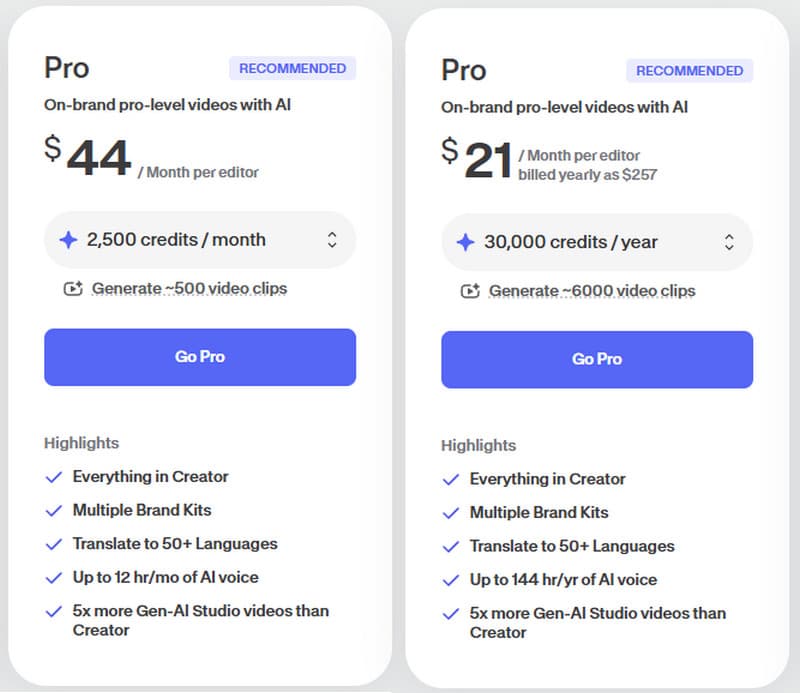
- Monatlich: $44 pro Redakteur/Monat
- Jährlich: $21 pro Redakteur/Monat (abgerechnet $257 pro Jahr)
Es umfasst alle Funktionen von Creator sowie Marken-Kits, Übersetzungen in über 50 Sprachen, erweiterte KI-Sprachfunktionen und höhere Videogenerierungslimits. Marketingfachleute und wachsende Teams entscheiden sich häufig dafür.
Studioplan
Der Studio-Plan ist für die Produktion großer Stückzahlen und KI-gesteuerte Arbeitsabläufe ausgelegt.
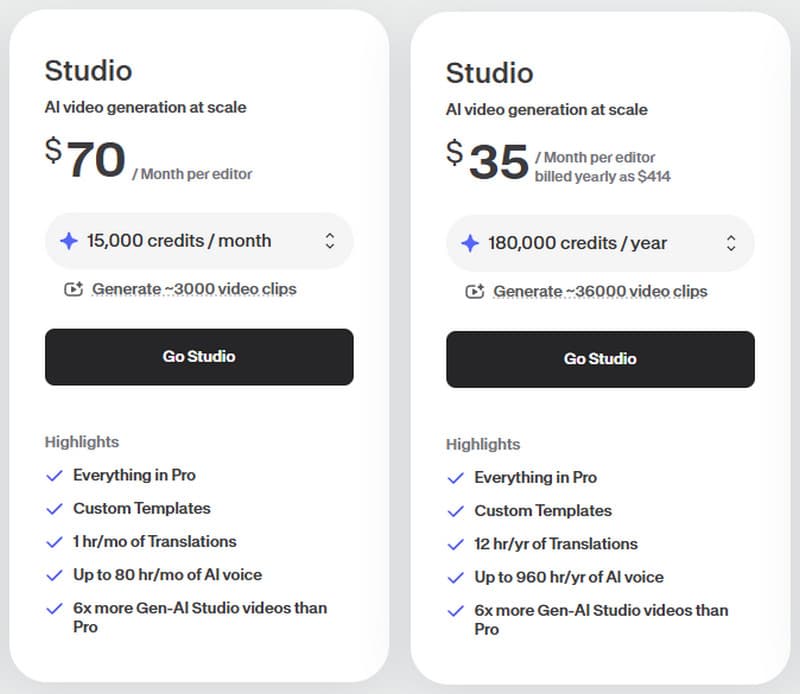
- Monatlich: $70 pro Redakteur/Monat
- Jährlich: $35 pro Redakteur/Monat (abgerechnet $414 pro Jahr)
Es umfasst benutzerdefinierte Vorlagen, eine höhere Nutzung von KI-Sprachausgabe, erweiterte Übersetzungslimits und die höchste Videogenerierungskapazität und eignet sich daher sowohl für Agenturen als auch für Kreative auf Unternehmensebene.
Teil 5. Alternativen zum VEED.io-Bildschirmrekorder
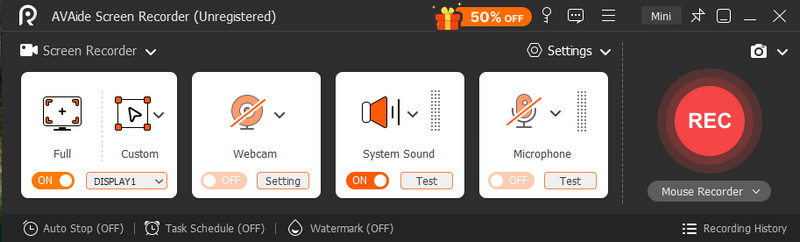
1. AVAide-Bildschirmrekorder
AVAide Screen Recorder ist ein einfaches und effektives Bildschirmaufnahmeprogramm für stabile und zuverlässige Videoaufnahmen. Diese Software eignet sich ideal für alle, die flüssige Aufnahmen ohne Einschränkungen durch den Webbrowser oder eine hohe Systemlast wünschen.

KOSTENLOSER DOWNLOAD Für Windows 7 oder höher
 Sicherer Download
KOSTENLOSER DOWNLOAD Für Mac OS X 10.13 oder höher
Sicherer DownloadSeine Praktikabilität liegt in seiner Effizienz und Stabilität. Viele Anwender entscheiden sich für diese Software, weil sie sich ideal für die Erstellung von Tutorials, Software-Demonstrationen und Schulungsvideos eignet, die klar, prägnant und frei von Ablenkungen sein müssen.
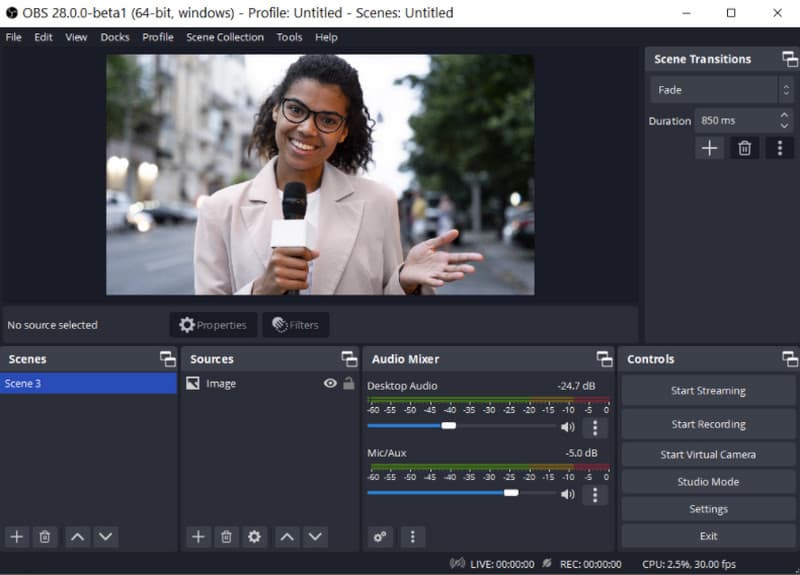
2. OBS Studio
OBS-Studio ist das genaue Gegenteil der Einfachheit eines VEED-Bildschirmrekorders. Es ist leistungsstark, flexibel und wird von Streamern und fortgeschrittenen Kreativen häufig genutzt. Es ermöglicht mehrere Szenen, übereinanderliegende Eingänge, Übergänge und volle Audiokontrolle. Allerdings erfordert es etwas Einarbeitungszeit. Hat man es erst einmal beherrscht, zählt es zu den leistungsfähigsten kostenlosen Aufnahmetools. Es ist ideal für Nutzer, die volle Kontrolle über ihre Produktion wünschen, beispielsweise für Live-Streaming, Gaming-Inhalte oder professionelle Aufnahmen.
Teil 6. Fehlerbehebung: VEED.io funktioniert nicht
Bei der Verwendung des VEED.io-Sprachrekorders können aufgrund bestimmter Browserkonfigurationen, Internetverbindungsproblemen und Systembeschränkungen Schwierigkeiten auftreten. In den meisten Fällen lassen sich solche Probleme jedoch recht einfach beheben und erfordern keine technischen Vorkenntnisse.
- Stellen Sie sicher, dass Sie über eine aktive Internetverbindung verfügen.
- Das Neuladen der Seite oder das Öffnen eines neuen Tabs würde helfen.
- Die Verwendung von Google Chrome oder Microsoft Edge ist von Vorteil.
- Stellen Sie sicher, dass die Berechtigungen für Mikrofon und Bildschirmaufnahme aktiviert sind.
- Browser-Cache und Cookies müssen gelöscht werden.
- Falls die Aufnahme fehlschlägt, versuchen Sie, etwaige Werbeblocker zu deaktivieren.
- Falls es zu Verzögerungen kommt, versuchen Sie, die Aufnahmequalität zu reduzieren.
VEED Bildschirmrekorder ist ein benutzerfreundliches Programm, mit dem Sie Videos direkt im Browser aufnehmen, bearbeiten und teilen können. Die Anwendung eignet sich ideal für die Erstellung von Tutorials, Präsentationen und die Durchführung virtueller Meetings – ganz ohne Softwareinstallation. Die intuitive Bedienung und die Videobearbeitungswerkzeuge sind für alle Anwendertypen hilfreich, insbesondere für Erstnutzer. Da es sich um eine Online-Plattform handelt, ist eine stabile Internetverbindung erforderlich.
ÜBER DEN AUTOR

Erfassen Sie Bildschirmaktivitäten mit Audio, Online-Meetings, Gameplay-Videos, Musik, Webcam usw.
Bildschirmaufnahme
- Bildschirmaufnahme unter Windows
- Instagram Live aufnehmen
- Rippen Sie Videos von Tubi
- Konvertieren Sie YouTube-Videos in MP3
- Laden Sie Videos von Fansly herunter
- Herunterladen von JW Player-Videos
- Laden Sie Bilibili-Videos herunter
- Patreon-Videos herunterladen
- SpankBang-Videos herunterladen
- Discord-Videos herunterladen
- DoodSream-Video herunterladen