


Der integrierte Android-Bildschirmrekorder bietet möglicherweise nicht alle Funktionen. Es gibt jedoch einige praktische Tipps, mit denen Sie einfacher und vielseitiger Aufnahmen von Ihrem Smartphone-Bildschirm erstellen können. Dieser Beitrag zeigt Ihnen umfassend, wie das geht. Bildschirmaufnahme auf Android-Geräten Tutorial.
Wenn Sie fortgeschrittene Bildschirmaufnahmen für Spiele, Tutorials oder professionelle Demos bevorzugen, können wir Ihnen auch dabei helfen, den Überblick zu behalten und Ihnen die besten Android-Bildschirmaufnahmemethoden und -Apps vorzustellen, die heute verfügbar sind, komplett mit Schritt-für-Schritt-Anleitungen, die Ihnen helfen, gestochen scharfe, hochauflösende Ergebnisse zu erzielen.
- Teil 1: So verwenden Sie den integrierten Android-Bildschirmrekorder
- Teil 2: Einige markenspezifische Android-Aufnahmetools
- Teil 3: 4 weitere vielseitige Möglichkeiten zur Bildschirmaufnahme auf Android
- Bonus: Bildschirmaufnahme auf Desktop und Mobiltelefon in bester Qualität
- Teil 4: Häufig gestellte Fragen zur Bildschirmaufnahme auf Android
Teil 1: So verwenden Sie den integrierten Android-Bildschirmrekorder
Die meisten Geräte mit Android 11 oder höher verfügen über eine vorinstallierte Bildschirmaufnahme-App, die sich in den Schnelleinstellungen befindet. Sie können diese einfach verwenden, um den Bildschirm Ihres Telefons aufzuzeichnen.
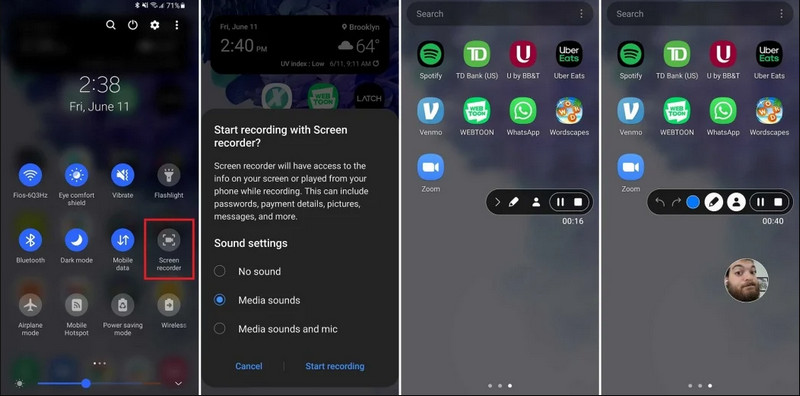
Schritt 1Schnellzugriff auf die Einstellungen
Wischen Sie zweimal vom oberen Bildschirmrand nach unten, um das vollständige Schnellmenü zu öffnen.
Schritt 2Bildschirmaufnahme auswählen
Suchen BildschirmaufzeichnungFalls Sie es nicht sehen, tippen Sie auf Bearbeiten Klicken Sie auf die Schaltfläche (mit dem Stiftsymbol) und ziehen Sie die Kachel „Bildschirmaufnahme“ in Ihr aktives Raster.
Schritt 3Aufzeichnungseinstellungen konfigurieren
Wenn Sie das Android-Gerät finden Bildschirm recorder Mit diesem Tool stehen Ihnen verschiedene Aufnahmeoptionen zur Verfügung. Die Wahl der richtigen Option kann Ihre Android-Bildschirmaufnahme effektiv gestalten.
- Kein Ton: Nehmen Sie nur den Telefonbildschirm ohne Systemton oder externe Geräusche auf.
- Medientöne: Nehmen Sie den Bildschirm mit allen Systemtönen auf, einschließlich der Töne aller Apps auf Ihrem Telefon.
- Medientöne und Mikrofon: Nehmen Sie sowohl Systemgeräusche als auch externe Geräusche auf (das eingebaute Mikrofon Ihres Telefons oder das Mikrofon Ihrer Kopfhörer).
Schritt 4Bildschirmaufnahme starten und stoppen
Treffen Sie Ihre Wahl und tippen Sie auf Aufnahme starten Die Schaltfläche wird angezeigt. Ein Countdown erscheint in der Statusleiste. Um die Android-Bildschirmaufnahme zu beenden, tippen Sie auf die Schaltfläche. Stoppen Drücken Sie die Aufnahmetaste (falls eine Aufnahmestatusleiste vorhanden ist) oder wischen Sie die Benachrichtigungsleiste nach unten und tippen Sie auf die rote Taste. Stoppen Taste.
Teil 2: Einige markenspezifische Android-Aufnahmetools
Viele Android-Smartphone-Hersteller bieten eigene Bildschirmaufzeichnungsprogramme mit erweiterten Funktionen wie Selfie-Kamera-Overlays an. Sehen Sie sich die speziellen Aufnahmefunktionen einiger beliebter Android-Marken an:
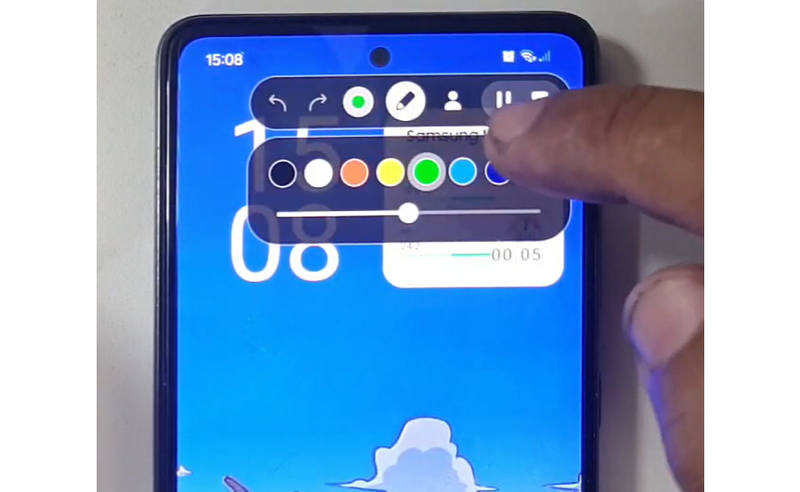
Samsung (One UI): Beinhaltet einen Bildschirmrekorder mit einer Symbolleiste, mit der Sie in Echtzeit auf dem Bildschirm zeichnen können.
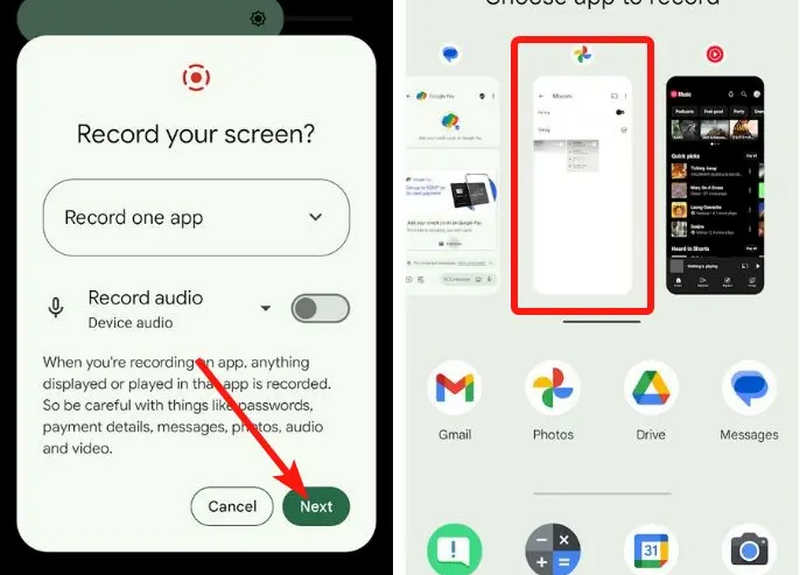
Google Pixel: Sie können eine bestimmte App (z. B. eine Banking-App oder WhatsApp) zur Aufzeichnung auswählen. Wenn Sie die App während der Aufzeichnung schließen oder die Benachrichtigungsleiste herunterziehen, werden diese Aktionen im endgültigen Video nicht angezeigt.
Xiaomi (MIUI/HyperOS): Verfügt über eine eigene „Bildschirmaufnahme“-App mit umfangreichen Anpassungsmöglichkeiten für Bildwiederholraten (FPS) und Bitraten.
Huawei & Honor (HarmonyOS / MagicOS): Eine einzigartige Hardware-Software-Integration, bei der Sie eine Aufnahme starten oder stoppen können, indem Sie einfach mit beiden Knöcheln zweimal auf den Bildschirm tippen.
OPPO, vivo und realme (ColorOS / OriginOS): Beim Start eines Spiels optimiert der Bildschirmrekorder automatisch die CPU/GPU-Ressourcen, um sicherzustellen, dass die Aufnahme eines 4K/60FPS-Clips keine Verzögerungen oder Frame-Einbrüche im Spiel verursacht.
Teil 3: 4 weitere vielseitige Möglichkeiten zur Bildschirmaufnahme auf Android
Falls die Bildschirmaufnahmefunktionen Ihres Android-Smartphones nicht zufriedenstellend sind, können Sie die vier vorgestellten Android-Bildschirmaufnahme-Apps ausprobieren. Sie bieten einige praktische und nützliche Funktionen.
1. AZ-Bildschirmrekorder
AZ Bildschirm Recorder ist eine sehr beliebte Bildschirmaufnahme-App für Android im Play Store. Sie kann hochauflösende Videos vom Bildschirm Ihres Android-Smartphones aufnehmen. Die App ermöglicht es Ihnen außerdem, Auflösung, Bildrate und Bitrate je nach Aufnahmezweck anzupassen.
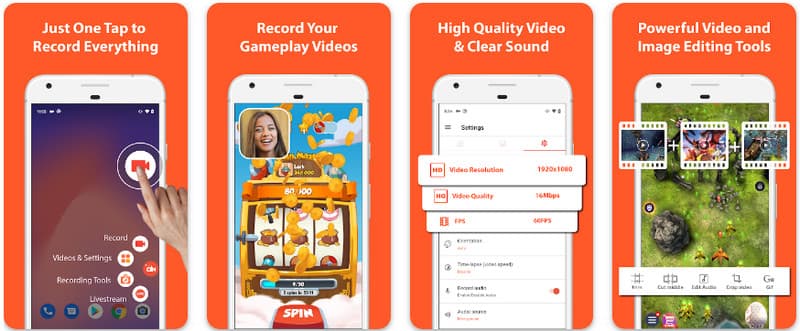
Darüber hinaus können Benutzer mit dem AZ Screen Recorder den auf dem Gerät abgespielten Ton über ein Mikrofon aufzeichnen. Dadurch ist die Aufnahme selbst der kompliziertesten und hochwertigsten Aufnahmen möglich. Die einfache Anordnung der Schaltflächen und die konstante Leistung machen die App zu einem Favoriten vieler. Erfahren Sie im folgenden Tutorial, wie Sie damit einen Android-Bildschirm aufzeichnen.
Schritt 1Nachdem Sie die App auf Ihr Android heruntergeladen haben, starten Sie sie. Klicken Sie dann auf Kamera Schaltfläche, um auf die Bildschirmaufzeichnungsfunktion zuzugreifen.
Schritt 2Zapfhahn Jetzt anfangen Um die Bildschirmaufnahme auf Ihrem Android-Gerät zu starten, klicken Sie auf „Starten“. Anschließend wird ein Countdown auf Ihrem Bildschirm angezeigt.
Schritt 3Um die Bildschirmaufnahme auf Ihrem Android-Telefon zu beenden, tippen Sie auf die entsprechende Schaltfläche. Schallplatte Die Schaltfläche wird erneut betätigt. Mit dieser App können Sie außerdem Bildschirmaufnahme auf Ihrem iPhone mit Tönen aktiviert.
2. Mobizen Bildschirm Recorder
Mobizen Bildschirm Recorder Mobizen ist eine weitere App für Bildschirmaufnahmen auf Android, die kostenlos im Play Store erhältlich ist und einfache, hochwertige Aufnahmen verspricht. Sie bietet Optionen für HD-Aufnahmen mit anpassbaren Parametern sowie die Möglichkeit, Wasserzeichen durch saubere Aufnahmen zu entfernen. Zusätzlich verfügt Mobizen über eine interne Tonaufnahmefunktion, die für die Aufnahme genutzt werden kann, sowie über eine Facecam und die Möglichkeit, GIFs zu erstellen. Die App zeichnet sich durch ihre intuitive Bedienung aus, die es dem Nutzer ermöglicht, Bildschirmaufnahmen auf Android zu starten oder Inhalte zu bearbeiten, ohne lange suchen zu müssen. Erfahren Sie, wie Sie mit dieser App Bildschirmaufnahmen auf Ihrem Android-Gerät erstellen.
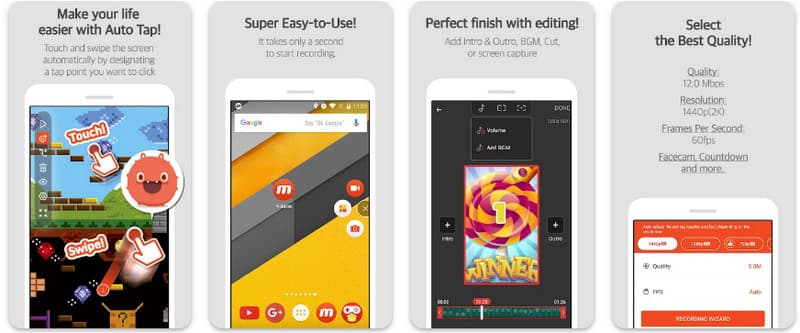
Schritt 1Laden Sie es jetzt auf Ihr Android herunter und öffnen Sie die App.
Schritt 2Führen Sie die erforderlichen Einstellungen durch, bevor Sie den Bildschirmrekorder verwenden können. Eine schwebende Aufnahmeleiste wird auf Ihrem Bildschirm angezeigt. Tippen Sie auf die Schaltfläche. Kamera Knopf, dann Jetzt anfangen um die Bildschirmaufnahme zu starten.
Schritt 3Wenn Sie fertig sind, tippen Sie auf das M und das Pause Taste zum Beenden der Bildschirmaufnahme auf Ihrem Android-Telefon.
3. Bildschirmrekorder - XRecorder von Inshot
Bildschirmrekorder - XRecorder ist ein leistungsstarkes All-in-One-Android-Tool, das Bildschirmaufnahmen vereinfacht. Es bietet hochauflösende Aufnahmen mit bis zu 1080p bei 60 FPS, ohne Root-Zugriff oder Wasserzeichen. Als führende Methode für Bildschirmaufnahmen unter Android 17/16 bietet es eine intuitive Benutzerführung dank eines schwebenden Steuerungsfensters. Dieses ermöglicht es, Aufnahmen in Echtzeit zu starten, anzuhalten und mit einem integrierten Pinselwerkzeug auf dem Bildschirm zu zeichnen. Neben einfachen Videoaufnahmen unterstützt es interne Audioaufnahmen, Facecam-Overlays für Streamer und integrierte Videobearbeitung. Damit ist es die ideale Wahl für alle, die professionelle Tutorials, Gameplay-Clips oder anschauliche Demonstrationen direkt auf ihrem Mobilgerät erstellen möchten.
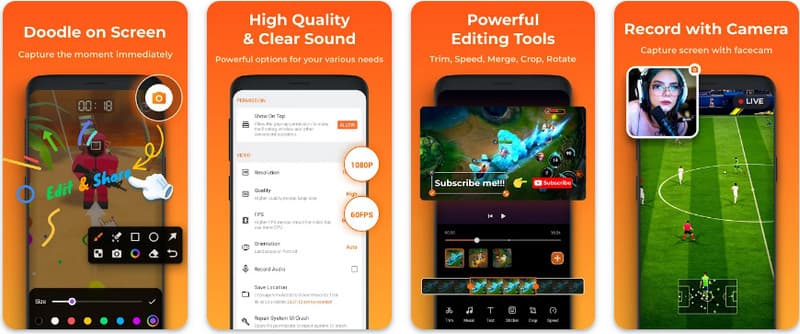
Schritt 1Wenn der Download des XRecorders abgeschlossen ist, öffnen Sie ihn und tippen Sie auf Schwebendes Symbol aktivieren.
Schritt 2Tippen Sie danach auf Schallplatte Taste zum Starten der Aufnahme und Jetzt anfangen bestätigen.
Schritt 3Wie Sie sehen, wird die Länge der Aufnahme als schwebendes Symbol angezeigt. Tippen Sie auf das Pause Taste, um die Aufnahme zu speichern.
4. Super Screen Recorder
Super Screen Recorder Super Screen Recorder ist die ideale Lösung für alle, die professionell und flexibel Bildschirmaufnahmen auf Android erstellen möchten. Diese leistungsstarke App liefert hochauflösende Aufnahmen und zeichnet sich durch ein wasserzeichenfreies Erlebnis selbst in der kostenlosen Version aus, sodass Ihre Inhalte stets sauber und professionell wirken. Sie verfügt über eine integrierte Facecam für Echtzeit-Reaktionen und ein vielseitiges Pinselwerkzeug, mit dem Sie während der Aufnahme auf dem Bildschirm zeichnen können – eine unverzichtbare Funktion für die Erstellung ansprechender Tutorials und Anleitungen. Ob Anfänger oder Fortgeschrittener: Super Screen Recorder bietet die umfassenden Anpassungsmöglichkeiten, die Sie benötigen, um Android-Bildschirmaufnahmen mühelos zu meistern.
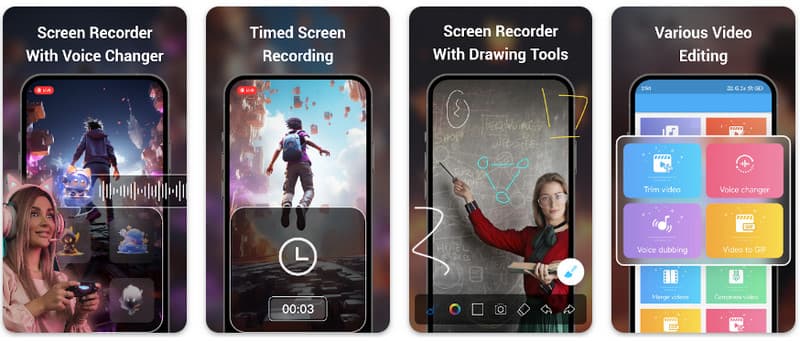
Schritt 1Öffnen Sie den Super Screen Recorder auf Ihrem Android und aktivieren Sie dann die Schwebefunktion der App, um ihn zu verwenden.
Schritt 2Tippen Sie auf Ihrem Bildschirm auf das Kamera , bestätigen Sie die Einstellungen und tippen Sie auf Jetzt anfangenAnschließend wird ein Countdown von drei Sekunden angezeigt, bevor die Aufnahme beginnt.
Schritt 3Tippen Sie auf die Quadrat Schaltfläche, um die Aufnahme zu beenden und auf Ihrem Android-Gerät zu speichern.
Bonus: Bildschirmaufnahme auf Desktop und Mobiltelefon in bester Qualität
Glauben Sie, dass Sie den Bildschirm Ihres Android-Telefons auf einem Computer aufnehmen können? AVAide Screen Recorder Es wurde primär für Bildschirmaufnahmen unter Windows und Mac entwickelt. Es kann aber auch den gesamten Bildschirm Ihres Android-Smartphones aufzeichnen. Das ist besonders hilfreich, wenn Sie ein Tutorial für bestimmte Android-Funktionen erstellen und das Video anschließend direkt auf Ihrem Mac oder Windows-PC bearbeiten möchten.
Für Bildschirmaufnahmen unter Windows und Mac unterstützt AVAide Screen Recorder die Codecs AV1 und HEVC. Diese ermöglichen eine hohe Komprimierung der Aufnahmen bei gleichzeitig optimaler Videoqualität. Dank vollständiger Hardwarebeschleunigung können Sie lange Videos mit sehr geringer CPU-Auslastung aufnehmen. Besonders hervorzuheben ist das verbesserte Mikrofon, das durch die Unterdrückung von Hintergrund- und Echogeräuschen für klarere Aufnahmen sorgt. Die Software ermöglicht exzellente Aufnahmen und bietet einfache Navigation sowie Bearbeitungsfunktionen wie Schneiden und Kommentieren. Obwohl die Software nicht ganz billig ist, ist sie aufgrund ihrer Eignung für private und geschäftliche Zwecke sehr empfehlenswert.
- Nehmen Sie Ihr Android- oder iOS-Gerät in bester Videoqualität auf.
- Erstellen Sie ganz einfach Tutorial-Aufnahmen mit Zeichen- und Anmerkungsfunktionen.
- Unterstützt die Ausgabecodecs AV1 und HEVC für eine hohe Komprimierung des Ausgabevideos.
- Bieten Sie benutzerfreundliche Videobearbeitungsfunktionen zum Bearbeiten Ihrer Aufnahmen auf Android-Geräten.
Schritt 1Sie können den Bildschirmrekorder jetzt auf Ihren PC herunterladen, indem Sie hier auf die Download-Schaltfläche klicken. Installieren Sie dann die App, indem Sie der Eingabeaufforderung auf Ihrem Bildschirm folgen, und starten Sie sie, um mit dem nächsten Schritt fortzufahren.

KOSTENLOSER DOWNLOAD Für Windows 7 oder höher
 Sicherer Download
KOSTENLOSER DOWNLOAD Für Mac OS X 10.13 oder höher
Sicherer DownloadSchritt 2Nachdem es nun auf Ihrem System ausgeführt wird, platzieren Sie den Aufnahmerahmen in dem Bereich, in dem Sie mit der Aufnahme beginnen möchten. Hier können Sie Ihren gesamten Bildschirm aufzeichnen, indem Sie die Option „Vollbild“ anstelle der Option „Region“ auswählen.

Schritt 3Anschließend können bei Bedarf die System- und Mikrofonaufzeichnung eingerichtet werden. Wenn Sie Ihr Gesicht zur Aufnahme hinzufügen möchten, aktivieren Sie hier die Option Webcam. Klicken Sie anschließend auf AUFN , um den Countdown zu starten und mit der Aufnahme zu beginnen.

Schritt 4Wenn Sie die Aufnahme abgeschlossen haben, klicken Sie auf das Pause Schaltfläche, die ein rotes Quadrat ist. Im nächsten Fenster, das angezeigt wird, können Sie die zuvor aufgenommene Aufnahme mit den hier verfügbaren Optionen bearbeiten. Platzieren Sie dann den Cursor auf der Aufnahme und klicken Sie auf die herunterladen Schaltfläche zum Speichern. Diese App erweist sich als bester Open-Source-Recorder verfügbar.

Teil 4: Häufig gestellte Fragen zur Bildschirmaufnahme auf Android
Wo finde ich die Bildschirmaufnahmefunktion in meinen Einstellungen?
Um auf die integrierte Funktion zuzugreifen Bildschirmaufnahme auf Android Ohne Apps von Drittanbietern wischen Sie zweimal vom oberen Bildschirmrand nach unten, um die App zu öffnen. Schnelleinstellungen und suchen Sie nach dem Bildschirmaufzeichnung (oder das Symbol „Bildschirmaufnahme“). Falls es nicht sichtbar ist, tippen Sie auf das Symbol. Bearbeiten Mit dem Stiftsymbol können Sie die Bildschirmaufnahme-Funktion in Ihre aktiven Kacheln ziehen. Nach dem Hinzufügen tippen Sie einfach auf das Symbol, wählen Ihre Audioeinstellungen (z. B. Aufnahme von Systemtönen oder Mikrofon) und tippen auf „Start“, um die Bildschirmaufnahme direkt aus den Systemeinstellungen zu starten.
Warum finde ich die Bildschirmaufnahmefunktion nicht auf meinem Android-Gerät?
Das Fehlen einer nativen Option zur Bildschirmaufnahme unter Android liegt in der Regel daran, dass auf Ihrem Gerät ein älteres Betriebssystem installiert ist, da die integrierte Funktion erst mit Android 3.0 standardisiert wurde. Android 11Wenn Ihre Software auf dem neuesten Stand ist, ist die entsprechende Option möglicherweise einfach ausgeblendet. Schnelleinstellungen Menü; Sie können es normalerweise durch Antippen des Menüs anzeigen. Bearbeiten Klicken Sie auf die Schaltfläche in der Benachrichtigungsleiste und ziehen Sie die Kachel „Bildschirmaufnahme“ in Ihre aktive Ansicht. Bei einigen Einsteigergeräten der „Go Edition“ oder bestimmten Hersteller-Skins ist diese Funktion möglicherweise deaktiviert, um Systemressourcen zu schonen. In diesem Fall ist die Verwendung einer Drittanbieter-App wie XRecorder oder Super Screen Recorder die effektivste Lösung.
Warum ist die Schaltfläche für die Bildschirmaufnahme verschwunden?
Die Schaltfläche für die Bildschirmaufnahme verschwindet normalerweise, weil sie versehentlich aus dem aktiven Bereich der Schnelleinstellungen verschoben wurde; Sie können sie oft wiederherstellen, indem Sie auf die Schaltfläche tippen. Bearbeiten (Stiftsymbol) Sie können die Kachel in Ihrer Benachrichtigungsleiste zurückziehen. Sie kann auch aufgrund des Energiesparmodus ausgeblendet sein, durch ein Arbeitsprofil eingeschränkt sein oder nach einem Softwareupdate einen Neustart des Systems erfordern, um die Benutzeroberfläche zu aktualisieren.
Mit dem hier aufgeführten Tutorial haben Sie gelernt So nehmen Sie den Bildschirm auf Android Samsung auf. Dieses Tutorial wird Ihnen bei der Bildschirmaufzeichnung sehr nützlich sein, insbesondere wenn Sie Android-Benutzer sind. Teilen Sie diese Informationen mit Ihren Android-Benutzerfreunden, um ihnen eine Vorstellung davon zu geben, wie es geht.
ÜBER DEN AUTOR

Nehmen Sie Bildschirm, Audio, Webcam, Gameplay, Online-Meetings sowie den iPhone-/Android-Bildschirm auf Ihrem Computer auf.
Bildschirmaufnahme
- Bildschirmaufnahme unter Windows
- Instagram Live aufnehmen
- Rippen Sie Videos von Tubi
- Konvertieren Sie YouTube-Videos in MP3
- Laden Sie Videos von Fansly herunter
- Herunterladen von JW Player-Videos
- Laden Sie Bilibili-Videos herunter
- Patreon-Videos herunterladen
- SpankBang-Videos herunterladen
- Discord-Videos herunterladen
- DoodSream-Video herunterladen


