TGA, or Truevision Targa, is a high-clarity image format often used for images, lines, icons, and digital artwork in graphics and game design. It keeps all the details but is far from JPG, which is smaller, easier to share, and works on almost any device. So, why not convert TGA to JPG? We will show you how step by step!
Part 1: Why You Need to Convert TGA to JPG
TGA, or Truevision Targa files, are widely used in professional graphics and game design. They store full details and support alpha channels. But their size and format can make them harder to use in everyday situations. For smoother use across devices and faster handling, converting TGA to JPG, a more common format, is often needed.
1. Higher Compatibility
JPG can be opened on nearly all devices and software, while TGA often requires specialized programs. Converting makes your images easy for everyone to view.
2. Reduced File Size
TGA files are usually large because they are uncompressed or lossless. JPG compresses them, saving storage space and making files easier to send.
3. Web & Social Media Optimization
JPG loads faster on websites and social platforms. TGA is rarely used online because it is too heavy and slow to load.
4. Sharing & Usability
Turning TGA into JPG lets colleagues or clients see your images without needing graphic design tools. It makes sharing simple.
5. Lossless to Lossy Conversion
TGA keeps perfect clarity and alpha channels, but JPG reduces file size. It is good when you do not need the original high resolution.
Part 2: 3 Ways to Convert TGA to JPG
Of course, your experience here will not be complete if you will not learn how to convert TGA to JPG. That is why we have three ways to share with you. So, please check each one carefully to see which is the easiest and best for your needs.
1. AVAide Image Converter
A quick converter can save time and make your image easier to use on more devices. AVAide Image Converter does that well by turning TGA into JPG in a simple online process while keeping the file clear.
Need to convert many images at once? Its batch conversion helps a lot and speeds up the task. Want strong image clarity after conversion? It keeps the output impressively sharp. Best of all, it is free online and needs no installation.
Key Features:
- Free to use with no payment or account needed.
- Change images with one click for a faster process.
- Keeps files protected during upload and conversion.
- Supports conversion from over 100 image formats to JPG, PNG, and GIF.
Without further ado, please check the steps below to learn how to change TGA to JPG:
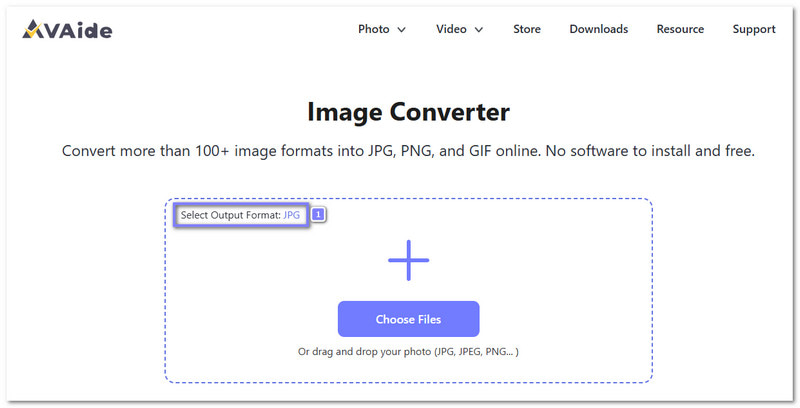
Step 1Open the AVAide Image Converter Website
Open your usual browser and search for AVAide Image Converter. Once the page opens, check the output format first. JPG is already selected by default so you can move to the next step right away. It saves time because you do not need to change any settings first.
Step 2Upload Your TGA File
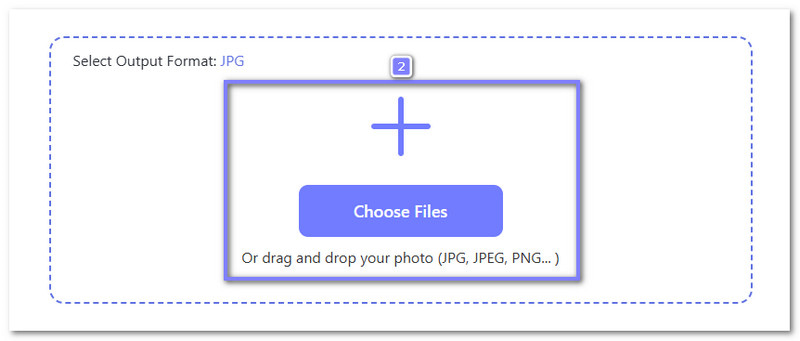
Next, click the Choose Files button and add your TGA image from your device. You can also select and drop the file into the upload area if that feels easier. If you have many images, you can upload them together because AVAide Image Converter supports batch conversion.
Step 3Download the Converted JPG File
After that, please wait for the progress bar to move from upload to converting and then to finished. It means your JPG file is ready. So, please click the Download button if you converted one file, or choose the Download All button if you uploaded many files.
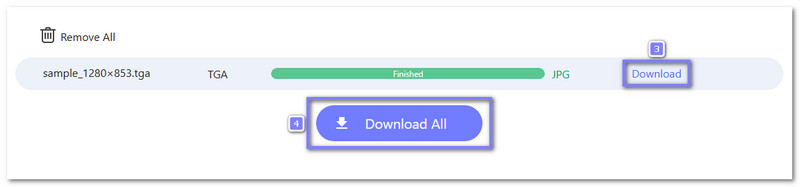
In the end, your image becomes easier to open, share, and use because JPG works well on most devices and platforms.
2. FreeConvert
FreeConvert is a simple choice if you prefer immediate image conversion without extra setup. It opens in any browser and manages TGA files smoothly. You can upload one image or several files at once, and then turn them into JPGs. It also supports TGA to PNG conversion for those who need it. The process stays safe because uploaded files are protected and removed after a few hours.
Key Features:
- Resize the output image before conversion.
- Uses 256-bit SSL encryption for file protection.
- Compression options help lower file size when needed.
- Supports file import from Dropbox, Google Drive, and OneDrive.
Below is how to convert a TGA file to a JPG using FreeConvert:
Step 1Open the main FreeConvert - TGA to JPG Converter in your browser.
Step 2Click Choose Files and upload your TGA image. You can also load files from Dropbox, OneDrive, Google Drive, or paste a file link.
Step 3After the file loads, check the output format. JPG is selected already so that you can move to the next step right away.
Step 4Hit Convert, and please wait for the process to finish. Once it is done, download the JPG file and save it to your device.
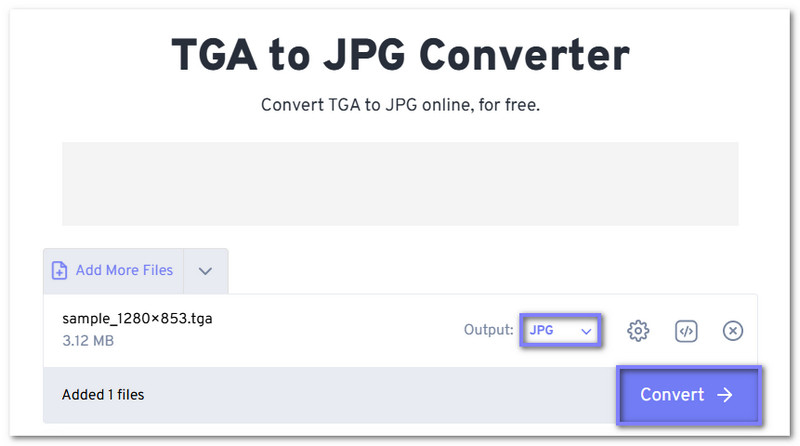
3. Online-Convert.com
Some online converters focus only on speed, but this one also gives you more control before the file changes format. Online-Convert.com can turn TGA into JPG while letting you fine-tune image clarity first. It is useful when you want a smaller file or need better output for sharing or saving. In addition, it is also capable of converting DNG to JPG with the same ease.
Key Features:
- Supports up to 30 free conversions in one period.
- Crop settings let you remove pixels from each side.
- Image filters include grayscale, monochrome, sepia, etc.
- Lets you choose between best quality and best compression.
Check the steps below to learn how to convert TGA to JPG using Online-Convert.com:
Step 1Head to the primary Online-Convert.com - TGA to JPG Converter using your browser.
Step 2Click Choose File or drag your TGA image into the upload area. It will start reading your file after upload.
Step 3Press Start to begin the conversion. Then, it will process the image and prepare it in JPG format.
Step 4Click Download after the conversion ends, and the JPG file will save to your local folder automatically.
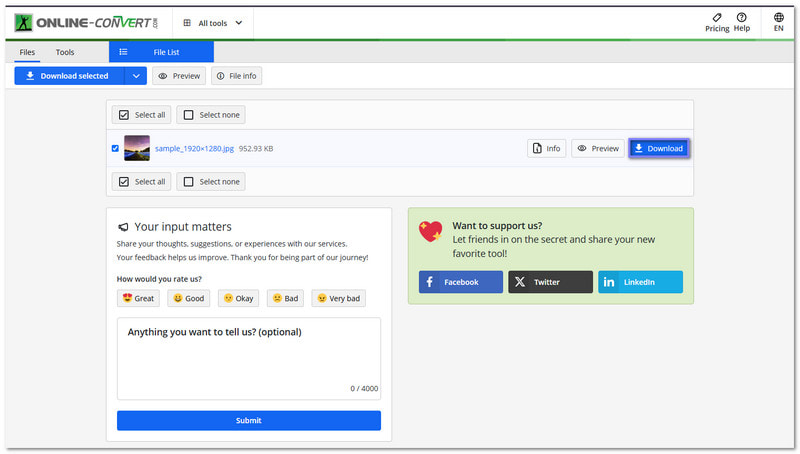
Part 3: Comparison of the 3 TGA to JPG Converters
We want to help you pick the best TGA to JPG converter, so below is a clear comparison of their ease of use, speed, output clarity, etc.
| Ease of Use | Batch Conversion | Speed | Security | Supported formats | Output Quality |
| Simple layout with direct upload and instant conversion. | Supports batch conversion for many files at once. | Fast conversion with one-click processing. | Files stay protected during upload and conversion. | Supports over 100 image formats for JPG, PNG, and GIF output. | Keeps image clarity well after conversion. |
| Easy to use, but it has more settings on screen. | Supports batch conversion for multiple files. | Fast conversion, but may slow slightly with large files. | Uses 256-bit SSL encryption and auto-deletes files after a few hours. | Supports many file types across image and other formats. | Delivers strong clarity and allows manual adjustment. |
| Easy to start, but the settings can look busy for new users. | Batch use is possible, but free limits apply. | Speed depends on file size and chosen settings. | Processes files online with standard secure upload handling. | Supports many image conversion formats with optional controls. | Gives good clarity with a quality slider for control. |
As you have learned above, TGA files are large and not easy to open on most devices. That is why you do not need to think twice about converting TGA to JPG. It is really useful if you want smaller files, faster sharing, and easier viewing. You can use AVAide Image Converter for that task. It is fast, safe, and super easy to use!
ABOUT THE AUTHOR


You can easily convert your photo from any image format to a popular JPG, PNG, or GIF with no quality loss.
PROCESS NOW