Need to convert AVIF to JPG because a website, social media platform, or email would not display your images properly? You are not alone; many users face compatibility issues with the newer AVIF format. From editing and sharing to printing and web uploads, understanding the differences between AVIF and JPG, knowing the risks, and choosing the right tools ensures your images look their best everywhere.
Part 1. AVIF vs. JPG: Why You Need to Convert to JPG
The necessary conversion of ABIF to JPG can be explained by outlining the AVIF and JPG characteristics.
The AV1 Image File Format, or AVIF, is an image file format that is newer than JPG and also newer than most image file formats. It is more efficient at compressing its files. It retains image quality with a smaller file size. Additionally, AVIF has more modern image file format features, including higher color depth, supports HDR, and transparency.
JPG is one of the oldest image file formats. JPG loses image quality to make the image file smaller. JPG also has nearly universal acceptance by editing software. JPG has virtually universal device, browser, and software compatibility, giving it the largest possible audience.
Why You Need to Convert to JPG
- 1.Ease of sharing: JPG files are more likely to be supported by any messaging platform, social media site, etc.
- 2.Website reliability: Websites tend to treat JPG images more kindly when it comes to uploading and displaying.
- 3.Editability: Editing images directly is easier with JPG files.
- 4.Less chance of error: More likely to open and work with JPG images than AVIF images.
- 5.Printability: JPG files are more likely to be honored by print services than AVIF files.
- 6.Fewer technical issues: Converting to JPG reduces the risk of compatibility errors when opening or using images across different platforms.
Part 2. 5 Ways to Convert AVIF to JPG Free Online
The use of online AVIF to JPG converters has become necessary because the AVIF format is becoming more popular, yet it still lacks complete support. Users can share their work between different platforms because JPG provides them with better compatibility than AVIF, which maintains higher visual quality but consumes more storage space.
The process of selecting an appropriate converter includes two essential elements that require assessment because they will affect the results and performance of the project through multiple file processing and high-detail image work.
1. AVAide Image Converter
The users who want high-speed conversions with excellent results yet want to avoid technical difficulties should use AVAide Image Converter, which functions as an advanced online converter service. The tool provides users with both speed and high-quality results, which makes it usable for both beginner users and expert users.
The system requires only one step because users can start their file conversion process immediately after uploading their documents. The system streamlines the process because users can achieve their goals without needing to understand technical details.
Best For: Users who want fast, high-quality conversions with a simple, no-setup workflow, especially when handling multiple images at once.
Step 1Visit AVAide Image Converter
Run a search for AVAide Image Converter and access the site.
Step 2Choose the Desired Output Format
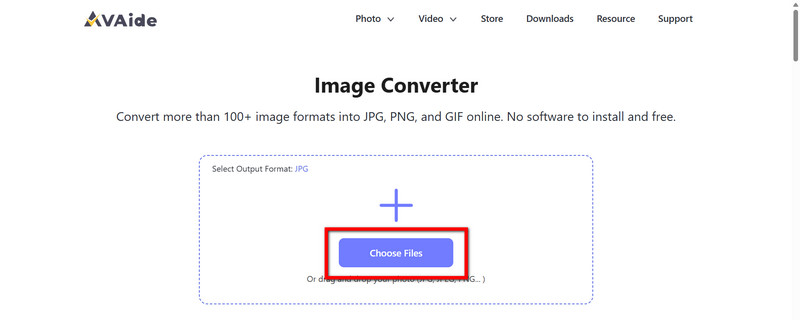
For easy editing and broad accessibility, select JPG image as the desired output format.
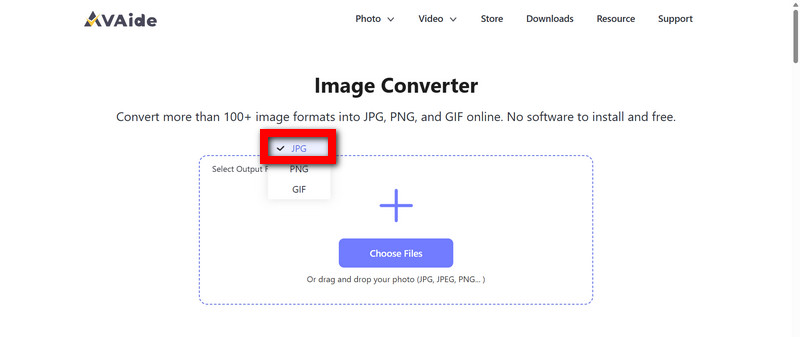
Step 3Provide Your AVIF Images
To upload AVIF images, you can use the Choose Files option, or you can drag and drop on the upload section. All at once, you can upload several files.
Step 4Wait for the Tool to Complete the Conversion
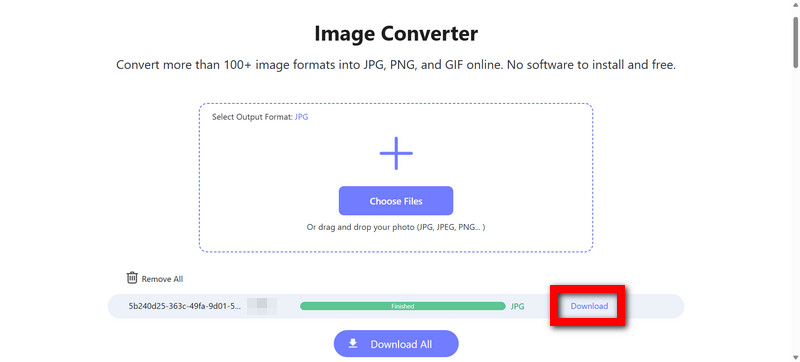
The tool does the conversions automatically, which means you do not have to do anything. Conversions will be done and will be of high quality.
Step 5Get the Files You have converted
For editing, sharing, or using on the web, you can now Download the images as JPGs to your device.
2. FreeConvert
FreeConvert is a well-balanced online converter that is simple to use, while also possessing several practical options when it comes to customizations. It is a step above oversimplified options by providing the user the ability to set the level of compression, quality, and even target file size.
One of the most advantageous things about it is that it can manage large files more effectively than most free options when it comes to optimizing images online, as well as the ability to do batch processing, which is a huge time saver when it comes to lots of AVIF images.
Unfortunately, advanced options are limited for free users due to a usage cap in most instances.
Best For: Users who want optimum control and customization as far as web optimization is concerned.
Step 1Type FreeConvert into your browser.
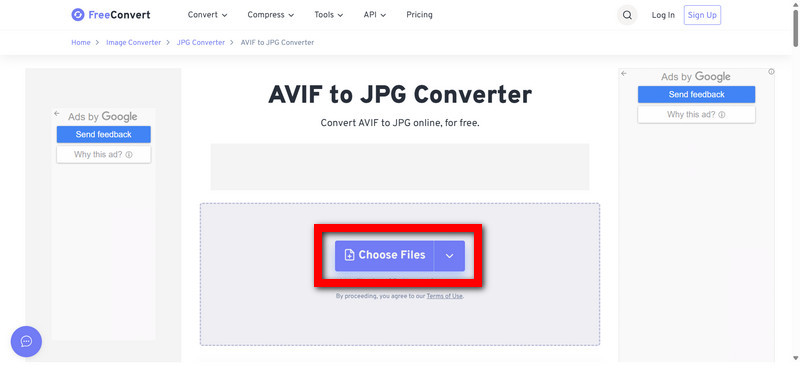
Step 2Upload AVIF image files from your storage by clicking the Choose Files button.
Step 3Select JPG as your desired output format.
Step 4Adjust the compression level or quality settings if needed.
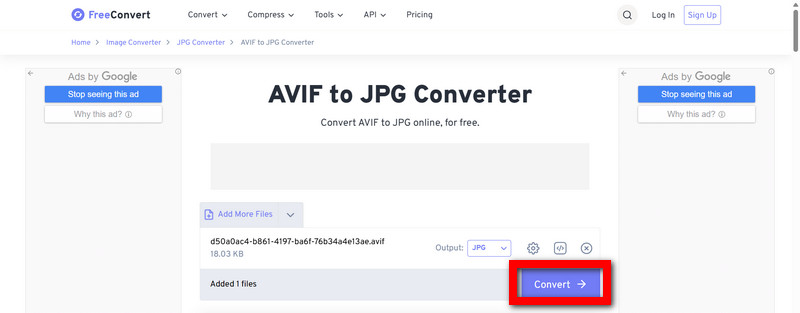
Step 5Once the conversion is done, click the Convert button and download the file.
3. Ezgif
Ezgif is popular for GIF editing, but they have other features like image conversion and editing. Ezgif is beneficial because it allows users to keep all the editing tasks in one platform, such as image editing, conversion, resizing, and cropping.
While advanced converters come with extensive customization options, Ezgif is more suitable for someone who wants to make quick alterations to a file and is efficient for small and medium size files. The platform may not be optimal for a user who is trying to convert a large megapixel file, but it is straightforward to use.
Best For: People who want to convert images and edit them.
Step 1Go to Ezgif in your browser.
Step 2Use the upload prompt to upload your AVIF image file.
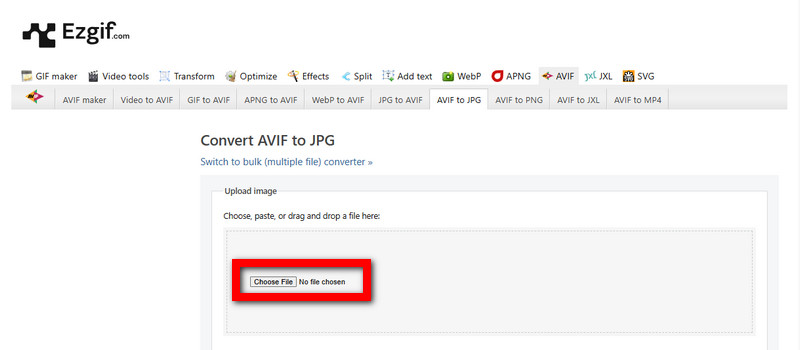
Step 3Click to convert the image to JPG.
Step 4Click the Convert to JPG! to initiate the work.
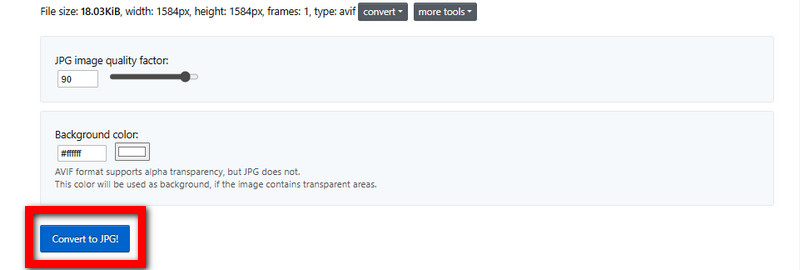
Step 5After the conversion is done, the JPG image will be ready for download.
4. CloudConvert
With incredibly solid online converting, CloudConvert is at the front for the best online converters in the market. For a professional workflow or one with a focus on the web, it is best because it allows you to set and optimize the image qquality, size, and resolution.
The best is offered for you through the cloud-based structure, and more control also allows you to handle bigger files. More control does create more work, and it may not be for those who want a simple one click.
Best For: Individuals who require ultimate flexibility when it comes to how the final product will look.
Step 1Search for the website CloudConvert in your search engine.
Step 2Select the appropriate AVIF image file from your device or your storage in the cloud and upload it by clicking the Select File button.
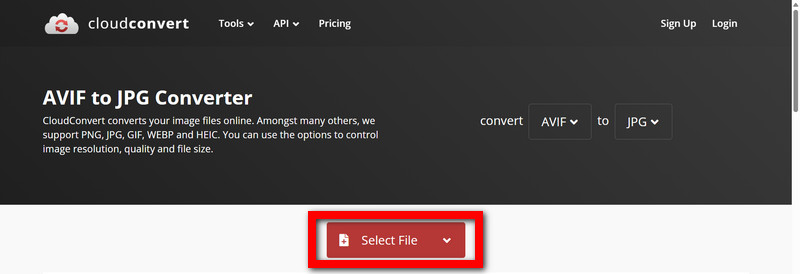
Step 3From the conversion options, select the destination file type, like JPG.
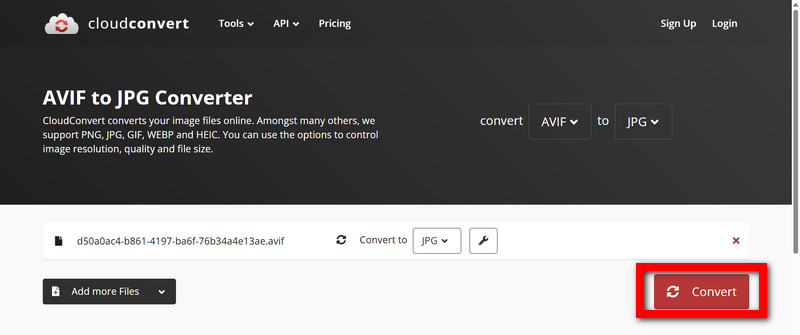
Step 4If needed, set the desired quality and/or resolution of the image.
Step 5Once the conversion is complete, click Convert to initiate your download of the image in JPG format.
5. iLoveIMG
iLoveIMG is another popular website that provides services for the manipulation of images. Most users appreciate the simplicity of this website and the consistent results, which makes it easy to accomplish your goal, which makes it great for getting the job done repeatedly.
While all of the other apps may focus on tactics, iLoveIMG relies on relying on results. iLoveIMG is great for users who want to focus on the result and not on how it is accomplished, including tools like iLoveIMG compress for optimizing file sizes.
Best For: Individuals who appreciate a no-frills, no junk, image file conversion website.
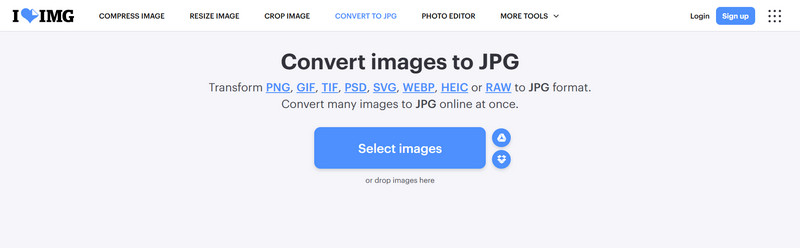
Step 1Search for iLoveIMG in your search engine.
Step 2Select the appropriate AVIF image file from your device and upload it.
Step 3Select from the conversion options and the destination file type, such as JPG.
Step 4From the provided options, choose to initiate the conversion of the file.
Step 5Select the appropriate AVIF image file from your device.
Part 3. The Hidden Risks of Converting AVIF
Converting images from AVIF to JPG may solve some difficult issues. The trade-off is that AVIF is better. The compression is better, the quality is better. Do not take a step backwards.
- 1.Reduced Quality of Images: With JPG, compression is done in a way that is destructive to the detail, color precision, and clarity in the image. Converting images repeatedly can lead to further loss of detail and color.
- 2.Increased File Size: Converting from AVIF to JPG affects the storage size of the image and consequently the ease of sharing and uploading due to the larger file size.
- 3.Loss of Useful Features: Your image will lose the ability to have transparency, HDR, and 10-bit color when converting to JPG. These are all qualities that AVIF supports. This will be apparent when looking at color gradients, shadows, or transparent sections of the image.
- 4.Possibility of Pixelation: Converting AVIF to JPG imagery and then enlarging is likely to result in pixelation, which is undesirable and a risk when the image is to be used in professional settings, as well as when handling DNG to JPG conversions.
How to Minimize Risks
The best ways to reduce the issues discussed are to convert the image using high-quality, professional-grade software that will retain as much detail as possible, like the AVAide Image Upscaler, which will also enhance and restore images that have been damaged by the conversion process. Essentially, after converting from JPG, you will be able to maintain the clarity, enhance its sharpness, and reduce any compression that may be visible.
Part 4. Comparison of the 5 Ways to Convert AVIF to JPG
The following table summarizes the strengths and limitations of the 5 recommended tools for converting AVIF to JPG. The check (✔) symbol indicates support or advantage, while the cross (❌) symbol indicates lack of support or limitation.
- Feature / Tool
- Batch Conversion
- High-Quality Output
- Fast Conversion
- Supports Multiple Formats
- Browser-Based / No Installation Needed
| AVAide Image Converter | FreeConvert | Ezgif | CloudConvert | iLoveIMG |
| ✔ | ❌ | ❌ | ✔ | ❌ |
| ✔ | ✔ | ❌ | ✔ | ❌ |
| ✔ | ✔ | ✔ | ❌ | ✔ |
| ✔ | ✔ | ✔ | ✔ | ❌ |
| ✔ | ✔ | ✔ | ✔ | ✔ |
Summary:
- AVAide Image Converter stands out for fast, high-quality batch conversions without installation.
- FreeConvert offers batch processing and quality adjustments, but may have usage limits.
- Ezgif is simple and browser-based but lacks batch conversion and advanced quality options.
- CloudConvert is powerful for precision control but slightly slower and more complex.
- iLoveIMG is reliable and easy for everyday conversions, with batch support but limited advanced settings, making it useful when working with Illustrator images for JPEG.
You can ensure all your images are suitable for all devices, websites, and software by converting your AVIF files to JPG. Most of the advanced features will be lost, but high-quality tools like the AVAide Image Converter will ensure your image will maintain its quality as well as its color. Now that you have learned all of the issues, the tools that will best help you will aid you in sharing, displaying, and editing images with the greatest ease.
ABOUT THE AUTHOR


You can easily convert your photo from any image format to a popular JPG, PNG, or GIF with no quality loss.
PROCESS NOW