هل سبق لك أن تلقيت مكالمة هاتفية تم خلالها تبادل تفاصيل مهمة، لكنك نسيتها فورًا؟ أو ربما أعطاك أحدهم تعليمات، ولم يكن لديك طريقة لتدوينها؟ في مثل هذه الحالات، يُعدّ التعلّم كيفية تسجيل مكالمة هاتفية على نظام أندرويد يُعدّ ذلك عوناً كبيراً.
هذا الدليل مصمم لمساعدتك على تعلم كيفية القيام بذلك. سواء كنت تستخدم هاتف سامسونج، أو جوجل بيكسل، أو شاومي، أو ون بلس، أو أي هاتف أندرويد آخر، فإن الطرق المذكورة أدناه مناسبة لك. خذ وقتك واطلع على كل جزء.
- المتطلبات الأساسية: الاعتبارات القانونية قبل البدء بالتسجيل
- الطريقة الأولى: استخدم مسجل المكالمات المدمج في هاتفك
- الطريقة الثانية: كيفية تسجيل مكالمة هاتفية على نظام أندرويد بدون تطبيق
- الطريقة الثالثة: تسجيل المكالمات تلقائياً دون أي إعلان
- أين تجد المكالمات المسجلة على نظام أندرويد
- كيفية إيقاف تسجيل المكالمات على نظام أندرويد
المتطلبات الأساسية: الاعتبارات القانونية قبل البدء بالتسجيل
قبل تسجيل مكالمة هاتفية على نظام أندرويد، عليك معرفة القواعد القانونية الأساسية. هذه القواعد مهمة، فهي تساعدك على تجنب المشاكل واحترام الخصوصية. في كثير من الأماكن، يُحظر تسجيل المكالمات دون إذن.
تأكد دائمًا من إبلاغ الطرف الآخر بأنك تسجل. بعض الهواتف تُصدر صوت تنبيه عند بدء التسجيل، ولكن من الأفضل طلب الإذن أولًا. تختلف القوانين من مكان لآخر، لذا يُنصح بالتحقق من القوانين في منطقتك قبل البدء بالتسجيل.
الطريقة الأولى: استخدم مسجل المكالمات المدمج في هاتفك
يُعدّ مسجل المكالمات المدمج ميزة شائعة في هواتف أندرويد، وهو أسهل طريقة لتسجيل المكالمات، إذ لا يتطلب تثبيت أي تطبيق إضافي. يكفي بضع نقرات لبدء التسجيل إذا كان هاتفك مزودًا بهذه الميزة.
1. كيفية تسجيل مكالمة هاتفية على سامسونج (واجهة المستخدم One UI)
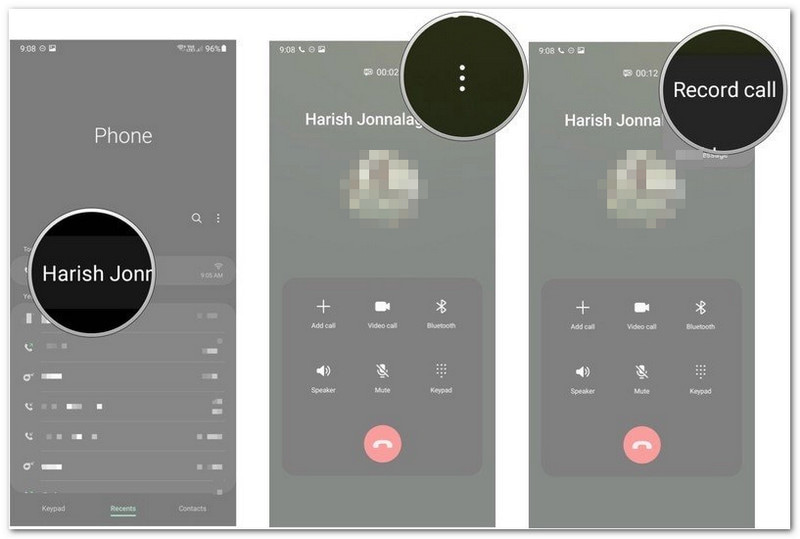
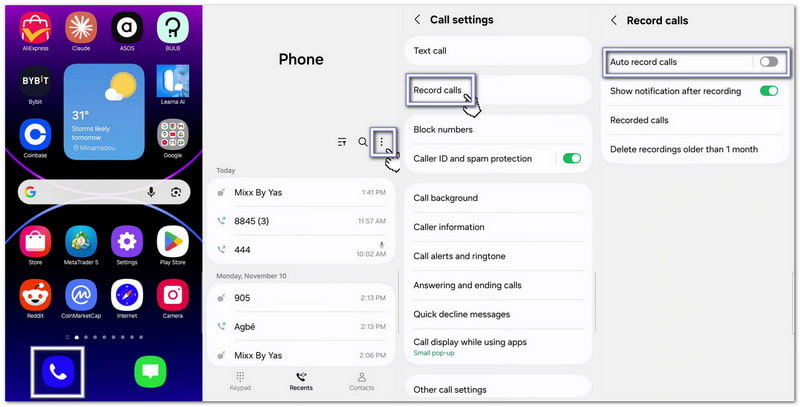
تأتي هواتف سامسونج مزودة بمسجل مكالمات داخل تطبيق الهاتف، وهو ما يساعد إذا كنت تتعلم كيفية تسجيل مكالمة هاتفية على سامسونج.
- افتح ال هاتف تطبيق. إجراء أو الرد على مكالمة.
- بمجرد اتصال المكالمة، انقر تسجيل المكالمة.
- لتسجيل جميع المكالمات تلقائيًا، انقر على قائمة النقاط الثلاث و اختار إعدادات.
- يختار تسجيل المكالمات.
- شغله تسجيل المكالمات تلقائياً.
تفاصيل إضافية:يمكنك أيضًا تسجيل الشاشة على سامسونج، والذي يلتقط أنشطة الشاشة والصوت، وهو مناسب لمكالمات الفيديو.
2. كيفية تسجيل مكالمة هاتفية على هاتف جوجل بيكسل
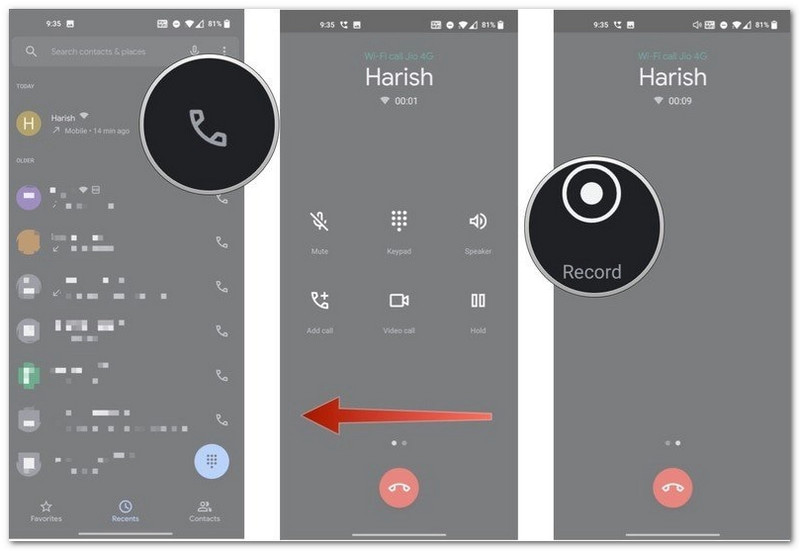
تستخدم هواتف جوجل بيكسل تطبيق جوجل فون. قد لا تتوفر ميزة تسجيل المكالمات في جميع البلدان أو شركات الاتصالات.
- افتح ال هاتف التطبيق أثناء المكالمة. اسحب لليسار لرؤية المزيد من خيارات الاتصال.
- مقبض سجل.
- لتسجيل المكالمات من أرقام غير معروفة تلقائيًا، افتح إعدادات الهاتف > تسجيل المكالمة.
- شغله سجل دائماً.
- مقبض قف عندما تريد إنهاء التسجيل.
- سيقوم تطبيق جوجل فون بتشغيل رسالة لإعلام كلا الطرفين بأن المكالمة مسجلة.
3. ماركات أندرويد أخرى (شاومي، ون بلس، لا شيء، إلخ).
تستخدم العديد من العلامات التجارية التي تعمل بنظام أندرويد تطبيقاتها الخاصة للهواتف. وعادةً ما تكون الخطوات متشابهة.
- قم بإجراء مكالمة أو استقبالها. انتظر حتى يتم توصيل المكالمة.
- اسحب أو مرر عبر خيارات الاتصال.
- مقبض سجل.
- مقبض ابدأ التسجيل إذا ظهرت رسالة.
- مقبض قف بمجرد الانتهاء.
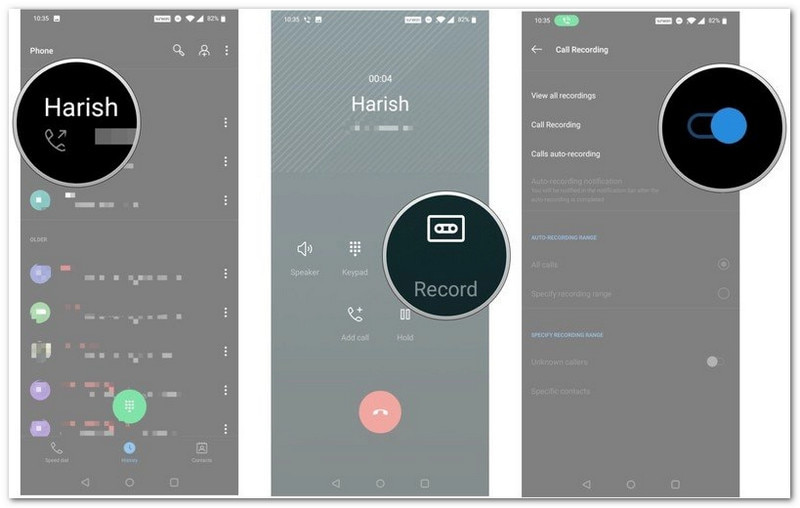
الطريقة الثانية: كيفية تسجيل مكالمة هاتفية على نظام أندرويد بدون تطبيق
إذا لم يكن هاتفك مزودًا بمسجل صوت مدمج، فلا يزال بإمكانك تعلم كيفية تسجيل المكالمات على نظام أندرويد بدون تطبيق وحفظ المحادثة. لا تتطلب هذه الطرق تطبيقًا مخصصًا لتسجيل المكالمات.
1. استخدم مسجل الصوت المدمج في تطبيق جوجل فون (إن وجد)
تدعم بعض هواتف أندرويد التسجيل من خلال تطبيق جوجل فون.
- إجراء مكالمة أو الرد عليها.
- مقبض سجل على شاشة المكالمة.
- مقبض قف عند انتهاء المكالمة.
سيتم حفظ التسجيل في سجل مكالماتك.
- سيسمع كلا الشخصين إعلانًا مسجلًا قبل بدء التسجيل.
2. استخدم جهازًا ثانيًا لتسجيل مكالمات مكبر الصوت
إنها إحدى أبسط الطرق.
- شغله مكبر الصوت أثناء المكالمة.
- ضع هاتفًا أو جهازًا لوحيًا أو حاسوبًا آخر في مكان قريب.
- استخدم الجهاز الثاني لتسجيل المحادثة.
إذا كنت تستخدم جهاز كمبيوتر يعمل بنظام ويندوز أو ماك، AVAide مسجل الشاشة يُعد خيارًا جيدًا. فهو مزود بمسجل صوت مدمج يمكنه تسجيل المكالمات الهاتفية على نظام أندرويد بصوت واضح.

تنزيل مجاني لنظام التشغيل Windows 7 أو أحدث
 تحميل آمن
تنزيل مجاني لنظام التشغيل Mac OS X 10.13 أو الإصدارات الأحدث
تحميل آمنيتم حفظ تسجيل مكالمتك الهاتفية مباشرةً على جهاز الكمبيوتر الخاص بك لسهولة الوصول إليه. لا يهم طول المكالمة، فالبرنامج قادر على التعامل معها. إذا كانت هناك أجزاء غير ضرورية في البداية أو النهاية، يمكنك استخدام خاصية القص لإزالتها والاحتفاظ فقط بالجزء الذي تحتاجه.
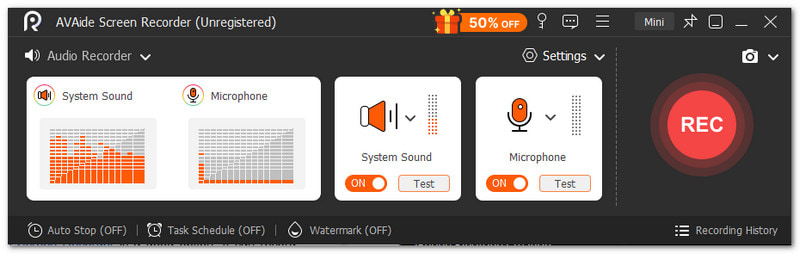
أمور رئيسية أخرى يمكنك توقعها:
- تسجيل فيديوالصوت وكاميرا الويب معًا.
- يلتقط شاشات الهواتف بصوت عالي الوضوح.
- يتيح معاينة فورية بعد التسجيل مع خيار إعادة التسجيل.
- يدعم العديد من تنسيقات الوسائط مثل MP4 و WMV و AVI و GIF و MP3 وغيرها.
3. استخدام جسر المؤتمرات
هذه الطريقة فعالة للمكالمات المهمة.
- انضم إلى اجتماع عبر تطبيق Zoom أو Google Meet على هاتفك الذي يعمل بنظام Android.
- انضم إلى نفس الاجتماع على جهاز الكمبيوتر الخاص بك.
- ابدأ المكالمة الهاتفية.
- انقر سجل على حاسوبك.
سيتم حفظ الملف الصوتي مباشرة على جهاز الكمبيوتر الخاص بك لسهولة الوصول إليه لاحقًا.
الطريقة الثالثة: تسجيل المكالمات تلقائياً دون أي إعلان
تُتيح بعض الهواتف خيارات إضافية لتسجيل المكالمات الصوتية على هواتف أندرويد. تُسهّل هذه الإعدادات عملية التسجيل وتُقلّل من الجهد اليدوي. يُرجى ملاحظة أن الميزات المُتاحة تعتمد على طراز الهاتف، وشركة الاتصالات، وموقعك الجغرافي.
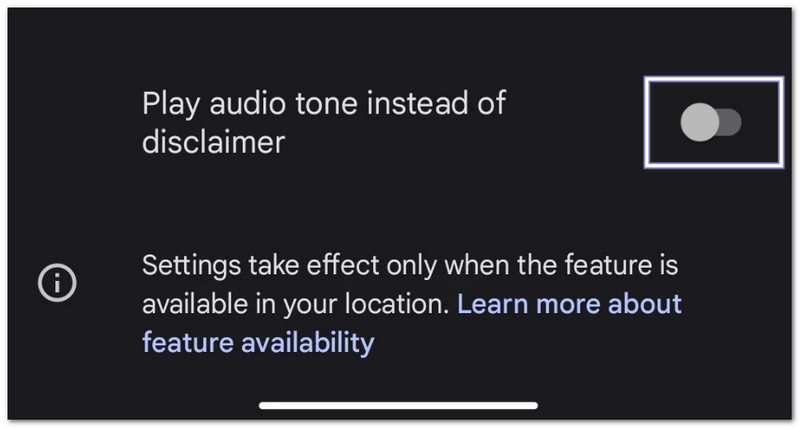
1. استبدل الإعلان بصوت تنبيه (إعداد أصلي في بعض العلامات التجارية)
تتيح بعض هواتف أندرويد استخدام صوت تنبيه قصير بدلاً من الإعلان الصوتي.
- افتح ال هاتف برنامج.
- اضغط على قائمة النقاط الثلاث أو إعدادات زر.
- يختار تسجيل المكالمة.
- شغله قم بتشغيل نغمة صوتية بدلاً من إخلاء المسؤولية.
- إذا لم تتمكن من العثور على هذا الخيار، فقد لا يدعمه هاتفك أو منطقتك.
2. إعداد تسجيل المكالمات التلقائي بالكامل (بدون تدخل يدوي)
يحتوي هاتفك على خيار تسجيل المكالمات تلقائيًا.
- انتقل إلى إعدادات الهاتف.
- مقبض تسجيل المكالمات.
- شغله تسجيل المكالمات تلقائياً.
- أختر جميع المكالمات أو أرقام محددة.
بمجرد تفعيل هذه الميزة، ستبدأ التسجيلات تلقائيًا بناءً على إعداداتك.
3. تطبيقات الطرف الثالث ذات ميزات التخفي
إذا لم يوفر هاتفك خيارات تسجيل كافية، فقد تساعدك بعض تطبيقات الطرف الثالث.
- مكعب ACR - يسجل المكالمات الهاتفية العادية وبعض المكالمات عبر الإنترنت.
- مسجل المكالمات التلقائي الاحترافي - يدعم التسجيل التلقائي وعناصر تحكم إضافية في التسجيل.
مهم: قد تحدّ قيود نظام أندرويد من كيفية عمل هذه التطبيقات. وقد تتطلب بعض الهواتف أذونات إضافية. كما قد تختلف جودة التسجيل باختلاف الجهاز.
أين تجد المكالمات المسجلة على نظام أندرويد
بعد تسجيل مكالمة، قد تتساءل عن مكان العثور على المكالمات المسجلة على نظام أندرويد. يختلف مكان العثور عليها باختلاف نوع هاتفك وتطبيق الهاتف المستخدم.
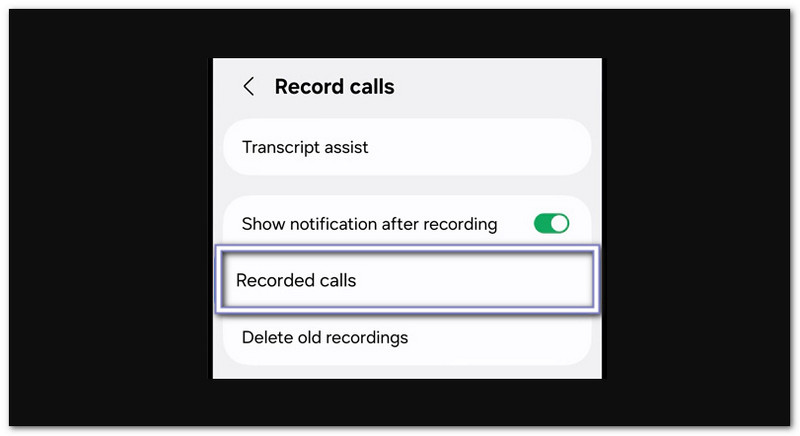
على أجهزة سامسونج (واجهة المستخدم One UI)
تتوفر خاصية تسجيل المكالمات من سامسونج داخل تطبيق الهاتف.
- افتح ال هاتف برنامج.
- اضغط على قائمة النقاط الثلاث.
- يختار إعدادات.
- مقبض تسجيل المكالمات.
- فتح مكالمات مسجلة.
على تطبيق جوجل فون (بكسل والهواتف الأخرى المزودة بتطبيق جوجل دايلر)
يخزن تطبيق جوجل فون التسجيلات في سجل مكالماتك.
- افتح ال هاتف برنامج.
- مقبض آخر الأخبار.
- حدد المكالمة المسجلة.
- مقبض تاريخ أو ال يلعب زر.
على أجهزة شاومي / MIUI / HyperOS
يمكنك العثور على التسجيلات في مكانين.
الخيار 1:
- افتح ال هاتف برنامج.
- اذهب إلى آخر الأخبار.
- اضغط على سهم أو تفاصيل الزر الموجود بجانب المكالمة.
الخيار الثاني:
- فتح مدير الملفات.
- اذهب إلى تخزين > MIUI > مسجل الصوت > تسجيل المكالمات.
على ماركات أخرى (الموقع العام)
معظم هواتف أندرويد تحفظ التسجيلات في مدير الملفات.
- فتح مدير الملفات.
- تحقق من المجلدات مثل صوتي, مكالمة، أو تسجيلات المكالمات.
- يمكنك أيضًا البحث عن سجل المكالمات.
إذا لم تتمكن من العثور على الملفات، فتحقق إعدادات الهاتف > تسجيل المكالمات لموقع الحفظ.
كيفية إيقاف تسجيل المكالمات على نظام أندرويد
إذا كنت ترغب أيضًا في معرفة كيفية إيقاف تسجيل المكالمات على نظام أندرويد، فيمكنك الاعتماد على التعليمات أدناه.
- افتح ال هاتف أو تطبيق الاتصال برنامج.
- اضغط على قائمة النقاط الثلاث.
- يختار إعدادات.
- مقبض تسجيل المكالمة أو تسجيل المكالمات تلقائياً.
- قم بتشغيل الميزة عن.
بعد ذلك، سيتوقف هاتفك عن تسجيل المكالمات المستقبلية تلقائيًا. وستبقى التسجيلات الموجودة محفوظة ما لم تقم بحذفها يدويًا.
يجيب هذا المنشور على السؤال التالي: "هل يمكنك تسجيل المكالمات الهاتفية على جهاز أندرويد؟والإجابة هي نعم. بغض النظر عن الجهاز الذي تستخدمه، هناك دائمًا طريقة لتسجيل مكالمتك. حتى على جهاز الكمبيوتر، يمكنك حفظ محادثتك. إحدى الأدوات البسيطة التي يمكنك استخدامها هي AVAide مسجل الشاشةإنه يعمل بشكل جيد مع التسجيلات الطويلة ويقدم ميزات مفيدة لتسجيل الصوت.
نبذة عن المؤلف

تسجيل أنشطة الشاشة بالصوت ، والاجتماعات عبر الإنترنت ، ومقاطع فيديو اللعب ، والموسيقى ، وكاميرا الويب ، وما إلى ذلك.