هل تحتاج إلى عرض وتسجيل خطوات، أو الإبلاغ عن خطأ، أو إنشاء شرح سريع لجهاز الكمبيوتر الخاص بك؟ لقد أنشأتُ مئات، إن لم تكن آلاف، من التسجيلات الصوتية لنظام ويندوز للمستخدمين العاديين، وأركز على الأدوات البسيطة المدمجة في نظام التشغيل. سيُريك هذا الدليل بالضبط ما تحتاجه. كيفية تسجيل الشاشة على نظام ويندوز باستخدام الأدوات الافتراضية المتاحة وأدوات خارجية توفر ميزات شاملة لتلبية احتياجاتك في التسجيل، يمكنك إنتاج فيديوهات واضحة وقابلة للمشاركة باتباع خطوات واضحة.
- أفضل طرق تسجيل الشاشة باختصار
- الطريقة الأولى: شريط ألعاب Xbox (الخيار السريع والسهل)
- الطريقة الثانية: أداة القص (ويندوز 11)
- الطريقة الثالثة: مسجل الشاشة AVAide
- الطريقة الرابعة: بانديكام
- الطريقة الخامسة: برنامج OBS Studio
- الطريقة السادسة: تسجيل الشاشة
- الطريقة السابعة: النول
- الطريقة الثامنة: ShareX
- الطريقة التاسعة: لقطة شاشة رائعة
- ورقة اختصارات لوحة المفاتيح
- استكشاف الأخطاء وإصلاحها: مشاكل تسجيل الشاشة الشائعة
أفضل طرق تسجيل الشاشة باختصار
الخيار الأمثل للمبتدئين: شريط ألعاب Xbox (نظام ويندوز مدمج، تسجيل سريع بنقرة واحدة) وأدوات القص (تسجيل منطقة محددة مع مفاتيح تبديل صوتية بسيطة)
أفضل البرامج المجانية للاستخدام للمحترفين: OBS Studio (تسجيل غير محدود، مشاهد متعددة المصادر، بث مباشر، مفتوح المصدر)، و ShareX (مجاني، التقاط المناطق، سير عمل قابل للتخصيص).
أفضل مسجل صوت مجاني مع علامة مائية: Bandicam (خفيف الوزن، تسجيل صوتي عالي الجودة، وتحديد المنطقة)
أفضل جهاز تسجيل شامل مدفوع الأجر: مسجل الشاشة AVAide (واجهة شاشة بسيطة، جدولة التسجيل، تراكب كاميرا الويب، ميزة القفل، محرر مدمج، والتعليق أثناء التسجيل)
الأفضل لتسجيل الفيديوهات عبر الإنترنت: Loom (تسجيل قائم على السحابة، ومشاركة الروابط، والتعليقات والتفاعلات، متوافق مع نظام التشغيل Windows، ويعمل على الويب) و Awesome Screenshot (تطبيق قائم على المتصفح، والتقاط الصور مع إمكانية إضافة علامات وتعديلات سريعة)
الطريقة الأولى: شريط ألعاب Xbox (الخيار السريع والسهل)
هل تبحث عن تطبيق أو حل لتسجيل الألعاب بدون تثبيت ويعمل على نظام ويندوز؟ شريط ألعاب إكس بوكس ميزة مدمجة في ويندوز 10 و11، تأتي مزودة بإمكانية تسجيل الصوت والميكروفون من جهاز إكس بوكس، بالإضافة إلى حفظ ملف MP4 بنقرة واحدة. إليك كيفية تسجيل شاشتك: افتح التطبيق، واضغط على مفتاحي Win + G، ثم اضغط على زر التسجيل. توضح الخطوات التالية الإعدادات، وخيارات الصوت، وموقع التسجيل.
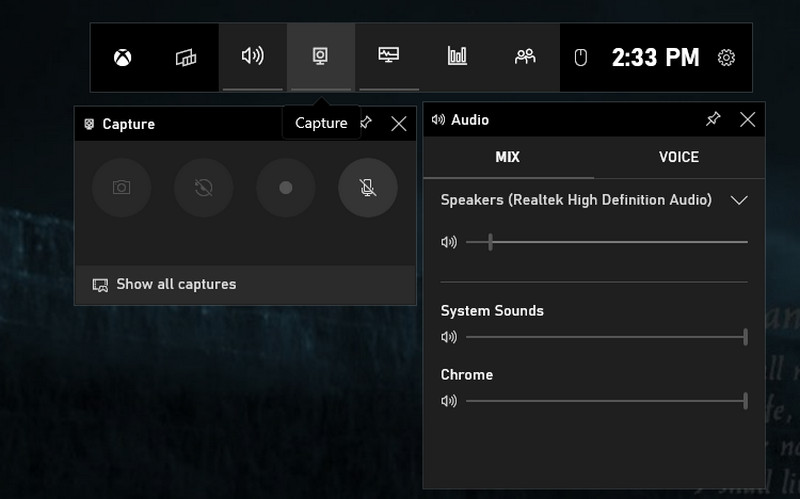
الخطوة 1ضرب شبابيك الزر و جي مفتاح لفتح شريط ألعاب Xbox.
الخطوة 2بعد ذلك، ضع علامة في المربع للتأكيد والمتابعة. اضبط التسجيل حسب احتياجاتك باستخدام الخيارات المتاحة هنا. الآن وقد أصبحت جاهزًا لبدء التسجيل، انقر على زر النقطة الحمراء للبدء، أو يمكنك الضغط على ويندوز + Alt + R.
الخطوه 3ستظهر حالة تسجيل الفيديو على شاشتك. إذا انتهيت، فانقر على مربع زر.
الطريقة الثانية: أداة القص (ويندوز 11)
في نظام التشغيل ويندوز 11، أداة القص هي طريقة بسيطة ومدمجة لتسجيل أي جزء من شاشتك. تسجل صوت النظام والميكروفون، وتتيح لك اختيار منطقة محددة أو الشاشة كاملة، وتحفظ التسجيل مباشرةً بصيغة MP4. إذا كنت تتساءل عن كيفية تسجيل الشاشة دون تثبيت برامج إضافية، فهذه الأداة هي الخيار الأسرع والأكثر سهولة. توضح الخطوات التالية كيفية فتحها، وبدء التسجيل، وحفظ المقطع.
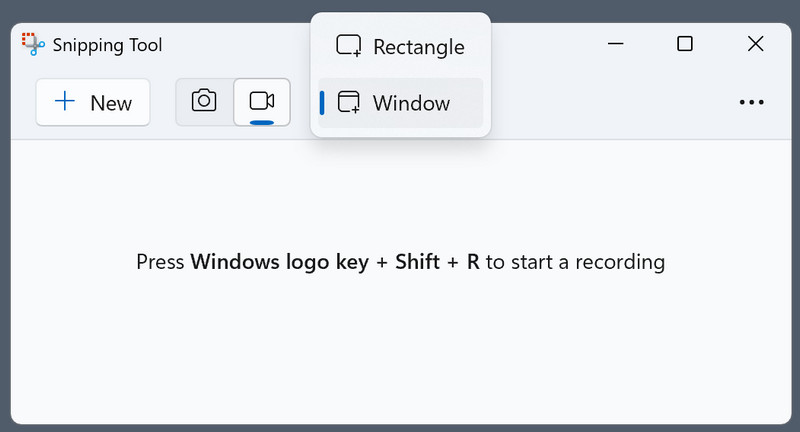
الخطوة 1لفتحها، انقر فوق زر Windows على لوحة المفاتيح واكتب أداة القص المتوفرة في Windows.
الخطوة 2انقر على واجهته العائمة آلة تصوير اضغط على الزر لأنك تريد استخدام ميزة تسجيل الشاشة. بعد ذلك، حدد المنطقة التي تريد تسجيلها برسم مستطيل.
الخطوه 3ثم اضغط يبدأبعد التسجيل، انقر فوق قف زر لحفظه.
الطريقة الثالثة: مسجل الشاشة AVAide
AVAide مسجل الشاشة هو تطبيق مدفوع لنظام ويندوز، مصمم خصيصًا لمن يرغبون في تطبيق أنيق، مع إمكانية جدولة التسجيل، وإضافة كاميرا الويب، والتعليق، ومحرر مدمج. يسجل التطبيق الصوت والميكروفون، ويعرض التسجيل في منطقة محددة أو بملء الشاشة، ويُصدّر الملفات بصيغ شائعة بدون علامة مائية. إذا كنت تبحث عن طريقة لتسجيل الشاشة بميزات احترافية وسلاسة في الاستخدام، فإن هذا التطبيق يوفر جودة عالية باستمرار للدروس التعليمية ومحتوى التدريب. توضح الخطوات التالية كيفية التثبيت، وإعداد الصوت، وإعدادات التسجيل، وخيارات التصدير.
الخطوة 1أولاً، عليك تنزيل وتثبيت برنامج تسجيل الشاشة على نظام التشغيل ويندوز 10/11 الخاص بك بالنقر على الزر المناسب هنا. ثم، تابع الخطوات التالية.

تنزيل مجاني لنظام التشغيل Windows 7 أو أحدث
 تحميل آمن
تنزيل مجاني لنظام التشغيل Mac OS X 10.13 أو الإصدارات الأحدث
تحميل آمنالخطوة 2في الواجهة الرئيسية، حدد مسجل الشاشةهنا، عليك إعداد منطقة التسجيل بشكل صحيح، وإضافة وجهك عبر كاميرا الويب، والصوت من الميكروفون الخارجي، وصوت النظام المُشغّل على جهاز الكمبيوتر. بعد ذلك، انقر فوق REC زر لبدء التسجيل.
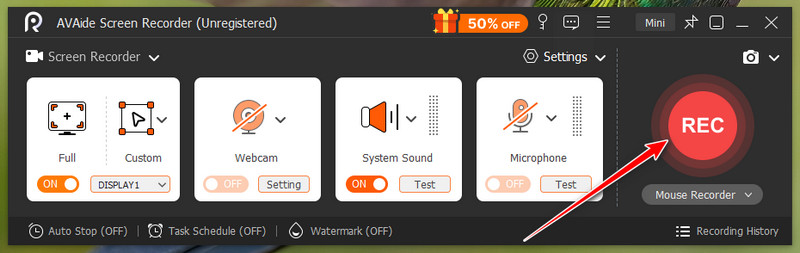
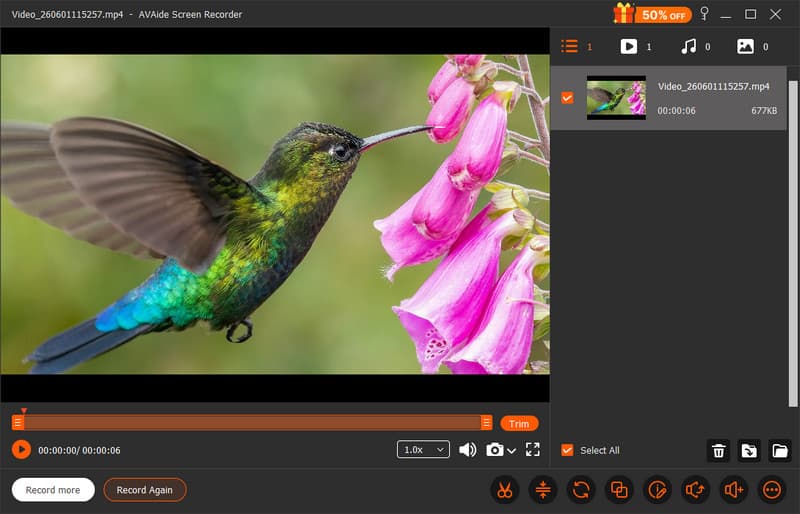
الخطوه 3بمجرد أن تكون راضيًا وأن التطبيق قد قام بعمله في التسجيل، انقر فوق قف زر. الآن، يمكنك مشاركة الفيديو المسجل مع الجميع بسهولة تامة بفضل ما يقدمه تطبيق AVAide.
الطريقة الرابعة: بانديكام
بانديكام برنامج Bandicam هو برنامج تسجيل شاشة خفيف وفعال لنظام ويندوز، قادر على إنشاء تسجيلات عالية الجودة لفترات طويلة. يتميز بخاصيتي تسجيل مناطق محددة من الشاشة، وتسجيل الشاشة كاملةً، وتسجيل نوافذ محددة، كما يتيح تسجيل صوت الميكروفون وصوت النظام، وإعداد التسجيلات، والرسم أثناء التسجيل. Bandicam برنامج تسجيل شاشة مستقر لنظام ويندوز، ينتج ملفات صغيرة الحجم مناسبة للدروس التعليمية والعروض التوضيحية، وحتى للألعاب. توضح الخطوات التالية كيفية تثبيت البرنامج، واختيار وضع التسجيل، وإعداد مدخل الصوت، وإعداد خيارات التصدير.
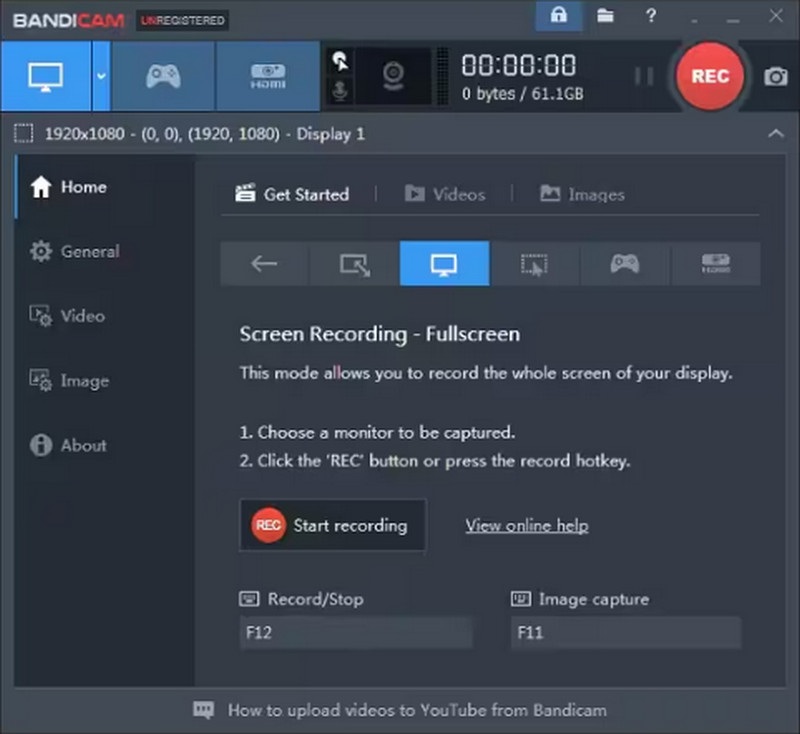
الخطوة 1افتح برنامج Bandicam على جهاز الكمبيوتر الخاص بك، واختر وضع التسجيل الذي تريد استخدامه والمتوفر هنا، وقم بضبط الإعدادات المسبقة الخاصة به.
الخطوة 2بعد ذلك ، انقر فوق REC اضغط على الزر لبدء التسجيل، ثم انتظر بضع ثوانٍ حتى ينتهي العد التنازلي.
الخطوه 3بعد انتهاء التسجيل، انقر فوق قف بالضغط على الزر، يمكنك إعادة تشغيل الفيديو المسجل.
الطريقة الخامسة: برنامج OBS Studio
ستوديو OBS برنامج OBS Studio هو برنامج تسجيل وبث مجاني مفتوح المصدر لنظام ويندوز، يوفر تسجيلًا غير محدود، وبدون علامات مائية، وإمكانية تحكم عالية في المشاهد والمصادر وخلاطات الصوت والمشفّرات. يُعدّ الخيار الأمثل لإعدادات المصادر المتعددة، والانتقالات المخصصة، وإنتاج مخرجات عالية الجودة، وهو الخيار المفضل للمحترفين الذين يُقدّرون المرونة. بالنسبة لنظام ويندوز، إذا كنت ترغب في تسجيل الشاشة مع مسارات صوتية وخيارات دقة ومعدل بت، يمكنك الحصول على جودة بث احترافية باستخدام OBS Studio.
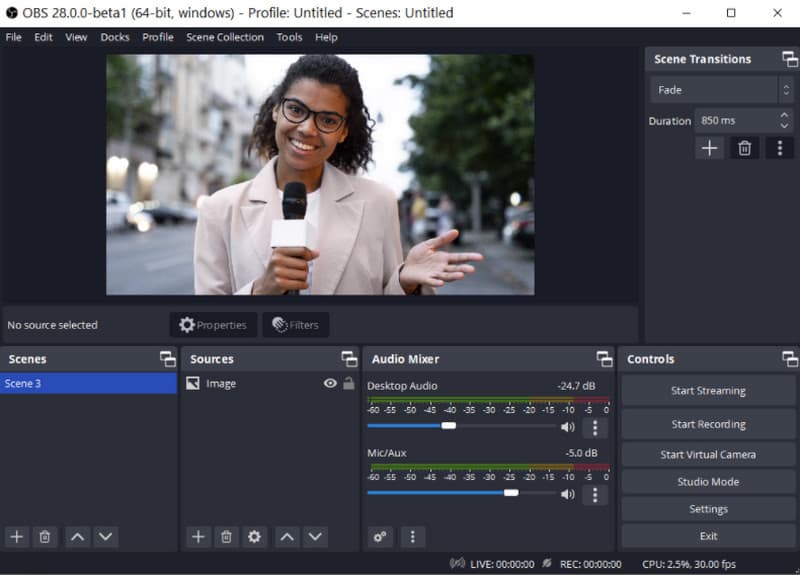
الخطوة 1قم بتنزيل أحدث إصدار من برنامج OBS Studio وافتحه. أعد تسمية الملف أو أنشئ ملفًا جديدًا. مشهد من المربع السفلي الأيسر منه.
الخطوة 2أضف مصدر ما تريد تسجيله، وانقر على زر "+" لإضافة المشاهد المناسبة، ثم حدد التقاط العرض. ضع علامة على إعدادات > انتاج | > مسار التسجيل > تصفح لتحديد المكان الذي تريد حفظ الفيديو المسجل فيه.
الخطوه 3الآن وقد أصبحت جاهزاً، انقر على ابدأ التسجيل الزر، وعندما تريد إيقافه، انقر فوق إيقاف التسجيل زر.
الطريقة السادسة: تسجيل الشاشة
ScreenRec يُعدّ ScreenRec مسجل شاشة موثوقًا به، يستخدمه أكثر من 14 مليون شخص حول العالم، ويُتيح تسجيل الشاشة والميكروفون والنظام وكاميرا الويب مجانًا، مع إمكانية المشاركة الفورية على السحابة الإلكترونية دون أي علامة مائية تمنع التقاط لقطات الشاشة. يتميز البرنامج بسهولة الإعداد والاستخدام، بالإضافة إلى 2 جيجابايت من مساحة التخزين السحابية المجانية لمشاركة التسجيلات بسرعة بعد كل عملية تسجيل. ScreenRec هو مسجل شاشة بسيط وسريع للمستخدمين وفنيي الدعم والمدربين الذين لا يحتاجون إلى تنزيل برامج ضخمة. توضح الخطوات التالية كيفية تسجيل الشاشة على نظام ويندوز باستخدام هذه الأداة، وكيفية مشاركة التسجيل عبر رابط.
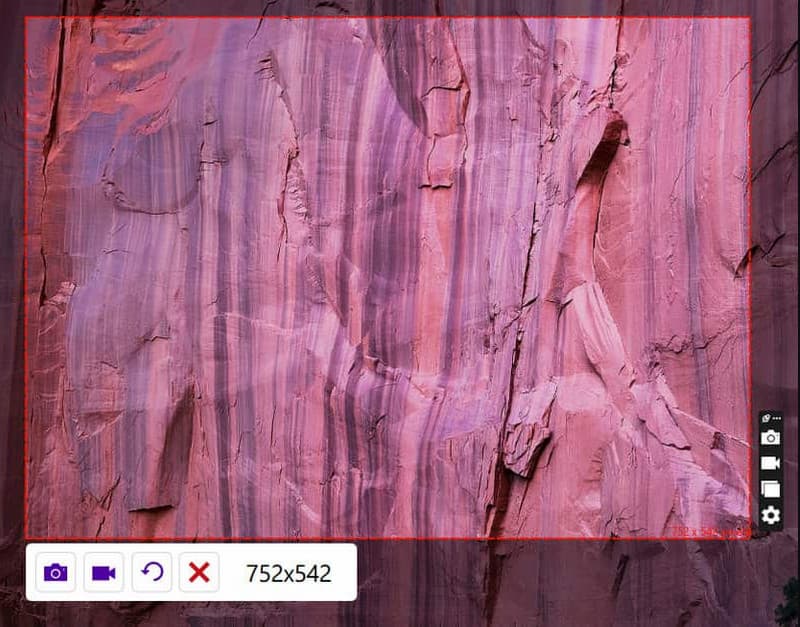
الخطوة 1قم بتنزيل التطبيق الرسمي من موقع ScreenRec الإلكتروني، واتبع خطوات التثبيت. ثم اضغط بديل + س لتحديد المنطقة التي تريد تصويرها.
الخطوة 2لتسجيل شاشتك، انقر فوق كاميرا فيديو اضغط على الزر وقم بتفعيل صوت الكمبيوتر والميكروفون إذا كنت ترغب في تسجيل الصوت عليه.
الخطوه 3ضع علامة في مربع اضغط على الزر لإيقاف التسجيل، وسيتم تزويدك برابط URL فريد يمكنك من خلاله مشاركة الفيديو المسجل مع أي شخص أرسلت إليه الرابط.
الطريقة السابعة: النول
تلوح في الأفق Loom هو برنامج لتسجيل الشاشة يعمل عبر السحابة، يُسهّل عليك تسجيل شاشتك وكاميرا الويب والميكروفون، ثم مشاركتها فورًا عبر رابط مع إمكانية إضافة التعليقات والتفاعلات. يعمل البرنامج على نظام ويندوز، ويتميز بواجهة مستخدم بسيطة وسهلة الاستخدام، وإمكانية التحرير السريع، وميزات التعاون الجماعي المدمجة. إذا كنت تتساءل عن كيفية تسجيل الشاشة على جهاز الكمبيوتر للتواصل السريع وغير المتزامن، فإن Loom هو الخيار الأمثل للمعلمين وفرق الدعم والفرق التي تحتاج إلى مشاركة فورية دون الحاجة إلى إدارة الملفات. توضح الخطوات التالية كيفية التثبيت، واختيار وضع التسجيل، وكيفية مشاركة رابط الفيديو.
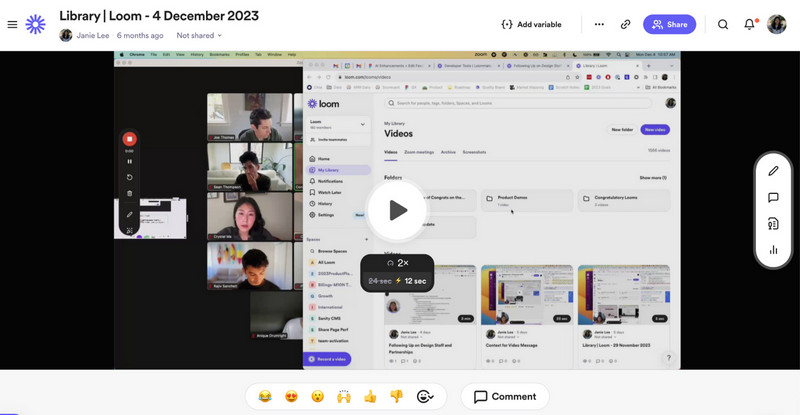
الخطوة 1قم بتنزيل برنامج Loom على جهاز الكمبيوتر الخاص بك واتبع تعليمات التثبيت، ثم افتحه.
الخطوة 2اختر ال وضع التسجيل اختر الخيار الذي ترغب باستخدامه من القائمة المتاحة. فعّل الميكروفون والكاميرا إذا كنت بحاجة إليهما للتسجيل. ثم انقر ابدأ التسجيل.
الخطوه 3عند الانتهاء، انقر فوق قف انقر على الزر، وسيتم فتحه تلقائيًا في متصفح جديد. نسخ الوصلة إذا كنت ترغب في مشاركتها مع الآخرين عبر الإنترنت.
الطريقة الثامنة: ShareX
شاركX هو تطبيق مجاني مفتوح المصدر لنظام ويندوز، يسجل مناطق من الشاشة والشاشة بأكملها، ويؤتمت سير العمل، ويرفع الملفات فورًا دون علامات مائية. يدعم التطبيق صوت الميكروفون وصوت النظام، ومفاتيح الاختصار المخصصة، وإجراءات ما بعد التسجيل مثل إضافة التعليقات والمشاركة. برنامج ShareX هو أفضل برنامج لتسجيل الشاشة برنامج مخصص لنظام التشغيل Windows 11 للمستخدمين المتقدمين الذين يرغبون في تسجيل الشاشات على نظام التشغيل Windows 11 باستخدام خيارات مجانية عالية الجودة وسير عمل آلي.
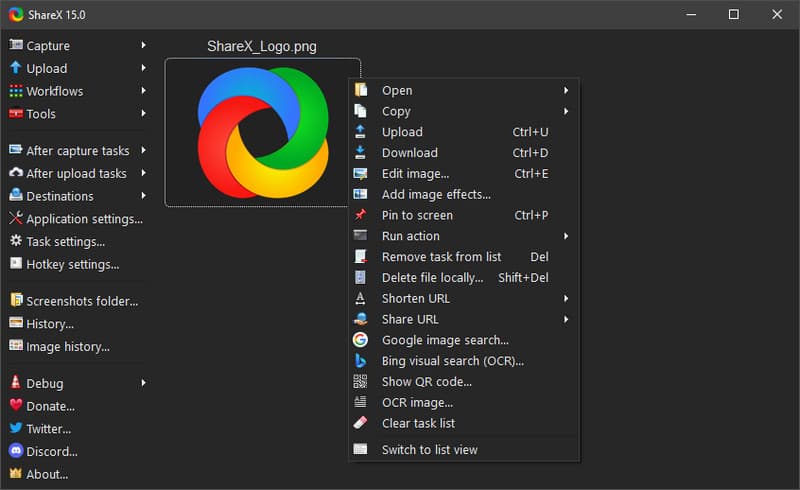
الخطوة 1افتح برنامج ShareX واضغط على Shift + طباعة الشاشة لأن هذه هي مفاتيح الاختصار الخاصة بالتسجيل.
الخطوة 2سيظهر مؤشر، انقر واسحب إلى المنطقة التي تريد تسجيلها، أو يمكنك ببساطة النقر لتفعيل تسجيل النافذة أو ملء الشاشة. بعد ذلك، سيبدأ التسجيل لفترة قصيرة ضمن حدود التسجيل المحددة.
الخطوه 3لإنهاء التسجيل، انقر على نفس مفاتيح الاختصار التي ذكرناها أو قف اضغط هنا.
الطريقة التاسعة: لقطة شاشة رائعة
لقطة شاشة رائعة هو تطبيق يعمل عبر المتصفح، يُتيح لك التقاط لقطات الشاشة وإضافة التعليقات عليها، كما يسمح لك بتسجيل مناطق محددة وعلامات تبويب الويب. يعمل على نظام ويندوز باستخدام متصفحي كروم أو إيدج، ويدعم الصوت عبر الميكروفون، والتحرير السريع، والمشاركة. بالنسبة للقطات الشاشة من مواقع الويب، يُعد Awesome Screenshot إضافةً مفيدةً إذا كنت ترغب في التقاط شاشاتك بسرعة لتحريرها وإضافة التعليقات عليها بسهولة. لذا، إذا كنت ترغب في تجربته، فجربه. إضافة مسجل الشاشة أو تطبيقها القابل للتنزيل، اتبع الخطوات التالية.
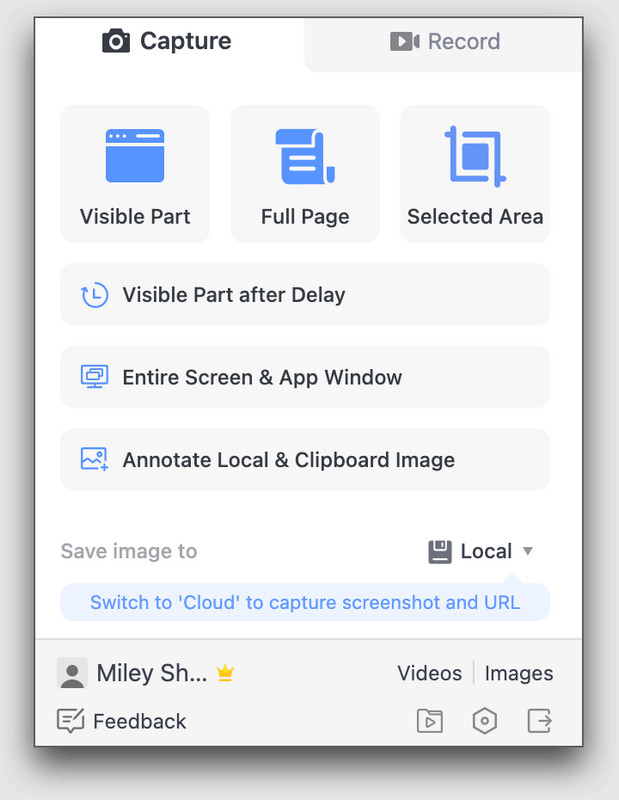
الخطوة 1قم بتنزيل التطبيق على جهاز الكمبيوتر الخاص بك، أو يمكنك استخدام إضافة المتصفح الخاصة به. اختر وضع التسجيل الذي تريده، مثل الشاشة بأكملها، أو علامة تبويب معينة، أو منطقة محددة، أو الكاميرا فقط.
الخطوة 2إذا لزم الأمر، قم بتنشيط الميكروفون ونظام الصوت والكاميرا قبل النقر. ابدأ التسجيل.
الخطوه 3بمجرد الانتهاء، انقر فوق توقف عن المشاركة لإنهاء التسجيل.
ورقة اختصارات لوحة المفاتيح
أحيانًا، قد ترغب في تسجيل شاشة ويندوز باستخدام اختصار لأنها أسرع وأسهل. تعرّف على اختصارات لوحة المفاتيح المتاحة في برنامج تسجيل الشاشة الذي ترغب باستخدامه.
| اسم الأداة | ابدأ التسجيل | إيقاف/استئناف التسجيل | لقطة شاشة متمررة | التقاط قائمة منبثقة | نمط لوحة تسجيل التبديل | فتح/إغلاق كاميرا الويب | تصوير الشاشة |
| Xbox Game Bar | Win + Alt + R | غير متوفر | غير متوفر | غير متوفر | اربح + G | Win + Alt + W | مفتاح ويندوز + مفتاح ألت + مفتاح برينت سكرين |
| أداة القص (ويندوز 11) | Win + Shift + R | غير متوفر | غير متوفر | غير متوفر | غير متوفر | غير متوفر | Win + Shift + S |
| AVAide مسجل الشاشة | البديل + س | Alt + R | Alt + L | Alt + M | Alt + I | Alt + W | Alt + C |
| بانديكام | Ctrl + F12 | غير متوفر | غير متوفر | ف11 | غير متوفر | مفتاح Tab | ف11 |
| ستوديو OBS | قم بتعيين مفاتيح اختصار مخصصة | قم بتعيين مفاتيح اختصار مخصصة | غير متوفر | غير متوفر | غير متوفر | غير متوفر | F7 |
| ScreenRec | البديل + س | غير متوفر | غير متوفر | غير متوفر | غير متوفر | غير متوفر | البديل + س |
| تلوح في الأفق | Ctrl + Shift + L | Alt + Shift + L | غير متوفر | غير متوفر | غير متوفر | غير متوفر | Ctrl + Shift + 1/2 |
| شاركX | Shift + طباعة الشاشة | غير متوفر | غير متوفر | غير متوفر | غير متوفر | غير متوفر | طباعة الشاشة |
| لقطة شاشة رائعة | Alt + Shift + R | غير متوفر | Alt + Shift + F لعرض الصفحة كاملة | غير متوفر | غير متوفر | غير متوفر | Alt + Shift + V/S/F |
استكشاف الأخطاء وإصلاحها: مشاكل تسجيل الشاشة الشائعة
| مشكلة | ما يجب القيام به؟ |
| لن يبدأ التسجيل. | انتقل إلى الإعدادات، ثم الخصوصية، للتحقق مما إذا كان تسجيل الشاشة والوصول إلى الميكروفون مفعلين. |
| شاشة سوداء أثناء التسجيل | جرب وضع تسجيل مختلف أو أغلق تطبيقات الفيديو المحمية |
| لا يوجد صوت في التسجيل | قم بتشغيل الميكروفون وصوت النظام في إعداداتك أو بالنقر على مفاتيح الاختصار المتاحة، وذلك حسب الأداة المستخدمة. |
| توقف التسجيل مبكراً | قم بتحرير مساحة على القرص وأعد تشغيل جهاز الكمبيوتر الخاص بك. |
| لا تظهر كاميرا الويب | قم بتفعيل كاميرا الويب قبل التسجيل المسبق، أو تحقق من إعداداتها. حاول أيضًا التحقق من أذونات الكاميرا. |
أنت الآن تعرف كيفية تسجيل الشاشة على الكمبيوتر الشخصي باستخدام أدوات مدمجة مثل شريط ألعاب Xbox وأداة القص، بالإضافة إلى تطبيقات خارجية قوية مثل AVAide مسجل الشاشةبرامج مثل OBS Studio وBandicam وLoom. ابحث عن شخص يحتاج إلى مقاطع فيديو سريعة للعب، أو فيديوهات تدريبية، أو تقارير سريعة عن الأخطاء؛ هذه البرامج متوفرة للجميع. استخدم الميزات الأساسية المدمجة لسهولة الاستخدام، أو اختر الميزات المتقدمة عندما تحتاج إلى تحكم أكبر. لتسريع سير العمل، راجع قائمة اختصارات لوحة المفاتيح، وإذا واجهت أي مشاكل، فابحث في قسم استكشاف الأخطاء وإصلاحها. ستساعدك هذه النصائح والأدوات على تسجيل لقطات شاشة رائعة باستخدام نظام ويندوز، في كل مرة.
نبذة عن المؤلف

تسجيل أنشطة الشاشة بالصوت ، والاجتماعات عبر الإنترنت ، ومقاطع فيديو اللعب ، والموسيقى ، وكاميرا الويب ، وما إلى ذلك.
تسجيل الشاشة