كيفية تسجيل الموسيقى على جهاز آيفونيُعدّ تسجيل موسيقاك المفضلة مهمةً سهلةً بفضل ميزة التسجيل المدمجة في الهاتف والتطبيقات الموثوقة. سواءً كنت تُسجّل أغنيةً قصيرةً، أو مقطوعاتٍ موسيقيةً، أو حتى تسجيل المكالمات، يُقدّم لك جهاز iPhone خياراتٍ مرنةً تُناسب المبتدئين والمحترفين على حدٍ سواء. لذا، إذا كنت ترغب في معرفة طرقٍ مُتعددةٍ لتسجيل موسيقاك بفعالية، فمن الأفضل أن تبدأ بقراءة هذا الدليل الشامل.
- الجزء الأول: تسجيل الموسيقى على جهاز iPhone باستخدام تطبيق المذكرات الصوتية المدمج
- الجزء الثاني: تسجيل الموسيقى باستخدام GarageBand
- الجزء 3. التسجيل متعدد المسارات باستخدام تطبيقات خارجية
- الجزء الرابع: التسجيل بصيغة MP3
- الجزء الخامس: كيفية تسجيل الموسيقى من يوتيوب على الآيفون
- الجزء السادس: نصائح احترافية لتحسين جودة الصوت
الجزء الأول: تسجيل الموسيقى على جهاز iPhone باستخدام تطبيق المذكرات الصوتية المدمج
يُعد تطبيق Voice Memos أحد تطبيقات تسجيل الصوت بصيغة MP3 المتوفرة لأجهزة iPhone، وهو تطبيق مُدمج يمكنك الوصول إليه على جهاز iPhone الخاص بك. يتيح لك هذا التطبيق تسجيل أي محتوى صوتي بوضوح وسرعة. إنه مثالي لتدوين أفكار الأغاني والألحان وجلسات التدريب الكاملة. أفضل ما يميز هذا التطبيق هو واجهة المستخدم البديهية. يمكنك قص المحتوى المُسجل وتنظيمه ومشاركته بسلاسة دون أي صعوبات. كما أنه مناسب للموسيقيين الذين يرغبون في تسجيل الصوت على iPhone، لا يمكننا الجزم بأن تطبيق المذكرات الصوتية قد يكون الأداة المثالية.
لتعلم كيفية تسجيل ملف MP3 على جهاز iPhone، يمكنك اتباع الخطوات التفصيلية أدناه.
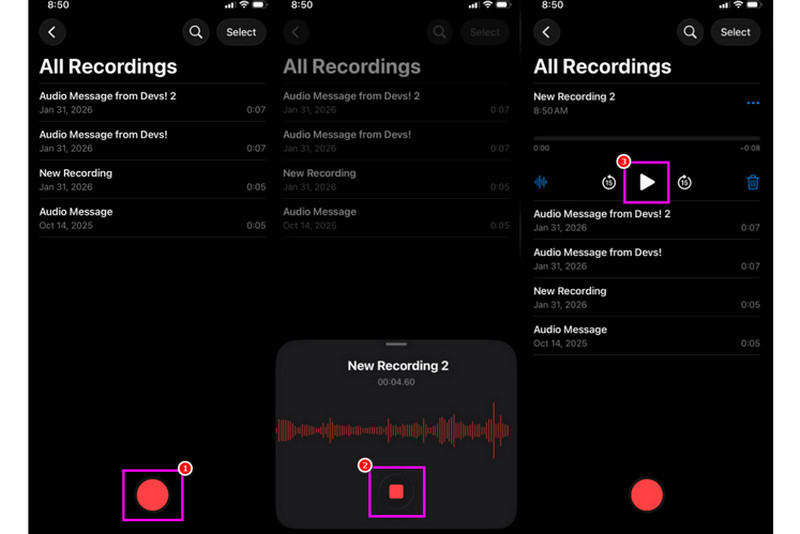
الخطوة 1على جهاز الآيفون الخاص بك، انتقل إلى خدمات القسم واضغط على المذكرات الصوتية ثم تأكد من أن الموسيقى التي تريد تسجيلها جاهزة بالفعل.
الخطوة 2بعد ذلك، انتقل إلى الواجهة السفلية واضغط على سجل بمجرد الانتهاء، يمكنك الآن تشغيل الموسيقى على جهاز iPhone الخاص بك أو على جهاز آخر.
الخطوه 3بعد الانتهاء من التسجيل، اضغط على قف بالضغط على الزر، يمكنك الآن الاستماع إلى موسيقاك المسجلة. يمكنك أيضاً تعديل الملف أو مشاركته إذا رغبت في ذلك.
الجزء الثاني: تسجيل الموسيقى باستخدام GarageBand
هل ترغب في إنشاء موسيقاك الخاصة وتسجيلها لحفظها على جهازك؟ في هذه الحالة، يمكنك الوصول إلى GarageBandهذا تطبيق مجاني يُمكّنك من تسجيل الموسيقى على جهاز iPhone الخاص بك. بفضل ميزة التسجيل، يصبح تسجيل الموسيقى مهمة سهلة للغاية. كما يمكنك الوصول إلى مجموعة متنوعة من الآلات الموسيقية التي يمكنك استخدامها لإنشاء موسيقاك الخاصة. لذا، إذا كنت تبحث عن حل شامل للتسجيل، فضع هذا التطبيق في اعتبارك.
الخطوة 1اذهب إلى متجر أبل وابدأ التنزيل GarageBandبعد التثبيت، قم بتشغيله على جهازك.
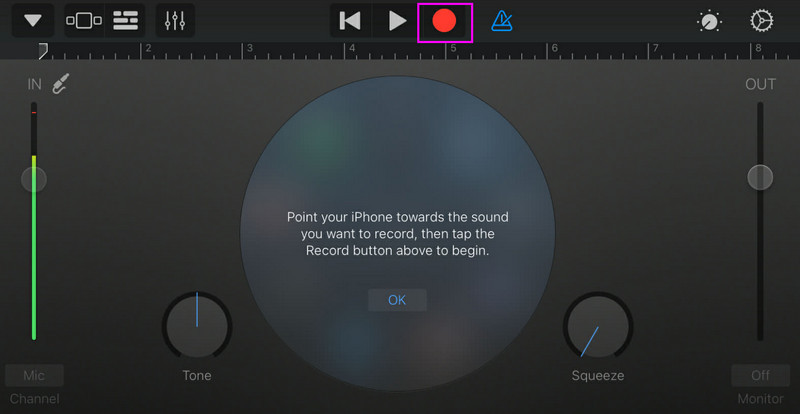
الخطوة 2من خلال الواجهة، عليك تحديد الخيار والضغط على مسجل الصوتثم ستظهر الواجهة الرئيسية على شاشتك.
الخطوه 3ابدأ بتسجيل موسيقاك بالنقر على سجل الزر أعلاه. ثم انقر قف لإنهاء التسجيل.
الجزء 3. التسجيل متعدد المسارات باستخدام تطبيقات خارجية
يُعدّ برنامج GarageBand مفيدًا لتسجيل الموسيقى. مع ذلك، توجد تطبيقات أخرى يمكنك الوصول إليها تُلبّي احتياجاتك بشكلٍ خاص في مختلف أنماط كتابة الأغاني، والتسجيل، والتعاون عبر منصات متعددة. من هذه التطبيقات:
- باندلاب - تُعد هذه الأداة مثالية للتعاون عبر الإنترنت. وهي مناسبة تمامًا للموسيقيين لما تتمتع به من ميزات متقدمة، مثل خوارزميات المعالجة الصوتية، ومكتبة حلقات موسيقية واسعة، وإمكانية التسجيل المتعدد.
- FL Studio Mobile - هذه أداة تعتمد على الاشتراك. يفضلها منتجو موسيقى الهيب هوب والإلكترونية والبوب.
- كوباسيس 3 - هو خيار استوديو احترافي مُطوّر من برنامج Cubase المكتبي. يوفر هذا البرنامج إمكانية تحرير MIDI متقدمة، وتسجيل عدد غير محدود من المسارات الصوتية، وتسجيل متعدد المسارات، مما يجعله أداة مثالية للمستخدمين.
طريقة فعالة لتسجيل الموسيقى على جهاز الكمبيوتر المكتبي
هل تبحث عن مسجل صوتي مكتبي يساعدك في تسجيل موسيقاك؟ في هذه الحالة، يمكنك الوصول إلى AVAide مسجل الشاشةيُتيح لك هذا البرنامج تسجيل الموسيقى من جهاز iPhone الخاص بك باستخدام مُسجّل الصوت. يُعدّ هذا البرنامج مثاليًا إذا كنت ترغب في حفظ التسجيل مباشرةً على جهاز الكمبيوتر. ما يُميّز هذا المُسجّل هو سهولة وسلاسة عملية التسجيل بفضل واجهة المستخدم البديهية. كما يضمن لك البرنامج حفظ الصوت بأعلى جودة، تصل إلى 320 كيلوبت في الثانية، مما يُحسّن تجربة الاستماع. يُمكنك أيضًا تعديل الصوت حسب رغبتك، مما يجعل مُسجّل الصوت هذا مُناسبًا لجميع المستخدمين.
الخطوة 1تحميل AVAide مسجل الشاشة على سطح المكتب. ثم قم بتشغيله لبدء العملية.

تنزيل مجاني لنظام التشغيل Windows 7 أو أحدث
 تحميل آمن
تنزيل مجاني لنظام التشغيل Mac OS X 10.13 أو الإصدارات الأحدث
تحميل آمنالخطوة 2من الواجهة، انتقل إلى اسقاط زر وحدد ملف مسجل الهاتف ثم انقر على ميزة iOS وقم بتوصيل هاتفك.
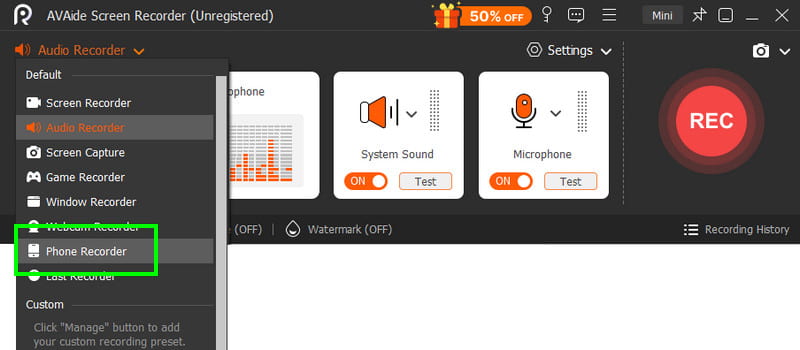
الخطوه 3بعد ذلك انتقل إلى تسجيل المحتوى قسم لإلغاء تحديد شاشة الخيار واختيار مكبر صوت الهاتف الخيار. بمجرد الانتهاء، انقر سجل لبدء عملية التسجيل.
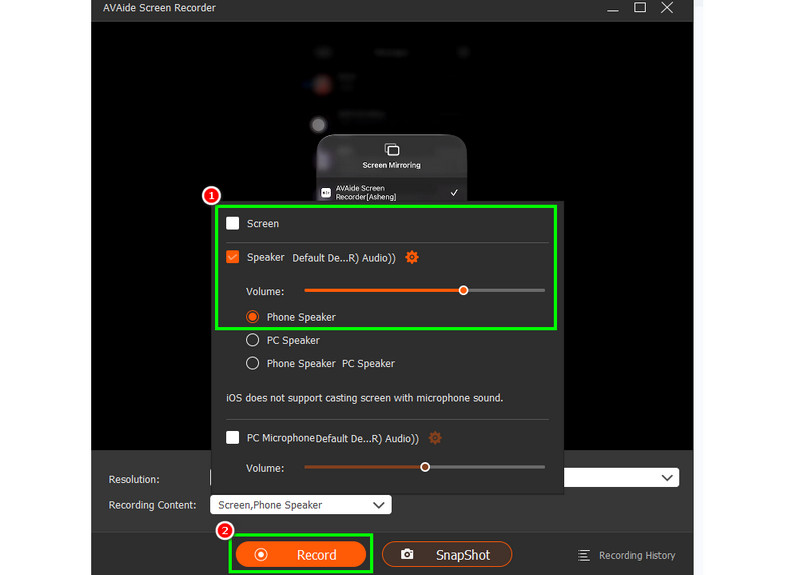
مقبض قف لإنهاء التسجيل.
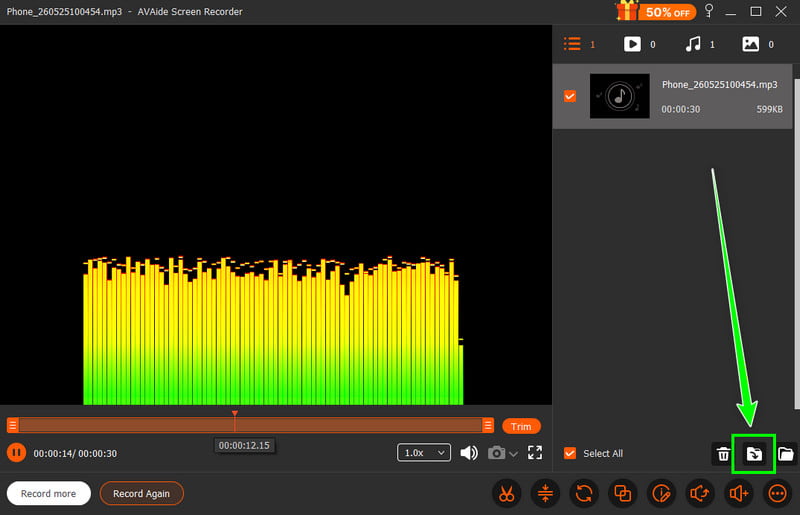
الخطوة 4عند ظهور المعاينة، انقر يصدر لبدء حفظ الصوت المسجل.
الجزء الرابع: التسجيل بصيغة MP3
بشكل افتراضي، يحفظ نظام Apple الموسيقى بصيغة WAV أو AAC. ومع ذلك، لا يزال بإمكاننا القول إن MP3 من بين أكثر صيغ الصوت سهولة في النقل. لذا، يُعد تحويل تسجيلاتك إلى MP3 الخيار الأمثل. لتحويل تسجيلاتك، يمكنك استخدام تطبيق مسجل الصوت. باستخدام هذا التطبيق، يمكنك تحويل تسجيلاتك من مذكرات صوتية إلى MP3 لتحسين التوافق. AAC إلى MP3، تحويل ملفات WAV إلى MP4، وتحويل ملفات FLAC إلى WAV، والمزيد.
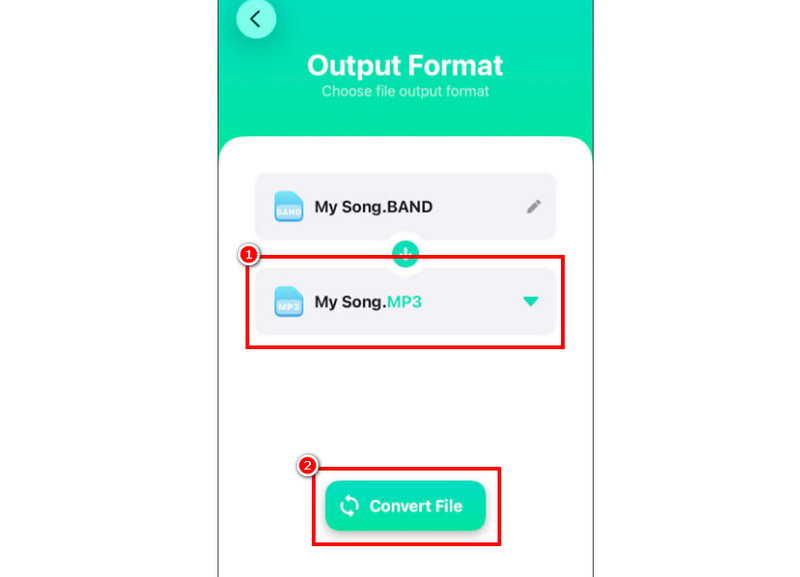
الخطوة 1إذهب إلى ....... الخاص بك متجر أبل وتنزيل محول الصوتيات ثم قم بتشغيل المحول وابدأ بإضافة التسجيل.
الخطوة 2من صيغة القسم، ابدأ في اختيار MP3 التنسيق. ثم انقر على يتحول زر.
الخطوه 3بعد عملية التحويل، يمكنك الآن تشغيل ملف MP3 الخاص بك.
الجزء الخامس: كيفية تسجيل الموسيقى من يوتيوب على الآيفون
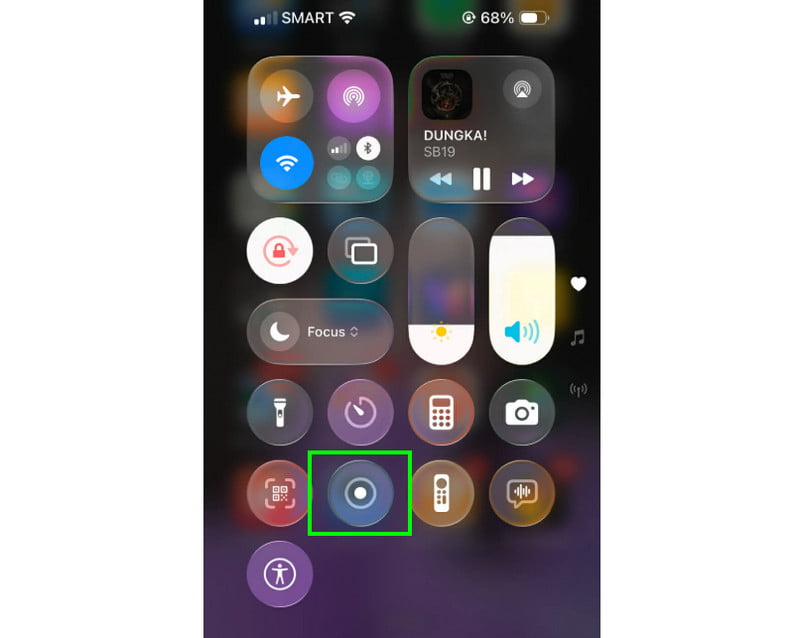
هل ترغب في تسجيل الموسيقى من يوتيوب على جهاز آيفون الخاص بك؟ في هذه الحالة، كل ما عليك فعله هو استخدام ميزة التسجيل على جهازك. باستخدام هذه الميزة، يمكنك تسجيل أي موسيقى من يوتيوب. لبدء التسجيل، ما عليك سوى النقر اللمس المساعد ثم انتقل إلى قسم مركز التحكم. اضغط على ميزة التسجيل. ستبدأ العملية بعد العد التنازلي لثلاث ثوانٍ. يمكنك حينها تشغيل الموسيقى من يوتيوب. اضغط على زر الإيقاف لإنهاء التسجيل. بعد الانتهاء، يمكنك استخدام أي برنامج لتحويل الفيديو إلى ملف صوتي بصيغة MP3.
الجزء السادس: نصائح احترافية لتحسين جودة الصوت
راجع هذا القسم واحصل على المزيد من المعلومات حول كيفية الحصول على جودة صوت أفضل.
- سجل دائمًا في مكان هادئ لتقليل الضوضاء المحيطة.
- عند استخدام تطبيق مثل GarageBand، يجب عليك الحفاظ على توازن مستوى الإدخال. تجنب دائمًا التشويش بالبقاء ضمن النطاق الأحمر.
- للحصول على جودة أفضل، قم دائمًا بالتسجيل بصيغة AIFF أو WAV.
- راقب التسجيل باستخدام سماعات الرأس. يمكنك استخدام سماعات رأس سلكية لمعالجة المشكلات في الوقت الفعلي.
ل تسجيل أغنية على جهاز آيفوناستخدم جميع الطرق الموضحة في هذا الدليل. وبذلك، يمكنك الحصول على النتيجة المرجوة بعد إتمام العملية. كما يمكنك الوصول إلى هذه الطريقة إذا كنت ترغب في تسجيل الموسيقى من هاتفك باستخدام جهاز الكمبيوتر. AVAide مسجل الشاشةبفضل ميزة مسجل الهاتف في هذا البرنامج، يمكنك توصيل جهاز iPhone الخاص بك وتسجيل أي موسيقى وحفظها بأفضل جودة، مما يجعله أفضل مسجل يمكنك الاعتماد عليه.
نبذة عن المؤلف

تسجيل أنشطة الشاشة بالصوت ، والاجتماعات عبر الإنترنت ، ومقاطع فيديو اللعب ، والموسيقى ، وكاميرا الويب ، وما إلى ذلك.