PNG is commonly used for logos, icons, and images that need transparency. If you have one saved and want to resize a PNG for different purposes, this write-up is for you. In this guide, we will introduce dependable PNG resizers and teach you how to resize PNGs without losing quality.
Ready? Let us dive in!
Part 1: Why Need to Resize PNGs
Managing PNG images properly is essential for anyone working with websites, designs, or digital projects. The right size helps images perform better, look good on all devices, and take up less space.
Take a look at the main reasons below why you need to resize PNG:
Why Resize (Downscale) PNGs
- Faster Page Loading: Big PNGs might cause pages to load more slowly and annoy users.
- Lower Bandwidth Usage: Compressed files save data for users, especially on mobile.
- Save Storage Space: Smaller images take up less space on servers and devices.
- Clear Display: Distortion or blurriness is avoided when images are scaled to fit layouts.
Why Resize (Upscale) PNGs
- Print Ready: Larger images have enough pixels for sharp and clear prints.
- Display on High-Resolution Screens: Bigger images fit retina and HD monitors without looking blurry.
- Design Consistency: Enlarging small graphics keeps icons and illustrations uniform and professional.
Part 2: 7 PNG Resizers at a Glance
Below is a quick look at seven handy PNG resizers you can use to make your images smaller, sharper, or perfectly sized for any project.
1. Image Resizer
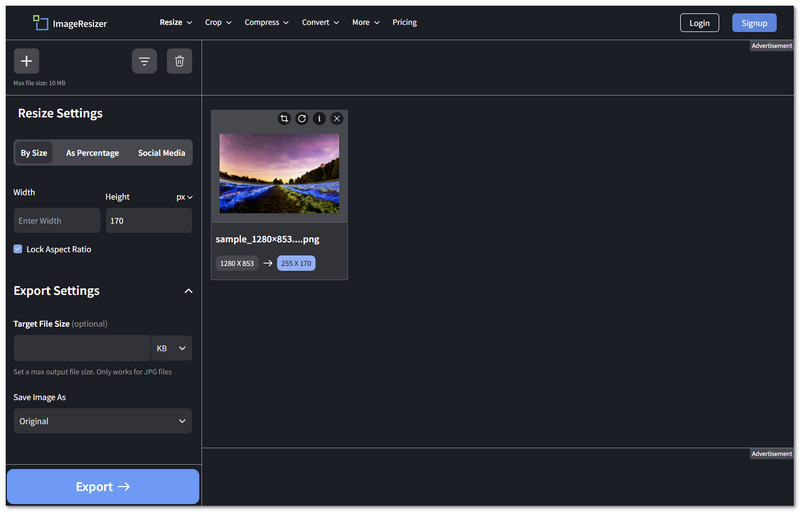
This online platform makes resizing PNGs super simple. You can set your size by pixels, percentage, or social media presets. You can also lock the image aspect ratio or add a color and transparency fill to avoid stretching. It works on any device, is free to use, and keeps your images crisp.
Benefit: It is perfect for fast resizing without an extra program.
Limitation: The free version limits file size.
2. iLoveIMG
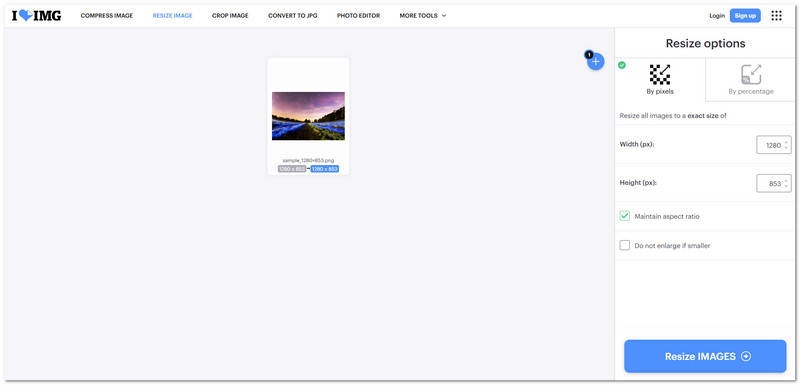
Do you want to batch-resize PNGs? iLoveIMG lets you upload images from your computer, Google Drive, or Dropbox. You can change width and height in pixels, shrink by percentage, or maintain aspect ratio. There are also extra tools like crop, watermark, and convert, making it versatile. You can also rely on it if you want to resize a JPG.
Benefit: It handles batch images easily.
Limitation: Some extra features require a premium account.
3. Online PNG Tools
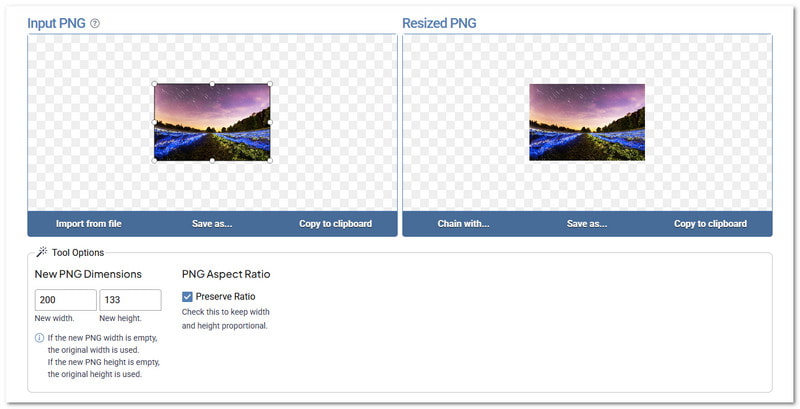
Online PNG Tools is a super simple but powerful PNG image resizer. It allows you to set the width and height or preserve the ratio. A preview shows both the original and the new image. On top of that, it is fast to process, free, and works on any device.
Benefit: The instant preview of resized images.
Limitation: The interface is basic and plain.
4. Adobe Express
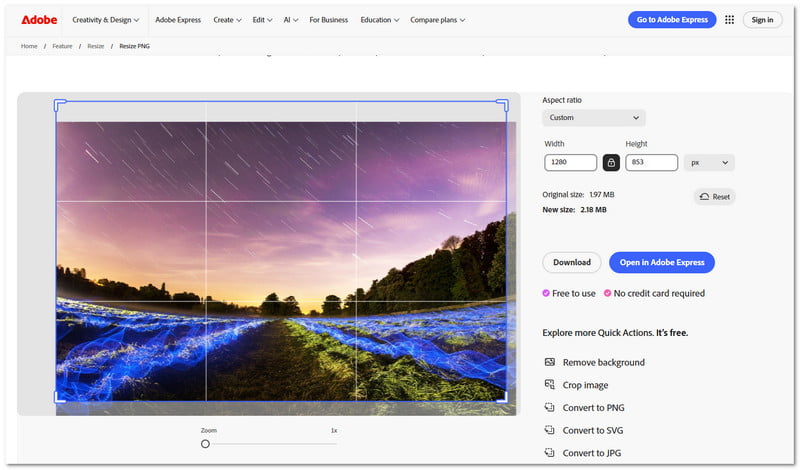
You can resize PNGs online and edit at the same time with Adobe Express. You can pick preset sizes for Instagram, YouTube, and Facebook. You can also see both the original and the new size before downloading. Edit features include cropping, background removal, and format conversion.
Benefit: It combines resizing with editing tools.
Limitation: The file size limit is under 40 megabytes.
5. Watermarkly
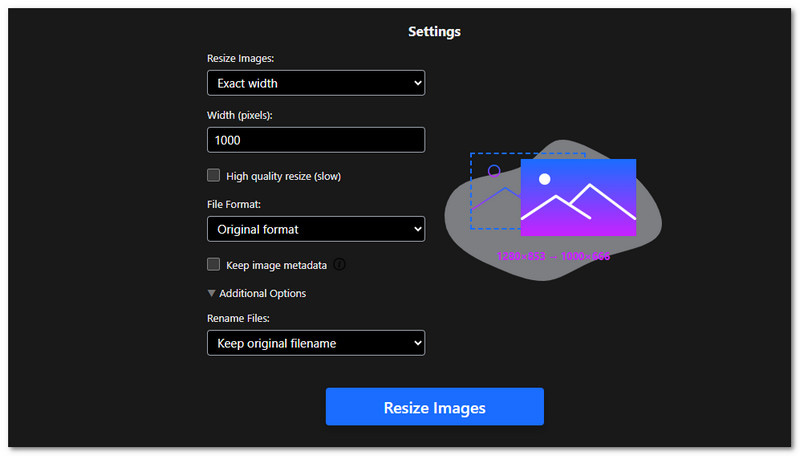
Here is a Watermarkly for high-quality PNG resizing. It keeps original filenames, metadata, and resizes multiple files at once. Even large images are handled smoothly. Also, no watermarks are added, and files stay private. It makes it great if you want sharp results without risking your files going online.
Benefit: It keeps the clarity and privacy intact.
Limitation: High-quality resize can take longer.
6. Simple Image Resizer
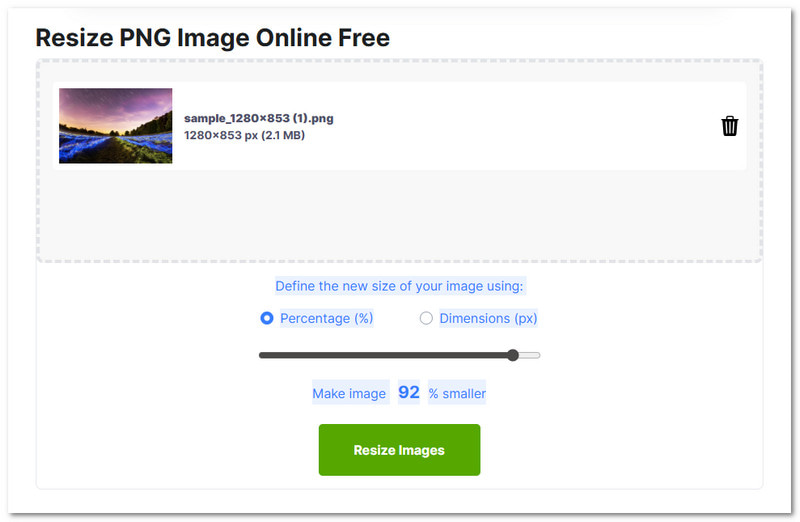
Like Watermarkly, Simple Image Resizer is a safe-to-use PNG photo resizer. Images are deleted after 24 hours. You can resize by percentage or exact pixels using it. If you want, you can upgrade your plan to premium, so you can process up to 10 files at once without ads.
Benefit: It is super secure and simple.
Limitation: The free version only resizes one image at a time.
7. RESIZEPNG
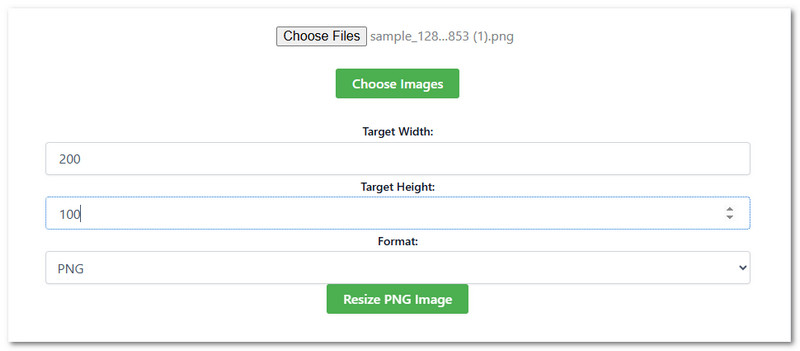
Resize PNG file without losing transparency or quality with RESIZEPNG. It allows you to set width, height, and even batch-resize multiple images with ZIP downloads. It is perfect for big projects with many images. You can also convert files to JPEG, GIF, or PDF for other uses.
Benefit: The batch resizing and format options are helpful.
Limitation: It does not showcase all the files uploaded and only reduces them to one size.
Part 3: How to Resize a PNG Without Losing Quality
We do not want you to lose the quality of your PNG image when resizing. That is why in this part, with the help of AVAide tools, we will show you how to resize a PNG without losing quality; check it out now!
1. AVAide Image Compressor
Making your PNG images smaller is perfect for faster page loading, social media posting, emailing, and saving storage space. If you want all these benefits, you will need AVAide Image Compressor. This PNG compressor is free, works online, and lets you reduce file size with just one click. Why resize one by one when you can do them all together? AVAide Image Compressor supports batch resizing, making the process faster and easier.
Without further ado, please learn how to resize a PNG file using AVAide Image Compressor:
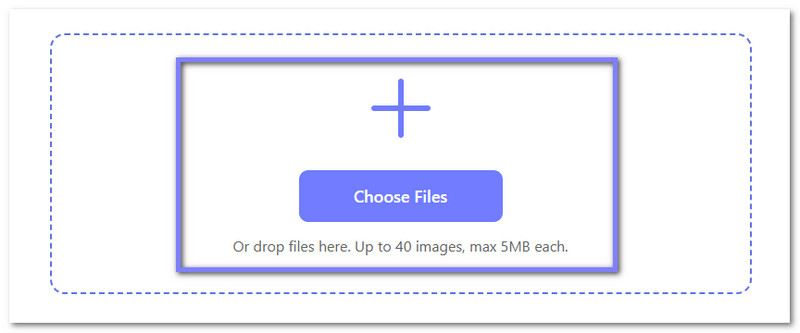
Step 1First, open your browser and go to AVAide Image Compressor. In the center of the page, click the Choose Files button to select the PNG images you want to resize. You can also select and drop your files directly into the page.
- The tool allows you to upload up to 40 images at once, with a maximum size of 5 megabytes each.
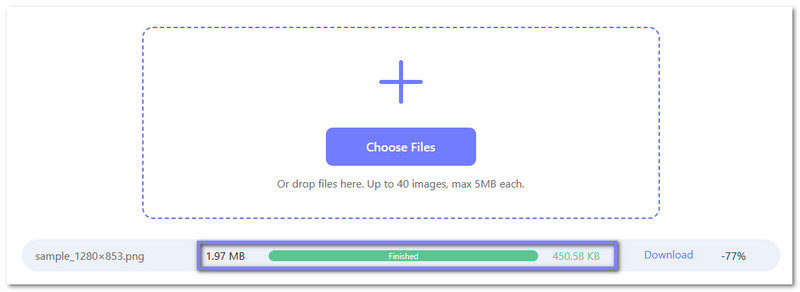
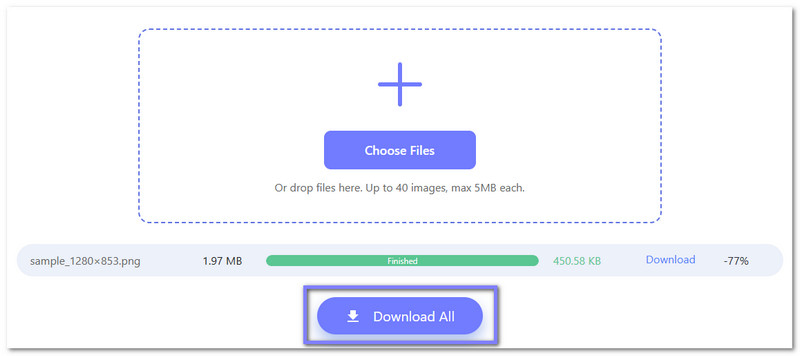
Step 2You will see a progress display that shows when the upload starts, when compression is in progress, and when it finishes. After compression, AVAide Video Compressor shows the original file size, the new compressed size, and the percent of space you saved. As for the photo below, a 1.97 MB PNG is reduced to 450.58 KB.
Step 3All you need to do now is click the Download All button to save your resized PNG images. You can now use them for websites, emails, social media, or any project where you need high-quality images that take up less space.
2. AVAide Image Upscaler
If you ever need to make a PNG bigger, such as for printing in large format, adjusting small graphics to fit bigger screens, or improving details for creative design work, then do not hesitate to use AVAide Image Upscaler. This platform can enlarge your PNG up to 8×. Not only that, it automatically removes noise and blur, fixes picture quality, and sharpens blurry photos. With that, you can enlarge your PNG with ease while keeping it in good quality.
Now, here is how to resize a PNG file using AVAide Image Upscaler:
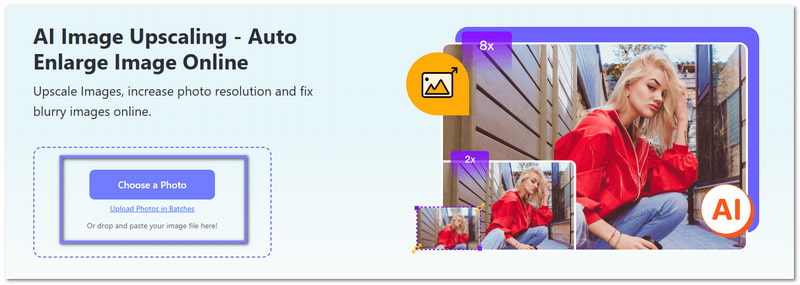
Step 1To resize your PNG image using AVAide Image Upscaler, you need to go to its official website. Once there, click the Choose a Photo button to upload your PNG image.
- If you want to enlarge multiple images at the same time, click the Upload Photos in Batches.
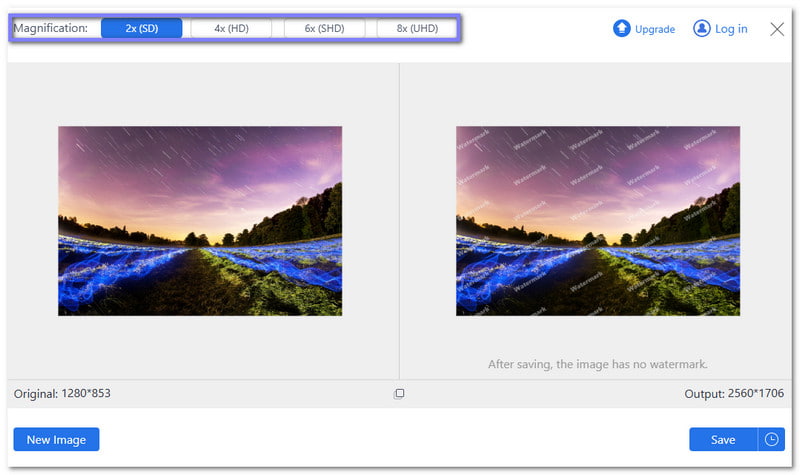
Step 2Once your PNG image is successfully processed, it is time to choose how much you want to enlarge it. You can stay with the default 2×, or select 4×, 6×, or 8×. The higher the number, the bigger the image becomes.
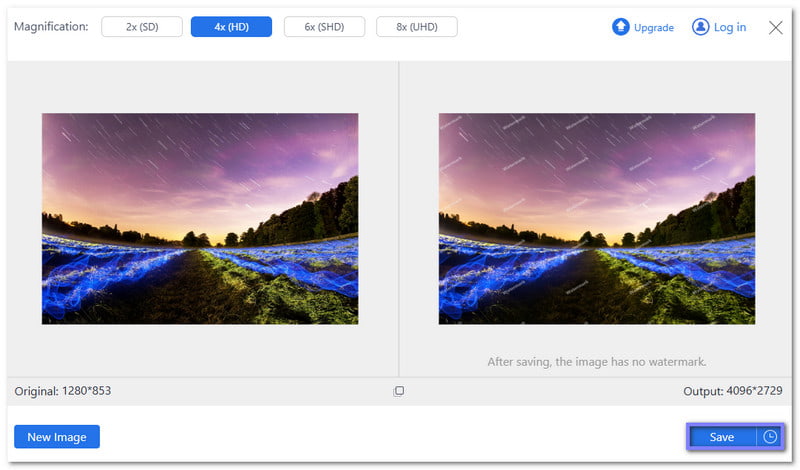
Step 3Once settled, click the Save button to download your resized PNG. Now your image is ready to use for projects where larger, high-quality images are needed.
So many PNG resizers to choose from in this post, right? Of course, we want you to have the freedom to pick the one you like. But we recommend AVAide tools if you want to resize PNG without quality loss. With these tools, you can quickly shrink or enlarge your images while keeping them sharp, clear, and ready for any project.

Our AI technology will automatically enhance the quality of your images, remove noise and fix blurry images online.
PROCESS NOW