您想在 Windows 電腦上錄製螢幕和音訊嗎?錄製電腦螢幕和音訊有很多用途。您可以錄製遊戲、製作教學、評測內容或產品、創作內容等等。清晰流暢的畫面和音訊可以讓您的錄音內容更加出色。您可以按照本文中的 5 種方法有效地進行錄製。 在 Windows 上錄製螢幕和音訊.
第 1 部分:Windows 可以錄製螢幕並錄製音訊嗎
是的,Windows 允許您錄製桌面螢幕、系統音訊和麥克風。選擇合適的螢幕錄製和錄音軟體是實現無縫螢幕和音訊錄製的關鍵。無論您需要高效能的遊戲錄製軟體,還是清晰的教學錄製解決方案,合適的工具都能確保畫面和聲音完美同步。我們已經為您完成了繁瑣的工作!請繼續閱讀下一節,以了解像專業人士一樣錄製 Windows 螢幕和音訊的最佳方法和逐步指南。
第 2 部分. 在 Windows 上使用音訊進行螢幕錄製的 3 種方法
1. 使用 AVAide 螢幕錄影機在 Windows 系統上錄製螢幕和音訊
在Windows系統上,最有效的螢幕錄製軟體之一,它支援錄製螢幕和麥克風及系統音頻,是… AVAide 屏幕錄像這款螢幕和音訊錄製工具可以幫助您更輕鬆地達成目標。此外,這款 Windows 螢幕和音訊錄製工具支援兩種螢幕錄製方式:您可以立即錄製整個螢幕或螢幕的特定區域。您還可以錄製各種內容,例如視訊通話、視訊、Zoom 會議、遊戲畫面、教學影片等等。而且,它能提供流暢無阻的錄製體驗。無論您是新手還是經驗豐富的用戶,都能輕鬆上手使用這款錄音工具。
此外,您可以在螢幕和音訊錄製過程後增強您的檔案。您可以壓縮、裁剪、修剪和更改影片格式。這樣,您就可以在將影片儲存到電腦之前獲得所需的結果。因此,要了解如何在 Windows 上使用音訊進行螢幕錄製,請檢查以下步驟。
步驟1使用權 AVAide 屏幕錄像 在您的 Windows 電腦上。點擊下面的按鈕即可立即下載軟體並將其安裝到您的電腦上。

 安全下載
安全下載
第2步之後,選擇您想要的螢幕錄製方式。您可以選擇 滿的 或者 風俗。然後,打開 音響系統 用音訊錄製螢幕。

第 3 步若要開始以音訊錄製螢幕,請按一下 錄音 按鈕。三秒鐘後,程式將開始錄製過程。然後,點擊 停止 完成螢幕錄製。

步驟4點擊 進口 底部介面中的按鈕可儲存錄製的畫面。

2. 使用 OBS 在 Windows 系統上錄製螢幕和音訊
OBS 是其中 最好的開源螢幕錄影機 這款軟體可以錄製螢幕並錄製音訊。它是廣受歡迎的程式之一,能夠滿足您的各種需求。此外,它還能錄製螢幕上的各種媒體檔案。您甚至可以錄製不同的標籤頁、視窗、遊戲等等。如果您想完美地錄製帶有聲音的電腦螢幕並獲得卓越的錄製質量,請立即使用 OBS。它唯一的缺點是介面不夠清晰。如果您是新手,最好花點時間學習如何使用這款帶有聲音的螢幕錄製軟體。如果您想學習如何在 Windows 10 上錄製螢幕並錄製音頻,請按照以下步驟操作。
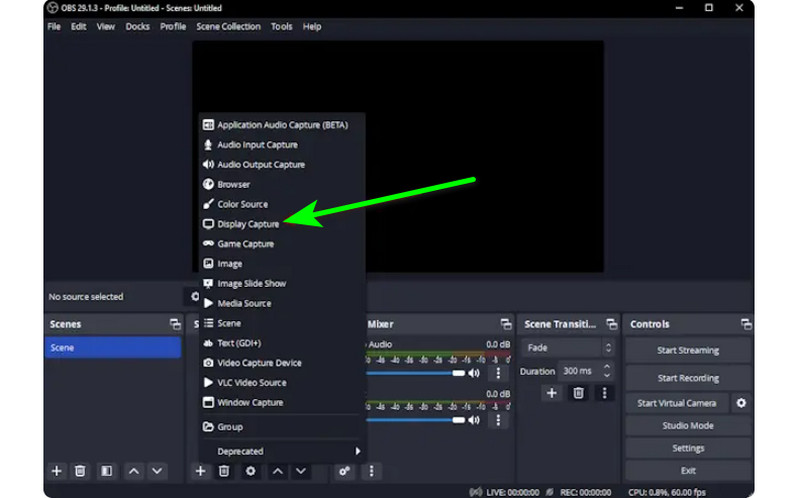
步驟1啟動 OBS 安裝過程後的程式。之後,前往 加 下面的符號並選擇 顯示捕捉 選項。您可以選擇要在螢幕上錄製的內容。
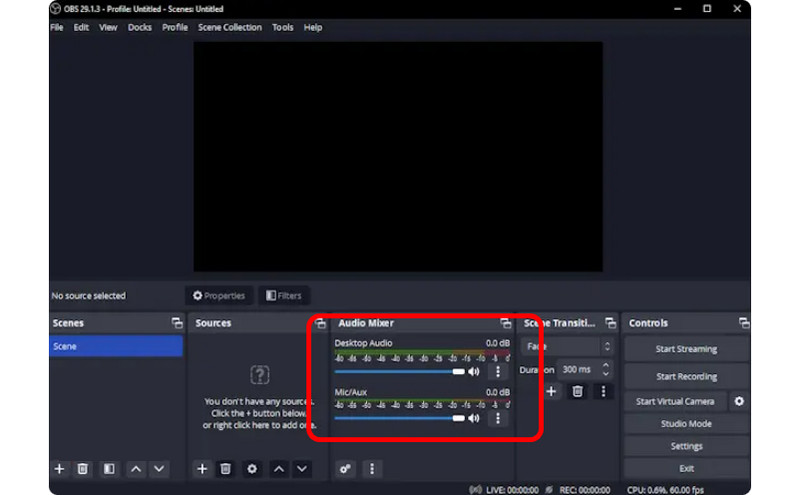
第2步然後,前往 音訊混音器 並打開音頻,以便您可以錄製螢幕有聲。
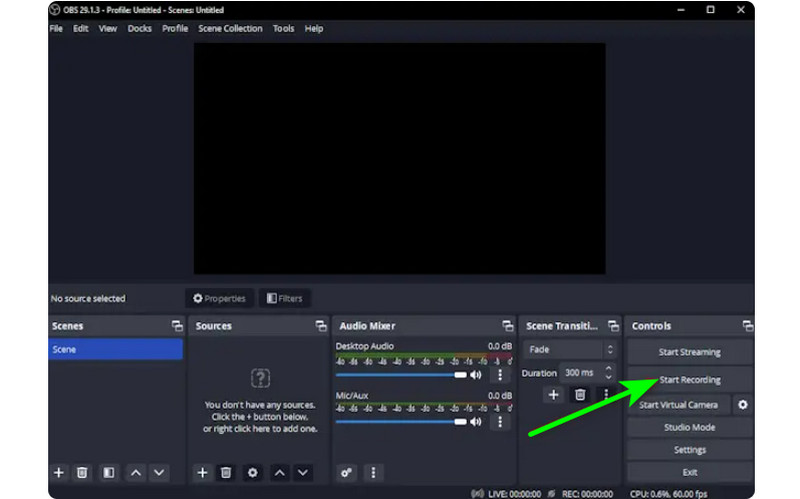
第 3 步點擊 開始錄製 右側介面上的選項開始錄製螢幕。如果您想停止錄製過程,請按一下 停止錄製 按鈕。
3. 使用 Clipchamp 在 Windows 系統上錄製螢幕和音訊
您想了解如何在 Windows 11 上使用音訊錄製螢幕嗎?然後,使用 剪輯冠軍 作為您優秀的螢幕錄影機。這個有用的軟體可以讓您順利地用音訊錄製螢幕,因為它的過程簡單,您可能會喜歡。如果需要,您甚至可以打開網路攝影機。它非常適合評論特定內容或創建教學影片。因此,要開始學習如何在 Windows 上進行螢幕錄製,請參閱以下方法。
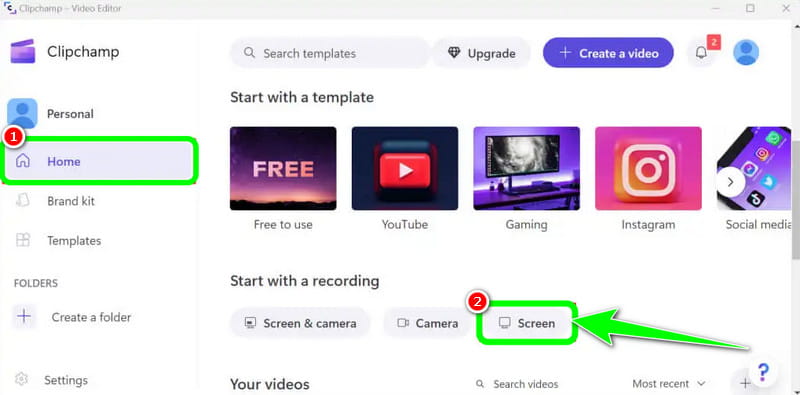
步驟1從主介面 剪輯冠軍,導航至 家 部分並點擊 屏幕 選項。然後,另一個網頁將出現在您的螢幕上。
第2步之後,單擊 紅色的 左側介面中的按鈕。然後,您將在螢幕上看到所有內容,例如選項卡、視窗等。
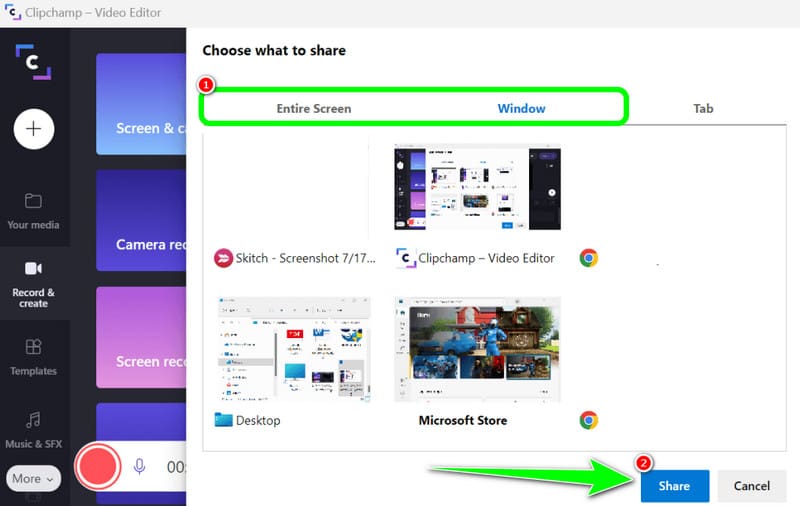
第 3 步按一下要錄製的螢幕,例如「整個螢幕」、「視窗」和「標籤」。若要開始錄製,請按一下 分享 按鈕。然後,完成該過程後,按一下 停止錄製 將錄製的畫面儲存到您的電腦上。
第 3 部分:在 Windows 10 和 11 上錄製音訊的 2 種方法
1. 在 Windows 系統上使用 Audacity 錄製音頻
您想了解如何在 Windows 10 上錄製音訊嗎?如果是這樣,請使用 Audacity。此離線軟體可以幫助您錄製電腦中的任何聲音。另外,您不會發現它具有挑戰性,因為該軟體可以提供簡單的過程,使其成為所有用戶的理想錄音機。因此,要開始錄製音頻,請參閱下面我們提供的步驟。
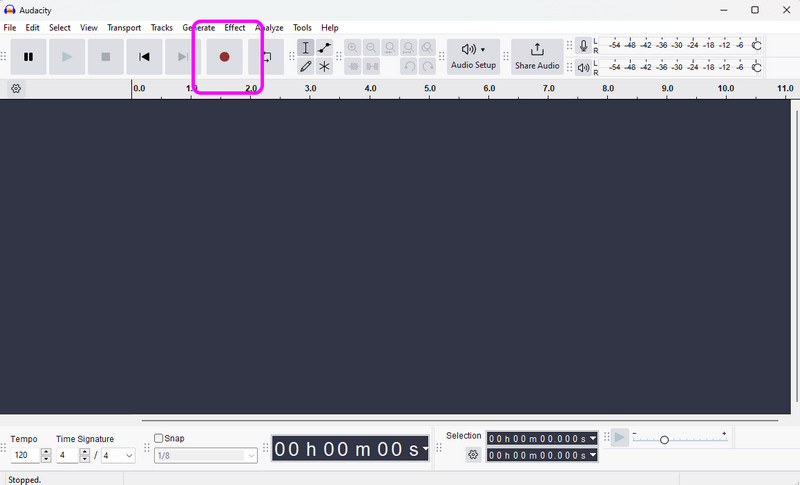
步驟1安裝並運行 大膽 在您的 Windows 上。然後,在主介面中,點擊 記錄 頂部介面的按鈕。這樣,錄音過程就會開始。
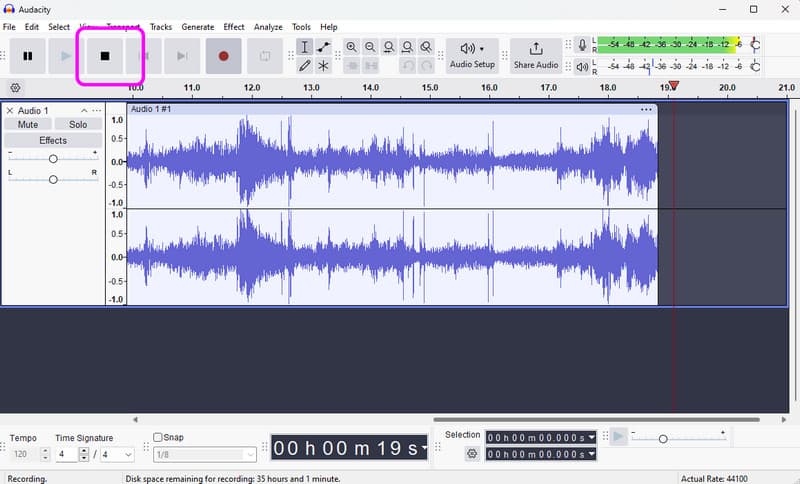
第2步之後,如果完成錄製,請按一下 停止 按鈕。然後,您可以繼續進行儲存過程。
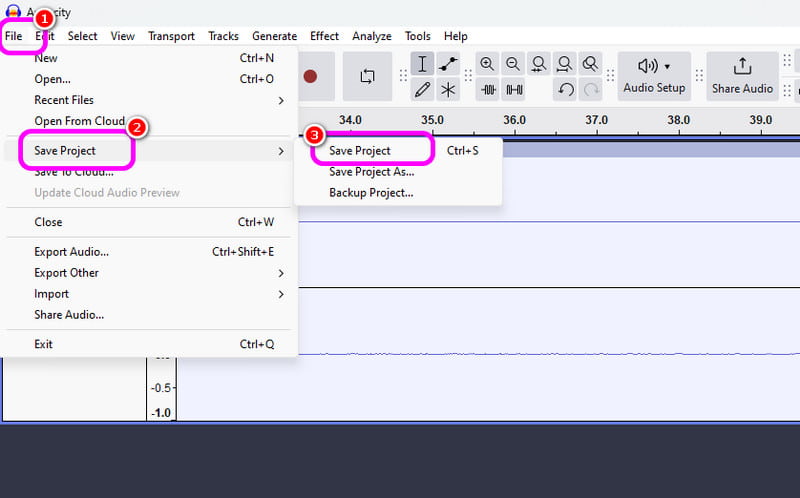
第 3 步若要儲存錄製的音頻,請前往 文件 > 保存項目 部分將最終音訊檔案保存在您的裝置上。
2. 使用 Windows 錄音機在 Windows 系統上錄製音頻
另一個可以讓您順利進行 Windows 錄音過程的軟體是 Windows 錄音機。存取此錄音機後,您可以開始錄製裝置中的任何音訊內容。我們喜歡的是介面簡單,因此您可以輕鬆快速地錄製音訊。唯一的缺點是它不提供編輯工具來增強錄製的音訊。
步驟1下載 Windows 錄音機 在您的裝置上。之後,啟動它以開始該過程。
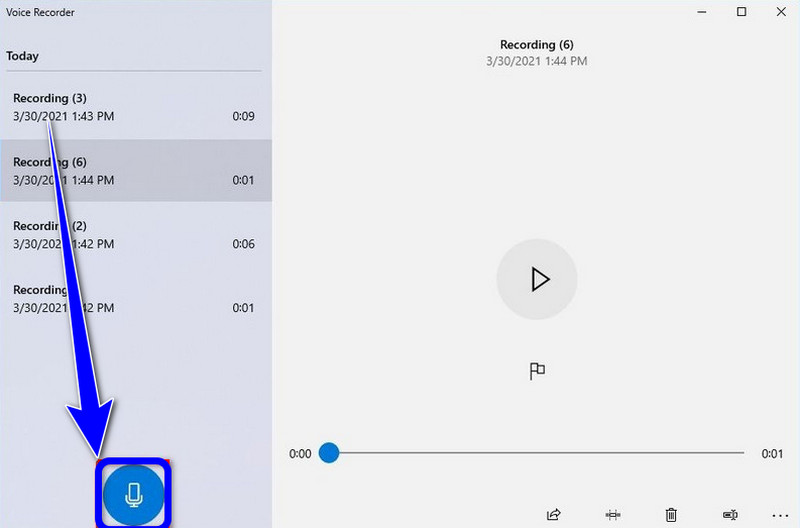
第2步在主介面中,按一下 麥克風 開始錄製過程的符號。
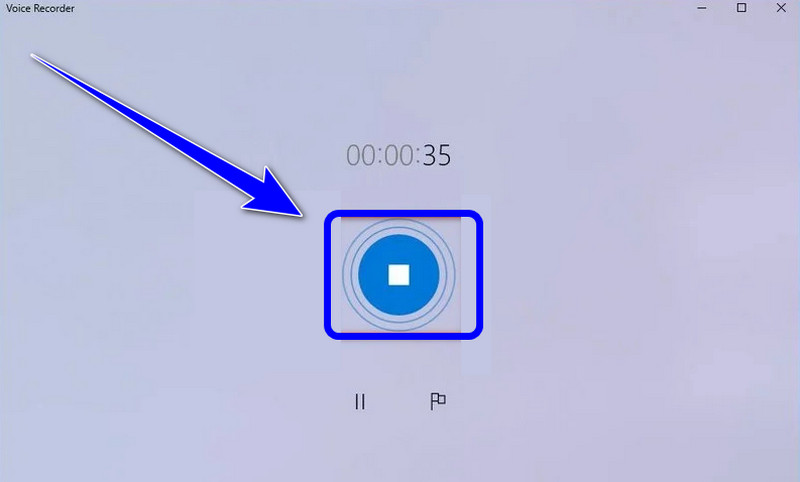
第 3 步若要停止錄音過程,請按一下 停止 按鈕。然後,您就可以收聽您錄製的音訊了。
第四部:5款螢幕錄影與音訊錄製設備的比較
| 特徵 | AVAide 屏幕錄像 | OBS工作室 | 剪輯冠軍 | 大膽 | Windows 錄音機 |
| 主要類別 | 一體化採集套件 | 專業廣播 | 基本瀏覽器編輯器 | 專業音訊編輯 | 基本語音備忘錄 |
| 錄影 | 支援(最高可達 4K/60fps) | 已支援(高級) | 已支援(基本) | 不支持 | 不支持 |
| 聲音錄製 | 系統和麥克風同時工作 | 多軌支援 | 僅基本輸入 | 高級音訊擷取 | 僅麥克風 |
| 用戶界面 | 直覺易用 | 陡峭的學習曲線 | 簡單的基於瀏覽器的 | 技術/傳統 | 極簡主義 |
| 內建編輯 | 實時註釋/修剪 | 無(外部必需) | 完整時間軸編輯器 | 進階音訊編輯 | 僅基本修剪 |
| 獨特賣點 | 專用遊戲模式和手機模式 | 無限場景圖層 | 股票媒體整合 | 降噪/混音 | 本機系統實用程式 |
| 總價值 | 兼具效率與品質 | 最適合高級技術人員 | 最適合短小精悍的社交視頻 | 最適合純音訊工作 | 最適合簡單筆記 |
第五部分:Windows 系統下螢幕與音訊錄製常見問題解答
為什麼Windows的Alt+R快捷鍵不起作用?
如果 Alt + R 快速鍵(Windows Xbox 遊戲列的預設快速鍵)無法正常運作,通常是因為軟體衝突、設定被停用或硬體限製造成的。您應該退出其他具有螢幕錄製功能的程式。
為什麼我在Windows系統下錄製螢幕時沒有聲音?
錄音無聲最常見的原因是音訊輸入設定不正確。若要解決此問題,請確保錄音軟體中已啟用系統音訊(內建聲音)和麥克風。在 Windows 11 系統中,請檢查「隱私和安全性」設置,確保應用程式擁有存取麥克風的權限。此外,請確認您的播放設備已在 Windows 聲音控制面板中設定為“預設設備”,因為許多錄音軟體無法從“虛擬”或“藍牙”輸出設備捕獲音頻,除非進行專門配置。
如何在沒有麥克風的情況下在Windows系統中錄製內部音訊?
要錄製內部系統音訊而不從麥克風拾取背景噪音,您應該關閉螢幕和錄音程式中的“系統聲音”或“內部音訊”選項。
如果你想學習 如何在 Windows 上使用音訊進行螢幕錄製,您可以從這篇文章中獲取所有詳細資訊。因此,查看所有資訊並嘗試該過程以獲得有效的螢幕和錄音過程。此外,如果您想要最可靠的軟體來幫助您完美地錄製帶有音訊的螢幕,毫無疑問,AVAide Screen Recorder 是您可以訪問的最佳程式。因此,在您的 Windows 上運行該軟體並享受其整體功能。
關於作者

在您的計算機上錄製屏幕、音頻、網絡攝像頭、遊戲、在線會議以及 iPhone/Android 屏幕。