YouTube is home to millions of videos, showcasing the creativity of people through blogs, helpful tips, or reviews. But because it wants to protect the content on the website, YouTube prohibits its users from downloading videos outside the platform. Since there are some people who upload content not of their own and do not properly notify the original creator, this is being seen as a mischievous behavior. If for personal use, one way to have your own copy is through recording. This article will guide you on how to record YouTube videos on various devices, such as your computer or phone.

Part 1. Record YouTube Videos on PC or Mac (The Desktop Way)

1. Built-in Tools (Simplest & Free)

How to record a YouTube video on PC? Whether you are using a computer with Windows or Mac operating systems, you can have a free way to capture videos from YouTube and other websites. Check out the following steps on how to do it.

Windows - Xbox Game Bar

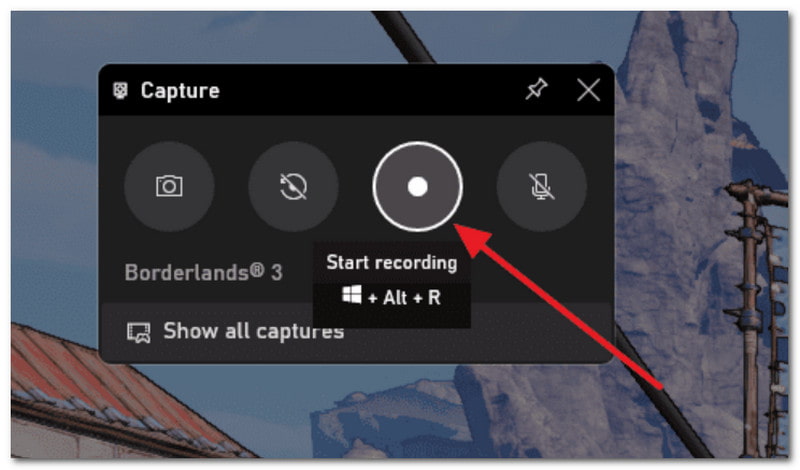
Make sure your PC is updated to Windows 10 or later to get the Xbox Game Bar. Then do the following:

步驟1Open YouTube and find the video you want to capture. Simultaneously press 視窗G 鍵盤上的按鍵。

第2步From the right corner, click the 圓圈 button to start recording. Then, you can click the same button to stop once you're done.

Xbox Game Bar Start Recording

Mac - QuickTime Player

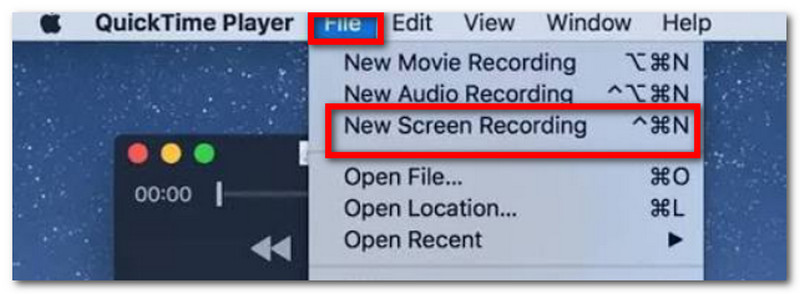
Although QuickTime Player is used for playing media files on Mac, it can also be used as a YouTube video recorder. Here are the steps to follow:

步驟1Open QuickTime Player on your PC and click 文件.選擇 新錄屏 選項。

QuickTime Player New Screen Recording

第2步From the small arrow beside the recorder, you can tweak a few settings. Then, click the 記錄 button to capture YouTube videos.

2. Browser Extensions (Easiest for One Video)

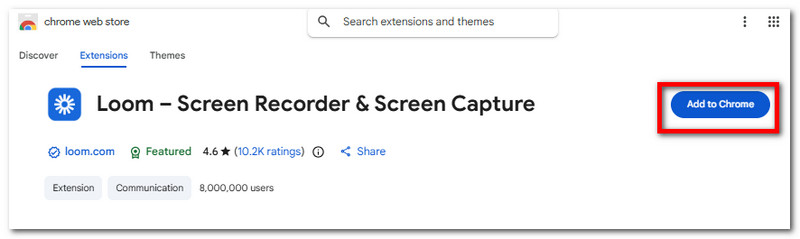
Loom is one of the easiest ways to record YouTube videos as an extension. It offers a quick learning curve to capture onscreen content and generates a link to share with people. Its features also include capturing video, microphone, and internal audio simultaneously, as well as saving videos to the cloud automatically. With that said, here's how to use Loom as a YouTube screen recorder:

步驟1Open the Chrome Web Store and download Loom to add to your browser. From the 擴充 icon, you can pin Loom so you can use it anytime.

Loom Chrome Web Store

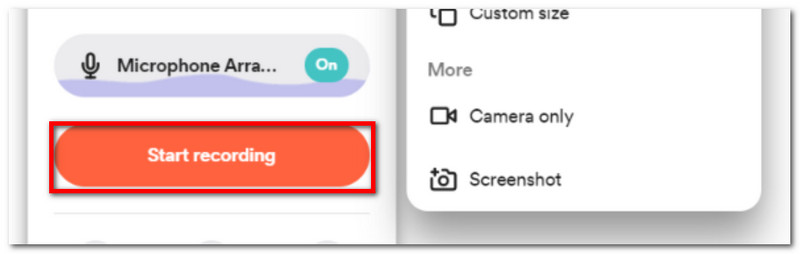
第2步Set up the screen recorder as desired, then click 開始錄製 to capture YouTube videos. Your videos will be saved on the account registered in Loom.

Loom Start Recording

3. AVAide Screen Recorder

Aside from videos, you might also want to learn how to record audio from YouTube separately. AVAide 屏幕錄像 is a top choice for capturing high-quality content on Windows and Mac. The software is designed with a sleek interface, allowing you to get familiar with navigating its tools. Of course, it offers various ways of recording, such as via a microphone, webcam, online meeting, and onscreen. Naturally, the Screen Recorder saves captured content in popular output formats, supporting MP3, MP4, MOV, M4A, and more. Furthermore, it allows you to add annotations, set a schedule for recording, and customize the area of the screen that you want to capture. Truly, AVAide Screen Recorder is a go-to for excellent video and audio recording!

步驟1Download AVAide Screen Recorder on your device. Read the instructions carefully to install the software successfully.

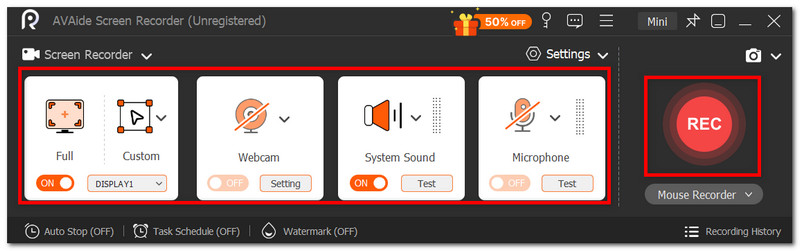
第2步From the Settings menu, you can set up the screen size, audio input, etc. Once done, click the REC button to record the screen on YouTube.

AVAide Settings Rec

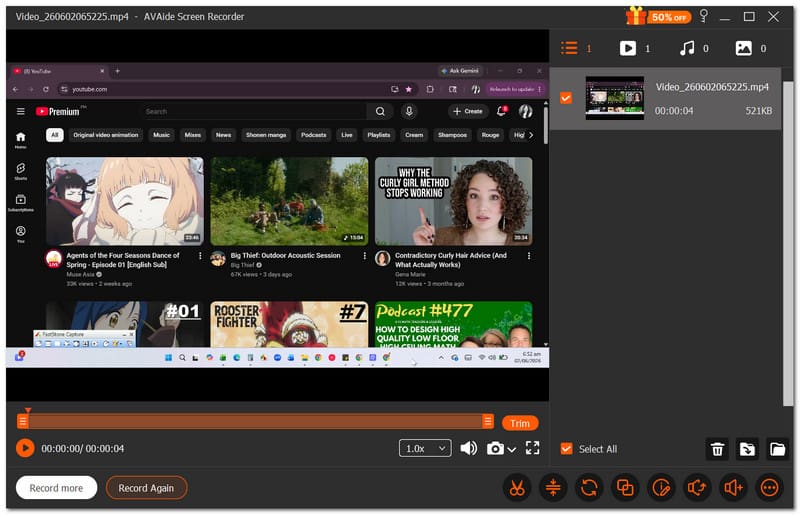
第 3 步點擊 停止 button if you are done recording. Preview the result or save it to the local folder drive.

AVAide Stop Preview

Part 2. Record YouTube Videos on iPhone or Android (The Mobile Way)

There is no hard way to learn how to record a YouTube video on an iPhone or Android, as your phone has a built-in screen recorder to capture onscreen content. However, be advised that the screen recorder on your phone does not capture video with audio. A third-party app might be the only option to screen record with sound.

對於 iPhone:

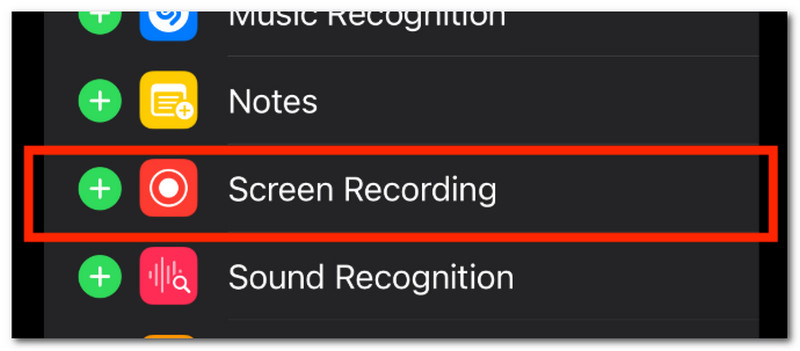
步驟1Go to Settings on your phone and navigate to the 控制中心.點擊 button to add the Screen Recorder to the Control Center.

iPhone Settings Add

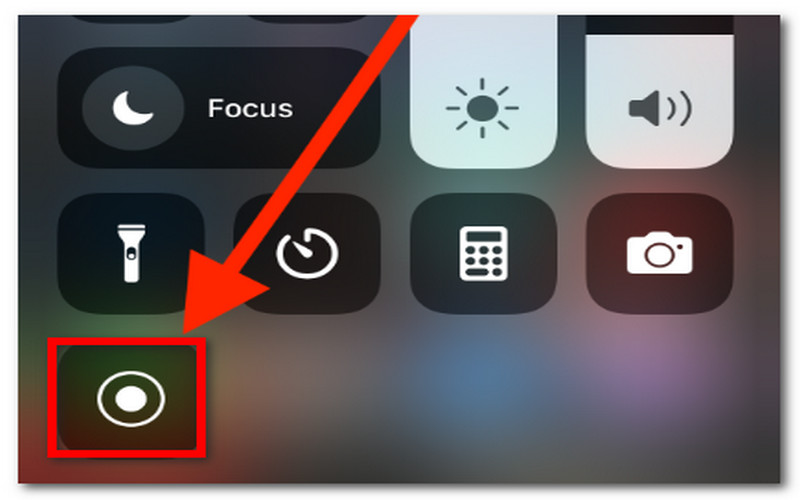
第2步From the upper right corner of your screen, swipe down and tap the 記錄 button. Once done recording, tap the button again from the Control Center. The recorded video can be watched from the Photos app.

iPhone Control Center Record

對於安卓:

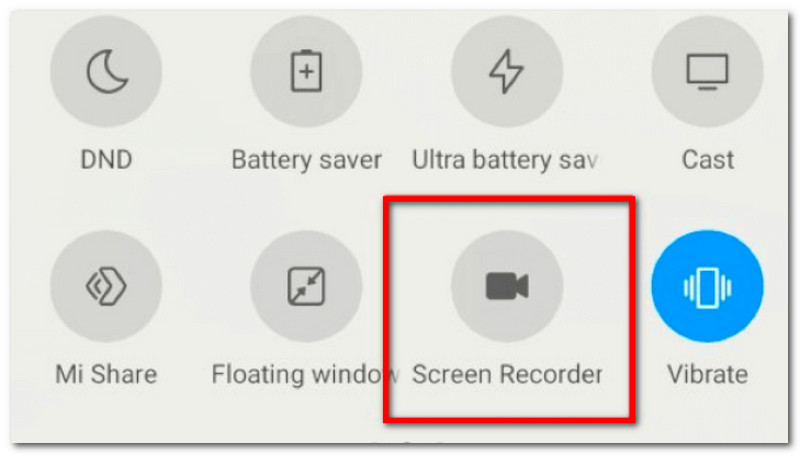
步驟1Swipe from the upper part of your phone to access the Quick Panel. Tap 螢幕錄製.

Android Quick Panel Screen Recorder

第2步Optionally, you can configure to record device audio in your video. Then, tap the Screen recorder notification to stop recording.

Part 3. Record YouTube Videos on Xbox (The Console Way)

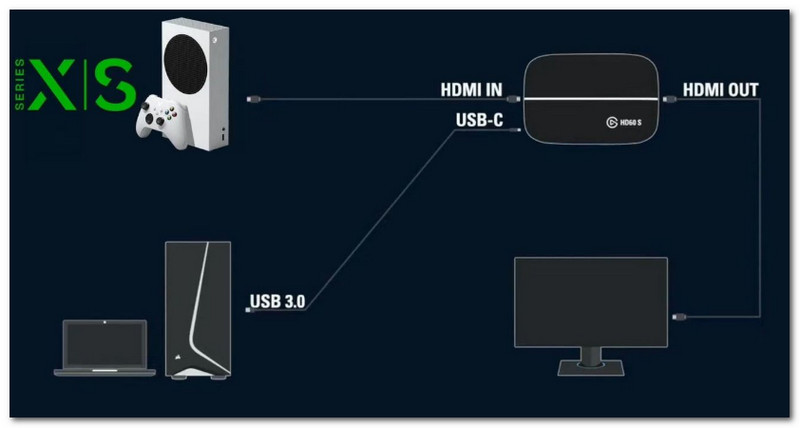
One way to capture YouTube videos using your console is to use a PC capture card. It will allow you to display your computer's content on the console, which you can record with Xbox's built-in screen recorder. Check out the following guide on how to record a YouTube video on Xbox:

步驟1插入 X HDMI Cable into the HDMI In port of the external capture card. Then, plug the capture card's USB cable into your computer.

Xbox HDMI In/Out Port

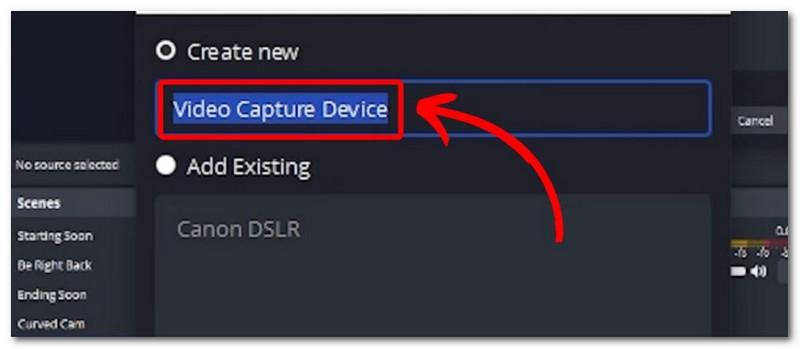
第2步From the capture card's HDMI Out port, run another HDMI cable to the monitor. You need to have software like OBS Studio on your PC to add the capture card as a 視訊擷取設備.

Xbox OBS Video Capture

第 3 步Open YouTube, then press the 的Xbox button to navigate to the 拍攝與分享 窗戶。點選 開始錄製 to capture YouTube videos.

Part 4. How to Record Audio from YouTube (Extract Sound Only)

To record sound from YouTube, there are two reliable ways to do this. This part will show how to use Audacity, a free audio recording solution you can get on Windows and Mac, and a YouTube to MP3 converter to download YouTube videos as audio files.

Method 1: System Audio Recorder Software (Audacity)

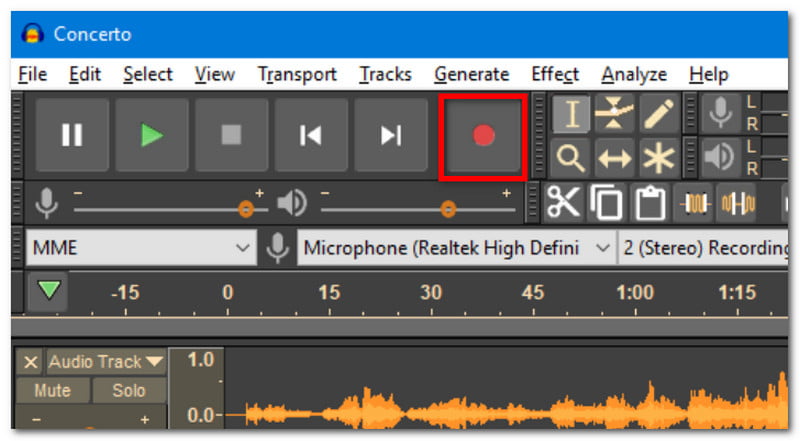
步驟1 Download and install Audacity on your computer. Open the software and set up the settings to your desire.

第2步點擊 記錄 to capture the YouTube video. You can edit the audio track by trimming the start and end of the audio clip, and export it to a folder.

Audacity Record Edit

Method 2: Online YouTube to MP3 Converter

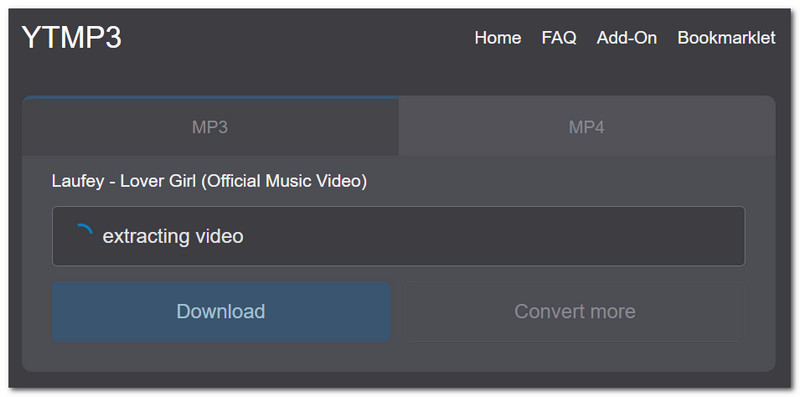
步驟1Open the YouTube app and search for the video you want to convert to audio. Copy the link, then search for YouTube to MP3 Converter to paste the link.

第2步然後,點擊 兌換 to turn the video into audio and wait for the process to be done. Click 下載 to save the audio file.

YouTube to MP3 Converter Download

Part 5. How to Record High-Quality Content for Your YouTube Channel

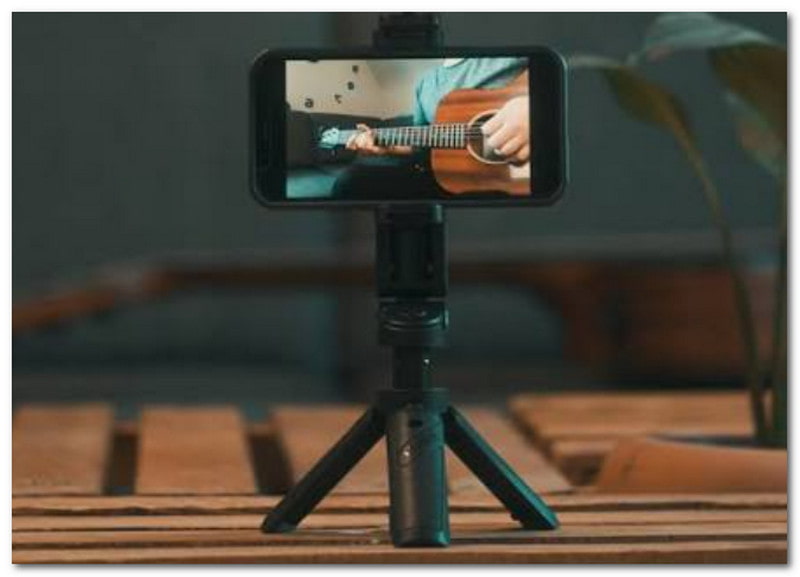
You might have asked, 'Do I need a tripod to record YouTube videos' on Reddit when planning to record your own content. You will need a few pieces of equipment to get started on recording, and if you are a beginner, you might want to start with the following:

Equipment Recommendations

Having a smartphone is already a good start for recording. But how to record YouTube videos on an iPhone effectively? Start investing in small tools like a tripod and a light ring for a good lighting effect.

Equipment Recommendations

It takes a few tries to get yourself into recording. By then, you can also dive deeper into professional tools such as green screen, lighting setup, and a camera for recording YouTube videos.

How to Record Your Screen + Face Cam for Tutorials

If you are going for a theme of tutorials or gaming on Twitch with a 後視鏡前置鏡頭視頻, then it is recommended to check software that supports recording onscreen content and webcam simultaneously. OBS Studio will be a good suggestion, but due to its complex learning curve, it is not suitable for beginners. Rather, you can try AVAide Screen Recorder to easily record your screen with a face cam via your webcam. This screen recording software for YouTube offers high-quality videos and an easy learning curve.

結論

In conclusion, it is possible to capture YouTube videos in different ways. This article also guided you on how to record the audio from a YouTube video with easy methods. But in reality, you can achieve all of these more easily with AVAide Screen Recorder as it is equipped to help you capture high-quality videos and audio from your computer in just a few clicks. Try it today by downloading the all-around screen recording software on Windows or Mac.

經過 艾莎·約翰遜 on 6 月 29, 2026

關於作者

艾莎·約翰遜
艾莎·約翰遜

艾莎·約翰遜是一位多媒體製作技術員,專長於螢幕錄製和音訊擷取工作流程。她曾幫助教育工作者、培訓師和播客團隊建立穩定的錄製環境,並解決常見的硬體和配置問題。她的實作經驗能夠幫助創作者提升錄製清晰度,製作出更可靠的內容。

相關文章