The built-in Android screen recorder may not have enough features. However, there are some practical tips you can learn to make easier and more versatile recordings on your phone screen. This post will show you comprehensive Android screen recording tutorial.

If you prefer advanced screen recording for gaming, tutorials, or professional demos, we can also help you bypass the clutter to bring you the best Android screen recording methods and apps available today, complete with step-by-step tutorials to help you achieve crisp, high-definition results.

Part 1: How to Use the Built-in Android Screen Recorder

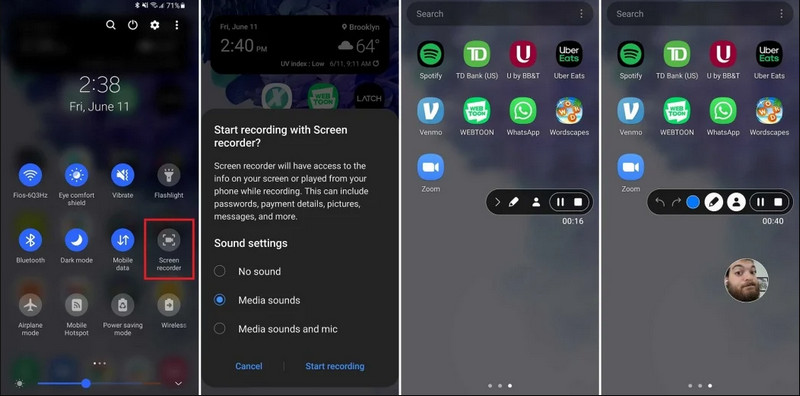
Most devices running Android 11 or higher come with a native screen recording app located in the Quick Settings panel. You can just use it to record your phone's screen.

Android 內建錄音機

步驟1Access Quick Settings

Swipe down twice from the top of your screen to expand the full Quick Settings menu.

第2步Select Screen Recorder

尋找 螢幕錄製. If you don't see it, tap the 編輯 button (with a Pencil icon) and drag the Screen Record tile into your active grid.

第 3 步配置錄音設定

When you find the Android 屏幕錄像 tool, you have multiple recording options. Choosing a proper one can make your Android screen recording effective.

  • No sound: Record only the phone screen without system audio or external sound.
  • Media sounds: Record the screen with all system sounds, including sound from all apps within your phone.
  • Media sounds and mic: Record both system sounds and external sounds (phone's built-in mic or the mic from your earphones).

步驟4Start and Stop Screen Recording

Make your choice and tap the Start Recoding button. A countdown will appear in the status bar. To stop Android screen recording, tap the 停止 button (if there's a recording status bar) or swipe down the notification shade and tap the red 停止 按鈕。

Part 2: Some Brand-Specific Android Recorder Tools

Many Android phone manufacturers provide proprietary screen recorders with advanced features like Selfie Camera overlays. Check some popular Android brands' special recording features:

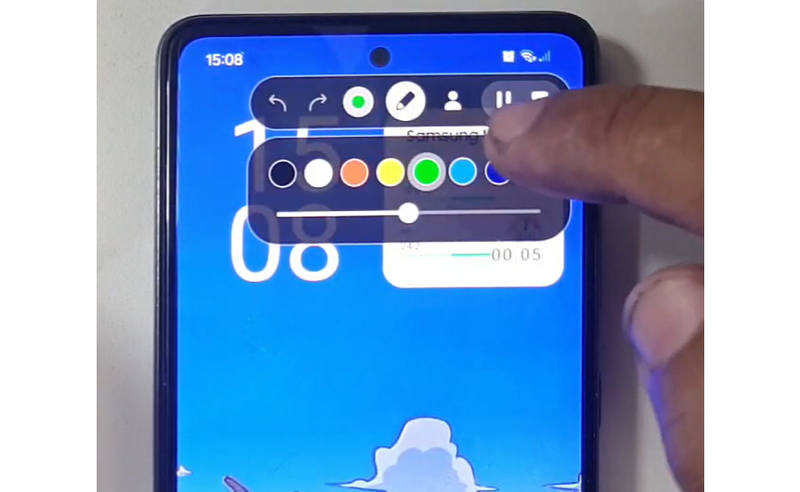
Samsung (One UI): Includes a Screen Recorder with a toolbar that allows you to draw on the screen in real-time.

Draw While Recording

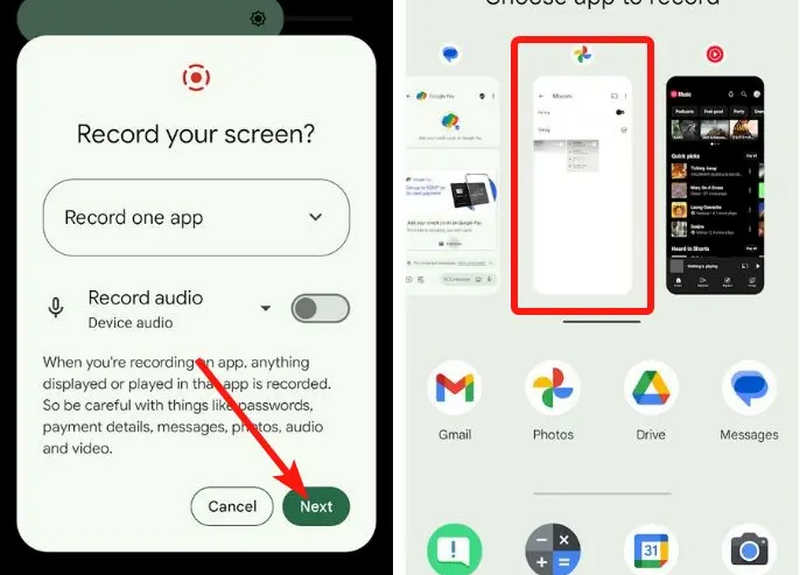
Google Pixel: You can select a specific app (e.g., a Banking app or WhatsApp) to record. If you exit the app or pull down your notification shade during the session, those actions will not appear in the final video.

Record Specific App

Xiaomi (MIUI/HyperOS): Features a dedicated "Screen Recorder" app with deep customization for frame rates (FPS) and bitrates.

Huawei & Honor (HarmonyOS / MagicOS): A unique hardware-software integration where you can start or stop a recording simply by double-knocking the screen with two knuckles.

OPPO, vivo, & realme (ColorOS / OriginOS): When a game is launched, the screen recorder automatically optimizes CPU/GPU resources to ensure that recording a 4K/60FPS clip doesn't cause in-game lag or frame drops.

Part 3: 4 More Versatile Ways to Screen Record on Android

If your Android phone doesn't have satisfied screen recording features, you can check the four Android screen recorder apps. They can provide some convenient and practical features.

1. AZ 螢幕錄影機

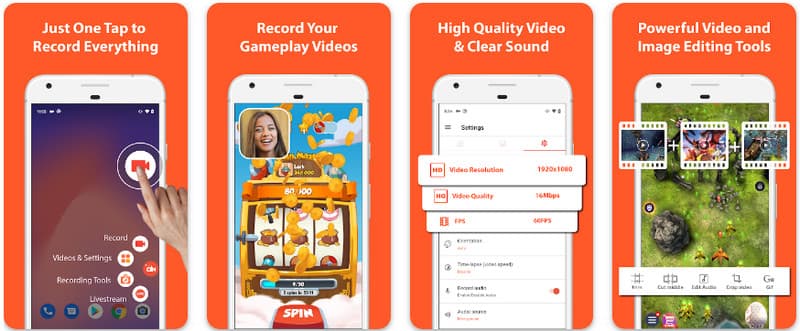
AZ 螢幕錄影機 is a very popular Android screen recorder app in the Play Store. It can record high-res video on your Android phone screen. The application also allows you to adjust the resolution, frame rate, and bit rate depending on different recording purposes.

AZ 螢幕錄影機

此外,AZ 螢幕錄影機還允許使用者使用麥克風錄製裝置上播放的聲音。這使得錄製最複雜和高標準的錄音成為可能。其簡單的按鈕排列和一致的性能使該應用程式受到許多人的喜愛。使用以下教學學習如何使用它來錄製 Android 螢幕。

步驟1在 Android 上下載該應用程式後,啟動它。然後,點擊 相機 按鈕來存取其螢幕錄製功能。

第2步輕敲 現在開始 to begin the screen recording on your Android, and a countdown will appear on your screen.

第 3 步To stop the screen recording on your Android phone, tap the 記錄 button again. With this app, you can also 使用聲音在 iPhone 上錄製螢幕 活性。

2. Mobizen 螢幕錄影機

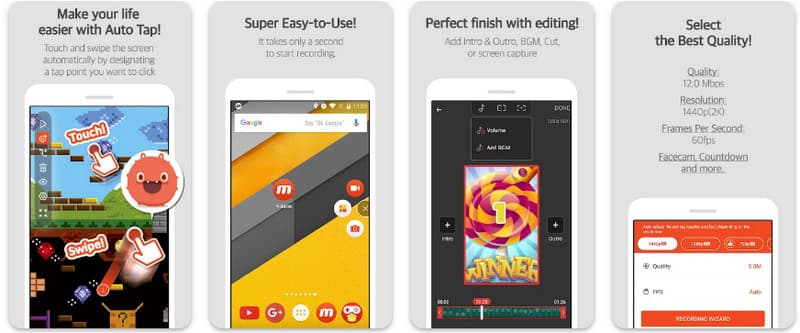
Mobizen 螢幕錄影機 is another app to screen record on Android that is freely available on the Play Store and promises easy and high-quality recording. It provides options for high-definition recording with adjustable parameters and clean recording to remove watermarks. Further, Mobizen also has internal sound recording, which can be used for the recording, as well as face cam and GIF, which can add more to the recording. It also makes use of straightforward arising of the different features and controls that help the user to start Android screen recording or edit the content without much fumbling about the app. Find out how to screen record with Android using this app.

Mobizen 螢幕錄影機

步驟1立即在您的 Android 上下載並開啟該應用程式。

第2步Do the setup that it requires you to do before you can use the screen recorder. A floating recorder bar will appear on your screen. Tap the 相機 按鈕,然後 現在開始 to initiate the screen recording.

第 3 步完成後,點擊 停止 button to stop the screen recording on your Android phone.

3. 螢幕錄影機 - Inshot 的 XRecorder

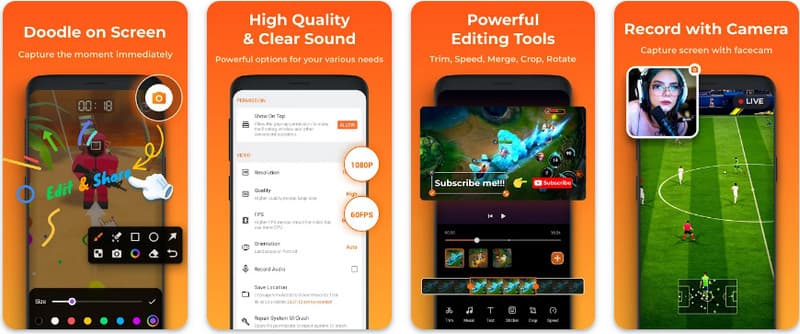
Screen Recorder - XRecorder is a powerful, all-in-one Android utility that simplifies screen capturing by offering high-definition recording, up to 1080p at 60FPS, without requiring root access or imposing watermarks. As a premier method for screen recording on Android 17/16, it provides a seamless user experience through a floating control window that allows you to start, pause, and draw on your screen in real-time using a built-in brush tool. Beyond simple video capture, it supports internal audio recording, facecam overlays for streamers, and integrated video editing, making it an ideal choice for anyone needing to create professional tutorials, gameplay clips, or clear demonstrations directly from their mobile device.

錄音機

步驟1下載 XRecorder 完成後,打開它並點擊 啟用浮動圖標.

第2步之後,點擊 記錄 按鈕開始錄製, 現在開始 確認。

第 3 步如您所見,錄音長度以浮動圖示的形式顯示;點選 停止 按鈕保存錄音。

4. 超級螢幕錄影機

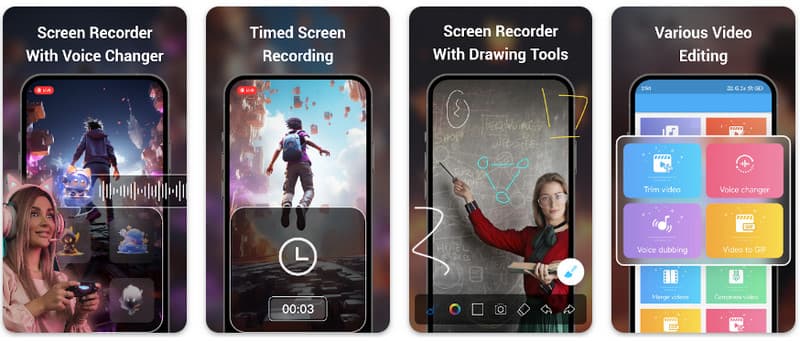
超級螢幕錄影機 is a top-tier solution for anyone looking for a professional way to screen record on Android with maximum flexibility. This powerful app delivers high-definition capture and stands out by offering a watermark-free experience even in its free version, ensuring your content remains clean and professional. It features an integrated facecam for capturing real-time reactions and a versatile brush tool that allows you to draw on the screen during recording, an essential function for creating engaging tutorials or walkthroughs. Whether you are a beginner or an advanced user, Super Screen Recorder provides the robust customization needed to master Android screen recording with ease.

超級螢幕錄影機

步驟1在 Android 上開啟超級螢幕錄影機,然後啟用應用程式的浮動功能即可使用它。

第2步在螢幕上,點擊 相機 按鈕,確認設置,然後點擊 現在開始。然後,在錄音開始前會出現三秒的倒數計時。

第 3 步點擊 方塊 按鈕結束錄音並將其保存在您的 Android 裝置上。

Bonus: Record Screen on Desktop and Mobile Phone with the Best Quality

Do you believe that you can record your Android phone's screen on a computer? AVAide 屏幕錄像 is primarily designed for screen recording on Windows and Mac. But it can also record your Android phone's full screen. This is especially helpful when you need to create a tutorial of certain operations on Android and then directly edit the video on your Mac or Windows.

For screen recording on Windows and Mac, AVAide Screen Recorder supports AV1 and HEVC codecs, which can highly compress the recording result while keeping the best video quality. The full hardware acceleration can let you record long videos with very low CPU usage. Even more interesting is that it has an improved microphone that enhances clarity by canceling background and echo sounds. The software makes excellent recordings With simple navigation and editing features, like trimming and annotations. While it is costly software, it is highly recommended because it can be used for personal and business purposes.

AVAide 屏幕錄像
  • Record your Android or iOS device with the best video quality.
  • Easily make tutorial recordings with drawing and annotation features.
  • Support AV1 and HEVC output codecs to highly compress the output video.
  • Offer easy-to-use video editing features to edit your recordings on Android.

步驟1現在您可以點擊此處的下載按鈕在您的電腦上下載螢幕錄影機。然後,請按照螢幕上的提示安裝應用程式並啟動它以繼續下一步。

第2步現在它已經在您的系統中運行,請將錄製框放在您想要開始錄製的區域。在這裡,您可以透過選擇“全螢幕”選項而不是“區域”選項來錄製整個螢幕。

調整錄製區域

第 3 步接下來,如果需要,可以設定係統和麥克風錄音。如果您想將您的臉部添加到錄音中,請在此處啟動網路攝影機選項。然後,點擊 錄音 開始倒數計時並開始錄製。

開始螢幕錄製

步驟4錄製完成後,點選 停止 按鈕,它是一個紅色的正方形。在出現的下一個視窗中,您可以使用此處提供的選項編輯先前錄製的錄音,然後將遊標放在錄音上並點擊 下載 按鈕儲存。這款應用程式證明了它的價值 最好的開源錄音機 可用的。

檢查錄製的視頻

Part 4: FAQs of How to Screen Record on Android

Where can I find the screen record on my settings?

To access the built-in feature to Android 上的螢幕錄製 without third-party apps, swipe down twice from the top of your screen to open the 快速設定 面板並尋找 螢幕錄製 (or "Screen Recording") icon. If it isn't visible, tap the 編輯 (pencil) button to drag the screen record toggle into your active tiles. Once added, you can simply tap the icon, choose your audio preferences, such as recording internal system sounds or your microphone, and hit start to begin capturing your screen directly from your system settings.

Why can't I find screen recording on my Android?

The absence of a native option to screen record on Android is usually due to your device running an older operating system, as the built-in feature was only standardized with Android 11. If your software is up to date, the toggle might simply be hidden from your 快速設定 menu; you can typically reveal it by tapping the 編輯 button in the notification shade and dragging the "Screen Record" tile into your active view. Additionally, some entry-level "Go Edition" devices or specific manufacturer skins may disable this feature to save system resources, in which case using a third-party app like XRecorder or Super Screen Recorder is the most effective workaround.

Why did the screen record button disappear?

The screen record button usually disappears because it was accidentally moved out of the Quick Settings active area; you can often restore it by tapping the Edit (pencil icon) in your notification shade and dragging the tile back. It may also be hidden due to Power Saving Mode, restricted by a Work Profile, or simply requires a system restart to refresh the UI after a software update.

結論

使用此處列出的教程,您已經學到 如何在 Android 三星上錄製螢幕。本教學將極大地幫助您完成螢幕錄製任務,特別是如果您是 Android 用戶。與您的 Android 用戶朋友分享此信息,讓他們了解如何操作。

經過 艾莎·約翰遜 on 5 月 15, 2026

關於作者

艾莎·約翰遜
艾莎·約翰遜

艾莎·約翰遜是一位多媒體製作技術員,專長於螢幕錄製和音訊擷取工作流程。她曾幫助教育工作者、培訓師和播客團隊建立穩定的錄製環境,並解決常見的硬體和配置問題。她的實作經驗能夠幫助創作者提升錄製清晰度,製作出更可靠的內容。

相關文章