你想學嗎 how to record a phone call on an iPhone? Well, recording an iPhone call is useful, especially if you want to save necessary conversations, business discussions, or interviews. With that, if you are interested in learning the best methods to record your calls, it would be best to read this tutorial. We are here to give you all the methods you can use and follow to record a phone call on both older and newer iOS versions. With that, check this article and get more information about the discussion.
Part 1. The Big Change in iOS 18.1 - Native Calling
In iOS 18.1, Apple introduced a native call recording feature. With this feature, you can effectively record a phone call, ideal for saving important discussions, business topics, or any necessary conversation. Plus, this tool is integrated directly into the Phone app, ensuring that all the recordings are clear, accessible, and secure. In addition to that, when using the feature, both parties are notified. It is perfect to maintain transparency and compliance with privacy standards. With that, if you are using an iPhone with iOS 18.1 version, you can rely on this feature to record calls, without downloading any third-party recorders.
To learn how to use the built-in call recorder, you can use the simple steps we have provided below.
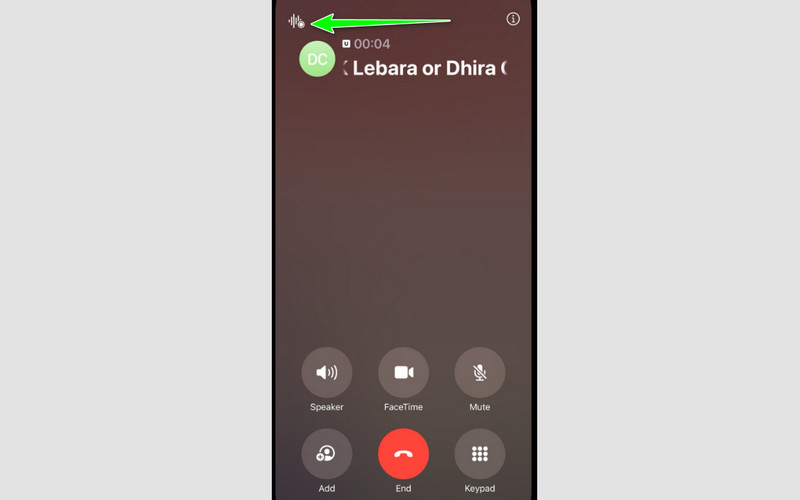
步驟1打開 電話 application and start or receive a call. Then, if you are already on call, proceed to the next step.
第2步點擊 記錄 button at the top part of your screen. Then, a notification will alert both parties that the recording is active.
第 3 步To stop the call recording, you can press the 停止 symbol on your screen.
Where do recorded phone calls go on an iPhone?
With iOS 18.1, recorded calls made using the built-in call recorder are automatically saved and stored in the call history of the Phone app. Plus, it is also synchronized to the Voice Memos app for convenient access. This integration guarantees that recordings are available as stand-alone audio files and are arranged alongside your calls. These recordings can be conveniently backed up and accessible from all of your Apple devices, depending on your iCloud settings.
Part 2. How to Record Calls on Older iOS Versions (iOS 17 and Below)
Are you still operating an older version of iOS and want to record a phone call? Worry no more! Recording a phone call on iOS 17 and below is also possible. To learn all the possible methods, you can use all the methods from this section.
Method 1. Using Third-Party App (The 3-Way Call Method)
A workaround is offered by third-party programs that record audio utilizing a three-way conference call arrangement. These apps allow you to record the discussion by connecting your call to a recording line. Although it necessitates the installation and deployment of an app, it is one of the more dependable approaches. Follow the simple instructions below and learn how you can record a call on an iPhone.
步驟1You can install a call recording app that supports merging calls.
第2步During a call, you can initiate a 3-way call conference by dialing the app's recording line.
第 3 步Then, merge the calls so the recording app will record the conversation. Once done, end the call and access the saved recording within the app.
If you are looking for third-party apps, you can try using Rev Call Recorder, TapeACall, and Call Recorder - IntCall.
Method 2. Using a Second Device (The Analog Workaround)
另一種方法 在 iPhone 上錄製音頻, especially calls, is by using another device. You can use another phone, recorder, or laptop/computer. This method is simple and doesn't require any special applications. It can even work consistently as long as the environment is quiet. The only drawback here is that the audio quality depends on the surroundings and recording device. To learn how to record a conversation on an iPhone, use the steps below.
步驟1You can use another device as a recorder. You can use your phone's recording feature or app, a standalone recorder device, or a computer. Then, start the recording.
第2步You can now start the call and ensure that it is on speaker mode to hear the voice from another call. Note that the surroundings must be quiet to get a better audio quality.
第 3 步Stop the recording and save it on your device. You can also share the recordings if you need to.
Method 3. Using a Voice Memos
呢個 語音備忘錄 app is also helpful if you want to record a phone call. However, you must take note that you cannot always record a phone call since iOS blocks call audio capture for securing privacy. Also, even if you recorded a phone call, you can only get poor audio quality. There are also times when you won't hear anything from the recording. Thus, even if this method is a little bit effective, we don't recommend using it, especially when recording an important conversation.
步驟1運行 語音備忘錄 app while you are on a call.
第2步Then, you can start attempting to record the call by pressing the 記錄 按鈕。
第 3 步然後,點擊 停止 to finish the recordings.
Part 3. Critical Legal and Privacy Questions
Does the person on another call get notified when recording an iPhone call?
The answer is yes. If you are using the built-in recorder from iOS 18.1 version, both parties will get notified when recording a phone call. Well, it is necessary to protect privacy and ensure transparency. The other person will hear and get a notification, allowing them to know that the conversation is being recorded.
Is it Legal to Record Phone Calls?
Well, it depends on the situation. If you want to record a phone call without the consent of another person on the call, then it will be considered illegal. It is because you are not considering the privacy of the other person you are having a conversation with. On the other hand, if both of you are aware of the recording, then it will be legal. Thus, if you want to record an important conversation or discussion via call, asking permission from the person is ideal and respectful.
Can a Secretly Recorded Call be Used as Evidence?
In court, secret recordings are frequently rejected, particularly if they violate consent or privacy laws. They might even put the person who filmed them in legal hot water in some situations. Courts typically prefer recordings made with everyone's express consent.
Part 4. Best Video Call Recorder for Your Device
Are you looking for an exceptional recorder that can give you all the features you need? In that case, we suggest using AVAide 屏幕錄像. This program can offer its Phone Recorder feature, allowing you to record any content from your mobile phone, including phone calls. What we like here is that it is simple to use, thanks to its comprehensive user interface. It also ensures that you can get the best audio quality for a better listening experience. The best part here is that you can save your recordings based on your preferred format. You can save the file as MP4, AVI, MKV, MP3, AAC, WAV, and more. With that, if you need the best app for recording iPhone calls, look no further than AVAide Screen Recorder.
步驟1一、下載 AVAide 屏幕錄像 on your computer. You can access it on your Mac or Windows.

 安全下載
安全下載
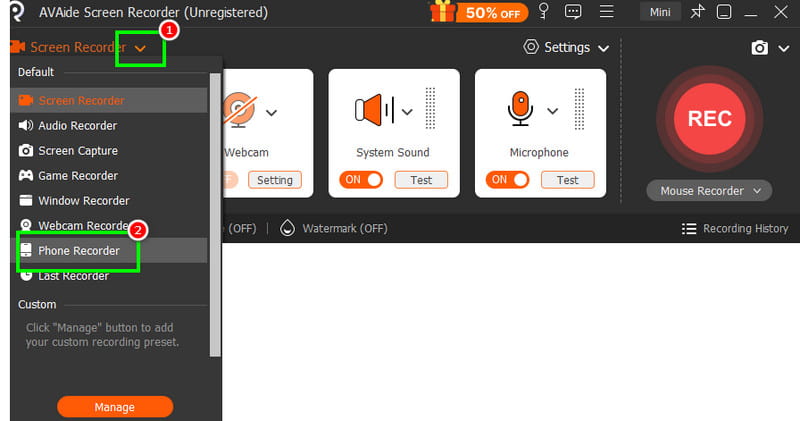
第2步After you launch the program, click the 落下 按鈕並選擇 電話錄音機 feature. Then, you can start connecting your mobile phone to the software.
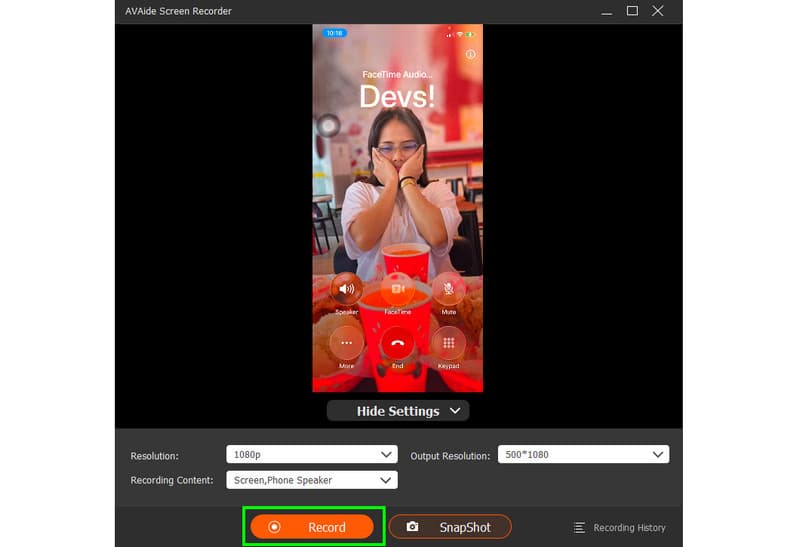
第 3 步After connecting your phone, you will see the phone screen on your desktop. Start tapping the 記錄 button to start the recording process. Hit 停止 when you are done recording.
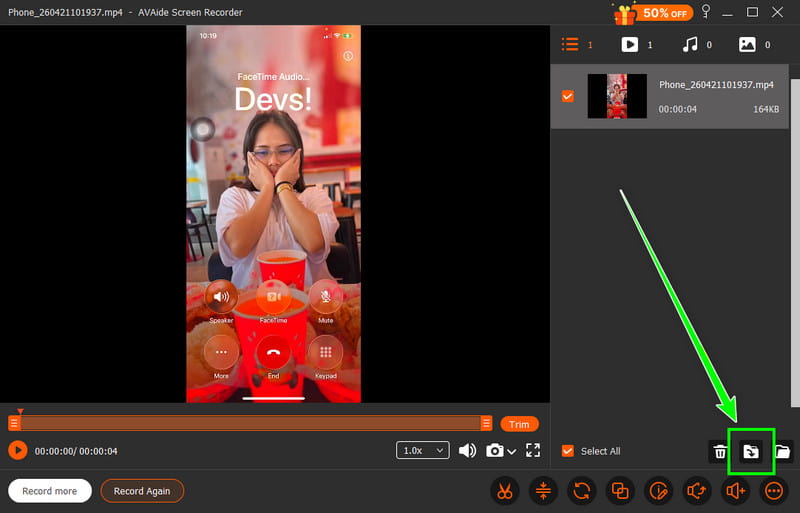
步驟4Finally, you can start hitting the 出口 button below to save the recording on your computer.
To effectively record an iPhone call, you can use all the methods from this section. We have provided the best ways you can use to capture/record a phone call on an iPhone using older and newer iOS versions. In addition, if you want a better iPhone call recording process, we recommend using AVAide 屏幕錄像. With this program's Phone Recorder feature, you can ensure to record a phone call with the best quality, ideal for a satisfying playback.
關於作者

在您的計算機上錄製屏幕、音頻、網絡攝像頭、遊戲、在線會議以及 iPhone/Android 屏幕。