When attending a meeting or a class online with Zoom, you probably want to take screenshots on Zoom for later use. Here we offer a complete guide on taking screenshots on Zoom with the default features of Windows, Mac, and mobile devices, or with the built-in features of Zoom itself. Also, we will talk about a reasonable concern by many: Can Zoom tell if you screenshot? You'll find the answer in the article.

Part 1. How to Screenshot on Zoom on a PC (Windows)

1. Using the Print Screen Key (Full Screen)

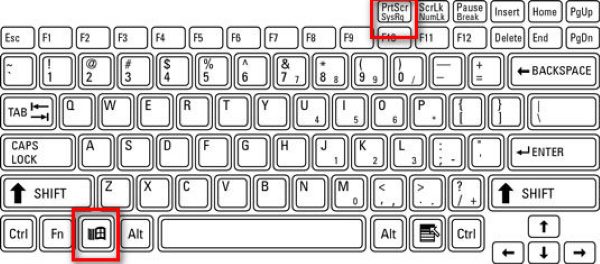
Use the screenshot hotkey on Windows for the entire screen. With the Zoom meeting going, press 视窗 along with the PrtScn key (which is usually located beside the function keys).

A copy of everything visible on your screen will be immediately taken and saved at C:\Users\YOUR_USERNAME\Pictures\Screenshots (in Win 10 and 11).

Windows Screenshot Full Screen

2. Using Snipping Tool / Snip & Sketch (Best for Zoom)

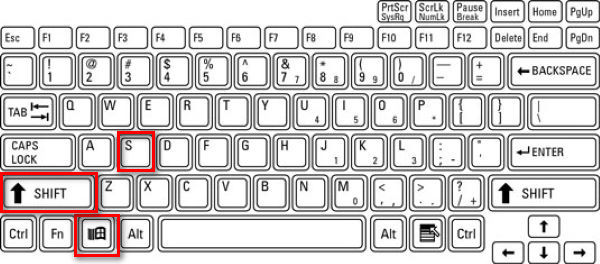
+ 转移 + to gray out the desktop and show a capture toolbar at the top. You can then draw a rectangle, or choose free-form, window, or full-screen snips.

Windows Screenshot Snipping Tool

This is ideal for Zoom because you can capture just the Zoom window or part of it. After snipping, the image is copied to the clipboard, and a notification pops up. Click on the notification to edit the screenshot.

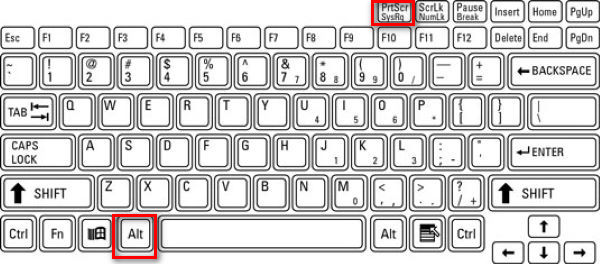
3. Using Alt + PrtScn (Active Window Only)

第1步Click the Zoom window to make sure it is active.

第2步替代 + PrtScn.

This captures only the active window, which is the Zoom meeting, and puts it to the clipboard.

Windows Screenshot of a Window

4. Using a Third-Party Tool

I prefer using a third-party tool to screenshot on Zoom, because the images are thus saved at a specific location I set up, separated from other screenshots taken by Windows, making it easier to look for certain pictures.

There are a variety of screenshot tools to take Zoom call screenshots, like ShareX, Icecream Screen Recorder, Snagit, and AVAide 屏幕录像. Like with AVAide Screen Recorder, you can put the images in the same folder, making it easy for you to keep all the screenshots in order. I'll show you how to do it step by step.

第1步Download and install the recorder

第2步Launch the recorder

第 3 步Enter a Zoom meeting

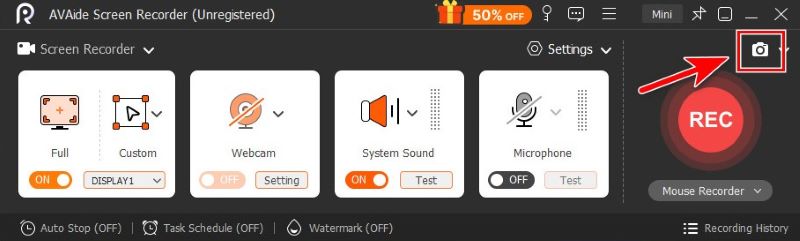
第四步点击 相机 button at the top right of the AVAide Screen Recorder window.

AVAide Screen Recorder Screenshot

第 5 步Snip free-form by dragging your mouse, or hover the pointer on Zoom to capture its window.

第 6 步When you're satisfied with the snip, click 保存, and choose the folder you want it to be saved in.

Part 2. How to Screenshot on Zoom on a Mac

The built-in features of the system are enough for us to screenshot on Mac.

1. Full Screen Capture

To capture the entire screen on a Mac, press 命令 + 转移 + 3.

Mac Screenshot Full Screen

2. Selective Capture (Best for Zoom)

If you need to capture a certain rectangular region on the meeting screen, press 命令 + 转移 + 4.

Mac Snipping Tool

3. Capture a Specific Window

第1步press 命令 + 转移 + 4

第2步Hit the Space.

Mac Screenshot of Active Window

The cursor then becomes a camera icon. Click on the Zoom window to capture just that window.

4. Using the Screenshot App

第1步命令 + 转移 + 5 to open Apple's Screenshot toolbar.

Mac Open Apple Screenshot Toolbar

第2步Select the tool you prefer.

Apple Screenshot Toolbar

I would recommend Capture a WindowCapture a Portion, suitable for taking only the Zoom window with no distractions.

Apple Screenshot Capture Window or Portion
尖端:

Part 3. How to Screenshot on Zoom on Mobile (iPhone & Android)

1. On iPhone / iPad

The method depends on your device model.

第1步Start your Zoom meeting.

第2步Take a screenshot.

  • For iPhones with Face ID and no Home button (iPhone X and later, except iPhone SE) and iPads with no Home button:
    侧键 + 音量调高.
  • For iPhones or iPads with a 首页 button (iPhone SE, 8 and earlier, older iPads):
    Side / Top Button + 首页.

Quickly release both. You'll see the screen flash, capturing your whole screen, and a thumbnail appears to edit or save.

2. 在安卓系统上

捷径: Most Android phones use the classic 力量 + 音量调低 shortcut. It varies depending on the specific brand of your device, though. So if this shorcut doesn't work, which is normal, I suggest you check your phone model and look it up.

With your Zoom meeting on, press and hold the buttons together for about 1-2 seconds until the screen flashes. The screenshot is saved in your Gallery or Photos app.

Toolbar: Drag out the menu by swiping down on your screen. Find the 截屏 button on the menu and tap on it to select from full-screen, free-form, and scrolling screenshots.

Part 4. Using Zoom's Built-in Features

Zoom's "Take a Snapshot" (For Screen Sharing Only)

Zoom's built-in screenshot feature is easy to use with only a few clicks.

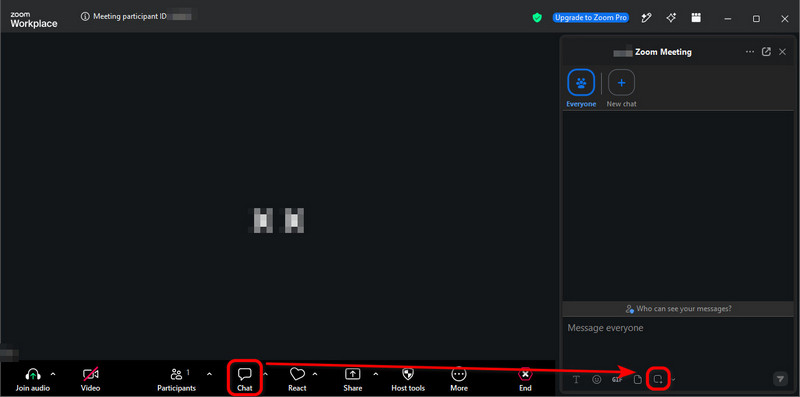
第1步点击 聊天 at the bottom of the Zoom window

第2步点击 截屏 icon below the chat box.

Zoom Take Screenshot Built-in

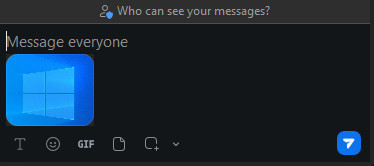
第 3 步Drag your mouse over the part of your screen that you want, and then click 捕获.

The screenshot is now in the chat box. You can send it to other participants of the meeting by a single click on the paper plane icon at the bottom-right.

笔记:
  • The screenshot in the chat box is NOT automatically saved on your computer. If you want to save it, right-click the image and select Save as….
Zoom Send or Save Screenshot in Chat
笔记:
  • Although this method is very simple and fast, it sometimes fails because the host can disable Meeting Chat or Chat Saving. When it happens, you know what to do: use operating system features or a third-party tool like AVAide Screen Recorder instead.

What is a "Zoom Meeting Screenshot Generator"?

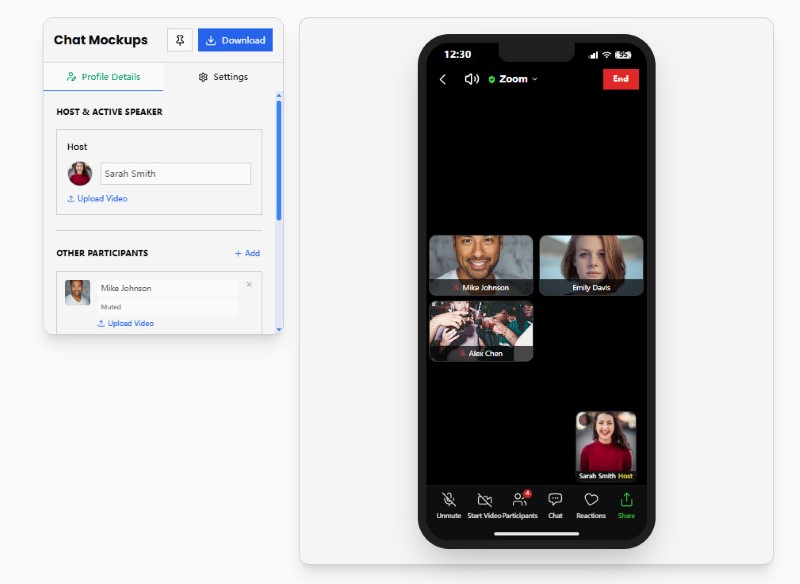
It sounds like a screenshot tool, right? Fooled me at first, but in fact, it is a third-party tool that creates fake Zoom call images.

They offer Zoom-call mockups, where you upload pictures and enter names to generate a realistic meeting screenshot with dummy participants.

Zoom Meeting Screenshot Generator

Zoom Meeting Screenshot Generators are not what we look for in this article. But if you're interested in generating fake Zoom memes, try sites like Pradoy or Kapwing. They are a lot of fun.

Part 5. Does Zoom Notify Screenshots?

To put it briefly, Zoom does NOT tell you when a participant takes screenshots, whether they use the operating system's features, a third-party tool, or Zoom's built-in snapshot..

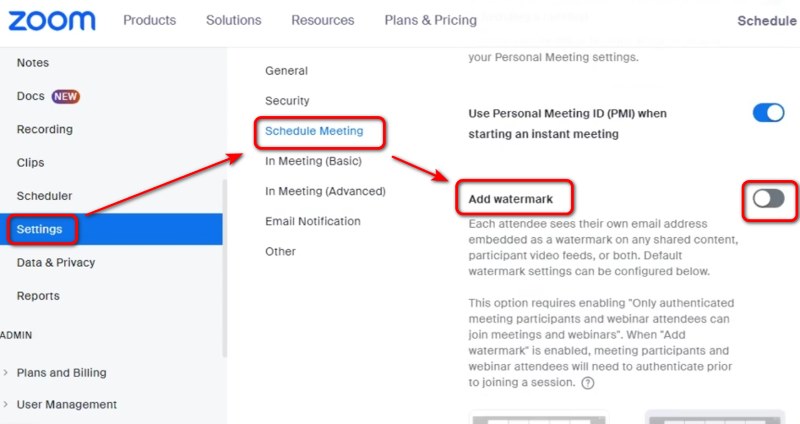
As a host or a screen sharer, you may worry that what's on your screen will go into the wild without you knowing it. So far, there's been no particular way to prevent this, except for adding a watermark on your screen – enter the Zoom web portal Settings and switch on Add watermark to do it.

Zoom Add Watermark

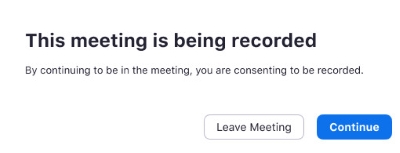
But Zoom does notify when someone records the Zoom meeting. When joining a meeting that is being recorded, or when the host starts to record, you will receive a consent notification. You can either offer consent or leave the meeting.

Zoom Recording Notification
结论

Taking screenshots on Zoom is easy on Windows, Mac, iPhone, and Android using device features, third-party tools, or Zoom's own features. Zoom does not notify hosts or participants when you take a standard screenshot. However, it's still important to respect privacy, copyright, and any meeting rules before capturing or sharing Zoom content. If you worry about privacy, make it clear to the participants that you do not appreciate screenshots before sharing your screen.

经过 艾莎·约翰逊 on 6 月 24, 2026

关于作者

艾莎·约翰逊
艾莎·约翰逊

艾莎·约翰逊是一位多媒体制作技术员,专长于屏幕录制和音频采集工作流程。她曾帮助教育工作者、培训师和播客团队搭建稳定的录制环境,并解决常见的硬件和配置问题。她的实践经验能够帮助创作者提升录制清晰度,制作出更可靠的内容。

相关文章