您想在 Windows 电脑上录制屏幕和音频吗?录制电脑屏幕和音频有很多用途。您可以录制游戏、制作教程、评测内容或产品、创作内容等等。清晰流畅的画面和音频可以让您的录制内容更加出色。您可以按照本文中的 5 种方法有效地进行录制。 在 Windows 上录制屏幕和音频.
第 1 部分。Windows 可以录制带音频的屏幕吗
是的,Windows 允许您录制桌面屏幕、系统音频和麦克风。选择合适的屏幕录制和录音软件是实现无缝屏幕和音频录制的关键。无论您需要高性能的游戏录制软件,还是清晰的教程录制解决方案,合适的工具都能确保画面和声音完美同步。我们已经为您完成了繁琐的工作!请继续阅读下一节,了解像专业人士一样录制 Windows 屏幕和音频的最佳方法和分步指南。
第 2 部分。在 Windows 上录制带音频的屏幕的 3 种方法
1. 使用 AVAide 屏幕录像机在 Windows 系统上录制屏幕和音频
在Windows系统上,最有效的屏幕录制软件之一,它支持录制屏幕和麦克风及系统音频,是…… AVAide 屏幕录像这款屏幕和音频录制工具可以帮助您更轻松地达成目标。此外,这款 Windows 屏幕和音频录制工具支持两种屏幕录制方式:您可以立即录制整个屏幕或屏幕的特定区域。您还可以录制各种内容,例如视频通话、视频、Zoom 会议、游戏画面、教学视频等等。而且,它能提供流畅无阻的录制体验。无论您是新手还是经验丰富的用户,都能轻松上手使用这款录制工具。
此外,您还可以在屏幕和音频录制过程之后增强文件。您可以压缩、裁剪、修剪和更改视频格式。这样,您就可以在将视频保存到计算机上之前获得所需的结果。因此,要了解如何在 Windows 上录制带音频的屏幕,请查看以下步骤。
第1步使用权 AVAide 屏幕录像 在您的 Windows 计算机上。点击下面的按钮即可立即下载并安装该软件。

 安全下载
安全下载
第2步之后,选择您想要录制屏幕的方式。您可以选择 满的 或者 风俗。然后,打开 音响系统 录制带有音频的屏幕。

第 3 步要开始录制带音频的屏幕,请点击 录音 按钮。三秒钟后,程序将开始录制过程。然后点击 停止 完成屏幕录制。

第四步点击 进口 界面底部的按钮来保存您录制的屏幕。

2. 使用 OBS 在 Windows 系统上录制屏幕和音频
光子发射站 是 最好的开源屏幕录像机 这款软件可以录制屏幕并录制音频。它是广受欢迎的程序之一,能够满足您的各种需求。此外,它还能录制屏幕上的各种媒体文件。您甚至可以录制不同的标签页、窗口、游戏等等。如果您想完美地录制带有声音的电脑屏幕并获得卓越的录制质量,请立即使用 OBS。它唯一的缺点是界面不够清晰。如果您是新手,最好花些时间学习如何使用这款带声音的屏幕录制软件。如果您想学习如何在 Windows 10 上录制屏幕并录制音频,请按照以下步骤操作。
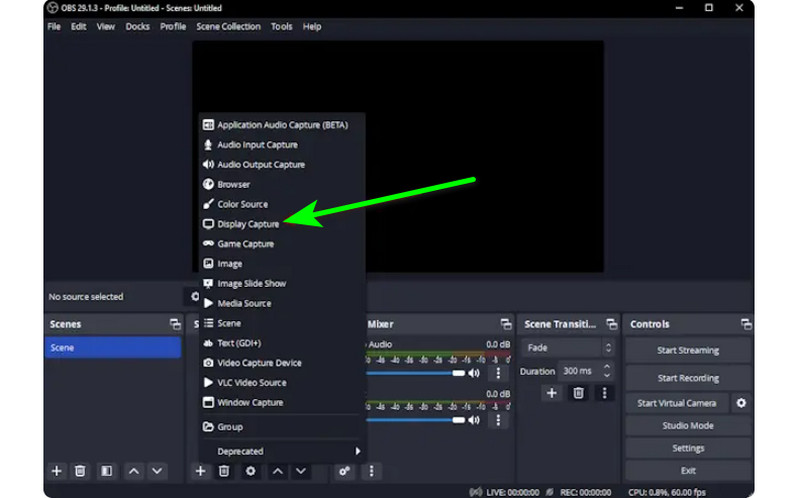
第1步启动 光子发射站 安装程序后,转到 加 符号并选择 显示捕获 选项。您可以选择要在屏幕上录制的内容。
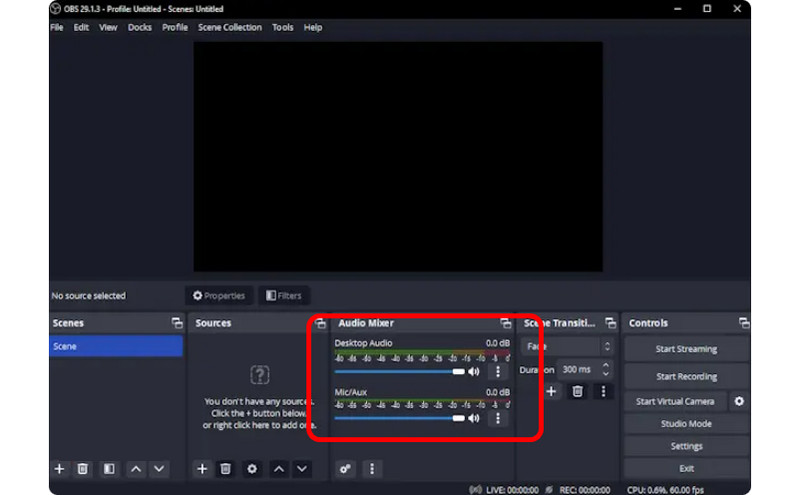
第2步然后,前往 音频混音器 并打开音频,以便您可以录制带有声音的屏幕。
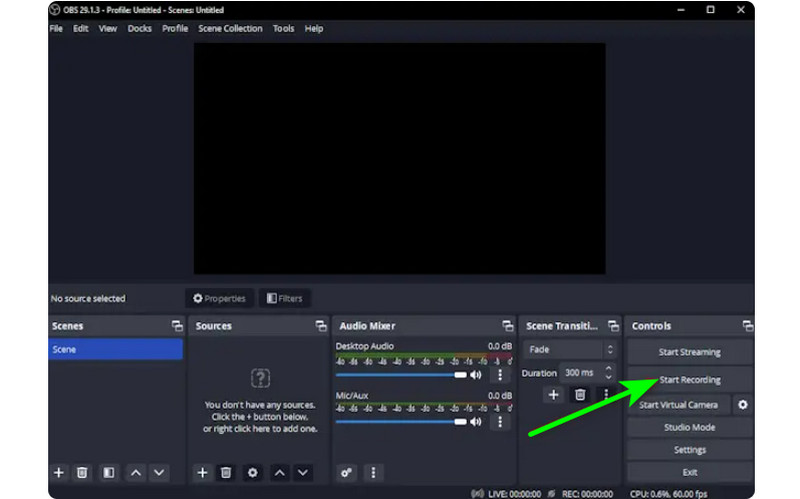
第 3 步点击 开始录制 选项开始录制屏幕。如果要停止录制过程,请点击 停止录制 按钮。
3. 使用 Clipchamp 在 Windows 系统上录制屏幕和音频
您想了解如何在 Windows 11 上录制带音频的屏幕吗?那么,使用 剪辑冠军 作为您出色的屏幕录像机。这款实用的软件可让您顺利录制带有音频的屏幕,因为它具有您可能会喜欢的简单过程。如果您愿意,您甚至可以打开网络摄像头。它非常适合评论特定内容或创建教学视频。因此,要开始学习如何在 Windows 上进行屏幕录制,请参阅以下方法。
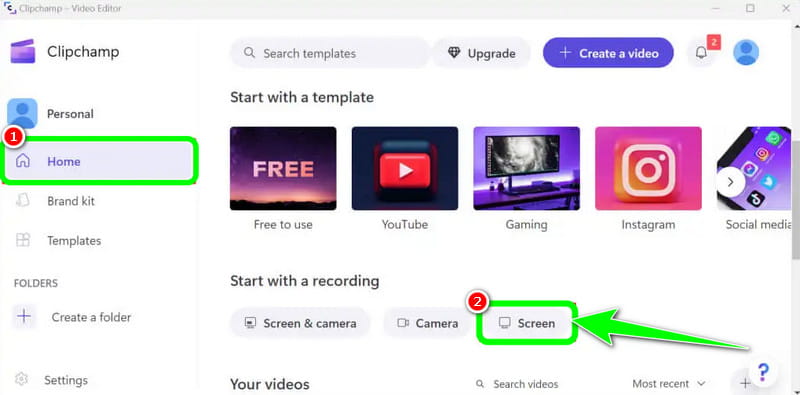
第1步从主界面 剪辑冠军,导航至 首页 部分,然后单击 屏幕 选项。然后,另一个网页将出现在您的屏幕上。
第2步之后,点击 红色的 按钮。然后,您将在屏幕上看到所有内容,例如选项卡、窗口等。
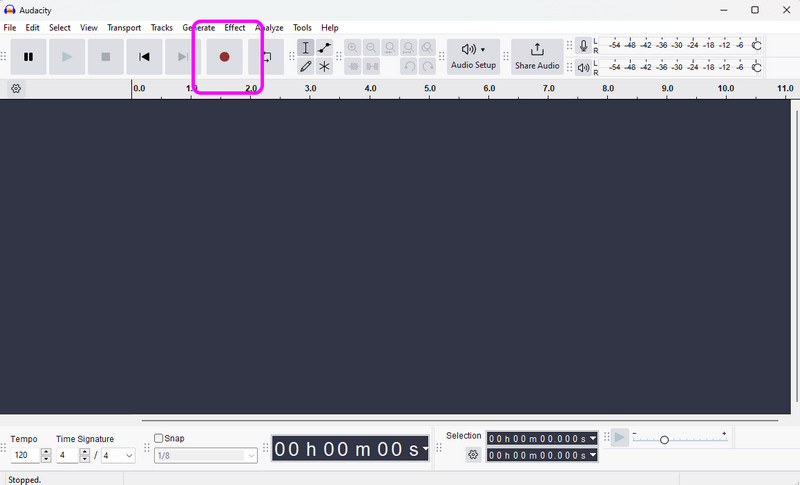
第 3 步点击要录制的屏幕,例如整个屏幕、窗口和标签页。要开始录制,请点击 分享 按钮。然后,在完成该过程后,点击 停止录制 将录制的屏幕保存在您的计算机上。
第 3 部分。在 Windows 10 和 11 上录制音频的 2 种方法
1. 在 Windows 系统上使用 Audacity 录制音频
您想了解如何在 Windows 10 上录制音频吗?如果是这样,请使用 Audacity。这款离线软件可以帮助您录制来自计算机的任何声音。此外,您不会觉得这很困难,因为该软件可以提供一个简单的过程,使其成为所有用户的理想录音机。因此,要开始录制您的音频,请参阅我们在下面提供的步骤。
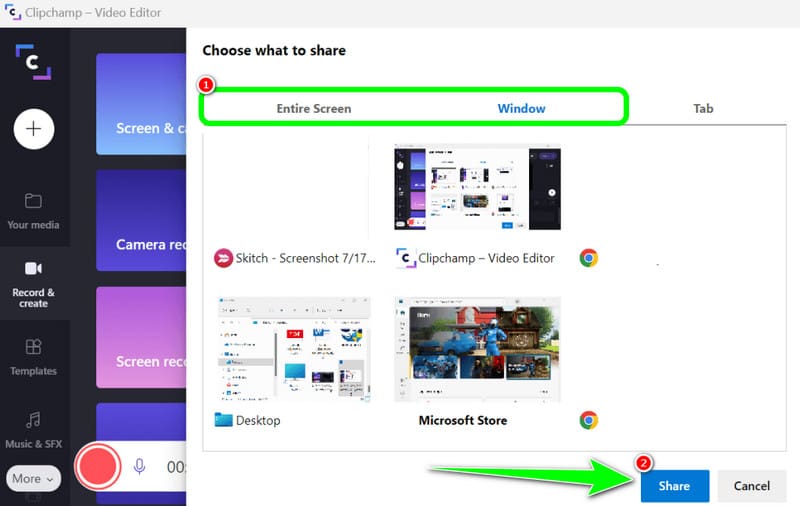
第1步安装并运行 大胆 在 Windows 上。然后,在主界面上,单击 记录 按钮。这样,录音过程就会开始。
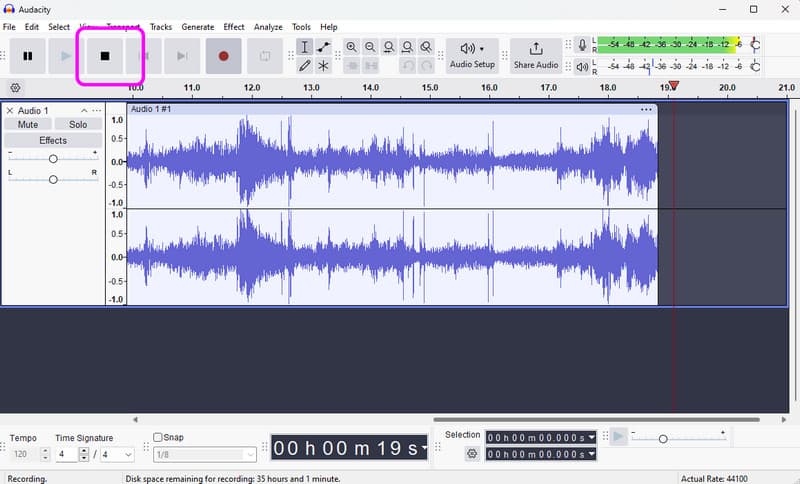
第2步之后,如果您已完成录制,请点击 停止 按钮。然后,您可以继续保存过程。
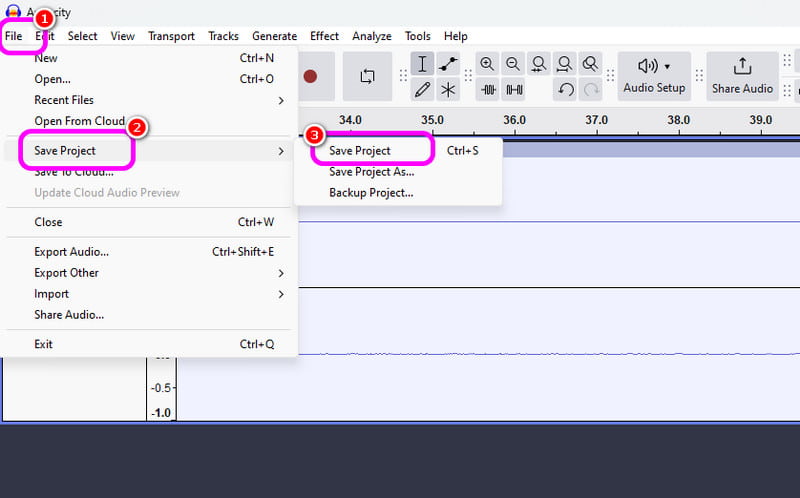
第 3 步要保存录制的音频,请转到 文件 > 保存项目 部分将最终的音频文件保存在您的设备上。
2. 使用 Windows 录音机在 Windows 系统上录制音频
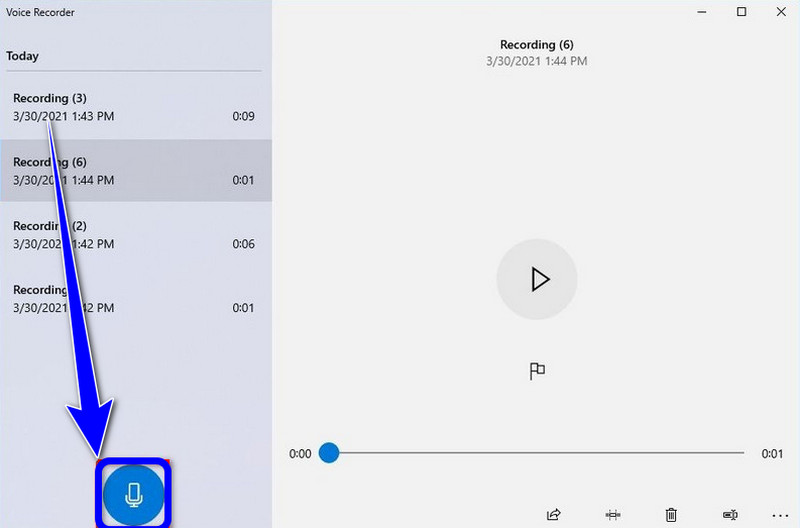
另一个可以让你流畅地录制 Windows 音频的软件是 Windows 录音机。访问此录音机后,您可以开始录制设备中的任何音频内容。我们喜欢它的一点是界面简单,因此您可以轻松快速地录制音频。唯一的缺点是它不提供编辑工具来增强您录制的音频。
第1步下载 Windows 录音机 在您的设备上。之后,启动它以开始该过程。
第2步在主界面,点击 麦克风 符号来启动录音过程。
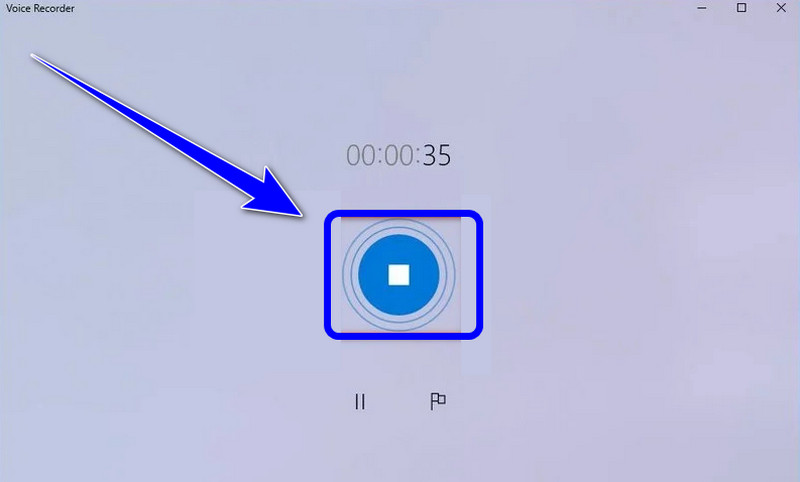
第 3 步要停止录音过程,请点击 停止 按钮。然后,您就可以收听已录制的音频了。
第四部分:5款屏幕录制和音频录制设备的比较
| 特征 | AVAide 屏幕录像 | OBS工作室 | 剪辑冠军 | 大胆 | Windows 录音机 |
| 主要类别 | 一体化采集套件 | 专业广播 | 基本浏览器编辑器 | 专业音频编辑 | 基本语音备忘录 |
| 视频录制 | 支持(最高可达 4K/60fps) | 已支持(高级) | 已支持(基本) | 不支持 | 不支持 |
| 声音录制 | 系统和麦克风同时工作 | 多轨支持 | 仅基本输入 | 高级音频采集 | 仅麦克风 |
| 用户界面 | 直观易用 | 陡峭的学习曲线 | 简单的基于浏览器的 | 技术/传统 | 极简主义 |
| 内置编辑 | 实时注释/修剪 | 无(外部必需) | 完整时间线编辑器 | 高级音频编辑 | 仅基本修剪 |
| 独特卖点 | 专用游戏模式和手机模式 | 无限场景图层 | 股票媒体整合 | 降噪/混音 | 本地系统实用程序 |
| 总价值 | 兼具效率与质量 | 最适合高级技术人员 | 最适合短小精悍的社交视频 | 最适合纯音频工作 | 最适合简单笔记 |
第五部分:Windows 系统下屏幕和音频录制常见问题解答
为什么Windows的Alt+R快捷键不起作用?
如果 Alt + R 快捷键(Windows Xbox 游戏栏的默认快捷键)无法正常工作,通常是由于软件冲突、设置被禁用或硬件限制造成的。您应该退出其他具有屏幕录制功能的程序。
为什么我在Windows系统下录制屏幕时没有声音?
录音无声最常见的原因是音频输入设置不正确。要解决此问题,请确保录音软件中已启用系统音频(内置声音)和麦克风。在 Windows 11 系统中,请检查“隐私和安全”设置,确保应用程序拥有访问麦克风的权限。此外,请确认您的播放设备已在 Windows 声音控制面板中设置为“默认设备”,因为许多录音软件无法从“虚拟”或“蓝牙”输出设备捕获音频,除非进行专门配置。
如何在没有麦克风的情况下在Windows系统中录制内部音频?
要录制内部系统音频而不从麦克风拾取背景噪音,您应该关闭屏幕和录音程序中的“系统声音”或“内部音频”选项。
如果你想学习 如何在 Windows 上录制带音频的屏幕,您可以从这篇文章中获得所有详细信息。因此,查看所有信息并尝试该过程以获得有效的屏幕和音频录制过程。此外,如果您想要最可靠的软件来帮助您完美地录制带有音频的屏幕,毫无疑问,AVAide Screen Recorder 是您可以访问的最佳程序。因此,在 Windows 上运行该软件并享受其整体功能。
关于作者

在您的计算机上录制屏幕、音频、网络摄像头、游戏、在线会议以及 iPhone/Android 屏幕。