Having a Motorola smartphone is almost a rare circumstance since it is only popular within the U.S. and Europe. So if you get your hands on a device with this brand, it can feel alienating amidst popular brands like iPhone or Samsung. Even for taking a screenshot, it can be tricky at times. With that said, you are in the right place, as this article shows you how to screenshot on a Motorola with the three official methods. Here, you will also learn various tips, like where the screenshots are saved, and find a reliable way to screenshot your phone screen via a computer. Without further ado, let's get started.

Part 1. Three Main Ways to Take a Screenshot on Motorola

Nowadays, each device is designed to have a way of taking screenshots, which becomes handy when you want a copy of your screen in the form of a picture. Naturally, Motorola also has this feature, and it is not only one method, but three. This part discusses these 3 methods of how to take a screenshot on a Motorola.

1. The Three-Finger Screenshot Gesture (The Fastest Way)

This feature might sound unique to you, as it is not widely distributed to Android devices, which is why it feels like a rare feature for taking screenshots. However, aside from Motorola, the Three-finger Screenshot Gesture is a thing for many Android brands, such as Xiaomi, OPPO, Tecno, and more. With that said, it is an advantageous feature as you have another option to take screenshots, while only using three fingers of one hand to do so. To start using this method, here's what to do:

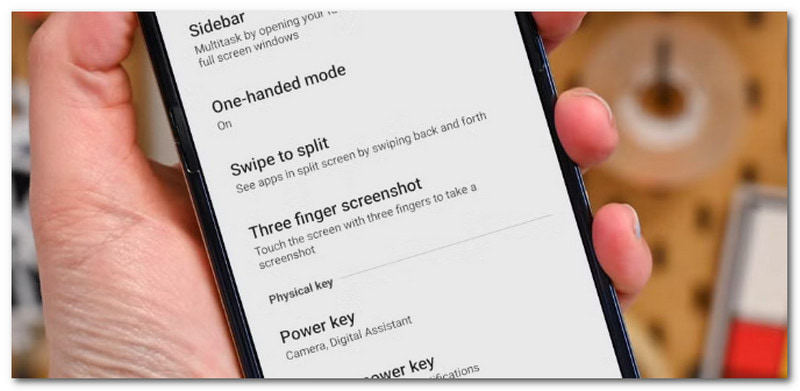
第1步Go to the settings of your phone and go to the Gestures menu. You will only need to toggle on the button or Three-Finger Screenshot.

Three Finger Settings Gesture

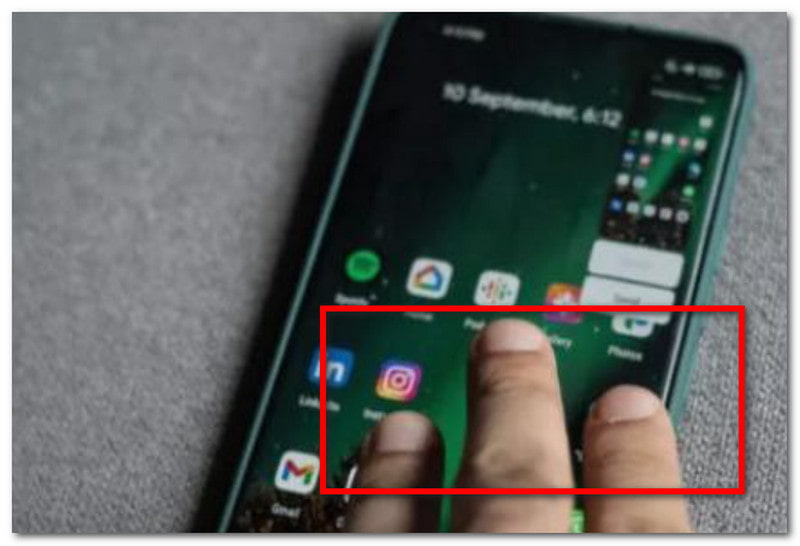
第2步After that, simply place three fingers on your screen and hold for a while. When the screen flashes, a screenshot is taken.

Three Finger Method

2. The Hardware Button Press (The Universal Method)

Since most Motorola phones are integrated with the Android system, you can use the universal method to take screenshots. While the Three-finger gesture needs to be activated from the settings, the hardware buttons only need to be pressed to capture the screen.

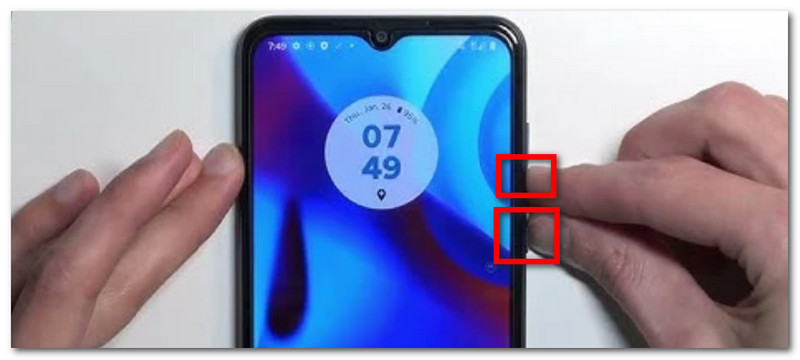
第1步Place a finger on the Power button and another on the Volume Down button.

Hardware Button Press

第2步Press and hold the buttons simultaneously until the screen flashes. You will be notified that a screenshot was taken from the status bar.

3. From the Power Menu (The "One-Handed" Method)

Another method to take screenshots on a Moto phone, which combines both a hardware and a virtual button. The Power menu holds a shortcut for built-in features, which, in this case, allows the capturing option to be accessed easily. However, it still depends on the model of the phone, so this option may or may not appear on yours. Nevertheless, you can check if the one-handed method is available from your end by following these steps:

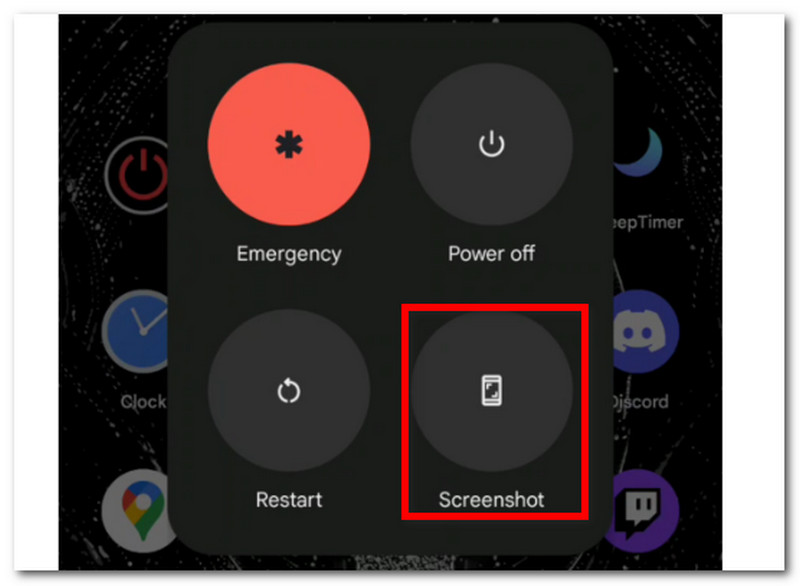
第1步Place your finger and press the 力量 button on the side of your device. Hold until a menu pops up.

第2步There will be a few options that will appear, including Power Off, Restart, and Emergency. Make sure to tap on the 截屏 option. A brief flash on your screen means it has captured a screenshot.

Power Menu Screenshot

Part 2. How to Screenshot Motorola on Your Computer

AVAide 屏幕录像 makes it possible to take a Motorola G6 screenshot via your computer. With only a few clicks, you can share your phone screen on your desktop and capture the content without limitation. The software commits to providing high-quality pictures, while it allows you to change the output image format to PNG, BMP, JPG, GIF, and more. Meanwhile, the Screen Capture is easy to use, and you can even personalize hotkeys to access it with just a tap on your keyboard. On the other hand, this software offers professional-grade recording of your screen of any content, and it even allows taking screenshots simultaneously. AVAide is a multi-solution you never thought you would need. Free download it for Windows or Mac by clicking the Download button.

第1步Download and install AVAide Screen Recorder. Open the software on your computer to get started.

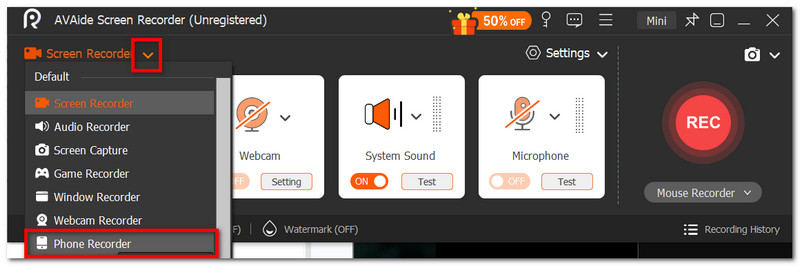
第2步选择 电话录音机 option from the dropdown menu. Read the instructions carefully to connect your phone screen to your desktop.

Avaide 电话录音机

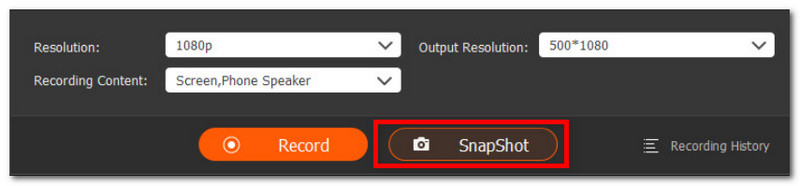
第 3 步完成后,单击 快照 button to take a screenshot. You can also click the 记录 button to record a video of the phone screen via your computer.

Avaide Snapshot Record

Part 3. Where Are My Screenshots Saved?

Once you have taken a screenshot on your Motorola phone, a thumbnail preview will appear from the notification panel, which you can tap to view. But sometimes, the thumbnail will not appear, and you will be lost if a screenshot was captured. So, how to find the screenshots on your Motorola phone? To view the photo taken, you will only need to do the following:

How to Find Screenshots

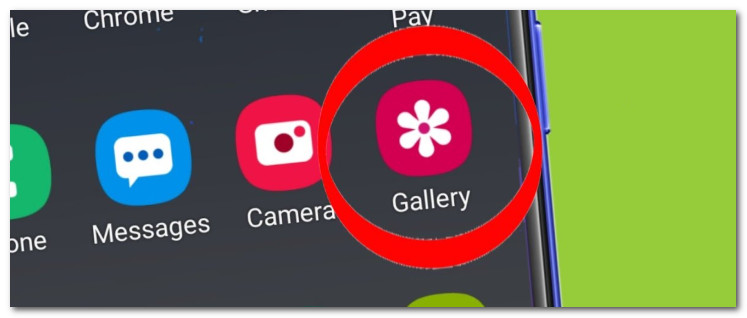
第1步Go to the Gallery app, and locate the Screenshot menu. The most recent photo taken will appear at the top of the list.

Motorola Gallery

第2步Optionally, go to your phone's File folder where all downloaded files are saved. From the Picture folder, you will see the screenshots are saved.

Can You Change Where a Motorola Saves Screenshots?

Unfortunately, there is no default way to change where Motorola Android saves the screenshots, as pictures are officially saved in the File folder or the Gallery app. The workaround for this is to use a third-party app that allows you to organize and move pictures as you desire, but it does not change anything, and you can still access pictures from the default locations.

Part 4. Troubleshooting: Why is the Motorola Screenshot Not Working?

At some point, you will encounter an issue when the screenshot feature on Motorola is not working properly. There are many plausible reasons, including low storage space, the content is on Incognito mode, or the device is managed remotely by someone from school or work, who disables the feature. The worst scenario would be if the buttons on your phone are not working, and you will need them to be repaired. If this is not the case, then you can try troubleshooting with the following solutions:

  • Test the Power and Volume Down buttons separately. It is a simple troubleshooting, but it will tell you if the buttons are working correctly.
  • Press the buttons longer for about two seconds and wait for the screen to flash. Also, check the screenshot preview if it appears.
  • If the screenshot fails on a certain app, try taking a screenshot of a different app or website. Some applications disable this feature naturally due to security and privacy concerns.
  • Make sure that your phone has enough storage space for more screenshots. Try to clear the App and Storage Cache in your phone settings, or have iCloud 照片存储.
  • Optionally, if the buttons are damaged and you need a temporary alternative, use Google Assistant. Say 'Take a screenshot' to the assistant, and it will do the work.
结论

To conclude, you have learned how to screenshot a Motorola phone with the main methods. Additionally, you have discovered where to find your screenshots and how to troubleshoot if the screenshot feature on your phone is not working. With that said, we recommend using AVAide Screen Recorder if you wish to capture your phone screen in high quality. It is also the 安卓系统最佳屏幕录像机, iPhone, webcams, and PC.

经过 艾莎·约翰逊 on 7 月 01, 2026

关于作者

艾莎·约翰逊
艾莎·约翰逊

艾莎·约翰逊是一位多媒体制作技术员,专长于屏幕录制和音频采集工作流程。她曾帮助教育工作者、培训师和播客团队搭建稳定的录制环境,并解决常见的硬件和配置问题。她的实践经验能够帮助创作者提升录制清晰度,制作出更可靠的内容。

相关文章