Ever had to record your screen quickly but had to later fix the audio or video quality? This is often due to missing or inadequate settings. 截屏 lets Chrome users record tabs, desktops, and webcam footage without installing any apps. The setup is the first step towards clearer lessons, demos, and team meetings. In this article, you will find how to avoid errors using each one.

Part 1. What is Screencastify?

Screencastify is a video creation and screen capture platform designed to make it easier to produce tutorials, lessons, training videos, and short presentations. Known by some as the Screencastify extension for the Google Chrome browser, Screencastify does more than just capture your desktop screen: it provides video editing, storage, sharing, and classroom features.

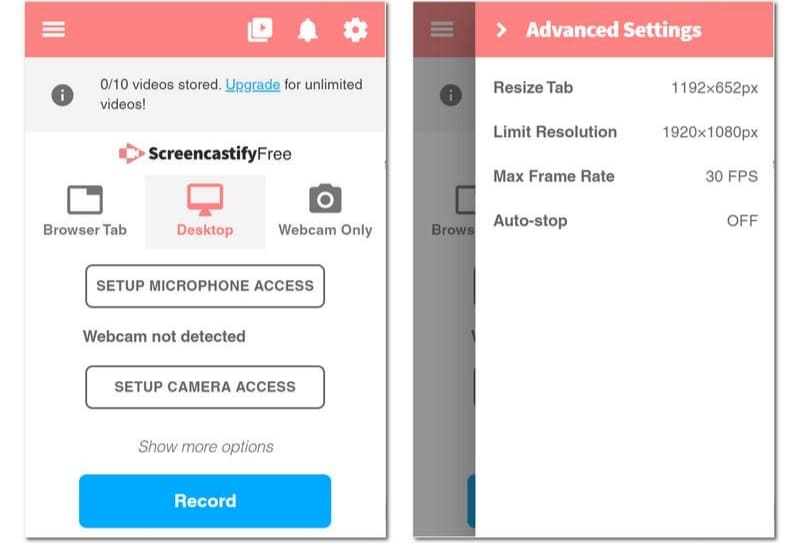
Screencastify UI

It is easy to use by teachers, remote teams, and video makers looking for an efficient way to make videos quickly. To decide whether it's the right solution, it is worth reviewing its features, pricing, limitations, and how it is used in the following sections.

Part 2. Key Features & What's New

To understand what Screencastify is, it helps to look at how the platform has grown beyond a simple browser recorder. It now combines video capture, editing, sharing, and collaboration into a single system. This makes it useful for teachers, remote teams, trainers, and creators who need quick results without advanced software. Below are the most important features and newer updates that improve the user experience.

1. Fast Browser-Based Recording

The Screencastify Chrome extension allows users to start recording directly from the browser. It can capture a tab, full screen, or webcam without installing large desktop programs. This keeps the setup simple and efficient.

2. Secure Account Access

The Screencastify login process connects users to their saved videos, settings, and cloud tools. This helps users move between devices while keeping projects organized.

3. Built-In Editing Tools

For users learning to use Screencastify, the editing tools are among the easiest starting points. Videos can be trimmed, cut, and combined without needing separate software.

4. Easy Export and File Saving

Many users ask how to save a video from Screencastify after recording. The platform offers export and sharing options that make it simple to keep local copies or send links.

5. Transcript-Based Editing

Recent updates let users edit videos through text transcripts. This saves time by allowing spoken mistakes or pauses to be removed faster than manual timeline editing.

6. Download Options for Offline Use

Users who need a Screencastify download can save recordings for presentations, archives, or sharing where internet access is limited.

7. Reliable Recording Performance

The Screencastify recorder remains the platform’s core strength. It is designed for quick tutorials, team updates, demos, and lessons with minimal setup.

8. Full Screen Capture Features

The Screencastify screen recorder supports desktop capture, browser tabs, and webcam overlays. This makes it useful for software walkthroughs and training videos.

9. Accessing Saved Videos

Many users search for how to download Screencastify videos when they need backups or offline copies. The platform provides options to export recordings in common formats.

Part 3. Screencastify Safety & Privacy

The Screencastify app uses browser-based permissions to access your screen, microphone, and camera only after you approve them. This gives users control over what is recorded, but it also means careful permission management is important, especially on shared devices. Recordings are stored in the cloud for easy access and sharing, so users must also manage their privacy settings to avoid exposing sensitive content. Since everything is linked to the Screencastify login, securing your account with a strong password and two-factor authentication helps protect stored videos and personal data.

Most privacy risks come from sharing rather than recording with the best screen recorder on Chrome. Videos are shared via links that can be private or public, so incorrect settings may unintentionally expose content. This is especially important for education users who rely on Screencastify to submit assignments and receive feedback. Overall, Screencastify is considered safe when permissions, account security, and sharing settings are properly managed, as user control plays a bigger role than the tool itself in maintaining privacy.

Part 4. How to Use Screencastify

How to use Screencastify? Starts with a simple setup process that lets you install the tool, create an account, and begin recording in just a few minutes. Once configured properly, it becomes a quick way to capture screen, webcam, or tab-based recordings directly from your browser.

第1步Install Screencastify

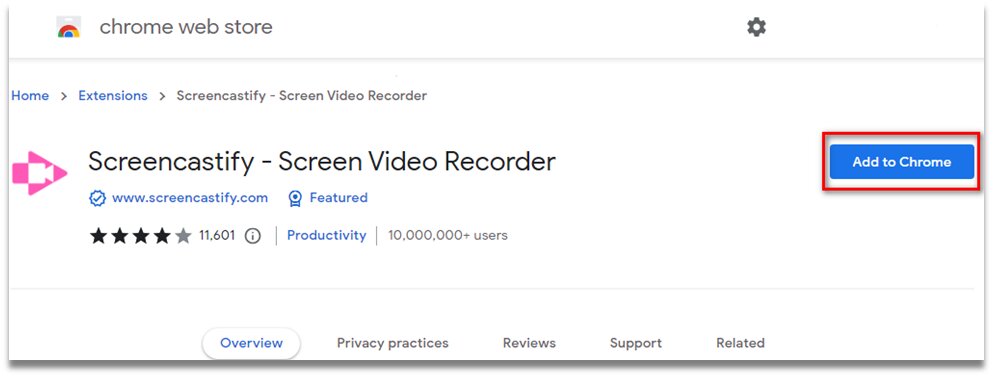
Search for the Screencastify extension in the Chrome Web Store, then click 添加到 Chrome. After installation, pin it to your browser toolbar so you can access it quickly whenever needed.

Add Browser

第2步Set Up Your Account

Open the extension and sign in or create a new account. Follow the setup instructions, including permission requests for screen, microphone, and camera access, to ensure the tool works properly.

第 3 步开始录制

Click the extension button again to begin recording. Choose a mode such as This Tab, Full Screen, or Webcam Only, adjust your audio settings, then start capturing your screen content by clicking the 记录.

第四步Save Recording and Share

If you are done, click the 停止 button, and a new tab will appear. Edit the recorded video using its features, then click 分享 to save it to your Drive.

Part 5. Screencastify Pricing & Free Version

特征 自由 起动机 专业版
价钱 $0 $19 $25
Billing 永远 每月 每月
Video Limit Up to 10 Videos 无限 无限
Max recording length 30 Minutes 60 Minutes 180 Minutes
Video Editing tools 不支持 基本编辑 Basic Editing with Advanced AI
Collaboration tools 不支持 Advanced Collaboration Advanced AI Workflow
Captions & Transcript 不支持 不支持 支持的

Part 6. Best Screencastify Alternative

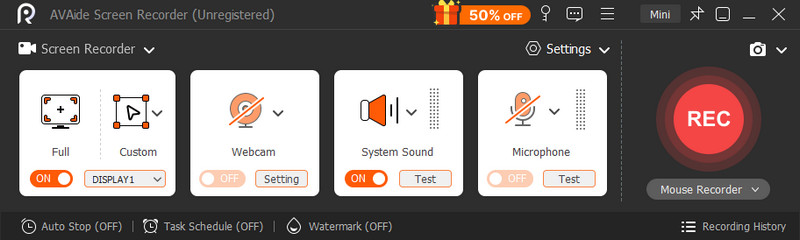
If Screencastify feels a bit limiting, the AVAide 屏幕录像 steps in like a more flexible, no-fuss upgrade. It lets you record your whole screen, a single window, or just a selected area, while smoothly capturing system audio, microphone, and webcam at the same time; basically everything you need for tutorials, demos, or online presentations.

What makes it stand out as a Screencastify alternative is how it stays simple without feeling basic: it runs as a desktop app, so it is more stable than typical browser extensions, and it would not randomly hold you back with tight restrictions. You also get handy touches like real-time annotation and easy output settings, so you can quickly polish your recordings without extra tools. It is the kind of recorder that quietly does its job well and gets out of your way.

AVAide 屏幕录像

Part 7. Screencastify Examples & Use Cases

Screencastify is widely used because it fits naturally into everyday recording needs across different fields. If you want to use this, then here are the examples and use cases you need to know about the 录像机:

  • Education: Teachers record lesson walkthroughs, explain concepts visually, and give quick video feedback to students.
  • Students: Used for video assignments, project explanations, and recorded presentations.
  • Business & Training: Helps create onboarding materials, internal training videos, and product demos without complex software.
  • 内容创作: Ideal for fast tutorials, browser walkthroughs, and simple how-to videos.
  • Communication: Enables quick screen recordings for clearly and efficiently sharing ideas or instructions.
结论

In conclusion, Screencastify is a simple yet effective tool that works well across education, business, and content creation. These Screencastify examples from lesson recordings, student outputs, training videos, and quick tutorials highlight its strength in making screen recording fast, clear, and easy to share.

经过 艾莎·约翰逊 on 5 月 19, 2026

关于作者

艾莎·约翰逊
艾莎·约翰逊

艾莎·约翰逊是一位多媒体制作技术员,专长于屏幕录制和音频采集工作流程。她曾帮助教育工作者、培训师和播客团队搭建稳定的录制环境,并解决常见的硬件和配置问题。她的实践经验能够帮助创作者提升录制清晰度,制作出更可靠的内容。

相关文章