Do you crave intense and extreme shows? Then, Peacock will not disappoint you. Peacock is a video streaming site where live sports and renowned movies are bundled into one package. Another deal that keeps viewers from coming back to this site is its support for original shows and NBC network shows. For a low starting price, you can already watch your favorite live sports. However, due to the constantly changing movie library, it has become an issue for many users. The solution? Downloading content or recording the screen shows and movies. But taking further actions allows us to take you on a tour of the world of Peacock and discover whether you can grab a video from this streaming site. By then, you will have an answer to the question, "Can you record live sports on Peacock?”

Can You Record on Peacock?

The straightforward answer to this question is no. Peacock does offer a variety of movies and live shows you can enjoy watching. The downside is that it does not have a built-in recording feature for some reason. One of the primary reasons is Digital Rights Management, where copyright holders and content creators implement rights and licensing restrictions. It is a negotiation between networks and studios to protect content and prevent the distribution of original copies outside the control of Peacock. By design and purpose, Peacock is built to be a streaming service, and not a live TV service. Therefore, a recorder isn't necessarily important as viewers can watch from the available shows anytime.

Apparently, Peacock wants you on their platform. They count and value their active streamers. If they allow people to record something and watch it later offline or outside the app, they will not count you as an active user. Peacock comes with ad-supported tiers where impression and engagement matter.

What About Live Sports?

If you are wondering whether you can record live sports, the short answer is no. In fact, there are reported complaints from sports fans as to why Peacock does not allow recording of live sports. Peacock also blocks live sports recording because of the sports rights. These rights include clauses that forbid letting users keep a record of live sports or store content, even for personal use. Content licenses are complex. Besides, sports leagues implement strict rules on when and how their shows can be distributed. When recordings are allowed, there will be a conflict with the agreements, and the rules will be complicated significantly. One of the plausible workarounds for games or sports would be recording on YouTube TV with its unlimited cloud DVR. It can air on NBC, allowing you to record on Peacock or the NBC simulcast.

While Peacock-exclusive games can't be recorded, it works for games that air on NBC. On the other hand, a full game is available to watch on demand as a replay. This happens after a live sports event ends, yet it does not take place every single time. Depending on the sport and specific rights deal, the availability of the replay can be accessible or not. In short, Peacock replay is not guaranteed.

Method 1: Recording on Peacock Using Third-Party Tools

Recording videos is a useful skill, especially when you need to create highlights. Therefore, this section covers tools for recording shows on Peacock.

1. AVAide 屏幕录像机

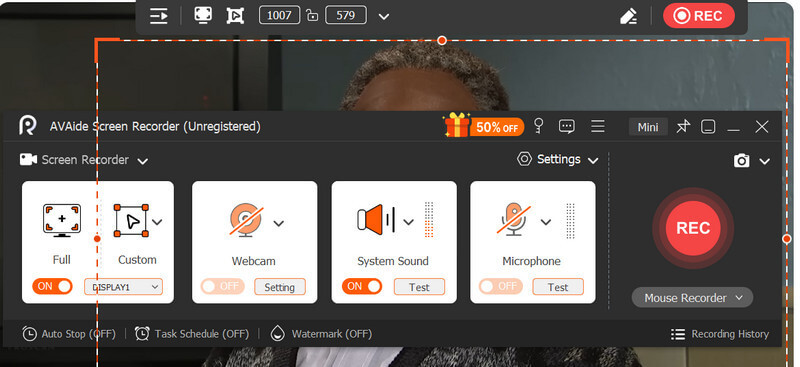
AVAide 屏幕录像 lets you capture videos on Peacock or any activity on your screen with high-quality recordings. In addition to that, it supports 60fps recording, so everything feels more responsive and fluid. This feature is especially useful when recording fast-paced competitive games, tracking fast-moving targets easily. Besides recording the entire screen and a specific window region, it can obtain system audio cleanly without distortion. It is capable of adjusting to audio levels before and during the session.

Since live sports are at a specific time, you can schedule when to start and stop capturing automatically without needing to press the record button. On top of that, you can record sports and live events no matter the desktop OS your computer is running. Those fluid motions and clean audio are captured in a smoother playback. To learn how to record on Peacock using this AVAide Screen Recorder, see the guide below.

第1步点击 免费下载 button below. Whether you are using Windows or Mac, there is an installer fit for your computer. Install and access the screen recorder.

第2步 Next, go to the Peacock website and search for the video or live sports you want to capture. Now, click the 录像机 选项并单击 满的 选项或 风俗 option to select a specific region to record.

Set Recording Preferences

第 3 步After setting up, click the 录音 button to commence the recording process. The recording will start after a 3-second countdown to get you ready. While recording, you can take a snapshot using the 相机 按钮。

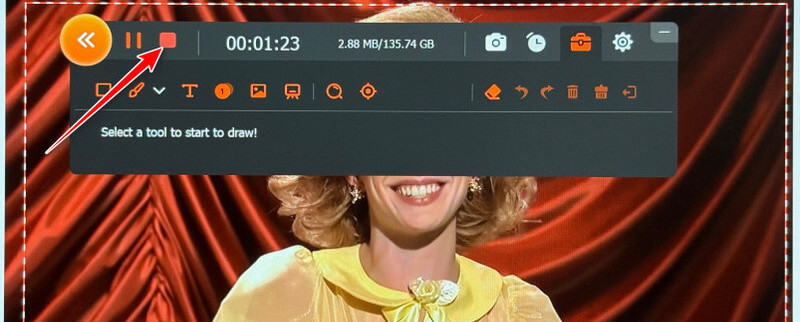
第四步When you're done recording, click the 停止 button in the floating toolbar. Then, the preview window will pop up on your screen. From here, you can trim the unwanted parts or the excess starting and ending parts. Once satisfied, click the Save button and choose a desired location where you wish to store the final recording.

Record on Peacock AVC

2.OBS 工作室

A fully capable and completely free tool that can do the job of capturing your favorite shows from Peacock is OBS Studio. This program does not leave a watermark on the final video, and there are no limits on recording length. Its support for AMD, NVIDIA, or Intel QuickSync means the tool utilizes the system's GPU and CPU, so there will be much less performance impact. While the session is ongoing, your Peacock stream will not stutter or buffer. Its power goes beyond just recording. It is a popular tool for gameplay, though it comes with its own performance challenges. Hence, every user needs to know how to fix OBS lag when playing games. But for now, check the steps to learn how this tool works for recording videos.

第1步Get the OBS Studio app from its official webpage and install it normally without any special settings.

第2步Now, ensure that you disable hardware acceleration in your browser by navigating to 设置 > 系统 > Turn off Use hardware acceleration when available settings. Then, restart your browser.

第 3 步Work around your desired configuration settings, including changing the recording format, encoder, quality, etc.

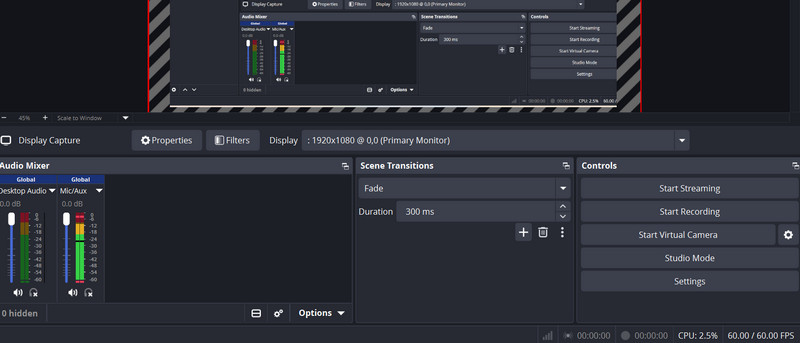
第四步这次点击 button in the Sources window and choose 显示捕获. Alternatively, switch to Windows Capture if the initial option shows a black screen.

第 5 步开始录制 in OBS and check the preview in case a black screen appears. Now, record your Peacock show. Hit 停止录制 完成后。

OBS Studio Recording

3. iTop Screen Recorder

iTop Screen Recorder is a Windows-exclusive screen recording program that is designed to record DRM-protected content, including Peacock, Netflix, and other streaming services. Hence, it deserves its spot among the best ways to capture videos. It comes with an Enhanced Mode that bypasses DRM restrictions to capture protected videos without a black screen. Therefore, if you're looking for a tool that offers a DRM bypass feature, iTop Screen Recorder is the app for you. Follow the instructions below to use it.

第1步The same drill: get the software and install it on your computer.

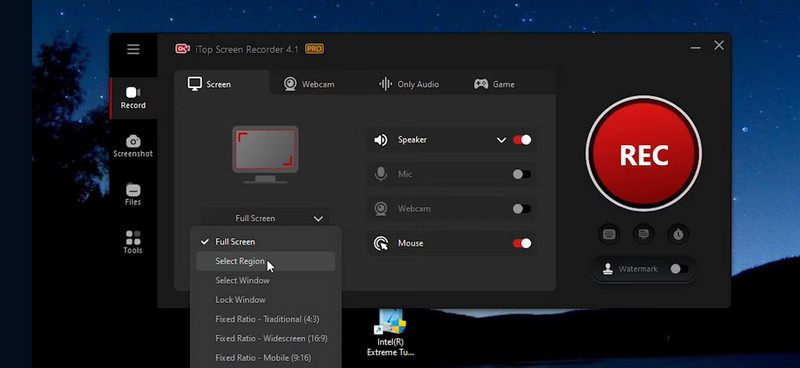
第2步Select the recording area by clicking the 落下 menu underneath the monitor illustration on the main interface. For a customizable box, choose the Select Region option and adjust the recording frame to your desired size.

第 3 步At this point, click the red 录音 button on the right side of the interface. In the floating toolbar, you can access the 暂停停止 buttons, as well as take screenshots and use drawing tools.

第四步To save, click the 停止 button and preview the recording. Hit 保存 and export to your preferred format.

iTop Screen Recorder Recording
特征 AVAide 屏幕录像 OBS工作室 iTop Screen Recorder
平台 Windows 和 Mac 视窗、Mac、Linux 仅限 Windows
使用方便 Beginner friendly 复杂的 Beginner friendly
视频质量 Up to 4k 60fps, smooth Up to 4k 60fps, smooth Corner glitch
音频质量 Noise cancellation included Excellent, multi-track feature Good, no noise cancellation
DRM Inconsistent, requires workarounds Inconsistent, requires workarounds Enhanced Mode for DRM
Built-in Editor Basic trimming and annotations None–external tools needed Basic trimming only
水印 无水印 没有任何 The free version has a watermark
预定录制 内置 Possible via plugins 内置

Method 2: Peacock's Official Download Feature

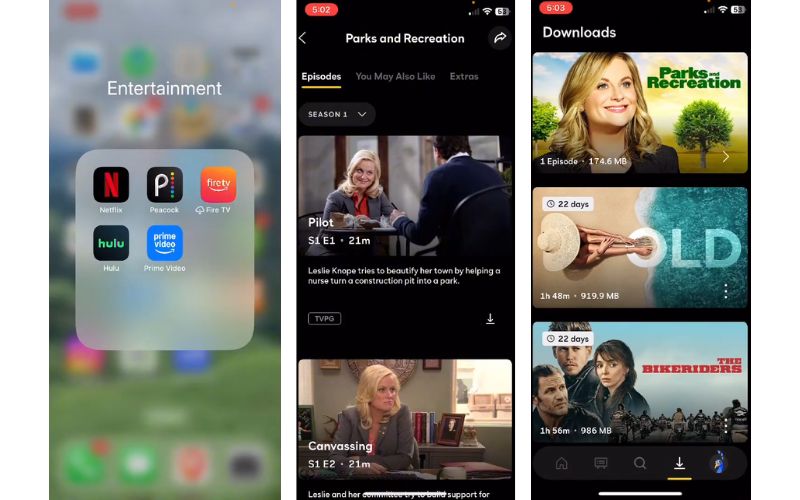
What you can do instead of recording is download the shows you wish to watch offline. That is possible if you are a premium subscriber. This action is not exactly recording, but you can enable offline viewing by downloading select titles for watching without the internet. Just check the expiration of the downloaded titles, as they remove them after some time. Meaning, you can't have those downloaded shows permanently.

This feature is great for mobile users. Yes, you read it right. You can have your favorite shows at your fingertips using the download feature of Peacock. To show you how, check out the steps below.

第1步On your phone, open the Peacock app and tap on the show or series you wish to record.

第2步After choosing a show, you will see a 向下箭头 button underneath a video preview. Tap on that button, and it will start downloading on your device.

第 3 步Seconds after, your target video will be downloaded and ready for offline viewing.

第四步To see all your offline videos, you will see a menu at the bottom of your screen. One of the buttons present is the download option. Tap on that option and enjoy watching Peacock shows offline.

Peacock Download Feature

Legal & Copyright Considerations

The answer to the question, "Can you record games on Peacock?" is yes, with some workarounds and using third-party tools. While it is possible, it is recommended to record while adhering strictly to the rules and policies implemented by the streaming service platform. It does sound legal when speaking of personal use. Still, Peacock's Terms of Service prohibit copying or recording its content, as it is considered a violation and may get your account permanently banned. As long as you don't upload recordings publicly on other sites, no legal actions shall be enforced against you. This is not unique to Peacock. Even to other streaming services like the ReelShort platform. Bottom line: keep all recordings strictly private and delete them after watching. Distribution in any form will cross a clear legal line.

结论

Workarounds exist for you to learn how to record on Peacock. Just keep in mind the Peacock's strict Terms of Service and DRM protection. Recording content is deliberately difficult for good reason. As a rule of thumb, record privately and responsibly. Never share, and ensure to exhaust legitimate options first.

经过 艾莎·约翰逊 on 6 月 04, 2026

关于作者

艾莎·约翰逊
艾莎·约翰逊

艾莎·约翰逊是一位多媒体制作技术员,专长于屏幕录制和音频采集工作流程。她曾帮助教育工作者、培训师和播客团队搭建稳定的录制环境,并解决常见的硬件和配置问题。她的实践经验能够帮助创作者提升录制清晰度,制作出更可靠的内容。

相关文章