You are to create your first video tutorial about something you are passionate about, but these days, a standard screen recording cannot meet the viewer's expectations. You should present your video in a professional manner, avoiding possible comments like, "Where did you click?" or "I got lost in the steps because the cursor moves too fast." So, what you need is to accompany your screen recording with a mouse recorder, and you are in the right article, as we will discuss the best ones for your needs.

Part 1. Understanding Mouse Recorders Before You Choose

You can find a mouse recorder anywhere. In fact, you can get a tool that offers recording your mouse cursor without any cost. However, there is a better understanding of which tool you are looking for.

What Exactly is a Mouse Recorder?

A mouse recorder can be different from what you have in mind. But this tool indeed specializes in capturing or highlighting your mouse cursor's movement during screen recording. Still, a mouse recorder can be another tool. To get a better idea, check the breakdown below:

Different Types of Mouse Recorders

1. Pure Mouse Recorders

A pure mouse recorder specializes in recording your mouse movements and clicks. Once recorded, it converts these actions into a macro or script, creating an infinite automated playback. This also means it removes repetitive tasks like farming in idle games, without coding to build automations.

2. Mouse & Keyboard Recorders

This type of mouse recorder tracks your mouse cursor and keystrokes. The additional feature highlights the text being typed in the keyboard, allowing full work automation. A mouse and keyboard recorder can help fill out repetitive forms and input hotkeys.

3. Screen Recorders with Mouse Tracking

最多 录像机 on the market have a mouse tracking feature to highlight the cursor while recording, and this might be the first thought that comes to mind when you hear the word 'mouse recorder.' But unlike the first two types of mouse recorder, this option is not for automation but purely for viewers to see the movement of the cursor in the video.

Typical Use Cases

To make it easy to understand, you can differentiate the three types by their usage:

  • Pure Mouse Recorders - Best for recording monotonous routines, helping you to finish tasks even when you are away from your desktop.
  • Mouse & Keyboard Recorders - Automatically fills out predictable inputs for Quality Assurance. It can also be used for filling out complex multi-page web applications.
  • Screen Recorders with Mouse Tracking - Polishes a screen recording by tracking the cursor’s movement, which helps potential viewers not to lose sight of it.

Part 2. Top 5 Mouse Recorder Software – Reviews & Ratings

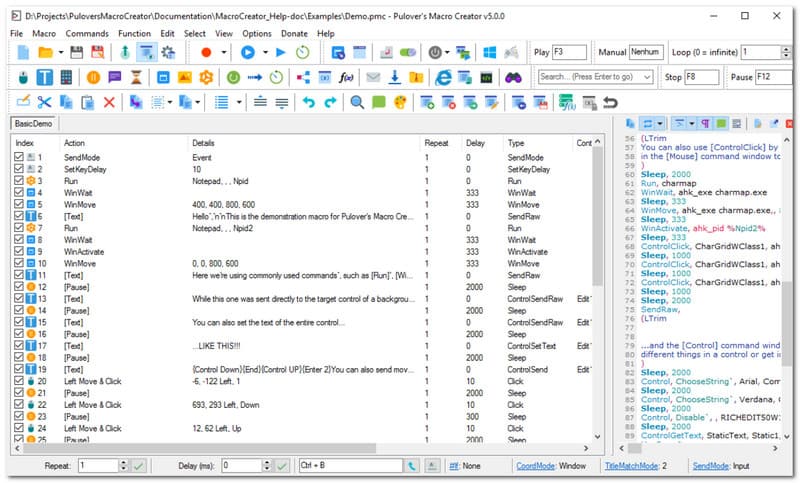
1. Pulover's Macro Creator – Best Overall Free Mouse Recorder

Need free mouse recorder software? Pulover's Macro Creator or PMC is an automation tool for Windows that can do no-code macro recording and script writing for AutoHotkey. It is recommended because of its precise action capturing, while allowing users to convert them into editable code-based commands. It also highlights Control Clicking as it directly targets UI elements like text and buttons. Unfortunately, this software is known for its risk of downloading Adaware Web Companion, which is a bundled software that is very intrusive.

Pulover Mouse Recorder

评分: 3.5

平台: 视窗

价钱: 自由

主要特点:

  • Includes a native macro recorder
  • Effective for automating repetitive workplace tasks
优点
No coding needed
Completely free
缺点
Install unwanted programs on the user's device
Track users' activity without permission.

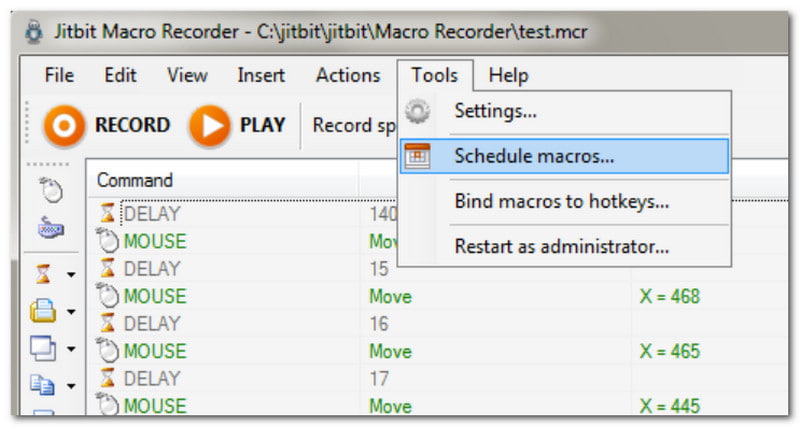
2. Macro Recorder (by Jitbit) – Best for Office Automation

A mouse recorder that offers a beginner-friendly learning curve. This means you can use Macro Recorder by only clicking the Record button, and then you can focus on your online activities. But what makes this option different from others is that it allows you to convert macros to standalone executable files. Moreover, the automation can be ruined on any Windows computer, even if the software is not installed there.

Macro Recorder Jitbit

评分: 3.3

平台: 视窗

价钱: $50

主要特点:

  • Automate repetitive actions without coding
  • Suitable as a visual script editor
优点
It has a free trial version
Includes image recognition to perform the next task automatically
缺点
Not Mac supported

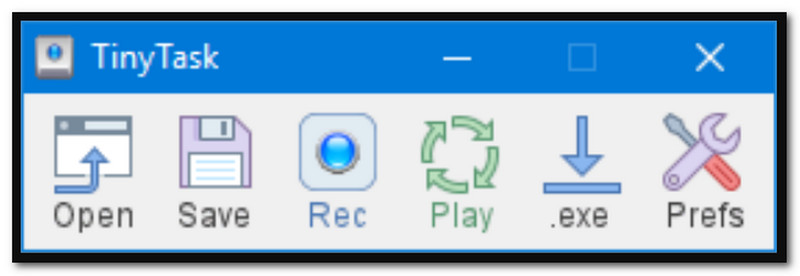
3. TinyTask – Best Lightweight, Portable Mouse Recorder

As the name implies, TinyTask is a minimalist auto-mouse click recorder that records content on your screen easily. Its recent update has added custom playback speed and keyboard shortcuts to repeat recording in just a few taps. This alternative is a good choice if you are keeping an eye on your device's storage, as it only occupies as little as 36KB.

TinyTask Mouse Recorder

评分: 4

平台: 视窗

价钱: 自由

主要特点:

  • Easy one-click record
  • Lightweight and takes up only a small storage space
  • Works well in later Windows OS
优点
Small file size
Easy learning curve
缺点
Not available on Mac

4. MacroLoop – Best Mouse Recorder for Mac

MacroLoop is a mouse and keyboard recorder that captures all content on the screen automatically. It specializes in recording with a schedule feature and repeatable loops. It is also a good automation tool as it can trigger workflows at a specific time and let long-running tasks continue even if you're away from your PC. MacroLoop is one of the few options for Mac.

MacroLoop Mouse Recorder

评分: 4.1

平台: 苹果电脑

价钱: $4.99

主要特点:

  • Auto and scheduled recordings
  • 24-hour task automation
优点
Suitable for long recordings
缺点
Users may experience glitches and lags

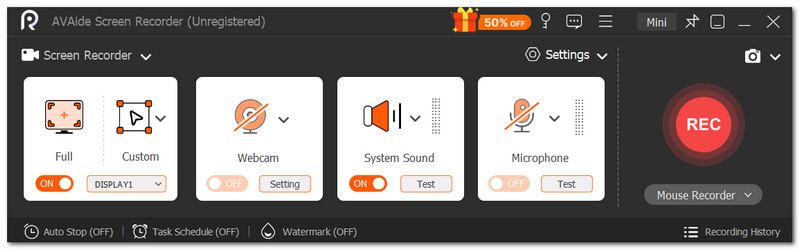
5. AVAide Screen Recorder - Best Screen Recorder with Mouse Tracking

AVAide 屏幕录像 is an outstanding choice for screen recording on Windows and Mac. It is designed to capture onscreen activities, including the mouse cursor, with options to record mouse clicks, keystrokes, and areas. It even allows users to record the sound of mouse clicks, which is helpful to make the video recording more engaging for the viewers. Of course, the screen recorder ensures the recordings are of the best quality, saving them in various formats like MP4, WMV, and AVI, and in resolutions up to 4K. While AVAide Screen Recorder offers a professional-grade solution, you can expect its learning curve to be simple, which is why it is the best choice as a mouse movement recorder.

AVAide 屏幕录像

评分: 4.8

平台: Windows 和 Mac

价钱: $59

主要特点:

  • Beginner-friendly UI
  • High-quality video recordings
优点
Best for all types of recordings
缺点
The free version limits the recording time

Part 3. Comparison Table & How to Choose

Here is the summary of the top mouse recording software for Windows and Mac.

Mouse Recorders 自由 支持的平台 Coding Required
Pulover’s Macro Creator 是的 视窗
Macro Recorder (by Jitbit) 视窗
TinyTask 是的 视窗
MacroLoop 苹果电脑
AVAide 屏幕录像 视窗,Mac

Part 4. FAQs about Mouse Recorder

Is it safe to download mouse recorders?

It depends on the website where you download the software. Just make sure the site is legitimate and trustworthy, so you don't expose your PC to malware.

Why does the mouse cursor disappear when I'm recording?

Some video recorders automatically remove the mouse cursor to keep the video clean. Try to check the settings to make your cursor appear during recording.

What is the difference between a common video recorder and a mouse recorder?

A video recorder often captures onscreen activities with a feature to highlight the mouse cursor during recording. Meanwhile, a mouse recorder can be distinguished as a macro recorder, which creates a script through actual clicks. This is commonly used for automating repetitive tasks like filling out forms.

结论

You have been guided by this article with the top mouse and keyboard recorders, with the knowledge of different types you can find in the online market. Among the reviewed top tools, AVAide Screen Recorder is the best choice because of its intuitive features of screen recording with cursor tracking. It also helps 录制网络研讨会 and real-time meetings, with annotation and drawing. With AVAide, you don't have to look further for a professional screen recorder, as it promises outstanding outcomes. Click the Free Download button to try it on Windows and Mac.

经过 艾莎·约翰逊 on 6 月 18, 2026

关于作者

艾莎·约翰逊
艾莎·约翰逊

艾莎·约翰逊是一位多媒体制作技术员,专长于屏幕录制和音频采集工作流程。她曾帮助教育工作者、培训师和播客团队搭建稳定的录制环境,并解决常见的硬件和配置问题。她的实践经验能够帮助创作者提升录制清晰度,制作出更可靠的内容。

相关文章