Ever had a phone call where important details were shared, but you forgot them right after? Or maybe someone gave you instructions, and you had no way to write them down? In cases like this, learning how to record a phone call on Android is a big help.

This guide is here to help you learn how. Whether you are using a Samsung, Google Pixel, Xiaomi, OnePlus, or any other Android phone, the methods below are made for you. Take your time and go through each part.

Prerequisite: Legal Considerations Before You Start Recording

Before you record a phone call on Android, you need to know the basic legal rules. These rules are important. They help you avoid problems and respect privacy. In many places, recording a call without permission is not allowed.

Always make sure the other person knows you are recording. Some phones already give a warning sound or beep when recording starts. Even so, it is still better to ask for permission first. Laws are not the same everywhere. So, you should check the rules in your area before you start recording.

Method 1: Use Your Phone's Built-in Call Recorder

A built-in call recorder is a common feature of Android phones. It is the simplest method of call recording. Installing an additional app is not necessary. It only takes a few taps to begin recording if your phone has this feature.

1. How to Record a Phone Call on Samsung (One UI)

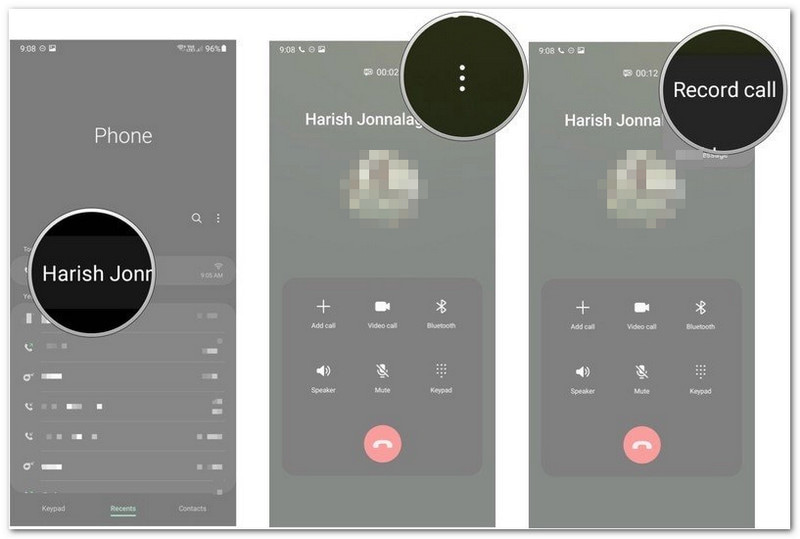
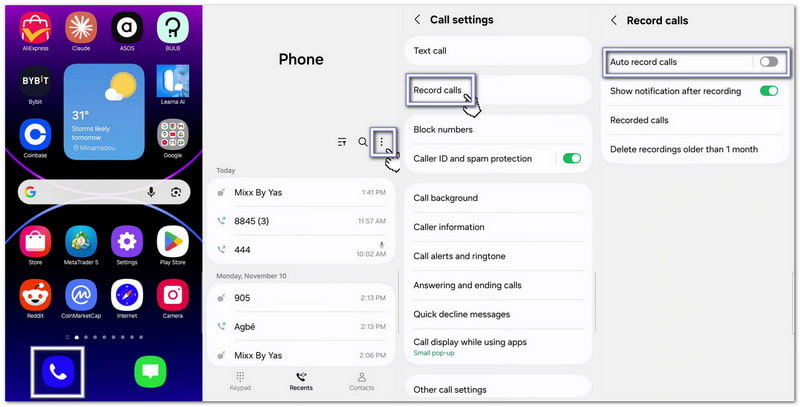
Samsung phones come with a call recorder inside the Phone app, which helps if you are learning how to record a phone call on Samsung.

  • 打开 电话 app. Make or answer a call.
  • Once the call connects, tap Record call.
  • To record all calls automatically, tap the three-dot menu 并选择 设置.
  • 选择 Record calls.
  • 打开 Auto record calls.
How to Record a Phone Call on Samsung

更多详情:: You can also screen record on Samsung, which captures both your screen activities and audio, which is suitable for video calls.

2. How to Record a Phone Call on a Google Pixel

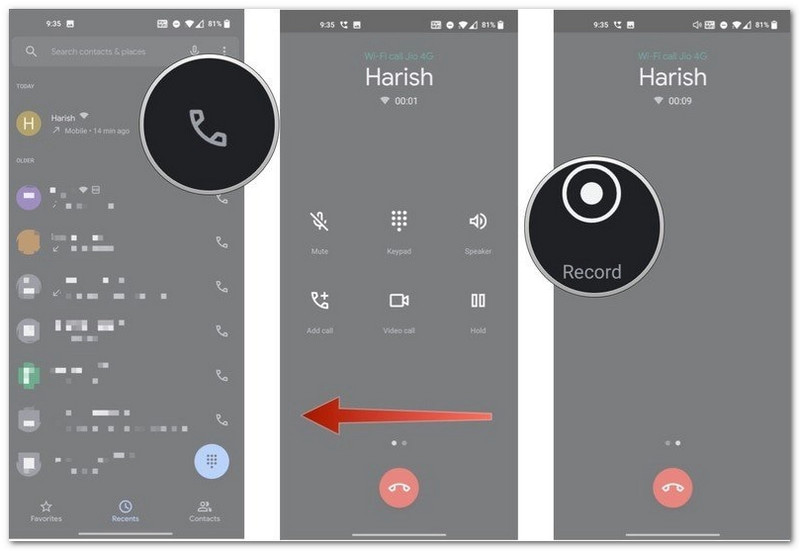
Google Pixel phones use the Google Phone app. Call recording may not be available in every country or carrier.

  • 打开 电话 app during a call. Swipe left to see more call options.
  • 轻敲 记录.
  • To auto-record unknown callers, open Phone Settings > Call recording.
  • 打开 Always record.
  • 轻敲 停止 when you want to end the recording.
笔记:
  • Google Phone will play a message to let both people know the call is being recorded.
How to Record a Phone Call on a Google Pixel

3. Other Android Brands (Xiaomi, OnePlus, Nothing, etc.)

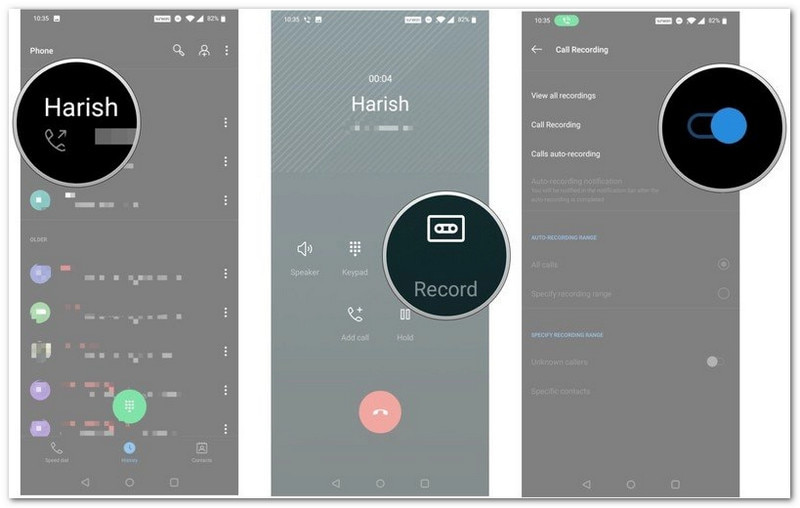
Many Android brands use their own Phone app. The steps are usually similar.

  • Make or receive a call. Wait until the call is connected.
  • Swipe or scroll through the call options.
  • 轻敲 记录.
  • 轻敲 开始录制 if a message appears.
  • 轻敲 停止 一旦完成。
Other Android Brands

Method 2: How to Record a Phone Call on Android Without an App

If your phone does not have a built-in recorder, you can still learn how to record a call on Android without an app and save a conversation. These methods do not require a dedicated call recording app.

1. Use the Google Phone App's Built-in Recorder (If Available)

Some Android phones support recording through the Google Phone app.

  • Make or answer a call.
  • 轻敲 记录 on the call screen.
  • 轻敲 停止 when the call ends.

The recording will be saved in your call history.

笔记:
  • Both people will hear a recording announcement before the recording starts.

2. Use a Second Device to Record Speakerphone Calls

It is one of the simplest methods.

  • 打开 Speakerphone during the call.
  • Place another phone, tablet, or computer nearby.
  • Use the second device to record the conversation.

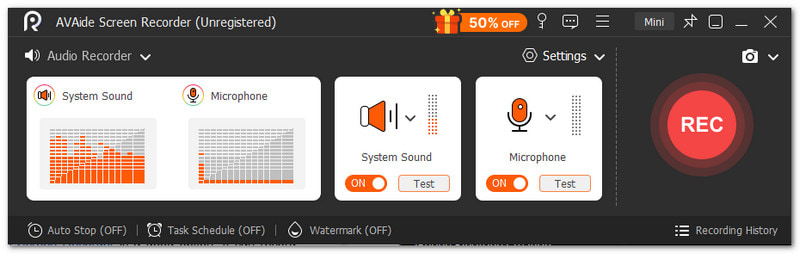
If you are using a Windows or Mac computer, AVAide 屏幕录像 is a good option. It has a built-in audio recorder that can record a phone call on Android with clear sound.

Your recorded phone call is saved directly to your computer for easy access. It does not matter if your phone call is long, as it can handle it. If there are unneeded parts at the start or end, you can use the trim feature to remove them and keep only the section you need.

AVAide Screen Recorder as a Second Device to Record Speakerphone Calls

Other main things you can expect:

  • Record video, audio, and webcam together.
  • Captures phone screens with high-clarity audio.
  • Allows instant preview after recording with the option to re-record.
  • Supports multiple media formats like MP4, WMV, AVI, GIF, MP3, and more.

3. Use a Conference Bridge

This method works well for important calls.

  • Join a meeting through Zoom or Google Meet on your Android phone.
  • Join the same meeting on your computer.
  • Start the phone conversation.
  • 点击 记录 在你的电脑。

The audio will be saved directly to your computer for easy access later.

Method 3: Automatically Record Calls Without Any Announcement

Some phones offer extra options for recording a voice call on an Android phone. These settings can reduce manual work and make recording easier. Remember that the features that are available depend on the model, carrier, and location of your phone.

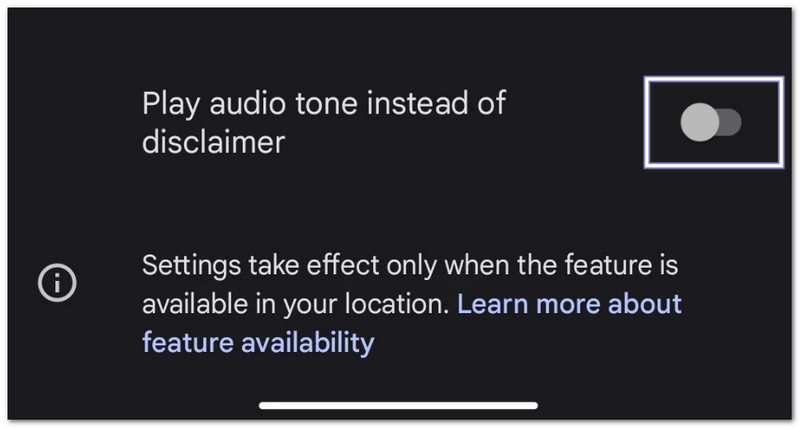
1. Replace the Announcement with a Beep (Native Setting on Some Brands)

Some Android phones let you use a short beep instead of a voice announcement.

  • 打开 电话 应用程序。
  • 点击 three-dot menu 或者 设置 按钮。
  • 选择 Call recording.
  • 打开 Play audio tone instead of the disclaimer.
笔记:
  • If you cannot find this option, your phone or region may not support it.
Replace the Announcement with a Beep

2. Set Up Fully Automatic Call Recording (No Manual Intervention)

Your phone has the option to record calls automatically.

  • Go to the phone's settings.
  • 轻敲 Call Recording.
  • 打开 Record calls automatically.
  • 选择 All calls or Selected numbers.

Once enabled, recordings will start automatically based on your settings.

3. Third-party Apps with Stealth Features

If your phone does not offer enough recording options, some third-party apps may help.

  • Cube ACR - Records regular phone calls and some internet calls.
  • Automatic Call Recorder Pro - Supports automatic recording and extra recording controls.

Important: Android restrictions may limit how these apps work. Some phones may require extra permissions. Recording quality can also vary by device.

Where to Find Recorded Calls on Android

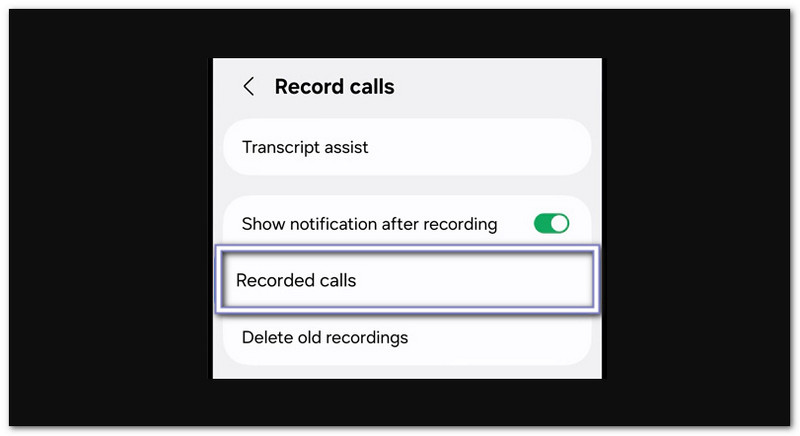
After recording a call, you may wonder where to find recorded calls on Android. The location depends on your phone brand and Phone app.

On Samsung (One UI)

Samsung call recording is inside the Phone app.

  • 打开 电话 应用程序。
  • 点击 three-dot menu.
  • 选择 设置.
  • 轻敲 Record calls.
  • 打开 Recorded calls.
On Samsung

On Google Phone App (Pixel and other phones with Google Dialer)

Google Phone stores recordings in your call history.

  • 打开 电话 应用程序。
  • 轻敲 Recents.
  • Select the recorded call.
  • 轻敲 历史 或者 按钮。

On Xiaomi / MIUI / HyperOS

You can find recordings in two places.

Option 1:

  • 打开 电话 应用程序。
  • Recents.
  • 点击 或者 细节 button beside the call.

Option 2:

  • 打开 文件管理器.
  • 贮存 > MIUI > sound_recorder > call_rec.

On Other Brands (General location)

Most Android phones save recordings in the File Manager.

  • 打开 文件管理器.
  • Check folders such as 声音的, 称呼, 要么 CallRecordings.
  • You can also search for CallRecord.

If you cannot find the files, check Phone Settings > Call Recording for the save location.

How to Turn Off Call Recording on Android

If you also want to learn how to turn off call recording on Android, you can rely on the instructions below.

  • 打开 电话 或者 Dialer 应用程序。
  • 点击 three-dot menu.
  • 选择 设置.
  • 轻敲 Call recording 或者 Auto record calls.
  • Turn the feature Off.

After that, your phone will stop recording future calls automatically. Existing recordings will remain saved unless you delete them manually.

How to Turn Off Call Recording on Android
结论

This post answers the question, "Can you record phone calls on an Android?" And the answer is yes. No matter what device you use, there is always a way to record your call. Even on a computer, you can still save your conversation. One simple tool you can use is AVAide 屏幕录像. It works well for long recordings and offers beneficial features for audio recording.

经过 艾莎·约翰逊 on 6 月 10, 2026

关于作者

艾莎·约翰逊
艾莎·约翰逊

艾莎·约翰逊是一位多媒体制作技术员,专长于屏幕录制和音频采集工作流程。她曾帮助教育工作者、培训师和播客团队搭建稳定的录制环境,并解决常见的硬件和配置问题。她的实践经验能够帮助创作者提升录制清晰度,制作出更可靠的内容。

相关文章