YouTube là nơi chứa hàng triệu video, thể hiện sự sáng tạo của mọi người thông qua các bài đăng trên blog, mẹo hữu ích hoặc đánh giá. Nhưng vì muốn bảo vệ nội dung trên trang web, YouTube cấm người dùng tải xuống video bên ngoài nền tảng. Vì có một số người tải lên nội dung không phải của họ và không thông báo đúng cách cho người tạo nội dung gốc, điều này được xem là hành vi không lành mạnh. Nếu chỉ sử dụng cho mục đích cá nhân, một cách để có bản sao của riêng bạn là thông qua việc ghi lại video. Bài viết này sẽ hướng dẫn bạn cách thực hiện điều đó. cách quay video YouTube trên nhiều thiết bị khác nhau, chẳng hạn như máy tính hoặc điện thoại của bạn.
- Phần 1. Quay video YouTube trên PC hoặc Mac (Cách sử dụng máy tính để bàn)
- Phần 2. Quay video YouTube trên iPhone hoặc Android (Cách thức trên thiết bị di động)
- Phần 3. Quay video YouTube trên Xbox (Cách quay bằng máy chơi game)
- Phần 4. Cách ghi âm từ YouTube (Chỉ trích xuất âm thanh)
- Phần 5. Cách ghi hình nội dung chất lượng cao cho kênh YouTube của bạn
Phần 1. Quay video YouTube trên PC hoặc Mac (Cách sử dụng máy tính để bàn)
1. Công cụ tích hợp sẵn (Đơn giản và miễn phí)
Làm thế nào để quay video YouTube trên máy tính? Cho dù bạn đang sử dụng máy tính chạy hệ điều hành Windows hay Mac, bạn đều có thể quay video từ YouTube và các trang web khác một cách miễn phí. Hãy xem các bước hướng dẫn dưới đây.
Windows - Xbox Game Bar
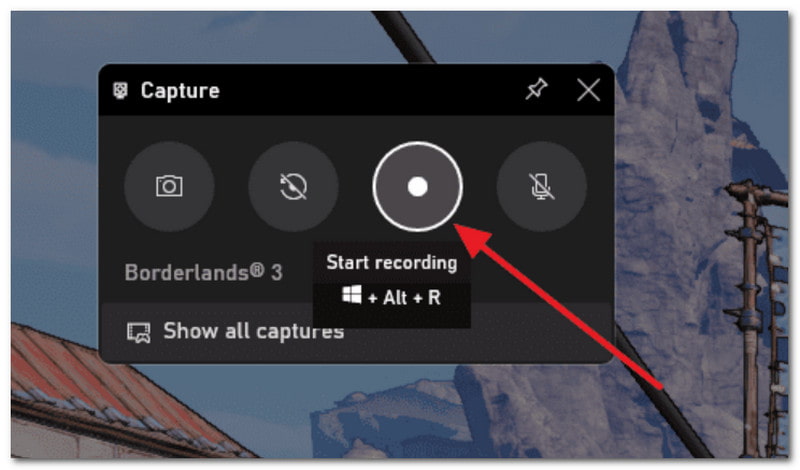
Hãy đảm bảo máy tính của bạn đã được cập nhật lên Windows 10 trở lên để có được Xbox Game Bar. Sau đó thực hiện các bước sau:
Bước 1Mở YouTube và tìm video bạn muốn quay lại. Nhấn đồng thời các phím các cửa sổ và g các phím trên bàn phím của bạn.
Bước 2Từ góc bên phải, nhấp vào Vòng tròn Nhấn nút này để bắt đầu ghi âm. Sau đó, bạn có thể nhấn lại nút đó để dừng ghi âm khi hoàn tất.
Trình phát QuickTime dành cho Mac
Mặc dù QuickTime Player được sử dụng để phát các tập tin đa phương tiện trên máy Mac, nhưng nó cũng có thể được sử dụng như một trình ghi video YouTube. Sau đây là các bước cần thực hiện:
Bước 1Mở QuickTime Player trên máy tính của bạn và nhấp chuột. Tập tin. Chọn Ghi màn hình mới lựa chọn.
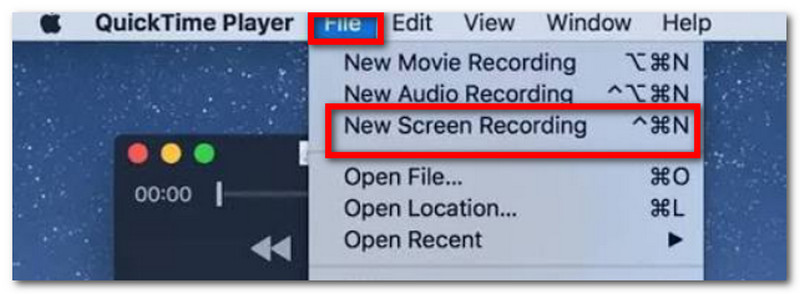
Bước 2Từ mũi tên nhỏ bên cạnh máy ghi âm, bạn có thể điều chỉnh một vài cài đặt. Sau đó, nhấp vào Ghi nút để quay video YouTube.
2. Tiện ích mở rộng trình duyệt (Dễ sử dụng nhất cho một video)
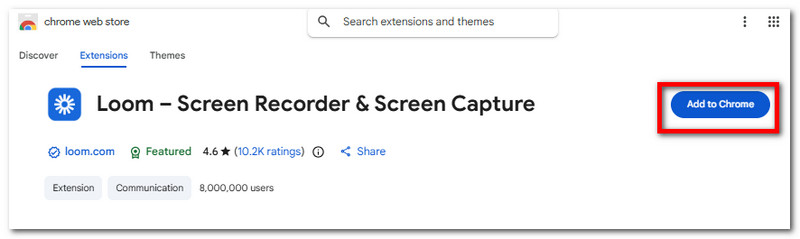
Loom là một trong những cách dễ nhất để ghi lại video YouTube dưới dạng tiện ích mở rộng. Nó cung cấp giao diện dễ sử dụng, cho phép ghi lại nội dung trên màn hình và tạo liên kết để chia sẻ với mọi người. Các tính năng của nó cũng bao gồm ghi video, micro và âm thanh nội bộ cùng lúc, cũng như tự động lưu video lên đám mây. Với những điều đã nói ở trên, đây là cách sử dụng Loom như một trình ghi màn hình YouTube:
Bước 1Mở Chrome Web Store và tải Loom về trình duyệt của bạn. Từ đó... Tiện ích mở rộng Biểu tượng này cho phép bạn ghim Loom để có thể sử dụng bất cứ lúc nào.
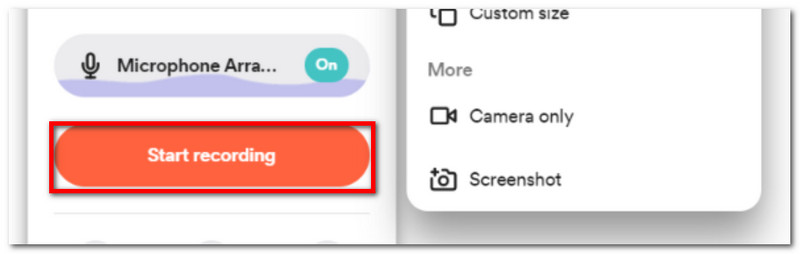
Bước 2Thiết lập trình ghi màn hình theo ý muốn, sau đó nhấp chuột. Bắt đầu ghi âm Dùng để quay video YouTube. Video của bạn sẽ được lưu vào tài khoản đã đăng ký trên Loom.
3. Phần mềm ghi màn hình AVAide
Ngoài video, bạn cũng có thể muốn học cách ghi âm từ YouTube một cách riêng biệt. AVAide Screen Recorder AVAide Screen Recorder là lựa chọn hàng đầu để ghi lại nội dung chất lượng cao trên Windows và Mac. Phần mềm được thiết kế với giao diện đẹp mắt, giúp bạn dễ dàng làm quen với các công cụ. Tất nhiên, nó cung cấp nhiều cách ghi hình khác nhau, chẳng hạn như qua micro, webcam, cuộc họp trực tuyến và ghi hình trực tiếp trên màn hình. Screen Recorder lưu nội dung đã ghi lại ở các định dạng đầu ra phổ biến, hỗ trợ MP3, MP4, MOV, M4A và nhiều hơn nữa. Hơn nữa, nó cho phép bạn thêm chú thích, thiết lập lịch ghi hình và tùy chỉnh khu vực màn hình bạn muốn ghi lại. Thật sự, AVAide Screen Recorder là lựa chọn không thể thiếu để ghi lại video và âm thanh xuất sắc!
Bước 1Tải xuống AVAide Screen Recorder trên thiết bị của bạn. Đọc kỹ hướng dẫn để cài đặt phần mềm thành công.

TẢI VỀ MIỄN PHÍ Đối với Windows 7 trở lên
 An toàn tải
TẢI VỀ MIỄN PHÍ Dành cho Mac OS X 10.13 trở lên
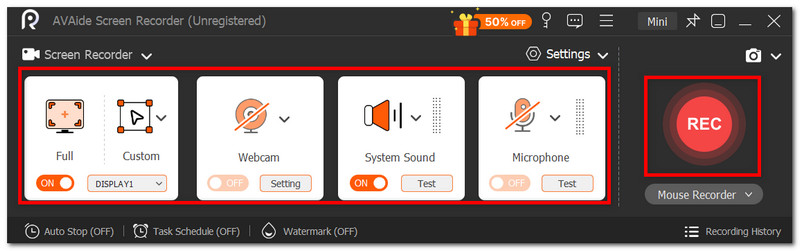
An toàn tảiBước 2Từ menu Cài đặt, bạn có thể thiết lập kích thước màn hình, đầu vào âm thanh, v.v. Sau khi hoàn tất, hãy nhấp vào nút GHI để quay màn hình và đăng tải lên YouTube.
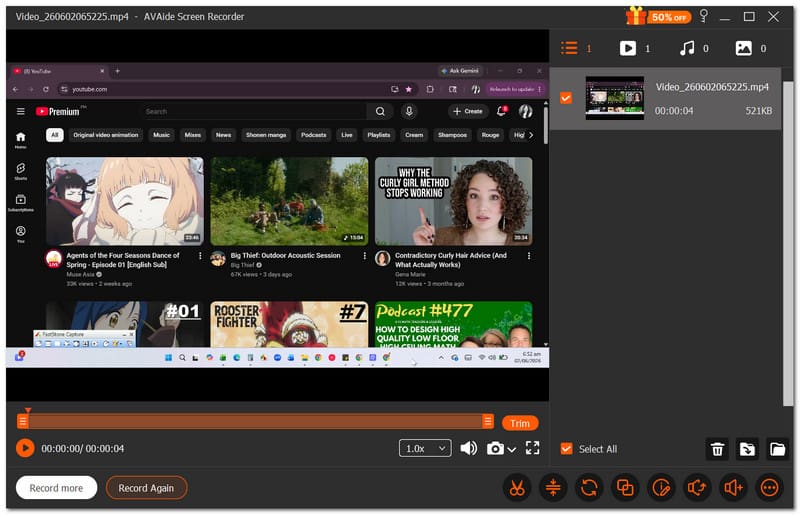
Bước 3Nhấn vào Ngừng lại Nhấn nút này khi bạn đã ghi âm xong. Xem trước kết quả hoặc lưu vào thư mục cục bộ.
Phần 2. Quay video YouTube trên iPhone hoặc Android (Cách thức trên thiết bị di động)
Việc học cách quay video YouTube trên iPhone hoặc Android không hề khó, vì điện thoại của bạn đã có sẵn trình ghi màn hình để ghi lại nội dung trên màn hình. Tuy nhiên, cần lưu ý rằng trình ghi màn hình trên điện thoại của bạn không ghi lại video kèm âm thanh. Ứng dụng của bên thứ ba có thể là lựa chọn duy nhất để ghi màn hình kèm âm thanh.
Đối với iPhone:
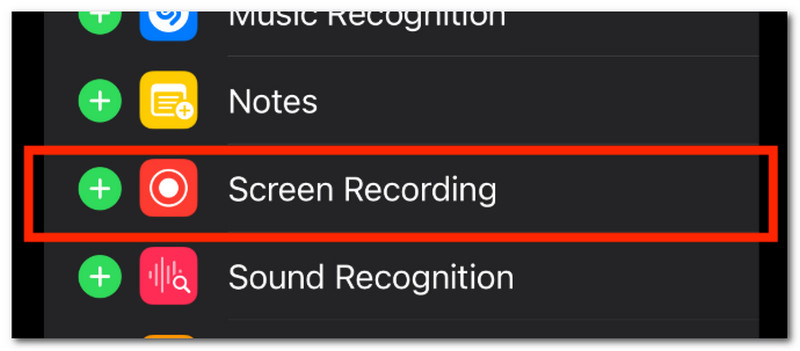
Bước 1Vào phần Cài đặt trên điện thoại của bạn và điều hướng đến... Trung tâm điều khiển. Chạm vào Thêm Nút này dùng để thêm Trình ghi màn hình vào Trung tâm điều khiển.
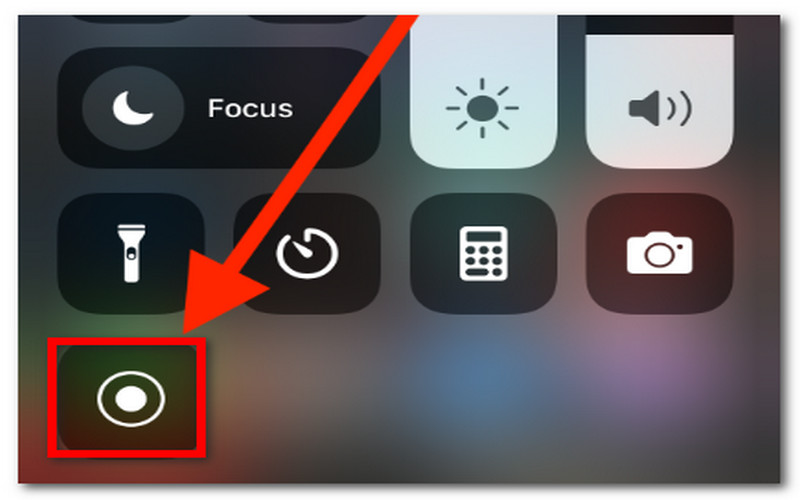
Bước 2Từ góc trên bên phải màn hình, vuốt xuống và chạm vào biểu tượng Ghi Sau khi quay xong, hãy nhấn lại nút đó từ Trung tâm điều khiển. Bạn có thể xem video đã quay từ ứng dụng Ảnh.
Đối với Android:
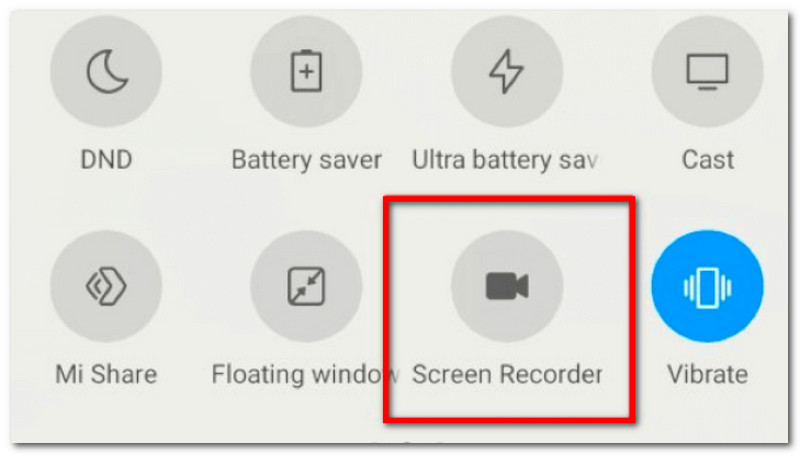
Bước 1Vuốt từ phần trên màn hình điện thoại xuống để truy cập Bảng điều khiển nhanh. Chạm vào Ghi lại màn hình.
Bước 2Bạn có thể tùy chọn cấu hình để ghi âm thanh thiết bị vào video của mình. Sau đó, chạm vào thông báo Trình ghi màn hình để dừng ghi.
Phần 3. Quay video YouTube trên Xbox (Cách quay bằng máy chơi game)
Một cách để ghi lại video YouTube bằng máy chơi game của bạn là sử dụng card ghi hình PC. Nó sẽ cho phép bạn hiển thị nội dung từ máy tính lên máy chơi game, sau đó bạn có thể ghi lại bằng trình ghi màn hình tích hợp sẵn của Xbox. Hãy xem hướng dẫn sau đây về cách ghi lại video YouTube trên Xbox:
Bước 1Chèn vào Cáp HDMI X vào Cổng HDMI đầu vào của card thu hình ngoài. Sau đó, cắm cáp USB của card thu hình vào máy tính của bạn.
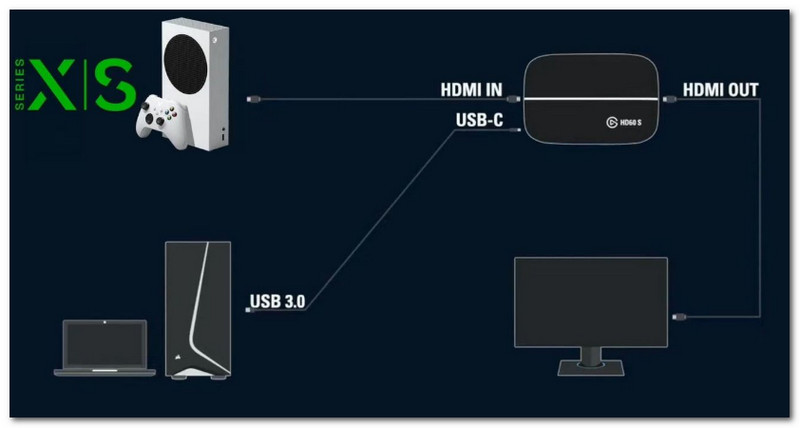
Bước 2Từ card thu hình Cổng xuất HDMIHãy kết nối thêm một cáp HDMI khác vào màn hình. Bạn cần có phần mềm như OBS Studio trên máy tính để thêm card thu hình. Thiết bị ghi hình video.
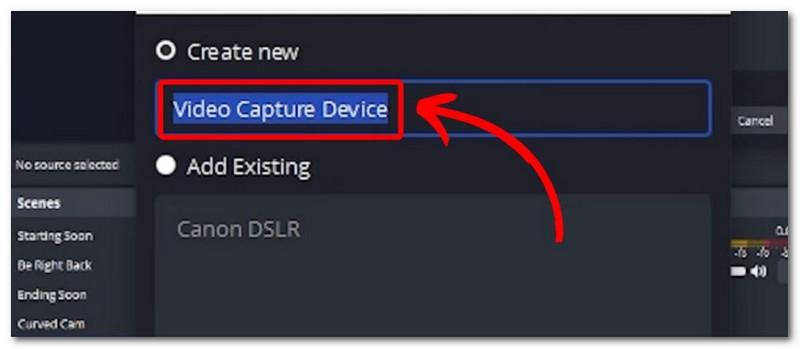
Bước 3Mở YouTube, sau đó nhấn vào biểu tượng Xbox nút để điều hướng đến Chụp và chia sẻ cửa sổ. Nhấp vào Bắt đầu ghi âm Để ghi lại video YouTube.
Phần 4. Cách ghi âm từ YouTube (Chỉ trích xuất âm thanh)
Để ghi âm từ YouTube, có hai cách đáng tin cậy để thực hiện việc này. Phần này sẽ hướng dẫn cách sử dụng Audacity, một giải pháp ghi âm miễn phí bạn có thể tải về trên Windows và Mac, và một phần mềm chuyển đổi YouTube sang MP3 để tải video YouTube dưới dạng tệp âm thanh.
Phương pháp 1: Phần mềm ghi âm hệ thống (Audacity)
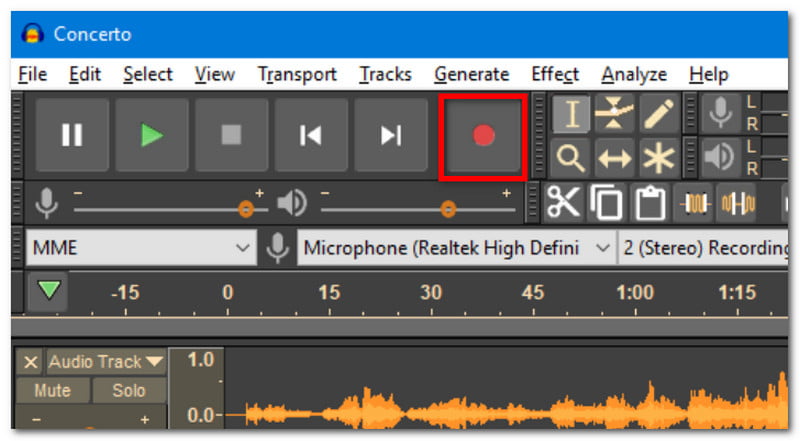
Bước 1 Tải xuống và cài đặt Audacity trên máy tính của bạn. Mở phần mềm và thiết lập các cài đặt theo ý muốn.
Bước 2Nhấp chuột Ghi để quay video YouTube. Bạn có thể chỉnh sửa bản nhạc âm thanh bằng cách cắt bỏ phần đầu và cuối của đoạn âm thanh, rồi xuất nó ra một thư mục.
Phương pháp 2: Công cụ chuyển đổi YouTube sang MP3 trực tuyến
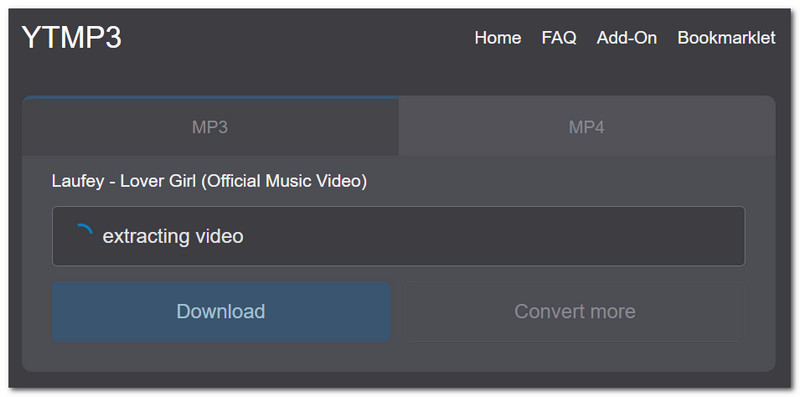
Bước 1Mở ứng dụng YouTube và tìm kiếm video bạn muốn chuyển đổi thành âm thanh. Sao chép liên kết, sau đó tìm kiếm "YouTube to MP3 Converter" để dán liên kết vào.
Bước 2Sau đó nhấn vào Đổi Để chuyển video thành âm thanh và chờ quá trình hoàn tất. Nhấp chuột Tải xuống để lưu tệp âm thanh.
Phần 5. Cách ghi hình nội dung chất lượng cao cho kênh YouTube của bạn
Có thể bạn đã từng hỏi trên Reddit, "Tôi có cần chân máy để quay video YouTube không?" khi lên kế hoạch tự quay nội dung của mình. Bạn sẽ cần một vài thiết bị để bắt đầu quay phim, và nếu bạn là người mới bắt đầu, bạn có thể muốn bắt đầu với những thứ sau:
Đề xuất trang thiết bị
Sở hữu một chiếc điện thoại thông minh đã là một khởi đầu tốt để quay video. Nhưng làm thế nào để quay video YouTube trên iPhone một cách hiệu quả? Hãy bắt đầu đầu tư vào những phụ kiện nhỏ như chân máy và vòng đèn LED để tạo hiệu ứng ánh sáng tốt.
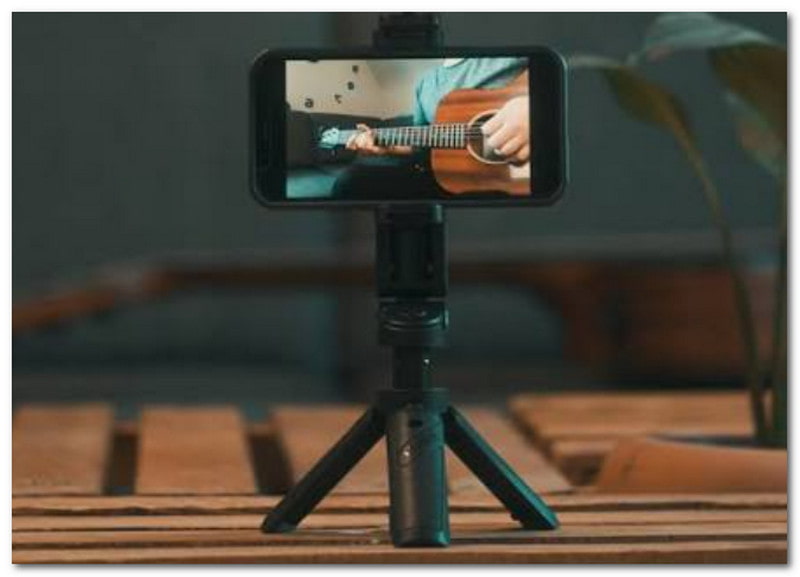
Bạn cần thử vài lần để làm quen với việc thu âm. Sau đó, bạn cũng có thể tìm hiểu sâu hơn về các công cụ chuyên nghiệp như phông nền xanh, thiết lập ánh sáng và máy quay để quay video YouTube.
Cách quay màn hình và khuôn mặt để hướng dẫn học tập
Nếu bạn đang hướng đến chủ đề hướng dẫn hoặc chơi game trên Twitch với... video camera trước gươngNếu vậy, bạn nên tìm phần mềm hỗ trợ ghi lại nội dung trên màn hình và webcam cùng lúc. OBS Studio là một lựa chọn tốt, nhưng do giao diện phức tạp nên không phù hợp với người mới bắt đầu. Thay vào đó, bạn có thể thử AVAide Screen Recorder để dễ dàng ghi lại màn hình cùng với hình ảnh khuôn mặt thông qua webcam. Phần mềm ghi màn hình dành cho YouTube này cung cấp video chất lượng cao và dễ sử dụng.
Tóm lại, có nhiều cách để quay video YouTube. Bài viết này cũng hướng dẫn bạn về... Cách ghi âm từ video YouTube Với những phương pháp đơn giản. Nhưng trên thực tế, bạn có thể thực hiện tất cả những điều này dễ dàng hơn với AVAide Screen Recorder vì phần mềm này được trang bị để giúp bạn ghi lại video và âm thanh chất lượng cao từ máy tính chỉ với vài cú nhấp chuột. Hãy thử ngay hôm nay bằng cách tải xuống phần mềm ghi màn hình đa năng này trên Windows hoặc Mac.
GIỚI THIỆU VỀ TÁC GIẢ

Ghi lại các hoạt động trên màn hình bằng âm thanh, cuộc họp trực tuyến, video trò chơi, nhạc, webcam, v.v.