Nếu bạn là người dùng Mac và cần ghi lại màn hình và âm thanh, không cần tìm kiếm ở đâu khác. Mọi thứ bạn cần đều đã có sẵn trong QuickTime Player.
Trong này Ghi màn hình QuickTime Trong hướng dẫn này, chúng tôi sẽ dạy bạn cách sử dụng từ đầu đến cuối. Từ việc mở công cụ đến việc dừng và lưu bản ghi của bạn. Hãy bắt đầu ngay bây giờ!
Phần 1. Giới thiệu nhanh về QuickTime Screen Recording
QuickTime Player là một chương trình miễn phí trên hệ điều hành Mac. Nó được cài đặt sẵn nên bạn có thể sử dụng ngay lập tức. Mặc dù được biết đến như một trình phát đa phương tiện, nó cũng hoạt động như một trình soạn thảo văn bản. ghi màn hình cho MacNhờ vậy, bạn có thể chụp màn hình mà không cần ứng dụng bên thứ ba. Thêm vào đó, giao diện đơn giản nên rất dễ sử dụng.
1. Năng lực cốt lõi
- Có thể ghi âm
Đối với nhu cầu sử dụng hàng ngày, nó đáp ứng được các chức năng cơ bản. Bạn có thể ghi lại toàn màn hình. Bạn cũng có thể chọn một vùng cụ thể. Đồng thời, bạn có thể ghi lại video webcam bằng chức năng "Ghi phim mới". Nó cũng cho phép bạn thu âm từ micro. Thêm vào đó, nó có thể hiển thị các cú nhấp chuột trên màn hình. - Không thể ghi âm (trực tiếp)
Đáng tiếc là, nó không thể ghi âm thanh hệ thống. Điều này là do vấn đề bảo mật của hệ điều hành Mac. Ngoài ra, nó cũng không thể ghi lại màn hình và webcam cùng lúc. - Hạn chế
Vì nó là một điều cơ bản Trình phát video 4K Tuy nhiên, phần mềm ghi hình này thiếu một số tính năng. Thứ nhất, nó chỉ lưu video ở định dạng .mov. Do đó, kích thước tệp có thể lớn. Ngoài ra, nó không có các tính năng chỉnh sửa nâng cao. Vì vậy, không có chỉnh sửa dòng thời gian. Bạn cũng không thể thêm chú thích hoặc hiệu ứng.
Phần 2. Cách bắt đầu quay màn hình bằng QuickTime
Nếu bạn muốn biết cách sử dụng QuickTime Player để ghi lại màn hình kèm âm thanh, chỉ cần một vài bước thiết lập đơn giản trước khi bắt đầu.
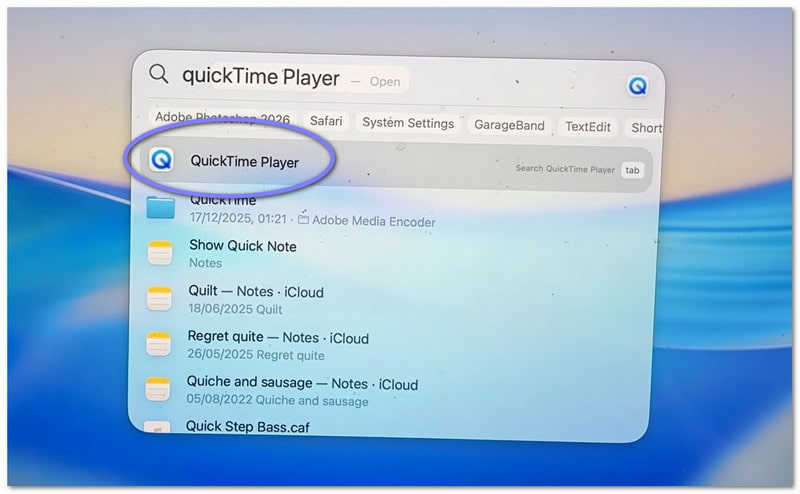
Bước 1Đầu tiên, hãy vào... Các ứng dụng Mở thư mục và chương trình. Nếu muốn nhanh hơn, hãy sử dụng tìm kiếm Spotlight. Nhấn Yêu cầu + Không giansau đó nhập Trình phát QuickTime. Nhấn đi vào để mở nó.
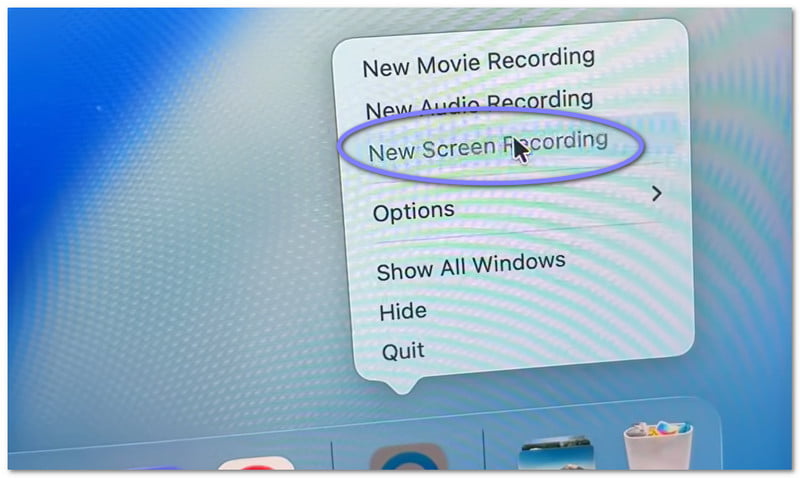
Bước 2Sau khi chương trình được mở, hãy di chuyển đến thanh menu phía trên. Nhấp chuột Tập tin, sau đó chọn Ghi màn hình mớiBạn sẽ thấy một màn hình ghi âm nhỏ hiện ra. Nếu muốn sử dụng phím tắt, hãy nhấn Yêu cầu + Điều khiển + NNó mở chương trình ghi màn hình ngay lập tức.
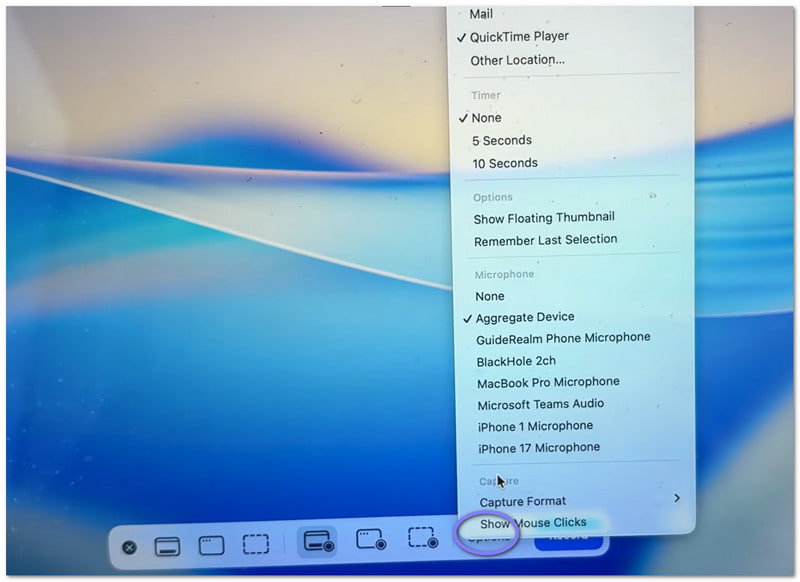
Bước 3Trước khi bắt đầu, hãy dành chút thời gian kiểm tra cài đặt. Nhấp vào Tùy chọn Nút này nằm trên bảng điều khiển ghi âm. Tại đây, bạn có thể chọn micro nếu muốn ghi âm giọng nói của mình. Bạn cũng có thể đặt hẹn giờ ngắn nếu cần thời gian chuẩn bị. Ngoài ra, hãy chọn nơi bạn muốn lưu tập tin sau khi ghi âm.
Bước 4Bây giờ, hãy quyết định xem bạn muốn ghi lại những gì. Nếu muốn ghi lại toàn bộ màn hình, chỉ cần nhấp chuột vào bất kỳ đâu trên màn hình. Nó sẽ ghi lại toàn bộ màn hình. Nếu chỉ cần ghi lại một phần, hãy chọn và kéo chuột để chọn vùng cần ghi.
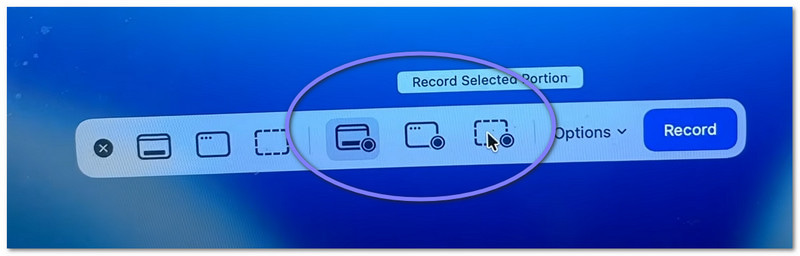
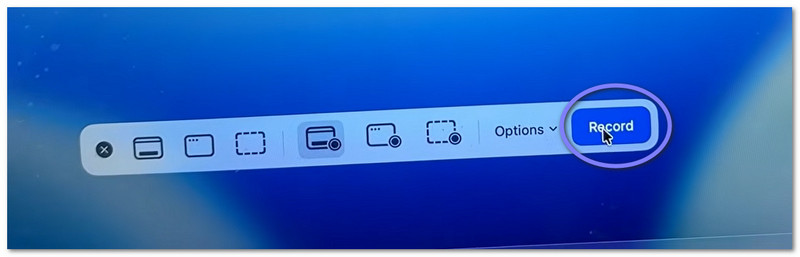
Bước 5Cuối cùng, nhấp vào Ghi Nhấn nút để bắt đầu. Sau một thời gian ngắn, quá trình ghi âm sẽ bắt đầu. Trong khi ghi âm, hãy làm việc của bạn khi cần thiết.
Phần 3. Cách dừng và lưu bản ghi QuickTime
Dưới đây, chúng tôi sẽ hướng dẫn bạn cách dừng ghi hình màn hình bằng QuickTime, cũng như lưu tập tin đúng cách:
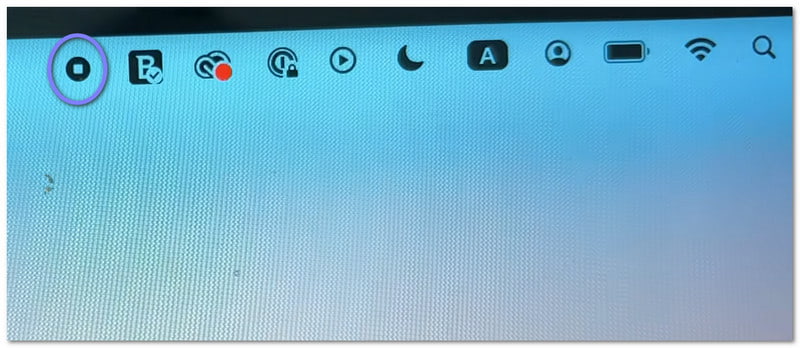
Bước 1Đầu tiên, di chuyển con trỏ chuột đến góc trên bên phải màn hình. Tìm kiếm... Ngừng lại nút. Nó trông giống như một hình tròn có một hình vuông nhỏ bên trong. Nhấp vào nó để kết thúc quá trình ghi âm. Ngoài ra, bạn cũng có thể nhấn Yêu cầu + Điều khiển + Thoát ra trên bàn phím của bạn.
Bước 2Sau khi bạn dừng lại, một bản xem trước nhỏ có thể xuất hiện ở góc màn hình. Đó là bản ghi của bạn. Bạn có thể nhấp vào đó ngay lập tức nếu muốn mở và xem lại video. Nếu bạn bỏ qua, tệp vẫn sẽ được lưu tự động.
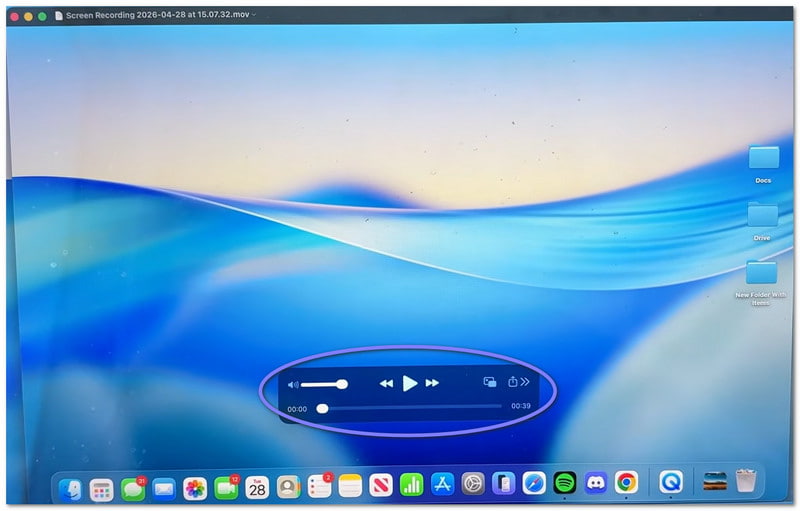
Bước 3Theo mặc định, video sẽ được lưu vào màn hình Desktop hoặc vị trí bạn chọn. Nếu bạn muốn tự lưu video, trước tiên hãy mở video. Sau đó, vào thanh menu và nhấp vào Tập tin, sau đó CứuSau đó, nhập tên cho tệp của bạn. Chọn nơi bạn muốn lưu tệp, rồi nhấp chuột. Cứu.
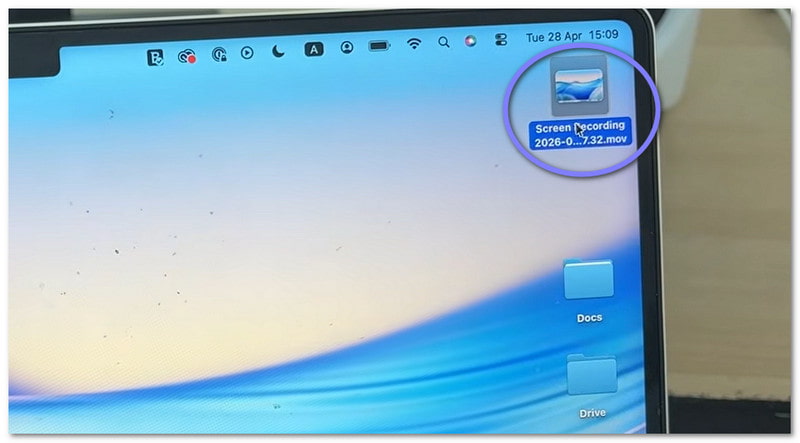
Bước 4Sau khi mở video, bạn có thể thực hiện các chỉnh sửa đơn giản. Ví dụ, bạn có thể cắt bỏ phần đầu hoặc cuối video. Bạn cũng có thể xoay video nếu cần. Ngoài ra, bạn có thể chia sẻ video trực tiếp từ ứng dụng.
Phần 4. Khắc phục sự cố
Đôi khi, việc quay màn hình không diễn ra như mong muốn. Những sự cố nhỏ có thể xảy ra. Điều tốt là hầu hết chúng đều dễ dàng khắc phục trong QuickTime Player.
1. "QuickTime Player gặp lỗi khi ghi lại màn hình của bạn."
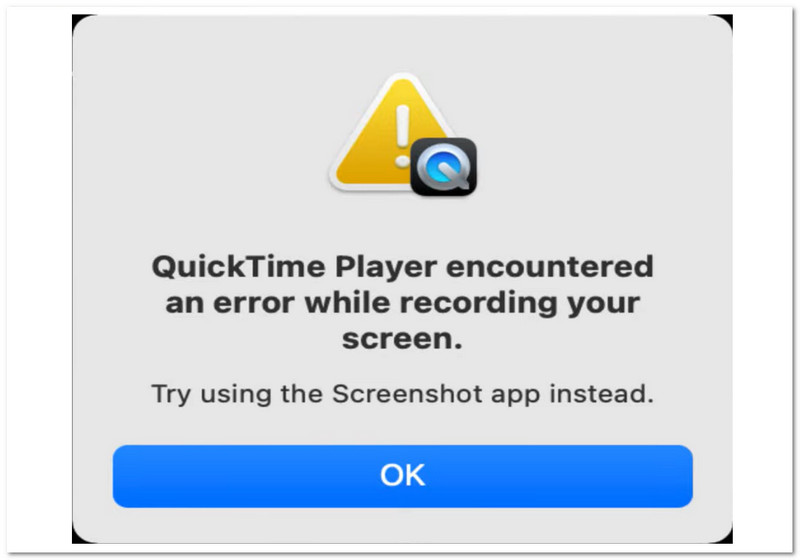
Có một vài nguyên nhân cơ bản khiến lỗi "QuickTime Player gặp lỗi khi ghi lại màn hình của bạn" xuất hiện.
Trước tiên, hãy kiểm tra vị trí lưu tệp. Nếu bạn đang lưu vào ổ cứng ngoài, hãy thử chuyển sang lưu vào màn hình Desktop. Việc này thường khắc phục được sự cố. Tiếp theo, hãy kiểm tra dung lượng lưu trữ. Nếu ổ đĩa của bạn đầy, quá trình ghi có thể thất bại.
Ngoài ra, hãy đảm bảo rằng quyền truy cập đã được bật. Truy cập vào... Cài đặt hệ thống > Quyền riêng tư và bảo mật > Ghi màn hìnhSau đó, kiểm tra xem QuickTime Player có được cho phép hay không.
2. Bản ghi QuickTime của tôi không có âm thanh!
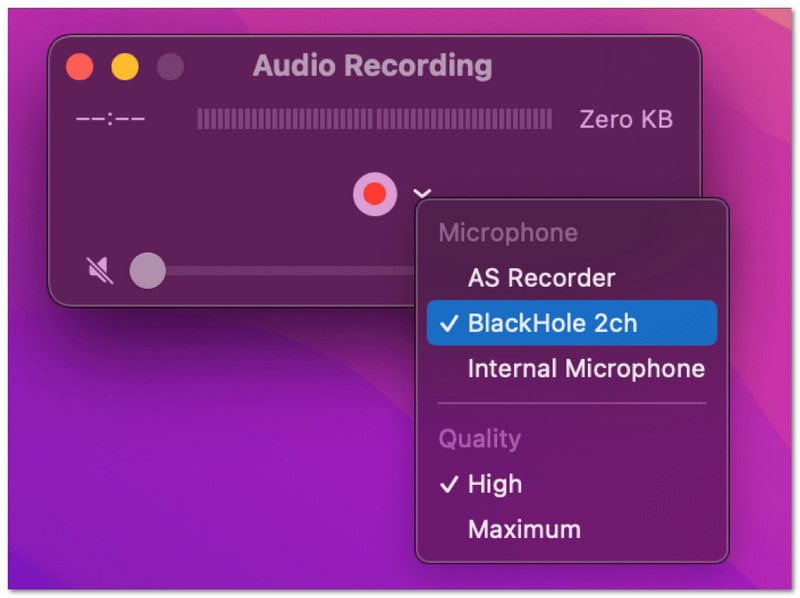
Nếu video của bạn không có âm thanh, hãy kiểm tra cài đặt trước khi quay. Mở... Tùy chọn Menu. Sau đó, chọn một micro, ví dụ như "Micro tích hợp". Nếu không chọn micro nào, âm thanh sẽ không được ghi lại. Ngoài ra, hãy kiểm tra micro trước để đảm bảo nó hoạt động.
3. QuickTime không ghi lại âm thanh hệ thống
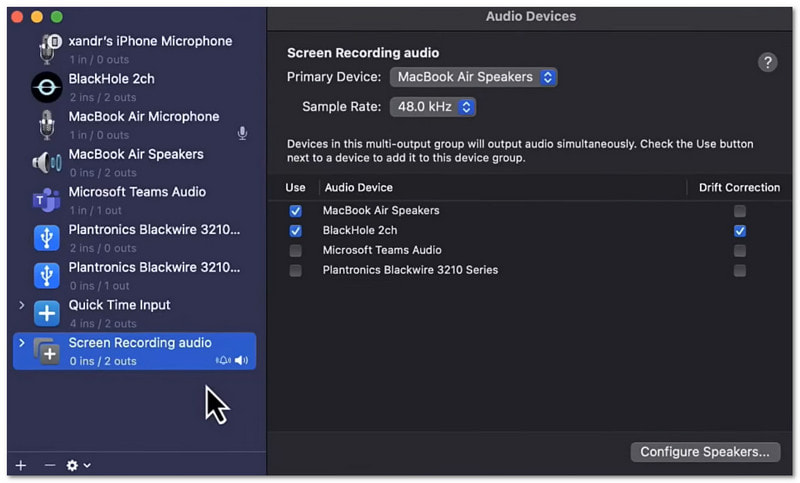
Điều này là bình thường. Theo mặc định, QuickTime Player không thể ghi âm thanh hệ thống. Đó là do các quy tắc của hệ điều hành Mac. Để ghi âm thanh hệ thống, bạn cần các công cụ bổ sung. Ví dụ, bạn có thể sử dụng Background Music hoặc Loopback.
Phần 5. Có phần mềm thay thế QuickTime nào cho Windows không?
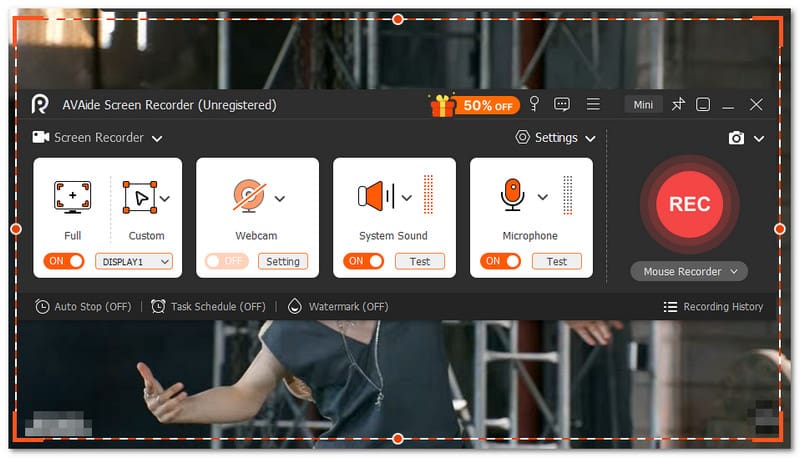
Vâng, có một phần mềm thay thế QuickTime để ghi lại màn hình trên Windows. Và đó không ai khác ngoài... AVAide Screen Recorder.

TẢI VỀ MIỄN PHÍ Đối với Windows 7 trở lên
 An toàn tải
TẢI VỀ MIỄN PHÍ Dành cho Mac OS X 10.13 trở lên
An toàn tảiVới công cụ này, bạn có thể dễ dàng chọn chế độ ghi toàn màn hình hoặc ghi màn hình tùy chỉnh. Bạn cũng có thể bật webcam, âm thanh hệ thống và micro. Bạn không cần thiết lập phức tạp. Bạn chỉ cần bật những gì mình cần chỉ với một cú nhấp chuột. Hơn nữa, nó cho phép bạn ghi video màn hình chất lượng cao mà không bị giật lag. Nó hỗ trợ độ phân giải lên đến 4K. Vì vậy, mọi thứ trông rõ nét và mượt mà.
Vì vậy, bất kể bạn ghi lại nội dung gì, chẳng hạn như hướng dẫn, trò chơi, cuộc họp hoặc video trực tuyến, thiết bị này đều có thể ghi lại với độ rõ nét tốt và hiệu suất ổn định.
Các tính năng chính:
- Bạn có thể thiết lập thời gian để công cụ tự động bắt đầu và dừng ghi hình.
- Bạn có thể ghi âm trong nhiều giờ liền mà không bị giật lag hay gặp vấn đề về hiệu năng.
- Bạn có thể xem lại bản ghi hình ngay sau đó và ghi hình lại nếu chưa hài lòng.
- Bạn có thể thêm văn bản, hình ảnh, bảng trắng và dấu tập trung trong khi ghi âm để làm nổi bật các điểm chính.
- Bạn có thể cắt, ghép, nén, nối, chuyển đổi video và điều chỉnh hoặc tăng âm lượng sau khi ghi hình.
Việc học tập diễn ra như thế nào? Hướng dẫn cách sử dụng QuickTime Player để quay màn hình.Thật dễ dàng phải không? Bạn có thể bắt đầu nhanh chóng và hoàn thành mà không gặp khó khăn gì.
Vấn đề duy nhất là nó có các tính năng hạn chế. Nó không có khả năng ghi âm mạnh mẽ như một máy ghi âm chuyên nghiệp. AVAide Screen Recorder.
Vì vậy, dù bạn là người dùng Windows hay Mac, bạn cũng có thể tin tưởng vào AVAide Screen Recorder. Hãy tải xuống ngay và tận hưởng các tính năng cũng như trải nghiệm ghi hình mượt mà của nó!
GIỚI THIỆU VỀ TÁC GIẢ

Ghi lại khoảnh khắc đẹp nhất với AVAide Screen Recorder. Screencast, tùy chỉnh và chia sẻ trong vài giây.