Bạn đang gặp khó khăn với việc quay video chất lượng thấp, hình ảnh thô kệch? Cho dù bạn đang thuyết trình báo cáo, đề xuất dự án hay chia sẻ video hướng dẫn nhanh, bạn có thể đang nghĩ đến việc cần một giải pháp khác. Công cụ ghi màn hình Loom Hiện tại, Loom vẫn đang được đánh giá cao, đó là lý do tại sao chúng ta sẽ xem xét nó trong bài viết này. Khám phá các tính năng, yêu cầu hệ thống, giá cả và tất cả các chi tiết bạn cần biết. Ngoài ra, chúng tôi sẽ giới thiệu cho bạn ba lựa chọn thay thế tốt nhất mà bạn có thể sử dụng bên cạnh Loom.
Phần 1. Loom là gì?
Loom Screen Recorder
Nền tảng: Máy tính để bàn, Chrome và thiết bị di động
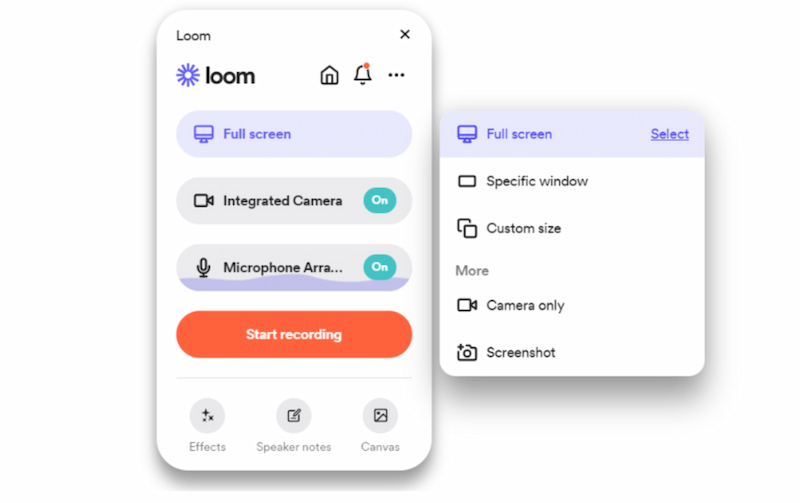
Loom là một công cụ được thiết kế để giúp người dùng nhanh chóng ghi lại màn hình ở chế độ toàn màn hình, vùng tùy chỉnh hoặc chế độ cửa sổ. Tất cả các chế độ này đều có thể bật hoặc tắt âm thanh hệ thống hoặc micro. Hơn thế nữa, công cụ này có giao diện đơn giản, người mới bắt đầu có thể bắt đầu ghi hình chỉ với một cú nhấp chuột.
Hơn thế nữa, công cụ này có một tính năng độc đáo của Loom, cho phép bạn mời và cộng tác với đồng đội để xem, chỉnh sửa và bình luận về các tệp đã ghi âm nhằm góp ý và đóng góp ý kiến.
- Ưu điểm
- Giao diện gọn gàng giúp sử dụng công cụ ngay lập tức.
- Nó hỗ trợ nhiều nền tảng.
- Công cụ tốt cho giao tiếp không đồng bộ.
- Độ chính xác cao của bản ghi âm do AI thực hiện.
- Nhược điểm
- Các tiện ích mở rộng của Chrome cung cấp ít tính năng hơn khi hỗ trợ webcam.
- Video đã ghi chỉ có thể được xem và chỉnh sửa trên trình duyệt của bạn.
Phán quyết
Độ dễ sử dụng: 4/5
Loom Screen Recorder cung cấp giao diện sạch sẽ và thân thiện với người mới bắt đầu. Điều này giúp quá trình ghi video diễn ra nhanh chóng. Tuy nhiên, một số thao tác chỉnh sửa nâng cao có thể cần thời gian để làm quen.
Đánh giá: 4/5
Công cụ này rất hào phóng khi cung cấp cho chúng ta gói miễn phí, trong khi các gói trả phí mang đến sự hợp tác tuyệt vời và hữu ích với các tính năng AI. Do đó, giá trị của nó tương xứng với giá cả.
Khả năng hợp tác: 4.5/5
Loom sở hữu nhiều tính năng tuyệt vời, mang đến trải nghiệm giao tiếp không đồng bộ ấn tượng. Bạn có thể dễ dàng bình luận video và chia sẻ liên kết, rất phù hợp cho môi trường làm việc từ xa.
Tích hợp AI: 3.5
Ở các gói trả phí, bạn có thể tận hưởng các tính năng tích hợp AI tuyệt vời như tự động phiên âm, tạo tóm tắt và đề xuất. Tuy nhiên, bạn có thể thấy rằng các tính năng AI mà nó cung cấp còn hạn chế nếu so sánh với các công cụ khác.
Đánh giá tổng thể: 4/5
Đây thực sự là một trong những công cụ ghi màn hình tốt nhất mà các chuyên gia, nhà giáo dục và nhân viên làm việc từ xa có thể sử dụng. Nó cung cấp quy trình ghi nhanh và chia sẻ liền mạch. Đồng thời, nó hỗ trợ bạn trong công việc nhờ các tính năng trí tuệ nhân tạo (AI).
Phần 2. Các tính năng chính
Tiếp theo, chúng ta sẽ cùng tìm hiểu các tính năng của phần mềm ghi video Loom. Hãy xem tất cả các khả năng của nó và cách người dùng Loom Screen Recording trên Mac, Windows và Chrome có thể dễ dàng ghi lại các cuộc họp, hướng dẫn và bài thuyết trình với chất lượng video và âm thanh cao.
Chế độ ghi
Ứng dụng Loom Screen Recording hỗ trợ ba chế độ ghi hình, cụ thể như sau:
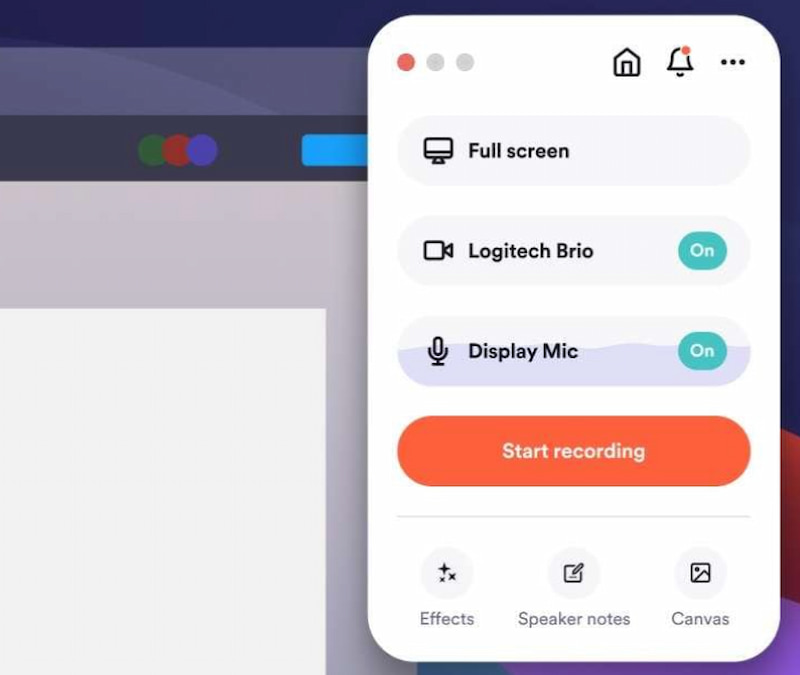
- Chế độ toàn màn hình: Ghi lại các bài thuyết trình, hướng dẫn hoặc video giới thiệu.
- Các cửa sổ cụ thể: Bạn có quyền lựa chọn những cửa sổ mà bạn muốn chụp.
- Kích thước tùy chỉnh: Bạn có thể thiết lập tỷ lệ khung hình cho quá trình quay màn hình của mình.
- Màn hình cộng với Camera: Ứng dụng này phổ biến để cập nhật thông tin nhóm và hướng dẫn nhân viên mới. Nó chụp toàn bộ màn hình, bao gồm cả bạn.
- Ghi âm bằng micro: Tính năng này có thể áp dụng cho mọi chế độ. Bạn chỉ cần bật nó lên.
Công cụ chỉnh sửa
Công cụ này cũng sở hữu các tính năng chỉnh sửa cơ bản:
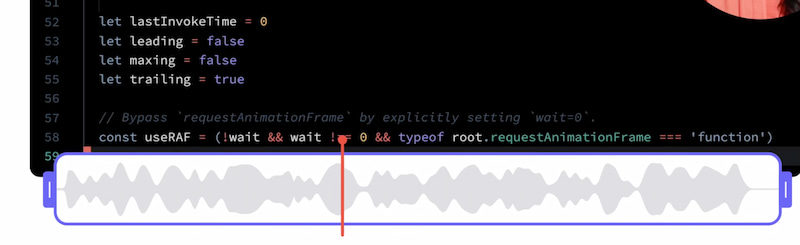
- Cắt tỉa video: Loại bỏ những phần không cần thiết trong video.
- Công cụ vẽ: Ghi chú trong quá trình ghi âm.
- Biểu tượng cảm xúc: Thêm sự tương tác nhẹ nhàng.
Các tính năng được hỗ trợ bởi trí tuệ nhân tạo
Nó cũng được tích hợp công nghệ AI để xử lý và xem lại bản ghi âm nhanh hơn.
- Transcripts AI: Tự động cung cấp cho bạn bản ghi và tóm tắt.
- Tính năng nổi bật của AI: Trích xuất các điểm chính từ các bản ghi âm dài.
Chia sẻ ngay lập tức
- Liên kết tức thì: Không cần tải xuống các tệp video.
- Hợp tác nhóm: Các thành viên trong nhóm có thể bình luận, bày tỏ cảm xúc và trả lời.
- Tích hợp: Hoạt động mượt mà với Slack và Gmail, được người dùng đánh giá cao.
Phần 3. Yêu cầu hệ thống
Ngoài ra, Loom Screen Recorder yêu cầu một số thiết bị đáp ứng yêu cầu hệ thống. Nếu thiếu các yếu tố này, công cụ có thể không hoạt động đúng cách. Do đó, tốt hơn hết là nên kiểm tra các yếu tố này trước khi sử dụng Loom Screen Recorder.
| Nền tảng | Hệ điều hành tối thiểu | CPU | RAM | Ghi chú |
| Máy tính để bàn | Windows 10 trở lên hoặc macOS 12.3 trở lên. | Intel Skylake (thế hệ thứ 6) hoặc Apple M1 | 8 GB (khuyến nghị 16 GB) | Hỗ trợ quay phim HD/4K trên các gói Business/Enterprise. |
| Trình duyệt | Tiện ích mở rộng Loom screen recorder dành cho Chrome yêu cầu trình duyệt Chrome hoặc Chromium phiên bản mới nhất. | N / A | 4 GB+ | • Tiện ích mở rộng Loom Screen Recorder chỉ hoạt động trên Chrome, Edge, Brave và Opera, với độ phân giải ghi hình ban đầu tối đa là 720p. • Các tiện ích mở rộng của Chrome không thể ghi lại hình ảnh từ camera trên các ứng dụng không phải Chrome, chẳng hạn như PowerPoint hoặc Keynote. |
| Điện thoại di động | iOS 15 trở lên hoặc Android 10 trở lên | N / A | N / A | Ứng dụng trên điện thoại di động cho phép ghi âm và chia sẻ, nhưng các công cụ chỉnh sửa bị hạn chế so với máy tính để bàn. |
Phần 4. Cách sử dụng khung dệt
Sau khi khám phá tất cả những tính năng tuyệt vời mà Loom Screen Recorder mang lại, hãy cùng tìm hiểu cách quay video bằng Loom một cách dễ dàng. Chúng tôi đã chuẩn bị một hướng dẫn để bạn có thể thực hiện điều đó một cách dễ dàng:
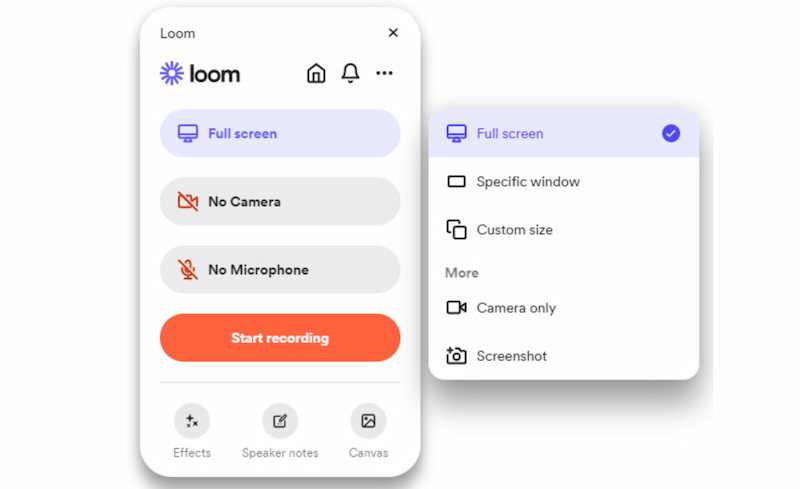
Bước 1Tải xuống phần mềm Loom Screen Recorder trên máy tính của bạn. Từ đó, hãy truy cập vào menu Bắt đầu. Tiếp theo, chọn chế độ ghi hình từ... Toàn màn hình, Cửa sổ cụ thể, hoặc là Kích thước tùy chỉnh.
Bước 2Tiếp theo, bạn có thể bật hoặc tắt Máy ảnh hoặc là Cái mic cờ rô để quay video. Sau đó, vui lòng tiếp tục bằng cách nhấp vào Bắt đầu ghi âm nút. Cứ làm việc của bạn trong khi quá trình ghi âm vẫn đang diễn ra.
Bước 3Nếu bạn đã hoàn tất, bạn có thể nhấp vào Ngừng lại Nhấn nút đó. Ứng dụng Loom sẽ đưa bạn đến cửa sổ xem trước. Từ đó, bạn sẽ có các tùy chọn để chỉnh sửa hoặc chia sẻ bản ghi của mình với người khác.
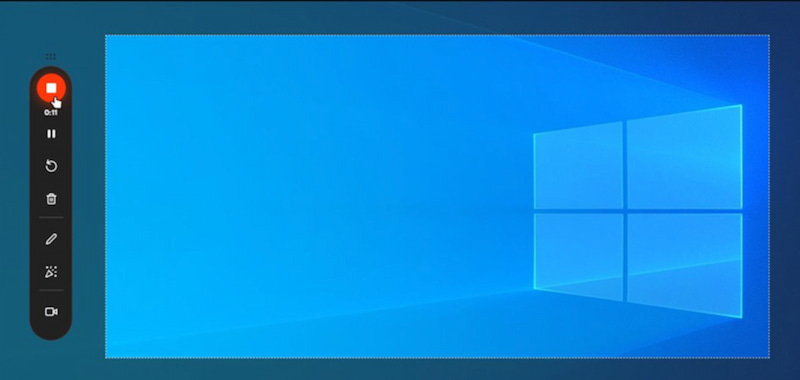
Như chúng ta có thể thấy, Loom Screen Recorder rất hiệu quả và dễ sử dụng. Nó cung cấp các tính năng cần thiết để thực hiện quá trình ghi hình. Về cơ bản, nó dùng để ghi hình và chỉnh sửa video ở mức tối thiểu.
Phần 5. Các gói giá
Hãy cho chúng tôi biết về các gói giá của Loom Screen Recorder. Xem các loại gói đăng ký từ phiên bản miễn phí đến một số phiên bản trả phí hữu ích cho các doanh nghiệp và mục đích khác nhau.
| Kế hoạch | Giá bán | Các tính năng chính |
| người mới bắt đầu | Miễn phí | • 25 video. • Giới hạn 5 phút. • Ghi âm cuộc họp không giới hạn. • Bình luận & phản hồi. |
| Việc kinh doanh | $18 mỗi người dùng mỗi tháng | • Video và thời gian không giới hạn. • HD/4K. • Loại bỏ logo thương hiệu. • Tải lên/tải xuống. |
| Kinh doanh + Trí tuệ nhân tạo | $24 mỗi người dùng mỗi tháng | • Tất cả các tính năng dành cho doanh nghiệp. • Tóm tắt và các chương về Trí tuệ nhân tạo. • Loại bỏ sự im lặng. |
| Doanh nghiệp | Phong tục | • Bảo mật nâng cao. • Quản trị viên. • Phân tích dữ liệu. • Sự tích hợp. |
Phần 6. Các giải pháp thay thế cho máy dệt
1. AVAide Screen Recorder
AVAide Screen Recorder Công cụ này cung cấp nhiều chế độ ghi màn hình, tính năng camera và chế độ ghi âm nội bộ và bên ngoài. Đây là công cụ ghi hình hoàn hảo cho người dùng phổ thông, đặc biệt là những người đang tìm kiếm sự đơn giản và khả năng ghi hình đáng tin cậy hàng ngày, bởi vì nó nhẹ, giá cả phải chăng và đi kèm với các công cụ chỉnh sửa cơ bản.

TẢI VỀ MIỄN PHÍ Đối với Windows 7 trở lên
 An toàn tải
TẢI VỀ MIỄN PHÍ Dành cho Mac OS X 10.13 trở lên
An toàn tải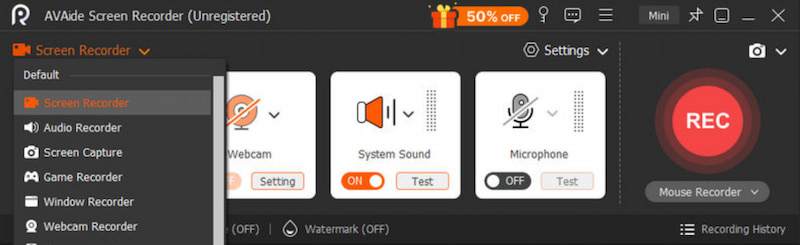
2. Phần mềm OBS Studio
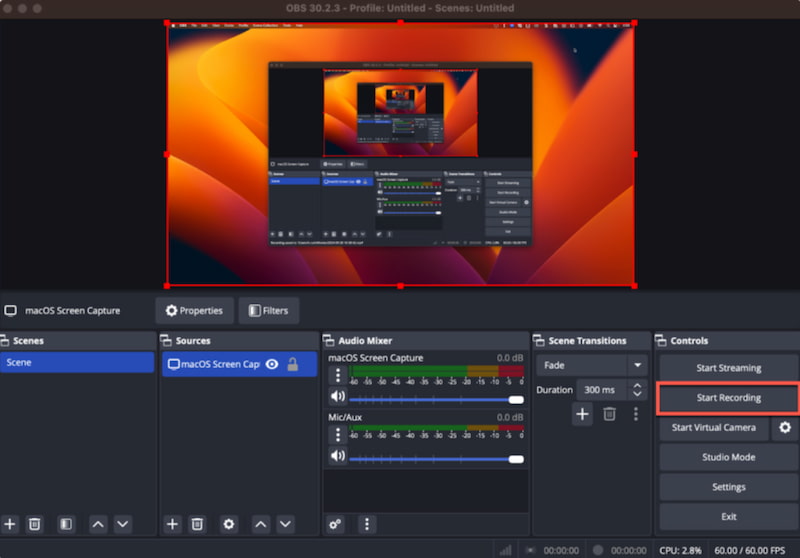
OBS Studio là một công cụ có thể ghi lại màn hình và âm thanh của bạn với các tính năng tùy chỉnh cao. Công cụ này cũng miễn phí và máy ghi màn hình mã nguồn mởNó lý tưởng cho game thủ, người phát sóng và các chuyên gia cần khả năng ghi hình linh hoạt cao vì nó cho phép phát trực tiếp phức tạp, nhiều nguồn khác nhau, lớp phủ và plugin.
3. Camtasia
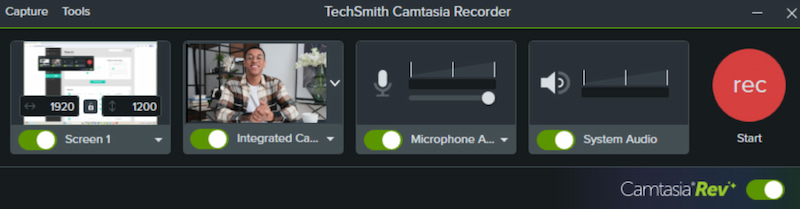
Camtasia kết hợp khả năng ghi hình chuyên nghiệp với các tính năng chỉnh sửa mạnh mẽ như câu hỏi trắc nghiệm, hiệu ứng và chuyển cảnh. Giáo viên và người đào tạo lựa chọn phần mềm này bất chấp giá thành cao vì chất lượng video tương tác cao và các tính năng sản xuất phong phú.
Phần 7. Khắc phục sự cố: Ứng dụng Loom Screen Recorder không hoạt động
Vấn đề 1: Tiện ích mở rộng Chrome không ghi lại
- Hãy đảm bảo bạn đang sử dụng phiên bản Chrome mới nhất.
- Kiểm tra quyền truy cập camera, micro và màn hình cho tiện ích mở rộng Loom.
- Tắt mọi tiện ích mở rộng gây xung đột.
Vấn đề 2: Các tính năng AI không hiển thị hoặc video không xử lý được.
- Kiểm tra kết nối internet ổn định.
- Hãy xóa cookie và bộ nhớ đệm trong trình duyệt của bạn.
- Hãy kiểm tra tư cách thành viên của bạn để xem có gói Business + AI hay không.
- Hãy làm mới quá trình đồng bộ tài khoản bằng cách đăng xuất rồi đăng nhập lại.
Vấn đề 3: Chất lượng video kém
- Độ phân giải của các bản ghi âm trên gói Starter miễn phí bị hạn chế.
- Để quay video HD/4K, hãy chuyển sang ứng dụng dành cho máy tính để bàn.
- Hãy đảm bảo màn hình và webcam của bạn có thể xử lý độ phân giải cao hơn.
Từ đây chúng ta có thể kết luận rằng Loom Screen Recorder Đây là một công cụ tuyệt vời cung cấp các tính năng cần thiết để ghi lại màn hình của bạn. Nhiều người dùng yêu thích các chế độ ghi hình đa dạng, từ toàn màn hình đến kích thước tùy chỉnh. Tuy nhiên, phiên bản miễn phí có thể khá hạn chế đối với bạn. May mắn thay, chúng tôi có những lựa chọn thay thế tuyệt vời khác có thể cung cấp nhiều tính năng hơn. ghi lại màn hình và âm thanh của bạnNgay cả khi chuyển đổi miễn phí. Hãy thử công cụ AVAide Screen Recorder để có quy trình ghi màn hình hiệu quả và nhanh chóng hơn nhiều.
GIỚI THIỆU VỀ TÁC GIẢ

Ghi lại các hoạt động trên màn hình bằng âm thanh, cuộc họp trực tuyến, video trò chơi, nhạc, webcam, v.v.