Hãy tưởng tượng bạn đang chuyển một lượng lớn ảnh hoặc tài liệu vào máy tính, nhưng lại phát hiện ra trường "Ngày tạo" hoặc "Ngày sửa đổi" bị xáo trộn hoàn toàn. Cho dù đó là lỗi sao lưu hay sự không khớp múi giờ, dấu thời gian tệp không chính xác có thể phá hỏng việc lưu trữ kỹ thuật số của bạn và làm rối loạn quy trình làm việc.
May mắn thay, bạn không cần phải sống chung với sự bừa bộn đó. Một người chuyên nghiệp đổi ngày tập tin Phần mềm này cho phép bạn kiểm soát tuyệt đối siêu dữ liệu của mình, cho phép bạn chỉnh sửa hàng loạt dấu thời gian của tệp chỉ với vài cú nhấp chuột. Trong hướng dẫn này, chúng tôi đã tổng hợp 5 phần mềm thay đổi ngày tháng tệp tốt nhất cho Windows và Mac để giúp bạn lấy lại quyền kiểm soát việc tổ chức kỹ thuật số của mình. Cùng bắt đầu nào!
Phần 1. Đánh giá tổng quan 5 phần mềm thay đổi ngày tháng tập tin tốt nhất
Phần này sẽ giới thiệu công cụ thay đổi ngày tháng tập tin tốt nhất mà bạn có thể tin dùng. Hãy tiếp tục đọc để tìm hiểu cách những công cụ này có thể giúp bạn hoàn thành công việc!
1. AVAide Video Converter
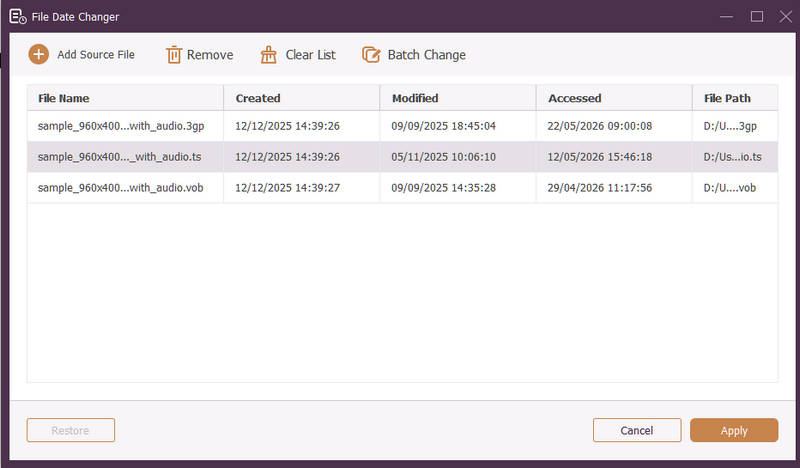
Có sẵn cho cả Windows và Mac. AVAide Video Converter Đây là một nền tảng đa năng được trang bị công cụ thay đổi ngày tháng tệp mạnh mẽ, tích hợp sẵn. Tính năng trực quan này cho phép bạn dễ dàng chỉnh sửa chi tiết dấu thời gian toàn diện, bao gồm ngày tạo, ngày sửa đổi và ngày truy cập lần cuối.
- Xử lý mượt mà nhiều định dạng phương tiện khác nhau bao gồm video, âm thanh và hình ảnh.
- Nhập và cập nhật nhiều tệp cùng lúc để tiết kiệm thời gian và tối ưu hóa quy trình làm việc của bạn.
- Ứng dụng có giao diện sạch sẽ, thân thiện với người dùng, giúp bạn thay đổi ngày tháng tệp tin một cách nhanh chóng.
- Giữ cho tệp tin của bạn liền mạch ngay cả khi ngày tháng thay đổi.
2. Thay đổi ngày tệp
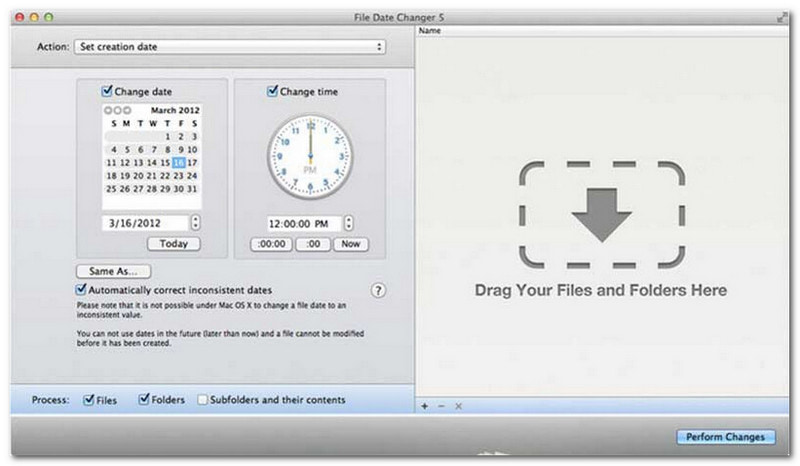
File Date Changer đúng như tên gọi của nó, cung cấp giải pháp chuyên dụng để thay đổi ngày tạo tệp. Nó có thiết kế đơn giản, dễ sử dụng cho người dùng ở mọi trình độ. Nó hỗ trợ chỉnh sửa cả ngày tạo và ngày sửa đổi. Cho dù bạn cần thay đổi ngày cho từng tệp riêng lẻ hay toàn bộ thư mục, phần mềm thay đổi ngày tạo tệp trên Mac này sẽ đơn giản hóa quy trình với chức năng hiệu quả của nó.
Mặc dù File Date Changer là một công cụ trả phí, giá trị của nó phụ thuộc vào nhu cầu cụ thể của bạn về chi phí và chức năng. Một số người dùng có thể thấy bộ tính năng của nó khá cơ bản so với giá cả. Tuy nhiên, đối với những người ưu tiên hiệu quả và quy trình làm việc liền mạch, nó vẫn là một khoản đầu tư đáng tin cậy và xứng đáng cho một công cụ thay đổi ngày tháng tệp tin.
Các tính năng chính của File Date Changer:
- Chỉnh sửa ngày giờ tạo, sửa đổi và truy cập lần cuối cho nhiều tệp tin.
- Hỗ trợ cộng hoặc trừ các ngày, giờ, phút hoặc giây cụ thể.
- Thay đổi thuộc tính tệp như Chỉ đọc hoặc Ẩn, và cập nhật siêu dữ liệu EXIF.
- Công cụ thay đổi ngày tháng tập tin hoạt động tức thì và cung cấp giao diện rõ ràng.
3. ExifTool
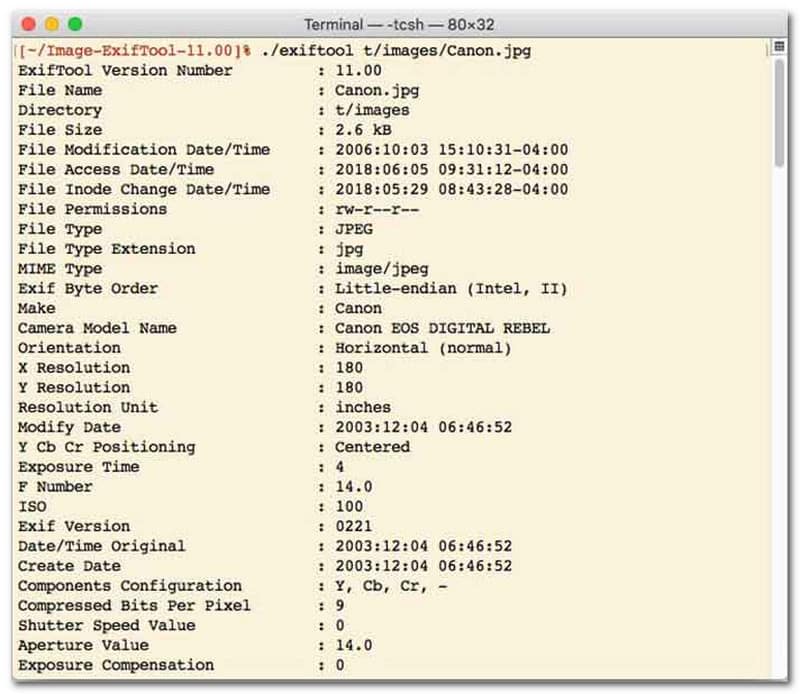
Đối với những người dùng thích sử dụng công cụ thay đổi ngày tháng tệp tin với giao diện dòng lệnh (CLI), ExifTool là tiêu chuẩn vàng cho việc quản lý tệp tin cực kỳ chính xác. Công cụ thay đổi ngày tháng tệp tin đa năng này hỗ trợ rất nhiều loại tệp tin, bao gồm ảnh, video, tài liệu và âm thanh. Không chỉ đơn thuần là chỉnh sửa ngày tạo và ngày sửa đổi, ExifTool còn cho phép bạn sao chép siêu dữ liệu dấu thời gian từ tệp tin này sang tệp tin khác một cách liền mạch, đảm bảo toàn bộ thư viện phương tiện của bạn luôn được đồng bộ hóa hoàn hảo mà không gặp rắc rối.
Các tính năng chính của ExifTool:
- Đọc và chỉnh sửa dấu thời gian của hệ thống tệp một cách liền mạch.
- Sao chép ngày tháng giữa các lớp siêu dữ liệu hoàn toàn khác nhau.
- Hỗ trợ các phép toán ngày giờ nâng cao giúp bạn thay đổi ngày tháng của tệp tin hàng loạt.
- Trích xuất thông tin ngày tháng và phương tiện từ tất cả các loại tệp.
4. Trình thay đổi tệp hàng loạt
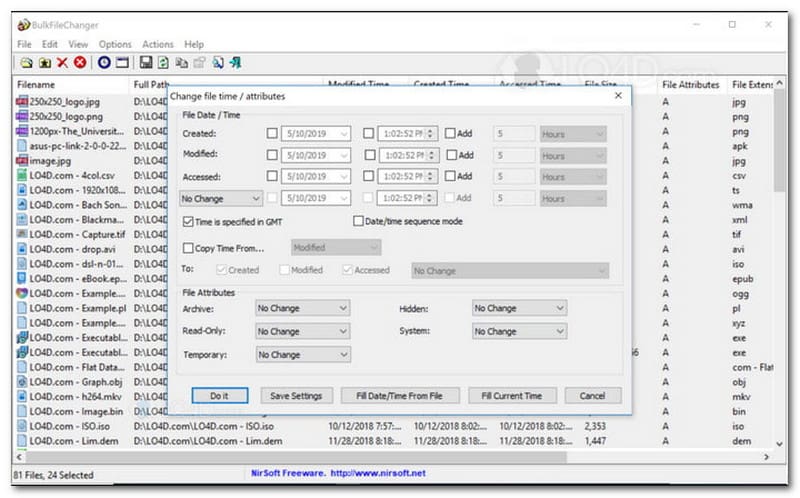
BulkFileChanger là một tiện ích thay đổi ngày tháng tệp tin nhẹ, hiệu suất cao được thiết kế để quản lý dấu thời gian tệp tin dễ dàng trên Windows. Nó cho phép người dùng nhanh chóng sửa đổi nhiều thuộc tính ngày và giờ khác nhau, bao gồm thời gian tạo, sửa đổi và truy cập lần cuối, trên hầu hết mọi loại tệp tin, từ tài liệu và hình ảnh đến video. Mặc dù tính linh hoạt đa định dạng và tốc độ của nó làm cho nó trở thành một công cụ thay đổi ngày tháng tệp tin tuyệt vời để sắp xếp các kho lưu trữ kỹ thuật số, nhưng nó chỉ khả dụng trên hệ điều hành Windows, có nghĩa là người dùng macOS và Linux sẽ cần tìm kiếm các giải pháp khác.
Các tính năng chính của BulkFileChanger:
- Chỉnh sửa ngày tạo, ngày sửa đổi và ngày truy cập lần cuối của tệp.
- Xử lý mượt mà hầu hết các loại tệp, bao gồm tài liệu, hình ảnh và video.
- Sản phẩm có thiết kế gọn nhẹ, cho phép cập nhật siêu dữ liệu hàng loạt cực nhanh.
- Thêm hoặc xóa các ngày, giờ, phút và giây cụ thể.
5. Thuộc tính ma thuật
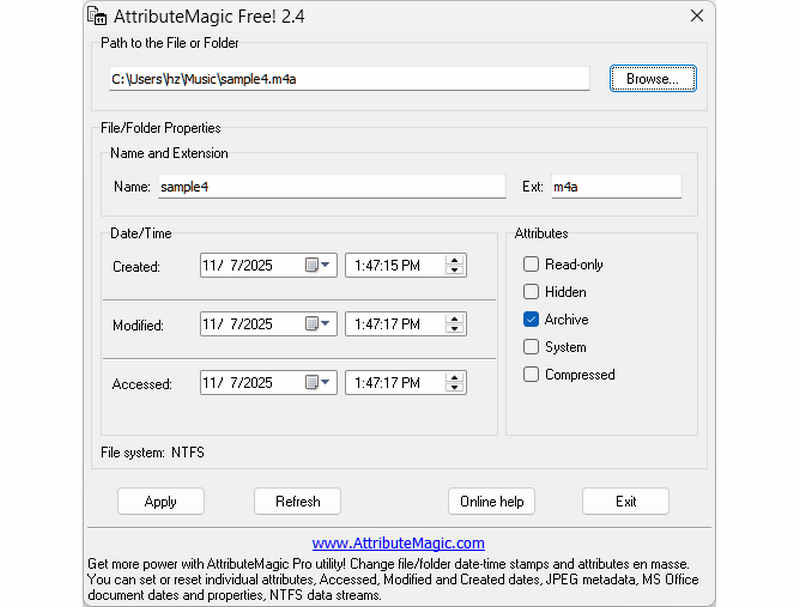
AttributeMagic không chỉ đơn thuần là công cụ thay đổi ngày tháng tệp tin mà còn cung cấp giải pháp tiên tiến để quản lý cả thuộc tính thư mục và tệp tin. Tiện ích toàn diện này cho phép chỉnh sửa dấu thời gian chính xác, giúp người dùng dễ dàng ghi đè ngày tạo, ngày sửa đổi và ngày truy cập lần cuối. Bên cạnh khả năng thay đổi ngày tháng tệp tin chuyên dụng, AttributeMagic còn cung cấp khả năng tùy chỉnh sâu rộng các thuộc tính hệ thống tệp tin để phù hợp với nhu cầu lưu trữ cụ thể của bạn. Trong khi phiên bản miễn phí cung cấp chức năng chỉnh sửa dấu thời gian cơ bản, nâng cấp lên phiên bản cao cấp sẽ mở khóa khả năng kiểm soát siêu dữ liệu nâng cao và các tính năng tự động hóa mạnh mẽ.
Các tính năng chính của AttributeMagic:
- Chỉnh sửa hoặc che giấu thời gian tạo, thời gian sửa đổi và thời gian truy cập lần cuối.
- Thay đổi ngày tháng cho từng tệp tin riêng lẻ hoặc toàn bộ thư mục.
- Dễ dàng tăng, giảm hoặc dịch chuyển dấu thời gian của tệp tin về phía trước hoặc phía sau.
- Thiết lập, đặt lại hoặc đảo ngược các thuộc tính cốt lõi của hệ thống tệp như Chỉ đọc, Ẩn và Hệ thống.
Phần 2. So sánh 5 phần mềm thay đổi ngày tháng tập tin
| Sản phẩm | Nền tảng được hỗ trợ | Giao diện người dùng | Chỉnh sửa hàng loạt | Các tính năng bổ sung |
| AVAide Video Converter | Windows và macOS | Hiện đại, gọn gàng và mượt mà | Có (Siêu nhanh) | Bộ phần mềm đầy đủ: Chuyển đổi video 8K, sao chép DVD, chỉnh sửa siêu dữ liệu, tạo MV/trình chiếu. |
| Phần mềm thay đổi ngày tháng tập tin (NirSoft) | Chỉ dành cho máy Mac | Lỗi thời (Giao diện web/UI cũ) | Giới hạn | Không có (Chỉ dùng cho một mục đích) |
| Công cụ Exif | Windows, macOS, Linux | Chỉ sử dụng dòng lệnh (không có giao diện đồ họa) | Có (Yêu cầu kịch bản phức tạp) | Chỉ đọc/ghi siêu dữ liệu |
| BulkFileChanger | Chỉ dành cho Windows | Tiện ích Windows cổ điển | Đúng | Điều chỉnh thuộc tính tệp cơ bản trong Windows |
| AttributeMagic | Chỉ dành cho Windows | Cứng nhắc / Phức tạp | Đúng | Chỉ quản lý cờ hệ thống tập tin |
Phần 3. Cách thay đổi dữ liệu tập tin trong AVAide Video Converter
Bạn đã bao giờ cần thay đổi ngày tạo tệp để sắp xếp các tệp kỹ thuật số của mình tốt hơn chưa? Bạn có thể làm điều đó bằng cách sử dụng AVAide Video Converter! Hãy tiếp tục đọc để tìm hiểu cách thay đổi ngày được tạo trên tệp nhằm giúp bạn quản lý tệp của mình.
Bước 1Tải xuống và cài đặt AVAide Video Converter từ trang web chính thức để có quyền truy cập đầy đủ.

TẢI VỀ MIỄN PHÍ Đối với Windows 7 trở lên
 An toàn tải
TẢI VỀ MIỄN PHÍ Dành cho Mac OS X 10.13 trở lên
An toàn tảiBước 1Mở chương trình trên máy tính của bạn để bắt đầu. Đi đến Hộp công cụ tab để truy cập một số tính năng. Cuộn chuột xuống, tìm Công cụ thay đổi ngày của tệp trong số các tùy chọn và nhấp vào nó. Đây là tính năng bạn sẽ sử dụng để thay đổi chi tiết ngày của tệp.
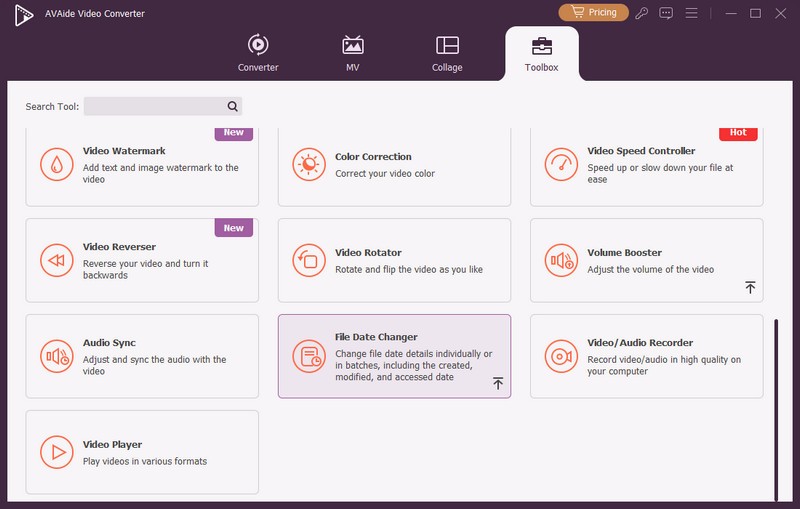
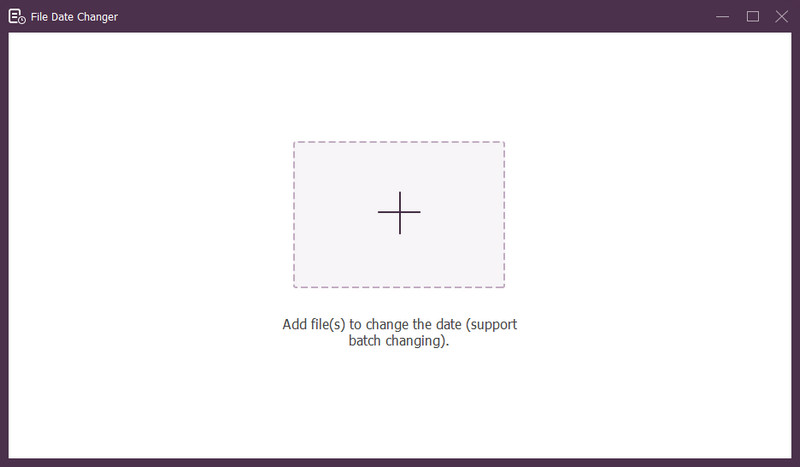
Bước 3Nhấn nút (+) để nhập tập tin. Đây có thể là tập tin âm thanh, hình ảnh và âm thanh. Bạn có thể nhập nhiều tệp để thay đổi chi tiết tệp.
Bước 4Bạn có thể bắt đầu thay đổi ngày của chúng sau khi tất cả các tệp được nhập. Bạn có thể thay đổi ngày tạo, sửa đổi và truy cập tương ứng. Để làm điều đó, hãy nhấp vào mục đó cho đến khi Mũi tên xuất hiện, biểu thị để chỉnh sửa.
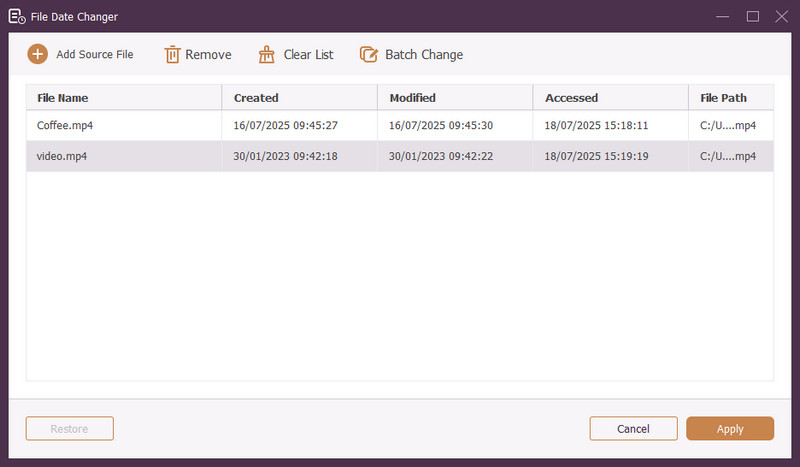
Bước 5Sau khi chỉnh sửa tất cả ngày tháng của tập tin, nhấp vào Áp dụng nút để xác nhận những thay đổi. Sau khi áp dụng các thay đổi, hãy xem lại chi tiết dữ liệu tệp đã cập nhật để đảm bảo độ chính xác.
Phần 4. Câu hỏi thường gặp về Best File Date Changer
Làm cách nào tôi có thể xem thông tin ngày của một tập tin?
Nếu muốn kiểm tra thời điểm file được tạo hoặc sửa đổi lần cuối, bạn có thể thực hiện ngay trên máy tính của mình. Vui lòng tìm tệp, nhấp chuột phải vào tệp và chọn Thuộc tính. Sau đó, bạn có thể xem tất cả các chi tiết về tập tin. Chúng bao gồm ngày tạo và sửa đổi.
Có ai biết khi nào tôi thay đổi ngày của tập tin không?
KHÔNG! Việc thay đổi ngày của tập tin sẽ không để lại bất kỳ dấu vết nào. Vì vậy, sẽ không ai biết khi nào bạn thực hiện thay đổi.
Lý do tại sao ngày và giờ biến mất khỏi tập tin là gì?
Có một số lý do khiến ngày và giờ có thể biến mất khỏi tệp. Điều này có thể xảy ra khi bạn tải xuống một tệp và mất một số thông tin do kết nối Internet kém. Đôi khi nguyên nhân là do trang web nơi bạn đã tải tệp xuống.
Tôi có thể truy xuất ngày tạo đã sửa đổi của tệp không?
Đúng! Bạn có thể khôi phục ngày ban đầu bằng cách đặt thủ công về giá trị ban đầu. Đó là cách duy nhất để lấy lại ngày tạo tập tin.
Việc thay đổi ngày giờ của tệp có ảnh hưởng đến tính toàn vẹn hoặc nội dung của tệp không?
KHÔNG! Việc thay đổi ngày và giờ của tệp sẽ không ảnh hưởng đến nội dung hoặc tính toàn vẹn. Nó chỉ thay đổi siêu dữ liệu, như ngày tạo và sửa đổi. Nó để lại tập tin thực tế không thay đổi.
Ở đó bạn có nó! Bạn đã từng học cách thay đổi ngày tạo trên một tập tin, có thể hữu ích vì nhiều lý do. Để có trải nghiệm hợp lý hơn và thân thiện với người mới bắt đầu, hãy cân nhắc sử dụng AVAide Video Converter làm công cụ thay đổi ngày truy cập tệp của bạn. Đó là sự lựa chọn tốt nhất để quản lý các tập tin kỹ thuật số của bạn. Hãy thử và chia sẻ suy nghĩ của bạn bên dưới!
GIỚI THIỆU VỀ TÁC GIẢ

Bộ chuyển đổi phương tiện toàn diện nhất để chuyển đổi video và âm thanh mà không làm giảm chất lượng.
Chỉnh sửa video
- Video nâng cấp AI
- Xóa hình mờ khỏi video
- Xóa văn bản khỏi video
- Giảm tỷ lệ 4K xuống 1080p / 720p
- Loại bỏ tiếng ồn nền khỏi video
- Trình chỉnh sửa siêu dữ liệu MP4
- Làm sắc nét chất lượng video
- Đảo ngược video
- Sửa video chất lượng kém
- Xóa siêu dữ liệu khỏi video/âm thanh
- Video Camera trước Gương/Không Gương