Bilgisayarınızda adımları göstermeniz, kaydetmeniz, bir hata bildirmeniz veya hızlı bir eğitim videosu hazırlamanız mı gerekiyor? Günlük kullanıcılar için yüzlerce, hatta binlerce Windows kaydı oluşturdum ve işletim sistemine entegre edilmiş basit araçlara odaklanıyorum. Bu kılavuz size tam olarak bunu gösteriyor. Windows'ta ekran kaydı nasıl yapılır? Hem varsayılan araçları hem de kayıt ihtiyaçlarınız için kapsamlı özellikler sunan üçüncü taraf araçları kullanarak, net adımlarla net ve paylaşılabilir videolar üretebilirsiniz.
- En İyi Ekran Kayıt Yöntemlerine Genel Bakış
- Yöntem 1: Xbox Oyun Çubuğu (Hızlı ve Kolay Seçenek)
- Yöntem 2: Ekran Alıntısı Aracı (Windows 11)
- Yöntem 3: AVAide Ekran Kaydedici
- Yöntem 4: Bandicam
- Yöntem 5: OBS Studio
- Yöntem 6: ScreenRec
- Yöntem 7: Dokuma Tezgahı
- Yöntem 8: ShareX
- Yöntem 9: Harika Ekran Görüntüsü
- Klavye Kısayolları Sayfası
- Sorun Giderme: Sık Karşılaşılan Ekran Kaydı Sorunları
En İyi Ekran Kayıt Yöntemlerine Genel Bakış
Yeni Başlayanlar İçin En İyi Seçenek: Xbox Oyun Çubuğu (Windows'a entegre, tek tıklamayla hızlı kayıt) ve Ekran Alıntısı Araçları (Seçili alanı basit ses ayarlarıyla kaydetme)
Profesyoneller İçin En İyi Ücretsiz Kullanım Seçenekleri: OBS Studio (sınırsız kayıt, çok kaynaklı sahneler, canlı yayın, açık kaynak) ve ShareX (ücretsiz, bölge yakalama, özelleştirilebilir iş akışı).
Filigranlı En İyi Ücretsiz Ses Kaydedici: Bandicam (hafif, yüksek kaliteli kayıt, ses ve bölge kısıtlamaları olan bir program)
En İyi Ücretli Hepsi Bir Arada Kayıt Yazılımı (Genel Kayıt İçin): AVAide Ekran Kaydedici (basit ekran arayüzü, kayıt zamanlaması, web kamerası yerleşimi, kilitleme özelliği, dahili düzenleyici ve kayıt sırasında açıklama ekleme)
Çevrimiçi Video Kaydı İçin En İyisi: Loom (bulut tabanlı kayıt, bağlantı paylaşımı, yorum ve tepkiler, Windows uyumlu, web) ve Awesome Screenshot (tarayıcı tabanlı uygulama, işaretleme ve hızlı düzenlemelerle ekran görüntüsü yakalama)
Yöntem 1: Xbox Oyun Çubuğu (Hızlı ve Kolay Seçenek)
Windows ile uyumlu, kurulum gerektirmeyen bir uygulama veya oyun yakalama çözümü mü arıyorsunuz? Xbox Game Bar, Windows 10 ve 11'in yerleşik bir özelliğidir ve Xbox'tan ses ve mikrofon yakalama ve tek tıklamayla MP4 dosyası kaydetme özelliğiyle önceden yüklenmiştir. Ekranınızı nasıl kaydedeceğinizi öğrenin: Uygulamanızı açın, Win + G tuşlarına basın ve kaydet'e basın. Aşağıdaki işlem, kurulumu, ses ayarlarını ve kayıt konumunu açıklamaktadır.
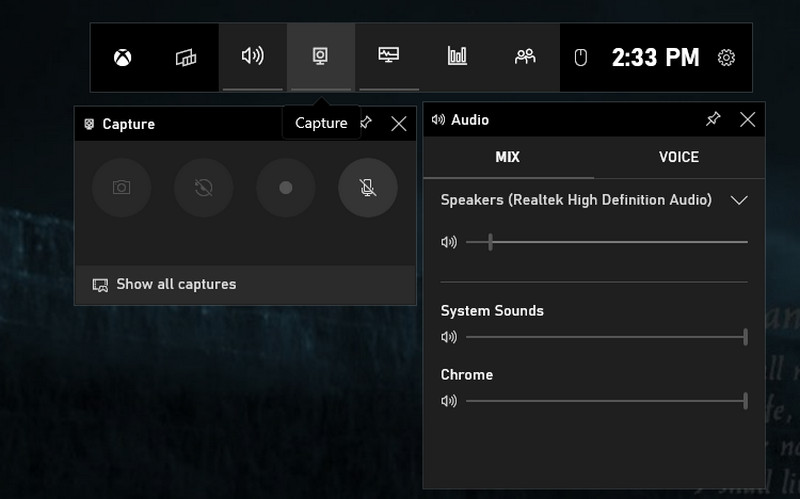
Aşama 1I vur pencereler düğme ve G Xbox Oyun Çubuğunu açmak için kullanılan tuş.
Adım 2Ardından, onaylamak ve devam etmek için kutuyu işaretleyin. Burada bulunan seçeneklerle kaydı ihtiyaçlarınıza göre ayarlayın. Artık kayda başlamaya hazırsınız, başlatmak için kırmızı nokta düğmesine tıklayın veya basabilirsiniz. Windows + Alt + R.
Aşama 3Ekranınızda kayıt yakalama durumu görünecektir. İşleminiz bittiğinde, üzerine tıklayın. kare buton.
Yöntem 2: Ekran Alıntısı Aracı (Windows 11)
Windows 11'de, Ekran alıntısı aracı Ekranınızın herhangi bir alanını yakalamanın basit ve yerleşik bir yoludur. Sistem sesini ve mikrofonu kaydeder, bir bölge veya tam ekran seçmenize olanak tanır ve doğrudan MP4 olarak kaydeder. Yeni bir yazılım yüklemeden ekran kaydı nasıl yapılır diye merak ediyorsanız, bu araç en hızlı yerel seçenektir. Aşağıdaki adımlar, nasıl açılacağını, kayda nasıl başlanacağını ve klibinizin nasıl kaydedileceğini göstermektedir.
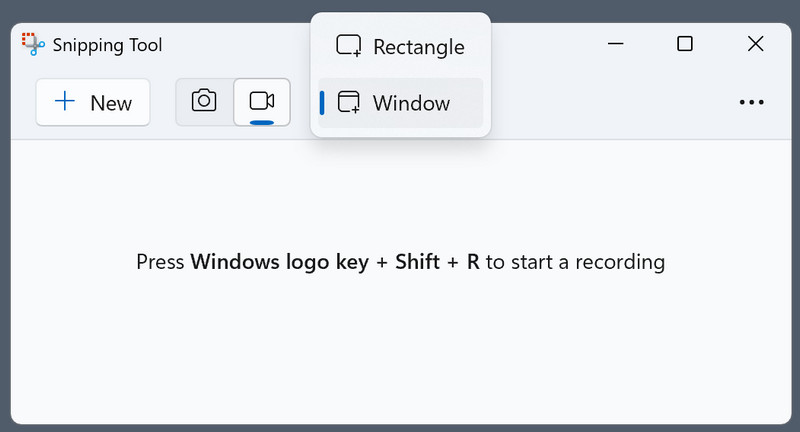
Aşama 1Açmak için klavyenizdeki Windows düğmesine tıklayın ve Windows'ta bulunan Ekran Alıntısı Aracı'nı yazın.
Adım 2Yüzen arayüzünde, tıklayın kamera Ekran kaydı özelliğini kullanmak istediğiniz için düğmeye tıklayın. Ardından, kaydedilmesini istediğiniz alanı bir dikdörtgen çizerek ayarlayın.
Aşama 3Ardından tıklayın BaşlangıçKaydı tamamladıktan sonra tıklayın. Durmak kaydetmek için düğmesine basın.
Yöntem 3: AVAide Ekran Kaydedici
AVAide Ekran Kaydedici Bu, düzenli bir uygulama, zamanlanmış kayıt, web kamerası yerleşimi, açıklama ekleme ve entegre bir düzenleyici isteyenler için tasarlanmış ücretli bir Windows uygulamasıdır. Sisteminizin sesini ve mikrofonunu kaydeder, bölgesel veya tam ekran kayıt yapar ve filigran olmadan yaygın formatlarda dışa aktarır. Profesyonel özellikler ve basit bir iş akışı ile ekran kaydı nasıl yapılır arıyorsanız, bu uygulama eğitim ve öğretim içerikleri için tutarlı kalite sunar. Aşağıdaki adımlar kurulumu, ses ayarlarını, kayıt ayarlarını ve dışa aktarma seçeneklerini göstermektedir.
Aşama 1Öncelikle, buradaki ilgili butona tıklayarak ekran kaydediciyi Windows 10/11'inize indirip kurmanız gerekiyor. Ardından, sonraki adımlara geçin.

ÜCRETSİZ İNDİR Windows 7 veya üzeri için
 Güvenli indirme
ÜCRETSİZ İNDİR Mac OS X 10.13 veya üzeri için
Güvenli indirmeAdım 2Ana arayüzde, seçin Ekran kaydedicisiBurada, kayıt alanını düzgün bir şekilde ayarlamanız, web kameranız aracılığıyla yüzünüzü eklemeniz, harici mikrofonunuzdan ses ve bilgisayarınızda oluşturulan sistem sesini eklemeniz gerekiyor. Ardından, tıklayın. KAYIT Kaydı başlatmak için düğmesine basın.
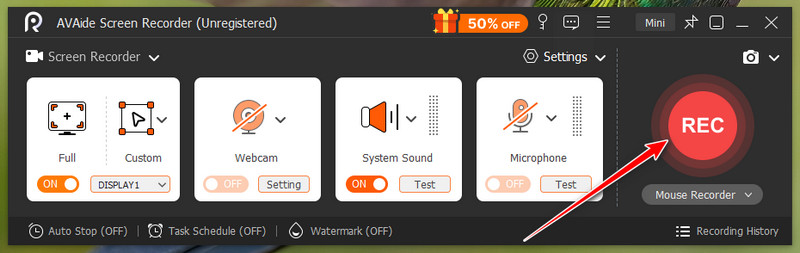
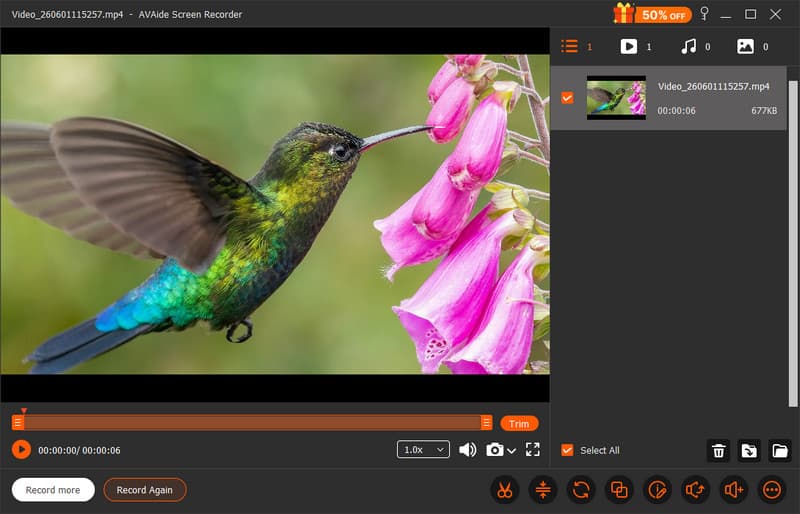
Aşama 3Kayıt işlemi tamamlandığında ve uygulama görevini başarıyla bitirdiğinde, tıklayın. Dur Buton sayesinde artık kaydedilen videoyu AVAide'in sunduğu kolaylıkla herkesle paylaşabilirsiniz.
Yöntem 4: Bandicam
Bandicam Bandicam, uzun süreler boyunca yüksek kaliteli kayıtlar oluşturabilen, hafif ancak verimli bir Windows ekran yakalama kaydedicisidir. Hem bölgesel yakalama hem de tam ekran ve belirli pencere kayıt özelliklerine sahiptir ve mikrofon ve sistem sesini kaydetmeye, kayıtları ayarlamaya ve kayıt sırasında çizim yapmaya olanak tanır. Bandicam, kararlı ve eğitimler, demolar veya hatta oyunlar için daha küçük boyutlu dosyalar üreten bir Windows ekran yakalama kaydedicisidir. Aşağıdaki adımlar, kurulumu, yakalama modunu seçmeyi, ses girişini ayarlamayı ve dışa aktarma seçeneklerini ayarlamayı göstermektedir.
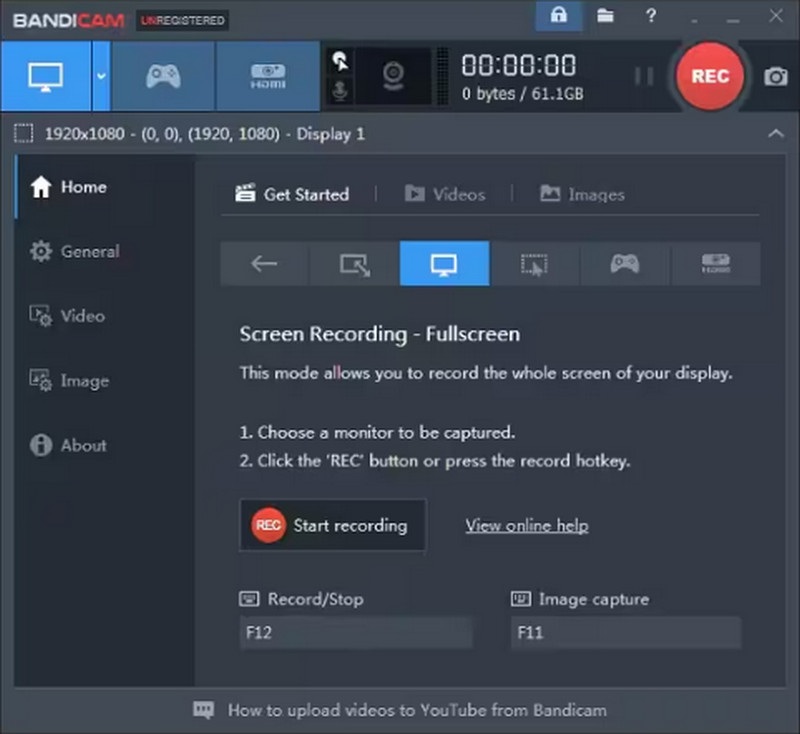
Aşama 1Bilgisayarınızda Bandicam'i açın, burada bulunan kayıt modlarından istediğinizi seçin ve ön ayarlarını yapın.
Adım 2Ardından, tıklayın KAYIT Kaydı başlatmak için düğmeye basın, ardından geri sayım bitene kadar birkaç saniye bekleyin.
Aşama 3Kayıt işlemi tamamlandıktan sonra tıklayın. Dur Bu düğmeye tıklayarak kaydedilmiş videoyu tekrar izleyebilirsiniz.
Yöntem 5: OBS Studio
OBS Stüdyosu OBS Studio, sınırsız kayıt, filigran olmaması ve sahneler, kaynaklar, ses mikserleri ve kodlayıcılar üzerinde yüksek düzeyde kontrol imkanı sunan, açık kaynaklı ve ücretsiz bir Windows kayıt ve yayın programıdır. Çoklu kaynak yapılandırmaları, özelleştirilmiş geçişler ve yüksek kaliteli çıktı üretimi için en uygun olan bu program, esnekliğe değer veren profesyoneller için tercih edilen seçenektir. Windows için, ses parçaları, çözünürlük ve bit hızı seçenekleriyle ekran kaydı yapmak istiyorsanız, OBS Studio ile yayın kalitesinde kayıt elde edebilirsiniz.
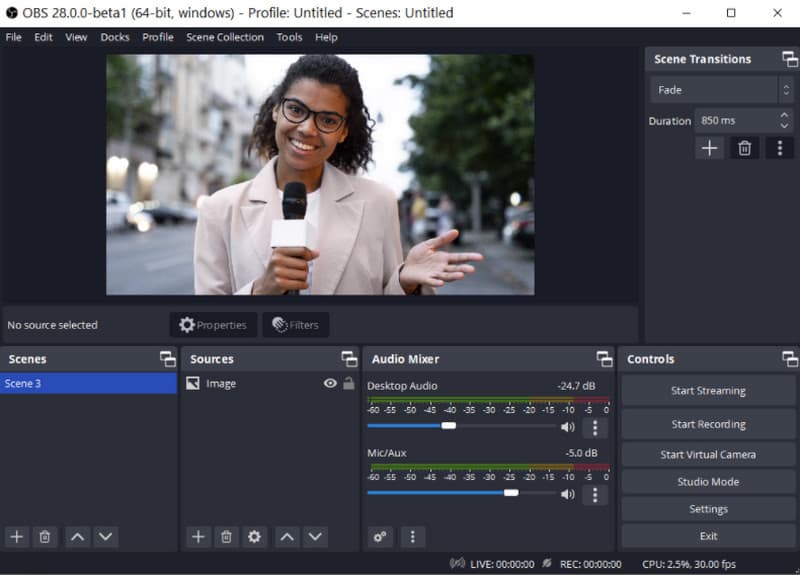
Aşama 1OBS Studio'nun en son sürümünü indirin ve açın. Dosyayı yeniden adlandırın veya yeni bir dosya oluşturun. Sahne Sol alt kutunun içinden.
Adım 2Kaydedilecek içeriğin kaynağını ekleyin, doğru sahneleri eklemek için + düğmesine tıklayın ve seçin. Görüntü Yakalama. İşaretle Ayarlar > Çıktı > Kayıt Yolu > Araştır Kaydedilen videoyu nereye kaydetmek istediğinizi seçmek için.
Aşama 3Artık hazırsınız, tıklayın. Kayda başla Düğmeye tıklayın ve durdurmak istediğinizde de tıklayın. Kaydetmeyi bırak buton.
Yöntem 6: ScreenRec
Ekran Kaydı Dünya çapında 14 milyondan fazla kişi tarafından güvenilen ScreenRec, anında buluta paylaşım ve ekran görüntüsü almayı engelleyen filigran olmadan ücretsiz ekran, mikrofon, sistem ve web kamerası kaydı sunar. Hızlı kurulum, kullanımı kolay kontroller ve her kayıttan sonra hızlı paylaşım için 2 GB ücretsiz bulut depolama alanı sağlar. ScreenRec, büyük yazılımlar indirmeye ihtiyaç duymayan kullanıcılar, destek teknisyenleri ve eğitmenler için basit ve hızlı bir ekran kaydedicidir. Aşağıdaki adımlar, bu araçla Windows'ta ekran kaydı yapmayı ve kaydınızı bir bağlantı kullanarak paylaşmayı göstermektedir.
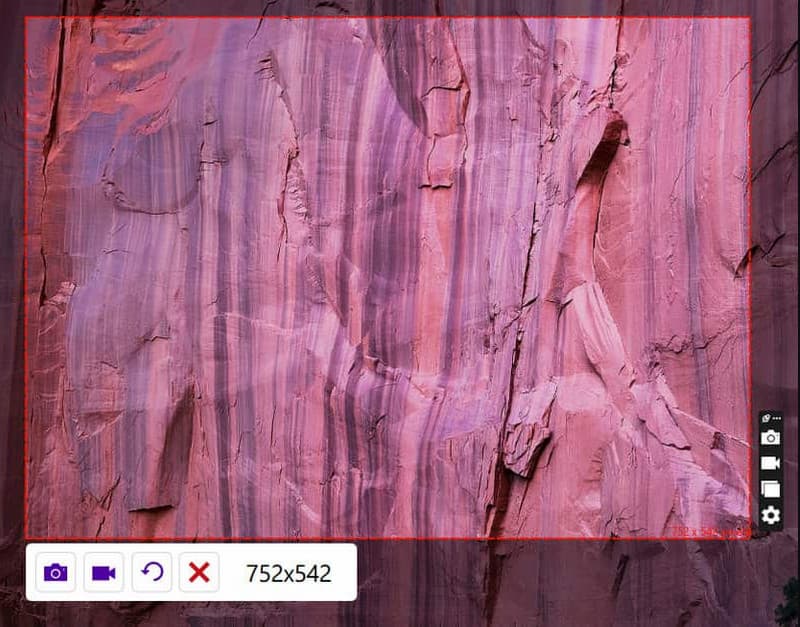
Aşama 1ScreenRec web sitesinden resmi uygulamayı indirin ve kurulum sürecini takip edin. Ardından, düğmeye basın. Alternatif + S Yakalamak istediğiniz alanı seçin.
Adım 2Ekran kaydı yapmak için tıklayın. Video kamera Düğmeye basarak bilgisayar sesini ve mikrofonunu etkinleştirin, böylece ses kaydı yapabilirsiniz.
Aşama 3işaretle kare Kaydı durdurmak için düğmeye basın ve size, kaydedilen videoyu bağlantısını gönderdiğiniz herkesle paylaşabileceğiniz benzersiz bir URL verilecektir.
Yöntem 7: Dokuma Tezgahı
dokuma tezgahı Loom, ekranınızı, web kameranızı ve mikrofonunuzu kolayca kaydetmenizi ve ardından yorumlar ve tepkilerle birlikte bir bağlantı aracılığıyla anında paylaşmanızı sağlayan bulut tabanlı bir ekran kaydedicidir. Windows'ta çalışır ve temiz bir arayüz, hızlı düzenleme ve yerleşik ekip işbirliği özellikleri sunar. Hızlı eşzamansız iletişim için PC'de nasıl ekran kaydı yapacağınızı merak ediyorsanız, Loom, dosyaları yönetmekle uğraşmadan anında paylaşım ihtiyacı duyan öğretmenler, destek personeli ve ekipler için idealdir. Aşağıdaki adımlar kurulumu, kayıt modu seçimini ve video bağlantınızı nasıl paylaşacağınızı göstermektedir.
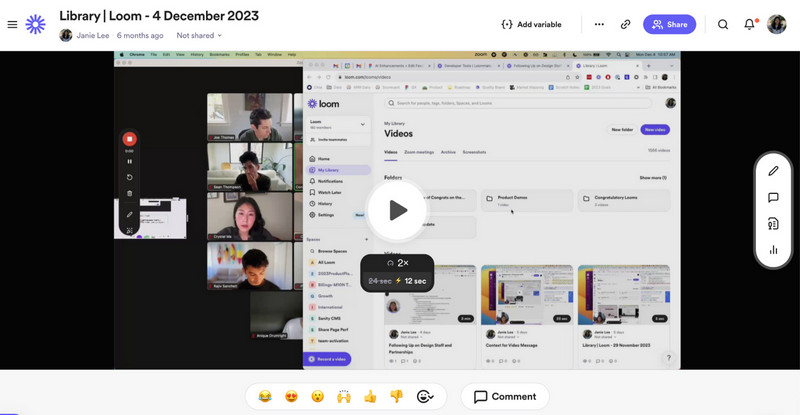
Aşama 1Loom programını bilgisayarınıza indirin ve kurulum talimatlarını izleyin, ardından programı açın.
Adım 2Seç Kayıt Modu Menüdeki mevcut seçeneklerden hangisini kullanmak istediğinizi seçin. Kaydınız için mikrofon ve kamera gerekiyorsa bunları açın. Ardından tıklayın. Kayda başla.
Aşama 3İşiniz bittiğinde tıklayın. Durmak Düğmeye tıkladığınızda otomatik olarak yeni bir tarayıcıda açılacaktır. Tıklayın. Bağlantıyı kopyala Eğer bunu çevrimiçi olarak başkalarıyla paylaşmak istiyorsanız.
Yöntem 8: ShareX
PaylaşX Bölgeleri ve tüm ekranı kaydeden, iş akışlarını otomatikleştiren ve filigran olmadan anında yükleyen ücretsiz, açık kaynaklı bir Windows uygulamasıdır. Mikrofon ve sistem sesini, özel kısayol tuşlarını ve açıklama ekleme ve paylaşma gibi yakalama sonrası işlemleri destekleme özelliğine sahiptir. ShareX en iyi ekran kaydedici programıdır. Windows 11'de ekran kaydı yapmak isteyen, yüksek kaliteli ücretsiz seçenekler ve otomatik iş akışları arayan ileri düzey kullanıcılar için Windows 11 için bir uygulama.
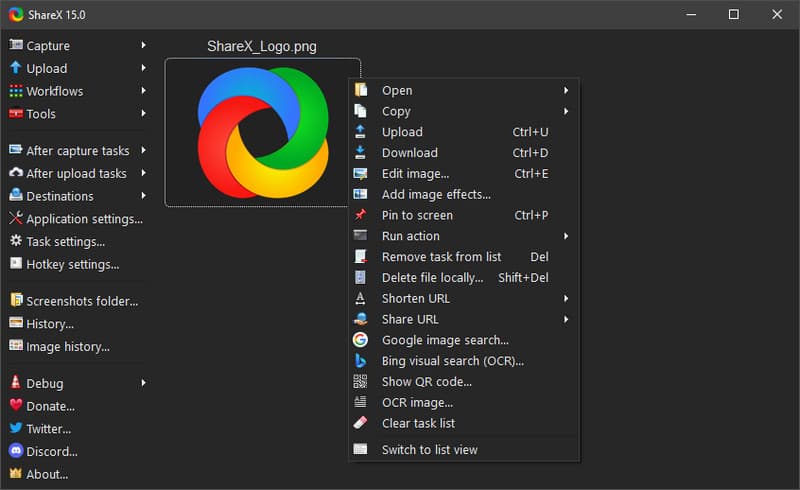
Aşama 1ShareX'i açın ve basın. Shift + Print Screen Çünkü bunlar kayıt için kullanılan kısayol tuşlarıdır.
Adım 2Bir imleç görünecektir, kaydetmek istediğiniz seçili alana tıklayıp sürükleyin veya Pencere veya Tam ekran kaydını etkinleştir seçeneğine tıklayın. Bundan sonra, kayıt sınırlamanız dahilinde kısa bir süreyle kayıt başlayacaktır.
Aşama 3Kaydı sonlandırmak için, bahsettiğimiz kısayol tuşlarına veya aşağıdaki seçeneklerden birine tıklayın. Durmak Buradaki düğmeye tıklayın.
Yöntem 9: Harika Ekran Görüntüsü
Harika Ekran Görüntüsü Bu, ekran görüntüleri alıp bunlara açıklama ekleyebilen ve ayrıca belirli bölgeleri ve web sekmelerini kaydetmenize olanak tanıyan tarayıcı tabanlı bir uygulamadır. Windows'ta Chrome veya Edge ile çalışır, mikrofon sesini, hızlı düzenlemeyi ve paylaşımı destekler. Web tabanlı ekran görüntüleri için, hızlı düzenleme ve açıklama eklemek için ekranlarınızı hızlıca yakalamak istiyorsanız Awesome Screenshot kullanışlı bir uzantıdır. Yani, bunu denemek istiyorsanız... ekran kaydedici uzantısı Ya da indirilebilir uygulamasını kullanmak için aşağıdaki adımları izleyin.
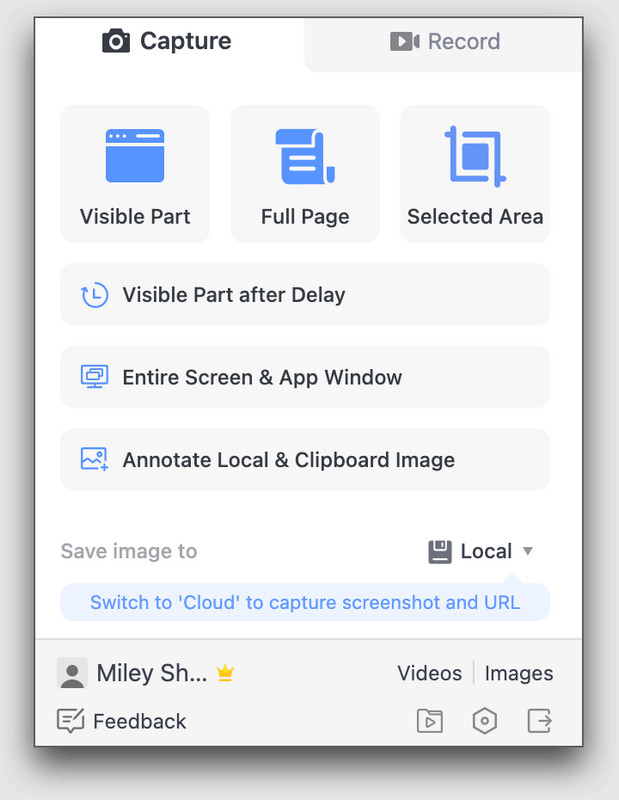
Aşama 1Uygulamayı masaüstünüze indirin veya tarayıcı uzantısını kullanabilirsiniz. Tüm ekran, belirli sekme, belirli alan veya yalnızca kamera gibi istediğiniz kayıt modunu seçin.
Adım 2Gerekirse, tıklamadan önce mikrofonu, sistem sesini ve kamerayı etkinleştirin. Kayda başla.
Aşama 3İşiniz bittiğinde tıklayın Paylaşmayı Durdur Kaydı sonlandırmak için.
Klavye Kısayolları Sayfası
Bazen, daha hızlı ve zahmetsiz olduğu için Windows ekran kaydını bir kısayol kullanarak yapmak isteyebilirsiniz. Kullanmak istediğiniz ekran kaydedici programında hangi kısayol tuşlarının mevcut olduğunu öğrenin.
| Alet Adı | Kayda başla | Kaydı Duraklat/Devam Ettir | Kayan Ekran Görüntüsü | Açılır Menü Yakalama | Kayıt Paneli Stilini Değiştir | Web kamerasını aç/kapat | Ekran görüntüsü |
| Xbox Oyun Çubuğu | Win + Alt + R | Müsait değil | Müsait değil | Müsait değil | Kazan + G | Win + Alt + W | Windows + Alt + Print Screen |
| Ekran Görüntüsü Alma Aracı (Windows 11) | Win + Shift + R | Müsait değil | Müsait değil | Müsait değil | Müsait değil | Müsait değil | Win + Shift + S |
| AVAide Ekran Kaydedici | Alt + S | Alt + R | Alt + L | Alt + M | Alt + I | Alt + W | Alt + C |
| Bandicam | Ctrl + F12 | Müsait değil | Müsait değil | F11 | Müsait değil | Sekme tuşu | F11 |
| OBS Stüdyosu | Özel kısayol tuşları ayarlayın | Özel kısayol tuşları ayarlayın | Müsait değil | Müsait değil | Müsait değil | Müsait değil | F7 |
| Ekran Kaydı | Alt + S | Müsait değil | Müsait değil | Müsait değil | Müsait değil | Müsait değil | Alt + S |
| dokuma tezgahı | Ctrl + Shift + L | Alt + Shift + L | Müsait değil | Müsait değil | Müsait değil | Müsait değil | Ctrl + Shift + 1/2 |
| PaylaşX | Shift + Print Screen | Müsait değil | Müsait değil | Müsait değil | Müsait değil | Müsait değil | Ekran Görüntüsü |
| Harika Ekran Görüntüsü | Alt + Shift + R | Müsait değil | Alt + Shift + F tuş kombinasyonuyla tam sayfayı açın. | Müsait değil | Müsait değil | Müsait değil | Alt + Shift + V/S/F |
Sorun Giderme: Sık Karşılaşılan Ekran Kaydı Sorunları
| Sorun | Ne yapalım? |
| Kayıt başlamıyor. | Ayarlar'a, ardından Gizlilik'e giderek ekran kaydı ve mikrofon erişiminin etkinleştirilmiş olup olmadığını kontrol edin. |
| Kayıtta siyah ekran | Farklı bir çekim modu deneyin veya korumalı video uygulamalarını kapatın. |
| Kayıtta ses yok. | Kullandığınız araca bağlı olarak, ayarlarınızdan veya mevcut kısayol tuşlarını kullanarak mikrofonu ve sistem sesini açın. |
| Kayıt daha erken durduruldu | Disk alanını boşaltın ve bilgisayarınızı yeniden başlatın. |
| Web kamerası görünmüyor. | Ön kayıt yapmadan önce web kamerasını etkinleştirin veya ayarlarını kontrol edin. Ayrıca kamera izinlerini de kontrol etmeyi deneyin. |
Artık biliyorsunuz. Bilgisayarda ekran kaydı nasıl yapılır? Xbox Game Bar ve Ekran Alıntısı Aracı gibi yerleşik araçların yanı sıra, aşağıdakiler gibi güçlü üçüncü taraf uygulamaları da kullanabilirsiniz: AVAide Ekran KaydediciOBS Studio, Bandicam ve Loom gibi programlar da dahil olmak üzere, hızlı oyun kliplerine, eğitim videolarına veya hızlı hata raporlarına ihtiyaç duyan herkes için bir çözüm sunuyor. Basitlik için temel yerleşik özellikleri kullanın veya daha fazla kontrole ihtiyaç duyduğunuzda daha gelişmiş özelliklere yönelin. Daha hızlı iş akışı için klavye kısayolları sayfasına bakın ve sorunlarla karşılaşırsanız sorun giderme bölümüne göz atın. Bu ipuçları ve araçlar, Windows ile her seferinde harika görünümlü ekran kaydı görüntüleri elde etmenize yardımcı olacaktır.
YAZAR HAKKINDA

Ses, çevrimiçi toplantılar, oyun videoları, müzik, web kamerası vb. ile ekran etkinliklerini yakalayın.
Ekran Kaydı
- Windows'ta Ekran Kaydı
- Instagram Canlı Yayınını Kaydedin
- Tubi'den Videoları Kopyala
- YouTube Videolarını MP3'e Dönüştürün
- Fansly'den Video İndir
- JW Player Videolarını İndirme
- Bilibili Videolarını İndirin
- Patreon Videolarını İndirin
- SpankBang Videolarını İndirin
- Discord Videolarını İndirin
- DoodSream Videosunu İndirin