Nasıl ses kaydını düzenleSes kayıtlarınızı düzenlemek, ses dosyasının çeşitli yönlerini iyileştirmenin etkili bir yoludur. Netliği artırabilir, bölümleri kırpabilir, ses seviyesini artırıp azaltabilir, efektler ekleyebilir ve daha fazlasını yaparak daha iyi bir ses çalma deneyimi elde edebilirsiniz. İster röportajlar, ister kişisel notlar veya podcast'ler olsun, tercih ettiğiniz sonucu elde etmek için en iyi düzenleme uygulamalarını öğrenmek gereklidir. Bu kılavuzda, en iyi ses düzenleme araçlarını kullanarak ses kaydınızı nasıl düzenleyeceğinizi öğreteceğiz. Buraya gelin ve süreç hakkında daha fazla bilgi edinin.
Bölüm 1. iPhone'da Ses Kaydını Düzenleme
iPhone'da ses kaydını nasıl düzenleyeceğinizi öğrenmek mi istiyorsunuz? iPhone, özellikle kırpma, katmanlama ve bir bölümü kaldırma gibi işlemler için güvenebileceğiniz bir uygulama sunuyor. İşleme başlamak için bu bölümde verilen tüm adımları inceleyebilirsiniz.
Sesli Notlardaki Kaydı Kırpma
Sesli Notlar sadece bunlardan biri değil. en iyi ses kayıt uygulamalarıAyrıca, ses dosyalarınızı düzenlemek için güvenebileceğiniz düzenleme araçları da sunar. Bu kayıt/düzenleme uygulamasıyla, gereksiz kısımları kaldırmak için ses dosyalarınızı kırpabilirsiniz. Ayrıca, uygulamanın basit bir düzeni vardır, bu da özellikle profesyonel olmayan kullanıcılar için erişimi daha ideal ve kolay hale getirir.
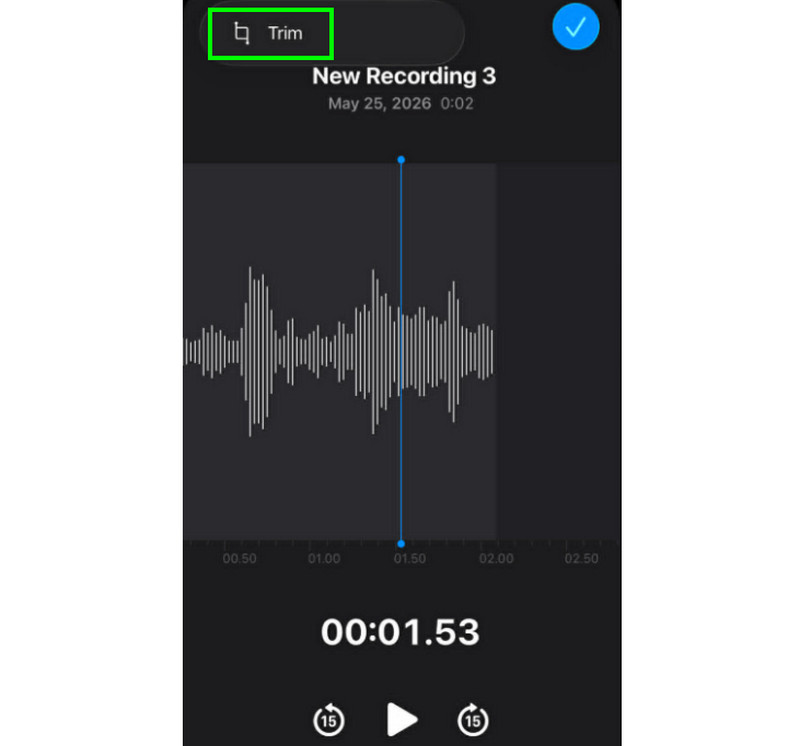
Aşama 1Başlat Sesli Notlar Uygulamayı açın ve düzenlemek istediğiniz ses kaydını bulun. Ardından, üzerine tıklayın. kırp işlev.
Adım 2Bundan sonra, sesi kırpmaya başlayabilirsiniz. Ardından, tuşuna basın. kırp Ses dosyasından istenmeyen kısımları kaldırmaya başlamak için aşağıdaki düğmeye tıklayın.
Aşama 3Budama işleminden sonra, bastırabilirsiniz. Uygulamak Değişiklikleri kaydetmek için yukarıdaki düğmeye tıklayın.
Ortadaki bir bölümü nasıl kaldırabilirsiniz?
Kesme işlemi sırasında, parçanın yalnızca ilk veya son kısmını kesebileceğinizi düşünüyor olabilirsiniz. Sesli Notlar uygulamasının iyi yanı, ortadaki bir bölümü de kaldırabilmenizdir. Bu özellik sayesinde, ses parçasından gereksiz kısımları kaldırmak kolay bir iş haline gelir.
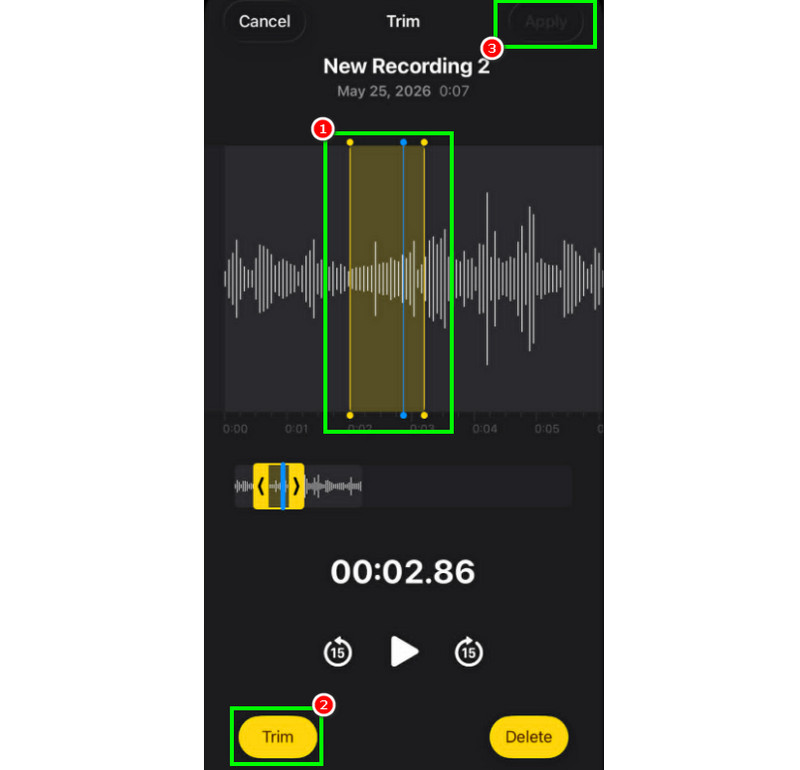
Aşama 1seçtikten sonra kırp Bu özellik sayesinde, ray üzerindeki ayarlanabilir çizgiyi dokunarak kontrol edebilirsiniz.
Adım 2Parçayı kaldırmak istediğiniz orta kısma çizgiyi ekleyin veya ayarlayın. Ardından, tuşuna basın. kırp aşağıdaki düğmeye basın.
Aşama 3Musluk Uygulamak Düzenlenen ses kaydını kaydetmek için.
Sesli Notlarda Parçaları Katmanlama
Sesli Notlar, ses ve her türlü ses içeriğini kaydetmek için ideal bir araçtır. Hatta bir kaydı düzenleyebilir, örneğin belirli bir bölümü kırpabilir veya kaldırabilirsiniz. Ancak, parçaları katmanlamak istiyorsanız, maalesef bu araç bunu yapamıyor. Daha iyi katmanlama için, GarageBand gibi daha gelişmiş bir ses düzenleme uygulaması kullanmak daha iyi olur. Bu uygulama, parçalarınızı katmanlamanıza ve tek bir dosya oluşturmanıza olanak tanır.
Düzenlenmiş Sesli Notları Nasıl Paylaşabilir ve Dışa Aktarabilirsiniz?
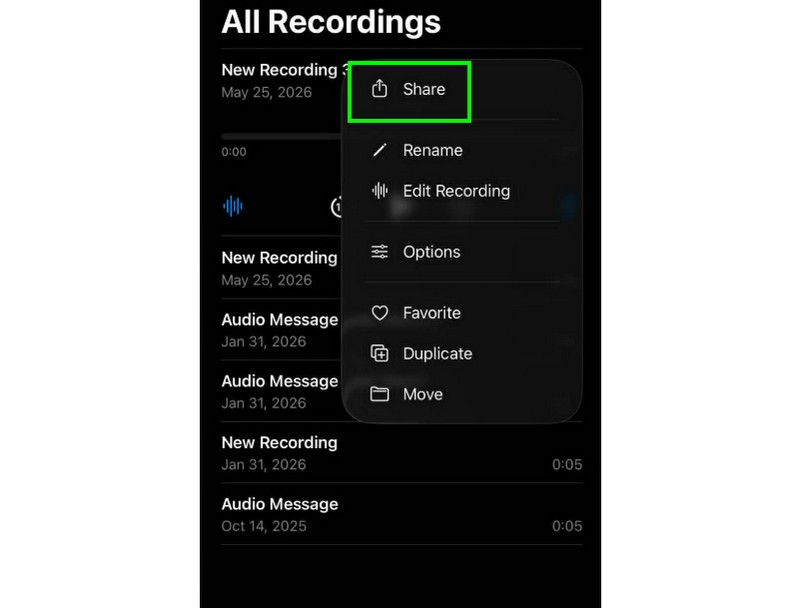
Düzenlenmiş ses kayıtlarını paylaşmak ve dışa aktarmak çok kolay. Tek yapmanız gereken, Sesli Notlar uygulamasında kayıtları bulmak ve üç nokta düğmesine basmak. Ardından Paylaş işlevine tıklayın. Böylece kayıtları çeşitli platformlarda paylaşmaya başlayabilirsiniz. Hatta istediğiniz klasöre kaydedebilirsiniz.
Önerilen iPhone Düzenleme Uygulamaları
Başka bir ses kayıt ve düzenleme yazılımına mı ihtiyacınız var? Sesli Notlar uygulaması ses kayıtlarınızı düzenleme konusunda sınırlamalara sahip olduğundan, bazen başka bir düzenleme aracına ihtiyaç duyabilirsiniz. Bu durumda, daha iyi düzenleme için GarageBand, Ferrite Recording Studio ve Hokusai Audio Editor'ı deneyebilirsiniz.
Bölüm 2. Android'de Ses Kaydını Düzenleme
Android kullanıcısı mısınız ve ses kayıtlarınızı düzenlemek mi istiyorsunuz? O zaman şunu kullanabilirsiniz: Samsung Ses KaydediciBu, ses kayıtlarınızı düzenlemek için kullanabileceğiniz ücretsiz bir uygulamadır. Kayıtlarınızı tercihlerinize göre kırpmanıza yardımcı olabilir. Uygulama, kullanımı kolay bir kullanıcı arayüzü sunarak gezinmeyi basitleştirir.
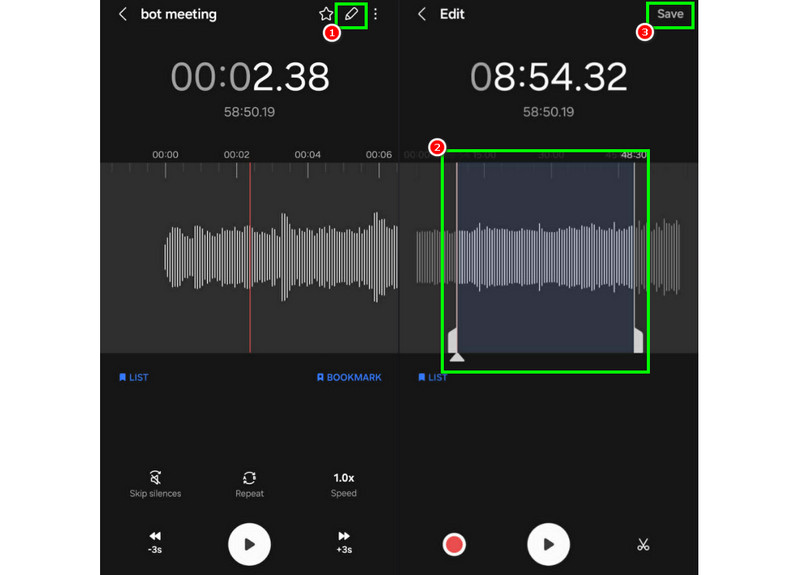
Aşama 1Başlat Samsung Ses KaydediciSonrasında, düzenlemek istediğiniz kayıtlara geçin.
Adım 2Ardından kayıtları açın ve basın. Düzenlemek Yukarıdaki fonksiyon.
Aşama 3Öncelikle raylardaki çizgileri ayarlayarak kırpma işlemine başlayabilirsiniz. İşlem tamamlandıktan sonra onay işaretini koyabilirsiniz. Kaydetmek Yukarıdaki butona tıklayın.
Bölüm 3. Masaüstünde Ses Kaydını Düzenleme
Masaüstünüzde düzenlenebilir ses kaydedicinizle çalışmak mı istiyorsunuz? O halde, etkili bir ses kaydı düzenleme süreci için kullanabileceğiniz en iyi yöntemleri burada sunuyoruz.
Yöntem 1. Audacity Kullanarak Ses Kayıtlarını Düzenleme
cüret Kayıtlarınızı düzenlemek için güvenebileceğiniz ücretsiz masaüstü tabanlı düzenleyiciler arasında yer alıyor. Sesi kırpabilir, efektler ekleyebilir ve diğer parçaları bağlayabilirsiniz. Hatta Audacity'de bilgisayar sesini kaydetmek ve tercihlerinize göre düzenleyin. Buradaki tek sorun, düzenin yeterince çekici olmaması.
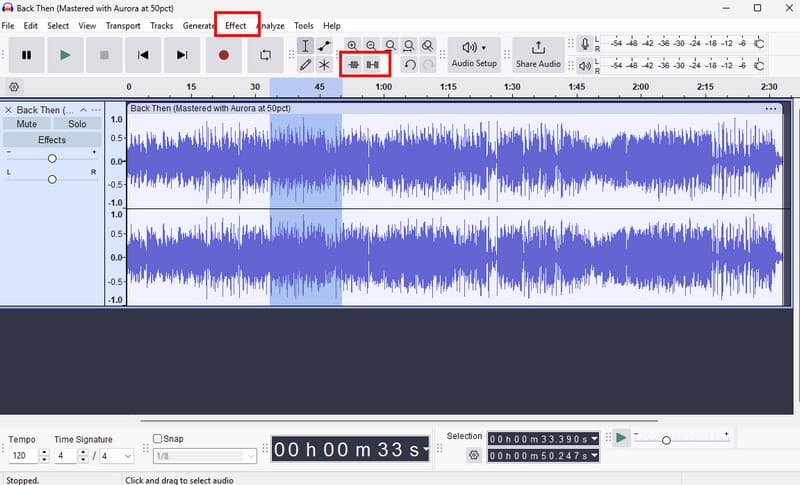
Aşama 1İndirmek cüret Bilgisayarınızda. Ardından, aşağıdaki adımlara geçin. Dosya > Açık Kayıtlarınızı eklemek için seçenekler.
Adım 2Dosyanızı düzenlemeye başlayabilirsiniz. Parçayı kırpabilir, efektler ekleyebilir, tempoyu ayarlayabilir ve daha fazlasını yapabilirsiniz.
Aşama 3İşlem tamamlandığında, dokunun. Dosya > Projeyi Kaydet Cihazınızda saklamak için.
Yöntem 2. AVAide Video Converter Kullanarak Ses Kayıtlarını Düzenleme
Profesyonel düzeyde bir editör istiyorsanız, şuraya erişmeyi deneyin: AVAide Video DönüştürücüBu program, ses dosyalarınızı birçok şekilde düzenlemenize olanak tanır. Kayıtlarınızdan belirli bir parçayı kesebilir veya kırpabilir, bölebilir ve birleştirebilirsiniz. İşin güzel yanı, ses dosyalarınıza giriş ve çıkış efekti bile ekleyebilirsiniz. Ayrıca, kayıtlarınızı MP3, AAC, ALAC, M4A, WAV ve daha fazlası gibi herhangi bir ses formatına dönüştürebilirsiniz. Bu, oynatma sırasında herhangi bir uyumluluk sorunu yaşamamanızı sağlar. Kayıtları 320 kbps'ye kadar en iyi kalitede kaydedebilirsiniz, bu da programı tüm ses tutkunları için ideal hale getirir.
Aşama 1İndirmek AVAide Video Dönüştürücü Mac veya Windows bilgisayarınıza kurun ve çalıştırın, böylece düzenleme işlemine başlayabilirsiniz.

ÜCRETSİZ İNDİR Windows 7 veya üzeri için
 Güvenli indirme
ÜCRETSİZ İNDİR Mac OS X 10.13 veya üzeri için
Güvenli indirmeAdım 2itibaren Dönüştürücü Bu özelliği kullanarak ses kayıtlarını ekleyin. Dosya Ekle Seçenek. Dilerseniz birden fazla dosya da ekleyebilirsiniz.
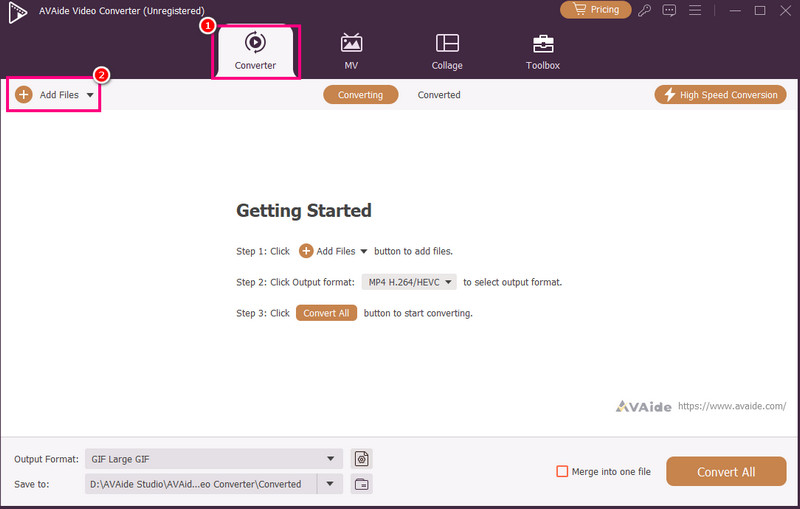
Aşama 3Ardından, tıklayın Kesmek Düzenleme işlemine başlamak için bu seçeneği kullanabilirsiniz. Parçanın belirli bir bölümünü kesip kaldırabilirsiniz. Ayrıca şunları da kullanabilirsiniz: Bölmek Parçaları ayırma işlevi.
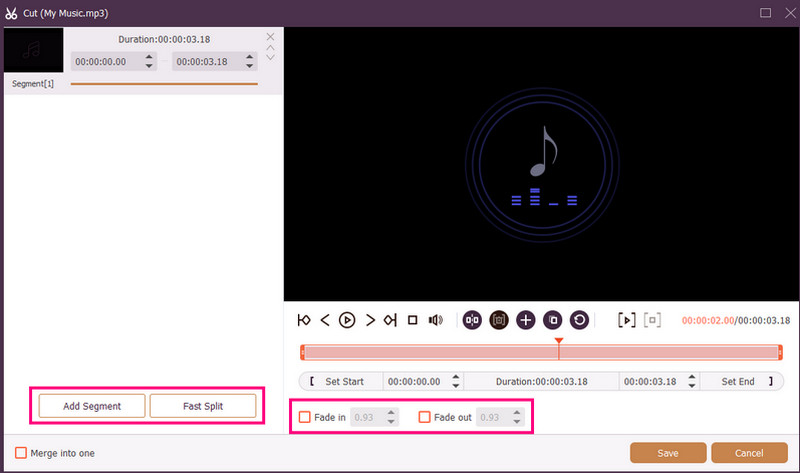
Ayrıca ekleyebilirsiniz. Yavaşça Giriş ve Yavaşça kaybolma Kayıtlarınıza efektler ekleyin. İşlem tamamlandıktan sonra tıklayın. Kaydetmek.
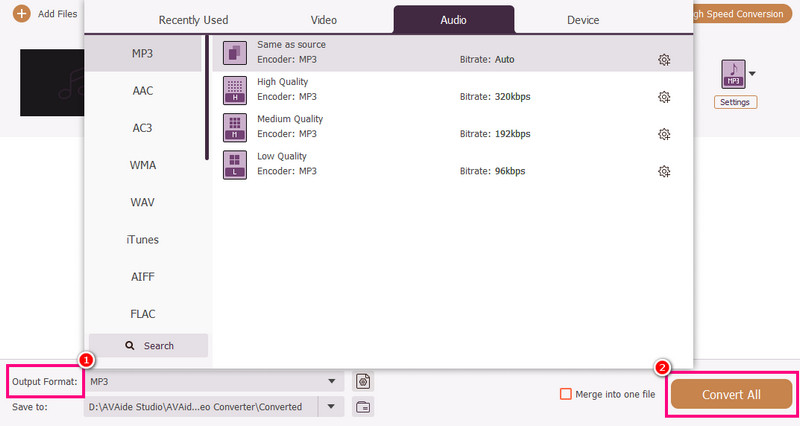
4. AdımAyrıca şuraya da gidebilirsiniz: Çıkış formatı İstediğiniz ses formatını seçmek için ilgili bölüme gidin. Son olarak, işaretleyin. Hepsini dönüştür tasarruf sürecini başlatmak için.
Yöntem 3. Adobe Audition Kullanarak Ses Kayıtlarını Düzenleme
Adobe Seçmeleri Ses kayıtlarınızı düzenlemek için kullanabileceğiniz güvenilir bir araçtır. Hem temel hem de gelişmiş düzenleme araçları sunarak, özellikle profesyoneller olmak üzere tüm kullanıcılar için idealdir. Kayıtları kırpabilir, efektler uygulayabilir, parçaları katmanlayabilir ve daha fazlasını yapabilirsiniz. Ancak, kullanıcı arayüzünün öğrenme eğrisi dik olduğundan, bu aracı kullanmak için yeterince yetenekli olmanız gerekir.
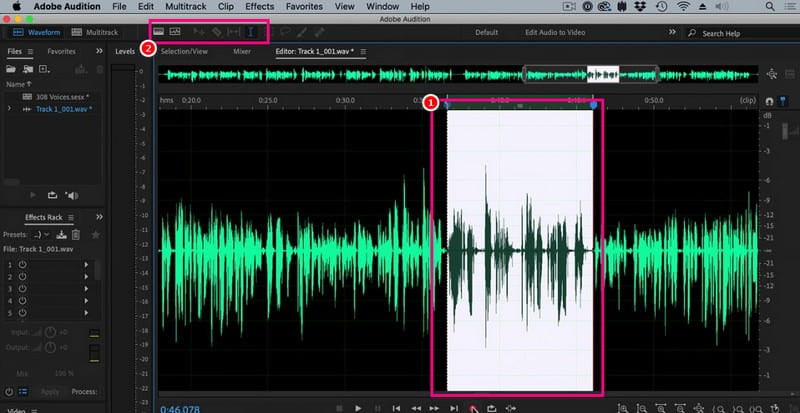
Aşama 1İndirmek Adobe Seçmeleri Bilgisayarınızda açın. Ardından, düzenlemek istediğiniz ses kaydını eklemeye başlayın.
Adım 2Fare imlecinizi kullanarak parçanın belirli bir bölümünü vurgulayabilir ve düzenleyebilirsiniz. Üst arayüzdeki tüm düzenleme araçlarını kullanarak sesi kırpabilir, efektler ekleyebilir ve bölebilirsiniz.
Aşama 3Ses dosyasını düzenledikten sonra, şuraya gidebilirsiniz: Dosya > Kaydetmek Kaydetme işlemine başlamak için yukarıdaki seçenekleri kullanın.
Bölüm 4. Ses Kaydını Çevrimiçi Düzenleme
Ses kayıtlarınızı çevrimiçi olarak düzenlemek de bir seçenektir. Aşağıdaki ayrıntıları okuyun ve ses dosyanızı tarayıcınızda nasıl düzenleyeceğinizi öğrenin.
Yöntem 1. 123APPS Kullanarak Ses Kayıtlarını Düzenleme
Ses dosyalarınızı ücretsiz düzenlemek istiyorsanız bu araç mükemmel. Ses dosyalarınızı kırpmanıza, arka plan gürültüsünü kaldırmanıza, geçiş efekti eklemenize ve daha fazlasına olanak tanır. Kullanımı da basit olduğundan yeni başlayanlar için idealdir.
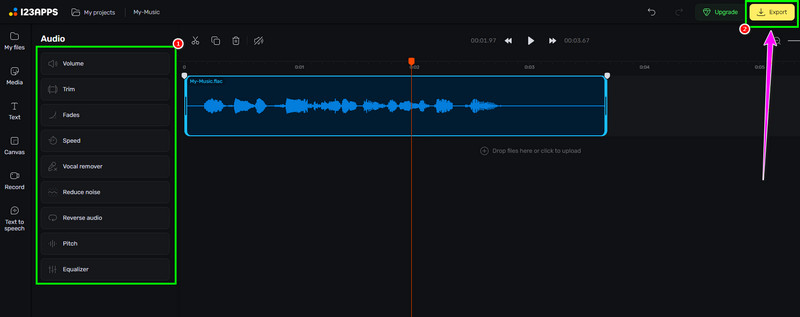
Aşama 1Web sitesini ziyaret edin 123UYGULAMALAR ve ona devam et Ses Düzenleyici Özelliği açtıktan sonra, tıklayın. Dosyaları Seç Kaydınızı yüklemek için.
Adım 2Ardından, ses dosyanızı düzenlemeye başlayın. Kaydı kırpabilir, efektler ekleyebilir, gürültüyü giderebilir ve daha fazlasını yapabilirsiniz.
Aşama 3Düzenleme işleminden sonra tıklayın. İhracat Yukarıdaki bağlantıyı kullanarak cihazınıza kaydedebilirsiniz.
Yöntem 2. Çevrimiçi Ses Düzenleyici Kullanarak Ses Kayıtlarını Düzenleyin
Ses kayıtlarınızı düzenleyebilecek mükemmel bir çevrimiçi ses düzenleyici arıyorsanız, şunu deneyebilirsiniz: Çevrimiçi Ses DüzenleyiciBu araç size kullanabileceğiniz çeşitli araçlar sunar. Bunlardan bazıları kırpma aracı, kesici, gürültü giderici, hız şarj cihazı ve daha fazlasıdır. Aşağıdaki adımları inceleyin ve ses kaydını nasıl düzenleyeceğinizi öğrenin.
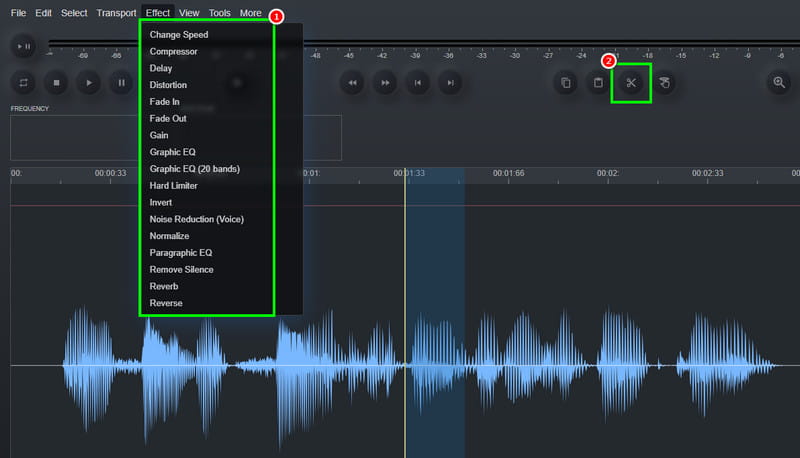
Aşama 1Erişim sağlandıktan sonra Çevrimiçi Ses Düzenleyici aracı tıklayın Dosya > Açık Ses kaydını yükleme seçeneği.
Adım 2Düzenleme işlemine başlayabilirsiniz. Şuraya gidin: Etki Ses hızını değiştirmek, efekt eklemek, gecikmeyi ayarlamak ve daha fazlası için bu bölümü kullanabilirsiniz. Ayrıca şunları da kullanabilirsiniz: Kesmek Raydan gereksiz parçayı çıkarmak için kullanılan alet.
Aşama 3Son işlem için, Dosya > Kaydetmek Düzenlediğiniz kaydı bilgisayarınıza kaydetmek için bu düğmeyi kullanın.
Bölüm 5. Hangi Yöntemi Seçmelisiniz?
Hangi yöntemi seçeceğiniz konusunda kararsız mısınız? Eğer öyleyse, şunu kullanmanızı şiddetle tavsiye ederiz: AVAide Video DönüştürücüDüzenleme söz konusu olduğunda, ihtiyacınız olan sonucu elde edeceğinizden emin olabilirsiniz. Ses dosyasını kırpabilir, bölebilir ve tek bir dosya oluşturmak için birden fazla bölüm ekleyebilirsiniz. Hatta programın Ses Sıkıştırıcı özelliğine erişerek dosya boyutunu ve kayıt kalitesini dengeleyebilirsiniz. Sesinizi diğer formatlara dönüştürmenize de olanak tanıyarak uyumluluk sorunlarıyla karşılaşmanızı önler. Bu nedenle, bu programa güvenin ve tercih ettiğiniz ses çıktısını elde edin.
Bu eğitim sayesinde şunları öğrendiniz: ses kayıtlarını nasıl düzenleyebilirim?Bu nedenle, sunduğumuz yöntemleri inceleyin ve ses kayıtlarınızla tercihlerinize göre ilgilenin. Ayrıca, sorunsuz bir ses düzenleme süreci istiyorsanız, şunu kullanmanızı öneririz: AVAide Video DönüştürücüBu yazılım, videoları en iyi kalitede düzenleyip kaydetmenizi sağlayarak kullanıcılar için birinci sınıf bir video düzenleme aracı haline geliyor.
YAZAR HAKKINDA

Kayıpsız kalitede dönüştürme için 350'den fazla formatı destekleyen eksiksiz video araç kutunuz.