При участии в онлайн-совещании или занятии с помощью Zoom вам, вероятно, потребуется следующее: делать скриншоты в Zoom для последующего использования. Здесь мы предлагаем полное руководство по созданию скриншотов в Zoom с использованием стандартных функций Windows, Mac и мобильных устройств, а также встроенных функций самого Zoom. Кроме того, мы обсудим вполне обоснованный вопрос: может ли Zoom определить, сделали ли вы скриншот? Ответ вы найдете в статье.
Часть 1. Как сделать скриншот в Zoom на ПК (Windows)
1. Использование клавиши Print Screen (полноэкранный режим)
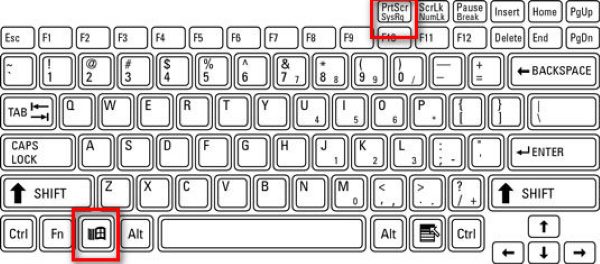
Используйте горячую клавишу для создания скриншотов в Windows, чтобы сделать снимок всего экрана. Во время начала совещания в Zoom нажмите Окна вместе с PrtScn клавиша (которая обычно расположена рядом с функциональными клавишами).
Копия всего, что отображается на вашем экране, будет немедленно скопирована и сохранена в папке C:\Users\YOUR_USERNAME\Pictures\Screenshots (в Windows 10 и 11).
2. Использование инструмента «Ножницы» / «Вырезать и нарисовать» (лучше всего подходит для масштабирования)
Нажимать Выиграть + Сдвиг + S Чтобы затемнить рабочий стол и отобразить панель инструментов для создания снимков экрана вверху, вы можете нарисовать прямоугольник или выбрать произвольный формат, формат окна или полноэкранный режим.
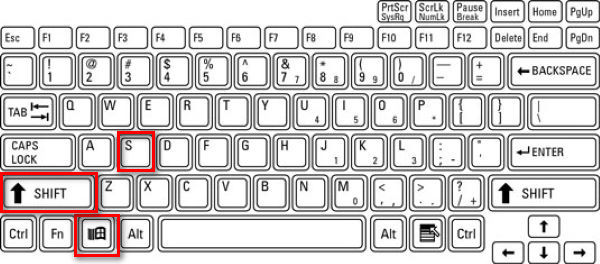
Это идеально подходит для Zoom, поскольку позволяет сделать снимок только окна Zoom или его части. После создания снимка изображение копируется в буфер обмена, и появляется уведомление. Щелкните по уведомлению, чтобы отредактировать снимок экрана.
3. Использование Alt + PrtScn (только в активном окне)
Шаг 1Нажмите на окно «Масштабирование», чтобы убедиться, что оно активно.
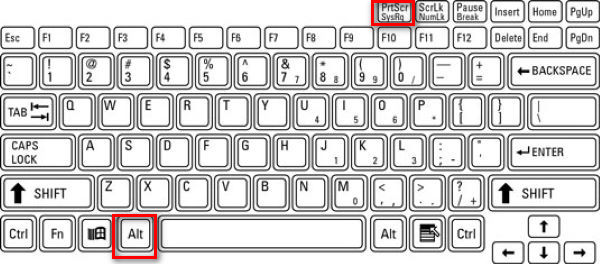
Шаг 2Нажимать Альтернативный вариант + PrtScn.
Эта функция захватывает только активное окно, то есть окно совещания Zoom, и помещает его в буфер обмена.
4. Использование стороннего инструмента
Я предпочитаю использовать сторонний инструмент для создания скриншотов в Zoom, потому что изображения сохраняются в указанном мной месте, отдельно от других скриншотов, сделанных Windows, что упрощает поиск нужных снимков.
Существует множество программ для создания скриншотов во время звонков в Zoom, таких как ShareX, Icecream Screen Recorder, Snagit и другие. Программа записи экрана AVAideКак и в случае с AVAide Screen Recorder, вы можете поместить изображения в ту же папку, что позволит вам легко упорядочить все скриншоты. Я покажу вам, как это сделать шаг за шагом.
Шаг 1Скачайте и установите программу для записи экрана.

БЕСПЛАТНАЯ ЗАГРУЗКА Для Windows 7 или новее
 Безопасная загрузка
БЕСПЛАТНАЯ ЗАГРУЗКА Для Mac OS X 10.13 или более поздней версии
Безопасная загрузкаШаг 2Запустите диктофон
Шаг 3Присоединяйтесь к Zoom-конференции
Шаг 4Щелкните значок камера кнопка в правом верхнем углу окна AVAide Screen Recorder.
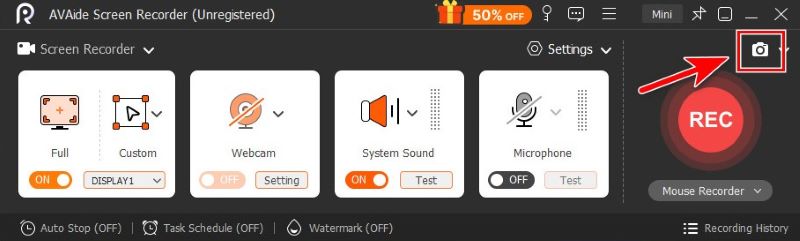
Шаг 5Вы можете сделать снимок произвольной формы, перетаскивая мышь, или навести указатель мыши на окно масштабирования, чтобы захватить его.
ШАГ 6Когда вас устроит результат, нажмите кнопку. Сохранятьи выберите папку, в которую хотите сохранить файл.
Часть 2. Как сделать скриншот в Zoom на Mac.
Встроенных функций системы нам достаточно для создания скриншотов на Mac.
1. Снимок экрана в полном объеме
Чтобы сделать снимок всего экрана на Mac, нажмите Команда + Сдвиг + 3.

2. Выборочная съемка (лучше всего подходит для масштабирования)
Если вам нужно захватить определенную прямоугольную область на экране совещания, нажмите Команда + Сдвиг + 4.

3. Захват определенного окна
Шаг 1нажимать Команда + Сдвиг + 4
Шаг 2Вперед, в космос!

Курсор при этом превращается в значок камеры. Щелкните по окну масштабирования, чтобы захватить только это окно.
4. Использование приложения для создания скриншотов
Шаг 1 Нажимать Команда + Сдвиг + 5 чтобы открыть панель инструментов для создания скриншотов от Apple.

Шаг 2Выберите предпочитаемый инструмент.

Я бы порекомендовал Захват окна и Захватить частьПодходит для съемки только окна Zoom без отвлекающих факторов.

- Вы также можете использовать стандартные функции Mac или сторонний инструмент для этого. отредактируйте свой скриншот на Mac Как вам удобнее.
Часть 3. Как сделать скриншот в Zoom на мобильных устройствах (iPhone и Android)
1. На iPhone / iPad
Способ зависит от модели вашего устройства.
Шаг 1Начните свою встречу в Zoom.
Шаг 2Сделайте скриншот.
- Для iPhone с Face ID и нет Home кнопка (iPhone X и более поздние модели, кроме iPhone SE) и iPad с нет дома кнопка:
нажмите Боковая кнопка + Увеличить громкость. - Для iPhone или iPad с Домой кнопка (iPhone SE, 8 и более ранние модели, старые iPad):
нажмите Боковая / Верхняя кнопка + Домой.
Быстро отпустите обе кнопки. Вы увидите, как экран мелькнет, сделав снимок всего экрана, и появится миниатюра для редактирования или сохранения.
2. На Android
Быстрый доступ: Большинство телефонов Android используют классический Власть + Уменьшение громкости Сочетание клавиш. Оно может отличаться в зависимости от конкретной марки вашего устройства. Поэтому, если это сочетание клавиш не работает (что нормально), я рекомендую проверить модель вашего телефона и найти его там.
Включите Zoom-конференцию и нажмите и удерживайте кнопки одновременно в течение 1-2 секунд, пока экран не мигнет. Скриншот будет сохранен в приложении «Галерея» или «Фотографии».
Панель инструментов: Вытяните меню, проведя пальцем вниз по экрану. Найдите Скриншот Нажмите на кнопку в меню и, коснувшись её, выберите полноэкранный, произвольный или прокручиваемый снимок экрана.
Часть 4. Использование встроенных функций Zoom.
Функция Zoom "Сделать снимок экрана" (только для демонстрации экрана)
Встроенная функция создания скриншотов в Zoom очень проста в использовании и требует всего нескольких кликов.
Шаг 1Нажмите Чат внизу окна Zoom
Шаг 2Щелкните значок Скриншот значок под окном чата.
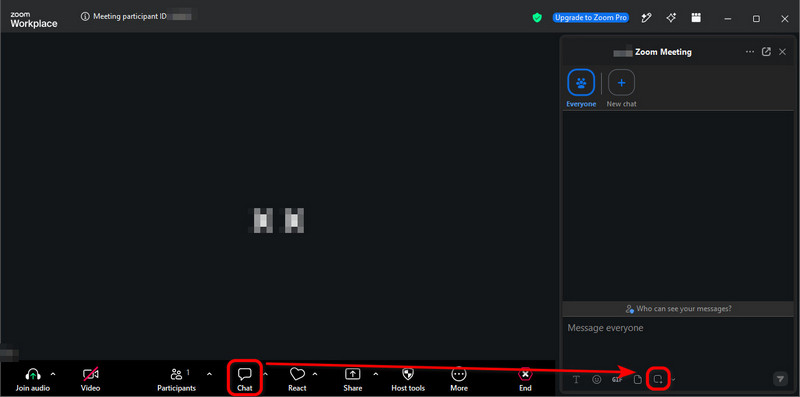
Шаг 3Перетащите курсор мыши по нужной области экрана и щелкните по ней. Захватывать.
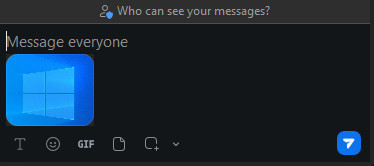
Скриншот теперь находится в окно чатаВы можете отправить его другим участникам встречи одним щелчком мыши. бумажный самолётик значок в правом нижнем углу.
- Скриншот в окне чата НЕ сохраняется автоматически на вашем компьютере. Если вы хотите его сохранить, щелкните правой кнопкой мыши по изображению и выберите соответствующий пункт. Сохранить как….
- Хотя этот метод очень прост и быстр, иногда он дает сбой, потому что организатор может отключить чат совещания или сохранение чата. В этом случае вы знаете, что делать: используйте функции операционной системы или сторонний инструмент, например, AVAide Screen Recorder.
Что такое «Генератор скриншотов для Zoom-конференций»?
Звучит как инструмент для создания скриншотов, верно? Сначала я был обманут, но на самом деле это сторонний инструмент. создает поддельные изображения для звонков в Zoom.
Они предлагают макеты видеозвонков в Zoom, где вы загружаете фотографии и вводите имена, чтобы создать реалистичный скриншот встречи с фиктивными участниками.
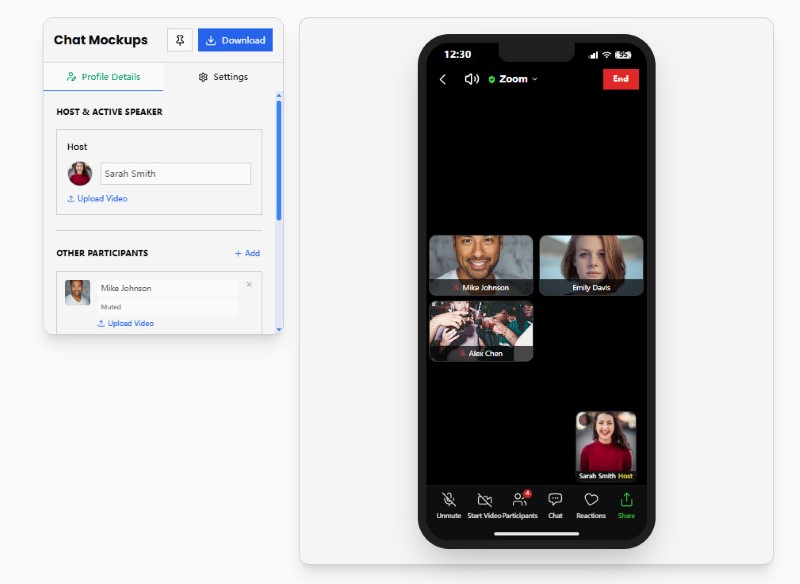
В этой статье мы не ищем генераторы скриншотов для Zoom-конференций. Но если вас интересует создание фейковых мемов для Zoom, попробуйте такие сайты, как Pradoy или Kapwing. Они очень забавные.
Часть 5. Уведомляет ли Zoom о создании скриншотов?
Короче говоря, Zoom НЕ сообщает вам, когда участник делает скриншоты, независимо от того, использует ли он функции операционной системы, сторонний инструмент или встроенную функцию создания снимков экрана Zoom.
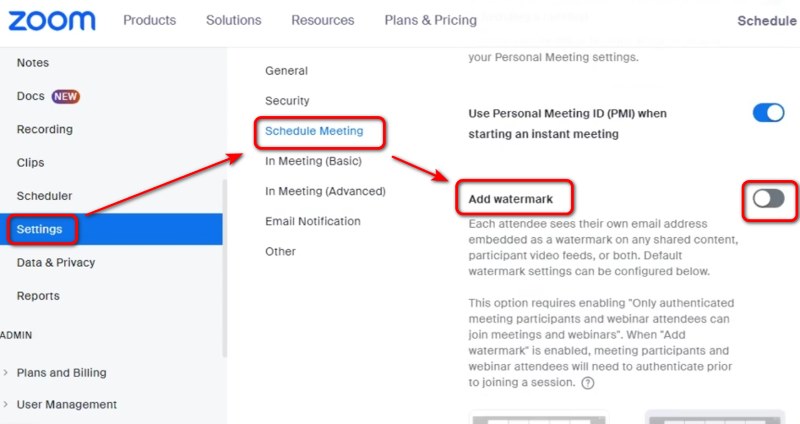
Как организатор или пользователь, демонстрирующий экран, вы можете беспокоиться о том, что то, что отображается на вашем экране, может попасть в чужие руки без вашего ведома. До сих пор не существовало особого способа предотвратить это, за исключением добавления водяного знака на экран — для этого зайдите в настройки веб-портала Zoom и включите опцию «Добавить водяной знак».
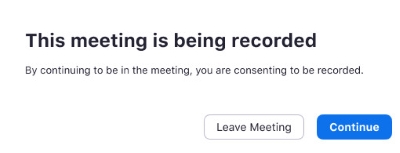
Но Zoom уведомляет, когда кто-то запись совещания в ZoomПри подключении к записи совещания или когда организатор начинает запись, вы получите уведомление о согласии. Вы можете либо дать согласие, либо покинуть совещание.
Создание скриншотов в Zoom Сделать снимок экрана легко на Windows, Mac, iPhone и Android, используя функции устройства, сторонние инструменты или собственные функции Zoom. Zoom не уведомляет организаторов или участников о создании стандартного снимка экрана. Однако важно соблюдать конфиденциальность, авторские права и любые правила проведения собрания, прежде чем делать снимок или делиться содержимым Zoom. Если вас беспокоит конфиденциальность, дайте понять участникам, что вы не одобряете снимки экрана, прежде чем демонстрировать свой экран.
ОБ АВТОРЕ

Запечатлейте лучший момент с помощью AVAide Screen Recorder. Делайте скринкасты, настраивайте и делитесь за считанные секунды.