Пытаюсь понять как записать экран на Dell Запись обучающих видеороликов, игрового процесса или совещаний может показаться сложной задачей без подходящего инструмента. Независимо от того, нужен ли вам быстрый или более сложный способ, это руководство покажет вам простые и эффективные методы плавной записи экрана.
Часть 1. Самый простой способ: использование игровой панели Xbox.
Игровая панель Xbox Game Bar в первую очередь предназначена для записи игрового процесса, но также может использоваться для повседневной записи экрана. Она позволяет записывать экран и звук, а также мгновенно сохранять видеоролики. Тем не менее, она не может записывать рабочий стол или проводник файлов; она может записывать только активные окна приложений.
Шаг 1Чтобы открыть панель Xbox Game Bar, нажмите Windows + G Нажимайте клавиши на клавиатуре. Если вопрос касается того, является ли это игрой, ответьте утвердительно.
Шаг 2В Захватывать Панель находится во всплывающем окне. Если вы ее не видите, будет создано меню виджетов, и будет выбрана опция «Захват».
Шаг 3Чтобы начать запись экрана, нажмите на кнопку. Запись (●) кнопка или Windows + Alt + RИнструмент автоматически сделает снимок активного окна.
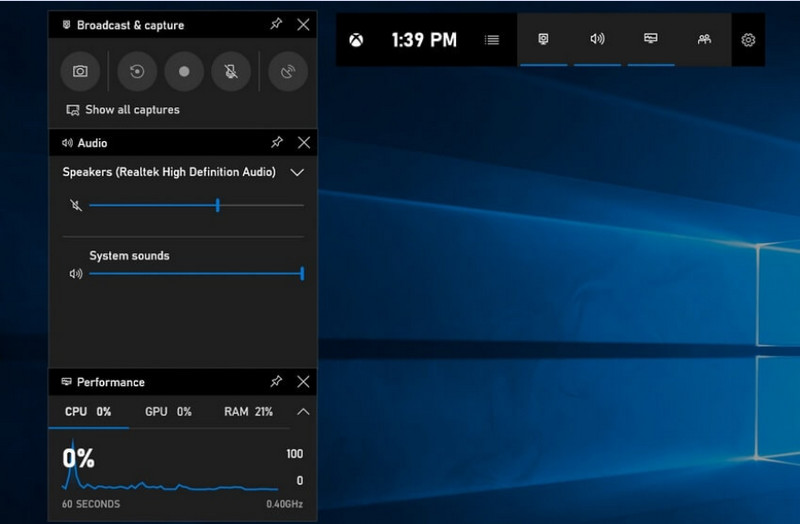
Шаг 4Запись с микрофона можно включить, нажав на кнопку. микрофон кнопка перед или во время записи.
Шаг 5Чтобы остановить запись, нажмите Windows + Alt + R второй раз или нажмите Стоп (■) кнопка на плавающей панели.
ШАГ 6Записанные вами видео автоматически сохраняются в Видео > Захваты папка вашего компьютера.
Часть 2. Профессиональный выбор
1. Использование программы OBS для записи экрана.
OBS-рекордер экрана Это бесплатная программа для записи экрана с открытым исходным кодом, широко используемая как для записи, так и для потоковой передачи контента в режиме реального времени. Она предоставляет настраиваемые параметры, позволяющие записывать весь экран, отдельное окно или несколько источников одновременно. Мощные элементы управления видео и аудио делают её эффективным вариантом для пользователей, которым нужна не только простая запись экрана.
Производительность:
OBS Screen Recorder — это программное обеспечение с аппаратным ускорением, обеспечивающее надежную работу и плавную запись в разрешении 1080p с частотой 60 кадров в секунду. После установки оно может эффективно работать с стабильным результатом и минимальной задержкой во время длительных сеансов записи на совместимых системах.
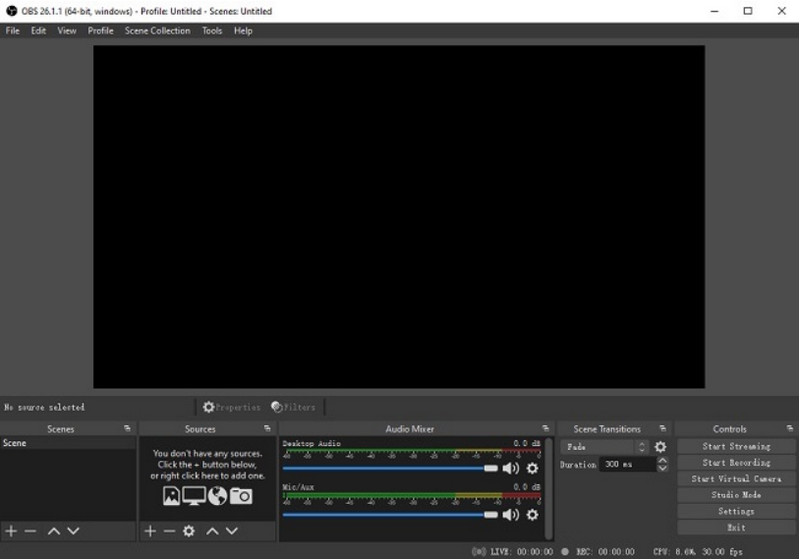
Шаг 1Перейдите на официальный сайт OBS Screen Recorder, скачайте установщик и завершите установку.
Шаг 2Открытым OBS-рекордер экранаВам будет представлен основной интерфейс с такими панелями, как... Сцены и Источники.
Шаг 3В панели «Сцены» нажмите на + Нажмите кнопку и дайте вашей сцене имя.
Шаг 4Вы можете добавить снимок экрана или снимок окна (для захвата конкретного приложения), просто нажав на соответствующую кнопку. + в Источники панель и выбор Захват дисплея или Захват окна.
Шаг 5Проверьте Аудиомикшер путем включения и регулировки микрофона и системного звука.
ШАГ 6нажмите Начать запись кнопка в правой части интерфейса.
Шаг 7После завершения нажмите Остановить записьЭто видео будет автоматически помещено в вашу папку по умолчанию.
2. Использование программы записи экрана AVAide
Программа записи экрана AVAide Это простой, но эффективный инструмент для высококачественной записи действий на экране. Он предназначен для пользователей, которым необходима простая в использовании система записи с чистым звуком, гибкая система захвата с минимальной настройкой и интуитивно понятное управление.
Производительность:
Программа AVAide Screen Recorder оптимизирована для плавной и стабильной записи даже во время длительных сеансов. Она поддерживает вывод изображения в высоком разрешении 4K/1080p с минимальной задержкой в распространенных приложениях. Программа эффективно управляет одновременной записью экрана и звука, обеспечивая синхронизацию системного звука и микрофонного ввода.
- Запись экрана в высоком качестве с плавной работой без задержек.
- Обеспечивает одновременную запись звука системы и микрофона с чистым звуковым выходом.
- Поддерживает запись с веб-камеры с настраиваемым наложением изображения «картинка в картинке».
- Позволяет записывать весь экран, выбранное окно или пользовательскую область.
- Включает встроенные инструменты редактирования для обрезки, улучшения и экспорта видео.

 Безопасная загрузка
Шаг 1Загрузите и установите инструмент
Перейдите на официальный сайт AVAide Screen Recorder. Скачайте установщик для вашей системы Windows и следуйте инструкциям по установке.
Шаг 2Запустите программное обеспечение
После установки можно открыть программу. На главном интерфейсе можно выбрать Устройство записи экрана для начала.
Шаг 3Выберите область записи
Выбирайте между Полный и Обычай Режимы записи выбираются в зависимости от ваших потребностей.
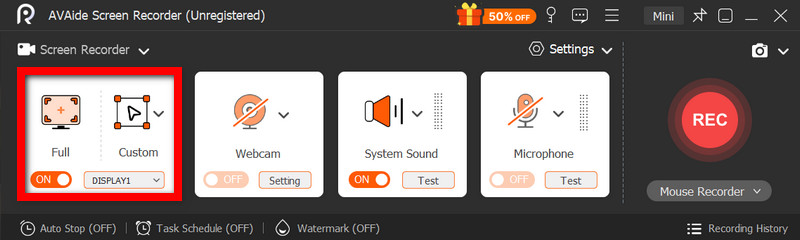
Шаг 4Настройка звука и веб-камеры
Давать возможность Системное аудио и Микрофон Если вам нужен звук, веб-камеру также можно включить для записи лиц.
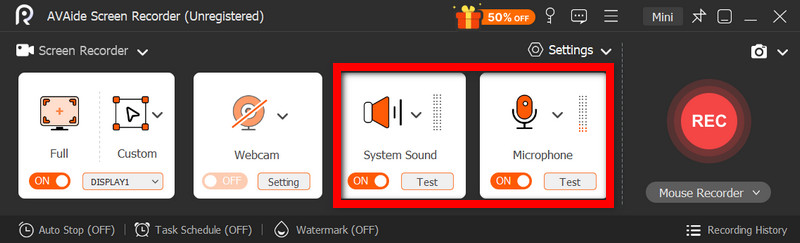
Шаг 5Начать запись
Чтобы начать запись экрана, нажмите кнопку РЭЦ Кнопка. При необходимости во время записи можно добавлять аннотации.
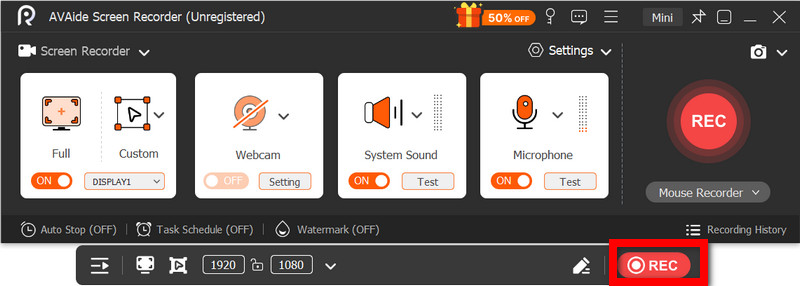
ШАГ 6Остановите и сохраните запись
Щелкните значок Останавливаться Нажмите кнопку, когда закончите. Запись будет сохранена автоматически, и вы сможете сразу же просмотреть или отредактировать её.
Часть 3. Другие бесплатные и простые методы.
1. Использование инструмента «Ножницы» (Windows 11)
Встроенная функция записи экрана в Windows 11 — это «Ножницы», предоставляющая простой и быстрый способ запечатлеть действия на экране без установки дополнительного программного обеспечения. Она наиболее эффективна для коротких видеороликов, обучающих материалов и простых задач по записи.
Производительность:
Инструмент «Ножницы» подходит для записи небольших фрагментов видео и обеспечивает плавную запись. Тем не менее, ему не хватает функций, он не поддерживает расширенные настройки и может быть не так эффективен при обработке длинных или высокопроизводительных записей, как специализированные инструменты.
Шаг 1Откройте инструмент «Ножницы», щелкнув по нему. Начинать меню.
Шаг 2Чтобы использовать панель инструментов, нажмите на значок Записывать.
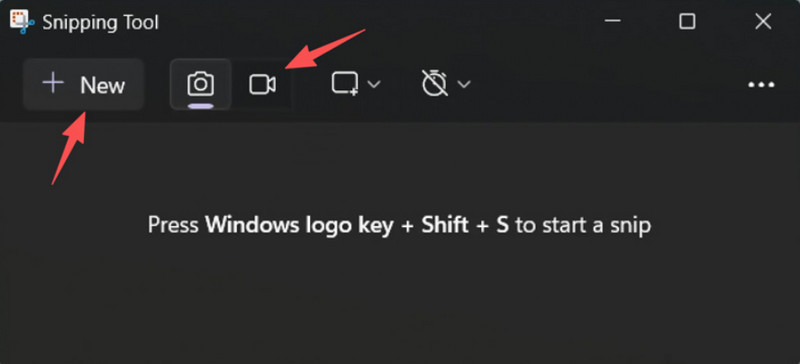
Шаг 3Чтобы записать новую запись, выберите Новый.
Шаг 4Выберите область экрана, которую хотите запечатлеть.
Шаг 5Нажмите Начинать чтобы начать запись.
ШАГ 6Нажмите Останавливаться Когда закончите, сохраните запись.
2. Использование Microsoft PowerPoint (все версии Windows)
В Microsoft PowerPoint есть функция записи экрана, которая позволяет сделать снимок экрана и включить его в презентацию. Это также удобная альтернатива для создания обучающих материалов, демонстраций или слайдов, не требующая дополнительного программного обеспечения для записи.
Производительность:
PowerPoint обеспечивает стабильные результаты при простой записи экрана, особенно для презентаций и коротких демонстраций. Хотя он предлагает приемлемое качество видео, ему не хватает расширенных элементов управления, и он может не подойти для качества видео, записанного во время длительных сеансов записи.
Шаг 1Запустите Microsoft PowerPoint и подготовьте новую или сохраните существующую презентацию.
Шаг 2Щелкните вкладку «Вставка», затем Запись экрана.
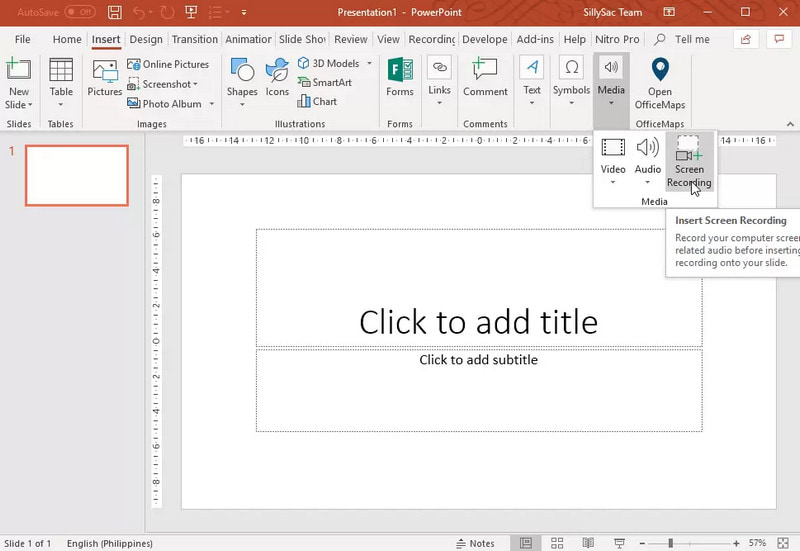
Шаг 3Выберите ту часть экрана, которую хотите запечатлеть.
Шаг 4При необходимости разрешайте запись звука или указательного взгляда.
Шаг 5Нажмите Записывать Чтобы начать запись экрана.
ШАГ 6Чтобы завершить запись, нажмите Windows + Shift + Q.
Шаг 7Чтобы сохранить запись, щелкните правой кнопкой мыши по видео и выберите соответствующий пункт. Сохранить медиафайл как.
Часть 4. Устранение распространенных проблем.
| Проблема | Решение |
| Игровая панель Game Bar не открывалась и не записывала видео. | В настройках можно отключить игровую панель Xbox. Перейдите в... Настройки > Игровой > Игровой бар и поверните его НАПопытка нажать Windows + G ещё раз, и перезагрузите компьютер (при необходимости). |
| В записи отсутствует звук. | Убедитесь, что в настройках Game Bar включены системный звук и микрофон. Также убедитесь, что ваше звуковое устройство не отключено и не выбрано неправильно в настройках звука Windows. |
| Мой ноутбук Dell тормозит во время записи. | Используйте функции «Закрыть» или «Свернуть», чтобы уменьшить количество ненужных приложений и вкладок браузера. Переключитесь в режим «Высокая производительность» в настройках электропитания и при необходимости уменьшите разрешение записи для повышения производительности. |
| Качество записанного видео низкое. | Установите наилучшее доступное качество записи в панели управления игрой, особенно когда... запись Google Meet сессии. Установите для своего дисплея родное разрешение и обновите драйверы видеокарты, чтобы изображение стало четче и стабильнее. |
Обучение Как записать экран на ноутбуке Dell Это обеспечит вам гибкость при проведении обучающих занятий, совещаний или даже игр. Независимо от того, используется ли встроенный инструмент или сложное программное обеспечение, выбор правильного метода гарантирует легкую и качественную запись, а также оптимизацию рабочего процесса.
ОБ АВТОРЕ

Записывайте экран, аудио, веб-камеру, геймплей, онлайн-встречи, а также экран iPhone/Android на свой компьютер.