


Встроенная программа для записи экрана Android может не обладать достаточным набором функций. Однако есть несколько практических советов, которые помогут вам упростить и сделать более универсальной запись экрана вашего телефона. В этой статье мы подробно расскажем об этом. Запись экрана Android учебное пособие.
Если вам нужна продвинутая запись экрана для игр, обучающих видеороликов или профессиональных демонстраций, мы также можем помочь вам обойти лишнее и предложить лучшие методы и приложения для записи экрана Android, доступные сегодня, с пошаговыми инструкциями, которые помогут вам добиться четких результатов высокого разрешения.
- Часть 1: Как использовать встроенную функцию записи экрана Android
- Часть 2: Некоторые инструменты для записи экрана Android от разных производителей
- Часть 3: 4 более универсальных способа записи экрана на Android
- Бонус: запись экрана на настольном компьютере и мобильном телефоне в наилучшем качестве.
- Часть 4: Часто задаваемые вопросы о том, как записывать экран на Android.
Часть 1: Как использовать встроенную функцию записи экрана Android
Большинство устройств под управлением Android 11 и выше поставляются со встроенным приложением для записи экрана, расположенным в панели быстрых настроек. Вы можете просто использовать его для записи экрана вашего телефона.
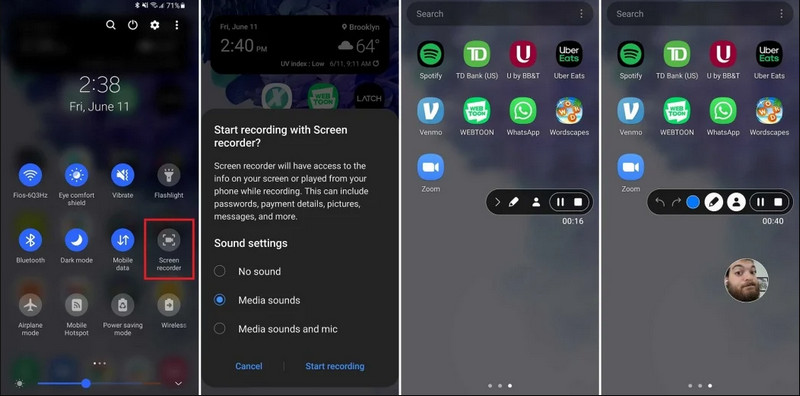
Шаг 1Быстрый доступ к настройкам
Проведите пальцем вниз дважды от верхнего края экрана, чтобы развернуть полное меню быстрых настроек.
Шаг 2Выберите запись экрана
Искать Запись экранаЕсли вы его не видите, нажмите на него. Редактировать Нажмите кнопку (с иконкой карандаша) и перетащите плитку «Запись экрана» в активную сетку.
Шаг 3Настроить параметры записи
Когда вы найдете Android Устройство записи экрана С помощью этого инструмента у вас есть несколько вариантов записи. Выбор подходящего варианта может сделать запись экрана вашего Android-устройства эффективной.
- Нет звука: Записывайте только экран телефона, без системного звука или внешнего звука.
- Звуки из медиафайлов: Запишите экран со всеми системными звуками, включая звуки всех приложений на вашем телефоне.
- Звуки медиафайлов и микрофон: Записывайте как системные звуки, так и внешние звуки (встроенный микрофон телефона или микрофон наушников).
Шаг 4Начать и остановить запись экрана
Сделайте свой выбор и нажмите Начало записи кнопка. В строке состояния появится обратный отсчет. Чтобы остановить запись экрана Android, нажмите на кнопку. Останавливаться кнопку (если есть строка состояния записи) или проведите пальцем вниз по панели уведомлений и нажмите на красную кнопку. Останавливаться кнопка.
Часть 2: Некоторые инструменты для записи экрана Android от разных производителей
Многие производители Android-смартфонов предлагают собственные программы для записи экрана с расширенными функциями, такими как наложение изображения с фронтальной камеры. Ознакомьтесь со специальными функциями записи экрана у некоторых популярных марок Android-смартфонов:
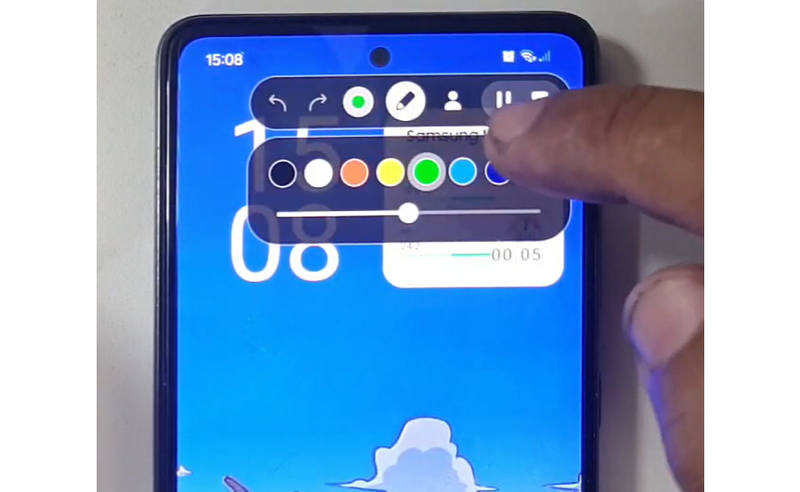
Samsung (One UI): Включает в себя программу для записи экрана с панелью инструментов, позволяющей рисовать на экране в режиме реального времени.
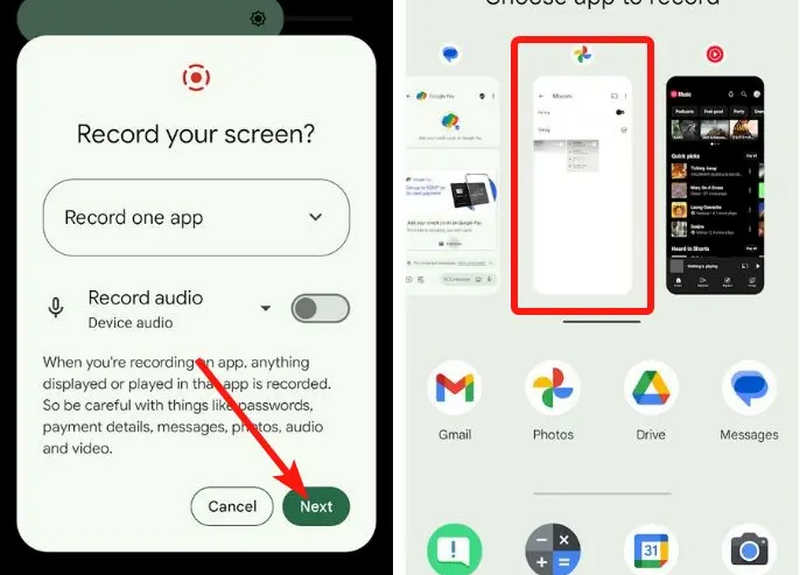
Google Пиксель: Вы можете выбрать конкретное приложение (например, банковское приложение или WhatsApp) для записи. Если вы выйдете из приложения или опустите шторку уведомлений во время записи, эти действия не будут отображаться в итоговом видео.
Xiaomi (MIUI/HyperOS): Включает в себя специальное приложение «Запись экрана» с широкими возможностями настройки частоты кадров (FPS) и битрейта.
Huawei и Honor (HarmonyOS/MagicOS): Уникальная интеграция аппаратного и программного обеспечения, позволяющая начать или остановить запись простым двойным ударом по экрану двумя костяшками пальцев.
OPPO, vivo и Realme (ColorOS/OriginOS): При запуске игры программа записи экрана автоматически оптимизирует ресурсы ЦП/ГП, чтобы запись видеоролика в разрешении 4K/60FPS не вызывала задержек или падения частоты кадров в игре.
Часть 3: 4 более универсальных способа записи экрана на Android
Если ваш Android-телефон не обладает достаточными функциями записи экрана, вы можете попробовать четыре приложения для записи экрана на Android. Они могут предложить удобные и практичные возможности.
1. Запись экрана AZ
Запись экрана AZ Это очень популярное приложение для записи экрана Android в Play Store. Оно позволяет записывать видео высокого разрешения с экрана вашего телефона Android. Приложение также позволяет настраивать разрешение, частоту кадров и битрейт в зависимости от целей записи.
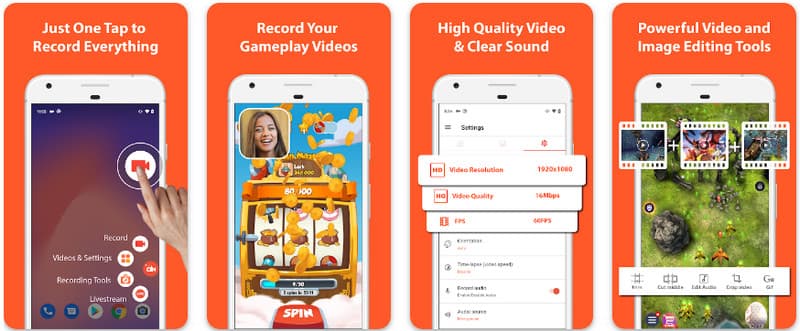
Более того, AZ Screen Recorder позволяет пользователям записывать звук, воспроизводимый на устройстве, с помощью микрофона. Это делает возможной запись даже самых сложных и высококачественных записей. Его простое расположение кнопок и стабильная производительность делают приложение любимым для многих. Узнайте, как записать экран Android с помощью этого, используя руководство ниже.
Шаг 1После того, как вы загрузили приложение на свой Android, запустите его. Затем нажмите кнопку камера кнопку для доступа к функции записи экрана.
Шаг 2Кран Начать сейчас Чтобы начать запись экрана на вашем Android-устройстве, на экране появится обратный отсчет.
Шаг 3Чтобы остановить запись экрана на вашем телефоне Android, нажмите на значок Записывать Нажмите кнопку еще раз. С помощью этого приложения вы также можете запись экрана на вашем iPhone со звуками активирован.
2. Mobizen Screen Recorder
Mobizen Screen Recorder Mobizen — ещё одно приложение для записи экрана на Android, которое бесплатно доступно в Play Store и обещает простую и качественную запись. Оно предоставляет возможности для записи в высоком разрешении с регулируемыми параметрами и чистую запись без водяных знаков. Кроме того, Mobizen также имеет встроенную функцию записи звука, которую можно использовать для записи, а также функцию записи лица и GIF-анимации, что может улучшить качество записи. Приложение также отличается простым управлением различными функциями и элементами управления, которые помогают пользователю начать запись экрана Android или редактировать контент без лишних сложностей. Узнайте, как записывать экран на Android с помощью этого приложения.
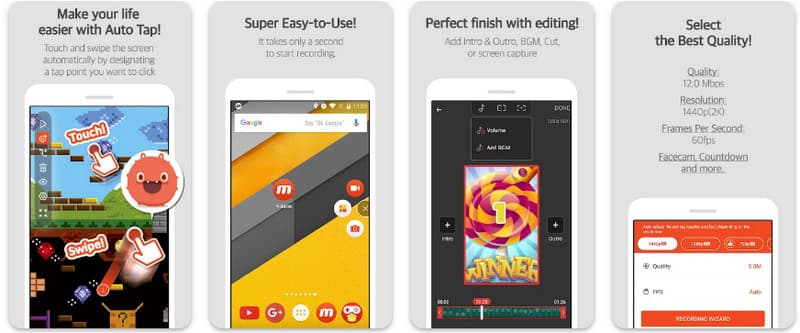
Шаг 1Загрузите его сейчас на свой Android и откройте приложение.
Шаг 2Выполните необходимые настройки, прежде чем сможете использовать программу записи экрана. На экране появится плавающая панель записи. Нажмите на неё. камера кнопку, затем Начать сейчас для начала записи экрана.
Шаг 3Когда вы закончите, коснитесь значка М и остановка кнопка для остановки записи экрана на вашем телефоне Android.
3. Программа для записи экрана - XRecorder от Inshot
Программа для записи экрана - XRecorder Это мощная универсальная утилита для Android, упрощающая запись экрана благодаря возможности записи в высоком разрешении до 1080p при 60 кадрах в секунду, без необходимости получения root-прав и добавления водяных знаков. Являясь одним из лучших способов записи экрана на Android 17/16, она обеспечивает удобный интерфейс благодаря плавающему окну управления, позволяющему запускать, приостанавливать и рисовать на экране в режиме реального времени с помощью встроенного инструмента «кисть». Помимо простой видеозаписи, она поддерживает запись внутреннего звука, наложение изображения с веб-камеры для стримеров и интегрированное редактирование видео, что делает её идеальным выбором для тех, кому необходимо создавать профессиональные обучающие видеоролики, игровые клипы или четкие демонстрации прямо со своего мобильного устройства.
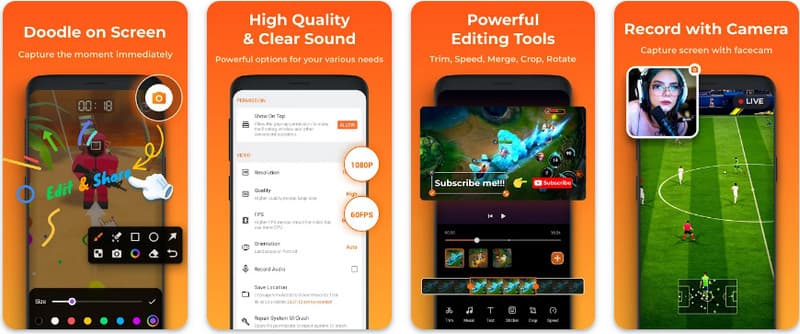
Шаг 1После завершения загрузки XRecorder откройте его и нажмите Включить плавающий значок.
Шаг 2После этого коснитесь Записывать кнопку, чтобы начать запись и Начать сейчас подтвердить.
Шаг 3Как вы видите, длительность записи отображается в виде плавающего значка; нажмите на него. остановка кнопку для сохранения записи.
4. Супер-запись экрана
Супер-запись экрана Super Screen Recorder — это первоклассное решение для тех, кто ищет профессиональный способ записи экрана на Android с максимальной гибкостью. Это мощное приложение обеспечивает захват изображения высокой четкости и выделяется тем, что даже в бесплатной версии не содержит водяных знаков, гарантируя чистоту и профессионализм вашего контента. Оно включает в себя встроенную веб-камеру для записи реакций в реальном времени и универсальный инструмент «кисть», позволяющий рисовать на экране во время записи — важная функция для создания увлекательных обучающих видеороликов или пошаговых инструкций. Независимо от того, являетесь ли вы новичком или опытным пользователем, Super Screen Recorder предоставляет широкие возможности настройки, необходимые для легкого освоения записи экрана Android.
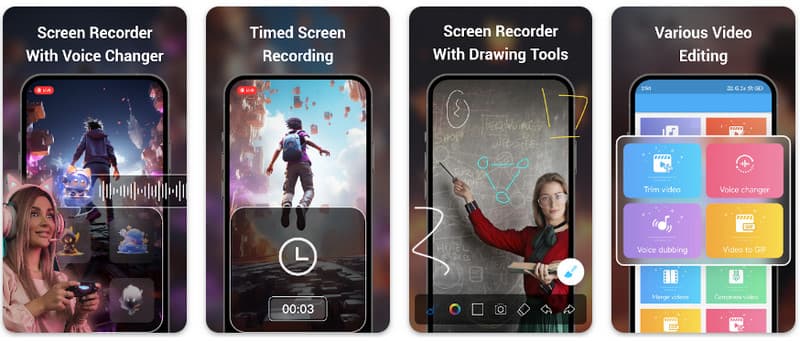
Шаг 1Откройте Super Screen Recorder на своем Android-устройстве, а затем включите плавающую функцию приложения, чтобы использовать его.
Шаг 2На экране коснитесь значка камера кнопку, подтвердите настройки и нажмите Начать сейчас. Затем начнется обратный отсчет в три секунды до начала записи.
Шаг 3Нажмите квадрат кнопку, чтобы завершить запись и сохранить ее на вашем Android-устройстве.
Бонус: запись экрана на настольном компьютере и мобильном телефоне в наилучшем качестве.
Верите ли вы, что можно записать экран своего Android-смартфона на компьютер? Программа записи экрана AVAide В первую очередь, программа предназначена для записи экрана на Windows и Mac. Но она также может записывать весь экран вашего Android-телефона. Это особенно полезно, когда вам нужно создать обучающее видео по определенным операциям на Android, а затем напрямую отредактировать видео на вашем Mac или Windows.
Для записи экрана на Windows и Mac AVAide Screen Recorder поддерживает кодеки AV1 и HEVC, которые позволяют значительно сжимать запись, сохраняя при этом наилучшее качество видео. Полное аппаратное ускорение позволяет записывать длинные видеоролики с очень низким потреблением ресурсов процессора. Еще более интересным является улучшенный микрофон, повышающий четкость звука за счет подавления фоновых звуков и эха. Программа обеспечивает превосходную запись благодаря простой навигации и функциям редактирования, таким как обрезка и аннотации. Хотя это дорогостоящая программа, она настоятельно рекомендуется, поскольку может использоваться как в личных, так и в деловых целях.
- Записывайте видео с вашего устройства Android или iOS в наилучшем качестве.
- С легкостью создавайте обучающие видеоролики с помощью функций рисования и аннотирования.
- Поддерживаются выходные кодеки AV1 и HEVC для сильного сжатия выходного видео.
- Предложите удобные функции редактирования видео для обработки ваших записей на Android.
Шаг 1Теперь вы можете загрузить средство записи экрана на свой ПК, нажав кнопку загрузки здесь. Затем установите приложение, следуя подсказкам на экране, и запустите его, чтобы перейти к следующему шагу.

БЕСПЛАТНАЯ ЗАГРУЗКА Для Windows 7 или новее
 Безопасная загрузка
БЕСПЛАТНАЯ ЗАГРУЗКА Для Mac OS X 10.13 или более поздней версии
Безопасная загрузкаШаг 2Теперь, когда он уже запущен в вашей системе, поместите рамку записи в область, где вы хотите начать запись. Здесь вы можете записать весь экран, выбрав опцию «Полный экран» вместо опции «Область».

Шаг 3Далее, при необходимости можно настроить запись системы и микрофона. Если вы хотите добавить свое лицо к записи, активируйте опцию Веб-камера здесь. Затем нажмите РЭЦ чтобы начать обратный отсчет и начать запись.

Шаг 4Когда вы закончите запись, нажмите кнопку остановка кнопка, которая представляет собой красный квадрат. В следующем появившемся окне вы можете редактировать сделанную ранее запись с помощью доступных здесь опций, затем поместите курсор на запись и нажмите скачать кнопку, чтобы сохранить его. Это приложение доказывает свою ценность как лучший открытый источник записи доступный.

Часть 4: Часто задаваемые вопросы о том, как записывать экран на Android.
Где в настройках можно найти функцию записи экрана?
Чтобы получить доступ к встроенной функции... запись экрана на Android Для открытия приложения без использования сторонних приложений проведите пальцем вниз дважды от верхнего края экрана. Быстрые настройки панель и найдите Запись экрана (или значок «Запись экрана»). Если он не виден, коснитесь значка Редактировать Нажмите кнопку (карандаш), чтобы перетащить переключатель записи экрана на активные плитки. После добавления вы можете просто коснуться значка, выбрать параметры звука, например, запись внутренних системных звуков или звука с микрофона, и нажать кнопку «Старт», чтобы начать захват экрана непосредственно из системных настроек.
Почему я не могу найти функцию записи экрана на своем Android-устройстве?
Отсутствие встроенной функции записи экрана на Android обычно объясняется тем, что на вашем устройстве установлена более старая операционная система, поскольку эта функция была стандартизирована только с появлением... Android 11Если ваше программное обеспечение обновлено, переключатель может быть просто скрыт от вас. Быстрые настройки меню; обычно его можно вызвать, нажав на него. Редактировать Нажмите кнопку в панели уведомлений и перетащите плитку «Запись экрана» в активное окно просмотра. Кроме того, на некоторых устройствах начального уровня «Go Edition» или при использовании определенных оболочек производителя эта функция может быть отключена для экономии системных ресурсов, в этом случае наиболее эффективным обходным путем будет использование стороннего приложения, такого как XRecorder или Super Screen Recorder.
Почему исчезла кнопка записи экрана?
Кнопка записи экрана обычно исчезает из-за случайного перемещения за пределы активной области быстрых настроек; часто её можно восстановить, нажав на неё. Редактировать (значок карандаша) В панели уведомлений можно перетащить плитку назад. Она также может быть скрыта из-за режима энергосбережения, ограничения, накладываемого рабочим профилем, или просто требует перезагрузки системы для обновления пользовательского интерфейса после обновления программного обеспечения.
Используя приведенное здесь руководство, вы узнали как записать экран на Android Samsung. Это руководство принесет вам большую пользу в отношении вашей задачи записи экрана, особенно если вы являетесь пользователем Android. Поделитесь этой информацией со своим другом-пользователем Android, чтобы дать ему представление о том, как это сделать.
ОБ АВТОРЕ

Записывайте экран, аудио, веб-камеру, геймплей, онлайн-встречи, а также экран iPhone/Android на свой компьютер.


