Хотите исследовать? как записать совещание WebexЗапись — идеальный способ сохранить важные презентации, дискуссии или обучающие сессии для дальнейшего использования. Кроме того, благодаря встроенной функции записи Webex вы можете записывать как видео, так и аудио, а также общий контент, гарантируя, что ничего важного не будет упущено. Поэтому, если вы хотите узнать, как записать совещание в Webex, ознакомьтесь с этим руководством, поскольку мы предлагаем все лучшие методы, которые вы можете использовать.
Часть 1. Кто может записывать совещание Webex?
Интересуетесь, кто может записывать совещания в Webex? Записывать сессии в Webex могут только организатор совещания и назначенные им соорганизаторы. Кроме того, обычные участники не могут начать запись, если организатор специально им этого не разрешит. Также обратите внимание, что для доступа к функции записи необходима подписка.
Часть 2. Как включить запись
Включить функцию записи на веб-сайте очень просто, если вы являетесь администратором. Для включения записи необходимо:
Шаг 1Войдите в систему Центр управления Webex или Администратор сайта через учетные данные администратора. Затем перейдите к следующему шагу. Услуги > Настройки встречи раздел.
Шаг 2После этого найдите Запись Переключите этот раздел, чтобы включить запись. Вы также можете выбрать тип хранения, например, облачную запись, локальную запись и другие, в зависимости от вашего тарифного плана.
Шаг 3На следующем этапе установите права доступа для ведущих и соведущих, чтобы они могли управлять записью.
Часть 3. Как записать совещание Webex на компьютере.
Если вы хотите узнать, как записывать совещания в Webex, вы можете прочитать всю информацию в этой статье. Мы научим вас записывать совещания Webex в облаке и на локальном компьютере.
Метод 1: Запись совещания Webex в облаке
Запись совещания в облаке — это идеальный способ, особенно если вы хотите сохранить записи или поделиться файлом с другими пользователями. Вы даже можете получить доступ к видео где угодно, не загружая его на свое устройство. Итак, чтобы начать процесс, воспользуйтесь простыми инструкциями ниже.
Шаг 1Доступ Вебекс на вашем компьютере. После этого вы даже сможете создать свою учетную запись.
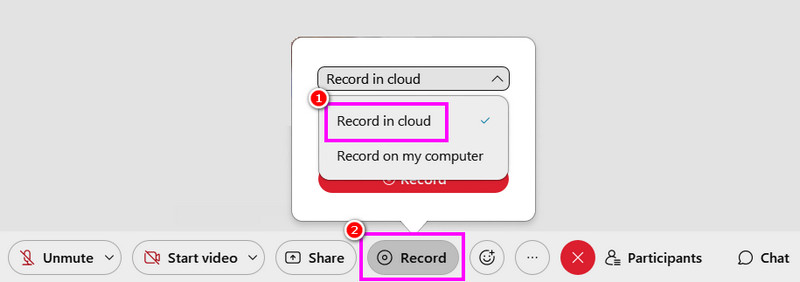
Шаг 2После этого вы можете нажать на кнопку. Начать совещание Webex вариант. Затем нажмите кнопку Записывать кнопка.
Шаг 3Выберите Запись в облаке > Записывать Нажмите кнопку, чтобы начать запись. Чтобы остановить запись, используйте кнопку. Останавливаться кнопка.
Метод 2: Запись совещания Webex в локальном режиме записи.
Помимо записи в облаке, вы также можете сохранять и записывать встречи Webex на своем компьютере. Этот метод лучше, если вы хотите иметь собственную запись и коллекцию своих встреч. Нам нравится, что процесс записи прост благодаря удобному интерфейсу. Вы даже можете сохранить видео в наилучшем качестве для лучшего воспроизведения. Ознакомьтесь с приведенными ниже шагами для эффективной записи Webex.
Шаг 1После доступа ВебексЗапустите его, чтобы начать процесс.
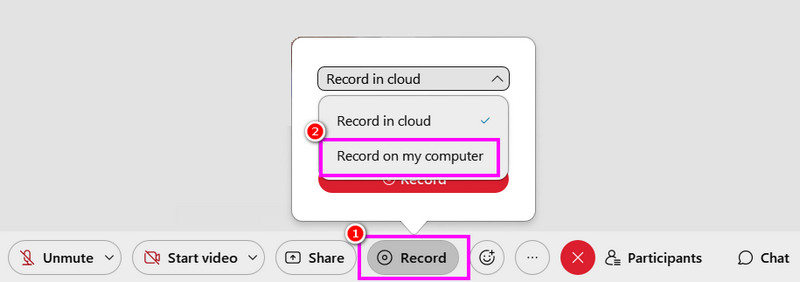
Шаг 2Затем, в главном интерфейсе, нажмите Начать совещание Webex кнопка. После этого, из Записывать раздел, выберите Запись на моём компьютере опция для начала записи.
Шаг 3Кран Останавливаться Для завершения процесса записи. После этого файл будет сохранен на вашем компьютере.
Метод 3: Запись совещания Webex с помощью программы AVAide Screen Recorder.
Если вы являетесь участником конференции Webex, то запись конференции может быть недоступна, поскольку это могут делать только организаторы и соорганизаторы. Если запись запрещена, лучше всего использовать более качественную программу для записи экрана, например, [название программы]. Программа записи экрана AVAideЗапись совещания в Webex очень проста благодаря этому диктофону. Программа имеет комплексный и удобный пользовательский интерфейс. Вы можете записывать как видео, так и аудио, что делает её ещё более удобной и функциональной. Кроме того, вы можете сделать снимок экрана во время записи. Вы также можете сохранить запись в наилучшем качестве, что обеспечит вам приятный просмотр. Чтобы начать запись совещания в Webex, выполните следующие шаги.
Шаг 1Скачайте и запустите Программа записи экрана AVAide На вашем компьютере. Нажмите на кнопки ниже, чтобы мгновенно получить доступ к диктофону.

БЕСПЛАТНАЯ ЗАГРУЗКА Для Windows 7 или новее
 Безопасная загрузка
БЕСПЛАТНАЯ ЗАГРУЗКА Для Mac OS X 10.13 или более поздней версии
Безопасная загрузкаШаг 2В главном интерфейсе вы можете выбрать способ записи встречи, нажав на соответствующую кнопку. Полный или Обычай опции. Вы также можете включить Системный звук для записи звука с вашего компьютера.
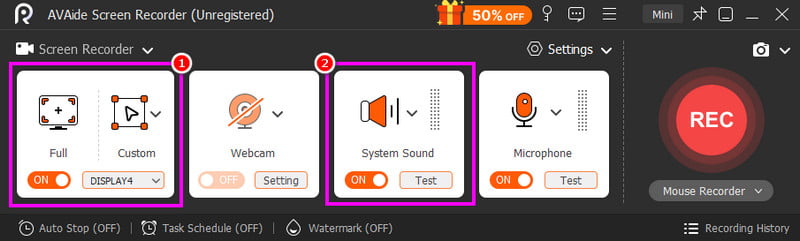
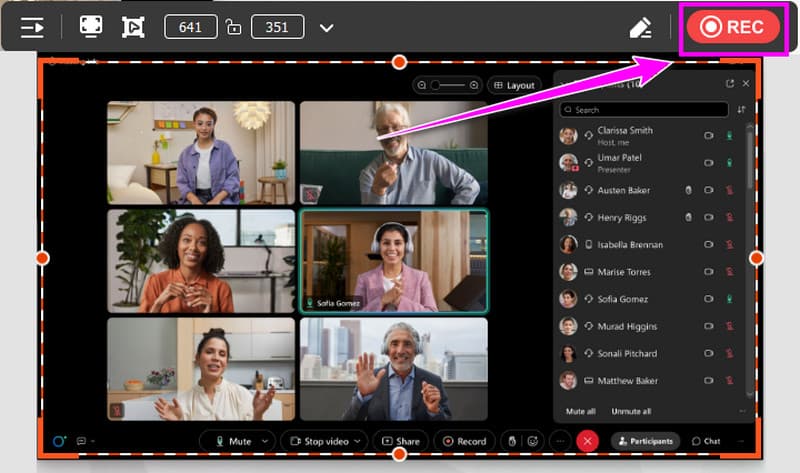
Шаг 3Щелкните значок РЭЦ Нажмите кнопку, и появится трехсекундный обратный отсчет. После завершения обратного отсчета начнется процесс записи. Отметьте галочкой. Останавливаться кнопку, чтобы завершить запись.
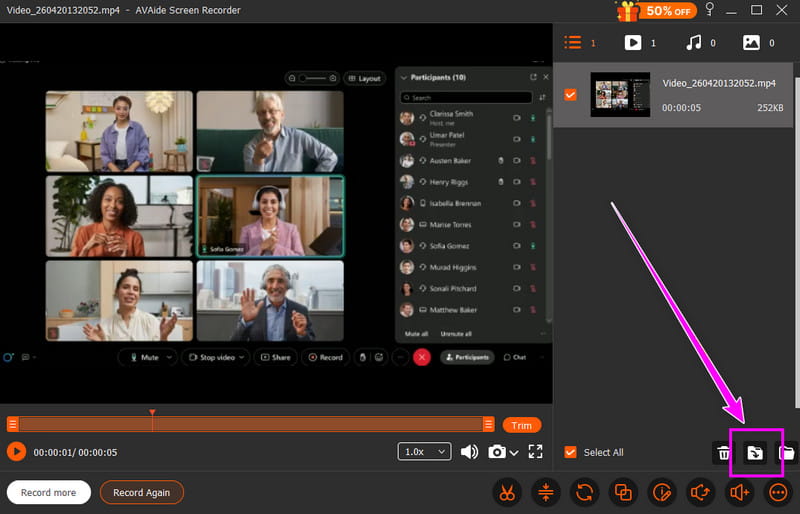
Шаг 4Когда появится предварительный просмотр, вы можете начать сохранение видео, нажав на кнопку. Экспорт Кнопка ниже.
Часть 4. Как записать совещание Webex на телефоне.
Вы также можете записывать сессию в Webex с помощью своего мобильного телефона. Преимущество здесь в том, что вы можете... записать экран на iPhone А также Android, благодаря встроенной функции записи. С помощью этой функции вы можете эффективно записывать совещания, не загружая сторонние программы для записи.
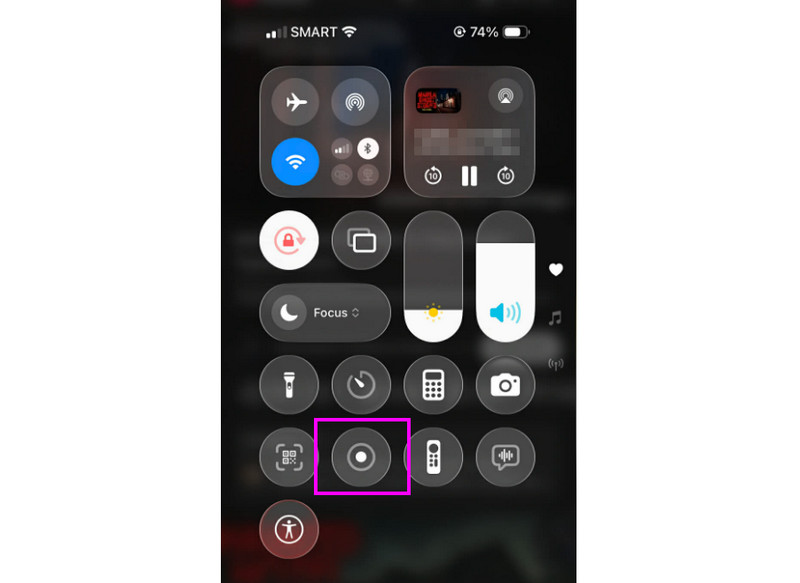
Шаг 1Со своего телефона вы можете перейти к следующему Уведомление раздел. Затем найдите Записывать кнопка.
Шаг 2Нажмите Записывать Нажмите кнопку, и на экране появится 3-секундный обратный отсчет. После этого начнется официальный процесс записи.
Шаг 3Нажимать Останавливаться Чтобы завершить процесс записи, вы можете просмотреть записи в приложении «Фотографии» или «Галерея».
Часть 5. Как записать совещание Webex в браузере.
Если вы хотите лучший онлайн-рекордерВы можете попробовать использовать онлайн-инструмент для записи экрана. Этот диктофон полезен, если вы хотите записать совещание Webex в браузере. Нам нравится, что процесс записи прост. Он даже обеспечивает плавный процесс сохранения. Единственный недостаток — отсутствие базовых функций редактирования для улучшения видео. Кроме того, он показывает на экране различную надоедливую рекламу.
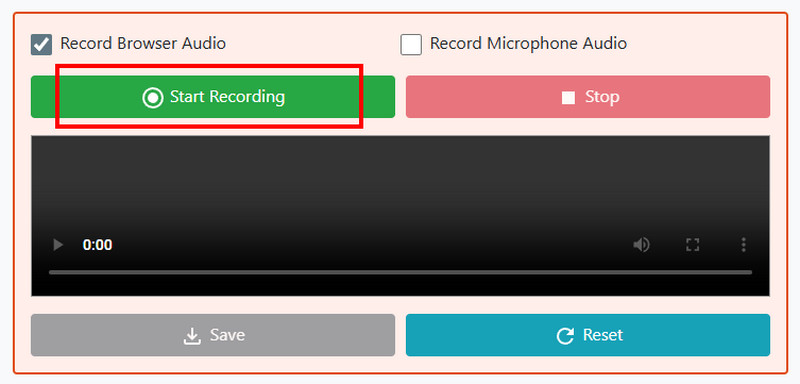
Шаг 1Откройте браузер и получите доступ к Онлайн-запись экрана.
Шаг 2После этого нажмите кнопку Начать запись Нажмите кнопку. Затем выберите конференцию Webex, чтобы начать процесс записи.
Шаг 3Наконец, нажмите на Останавливаться Нажмите кнопку, чтобы завершить запись вашей встречи в Webex.
Часть 6. Как скачать запись Webex
Перейдите к этому разделу и узнайте, как скачивать записи Webex.
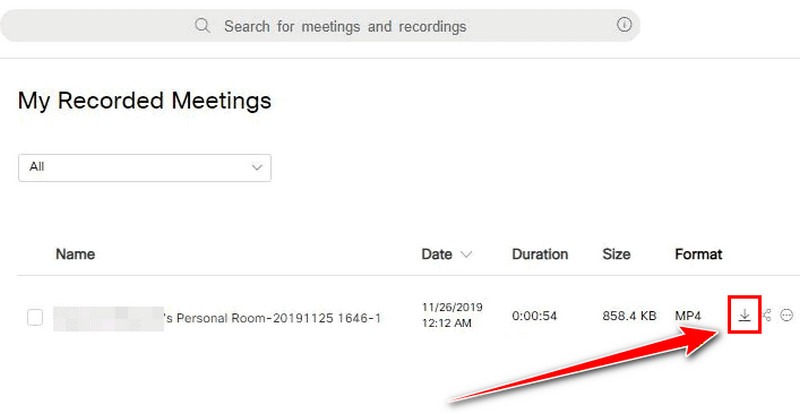
Шаг 1Войдите в свою учетную запись. Вебекс учетную запись и перейти к Записи раздел.
Шаг 2Затем выберите записи и нажмите кнопку Скачать символ из правого интерфейса.
Шаг 3Затем запись будет сохранена на вашем компьютере в формате MP4.
Теперь вы узнали как записать сессию в WebexВы даже можете узнать, как сохранять записи в облаке и на компьютере. Кроме того, если вы хотите упростить процесс записи, вы можете попробовать использовать Программа записи экрана AVAideОна даже может предлагать различные базовые инструменты редактирования, позволяющие улучшить видео для более качественного воспроизведения.
ОБ АВТОРЕ

Записывайте экран, аудио, веб-камеру, геймплей, онлайн-встречи, а также экран iPhone/Android на свой компьютер.