Фотоаппараты Canon записывают изображения в формате CR2, RAW-формате, предназначенном для получения максимальной детализации изображения. Хотя он удобен для редактирования, его нельзя использовать в повседневной работе из-за большого размера файла и ограниченной совместимости. преобразование CR2 в JPGБлагодаря этому, файлы легче передавать, быстрее загружать и они поддерживаются более широким спектром устройств. Это также процесс, который минимизирует требования к хранению данных, не требуя при этом высокого уровня технических знаний. Данное руководство разделено на разделы, посвященные причинам, методам и инструментам, основанным на распространенных практиках обработки изображений, чтобы помочь вам управлять файлами понятным и контролируемым образом.
Часть 1. Canon CR2: Зачем вам нужно его конвертировать
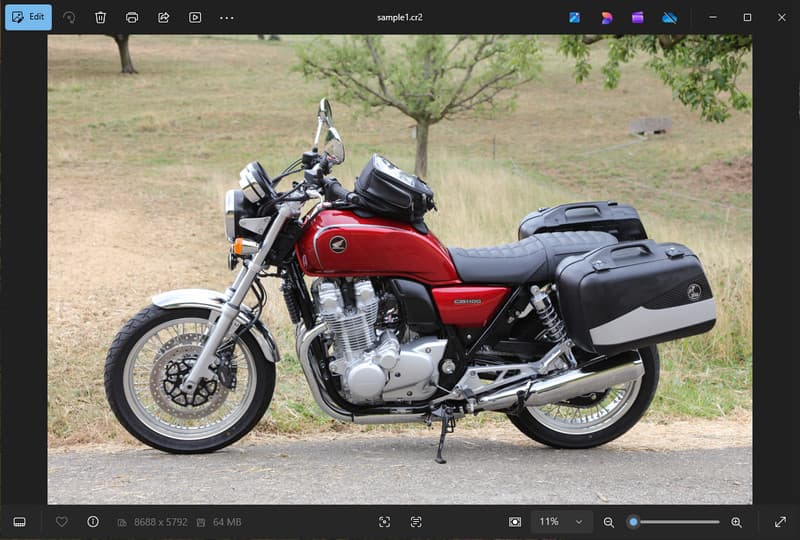
Canon CR2 — это формат RAW-файлов, который записывает необработанную информацию с сенсора камеры. Несмотря на высокую детализацию, может потребоваться преобразование файла CR2 в формат JPG, поскольку многие устройства и приложения не поддерживают RAW-файлы.
1. Ограниченная совместимость
Многие стандартные инструменты не поддерживают файлы CR2, что затрудняет просмотр изображений. Преобразование файла CR2 в JPG гарантирует беспроблемное открытие фотографий на различных устройствах, в разных браузерах и базовых программах для просмотра изображений.
2. Большой размер файла
Файлы RAW очень большие, поскольку сохраняют больше данных изображения. Это влияет на хранение и производительность. Преобразование изображений CR2 в JPG уменьшает размер файла, что упрощает хранение и эффективную передачу изображений.
3. Упрощенный обмен и загрузка.
Многие платформы не принимают файлы в формате RAW или обрабатывают их медленно. Переход с формата CR2 на JPG — это быстрый и простой способ загрузить ваши фотографии и гарантировать, что они будут отображаться в правильном формате в социальных сетях, электронной почте и на других сайтах.
4. Нет необходимости в специализированном программном обеспечении.
Для обработки файлов CR2 требуется программное обеспечение, способное работать с исходным кодом. Преобразование CR2 в JPG избавляет от необходимости использования сложных программ и позволяет легко получать изображения для повседневного использования.
5. Более быстрый рабочий процесс
Работа с необработанными файлами может замедлить процесс, особенно при обработке больших объемов изображений. Использование надежного конвертера CR2 в JPG помогает ускорить обработку изображений и повысить общую производительность.
6. Более простой процесс для начинающих
Работа с RAW-форматами может показаться сложной для новичков. Освоение конвертации CR2 в JPG упростит рабочий процесс и облегчит управление изображениями, устраняя технические сложности.
Понимание этих моментов объясняет, почему конвертация часто является наиболее практичным решением. В следующем разделе вы изучите лучшие методы эффективной конвертации CR2 в JPG.
Часть 2. 5 лучших способов конвертировать CR2 в JPG.
1. AVAide Image Converter (лучший бесплатный онлайн-конвертер)
Конвертер изображений AVAide Это быстрое браузерное решение, разработанное для пользователей, которым нужны быстрые результаты без установки программного обеспечения. Оно особенно полезно, когда необходимо конвертировать файлы CR2 в JPG в пакетном режиме, сохраняя при этом качество изображений.
Ключевая особенность:
- Выполняет преобразование в пакетные файлы CR2 и обратно.
- Обеспечивает высокое качество изображения и естественную цветопередачу.
- Полностью онлайн, установка не требуется.
- Поддерживает файлы JPG, PNG и другие.
- Удобный интерфейс для ускорения обработки.
Платформы:
- Веб-приложение, работающее на Windows, Mac, Linux и мобильных браузерах.
Шаг 1Посетите официальный сайт
Откройте в браузере официальную страницу AVAide Image Converter. После загрузки вы сможете сразу же начать конвертацию без регистрации и установки чего-либо.
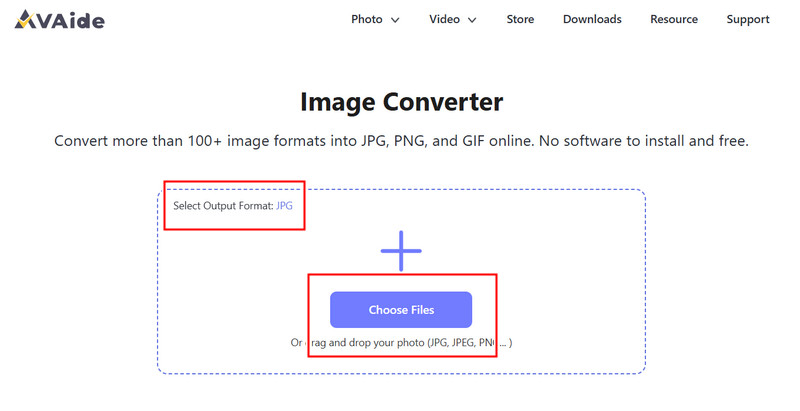
Шаг 2Настройка вывода и загрузки
Выберите JPG в качестве желаемого формата вывода. Затем нажмите кнопку «+» или перетащите файлы CR2 в область загрузки, чтобы начать.
Шаг 3Начать конвертацию CR2
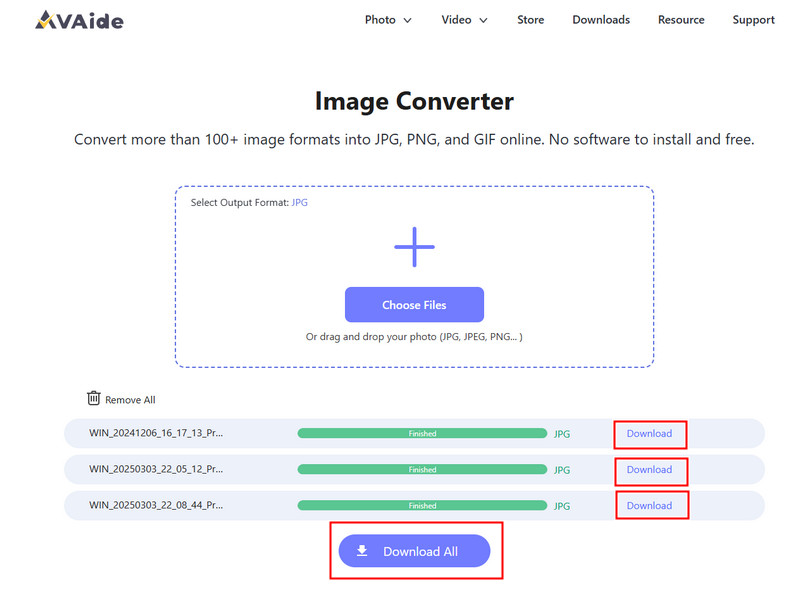
Дождитесь завершения обработки файлов программой. После завершения нажмите кнопку. Скачать для одного файла или Скачать все если вы преобразовали несколько изображений.
- Плюсы
- Простой и быстрый в использовании
- Не требуется настройка или установка.
- Эффективная поддержка пакетной обработки
- Обеспечивает стабильное качество выпускаемой продукции.
- Минусы
- Требуется подключение к интернету.
- Ограниченный набор расширенных инструментов редактирования.
2. Адоб Фотошоп
Adobe Photoshop Это эффективное приложение, позволяющее редактировать RAW-файлы перед экспортом. Обычно оно используется, когда необходимо преобразовать CR2 в JPG и иметь полный контроль над изменениями изображения.
Ключевая особенность:
- Расширенные возможности редактирования CR2 с помощью Camera Raw
- Высококачественные варианты экспорта
- Профессиональные инструменты редактирования
Платформы:
- Windows и Mac
Шаг 1Запустите Photoshop и откройте файл CR2, который автоматически загрузится в Camera Raw.
Шаг 2При необходимости отрегулируйте экспозицию, баланс белого или цвет, затем нажмите кнопку. Открытым продолжить.
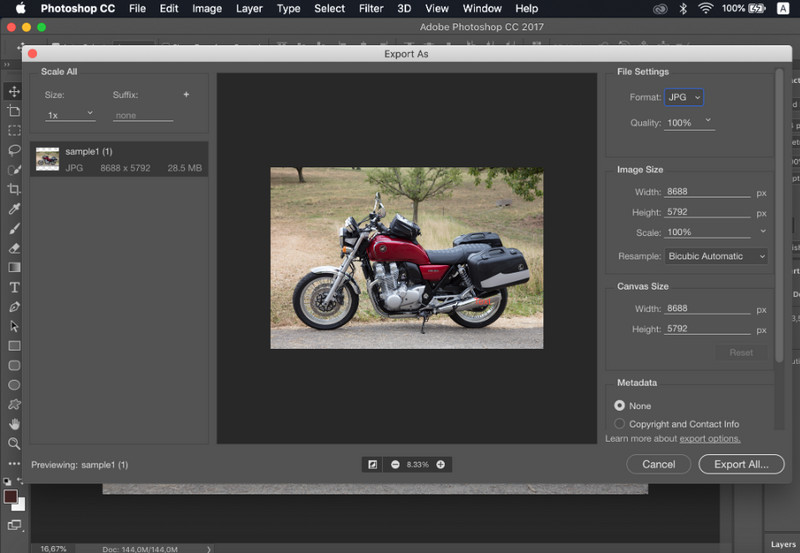
Шаг 3Идти к Файл, выбирать Сохранить как, выберите JPG отформатируйте, установите качество и сохраните изображение.
- Плюсы
- Превосходный контроль изображения и точность.
- Программное обеспечение, соответствующее отраслевым стандартам.
- Минусы
- Требуется подписка
- Крутая кривая обучения
3. Lightroom
Лайтрум идеально подходит для фотографов, работающих с большими библиотеками изображений, и даже если вы хотите удалить фон в LightroomЭто упрощает пакетное редактирование и экспорт, позволяя легко использовать конвертер CR2 в JPG для обработки нескольких изображений одновременно.
Ключевая особенность:
- Пакетное редактирование и экспорт
- Система неразрушающего редактирования
- Организованное управление фотографиями
Платформы:
- Windows, Mac и мобильные устройства
Шаг 1Откройте Lightroom и добавьте файлы CR2 в библиотеку.
Шаг 2Выберите фотографии и внесите необходимые изменения.
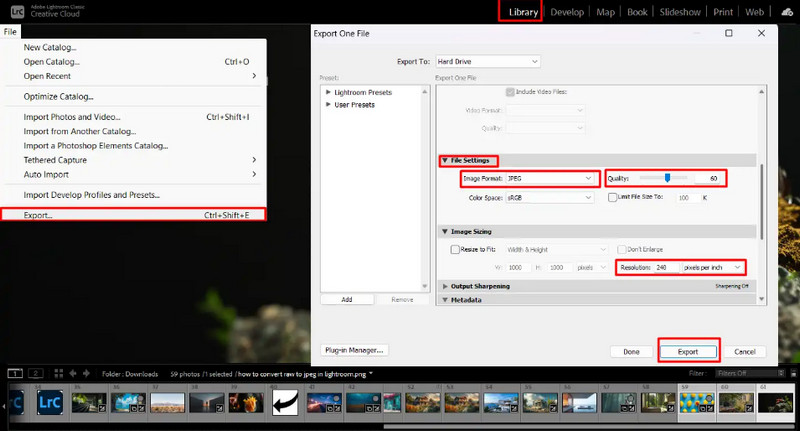
Шаг 3Нажмите Экспорт, выбирать JPG отформатируйте, установите параметры и выберите место сохранения.
- Плюсы
- Эффективен для пакетной обработки изображений.
- Стабильное качество выпускаемой продукции
- Минусы
- Требуется подписка
- Требуется обучение для начинающих.
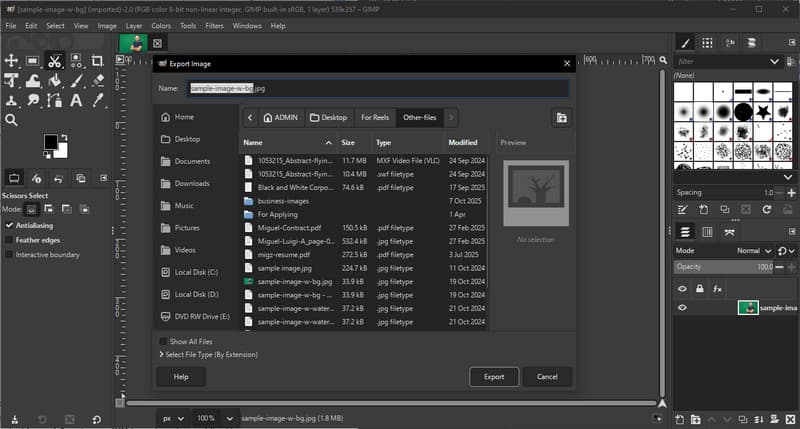
4. GIMP
Фоторедактор GIMP Это бесплатный редактор с открытым исходным кодом, который может обрабатывать RAW-изображения с помощью плагинов. Это эффективный вариант, если вы учитесь конвертировать CR2 в JPG без необходимости тратить деньги на платное программное обеспечение.
Ключевая особенность:
- Свободное программное обеспечение с открытым исходным кодом
- Поддерживает множество форматов изображений.
- Основные функции редактирования и конвертации
Платформы:
- Виндовс, Мак, Линукс
Шаг 1Откройте GIMP и загрузите свой файл CR2, используя плагин RAW.
Шаг 2Отрегулируйте параметры изображения в окне импорта и подтвердите.
Шаг 3Идти к Файл, выбирать Экспортировать как, выберите JPG отформатируйте и экспортируйте файл.
- Плюсы
- Полностью бесплатно для использования.
- Гибкая совместимость с плагинами и расширениями.
- Минусы
- Настройка может быть технически сложной.
- Менее отполированный интерфейс
5. Преобразование
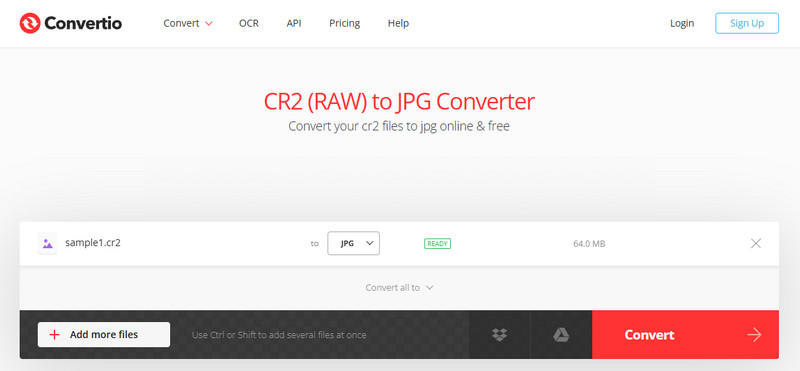
Преобразование Это хорошо известный веб-инструмент, позволяющий пользователям быстро конвертировать файлы без установки. Это практичный выбор, когда пользователи спрашивают, как конвертировать CR2 в JPG с помощью простой онлайн-платформы.
Ключевая особенность:
- Поддерживает множество форматов файлов, включая CR2 и JPG.
- Работает непосредственно в браузере.
- Позволяет загружать файлы с устройства, из облака или по URL-адресу.
- Простой и быстрый процесс конвертации
Платформы:
- Интернет
Шаг 1Откройте Convertio в браузере и загрузите свой файл CR2.
Шаг 2Выбирать JPG как выходной формат.
Шаг 3Начните преобразование и загрузите файл после его завершения.
- Плюсы
- Удобный доступ и простота использования.
- Установка не требуется
- Поддерживает различные источники файлов.
- Минусы
- Ограничения на размер файлов в бесплатной версии
- Требуется подключение к интернету.
Часть 3. Сравнение 5 конвертеров CR2 в JPG.
| Функции | Конвертер изображений AVAide | Adobe Photoshop | Лайтрум | GIMP | Преобразование |
| Легко использовать | Очень легко | Умеренный | Умеренный | Умеренный | Легкий |
| Пакетное преобразование | Да | Ограниченное | Ограниченное | Ограниченное | Ограничено 5 |
| Качество изображения | Самый высокий | Высоко | Высоко | Высоко | Высоко |
| Скорость | Быстро | Умеренный | Быстро | Умеренный | Быстро |
| Ограничение размера файла | Нет | Нет | Нет | Нет | Да |
Часть 4. Часто задаваемые вопросы по конвертации CR2 в JPG.
Что делать с файлами CR2?
Файлы CR2 — это необработанные изображения, содержащие данные, полученные с камеры Canon. Они полезны, если вам нужен полный контроль над редактированием, например, регулировка яркости, цвета и резкости. Однако их нелегко использовать для повседневных задач, таких как обмен или загрузка.
Какие приложения открывают файлы CR2?
Файлы CR2 можно открыть с помощью нескольких приложений для редактирования фотографий. Наиболее распространенными являются Adobe Photoshop и Lightroom, поскольку они полностью поддерживают формат RAW и предоставляют расширенные инструменты редактирования. GIMP также может открывать файлы CR2 с помощью плагина.
Как преобразовать RAW-файлы в JPG-файлы за один раз?
Для одновременного преобразования нескольких RAW-файлов вам потребуется инструмент, поддерживающий пакетное преобразование. Такие программы, как Lightroom, или онлайн-инструменты, например AVAide Image Converter, позволяют импортировать или загружать несколько файлов CR2 одновременно. Вам просто нужно выбрать JPG в качестве выходного формата и запустить процесс.
Преобразование файлов CR2 в JPG упрощает обмен, просмотр и хранение изображений. Хотя CR2 отлично подходит для редактирования, JPG более практичен для повседневного использования. Если вам интересно, почему так происходит. Как изменить тип файла с CR2 на JPG?Вы можете использовать такие инструменты, как Photoshop, Lightroom или онлайн-конвертеры, например... Конвертер изображений AVAideЦель проста: преобразовать большие необработанные файлы в меньшие по размеру, пригодные для использования изображения JPG без потери важного качества.
ОБ АВТОРЕ


Вы можете легко конвертировать свою фотографию из любого формата изображения в популярный JPG, PNG или GIF без потери качества.
ОБРАБОТАТЬ СЕЙЧАСКонвертировать фото