Как записать голосовое сообщение на iPhoneЗапись голосового сообщения — это быстрый способ поделиться своими мыслями или отправить персонализированное аудио без набора текста. Благодаря встроенной функции голосовых сообщений iPhone вы можете мгновенно записывать, сохранять и отправлять аудиозаписи всего несколькими касаниями. Поэтому, если вы ищете комплексный способ записи и отправки голосовых сообщений на своем мобильном телефоне, ознакомьтесь с этим руководством, чтобы добиться желаемого результата.
Часть 1. Как записать и отправить голосовое сообщение в iMessage.
iMessage — это не просто средство связи. Он также предлагает функцию голосовых сообщений. С помощью этой функции вы можете отправлять или делиться своими сообщениями и мыслями голосом. Это идеальная функция, если вы хотите отправлять сообщения, не набирая текст на клавиатуре. Самое приятное здесь то, что отправка голосовых сообщений проста, что делает её идеальной для всех пользователей. Итак, если вы хотите начать записывать и отправлять сообщения, вы можете воспользоваться инструкциями ниже.
Как записать голосовое сообщение на iPhone
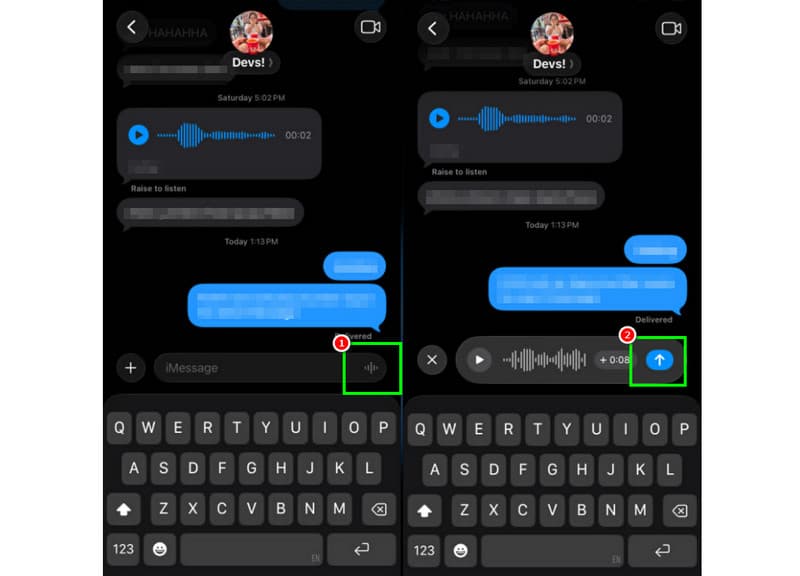
Шаг 1На вашем iPhone запустите iMessage Затем перейдите к человеку, с которым хотите общаться.
Шаг 2На экране нажмите и удерживайте Микрофон опция. Удерживая кнопку, вы можете начать запись и озвучивание своего сообщения.
Шаг 3Чтобы остановить запись, отпустите палец с кнопки. Затем нажмите на кнопку. Отправить стрелку кнопка для отправки сообщения.
Прослушивание входящих голосовых сообщений
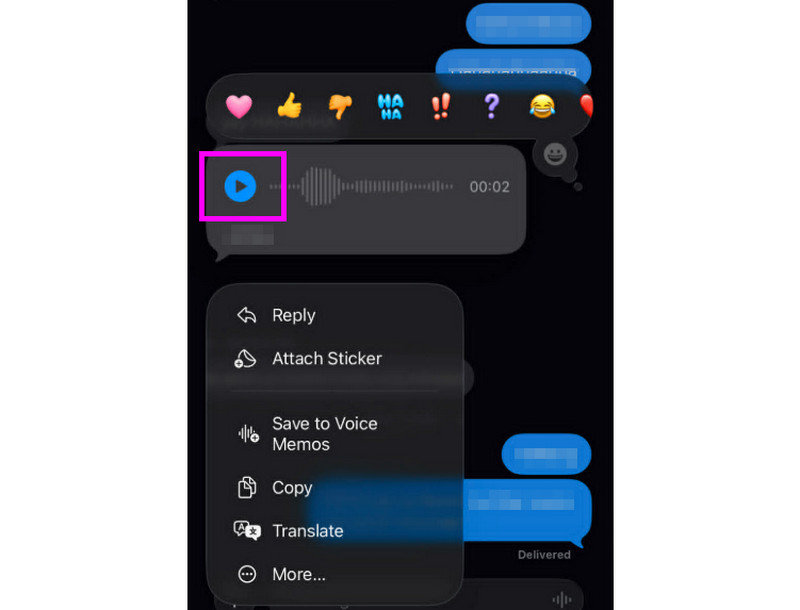
Шаг 1После получения голосового сообщения вы можете нажать Играть в кнопка.
Шаг 2Для более четкого звучания сообщения вы также можете отрегулировать громкость с помощью боковой кнопки вашего iPhone.
Шаг 3Через две минуты голосовое сообщение исчезнет. Чтобы сохранить сообщение, просто нажмите кнопку. Хранить вариант ниже.
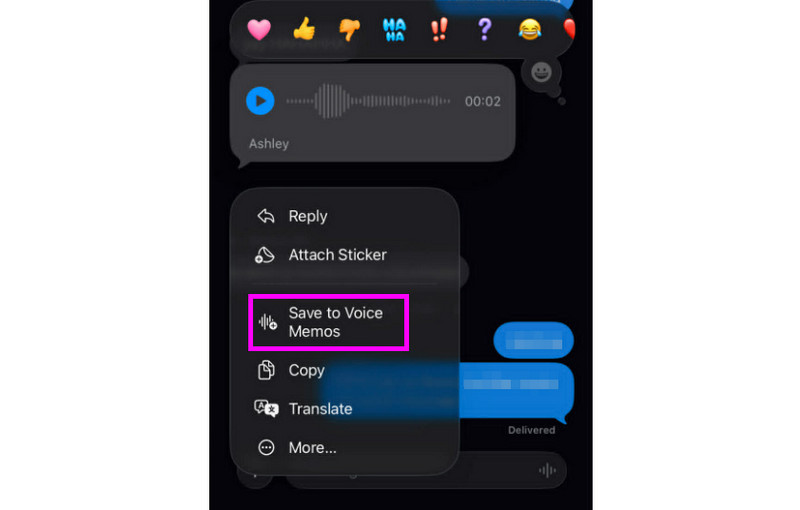
Шаг 4Чтобы сохранить голосовое сообщение, просто нажмите и удерживайте его, а затем коснитесь значка Сохранить в голосовые заметки приложение. С помощью этого приложение для записи голосаВы можете прослушать сообщение в любое время и в любом месте.
Настройка параметров голосовых сообщений
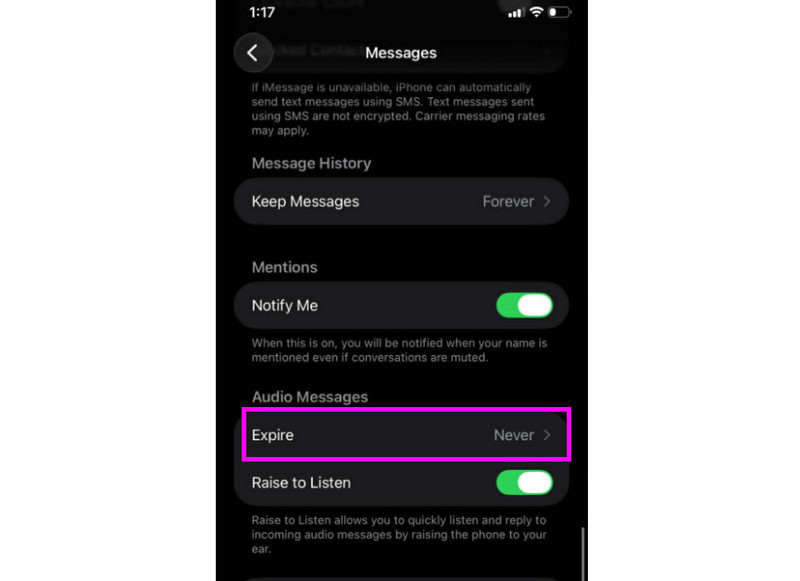
Шаг 1Перейти к вашей Настройки Затем перейдите к приложению. Сообщения приложение.
Шаг 2Перейдите к Аудиосообщения > Срок действия истекает раздел и нажмите Никогда такой вариант. Таким образом, голосовые сообщения из iMessage не будут удалены.
Часть 2. Способ записи приветствия для голосовой почты на iPhone.
Когда вы недоступны, звонящие получат персонализированное сообщение, если вы запишете голосовое приветствие на своем iPhone. Создать новое приветствие, изменить или удалить старое, а также использовать временное приветствие для особых случаев, очень просто. Вы можете полностью изменить звучание вашего голосового сообщения для других людей всего несколькими касаниями в приложении «Телефон». См. раздел «Методы» и узнайте, как записать голосовое сообщение на iPhone.
Настройка приветствия голосовой почты
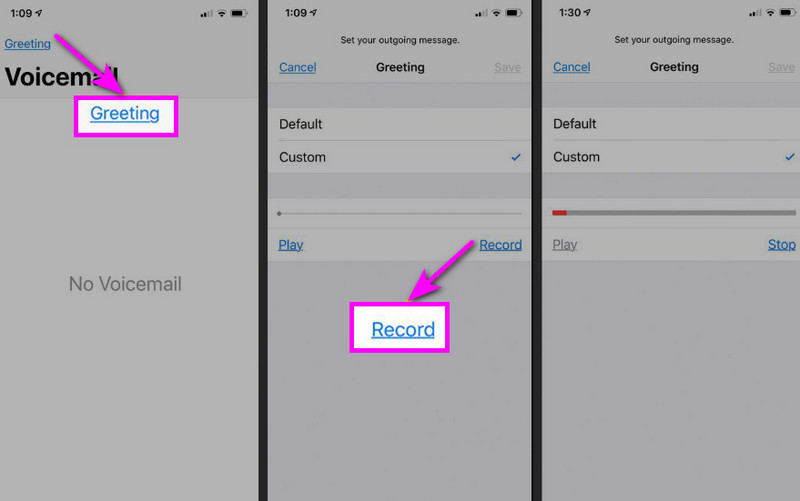
Шаг 1Перейти к Телефон приложение и нажмите Голосовая почта вариант.
Шаг 2После этого нажмите кнопку Приветствие Функция находится в верхнем левом углу экрана. Нажмите Обычай > Записывать начать запись звука на вашем iPhone В качестве приветствия.
Шаг 3Кран Останавливаться Чтобы закончить и сыграть для обзора. После завершения нажмите Сохранять установить его в качестве активного приветствия.
Изменение или удаление приветствия
Шаг 1Вы можете вернуться к Голосовая почта > Приветствие раздел.
Шаг 2Удар Обычай и записать новое приветствие взамен старого.
Шаг 3Затем, чтобы вернуться к настройкам по умолчанию, вы можете выбрать По умолчанию вместо Custom.
Полезный совет: Временное приветствие
Если вы временно недоступны, запишите временное приветствие, выполнив те же действия, что и в разделе «Настройка». После возвращения вы можете просто вернуться к своему обычному приветствию или варианту по умолчанию.
Часть 3. Устранение неполадок — Не удается записать голосовое сообщение
Перейдите в этот раздел и ознакомьтесь с руководством по устранению неполадок, в котором рассматриваются некоторые проблемы, возникающие при записи или отправке голосового сообщения на iPhone.
Кнопка микрофона в сообщениях неактивна (отображается серым цветом).
Решение: Убедитесь, что доступ к микрофону включен. Для этого перейдите в Настройки > Конфиденциальность и безопасность > Микрофон и разрешите доступ для Сообщений.
Голосовая связь не отправляется
Решение: Всегда проверяйте подключение к интернету. Кроме того, убедитесь, что iMessage активирован в разделе «Настройки» > «Сообщения» > «iMessage».
Не удаётся записать приветствие голосовой почты.
Решение: Опция «Приветствие» появится только в том случае, если оператор поддерживает визуальную голосовую почту. Если она отсутствует, вы можете нажать и удерживать цифру 1 в приложении телефона, чтобы набрать номер голосовой почты напрямую. Затем вы можете начать следовать подсказкам оператора, чтобы записать приветствие.
Получатели говорят, что вас не слышат.
Решение: Вы можете проверить работу микрофона с помощью приложения «Голосовые заметки». Также можно снять чехол или любой аксессуар, который может загораживать микрофон. Другой способ — очистить отверстие микрофона с помощью тряпки или маленькой щеточки.
Краткое справочное руководство: Голосовое сообщение против голосовой почты
Хотите узнать больше о голосовых сообщениях и голосовой почте? Тогда вы можете ознакомиться с простой таблицей ниже.
| Характерная черта | Голосовое сообщение (iMessage) | Голосовая почта (оператор связи) |
| Как это отправляется | • Записано в приложении «Сообщения» • Отправлено через iMessage | • Записанное приветствие • Аудиозаписи сохраняются оператором связи. |
| Интернет необходим | Да (Wi-Fi или сотовая связь) | Нет, работает через сотовую сеть. |
| Хранилище | Сохранено в ветке iMessage | Сохранено в системе голосовой почты оператора связи. |
| Контроль | Пользователь может повторно отправить, удалить или сохранить сообщение. | Оператор связи контролирует доступ и хранение данных. |
Бонус: Лучший инструмент для редактирования голосовых записей
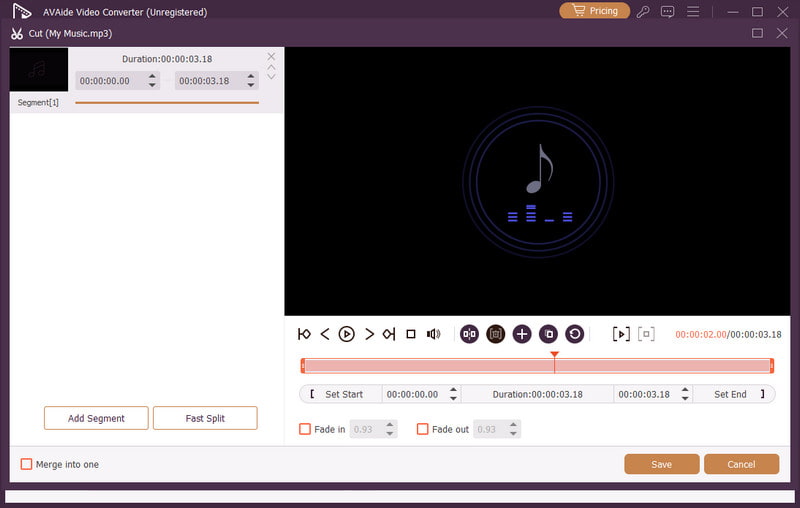
После сохранения голосовой записи или голосового сообщения иногда возникает необходимость отредактировать её для улучшения качества звука. В этом случае для редактирования аудио лучше всего использовать качественный инструмент, например, такой как... Конвертер видео AVAideЭта программа предлагает функцию редактирования аудио, позволяющую редактировать аудиофайлы. Вы можете обрезать аудиодорожку, разделять и объединять их. Вы даже можете регулировать громкость и задержку в соответствии со своими предпочтениями. Самое приятное здесь то, что вы можете сохранять аудио в любом формате, используя функцию конвертации программы. Вы можете сохранять свои голосовые записи в форматах MP3, WAV, M4A, FLAC и других, с наилучшим качеством до 320 кбит/с. Таким образом, если вы ищете идеальное программное обеспечение для редактирования ваших голосовых записей, обратите внимание на AVAide Video Converter.

БЕСПЛАТНАЯ ЗАГРУЗКА Для Windows 7 или новее
 Безопасная загрузка
БЕСПЛАТНАЯ ЗАГРУЗКА Для Mac OS X 10.13 или более поздней версии
Безопасная загрузкаДополнительные возможности:
- Это может обеспечить удобную процедуру редактирования аудио.
- Программа позволяет объединять несколько аудиофайлов в один файл.
- Он способен конвертировать аудио- и видеоформаты в 120 раз быстрее.
- Программа также предлагает встроенные видеоредакторы, такие как объединение, разделение, обрезка, кадрирование и т. д.
Отправка голосового сообщения на iPhone Это идеальный способ, если вы хотите отправить сообщение быстрее. Благодаря этому руководству вы научились эффективно записывать и отправлять голосовые сообщения. Вы даже получите достаточно информации о том, как сохранить голосовое сообщение, чтобы воспроизводить его без каких-либо ограничений. Кроме того, если вы хотите редактировать свои голосовые записи, вам будет удобнее получить к ним доступ. Конвертер видео AVAideБлагодаря функции редактирования звука в этой программе вы можете улучшить качество звучания, что приведет к более качественному и приятному воспроизведению аудио.
ОБ АВТОРЕ

Записывайте действия на экране со звуком, онлайн-встречами, игровыми видео, музыкой, веб-камерой и т. д.