Jeśli bierzesz udział w spotkaniu lub zajęciach online za pośrednictwem Zoom, prawdopodobnie chcesz rób zrzuty ekranu w Zoomie Do późniejszego wykorzystania. Oferujemy kompletny przewodnik dotyczący robienia zrzutów ekranu w Zoomie z domyślnymi funkcjami systemów Windows, Mac i urządzeń mobilnych lub z wbudowanymi funkcjami samego Zooma. Poruszymy również uzasadnioną obawę wielu osób: czy Zoom rozpoznaje zrzut ekranu? Odpowiedź znajdziesz w tym artykule.
- Część 1. Jak zrobić zrzut ekranu w aplikacji Zoom na komputerze (Windows)
- Część 2. Jak zrobić zrzut ekranu w Zoomie na komputerze Mac
- Część 3. Jak zrobić zrzut ekranu w aplikacji Zoom na telefonie komórkowym (iPhone i Android)
- Część 4. Korzystanie z wbudowanych funkcji Zoom
- Część 5. Czy Zoom powiadamia o zrzutach ekranu?
Część 1. Jak zrobić zrzut ekranu w aplikacji Zoom na komputerze (Windows)
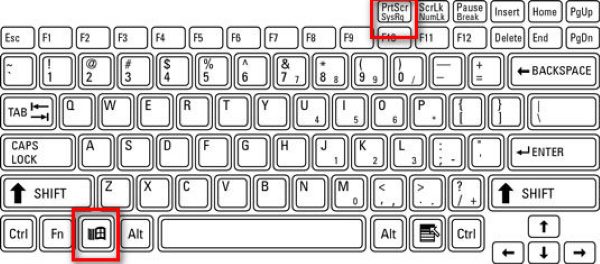
1. Korzystanie z klawisza Print Screen (pełny ekran)
Użyj skrótu klawiszowego do zrzutu ekranu w systemie Windows na całym ekranie. Podczas spotkania w Zoomie naciśnij Okna wraz z PrtScn klawisz (który zazwyczaj znajduje się obok klawiszy funkcyjnych).
Kopia wszystkich elementów widocznych na ekranie zostanie natychmiast wykonana i zapisana w C:\Users\TWOJA_NAZWA_UŻYTKOWNIKA\Pictures\Screenshots (w systemie Windows 10 i 11).
2. Korzystanie z narzędzia Wycinanie/Wycinek i szkic (najlepsze dla Zoom)
Naciskać Wygrać + Zmiana + S aby wyszarzać pulpit i wyświetlić pasek narzędzi do przechwytywania u góry. Możesz narysować prostokąt lub wybrać wycinek w dowolnym formacie, oknie lub na pełnym ekranie.
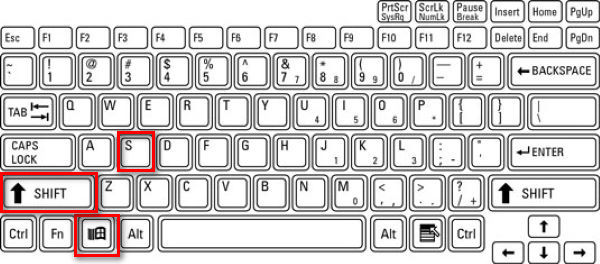
To idealne rozwiązanie dla Zooma, ponieważ pozwala uchwycić tylko okno Zooma lub jego fragment. Po wykonaniu zrzutu ekranu obraz jest kopiowany do schowka i pojawia się powiadomienie. Kliknij powiadomienie, aby edytować zrzut ekranu.
3. Używanie kombinacji klawiszy Alt + PrtScn (tylko w oknie aktywnym)
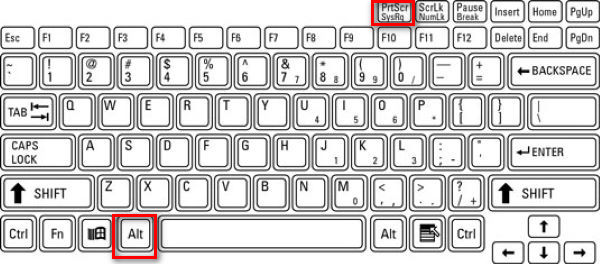
Krok 1Kliknij okno Powiększenie, aby upewnić się, że jest aktywne.
Krok 2Naciskać Alt + PrtScn.
Powoduje to przechwycenie tylko aktywnego okna, czyli spotkania Zoom, i umieszczenie go w schowku.
4. Korzystanie z narzędzia innej firmy
Do robienia zrzutów ekranu w aplikacji Zoom wolę używać narzędzi innych firm, ponieważ w ten sposób obrazy są zapisywane w określonej lokalizacji, którą ustalam, oddzielone od innych zrzutów ekranu wykonanych przez system Windows, co ułatwia wyszukiwanie konkretnych zdjęć.
Dostępnych jest wiele narzędzi do tworzenia zrzutów ekranu podczas rozmów w Zoom, takich jak ShareX, Icecream Screen Recorder, Snagit i Rejestrator ekranu AVAidePodobnie jak w przypadku AVAide Screen Recorder, możesz umieścić obrazy w tym samym folderze, co ułatwi Ci uporządkowanie wszystkich zrzutów ekranu. Pokażę Ci, jak to zrobić krok po kroku.
Krok 1Pobierz i zainstaluj rejestrator

BEZPŁATNE POBIERANIE W systemie Windows 7 lub nowszym
 Bezpieczne pobieranie
BEZPŁATNE POBIERANIE Dla systemu Mac OS X 10.13 i nowszych
Bezpieczne pobieranieKrok 2Uruchom rejestrator
Krok 3Dołącz do spotkania na Zoomie
Krok 4Kliknij kamera przycisk w prawym górnym rogu okna AVAide Screen Recorder.
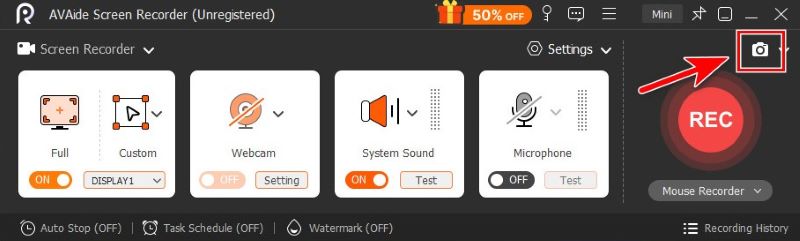
Krok 5Możesz wycinać dowolne kształty, przeciągając myszkę, lub najechać kursorem na okno aplikacji Zoom, aby je uchwycić.
Krok 6Gdy będziesz zadowolony z wycinka, kliknij Zapisaći wybierz folder, w którym chcesz go zapisać.
Część 2. Jak zrobić zrzut ekranu w Zoomie na komputerze Mac
Wbudowane funkcje systemu pozwalają nam na wykonanie zrzutu ekranu na komputerze Mac.
1. Przechwytywanie pełnego ekranu
Aby przechwycić cały ekran na komputerze Mac, naciśnij Komenda + Zmiana + 3.

2. Selektywne przechwytywanie (najlepsze dla Zoom)
Jeśli chcesz uchwycić określony prostokątny obszar na ekranie spotkania, naciśnij Komenda + Zmiana + 4.

3. Przechwyć określone okno
Krok 1naciskać Komenda + Zmiana + 4
Krok 2Wejdź w kosmos.

Kursor zmieni się w ikonę aparatu. Kliknij okno powiększenia, aby uchwycić tylko to okno.
4. Korzystanie z aplikacji do zrzutów ekranu
Krok 1 Naciskać Komenda + Zmiana + 5 aby otworzyć pasek narzędzi Zrzuty ekranu Apple.

Krok 2Wybierz narzędzie, które preferujesz.

Poleciłbym Przechwyć okno oraz Zdobądź porcję, nadaje się do korzystania wyłącznie z okna Zoom, bez rozpraszaczy.

- Możesz również skorzystać z domyślnych funkcji komputera Mac lub narzędzia innej firmy, aby edytuj zrzut ekranu na komputerze Mac jak wolisz.
Część 3. Jak zrobić zrzut ekranu w aplikacji Zoom na telefonie komórkowym (iPhone i Android)
1. Na iPhonie / iPadzie
Metoda zależy od modelu urządzenia.
Krok 1Rozpocznij spotkanie na platformie Zoom.
Krok 2Zrób zrzut ekranu.
- Dla iPhone'ów z Face ID i brak Home przycisk (iPhone X i nowsze, z wyjątkiem iPhone SE) i iPady z brak domu przycisk:
wciśnij Przycisk boczny + Zwiększ głośność. - Dla iPhone'ów lub iPadów z Dom przycisk (iPhone SE, 8 i starsze, starsze iPady):
wciśnij Przycisk boczny/górny + Dom.
Szybko zwolnij oba przyciski. Ekran zacznie migać, przechwytując cały ekran, a na ekranie pojawi się miniatura do edycji lub zapisania.
2. Na Androidzie
Skrót: Większość telefonów z systemem Android korzysta z klasycznego Moc + Zmniejszenie głośności Skrót. Zależy to jednak od konkretnej marki urządzenia. Jeśli więc ten skrót nie działa, co jest normalne, radzę sprawdzić model telefonu i go sprawdzić.
Podczas spotkania w Zoomie naciśnij i przytrzymaj przyciski jednocześnie przez około 1-2 sekundy, aż ekran zacznie migać. Zrzut ekranu zostanie zapisany w Galerii lub aplikacji Zdjęcia.
Pasek narzędzi: Przeciągnij menu, przesuwając palcem w dół po ekranie. Znajdź Zrzut ekranu przycisk w menu i dotknij go, aby wybrać pomiędzy zrzutami ekranu pełnoekranowymi, zrzutami ekranu w dowolnej formie i zrzutami ekranu przewijanymi.
Część 4. Korzystanie z wbudowanych funkcji Zoom
Funkcja „Zrób zdjęcie” w aplikacji Zoom (tylko do udostępniania ekranu)
Wbudowana funkcja zrzutu ekranu aplikacji Zoom jest łatwa w użyciu — wystarczy kilka kliknięć.
Krok 1Kliknij Pogawędzić na dole okna Zoom
Krok 2Kliknij Zrzut ekranu ikonę poniżej pola czatu.
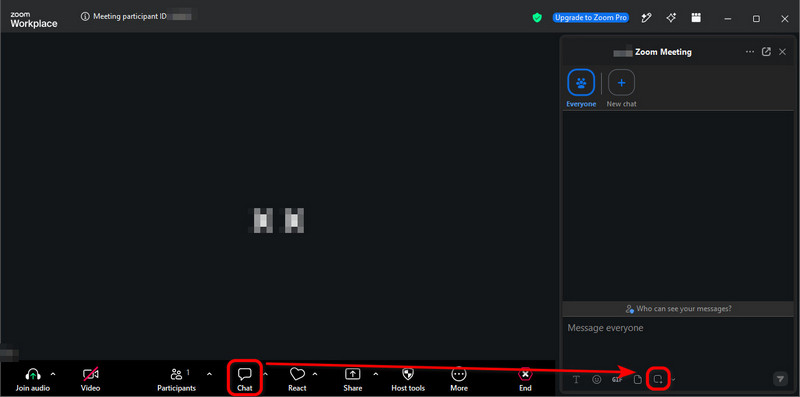
Krok 3Przeciągnij myszkę nad wybraną część ekranu, a następnie kliknij Zdobyć.
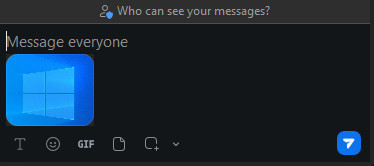
Zrzut ekranu jest teraz w pole czatu. Możesz wysłać go innym uczestnikom spotkania jednym kliknięciem papierowy samolot ikonę w prawym dolnym rogu.
- Zrzut ekranu w oknie czatu NIE jest automatycznie zapisywany na Twoim komputerze. Jeśli chcesz go zapisać, kliknij obraz prawym przyciskiem myszy i wybierz Zapisz jako….
- Chociaż ta metoda jest bardzo prosta i szybka, czasami zawodzi, ponieważ organizator może wyłączyć funkcję Meeting Chat lub funkcję zapisywania czatu. W takiej sytuacji wiesz, co zrobić: skorzystaj z funkcji systemu operacyjnego lub narzędzia innej firmy, takiego jak AVAide Screen Recorder.
Czym jest „Generator zrzutów ekranu ze spotkania Zoom”?
Brzmi jak narzędzie do zrzutów ekranu, prawda? Na początku mnie to oszukało, ale tak naprawdę to narzędzie innej firmy, które… tworzy fałszywe obrazy do rozmów na Zoomie.
Oferują makiety rozmów na Zoomie, gdzie przesyłasz zdjęcia i wpisujesz imiona, aby wygenerować realistyczny zrzut ekranu spotkania z pozorowanymi uczestnikami.
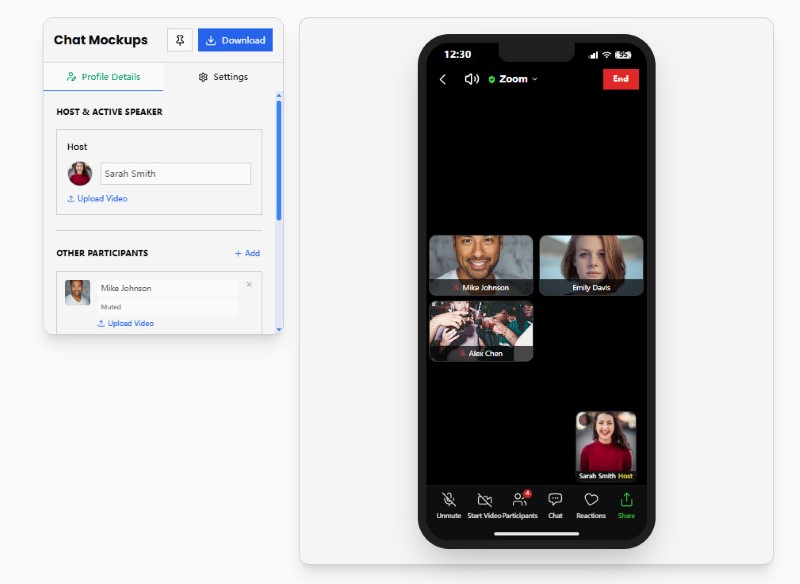
Generatory zrzutów ekranu ze spotkań w Zoomie nie są tym, czego szukamy w tym artykule. Ale jeśli interesuje Cię generowanie fałszywych memów w Zoomie, wypróbuj strony takie jak Pradoy lub Kapwing. To świetna zabawa.
Część 5. Czy Zoom powiadamia o zrzutach ekranu?
Krótko mówiąc, Zoom NIE informuje, kiedy uczestnik robi zrzuty ekranu, niezależnie od tego, czy korzysta z funkcji systemu operacyjnego, narzędzia innej firmy, czy wbudowanej funkcji migawki Zoom.
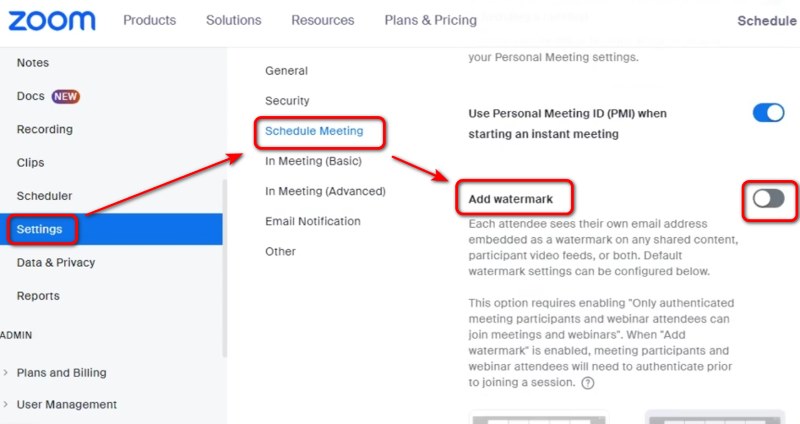
Jako gospodarz lub osoba udostępniająca ekran, możesz obawiać się, że to, co widzisz na ekranie, może się ulotnić bez Twojej wiedzy. Do tej pory nie było konkretnego sposobu, aby temu zapobiec, poza dodaniem znaku wodnego na ekranie – wejdź w Ustawienia portalu Zoom i włącz opcję Dodaj znak wodny, aby to zrobić.
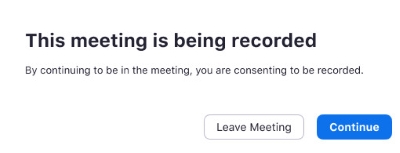
Ale Zoom powiadamia, gdy ktoś nagrywa spotkanie ZoomPo dołączeniu do nagrywanego spotkania lub rozpoczęciu nagrywania przez gospodarza otrzymasz powiadomienie o wyrażeniu zgody. Możesz wyrazić zgodę lub opuścić spotkanie.
Robienie zrzutów ekranu w Zoomie Aplikacja jest łatwa w obsłudze na komputerach z systemem Windows, Mac, iPhone i Android, a także za pomocą funkcji urządzenia, narzędzi firm trzecich lub własnych funkcji Zoom. Zoom nie powiadamia organizatorów ani uczestników o wykonaniu standardowego zrzutu ekranu. Niemniej jednak ważne jest, aby przed przechwyceniem lub udostępnieniem zawartości Zoom szanować prywatność, prawa autorskie i wszelkie zasady spotkania. Jeśli martwisz się o prywatność, jasno daj uczestnikom do zrozumienia, że nie akceptujesz zrzutów ekranu, zanim udostępnisz swój ekran.
O AUTORZE

Uchwyć najlepszy moment dzięki AVAide Screen Recorder. Screencast, dostosuj i udostępnij w kilka sekund.