Próbuję to rozgryźć jak nagrywać ekran na komputerze Dell Nagrywanie samouczka, rozgrywki czy spotkania może wydawać się skomplikowane bez odpowiedniego narzędzia. Niezależnie od tego, czy potrzebujesz szybkiego, czy bardziej zaawansowanego rozwiązania, ten przewodnik przeprowadzi Cię przez proste i skuteczne metody płynnego nagrywania ekranu.
Część 1. Najprostszy sposób: korzystanie z paska gier Xbox
Xbox Game Bar został zaprojektowany przede wszystkim do nagrywania rozgrywki, ale można go również używać do codziennego nagrywania ekranu. Umożliwia nagrywanie ekranu i dźwięku oraz natychmiastowe zapisywanie klipów. Nie przechwytuje jednak pulpitu ani Eksploratora plików; może przechwytywać jedynie aktywne okna aplikacji.
Krok 1Aby otworzyć nakładkę Xbox Game Bar, naciśnij Windows + G klawiszy na klawiaturze. Jeśli pytanie dotyczy tego, czy to gra, odpowiedz twierdząco.
Krok 2ten Zdobyć Panel znajduje się w nakładce. Jeśli go nie widzisz, zostanie utworzone menu Widżety i wybrana zostanie opcja Przechwyć.
Krok 3Aby rozpocząć nagrywanie ekranu, kliknij Nagraj (●) przycisk lub Windows + Alt + RNarzędzie automatycznie utworzy migawkę aktywnego okna.
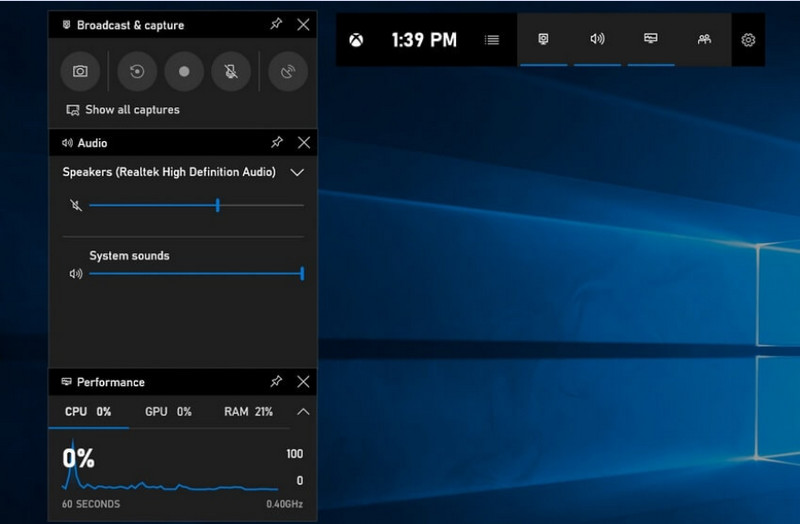
Krok 4Nagrywanie mikrofonu można włączyć, klikając Mikrofon przycisk przed lub w trakcie nagrywania.
Krok 5Aby zakończyć nagrywanie, naciśnij Windows + Alt + R po raz drugi lub naciśnij Zatrzymaj (■) przycisk na pasku pływającym.
Krok 6Nagrane przez Ciebie filmy są automatycznie zapisywane w Filmy > Przechwytuje folderze na Twoim komputerze.
Część 2. Wybory zawodowe
1. Korzystanie z rejestratora ekranu OBS
Rejestrator ekranu OBS to darmowy, open-source'owy rejestrator ekranu, powszechnie używany zarówno do nagrywania, jak i strumieniowania treści na żywo. Oferuje konfigurowalny interfejs, który pozwala nagrywać cały ekran, pojedyncze okno lub wiele źródeł jednocześnie. Dzięki rozbudowanym funkcjom sterowania obrazem i dźwiękiem jest to skuteczne rozwiązanie dla użytkowników, którzy nie są zainteresowani wyłącznie najprostszym rodzajem nagrywania ekranu.
Wydajność:
OBS Screen Recorder to oprogramowanie z akceleracją sprzętową, które zapewnia niezawodną wydajność, umożliwiając płynne nagrywanie w rozdzielczości 1080p 60 kl./s. Po zainstalowaniu, program działa efektywnie, zapewniając stały sygnał wyjściowy i niewielkie opóźnienia, podczas długich sesji nagrywania na kompatybilnych systemach.
Krok 1Wejdź na oficjalną stronę OBS Screen Recorder, pobierz instalator i dokończ instalację.
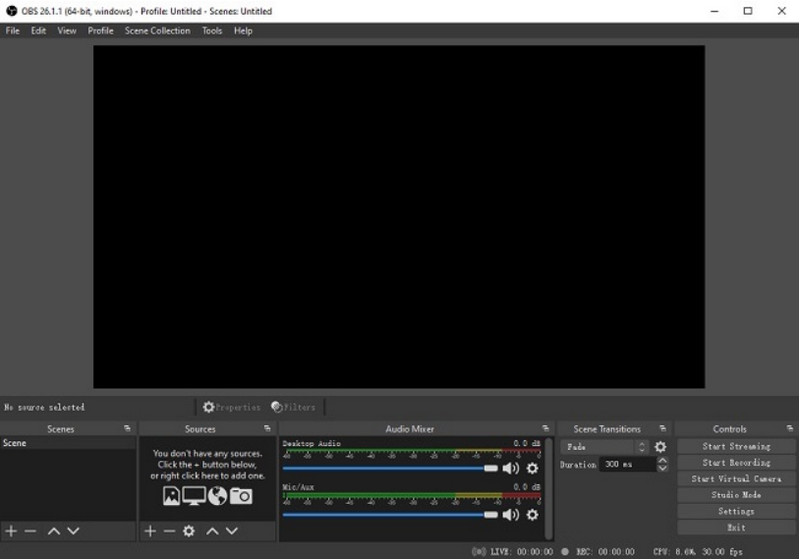
Krok 2otwarty Rejestrator ekranu OBS. Zostanie Ci przedstawiony główny interfejs z panelami takimi jak: Sceny oraz Źródła.
Krok 3W panelu Sceny kliknij + i nadaj scenie nazwę.
Krok 4Możesz dodać zrzut ekranu lub zrzut okna (aby przechwycić konkretną aplikację), klikając + w Źródła panel i wybieranie Wyświetl przechwytywanie lub Przechwytywanie okna.
Krok 5Przetestuj Mikser audio poprzez włączanie i dostosowywanie mikrofonu oraz dźwięku systemowego.
Krok 6wciśnij Rozpocznij nagrywanie przycisk po prawej stronie interfejsu.
Krok 7Po zakończeniu kliknij Zatrzymaj nagrywanie. Ten film zostanie automatycznie umieszczony w domyślnym folderze.
2. Korzystanie z rejestratora ekranu AVAide
Rejestrator ekranu AVAide to proste, a zarazem wydajne narzędzie do nagrywania aktywności na ekranie w wysokiej jakości. Jest przeznaczone dla użytkowników, którzy potrzebują łatwego w obsłudze systemu nagrywania z czystym dźwiękiem, elastycznego systemu przechwytywania z minimalną konfiguracją i intuicyjnym sterowaniem.
Wydajność:
Rejestrator ekranu AVAide jest zoptymalizowany pod kątem płynnego i stabilnego nagrywania, nawet podczas długich sesji. Obsługuje wysoką rozdzielczość 4K/1080p z minimalnym opóźnieniem w popularnych aplikacjach. Oprogramowanie skutecznie zarządza jednoczesnym nagrywaniem ekranu i dźwięku, zapewniając synchronizację dźwięku systemowego i sygnału z mikrofonu.
- Nagrywa ekran w wysokiej jakości, płynnie i bez opóźnień.
- Jednoczesne przechwytywanie dźwięku systemowego i mikrofonu, zapewniające czysty dźwięk.
- Obsługuje nagrywanie za pomocą kamery internetowej z konfigurowalną nakładką obrazu w obrazie.
- Umożliwia nagrywanie całego ekranu, wybranego okna lub wybranego obszaru.
- Zawiera wbudowane narzędzia do edycji umożliwiające przycinanie, ulepszanie i eksportowanie filmów.

 Bezpieczne pobieranie
Krok 1Pobierz i zainstaluj narzędzie
Przejdź na oficjalną stronę AVAide Screen Recorder. Pobierz instalator dla swojego systemu Windows i postępuj zgodnie z instrukcjami instalacji.
Krok 2Uruchom oprogramowanie
Instalację można rozpocząć po otwarciu programu. W głównym interfejsie możesz wybrać Nagrywarka ekranu na początek.
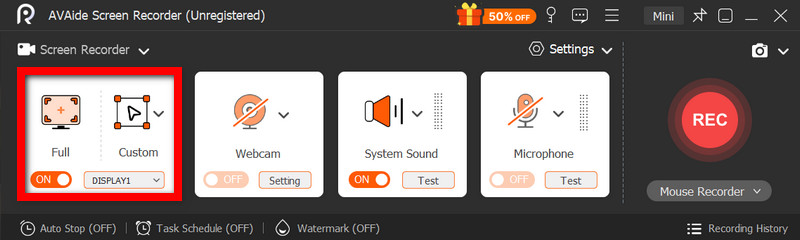
Krok 3Wybierz obszar nagrywania
Wybierz pomiędzy Pełny oraz Zwyczaj tryby nagrywania dostosowane do Twoich potrzeb.
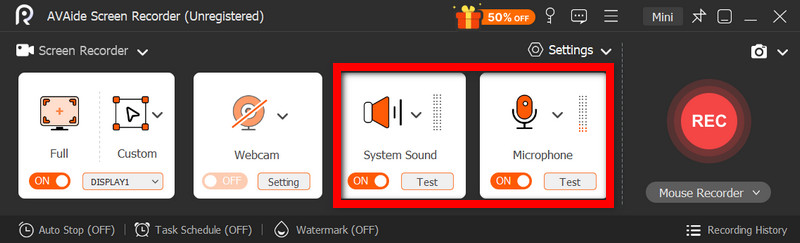
Krok 4Konfiguracja dźwięku i kamery internetowej
Włączać System audio i Mikrofon Jeśli potrzebujesz dźwięku. Kamerę internetową można również włączyć, aby nagrywać twarze.
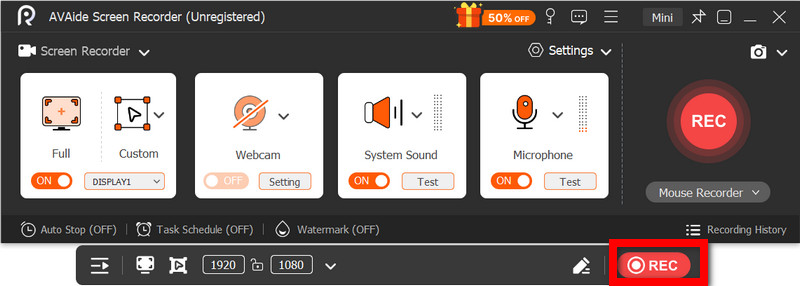
Krok 5Rozpocznij nagrywanie
Aby rozpocząć nagrywanie ekranu, naciśnij REC przycisk. W razie potrzeby można dodawać adnotacje podczas nagrywania.
Krok 6Zatrzymaj i zapisz nagranie
Kliknij Zatrzymać Po zakończeniu naciśnij przycisk. Nagranie zostanie zapisane automatycznie i możesz je od razu podejrzeć lub edytować.
Część 3. Inne darmowe i proste metody
1. Korzystanie z narzędzia Wycinanie (Windows 11)
Narzędzie Wycinanie w systemie Windows 11 zawiera wbudowaną funkcję nagrywania ekranu, zapewniającą prosty i szybki sposób rejestrowania aktywności na ekranie bez konieczności instalowania dodatkowego oprogramowania. Jest najskuteczniejsze w przypadku krótkich klipów, samouczków i prostych zadań nagrywania.
Wydajność:
Narzędzie Wycinanie nadaje się do lekkich nagrań i oferuje płynne przechwytywanie małych ujęć. Niemniej jednak, brakuje mu funkcji, nie obsługuje zaawansowanych ustawień i może nie radzić sobie z długimi lub wymagającymi dużej wydajności nagraniami tak skutecznie, jak niektóre narzędzia.
Krok 1Otwórz narzędzie Wycinanie, klikając Początek menu.
Krok 2Aby użyć paska narzędzi, kliknij Nagrywać.
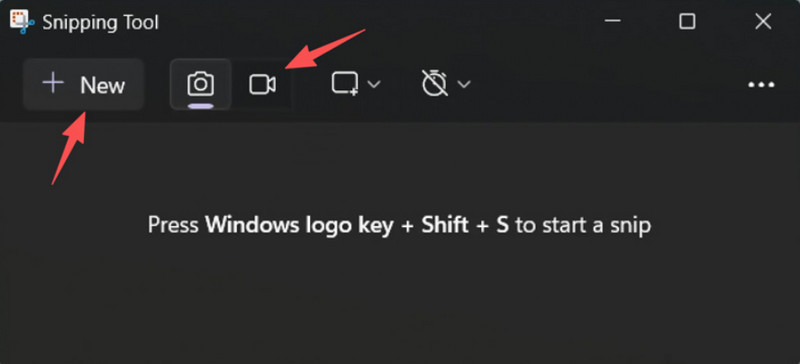
Krok 3Aby nagrać nowe nagranie, wybierz Nowy.
Krok 4Zaznacz obszar ekranu, który chcesz przechwycić.
Krok 5Kliknij Początek aby rozpocząć nagrywanie.
Krok 6Kliknij Zatrzymać po zakończeniu i zapisz nagranie.
2. Korzystanie z programu Microsoft PowerPoint (wszystkie wersje systemu Windows)
Program Microsoft PowerPoint zawiera funkcję nagrywania ekranu, która pozwala na przechwycenie zrzutu ekranu i włączenie go do prezentacji. Jest to również łatwa alternatywa dla tworzenia samouczków, demonstracji lub slajdów dydaktycznych bez konieczności korzystania z dodatkowego oprogramowania do nagrywania.
Wydajność:
PowerPoint zapewnia spójne rezultaty w przypadku prostego nagrywania ekranu, szczególnie w przypadku prezentacji i krótkich demonstracji. Chociaż oferuje rozsądną jakość wideo, brakuje mu zaawansowanych funkcji sterowania i może nie być odpowiedni do nagrywania filmów o wysokiej jakości podczas długich nagrań.
Krok 1Uruchom program Microsoft PowerPoint i przygotuj nową lub istniejącą prezentację.
Krok 2Kliknij kartę Wstawianie, a następnie Nagrywanie ekranu.
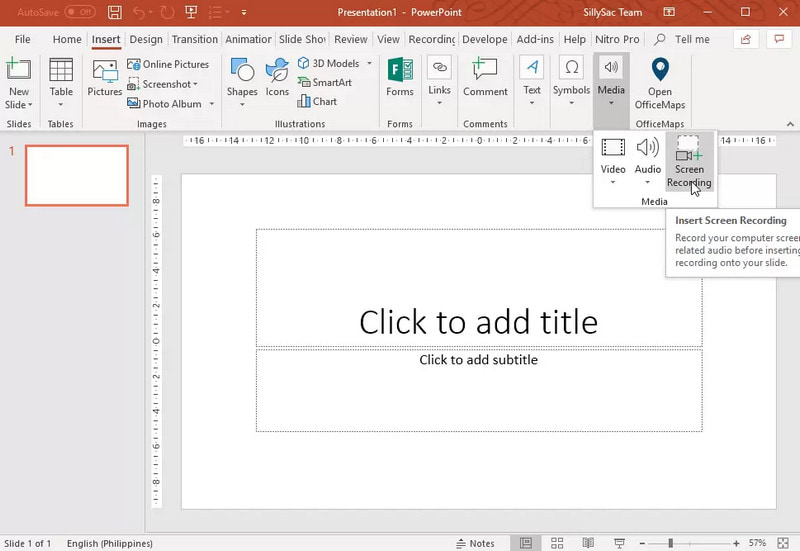
Krok 3Wybierz część ekranu, którą chcesz uchwycić.
Krok 4W razie potrzeby zezwól na nagrywanie dźwięku lub wskaźnika.
Krok 5Kliknij Nagrywać aby rozpocząć nagrywanie ekranu.
Krok 6Aby zakończyć nagrywanie, naciśnij Windows + Shift + Q.
Krok 7Aby zapisać nagranie, kliknij prawym przyciskiem myszy wideo i wybierz Zapisz media jako.
Część 4. Rozwiązywanie typowych problemów
| Problem | Rozwiązanie |
| Game Bar nie otwiera się i nie nagrywa. | W ustawieniach możesz wyłączyć pasek gier Xbox. Przejdź do Ustawienia > Hazard > Pasek gier i obróć to NAPróba naciśnięcia Windows + G ponownie i ponownie uruchom komputer (jeśli to konieczne). |
| Nagranie nie ma dźwięku. | Upewnij się, że dźwięk systemowy i mikrofon są włączone w ustawieniach paska gier. Upewnij się również, że urządzenie dźwiękowe nie jest wyciszone lub nieprawidłowo wybrane w ustawieniach dźwięku systemu Windows. |
| Mój laptop Dell działa wolno podczas nagrywania. | Użyj opcji Zamknij lub Minimalizuj, aby ograniczyć liczbę niepotrzebnych aplikacji i kart przeglądarki. Przełącz się na tryb Wysokiej wydajności w ustawieniach zasilania i zmniejsz rozdzielczość nagrywania, gdy jest to konieczne, aby poprawić wydajność. |
| Jakość nagranego wideo jest słaba. | Ustaw jakość nagrywania na najlepszą dostępną opcję w Game Bar, szczególnie gdy nagrywanie Google Meet sesji. Ustaw wyświetlacz na jego natywną rozdzielczość i zaktualizuj sterowniki karty graficznej, aby uzyskać wyraźniejszy i bardziej stabilny obraz. |
Uczenie się jak nagrywać ekran na laptopie Dell zapewni Ci elastyczność podczas samouczków, spotkań, a nawet grania w gry. Niezależnie od tego, czy jest to wbudowane narzędzie, czy zaawansowane oprogramowanie, wybór odpowiedniej metody zapewni łatwość i wysoką jakość nagrywania oraz usprawni przepływ pracy.
O AUTORZE

Nagrywaj ekran, dźwięk, kamerę internetową, rozgrywkę, spotkania online, a także ekran iPhone'a/Androida na swoim komputerze.