Minecraft to jedna z najpopularniejszych gier na świecie, z ponad 151 milionami aktywnych użytkowników dziennie. Dostępna na różnych platformach, takich jak PlayStation, PC, Xbox i telefony, może wydawać się wyjątkowa ze względu na możliwości, jakie oferuje. Możesz tu uprawiać ziemię, grać ze znajomymi, szukać najcenniejszych skarbów, a nawet tworzyć własny świat. Warto uwiecznić te ważne momenty. W zależności od platformy, którą używasz, Zrzuty ekranu z Minecrafta Jest tak proste, jak metody, które możesz wykorzystać w tym artykule. Więc wskakuj i zaczynajmy.
Część 1. Jak zrobić zrzut ekranu w Minecrafcie
Minecraft ma dwie wersje na PC, które oferują różne sposoby robienia zdjęć w grze. Sprawdź edycje Java i Bedrock i dowiedz się, jak robić zrzuty ekranu w Minecrafcie na PC.
1. Edycja Java – Klasyczna metoda F2
Ta edycja Minecrafta to oryginalna komputerowa wersja gry, która posiada wbudowaną funkcję tworzenia zrzutów ekranu. Oto jak zrobić zrzut ekranu w Minecraft Java:
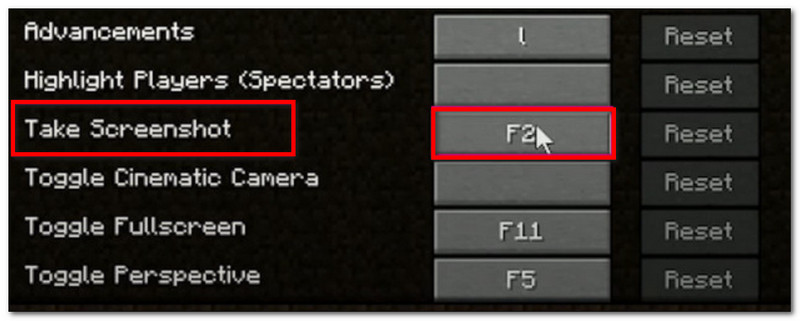
Krok 1Przygotuj część gry, którą chcesz uchwycić, a następnie naciśnij F2 na klawiaturze.
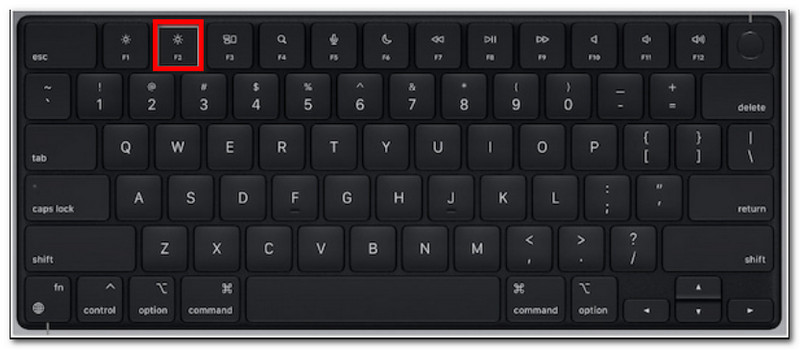
Krok 2Gdy pojawi się komunikat z nazwą pliku, kliknij na niego, aby wyświetlić podgląd zrzutu ekranu.
2. Edycja Bedrock – dwie różne metody
Edycja Bedrock kładzie nacisk na rozgrywkę międzyurządzeniową na różnych platformach. Oznacza to, że nawet jeśli korzystasz z komputera PC, możesz grać ze znajomymi, którzy korzystają z różnych urządzeń. Warto jednak zaznaczyć, że w tej edycji dostępne są dwie popularne metody robienia zrzutów ekranu.
Metoda A (Pasek gier Xbox)
Krok 1Naciskać Windows + G jednocześnie na klawiaturze. Ekran zostanie przyciemniony, a następnie kliknij Kamera ikonę umożliwiającą wykonanie zrzutu ekranu.
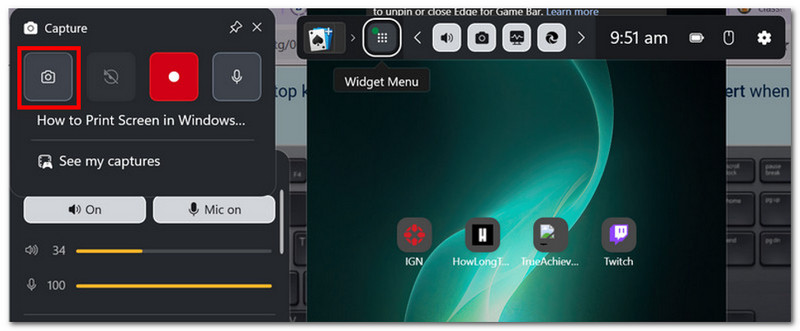
Krok 2Dostęp do folderu ze zrzutami ekranu gry Minecraft możesz uzyskać z Filmy > Przechwytuje, gdzie znajdują się zdjęcia wykonane przez Game Bar.
Metoda B (kamera w grze)
Krok 1Otwórz Minecraft i wejdź do świata. Kliknij Zrzut ekranu z Minecrafta przycisk lub F2 na ekranie, aby przechwycić obraz.
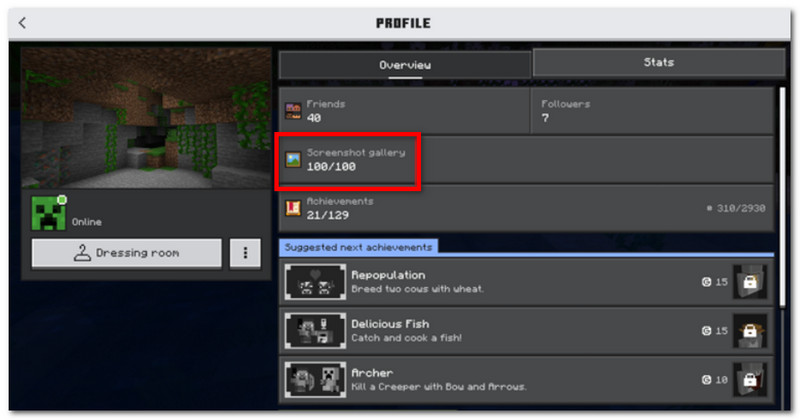
Krok 2Aby znaleźć lokalizację zrzutu ekranu gry Minecraft, wystarczy przejść do Profil i otwórz Galeria zrzutów ekranu.
3. Rejestrator ekranu AVAide
Rejestrator ekranu AVAide to alternatywne narzędzie do użycia w wersjach Minecraft Java i Bedrock. To kompleksowe rozwiązanie, które umożliwia wykonywanie zrzutów ekranu oraz nagrywanie wideo i dźwięku. Funkcja Screen Capture to intuicyjna funkcja umożliwiająca wykonywanie zrzutów ekranu w różnych trybach: pełnoekranowym, w aktywnym oknie i dowolnym, za pomocą konfigurowalnych skrótów. Z drugiej strony, pozwala ona na eksport zrzutów ekranu w popularnych formatach, takich jak JPEG, PNG i GIF. AVAide to najlepsza alternatywa dzięki wbudowanej opcji edycji zrzutów ekranu, która umożliwia rysowanie, dodawanie adnotacji i innych elementów. Co więcej, oprogramowanie oferuje wysokiej jakości nagrywanie ekranu, idealne do nagrywania rozgrywki na urządzeniach takich jak komputery stacjonarne i telefony komórkowe.
Krok 1Pobierz i zainstaluj rejestrator ekranu. Otwórz go i wybierz Zrzut ekranu z menu w lewym górnym rogu. Upewnij się, że Minecraft jest przygotowany na Twoim komputerze.

BEZPŁATNE POBIERANIE W systemie Windows 7 lub nowszym
 Bezpieczne pobieranie
BEZPŁATNE POBIERANIE Dla systemu Mac OS X 10.13 i nowszych
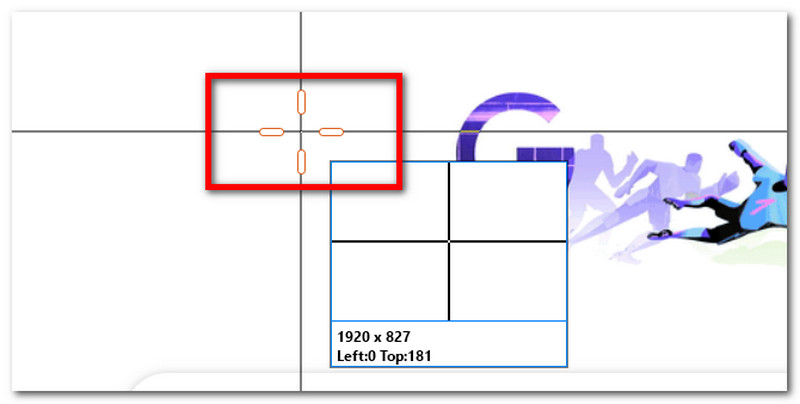
Bezpieczne pobieranieKrok 2Gdy kursor myszy zmieni się w celownik, wybierz obszar, który chcesz uchwycić. Naciśnij wyjście jeśli chcesz wyjść z trybu przechwytywania ekranu.
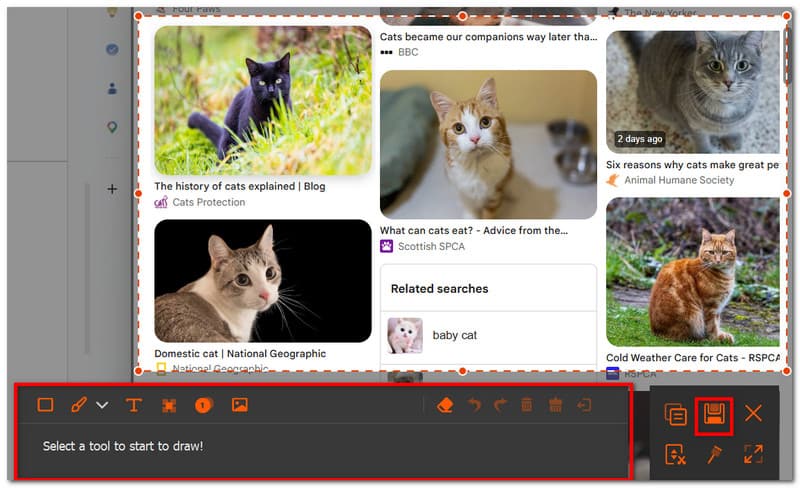
Krok 3Użyj opcji edycji, aby edytować zdjęcie. Następnie kliknij Zapisać aby zapisać zrzut ekranu na swoim urządzeniu. Katalog zrzutów ekranu Minecraft będzie wyglądał następująco: Studio AVAide > Rejestrator ekranu AVAide.
Część 2. Gdzie znaleźć zrzuty ekranu
Ponieważ Minecraft jest dostępny na niemal każdej platformie, możesz się zastanawiać: „Gdzie są zapisywane zrzuty ekranu z Minecrafta?”. W tej części dowiesz się, gdzie dokładnie znajduje się folder ze zrzutami ekranu wykonanymi na konkretnym systemie operacyjnym.
Windows 10/11 (edycja Java)
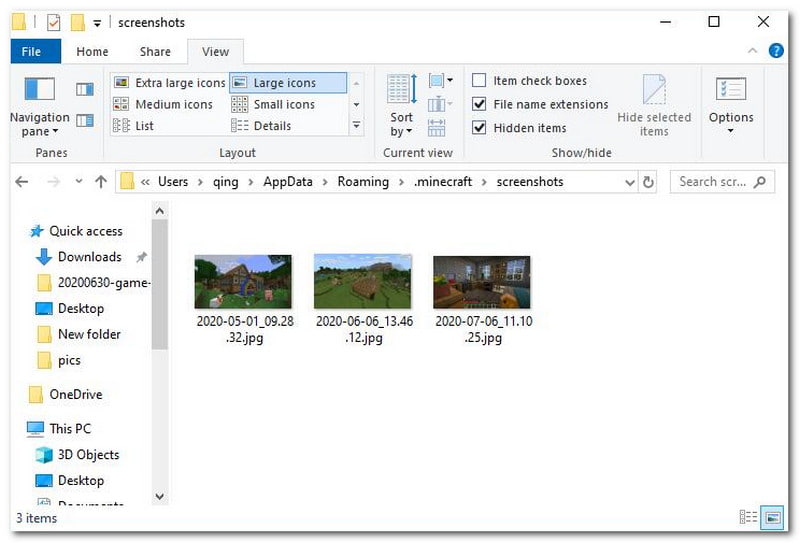
Po zrobieniu zrzutu ekranu możesz uzyskać do niego dostęp z czatu. Jeśli jednak go przegapiłeś, przejdź do paska wyszukiwania i wpisz %appdata%, następnie przejdź do Folder .minecraft > zrzuty ekranu.
Windows 10/11 (edycja Bedrock)
Galerię zrzutów ekranu gry Minecraft dla Bedrock Edition na system Windows można znaleźć w grze, na stronie Profil > Galeria zrzutów ekranu.
Prochowiec
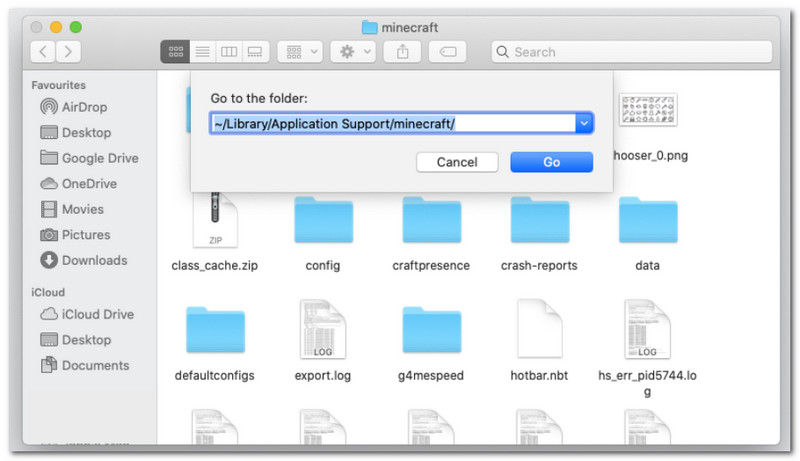
Jeśli grasz w Minecraft i uczysz się jak zrobić zrzut ekranu na komputerze Mac, można go znaleźć w ~/Biblioteka/ApplicationSupport/minecraft/zrzuty ekranu.
Linuks
Dostęp do zrzutów ekranu z gry można uzyskać w katalogu domowym Minecraft ~/.minecraft/zrzuty ekranu.
Chromebook
Folder zrzutów ekranu Minecraft na Chromebooku jest taki sam, jak w innych systemach operacyjnych, gdy do robienia zrzutów ekranu używasz klawisza F2. Zdjęcia znajdziesz w Galeria zrzutów ekranu w grze.
Część 3. Zrzuty ekranu konsoli i urządzeń mobilnych
Po zapoznaniu się z wyszukiwaniem zrzutów ekranu z Minecrafta w systemie Windows 11 i innych systemach operacyjnych, możesz również wykonywać zrzuty ekranu na mniejszych urządzeniach i konsolach. Postępuj zgodnie z instrukcjami dla platformy, na której grasz w grę.
Nintendo Switch
Krok 1Użyj lewego Joy-Cona i naciśnij Kamera przycisk umożliwiający wykonanie zrzutu ekranu gry.
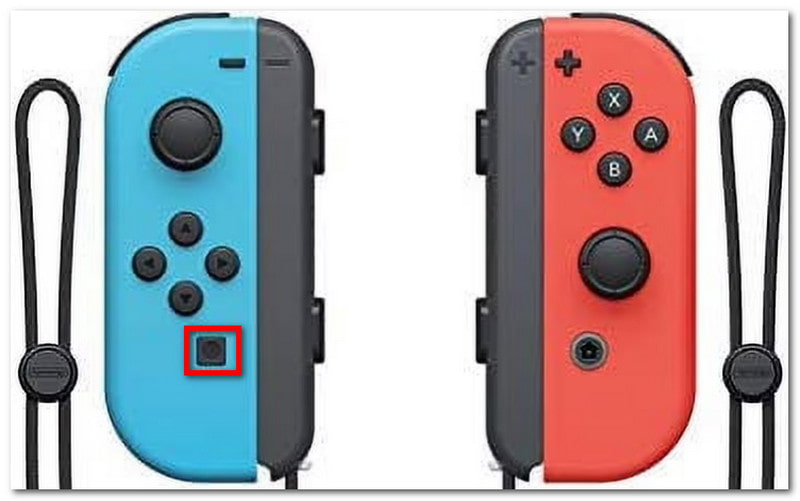
Krok 2Aby wyświetlić zrzut ekranu, wyjdź z gry i przejdź do Album gdzie zapisywane są zrzuty ekranu z gry Minecraft.
PlayStation
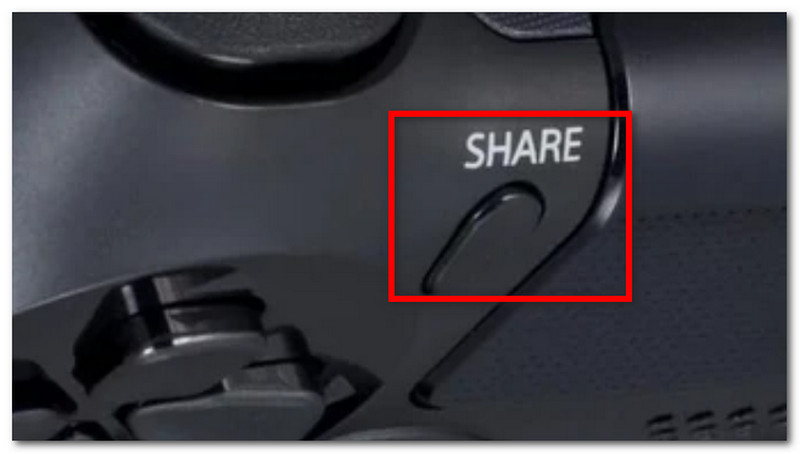
Krok 1Jak zrobić zrzut ekranu z gry Minecraft za pomocą kontrolera DualShock 4 na PS4? Naciśnij i przytrzymaj Udział przycisk przez około sekundę. Jeśli masz PS5 DualSend, naciśnij Tworzyć przycisk.
Krok 2Zrzut ekranu możesz obejrzeć, przechodząc do Galeria przechwytywania aplikacji lub za pomocą PlayStation aplikacja do przeglądania na telefonie.
Xbox
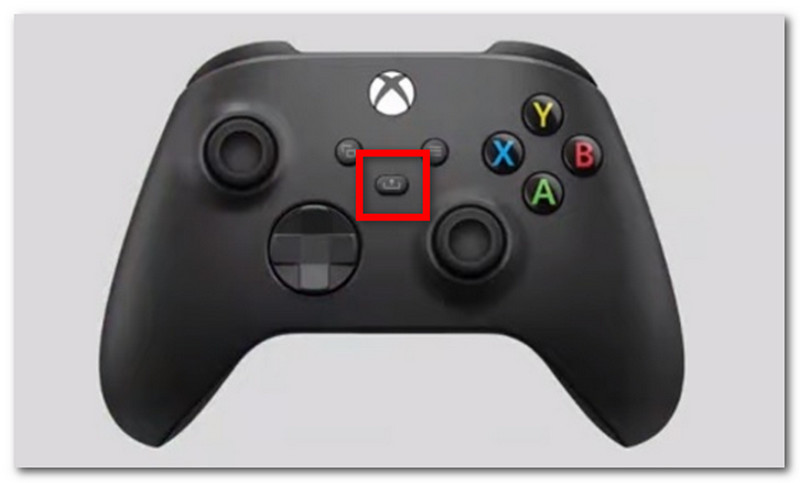
Krok 1W przypadku standardowego kontrolera Xbox wystarczy dwukrotnie dotknąć Xbox przycisk w środkowej części i naciśnij Y aby przechwycić. W przypadku konsoli Xbox Series naciśnij Udział naciśnij przycisk raz, aby wykonać zrzut ekranu.
Krok 2Jeśli nie wiesz, jak uzyskać dostęp do zrzutów ekranu z gry Minecraft, po prostu naciśnij Xbox przycisk i przejdź do Przechwytywanie i udostępnianie patka.
iOS
Krok 1wciśnij Moc oraz Zwiększ głośność przyciski na Twoim iPhonie, aby wykonać zrzut ekranu.
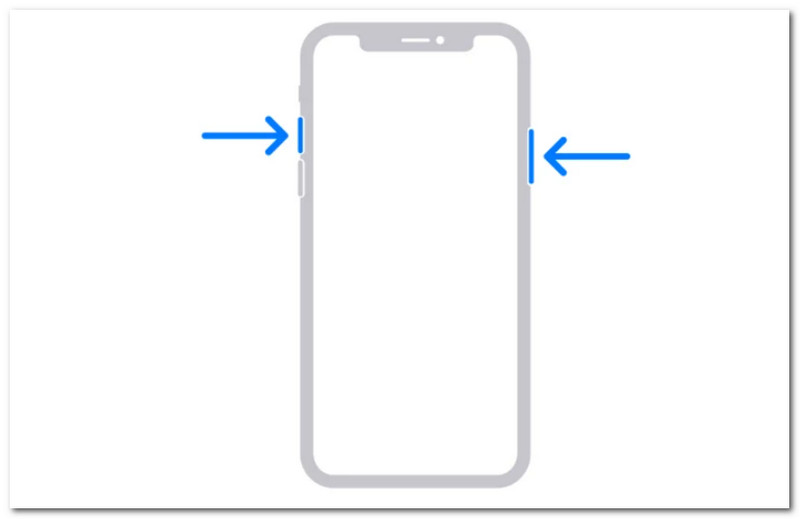
Krok 2Jak znaleźć zrzuty ekranu z Minecrafta na iPhonie? Zrzuty ekranu znajdziesz w aplikacji Zdjęcia.
Android
Krok 1Przygotuj grę i obszar, który chcesz zdobyć. Naciśnij i przytrzymaj Moc oraz Zmniejszenie głośności przycisków na telefonie.
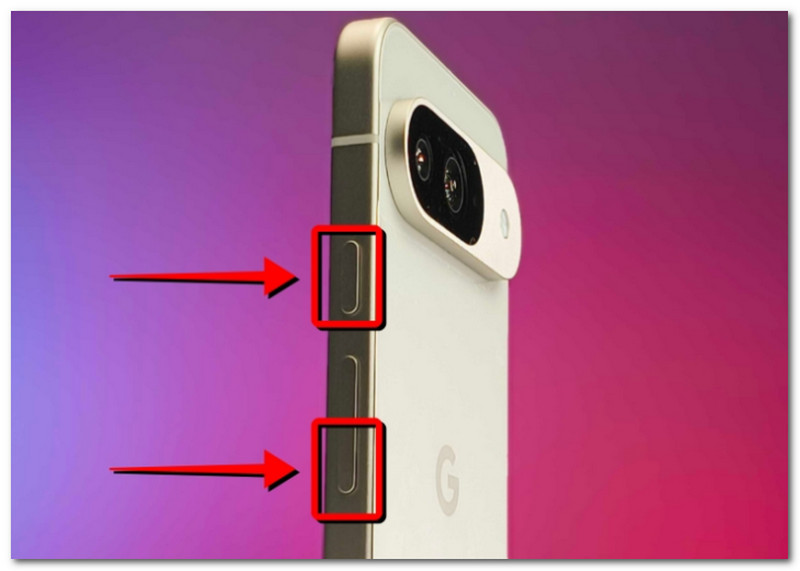
Krok 2Gdy ekran zacznie migać, zrzut ekranu będzie gotowy i będzie można go znaleźć w aplikacji Galeria.
Część 4. Zarządzanie kolekcją zrzutów ekranu
Oprócz udostępniania zrzutów ekranu znajomym, możesz również wykorzystać to jako okazję do śledzenia postępów w świecie Minecraft. Jednak losowe robienie zrzutów ekranu prowadzi jedynie do bałaganu i chaosu w zapisanych zrzutach ekranu. Jeśli nie wiesz, od czego zacząć, możesz zastosować się do tych podstawowych zasad zarządzania swoją kolekcją zrzutów ekranu.
1. Zrozumienie nazw plików
Używając metody F2 w Minecrafcie, ważne jest, aby zrozumieć nazwę, ponieważ może ona pomóc w ustaleniu daty wykonania zrzutu ekranu. Domyślna nazwa pliku to RRRR-MM-DD_GG.MM.SS.png, co oznacza rok, miesiąc, dzień, godzinę, minutę i sekundę, kiedy wykonano zrzut ekranu.
2. Utwórz podfoldery
Nie trzymaj zrzutów ekranu w jednym folderze, ponieważ spowolni to wyszukiwanie konkretnych zrzutów ekranu. Upewnij się, że tworzysz podfoldery z kategoriami, takimi jak budowanie świata, projekt i funkcja.
3. Zmień nazwy plików
Możesz zmienić nazwę swoich zrzutów ekranu z Minecrafta, aby identyfikować je nie tylko po dacie, ale także po faktycznych postępach w grze. Zawsze wybieraj nazwę pliku, która odzwierciedla Twój postęp w grze Minecraft.
4. Zabezpiecz swoje strzały
Aby uniknąć utraty zrzutów ekranu w przypadku awarii urządzenia, należy wykonać ich kopię zapasową w usłudze w chmurze, np. OneDrive lub na zewnętrznym dysku twardym.
5. Udostępniaj zrzuty ekranu
Po uporządkowaniu spraw, pochwal się postępami w grze Minecraft na różnych platformach. Widzowie docenią uporządkowane zrzuty ekranu, które śledzą postępy w grze.
Minecraft to uwielbiana gra, w którą może grać każdy, a nauka robienia zrzutów ekranu pozwoli Ci zachować najważniejsze momenty rozgrywki. Ten artykuł nie tylko pokazuje różne metody uchwycenia pięknego świata gry, ale także… jak oglądać zrzuty ekranu z Minecrafta Na różnych platformach. Alternatywnie, w tym artykule zalecamy użycie AVAide Screen Recorder, ponieważ jest on elastyczny i umożliwia robienie zrzutów ekranu na komputerze, telefonie i konsolach do gier. Pobierz jeden z najlepsze rejestratory gier za darmo na Windows i Mac i rozpocznij nieograniczone nagrywanie rozgrywki.
O AUTORZE

Nagrywaj ekran, dźwięk, kamerę internetową, rozgrywkę, spotkania online, a także ekran iPhone'a/Androida na swoim komputerze.