Het belang van schermopnames wordt pas duidelijk wanneer de kans zich ontvouwt. Videoconferenties, verdwijnende verhalen en bugs die niet meer voorkomen, kunnen ervoor zorgen dat je geen bewijs of context meer hebt. Daarom vertrouwen veel gebruikers tegenwoordig op een schermopname. Schermrecorder voor de iPhone Om tutorials, gameplay, vergaderingen en dagelijkse taken in realtime vast te leggen. Opnemen is echter niet zo eenvoudig als op een knop drukken. De kwaliteit van het eindproduct kan afhangen van de audiokwaliteit, de beeldkwaliteit en de opslagcapaciteit. In deze handleiding leer je hoe je helder en vloeiend kunt opnemen zonder veelvoorkomende valkuilen.
- Deel 1. De ingebouwde schermrecorder van de iPhone (de basislijn)
- Deel 2. De beste schermopname-apps van derden voor iPhone en iPad
- Deel 3. Vergelijkingstabel. Welke schermrecorder moet je kiezen?
- Deel 4. Hoe je je schermopnames op je iPhone kunt bewerken
- Deel 5. Veelvoorkomende problemen met schermopname oplossen
Deel 1. De ingebouwde schermrecorder van de iPhone (de basislijn)
Elke iPhone-schermopname-app die je downloadt, is de moeite waard om de mogelijkheden van de ingebouwde recorder te kennen. Om je te helpen bij het maken van tutorials, gameplays, app-walkthroughs, videogesprekken of het oplossen van technische problemen, heeft Apple een native schermopname-app in iOS ingebouwd. Deze is gemakkelijk te openen via het Bedieningscentrum en opnames worden automatisch opgeslagen in de Foto's-app, zodat je ze snel kunt bewerken en delen.
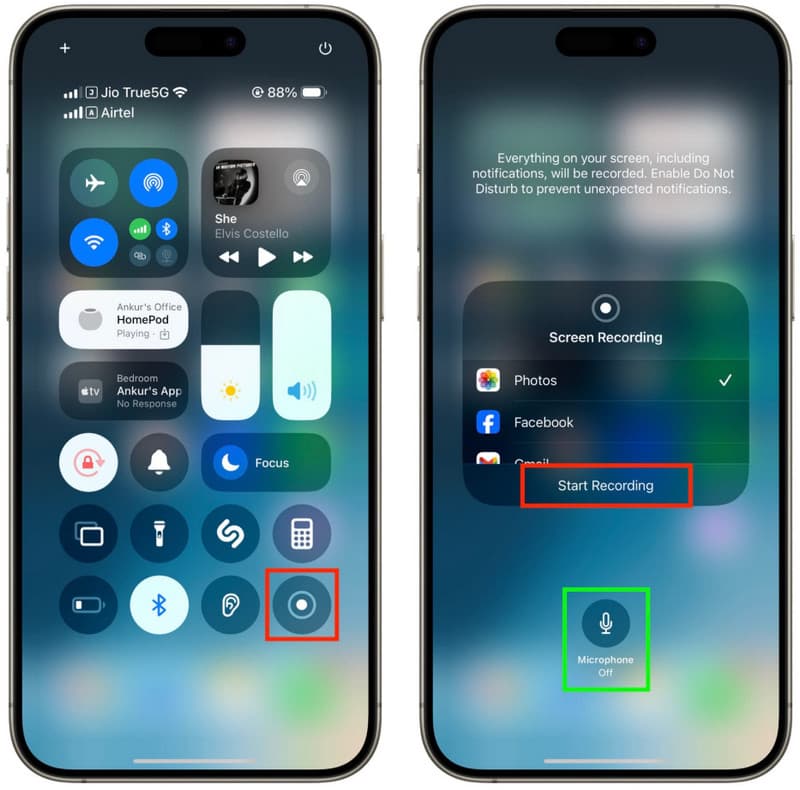
De ingebouwde recorder is voldoende voor dagelijks gebruik, maar heeft wel enkele beperkingen. Soms zijn er problemen met de ingebouwde microfoon bij het opnemen van audio, kunnen bestanden groot zijn of kunnen meldingen de opname onderbreken. De bewerkingsmogelijkheden zijn ook beperkter dan bij speciale opname-apps. Door deze sterke en zwakke punten te begrijpen, kan de gebruiker bepalen wat de standaardrecorder te bieden heeft en of een geavanceerder product nodig is om aan zijn of haar opnamebehoeften te voldoen.
Deel 2. De beste schermopname-apps van derden voor iPhone en iPad
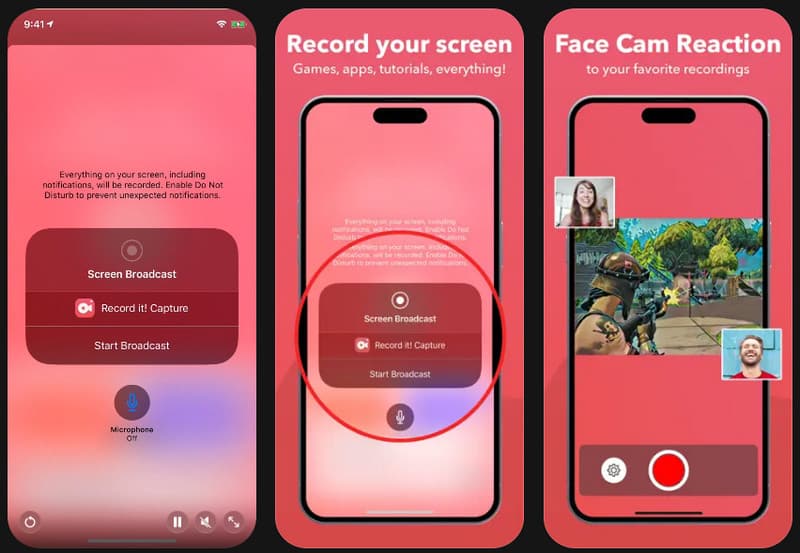
1. Neem het op!: Schermrecorder
Neem het op! Dit is een simpele, gebruiksvriendelijke schermrecorder voor iPhone en iPad, ideaal voor beginners. De app maakt facecam-opnames, spraakopnames en directe delen naar platforms zoals YouTube en TikTok mogelijk. De interface is overzichtelijk en gemakkelijk te navigeren, waardoor de app perfect is voor gameplayvideo's, app-walkthroughs, tutorials en reactievideo's. Deze app is zeer geschikt voor iedereen die op zoek is naar een betrouwbare schermrecorder voor de iPhone voor dagelijkse opnames, omdat je de app met slechts een paar tikken kunt instellen.
- Pluspunten
- Eenvoudige en gebruiksvriendelijke interface
- Ondersteunt FaceCam en gesproken commentaar.
- Ingebouwde bewerkingshulpmiddelen
- Snel delen op sociale media
- nadelen
- Watermerk in de gratis versie
- Voor sommige functies is een abonnement vereist.
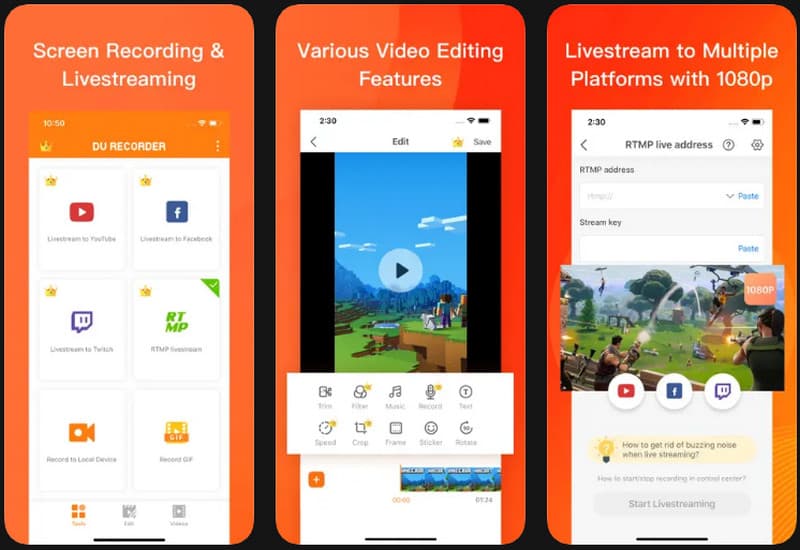
2. DU Recorder
DU Recorder DU Recorder is een opname-app met geavanceerde functies voor gebruikers die meer opnamemogelijkheden nodig hebben dan de standaard iPhone biedt. De app combineert functies voor livestreaming, HD-opname, opname met de ingebouwde microfoon en videobewerking in één app. DU Recorder is met name geschikt voor het vastleggen van video's van gamewedstrijden, online lessen, presentaties en uitgebreide tutorials. DU Recorder biedt een uitstekende geluidsrecorder voor iPhone en video-opnamemogelijkheden, en heeft een zeer gebruiksvriendelijke interface voor gebruikers die alleen het volledige scherm en de audio van de iPhone willen opnemen.
- Pluspunten
- Ondersteunt livestreaming
- Hoogwaardige audio-opname
- Geavanceerde bewerkingshulpmiddelen
- Meerdere exportinstellingen
- nadelen
- Omdat het de gratis versie is, worden er advertenties weergegeven.
- Bepaalde topapparatuur moet aangeschaft worden.
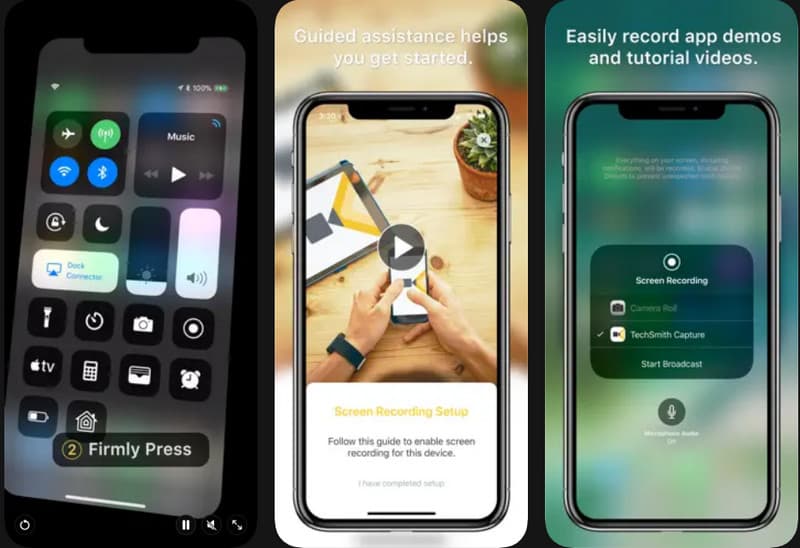
3. TechSmith Capture
TechSmith Capture Deze app is bedoeld voor zakelijke tutorials, trainingsvideo's en technische presentaties. De app legt schermactiviteit goed vast en integreert gemakkelijk met andere tools voor verdere videobewerking, zoals Camtasia en Snagit. Veel docenten, trainers en supportteams gebruiken deze app vanwege de eenvoudige maar hoogwaardige video-opname. Mensen die op zoek zijn naar een schermopname-app voor een iPhone, zullen TechSmith Capture overwegen, die een overzichtelijke en gebruiksvriendelijke schermopname-ervaring biedt.
- Pluspunten
- Professionele opnames
- Eenvoudige bestandsoverdracht naar Camtasia
- Eenvoudige en gebruiksvriendelijke interface
- Ontworpen voor tutorials en demonstraties.
- nadelen
- Binnen de applicatie is er slechts beperkte bewerkingsmogelijkheid.
- Minder aanpassingsmogelijkheden
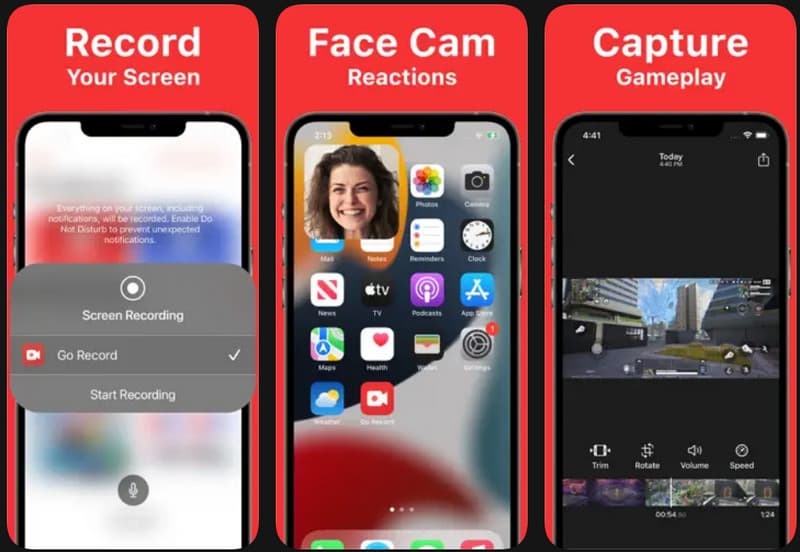
4. Ga opnemen
Ga opnemen Dit is een gebruiksvriendelijk opnameprogramma voor het maken van gameplayvideo's, tutorials en reactievideo's. Makers die tijdens een opname willen uitleggen wat er moet gebeuren, kunnen gebruikmaken van de microfoonfunctie of de camera-overlay van de app. De navigatie is eenvoudig, waardoor er geen verwarring ontstaat bij de eerste installatie. Het programma werkt ook soepel op grotere schermen, waardoor het een handige en betrouwbare schermrecorder is voor gebruik in een iPad-leslokaal, tijdens een presentatie of demonstratie van een app.
- Pluspunten
- Gebruiksvriendelijke bediening
- Ondersteunt facecam-opnames
- Uitstekend voor gamingvideo's
- Vloeiende prestaties op de iPad
- nadelen
- Beperkte bewerkingsfuncties
- Deze gratis versie bevat advertenties.
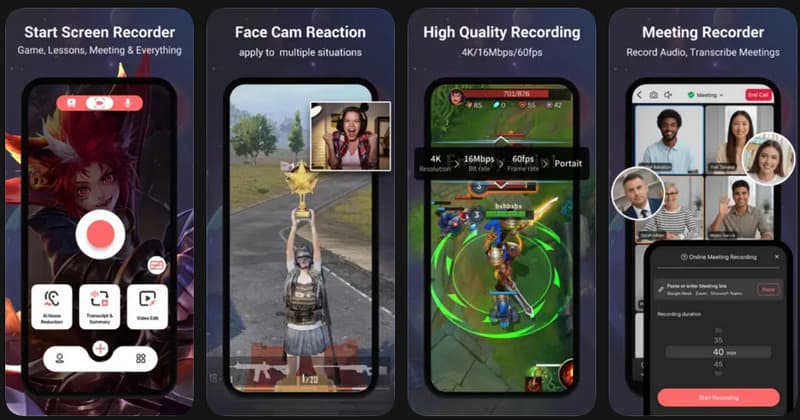
5. Schermrecorder, videorecorder
Schermrecorder, videorecorder Deze app is ontworpen voor mensen die content creëren, lesgeven of veel sociale media gebruiken op hun telefoon. De app ondersteunt opnames in hoge resolutie, gesproken commentaar en reactiecamera-overlays, en heeft een zeer gebruiksvriendelijke interface waarvoor geen technische kennis vereist is. Langere sessies behouden een goede opnamekwaliteit, waardoor vertraging of frameverlies wordt verminderd. Gebruikers die op zoek zijn naar een iPhone-schermvideorecorder die een soepele ervaring biedt met diverse bewerkingsfuncties, kunnen voor deze app kiezen.
- Pluspunten
- HD-opnameondersteuning
- Vlotte opnamesessie van lange duur
- Ondersteuning voor gesproken commentaar
- Beginnersvriendelijke lay-out
- nadelen
- Premiumfuncties zijn beschikbaar via een abonnement.
- Het exporteren van grotere bestanden kan langer duren.
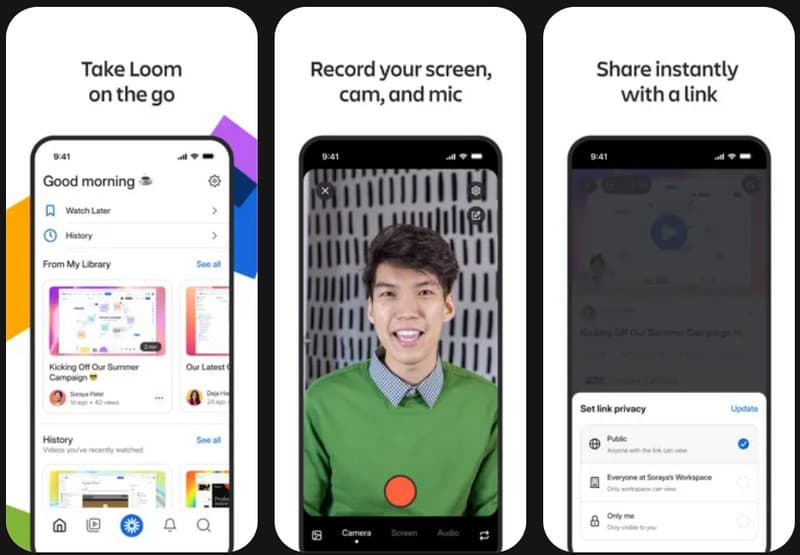
6. Weefgetouw
Weefgetouw Loom wordt veel gebruikt om te communiceren met mensen tijdens het werken aan een project, samen te werken aan online projecten en snel video's te delen. In tegenstelling tot andere apps kunnen gebruikers met Loom video's direct delen via cloudlinks, naast het opnemen ervan. Gebruikers kunnen het scherm, de camera aan de voorzijde en de microfoon in één keer vastleggen, perfect voor presentaties, teamfeedback of trainingen op afstand. Veel professionals beschouwen Loom als een van de beste schermopname-apps voor iPhone-gebruikers die snel willen communiceren en eenvoudig willen delen zonder complexe bewerkingen. Bovendien biedt de app ook nog andere functies. gratis software voor schermopname voor Windows en Mac.
- Pluspunten
- Direct delen via de cloud
- Ideaal voor werken op afstand
- Ondersteunt webcam- en spraakopname.
- Een overzichtelijke en georganiseerde interface.
- nadelen
- Om alle functies te kunnen gebruiken, hebt u een account nodig.
- Enkele offline bewerkingsopties
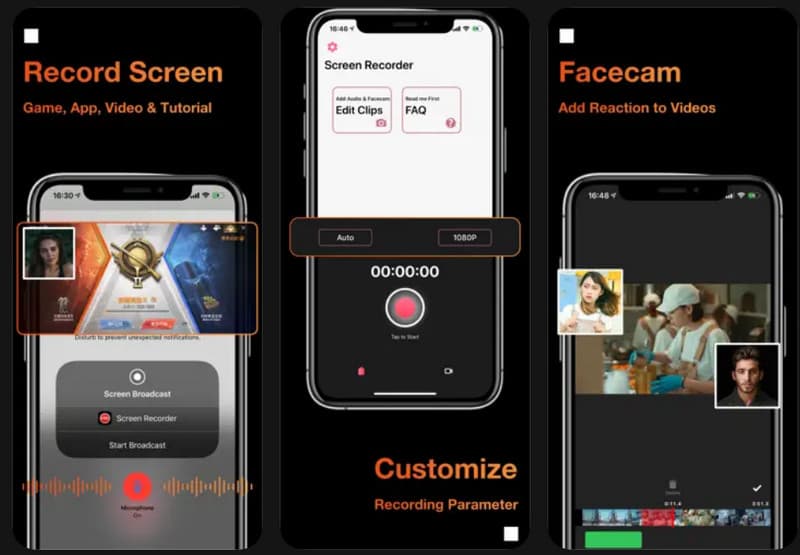
7. AZ Recorder
AZ Recorder AZ Recorder is een stabiele, gebruiksvriendelijke opname-app die HD-schermopnames, microfoonaudio en game-opnames ondersteunt. De app heeft tools voor het maken van screenshots en eenvoudige bewerkingsopties waarmee je video's kunt bewerken of knippen zonder extra software te downloaden. De app presteert ook goed bij langere opnames en biedt een eenvoudige bediening voor beginners. Gebruikers die op zoek zijn naar een gratis schermrecorder voor hun iPhone zullen AZ Recorder waarschijnlijk verkiezen, omdat deze alle benodigde opnameopties biedt zonder dat je direct hoeft te betalen.
- Pluspunten
- Gratis basisfuncties voor opnemen
- Stabiele HD-prestaties
- Eenvoudig installatieproces
- Bevat eenvoudige bewerkingsfuncties
- nadelen
- Advertenties in de gratis versie
- Sommige geavanceerde tools moeten worden geüpgraded.
Deel 3. Vergelijkingstabel. Welke schermrecorder moet je kiezen?
| Apps | Het beste gebruikt voor | FaceCam-opname wordt ondersteund | Bewerkingstools | Beste eigenschappen |
| Neem het op! | Handleidingen en video's voor sociale media | Ja | Basis | Schermopname, gesproken commentaar en snel delen |
| DU Recorder | Gaming en livestreaming | Ja | Geavanceerd | HD-opname, livestreaming en interne audio |
| TechSmith Capture | Professionele handleiding | Nee | Beperkt | Hoogwaardige opname en Camtasia-integratie |
| Ga opnemen | Sociale media-inhoud | Ja | Basis | Facecam-overlay en microfoonopname |
| Schermrecorder, videorecorder | Werkpresentatie en samenwerking | Ja | Gematigd | HD-opname, spraakopname en eenvoudige bewerking |
| Weefgetouw | Werkpresentatie en samenwerking | Ja | Minimaal | Clouddeling, webca-opname en teamlinks |
| AZ Recorder | Dagelijkse schermopname | Ja | Basis | HD-opname, screenshots en eenvoudige bewerking |
Deel 4. Hoe je je schermopnames op je iPhone kunt bewerken
Je kunt schermopnames op je iPhone gratis bewerken met de ingebouwde Foto's-app. Je hebt geen extra apps nodig en het proces is zo eenvoudig dat zelfs beginners het kunnen doen. Volg de onderstaande stappen om je opnames te bewerken en te verbeteren.
Stap 1Open de Foto's app op je iPhone en zoek vervolgens je schermopname op. Recente of Videos album.
Stap 2 Tik op de schermopname en tik vervolgens op Bewerk In de rechterbovenhoek. Hiermee open je de ingebouwde bewerkingshulpmiddelen.
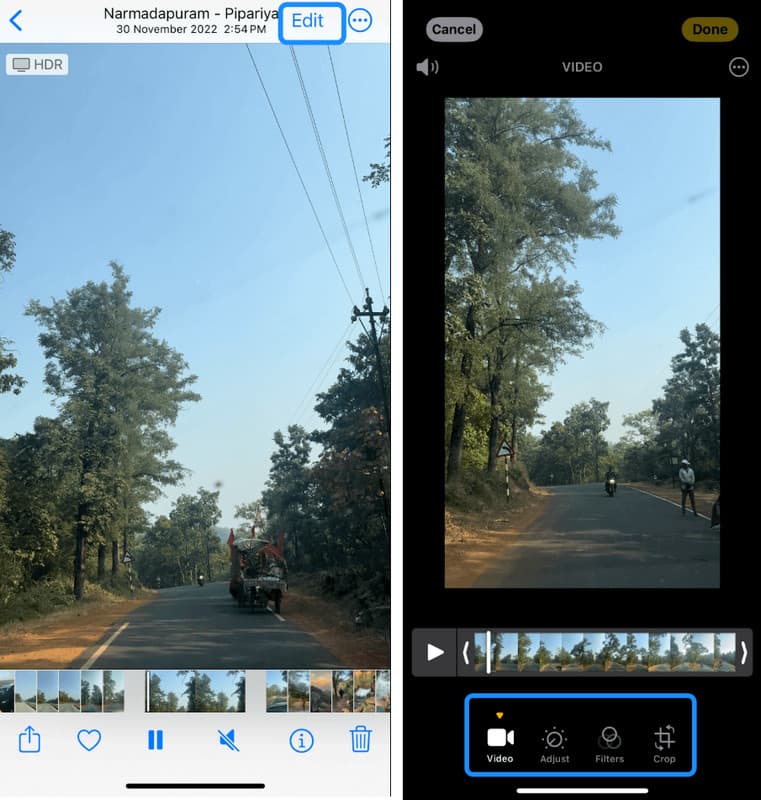
Stap 3Gebruik de gele schuifregelaars aan het begin of einde van de tijdlijn om ongewenste onderdelen zoals vertragingen, fouten of overbodige gedeelten te verwijderen.
Stap 4Tik op 'Klaar' en kies vervolgens: Video opslaan om het origineel te vervangen of Opslaan als nieuwe clip om beide versies te behouden.
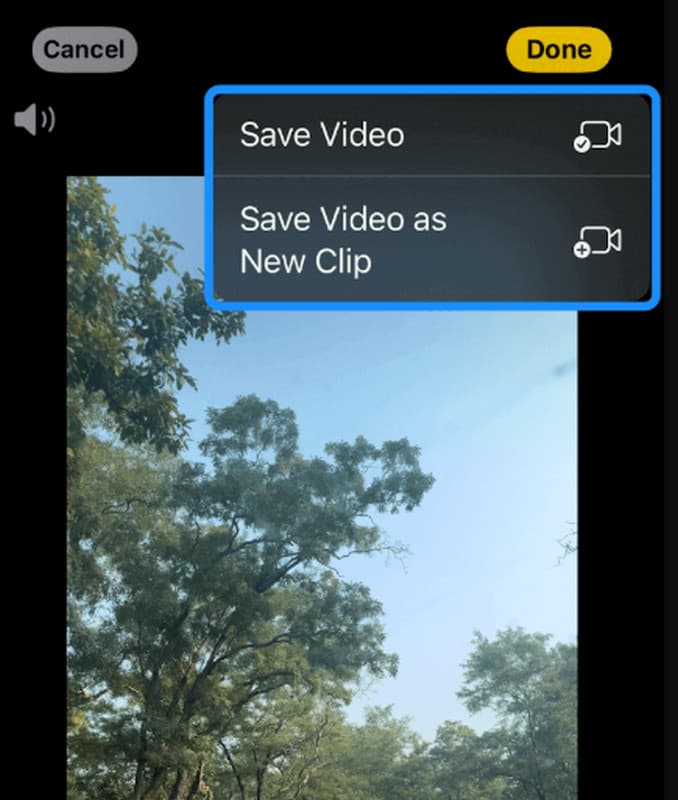
Met deze simpele methode kun je snel opnames verbeteren die gemaakt zijn met een schermrecorder van je iPhone, zonder dat je software van derden nodig hebt.
Deel 5. Veelvoorkomende problemen met schermopname oplossen
Ondanks het gebruik van een hoogwaardige iPhone-schermrecorder kunnen er zich nog steeds problemen voordoen, zoals problemen met de audio- en videokwaliteit of problemen met de toegang tot de schermopnamefunctie. Deze problemen worden veroorzaakt door instellingen, opslagapparaten of de prestaties van het apparaat, niet door de opnamefunctie zelf. De meest voorkomende problemen en hun oorzaken worden hieronder opgesomd.
Geen geluid in de opname.
Dit probleem treedt doorgaans op wanneer de microfoon niet is gedempt vóór de opname. Het kan ook voorkomen dat de stille modus of de focusmodus de audio-opname blokkeert. Soms kan het probleem worden opgelost door in het Control Center te controleren of de microfoon toegankelijk is.
De opname stopt onverwacht.
Dit komt vaak door onvoldoende opslagruimte of een te groot aantal gelijktijdig draaiende achtergrondapplicaties. Om de systeemprestaties te behouden, kunnen iPhones opnames automatisch beëindigen wanneer er weinig resources beschikbaar zijn.
De optie voor schermopname ontbreekt.
Dit gebeurt wanneer schermopname niet is toegevoegd aan het Bedieningscentrum. Je kunt de functie handmatig inschakelen in de instellingen om deze weer zichtbaar te maken.
Slechte videokwaliteit of vertraging
Dit probleem wordt vaak in verband gebracht met intensief apparaatgebruik, verouderde iOS-versies of te veel apps die op de achtergrond draaien. Het sluiten van ongebruikte apps en het bijwerken van het systeem kan de prestaties verbeteren.
Bonustip: Wat is de beste schermopname-app voor Mac/Windows?
Wanneer je op je computer wilt opnemen, kan een hoogwaardige schermrecorder voor Mac of Windows je helpen betere resultaten te behalen. De beste optie is AVAide-schermrecorderEenvoudig in gebruik en ideaal voor tutorials, vergaderingen, gaming en presentaties. Je kunt tegelijkertijd je scherm, systeemgeluid en microfoon opnemen, HD-beelden vastleggen en deze vervolgens bewerken. Dit is geschikt voor zowel beginners als professionals, dankzij de eenvoudige installatie en de heldere, vloeiende opnames.

GRATIS DOWNLOAD Voor Windows 7 of hoger
 Veilige download
GRATIS DOWNLOAD Voor Mac OS X 10.13 of hoger
Veilige download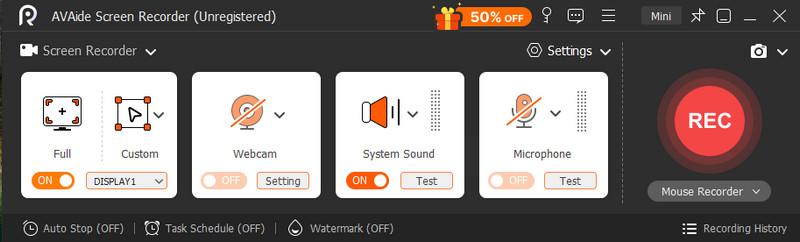
Bewaar je tutorials, gameplay en belangrijke momenten eenvoudig op je telefoon met een goede schermrecorder. De ingebouwde functie op de iPhone is handig, maar veel gebruikers geven de voorkeur aan andere tools die meer functies en controle bieden. De juiste kiezen is belangrijk. schermrecorder voor iPhone is cruciaal, afhankelijk van de context waarin het wordt gebruikt, of het nu voor school, werk of persoonlijke doeleinden is. De juiste selectie en eenvoudige installatie maken het mogelijk om op elk moment gemakkelijk en productief duidelijke en nuttige informatie vast te leggen.
OVER DE AUTEUR

Leg schermactiviteiten vast met audio, online vergaderingen, gameplay-video's, muziek, webcam, enz.
Schermopname