Pernahkah anda menerima panggilan telefon yang mengandungi butiran penting yang dikongsi, tetapi anda terlupa serta-merta selepas itu? Atau mungkin seseorang memberi anda arahan, dan anda tidak mempunyai cara untuk menuliskannya? Dalam kes seperti ini, pembelajaran cara merakam panggilan telefon pada Android adalah bantuan yang besar.
Panduan ini disediakan untuk membantu anda mempelajari caranya. Sama ada anda menggunakan Samsung, Google Pixel, Xiaomi, OnePlus atau mana-mana telefon Android yang lain, kaedah di bawah adalah untuk anda. Luangkan masa anda dan teliti setiap bahagian.
- Prasyarat: Pertimbangan Undang-undang Sebelum Anda Mula Merakam
- Kaedah 1: Gunakan Perakam Panggilan Terbina Dalam Telefon Anda
- Kaedah 2: Cara Merakam Panggilan Telefon pada Android Tanpa Aplikasi
- Kaedah 3: Rakam Panggilan Secara Automatik Tanpa Sebarang Pengumuman
- Di mana untuk Mencari Panggilan Rakaman pada Android
- Cara Mematikan Rakaman Panggilan pada Android
Prasyarat: Pertimbangan Undang-undang Sebelum Anda Mula Merakam
Sebelum anda merakam panggilan telefon pada Android, anda perlu mengetahui peraturan undang-undang asas. Peraturan ini penting. Ia membantu anda mengelakkan masalah dan menghormati privasi. Di banyak tempat, merakam panggilan tanpa kebenaran adalah tidak dibenarkan.
Sentiasa pastikan orang lain tahu anda sedang merakam. Sesetengah telefon sudah mengeluarkan bunyi amaran atau bip apabila rakaman bermula. Walaupun begitu, adalah lebih baik untuk meminta kebenaran terlebih dahulu. Undang-undang tidak sama di mana-mana. Jadi, anda harus menyemak peraturan di kawasan anda sebelum anda mula merakam.
Kaedah 1: Gunakan Perakam Panggilan Terbina Dalam Telefon Anda
Perakam panggilan terbina dalam merupakan ciri biasa telefon Android. Ia merupakan kaedah rakaman panggilan yang paling mudah. Memasang aplikasi tambahan tidak diperlukan. Ia hanya memerlukan beberapa ketikan untuk mula merakam jika telefon anda mempunyai ciri ini.
1. Cara Merakam Panggilan Telefon pada Samsung (One UI)
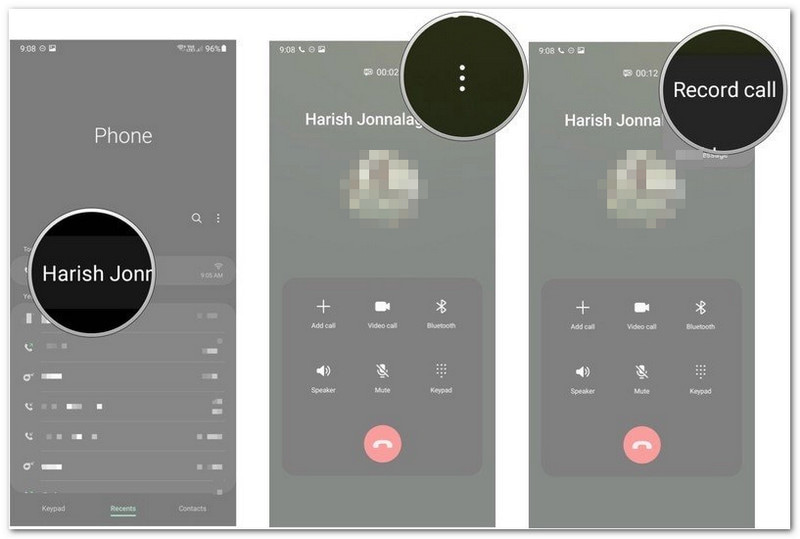
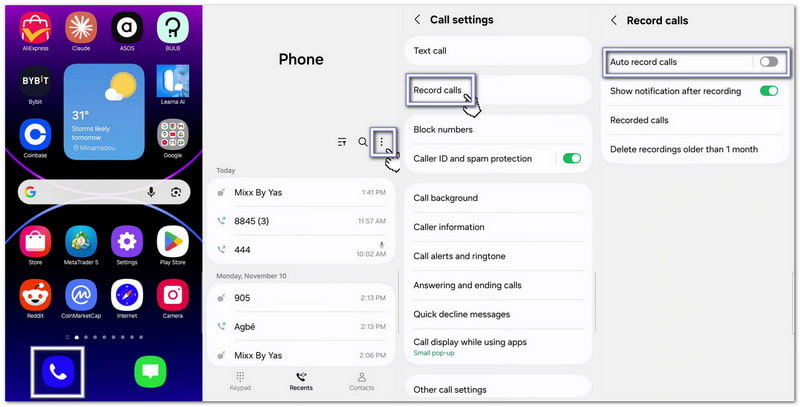
Telefon Samsung didatangkan dengan perakam panggilan di dalam aplikasi Telefon, yang membantu jika anda sedang belajar cara merakam panggilan telefon pada Samsung.
- Buka telefon aplikasi. Buat atau jawab panggilan.
- Setelah panggilan bersambung, ketik Rakam panggilan.
- Untuk merakam semua panggilan secara automatik, ketik menu tiga titik dan pilih tetapan.
- Pilih Rakam panggilan.
- Hidupkan Rakam panggilan secara automatik.
Butiran Tambahan:: Anda juga boleh rakaman skrin pada Samsung, yang merakam aktiviti skrin dan audio anda, yang sesuai untuk panggilan video.
2. Cara Merakam Panggilan Telefon pada Google Pixel
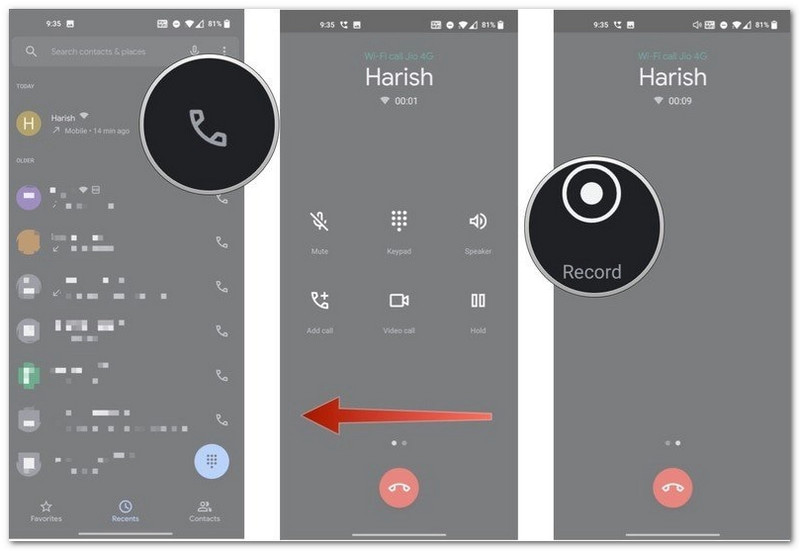
Telefon Google Pixel menggunakan aplikasi Google Phone. Rakaman panggilan mungkin tidak tersedia di setiap negara atau pembawa.
- Buka telefon aplikasi semasa panggilan. Leret ke kiri untuk melihat lebih banyak pilihan panggilan.
- Ketik Rekod.
- Untuk merakam pemanggil yang tidak dikenali secara automatik, buka Tetapan Telefon > Rakaman panggilan.
- Hidupkan Sentiasa rakam.
- Ketik Berhenti apabila anda ingin menamatkan rakaman.
- Google Phone akan memainkan mesej untuk memberitahu kedua-dua orang bahawa panggilan sedang dirakam.
3. Jenama Android Lain (Xiaomi, OnePlus, Nothing, dll.)
Banyak jenama Android menggunakan aplikasi Telefon mereka sendiri. Langkah-langkahnya biasanya serupa.
- Buat atau terima panggilan. Tunggu sehingga panggilan disambungkan.
- Leret atau tatal melalui pilihan panggilan.
- Ketik Rekod.
- Ketik Mula merakam jika mesej muncul.
- Ketik Berhenti setelah selesai.
Kaedah 2: Cara Merakam Panggilan Telefon pada Android Tanpa Aplikasi
Jika telefon anda tidak mempunyai perakam terbina dalam, anda masih boleh mempelajari cara merakam panggilan pada Android tanpa aplikasi dan menyimpan perbualan. Kaedah ini tidak memerlukan aplikasi rakaman panggilan khusus.
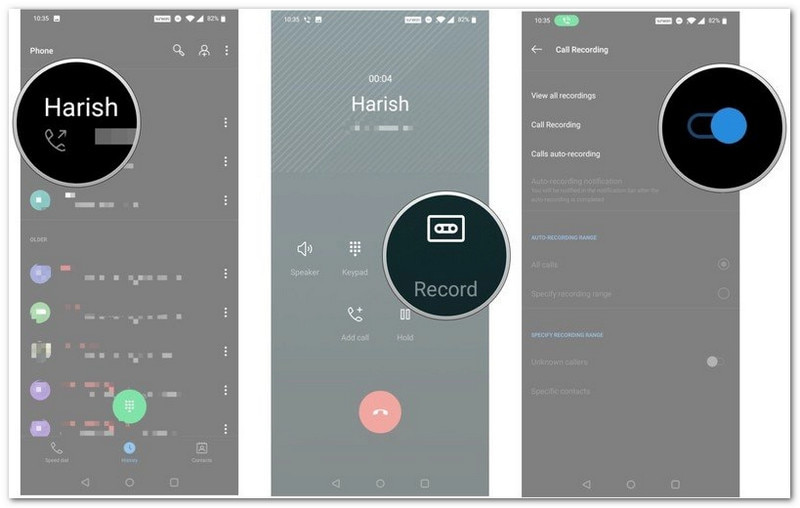
1. Gunakan Perakam Terbina Dalam Aplikasi Google Phone (Jika Tersedia)
Sesetengah telefon Android menyokong rakaman melalui aplikasi Google Phone.
- Buat atau jawab panggilan.
- Ketik Rekod pada skrin panggilan.
- Ketik Berhenti apabila panggilan tamat.
Rakaman tersebut akan disimpan dalam sejarah panggilan anda.
- Kedua-dua orang akan mendengar pengumuman rakaman sebelum rakaman bermula.
2. Gunakan Peranti Kedua untuk Merakam Panggilan Telefon Pembesar Suara
Ia adalah salah satu kaedah yang paling mudah.
- Hidupkan Telefon pembesar suara semasa panggilan.
- Letakkan telefon, tablet atau komputer lain berdekatan.
- Gunakan peranti kedua untuk merakam perbualan.
Jika anda menggunakan komputer Windows atau Mac, Perakam Skrin AVAide adalah pilihan yang baik. Ia mempunyai perakam audio terbina dalam yang boleh merakam panggilan telefon pada Android dengan bunyi yang jelas.

MUAT TURUN PERCUMA Untuk Windows 7 atau lebih baru
 Muat Turun Selamat
MUAT TURUN PERCUMA Untuk Mac OS X 10.13 atau lebih baru
Muat Turun SelamatPanggilan telefon yang dirakam disimpan terus ke komputer anda untuk akses mudah. Tidak kira sama ada panggilan telefon anda panjang, ia boleh mengendalikannya. Jika terdapat bahagian yang tidak diperlukan pada permulaan atau penghujungnya, anda boleh menggunakan ciri pangkas untuk mengalih keluarnya dan hanya menyimpan bahagian yang anda perlukan.
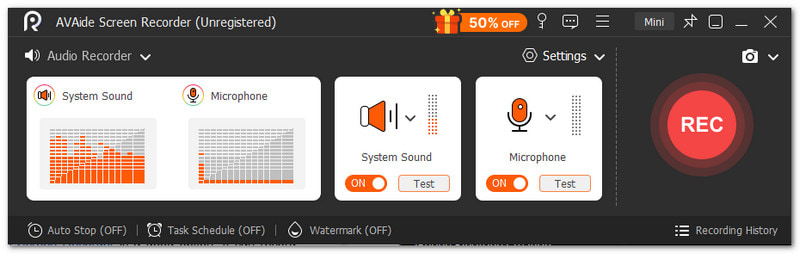
Perkara utama lain yang boleh anda jangkakan:
- Rakam video, audio dan kamera web bersama-sama.
- Merakam skrin telefon dengan audio kejelasan tinggi.
- Membenarkan pratonton segera selepas rakaman dengan pilihan untuk merakam semula.
- Menyokong pelbagai format media seperti MP4, WMV, AVI, GIF, MP3 dan banyak lagi.
3. Gunakan Jambatan Persidangan
Kaedah ini berfungsi dengan baik untuk panggilan penting.
- Sertai mesyuarat melalui Zoom atau Google Meet pada telefon Android anda.
- Sertai mesyuarat yang sama pada komputer anda.
- Mulakan perbualan telefon.
- klik Rekod pada komputer anda.
Audio akan disimpan terus ke komputer anda untuk akses mudah kemudian.
Kaedah 3: Rakam Panggilan Secara Automatik Tanpa Sebarang Pengumuman
Sesetengah telefon menawarkan pilihan tambahan untuk merakam panggilan suara pada telefon Android. Tetapan ini dapat mengurangkan kerja manual dan memudahkan rakaman. Ingat bahawa ciri yang tersedia bergantung pada model, pembawa dan lokasi telefon anda.
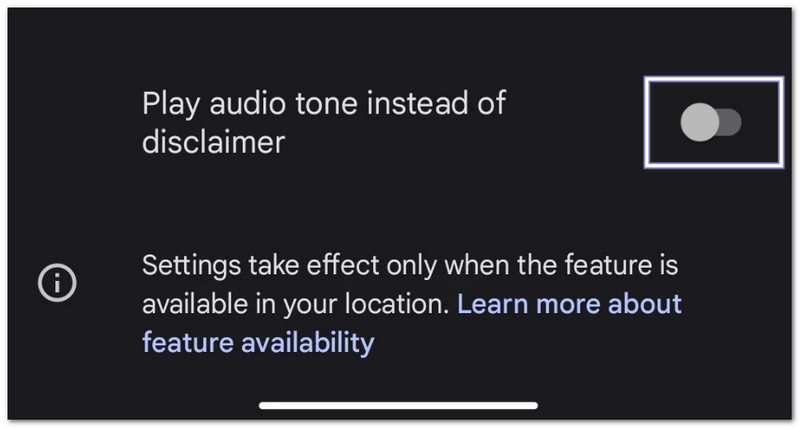
1. Gantikan Pengumuman dengan Bunyi Bip (Tetapan Asli pada Sesetengah Jenama)
Sesetengah telefon Android membenarkan anda menggunakan bunyi bip pendek dan bukannya pengumuman suara.
- Buka telefon apl.
- Ketik pada menu tiga titik atau tetapan butang.
- Pilih Rakaman panggilan.
- Hidupkan Mainkan nada audio dan bukannya penafian.
- Jika anda tidak dapat menemui pilihan ini, telefon atau rantau anda mungkin tidak menyokongnya.
2. Sediakan Rakaman Panggilan Automatik Sepenuhnya (Tiada Campur Tangan Manual)
Telefon anda mempunyai pilihan untuk merakam panggilan secara automatik.
- Pergi ke tetapan telefon.
- Ketik Rakaman Panggilan.
- Hidupkan Rakam panggilan secara automatik.
- pilih Semua panggilan atau Nombor yang dipilih.
Sebaik sahaja diaktifkan, rakaman akan bermula secara automatik berdasarkan tetapan anda.
3. Aplikasi Pihak Ketiga dengan Ciri Sembunyi
Jika telefon anda tidak menawarkan pilihan rakaman yang mencukupi, beberapa aplikasi pihak ketiga mungkin dapat membantu.
- Kubus ACR - Merakam panggilan telefon biasa dan beberapa panggilan internet.
- Perakam Panggilan Automatik Pro - Menyokong rakaman automatik dan kawalan rakaman tambahan.
Penting: Sekatan Android mungkin mengehadkan cara aplikasi ini berfungsi. Sesetengah telefon mungkin memerlukan kebenaran tambahan. Kualiti rakaman juga boleh berbeza mengikut peranti.
Di mana untuk Mencari Panggilan Rakaman pada Android
Selepas merakam panggilan, anda mungkin tertanya-tanya di mana hendak mencari panggilan yang dirakam pada Android. Lokasinya bergantung pada jenama telefon dan aplikasi Telefon anda.
Pada Samsung (Satu UI)
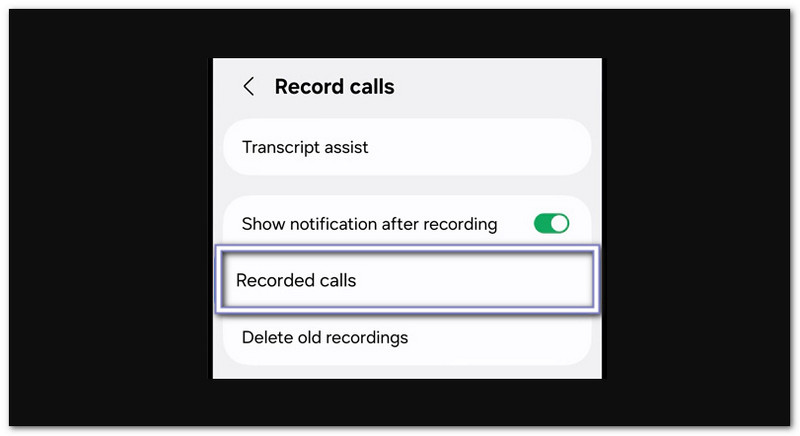
Rakaman panggilan Samsung berada di dalam aplikasi Telefon.
- Buka telefon apl.
- Ketik pada menu tiga titik.
- Pilih tetapan.
- Ketik Rakam panggilan.
- Buka Panggilan yang dirakam.
Pada Apl Google Phone (Pixel dan telefon lain dengan Google Dialer)
Google Phone menyimpan rakaman dalam sejarah panggilan anda.
- Buka telefon apl.
- Ketik Terkini.
- Pilih panggilan yang dirakam.
- Ketik Sejarah atau Main butang.
Pada Xiaomi / MIUI / HyperOS
Anda boleh menemui rakaman di dua tempat.
Pilihan 1:
- Buka telefon apl.
- Pergi ke Terkini.
- Ketik pada anak panah atau Butiran butang di sebelah panggilan.
Pilihan 2:
- Buka Pengurus Fail.
- Pergi ke Penyimpanan > MIUI > perakam_bunyi > panggilan_rec.
Pada Jenama Lain (Lokasi umum)
Kebanyakan telefon Android menyimpan rakaman dalam Pengurus Fail.
- Buka Pengurus Fail.
- Semak folder seperti Audio, Panggil, atau Rakaman Panggilan.
- Anda juga boleh mencari Rekod Panggilan.
Jika anda tidak dapat menemui fail-fail tersebut, semak Tetapan Telefon > Rakaman Panggilan untuk lokasi simpanan.
Cara Mematikan Rakaman Panggilan pada Android
Jika anda juga ingin mengetahui cara mematikan rakaman panggilan pada Android, anda boleh bergantung pada arahan di bawah.
- Buka telefon atau Pendail apl.
- Ketik pada menu tiga titik.
- Pilih tetapan.
- Ketik Rakaman panggilan atau Rakam panggilan secara automatik.
- Putar ciri tersebut Mati.
Selepas itu, telefon anda akan berhenti merakam panggilan akan datang secara automatik. Rakaman sedia ada akan kekal disimpan melainkan anda memadamkannya secara manual.
Catatan ini menjawab soalan, "Bolehkah anda merakam panggilan telefon pada Android?" Dan jawapannya adalah ya. Tidak kira peranti apa yang anda gunakan, sentiasa ada cara untuk merakam panggilan anda. Walaupun pada komputer, anda masih boleh menyimpan perbualan anda. Satu alat mudah yang boleh anda gunakan ialah Perakam Skrin AVAideIa berfungsi dengan baik untuk rakaman panjang dan menawarkan ciri-ciri bermanfaat untuk rakaman audio.
TENTANG PENGARANG

Tangkap aktiviti skrin dengan audio, mesyuarat dalam talian, video permainan, muzik, kamera web, dsb.