


Perakam skrin Android terbina dalam mungkin tidak mempunyai ciri yang mencukupi. Walau bagaimanapun, terdapat beberapa petua praktikal yang boleh anda pelajari untuk membuat rakaman yang lebih mudah dan versatil pada skrin telefon anda. Catatan ini akan menunjukkan kepada anda secara menyeluruh Rakaman skrin Android tutorial.
Jika anda lebih suka rakaman skrin lanjutan untuk permainan, tutorial atau demo profesional, kami juga boleh membantu anda memintas kekusutan untuk membawakan anda kaedah dan aplikasi rakaman skrin Android terbaik yang tersedia hari ini, lengkap dengan tutorial langkah demi langkah untuk membantu anda mencapai hasil definisi tinggi yang jelas.
- Bahagian 1: Cara Menggunakan Perakam Skrin Android Terbina Dalam
- Bahagian 2: Beberapa Alat Perakam Android Khusus Jenama
- Bahagian 3: 4 Cara Serbaguna untuk Merakam Skrin pada Android
- Bonus: Rakam Skrin pada Desktop dan Telefon Bimbit dengan Kualiti Terbaik
- Bahagian 4: Soalan Lazim tentang Cara Merakam Skrin pada Android
Bahagian 1: Cara Menggunakan Perakam Skrin Android Terbina Dalam
Kebanyakan peranti yang menjalankan Android 11 atau lebih tinggi dilengkapi dengan aplikasi rakaman skrin asli yang terletak di panel Tetapan Pantas. Anda boleh menggunakannya untuk merakam skrin telefon anda.
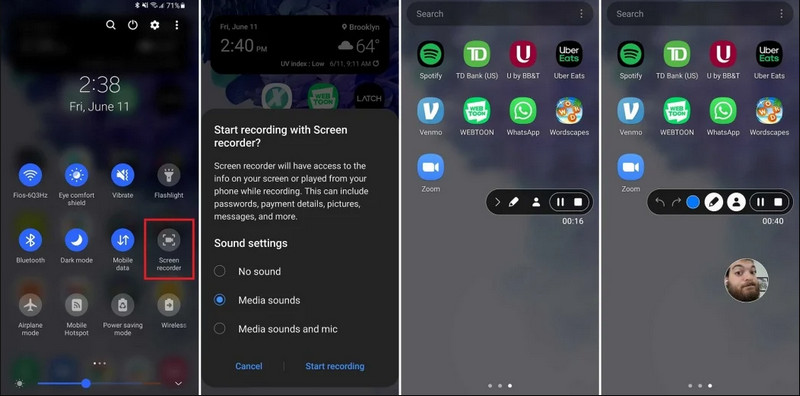
Langkah 1Akses Tetapan Pantas
Leret ke bawah dua kali dari bahagian atas skrin anda untuk mengembangkan menu Tetapan Pantas penuh.
Langkah 2Pilih Perakam Skrin
carilah Rekod SkrinJika anda tidak melihatnya, ketik Sunting butang (dengan ikon Pensel) dan seret jubin Rakaman Skrin ke dalam grid aktif anda.
Langkah 3Konfigurasikan Tetapan Rakaman
Apabila anda menemui Android Perakam Skrin alat ini, anda mempunyai pelbagai pilihan rakaman. Memilih yang betul boleh menjadikan rakaman skrin Android anda berkesan.
- Tiada bunyi: Rakam hanya skrin telefon tanpa audio sistem atau bunyi luaran.
- Bunyi media: Rakam skrin dengan semua bunyi sistem, termasuk bunyi daripada semua aplikasi dalam telefon anda.
- Bunyi media dan mikrofon: Rakam kedua-dua bunyi sistem dan bunyi luaran (mikrofon terbina dalam telefon atau mikrofon daripada fon telinga anda).
Langkah 4Mulakan dan Hentikan Rakaman Skrin
Buat pilihan anda dan ketik Mulakan Pengekodan Semula butang. Undur akan muncul dalam bar status. Untuk menghentikan rakaman skrin Android, ketik Berhenti butang (jika terdapat bar status rakaman) atau leret ke bawah bidai pemberitahuan dan ketik butang merah Berhenti butang.
Bahagian 2: Beberapa Alat Perakam Android Khusus Jenama
Banyak pengeluar telefon Android menyediakan perakam skrin proprietari dengan ciri-ciri canggih seperti tindanan Kamera Swafoto. Lihat beberapa ciri rakaman khas jenama Android yang popular:
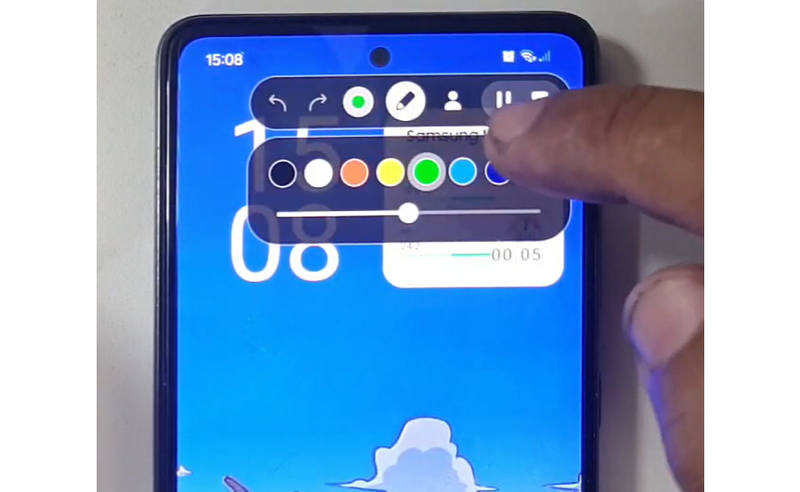
Samsung (Satu UI): Termasuk Perakam Skrin dengan bar alat yang membolehkan anda melukis pada skrin dalam masa nyata.
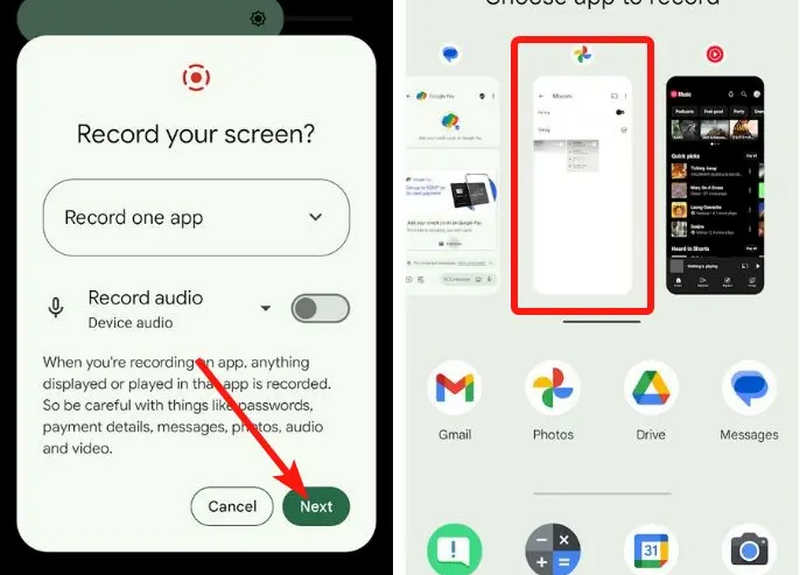
Google Piksel: Anda boleh memilih aplikasi tertentu (cth., aplikasi Perbankan atau WhatsApp) untuk dirakam. Jika anda keluar dari aplikasi atau tarik ke bawah bidai pemberitahuan anda semasa sesi, tindakan tersebut tidak akan muncul dalam video akhir.
Xiaomi (MIUI/HyperOS): Menampilkan aplikasi "Perakam Skrin" khusus dengan penyesuaian mendalam untuk kadar bingkai (FPS) dan kadar bit.
Huawei & Honor (HarmonyOS / MagicOS): Integrasi perkakasan-perisian unik yang membolehkan anda memulakan atau menghentikan rakaman hanya dengan mengetuk skrin dua kali menggunakan dua buku jari.
OPPO, vivo & realme (ColorOS / OriginOS): Apabila permainan dilancarkan, perakam skrin mengoptimumkan sumber CPU/GPU secara automatik bagi memastikan rakaman klip 4K/60FPS tidak menyebabkan lag dalam permainan atau penurunan bingkai.
Bahagian 3: 4 Cara Serbaguna untuk Merakam Skrin pada Android
Jika telefon Android anda tidak mempunyai ciri rakaman skrin yang memuaskan, anda boleh menyemak empat aplikasi perakam skrin Android. Ia boleh menyediakan beberapa ciri yang mudah dan praktikal.
1. Perakam Skrin AZ
Perakam Skrin AZ merupakan aplikasi perakam skrin Android yang sangat popular di Play Store. Ia boleh merakam video beresolusi tinggi pada skrin telefon Android anda. Aplikasi ini juga membolehkan anda melaraskan resolusi, kadar bingkai dan kadar bit bergantung pada tujuan rakaman yang berbeza.

Selain itu, Perakam Skrin AZ membolehkan pengguna merakam bunyi yang dimainkan pada peranti menggunakan mikrofon. Ini menjadikan rakaman walaupun rakaman yang paling rumit dan standard tinggi mungkin. Susunan butangnya yang ringkas dan prestasi yang konsisten menjadikan aplikasinya kegemaran ramai. Ketahui cara merakam skrin Android dengan ini menggunakan tutorial di bawah.
Langkah 1Selepas anda memuat turun aplikasi pada Android anda, lancarkannya. Kemudian, klik pada kamera butang untuk mengakses ciri rakaman skrinnya.
Langkah 2Ketik Mula sekarang untuk memulakan rakaman skrin pada Android anda dan undur akan muncul di skrin anda.
Langkah 3Untuk menghentikan rakaman skrin pada telefon Android anda, ketik Rekod butang sekali lagi. Dengan aplikasi ini, anda juga boleh rekod skrin pada iPhone anda dengan bunyi diaktifkan.
2. Perakam Skrin Mobizen
Perakam Skrin Mobizen merupakan satu lagi aplikasi untuk merakam skrin pada Android yang tersedia secara percuma di Play Store dan menjanjikan rakaman yang mudah dan berkualiti tinggi. Ia menyediakan pilihan untuk rakaman definisi tinggi dengan parameter boleh laras dan rakaman bersih untuk mengalih keluar tera air. Tambahan pula, Mobizen juga mempunyai rakaman bunyi dalaman, yang boleh digunakan untuk rakaman, serta kamera muka dan GIF, yang boleh menambah lagi rakaman. Ia juga menggunakan ciri dan kawalan berbeza yang mudah yang membantu pengguna memulakan rakaman skrin Android atau mengedit kandungan tanpa perlu meraba-raba tentang aplikasi tersebut. Ketahui cara merakam skrin dengan Android menggunakan aplikasi ini.
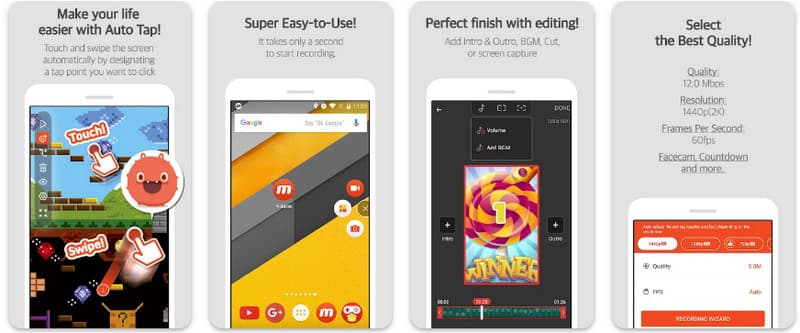
Langkah 1Muat turun sekarang pada Android anda dan buka apl.
Langkah 2Lakukan persediaan yang diperlukan sebelum anda boleh menggunakan perakam skrin. Bar perakam terapung akan muncul pada skrin anda. Ketik kamera butang, kemudian Mula sekarang untuk memulakan rakaman skrin.
Langkah 3Apabila anda selesai, ketik M dan juga berhenti butang untuk menghentikan rakaman skrin pada telefon Android anda.
3. Perakam Skrin - XRecorder oleh Inshot
Perakam Skrin - XRecorder ialah utiliti Android semua-dalam-satu yang berkuasa yang memudahkan penangkapan skrin dengan menawarkan rakaman definisi tinggi, sehingga 1080p pada 60FPS, tanpa memerlukan akses root atau mengenakan tera air. Sebagai kaedah utama untuk rakaman skrin pada Android 17/16, ia menyediakan pengalaman pengguna yang lancar melalui tetingkap kawalan terapung yang membolehkan anda memulakan, menjeda dan melukis pada skrin anda dalam masa nyata menggunakan alat berus terbina dalam. Selain penangkapan video yang mudah, ia menyokong rakaman audio dalaman, lapisan facecam untuk penstrim dan penyuntingan video bersepadu, menjadikannya pilihan ideal untuk sesiapa sahaja yang perlu mencipta tutorial profesional, klip permainan atau demonstrasi yang jelas terus daripada peranti mudah alih mereka.
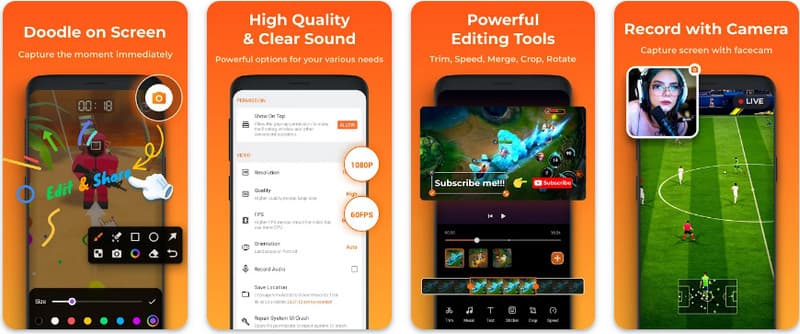
Langkah 1Apabila memuat turun XRecorder selesai, bukanya dan ketik butang Dayakan Ikon Terapung.
Langkah 2Selepas itu, ketik Rekod butang untuk memulakan rakaman dan Mula sekarang untuk mengesahkan.
Langkah 3Seperti yang anda lihat, panjang rakaman muncul sebagai ikon terapung; ketik berhenti butang untuk menyimpan rakaman.
4. Perakam Skrin Super
Perakam Skrin Super merupakan penyelesaian terbaik untuk sesiapa sahaja yang mencari cara profesional untuk merakam skrin pada Android dengan fleksibiliti maksimum. Aplikasi berkuasa ini memberikan tangkapan definisi tinggi dan menonjol dengan menawarkan pengalaman bebas tanda air walaupun dalam versi percumanya, memastikan kandungan anda kekal bersih dan profesional. Ia menampilkan kamera muka bersepadu untuk merakam reaksi masa nyata dan alat berus serba boleh yang membolehkan anda melukis pada skrin semasa rakaman, fungsi penting untuk mencipta tutorial atau panduan ringkas yang menarik. Sama ada anda seorang pemula atau pengguna lanjutan, Super Screen Recorder menyediakan penyesuaian mantap yang diperlukan untuk menguasai rakaman skrin Android dengan mudah.
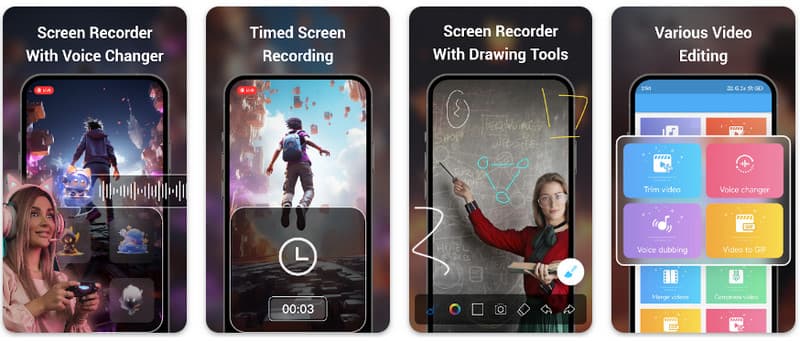
Langkah 1Buka Perakam Skrin Super pada Android anda, kemudian dayakan ciri terapung apl untuk menggunakannya.
Langkah 2Pada skrin anda, ketik kamera butang, sahkan tetapan dan ketik Mula sekarang. Kemudian, kira detik selama tiga saat akan muncul sebelum rakaman bermula.
Langkah 3Ketik pada segi empat sama butang untuk menamatkan rakaman dan menyimpannya pada peranti Android anda.
Bonus: Rakam Skrin pada Desktop dan Telefon Bimbit dengan Kualiti Terbaik
Adakah anda percaya bahawa anda boleh merakam skrin telefon Android anda pada komputer? Perakam Skrin AVAide direka terutamanya untuk rakaman skrin pada Windows dan Mac. Tetapi ia juga boleh merakam skrin penuh telefon Android anda. Ini amat berguna apabila anda perlu membuat tutorial operasi tertentu pada Android dan kemudian mengedit video secara langsung pada Mac atau Windows anda.
Untuk rakaman skrin pada Windows dan Mac, AVAide Screen Recorder menyokong codec AV1 dan HEVC, yang boleh memampatkan hasil rakaman dengan tinggi sambil mengekalkan kualiti video terbaik. Pecutan perkakasan penuh membolehkan anda merakam video panjang dengan penggunaan CPU yang sangat rendah. Lebih menarik lagi ialah ia mempunyai mikrofon yang dipertingkatkan yang meningkatkan kejelasan dengan membatalkan bunyi latar belakang dan gema. Perisian ini menghasilkan rakaman yang sangat baik dengan ciri navigasi dan penyuntingan yang mudah, seperti pemangkasan dan anotasi. Walaupun ia merupakan perisian yang mahal, ia sangat disyorkan kerana ia boleh digunakan untuk tujuan peribadi dan perniagaan.
- Rakam peranti Android atau iOS anda dengan kualiti video terbaik.
- Buat rakaman tutorial dengan mudah menggunakan ciri lukisan dan anotasi.
- Sokong codec output AV1 dan HEVC untuk memampatkan video output dengan sangat baik.
- Menawarkan ciri penyuntingan video yang mudah digunakan untuk mengedit rakaman anda pada Android.
Langkah 1Anda kini boleh memuat turun perakam skrin pada PC anda dengan menandakan butang muat turun di sini. Kemudian, pasang apl dengan mengikut gesaan pada skrin anda dan lancarkannya untuk bergerak ke hadapan ke langkah seterusnya.

MUAT TURUN PERCUMA Untuk Windows 7 atau lebih baru
 Muat Turun Selamat
MUAT TURUN PERCUMA Untuk Mac OS X 10.13 atau lebih baru
Muat Turun SelamatLangkah 2Memandangkan ia sudah memasuki sistem anda, letakkan bingkai rakaman di kawasan yang anda mahu mulakan rakaman. Di sini, anda boleh merakam keseluruhan skrin anda dengan memilih pilihan Skrin penuh dan bukannya pilihan Wilayah.

Langkah 3Seterusnya, sistem dan rakaman mikrofon boleh disediakan jika perlu. Jika anda ingin menambah wajah anda pada rakaman, aktifkan pilihan Webcam di sini. Kemudian, klik REC untuk memulakan kira detik dan mula merakam.

Langkah 4Apabila anda menamatkan rakaman, klik butang berhenti butang, iaitu segi empat sama merah. Ke tetingkap seterusnya yang muncul, anda boleh mengedit rakaman yang anda ambil sebelum ini dengan pilihan yang tersedia di sini, kemudian letakkan kursor anda pada rakaman dan tekan muat turun butang untuk menyimpannya. Aplikasi ini membuktikan nilainya sebagai perakam sumber terbuka terbaik tersedia.

Bahagian 4: Soalan Lazim tentang Cara Merakam Skrin pada Android
Di manakah saya boleh menemui rekod skrin pada tetapan saya?
Untuk mengakses ciri terbina dalam bagi rekod skrin pada Android tanpa aplikasi pihak ketiga, leret ke bawah dua kali dari bahagian atas skrin anda untuk membuka Tetapan Pantas panel dan cari Rekod Skrin ikon (atau "Rakaman Skrin"). Jika ia tidak kelihatan, ketik Sunting Butang (pensel) untuk menyeret togol rakaman skrin ke dalam jubin aktif anda. Setelah ditambahkan, anda hanya boleh mengetik ikon, memilih pilihan audio anda, seperti merakam bunyi sistem dalaman atau mikrofon anda dan tekan mula untuk mula merakam skrin anda terus daripada tetapan sistem anda.
Mengapa saya tidak dapat menemui rakaman skrin pada Android saya?
Ketiadaan pilihan asli untuk merakam skrin pada Android biasanya disebabkan oleh peranti anda yang menjalankan sistem pengendalian yang lebih lama, kerana ciri terbina dalam hanya diseragamkan dengan Android 11Jika perisian anda terkini, togol mungkin tersembunyi daripada anda Tetapan Pantas menu; anda biasanya boleh mendedahkannya dengan mengetik Sunting butang dalam bidai pemberitahuan dan seret jubin "Rakam Skrin" ke dalam paparan aktif anda. Di samping itu, sesetengah peranti "Go Edition" peringkat permulaan atau kulit pengeluar tertentu mungkin melumpuhkan ciri ini untuk menjimatkan sumber sistem, yang mana dalam hal ini menggunakan aplikasi pihak ketiga seperti XRecorder atau Super Screen Recorder adalah penyelesaian yang paling berkesan.
Mengapa butang rakam skrin hilang?
Butang rakaman skrin biasanya hilang kerana ia secara tidak sengaja dialihkan keluar dari kawasan aktif Tetapan Pantas; anda selalunya boleh memulihkannya dengan mengetik Sunting (ikon pensel) dalam bidai pemberitahuan anda dan seret jubin ke belakang. Ia juga mungkin tersembunyi disebabkan oleh Mod Penjimatan Kuasa, dihadkan oleh Profil Kerja atau hanya memerlukan sistem dimulakan semula untuk menyegarkan UI selepas kemas kini perisian.
Menggunakan tutorial yang disenaraikan di sini, anda telah belajar bagaimana untuk merakam skrin pada Android Samsung. Tutorial ini akan memberi manfaat besar kepada anda mengenai tugas rakaman skrin anda, terutamanya jika anda seorang pengguna Android. Kongsi maklumat ini dengan rakan pengguna Android anda untuk memberi mereka idea tentang cara melakukannya.
TENTANG PENGARANG

Rakam skrin, audio, kamera web, permainan, mesyuarat dalam talian, serta skrin iPhone/Android pada komputer anda.
Rakaman Skrin


