There is no quicker way to show someone how to do something than to record your screen, but many tools can be cumbersome to install or don't produce reliable results. Using a screen recorder Chrome extension eliminates this overhead but also creates constraints in speed, quality, and data privacy that can be overlooked. Using the wrong recorder can result in fuzzy screens, unintelligible audio, or data leak risks. This article will outline the differences between a strong and weak extension, and how to choose the best one for you.
- Part 1. How We Tested and Selected the Best Chrome Screen Recorders
- Part 2. Top 7 Best Screen Recorder Chrome Extensions
- Part 3. Which One is The Best
- Part 4. How to Screen Record on Chrome: Quick Tutorial
- Part 5. Alternative Method: Beyond Chrome Extension
- Part 6. Troubleshooting Common Chrome Screen Recording Issues
Part 1. How We Tested and Selected the Best Chrome Screen Recorders
To identify the best Chrome screen recorder, we focused only on the factors that directly affect real-world use and output quality. Each tool was tested under practical conditions where performance issues are most visible.
- Real workflow testing: We recorded complete tutorials, switching between tabs and recording for longer periods to assess how the tools work in a typical workflow, not just snippets.
- Video and audio quality: We rated sharpness, jitteriness, and audio synchronization to ensure videos look and sound good, even before editing.
- Performance impact: We measured CPU and memory usage to avoid lags and slowdowns during recording.
- Ease of use: We timed how long it takes for a novice user to begin recording, looking for a clear user interface and quick setup.
- Output and sharing: We examined file formats, export quality, and the ease of sharing without additional steps or modifications.
- Reliability: Each tool was pushed through longer sessions to identify crashes, failed recordings, or inconsistent behavior.
Here are the tools we tested in the wild to assess performance, ease of use, and stability in recording daily browsing activities such as sharing screens, recording demos, and tutorials.
Part 2. Top 7 Best Screen Recorder Chrome Extensions
Below are the tools we tested under real browsing conditions, focusing on performance, usability, and recording stability during everyday tasks such as tutorials, demos, and screen sharing.
1. CocoShot
CocoShot is a Chrome extension screen recorder for those looking to record and edit in the same app. It is more of a simple browser studio rather than a simple recorder. It worked well in our tests to record longer videos with good audio-video sync.
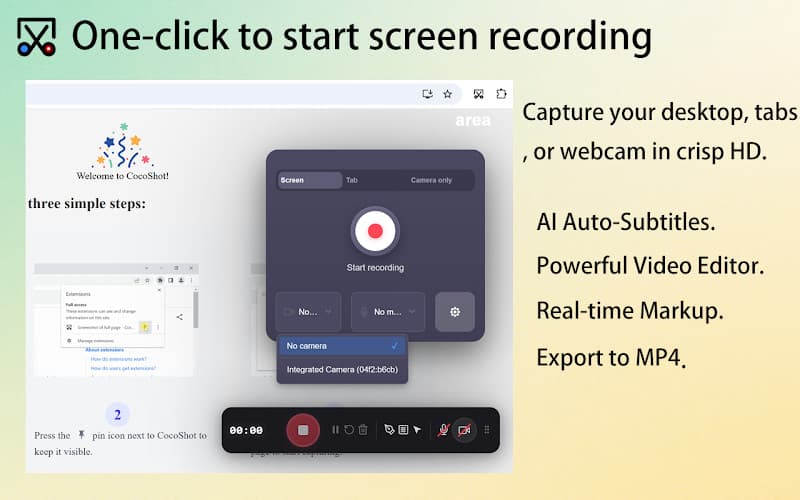
- 장점
- Editing and recording in one step
- Automatic subtitles need less work
- No watermark when using for free
- Combinations of screen, webcam, and audio
- 단점
- Advanced features require a paid plan
- System audio depends on Chrome limitations
2. Nimbus Capture
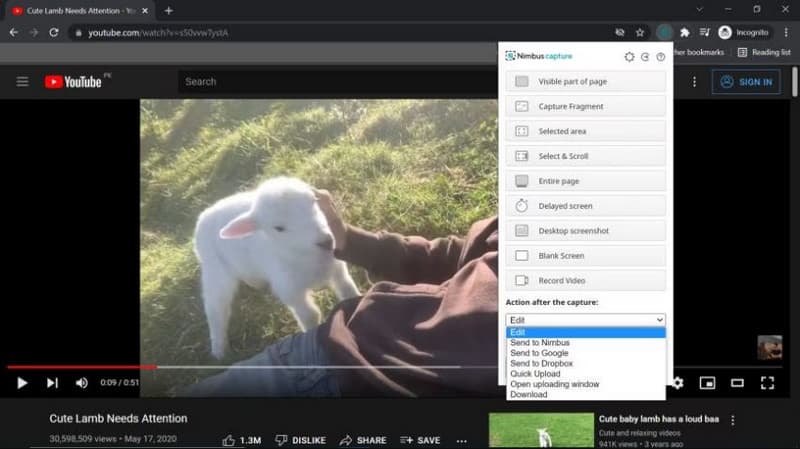
후광 캡처 is a Chrome screen recorder built for users who need both recording and advanced screenshot tools in one place. It is especially useful for documentation, training materials, and step-by-step visual guides.
- 장점
- Combines screen recording and screenshot tools
- Strong annotation and blur features
- Cloud storage and sharing options included
- Works well for structured tutorials
- 단점
- Some advanced features require a subscription
- Interface can feel heavy for simple recordings
3. 직기
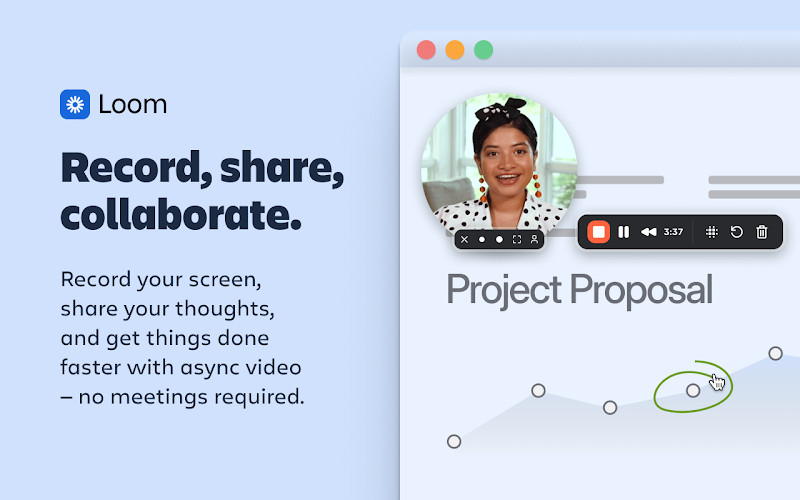
직조기 is an asynchronous Chrome screen recorder. It automatically creates a shareable link to the video once you are done recording, making it great for explaining things or collaborating with remote teams.
- 장점
- Instant shareable links
- Simple and fast recording workflow
- Strong collaboration features
- Works across devices
- 단점
- The free plan has recording limits
- Branding appears on free exports
4. Screencastify
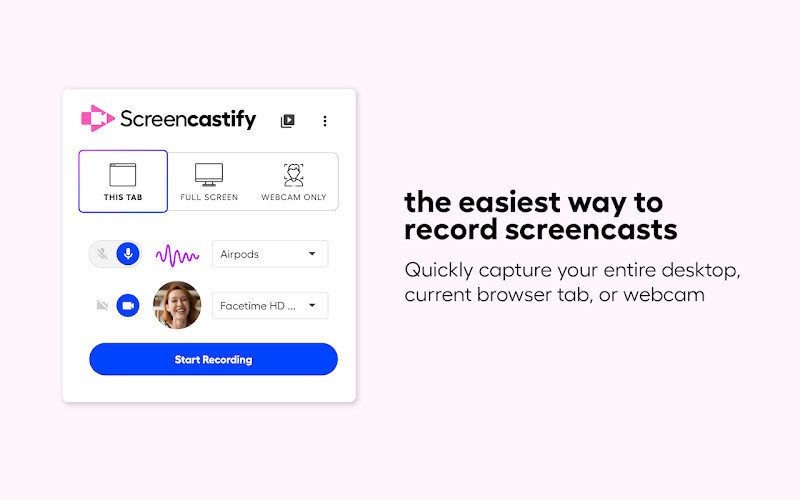
스크린캐스트 is widely used by people learning how to screen record on Chrome, especially in education and training environments. It provides a guided recording flow that keeps things simple and structured.
- 장점
- Direct saving to Google Drive
- 초보자 친화적인 인터페이스
- Basic annotation tools included
- Great for teaching and presentations
- 단점
- Watermark on the free version
- Limited flexibility without upgrade
5. Vmaker
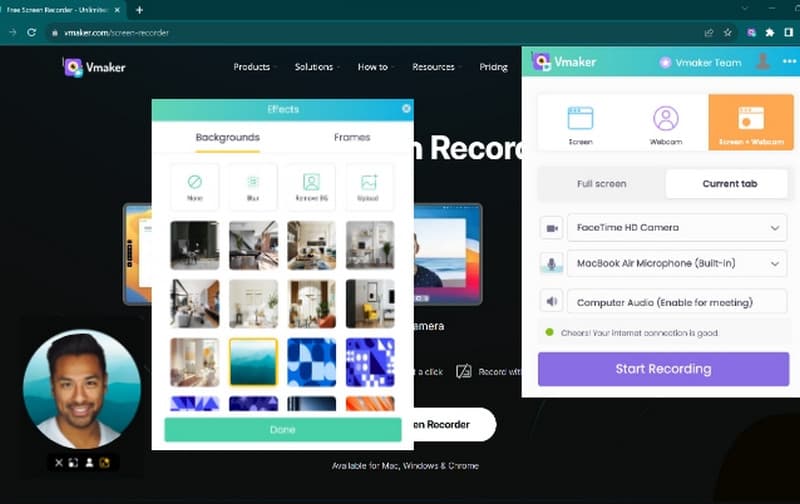
Vmaker is a free screen recording tool for those who want to record without limits or watermarks. It is user-friendly and delivers high-quality recordings.
- 장점
- Free plan with unlimited recordings
- No watermark on basic usage
- Cloud storage included
- Clean and modern interface
- 단점
- 고급 기능을 사용하려면 구독이 필요합니다.
- Performance depends on internet stability
6. ScreenPal
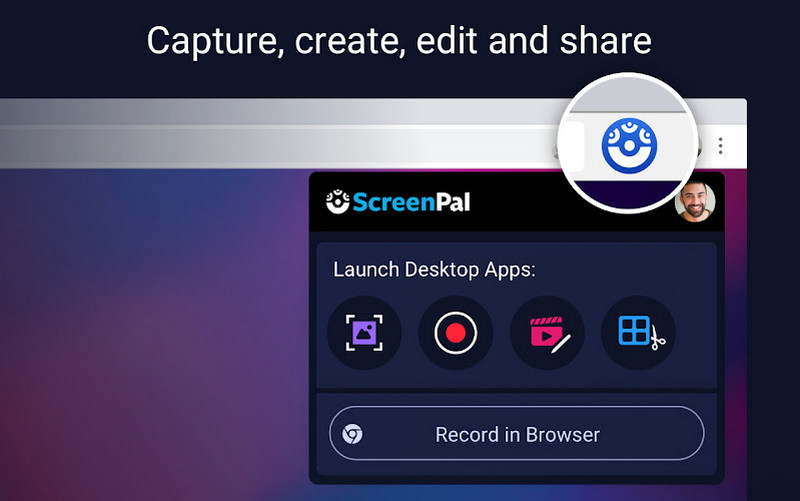
스크린팔 is a free Google Chrome screen recorder for those looking for a mix of cost and editing tools. This is the 최고의 무료 화면 녹화기 that isn't too complicated but does all the necessary screen recording.
- 장점
- Budget-friendly pricing
- Basic editing tools
- 다양한 플랫폼에서 작동합니다
- Longer recording limits than many free tools
- 단점
- Watermark on the free version
- Interface feels less modern
7. Scre.io
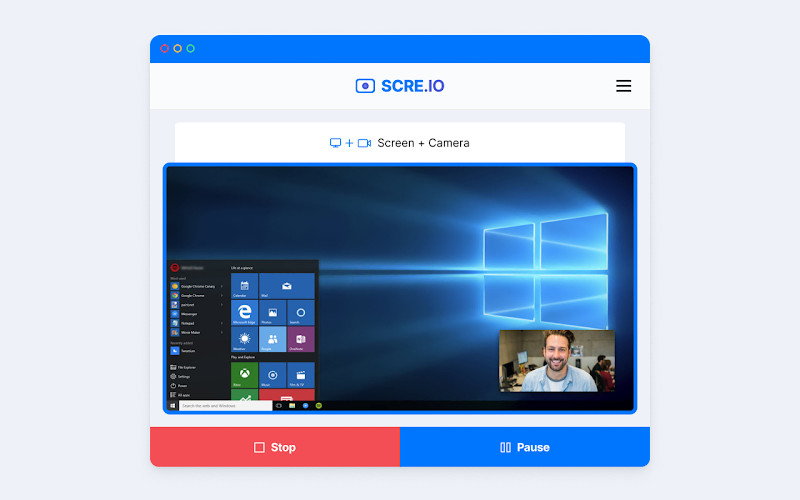
Scre.io is a free Chrome extension for screen recording, focused on speed and minimal setup. It removes unnecessary features and keeps only the essentials for quick screen capture.
- 장점
- Very fast start with no setup
- Lightweight browser-based tool
- No learning curve required
- Good for quick recordings
- 단점
- Very limited feature set
- No editing or integrations
Part 3. Which One is The Best
The best Chrome screen recorder for one person may not be the best for another, as each is designed for a different use case. The best tool will depend on what's important to you: speed, control, simplicity, or sharing.
Best for Fast Sharing and Communication
If you want the best for speed, Loom is the best choice. It is fast to record and provides an immediate sharing link, making it perfect for remote reporting and communication. But its free tier is limited in duration, and branding is added to exports.
Best All-in-One for Teams and Documentation
Nimbus Capture is the best as an all-in-one tool. It offers screen recording, screenshots, drawing, and storage. So it is particularly useful for tutorials, documentation, and guides.
Best for Beginners and Education
Screencastify is best for users who want a simple, guided experience. It is commonly used in schools and training environments because it integrates easily with Google Drive and keeps the process straightforward.
Best Free Option for Frequent Use
Vmaker stands out for users who need a free screen recording Chrome extension without constant limits or watermarks. It is suitable for regular recording needs without worrying about usage restrictions.
Best for Lightweight and Simple Recording
The simplest is Scre.io. This is fast, light, and has no setup time, but it is only for quick videos, not for editing or production.
Best for Collaboration and Feedback
Awesome Screenshot & Screen Recorder is most useful for communication due to its quality. It is suitable for teams that need to communicate feedback, explanations, and annotations.
Part 4. How to Screen Record on Chrome: Quick Tutorial
For this guide, we will use Loom because it is one of the simplest tools for beginners and requires minimal setup. If you are learning how to screen record on Chrome, follow these steps:
1 단계Install the extension
Go to the Chrome Web Store and install Loom. Once added, pin it to your browser toolbar for quick access.
2 단계Choose Your Recording Mode
Click the Loom icon and select what you want to capture. You can record the full screen, a specific tab, or include your webcam if needed.
3단계녹음 시작
Press the record button. A three-second countdown will begin, and everything in your selected screen area will be captured, along with audio if enabled.
4단계Stop and Share
Click the stop button when finished. Loom will automatically generate a shareable link, which you can copy and send immediately.
Part 5. Alternative Method: Beyond Chrome Extensions
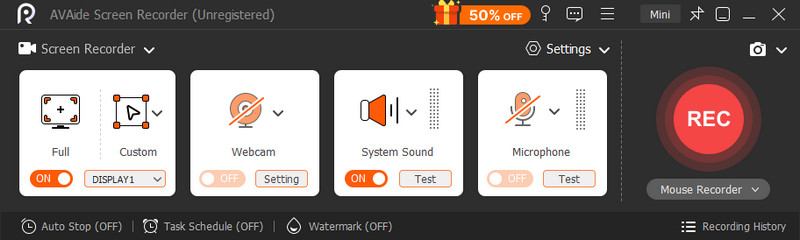
Chrome extensions are a good option for short recordings, but they may not be suitable for long recordings, system audio, or speed. AVAide 스크린 레코더 is a better choice for those who need more features and higher quality. It's more responsive and less laggy than most Chrome extensions when recording full-screen, webcam, microphone, and system audio.

 안전한 다운로드
It also includes useful extras like real-time annotations, trimming tools, scheduled recording, and multiple export formats. If browser recorders feel limiting, AVAide is the kind of upgrade that makes recording easier and more professional. If you want a free screen recorder without a watermark, this is for you.
Part 6. Troubleshooting Common Chrome Screen Recording Issues
- No audio in the recording: Ensure the microphone or system audio is allowed in Chrome settings and selected in the recorder settings before you start recording.
- Laggy or choppy video: Close other tabs and applications that are using system resources.
- Extension not working properly: Restart Chrome and check that the screen recorder extension is turned on in the Extensions menu.
- Black screen during capture: Enable screen sharing on the site or app, and update Chrome to the latest version.
- Recording stops unexpectedly: Clear storage and disable any interfering extensions that may cause glitches.
- Audio out of sync with video: Close other background apps and keep your recordings short.
The best recorder program is not necessarily the most powerful, but the most suitable for your needs. Some just want to record quickly, while others want more features and quality. Using a free screen recording Chrome extension is a great way to start, as it lets you record instantly from Chrome. If you understand your requirements, picking the right tool is easy and efficient.
저자 소개

오디오, 온라인 회의, 게임 플레이 비디오, 음악, 웹캠 등으로 화면 활동을 캡처합니다.