MP4 비디오에서 재밌는 순간이나 멋진 장면을 발견하셨나요? 아마도 그 완벽한 부분을 잘라내어 밈으로 만들어 친구들과 공유하고 싶으실 겁니다. 대부분의 인터넷 밈과 이모티콘은 파일 크기가 작고 호환성이 뛰어난 GIF 형식을 사용하기 때문에, MP4 파일을 애니메이션 GIF로 변환하기 채팅과 소셜 미디어 피드를 더욱 재미있게 만드는 가장 좋은 방법은 GIF를 사용하는 것입니다. 다행히 MP4 비디오에서 고품질 GIF를 만드는 것은 매우 간단합니다. 이 가이드에서는 데스크톱, 온라인 도구, 안드로이드 및 iOS 모바일 솔루션을 포함하여 MP4를 GIF로 빠르게 변환하는 4가지 효율적인 방법을 안내합니다.
1부: Windows/Mac에서 MP4를 GIF로 변환하는 가장 쉬운 방법
AVAide MP4 변환기 이 소프트웨어는 MP4 비디오를 뛰어난 화질과 부드러운 재생을 자랑하는 애니메이션 GIF로 변환할 수 있는 강력한 도구입니다. 마우스 클릭 몇 번만으로 프레임 속도와 해상도 등 원하는 설정을 적용하여 MP4를 GIF 파일로 변환할 수 있습니다. 사용하기 매우 간편하며, 이미지를 GIF로 변환하는 기능도 제공합니다.
- MP4 비디오를 높은 품질과 빈도로 애니메이션 GIF로 변환합니다.
- 다양한 인기 있고 희귀한 비디오 형식을 가져오고 출력할 수 있습니다.
- 귀하의 요구 사항에 맞게 GIF 해상도와 프레임 속도를 사용자 정의하세요.
- 잘라내기, 회전, 자막 추가, 효과 추가 등의 실용적인 편집 기능을 제공합니다.

 안전한 다운로드
AVAide MP4 변환기를 사용하여 MP4를 GIF로 변환하는 방법:
1 단계MP4 비디오를 업로드하세요
무료 다운로드 AVAide MP4 변환기 Windows/Mac에서 실행하고 실행합니다. 클릭 파일 추가 버튼을 클릭하여 원하는 MP4 비디오를 선택하여 추가할 수 있습니다. 비디오의 특정 부분을 미리 잘라낼 필요 없이, 전체 MP4 비디오를 바로 추가하여 GIF로 변환할 수 있습니다.

2 단계GIF 출력 사전 설정을 선택하세요
클릭 출력 형식 왼쪽 하단 모서리에 있는 드롭다운 버튼을 선택하고 동영상 목록. 그런 다음 아래로 스크롤하여 GIF 탭에서 원하는 GIF 형식을 원하는 크기와 품질로 선택하여 필요에 맞게 저장할 수 있습니다.

3단계MP4 비디오 자르기
메인 페이지에서 자르다 그리고 편집하다 클립, 회전 및 필터 추가 버튼을 클릭합니다. 자르다 버튼을 사용하면 원하는 부분을 선택하기 위해 타임라인을 쉽게 조정할 수 있으며 클릭할 수 있습니다. 세그먼트 추가 버튼을 눌러 여러 GIF를 만듭니다.

그런 다음 편집하다 버튼을 눌러 비디오를 자르고 회전합니다. 또한 사전 설정 필터를 선택하고 워터마크 또는 텍스트를 추가하여 애니메이션 GIF를 더 흥미롭게 만들 수 있습니다.

4단계MP4를 GIF로 변환 시작
마지막으로 메인 인터페이스로 돌아가서 원하는 저장 경로를 선택할 수 있습니다. 저장 위치 왼쪽 하단에 있는 드롭다운 버튼을 클릭하세요. 모두 변환 버튼을 눌러 MP4 비디오 배치를 GIF로 변환하기 시작합니다.

파트 2: 포토샵으로 MP4 파일을 애니메이션 GIF로 변환하는 방법
Adobe Photoshop은 전문가용 이미지 편집 분야에서 강력한 프로그램이며, MP4 비디오를 고품질 GIF로 변환하는 데에도 매우 효과적인 도구입니다. Photoshop의 가장 큰 장점은 완벽한 제어 기능을 제공한다는 것입니다. 개별 프레임을 편집하고, 텍스트 애니메이션을 추가하고, 색상 팔레트를 세밀하게 조정한 후 MP4를 GIF로 내보낼 수 있습니다. 하지만 단점도 있습니다. 초보자에게는 학습 곡선이 가파르게 느껴질 수 있으며, 일괄 처리 기능이 없어 한 번에 하나의 MP4 GIF만 만들 수 있습니다. 이미 Photoshop을 설치했고 완벽한 결과물을 얻고 싶다면 다음의 자세한 단계를 따라 시작해 보세요.
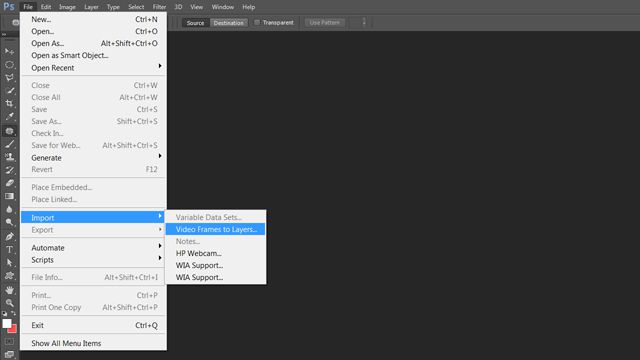
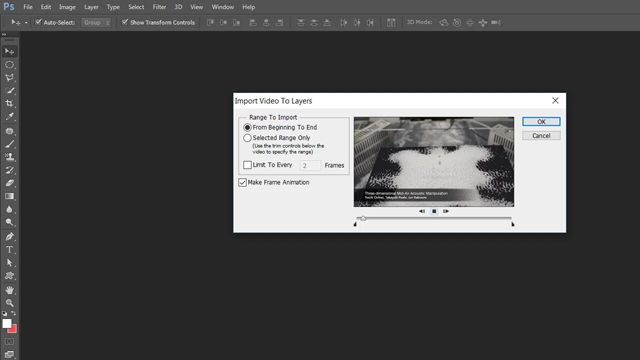
1 단계컴퓨터에서 Photoshop을 연 후 파일 버튼을 선택 수입 옵션. 그런 다음 비디오 프레임을 레이어로 원하는 MP4 비디오를 선택하는 옵션입니다.
2 단계팝업 창에서 GIF 메이커가 열립니다. 그런 다음 타임라인을 당겨 원하는 비디오 클립을 선택할 수 있습니다. 그리고 빈 상자에 프레임 속도를 입력해야 합니다. 숫자가 높을수록 프레임 속도가 낮아집니다. 마지막으로 체크 프레임 애니메이션 만들기 옵션을 클릭하고 확인 계속하려면 버튼을 누릅니다.
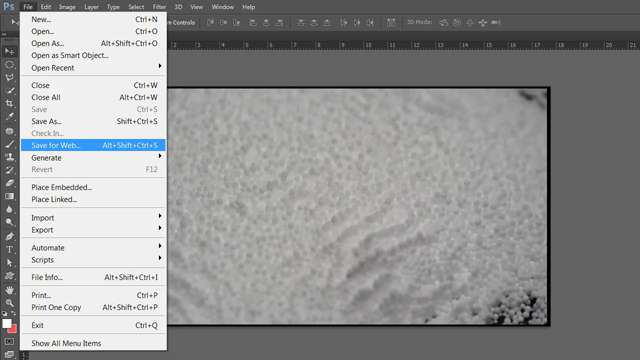
3단계그런 다음 파일 선택하는 메뉴 웹용으로 저장 옵션. 팝업 창에서 GIF 형식을 선택하고 구하다 버튼을 눌러 MP4 비디오를 애니메이션 GIF로 변환하기 시작합니다.
3부: MP4 비디오를 온라인에서 무료로 GIF로 변환하는 방법
소프트웨어를 설치하고 싶지 않다면 온라인 MP4-GIF 변환기를 사용하는 것이 가장 빠른 방법입니다. Convertio는 번거로움 없이 무료로 MP4를 GIF로 변환할 수 있는 매우 인기 있는 온라인 도구입니다. 웹 브라우저에서 바로 빠르고 간편하게 MP4를 GIF로 변환하려는 사용자에게 이상적인 선택입니다. 하지만 이 무료 클라우드 기반 도구에는 몇 가지 제한 사항이 있다는 점을 유의해야 합니다. 고급 사용자 지정 옵션이 부족하여 내보내기 전에 비디오 길이, 프레임 속도 또는 해상도를 조정할 수 없습니다. 간단하고 기본적인 MP4-GIF 비디오 변환기가 필요하다면 아래의 간단한 단계를 따르세요.
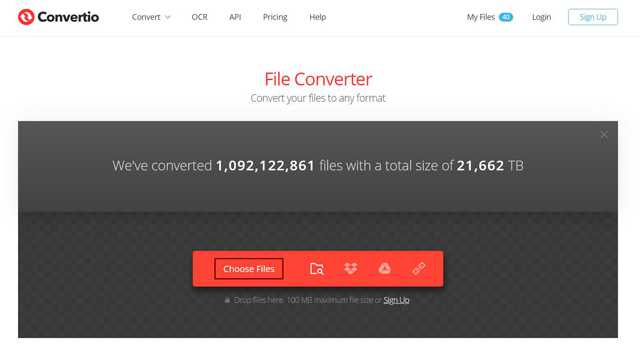
1 단계모든 브라우저에서 Convertio의 공식 웹사이트로 이동합니다. 클릭 파일 선택 버튼을 눌러 원하는 MP4 동영상을 선택하세요.
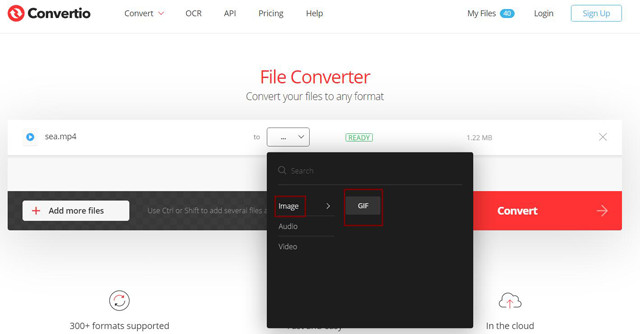
2 단계클릭 세 개의 점 아이콘을 선택 GIF 형식 영상 목록. 그런 다음 전환하다 버튼을 눌러 프로세스를 계속 진행합니다. MP4를 GIF 파일로 변환한 후 직접 클릭할 수 있습니다. 다운로드 버튼을 눌러 GIF를 저장합니다.
4부: Android/iOS에서 MP4를 GIF로 변환하는 최고의 솔루션
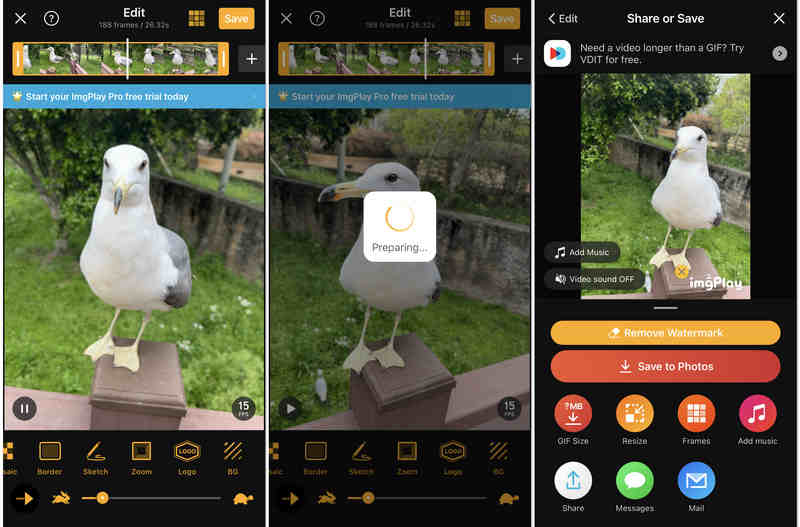
모바일 기기에 최적화된 ImgPlay는 안드로이드와 iOS 기기 모두에서 사용할 수 있는 다재다능한 MP4-GIF 변환 앱입니다. 이 직관적인 앱을 사용하면 카메라 롤에서 바로 MP4 파일을 애니메이션 GIF로 간편하게 변환할 수 있습니다. 내보내기 전에 프레임을 자르거나 회전하고 필터, 텍스트, 이모티콘, 스티커를 추가하여 나만의 GIF를 손쉽게 만들 수 있습니다. GIF 형식의 256색 제한으로 인해 화질이 저하될 수 있지만, ImgPlay는 해상도 조절 및 고화질 내보내기 설정을 제공하여 이러한 문제를 해결합니다. 변환이 완료되면 파일을 즉시 저장하거나 X(트위터), WhatsApp, Instagram과 같은 소셜 미디어 네트워크에 직접 공유할 수 있습니다.
ImgPlay에서 MP4 파일을 GIF로 만드는 방법:
1 단계iPhone 또는 Android 기기에서 ImgPlay를 실행하세요. MP4 비디오를 선택하여 재생을 시작하세요.
2 단계다양한 편집 기능과 향상 도구가 있습니다. 아마도 가장 많이 사용하게 될 기능은 상단의 자르기 기능(타임라인의 양쪽 끝을 드래그)과 하단의 속도 조절 기능일 것입니다. 슬라이더를 드래그하여 GIF 재생 속도를 조절하세요.
3단계마지막으로 탭하기만 하면 됩니다. 구하다 오른쪽 상단의 버튼을 누르면 MP4 클립을 애니메이션 GIF 이미지로 쉽게 변경할 수 있습니다.
4단계그런 다음, 휴대폰의 사진 앱에 저장하거나 바로 공유할 수 있습니다.
파트 5: MP4 파일을 애니메이션 GIF로 변환할 때 자주 묻는 질문
MP4 파일을 GIF로 변환할 때 원본 화질을 유지할 수 있나요?
아니요, 이미지 품질에 영향을 미칩니다. 해상도, 프레임률, 비트 전송률 모두 감소합니다. 하지만, 믿을 만한 MP4-GIF 변환기(예: )를 사용하면 문제없이 변환할 수 있습니다. AVAide MP4 변환기고화질 이미지를 유지하는 데 도움이 될 수 있으며, 이를 통해 GIF가 선명하고 끊김 없이 보이게 됩니다.
윈도우에서 애니메이션 GIF를 재생하는 방법은 무엇인가요?
윈도우의 대부분 비디오 플레이어는 애니메이션 GIF 재생을 지원합니다. 내장된 사진 뷰어조차도 GIF 파일을 직접 열 수 있습니다.
After Effects를 사용하여 GIF 비디오를 내보낼 수 있나요?
After Effects 자체는 GIF 파일로 직접 내보낼 수 있는 기능을 제공하지 않습니다. Media Encoder 또는 Photoshop과 연동하여 변환 작업을 수행해야 합니다. 따라서 더 빠르고 간편한 다른 방법을 사용하는 것이 좋습니다.
애니메이션 GIF는 유머와 반응을 공유하는 최고의 방법으로 인터넷을 완전히 장악했습니다. MP4 비디오에 재미있는 순간들이 담겨 있다면, 이를 나만의 GIF 밈으로 변환하는 것은 소셜 미디어 피드를 더욱 풍성하게 만드는 완벽한 방법입니다. 이 글에서는 가장 효율적인 변환 방법을 다룹니다. MP4를 GIF로 Windows, Mac 및 모바일 기기에서 사용 가능합니다. 최상의 결과를 얻으려면 다음을 사용하세요. AVAide MP4 변환기 강력 추천합니다. MP4를 GIF로 변환하는 가장 간편한 동영상 변환기로, 프레임 속도와 해상도 같은 사용자 지정 매개변수를 완벽하게 제어할 수 있습니다. 지금 다운로드하여 좋아하는 동영상 클립을 재미있는 바이럴 루프로 만들어 보세요!
저자 소개

모든 비디오 형식을 높은 출력 품질로 MP4로 변환하는 다기능 MP4 변환기.