YouTubeには、ブログ、役立つヒント、レビューなどを通じて人々の創造性を紹介する何百万もの動画があります。しかし、ウェブサイト上のコンテンツを保護するため、YouTubeはユーザーがプラットフォーム外に動画をダウンロードすることを禁止しています。自分のものではないコンテンツをアップロードし、オリジナルの作成者に適切に通知しない人がいるため、これは悪質な行為と見なされています。個人的な使用であれば、自分のコピーを作成する方法の1つは録画することです。この記事では、録画する方法について説明します。 YouTube動画の録画方法 お使いのコンピューターやスマートフォンなど、さまざまなデバイスで利用できます。
パート1:PCまたはMacでYouTube動画を録画する方法(デスクトップ版)
1. 内蔵ツール(最もシンプルで無料)
パソコンでYouTube動画を録画する方法は?WindowsでもMacでも、YouTubeをはじめとする様々なウェブサイトから動画を無料でキャプチャする方法があります。以下の手順をご覧ください。
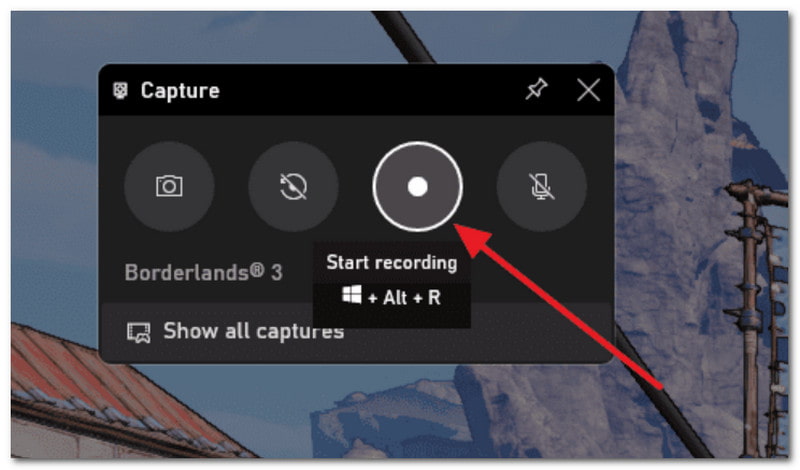
Windows - Xbox ゲームバー
Xbox Game Barを利用するには、お使いのPCがWindows 10以降にアップデートされていることを確認してください。その後、以下の手順を実行してください。
ステップ1YouTubeを開いて、キャプチャしたい動画を探します。同時に、 ウィンドウズ と G キーボードのキー。
ステップ2右隅からクリックして 丸 録画を開始するには、ボタンをクリックしてください。録画が終了したら、同じボタンをクリックして停止できます。
Mac - QuickTime Player
QuickTime PlayerはMacでメディアファイルを再生するために使用されますが、YouTube動画の録画ソフトとしても使用できます。手順は以下のとおりです。
ステップ1PCでQuickTime Playerを開き、クリックします ファイル。を選択してください 新しい画面収録 オプション。
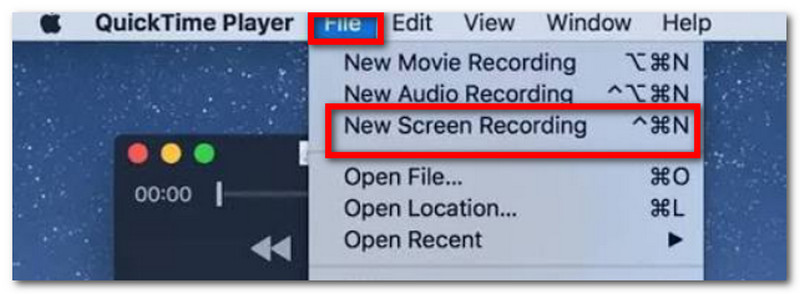
ステップ2レコーダーの横にある小さな矢印から、いくつかの設定を調整できます。次に、 記録 YouTube動画をキャプチャするためのボタン。
2. ブラウザ拡張機能(動画1本の場合に最も簡単)
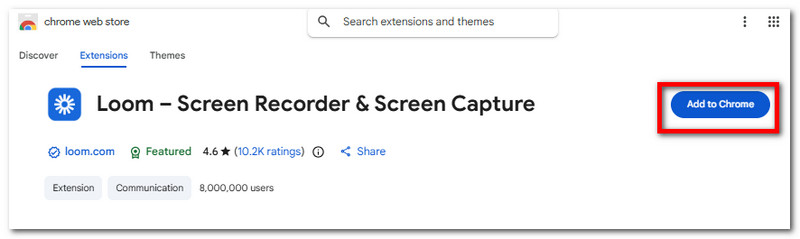
Loomは、拡張機能としてYouTube動画を録画する最も簡単な方法の1つです。画面上のコンテンツをキャプチャする操作はすぐに習得でき、共有用のリンクも生成されます。また、ビデオ、マイク、内部音声を同時にキャプチャしたり、動画をクラウドに自動的に保存したりする機能も備えています。それでは、LoomをYouTube画面録画ツールとして使用する方法をご紹介します。
ステップ1Chromeウェブストアを開いてLoomをダウンロードし、ブラウザに追加します。 拡張機能 アイコンをピン留めしておけば、いつでも使用できます。
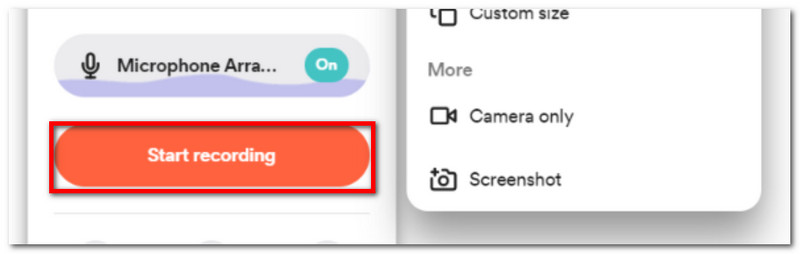
ステップ2画面録画を希望どおりに設定してから、クリックします。 録音開始 YouTube動画をキャプチャします。動画はLoomに登録したアカウントに保存されます。
3. AVAideスクリーンレコーダー
動画以外にも、YouTubeから音声を録音する方法を別途学ぶと良いでしょう。 AVAideスクリーンレコーダー WindowsとMacで高品質なコンテンツをキャプチャするなら、AVAide Screen Recorderが最適です。洗練されたインターフェース設計により、ツールの操作方法をすぐに習得できます。もちろん、マイク、ウェブカメラ、オンライン会議、画面録画など、さまざまな録画方法に対応しています。キャプチャしたコンテンツは、MP3、MP4、MOV、M4Aなど、一般的な出力形式で保存されます。さらに、注釈の追加、録画スケジュールの設定、キャプチャする画面領域のカスタマイズも可能です。AVAide Screen Recorderは、優れたビデオとオーディオの録画に最適なツールです。
ステップ1お使いのデバイスにAVAideスクリーンレコーダーをダウンロードしてください。ソフトウェアを正常にインストールするには、説明書をよくお読みください。

 安全なダウンロード
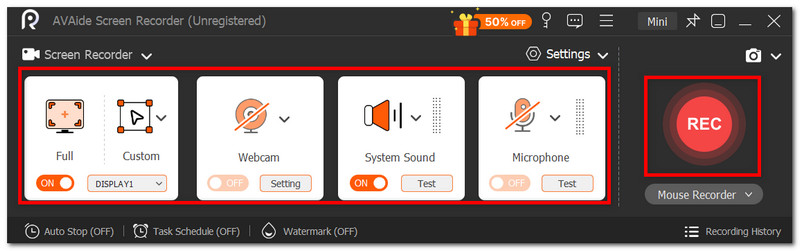
ステップ2設定メニューから、画面サイズや音声入力などを設定できます。設定が完了したら、RECボタンをクリックしてYouTubeに画面録画を開始します。
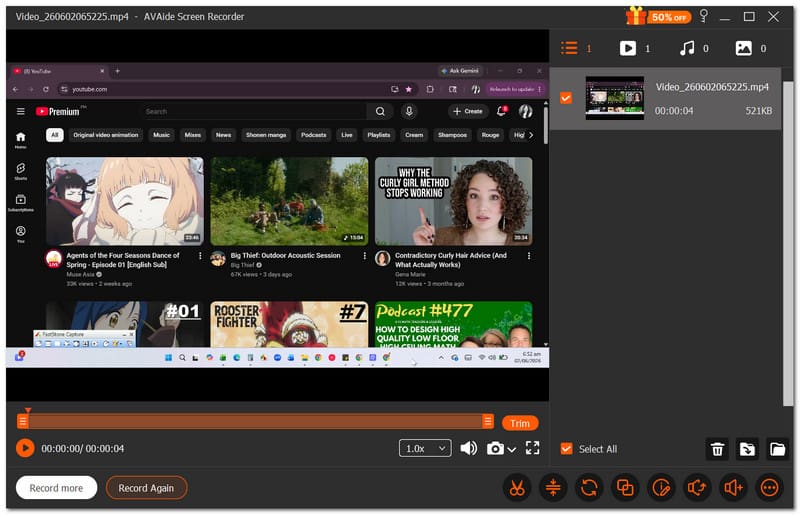
ステップ3クリック やめる 録画が完了したら、ボタンを押してください。結果をプレビューするか、ローカルフォルダに保存してください。
パート2:iPhoneまたはAndroidでYouTube動画を録画する方法(モバイル端末を使った方法)
iPhoneやAndroid端末でYouTube動画を録画する方法は、特に難しいものではありません。スマートフォンには画面録画機能が内蔵されているため、画面上のコンテンツをキャプチャできます。ただし、スマートフォンの画面録画機能では音声付きの動画は録画できないことに注意してください。音声付きで画面を録画するには、サードパーティ製のアプリを使用する必要があるかもしれません。
iPhoneの場合:
ステップ1スマートフォンの設定を開き、 コントロールセンター。をタップします プラス コントロールセンターにスクリーンレコーダーを追加するには、このボタンをクリックしてください。
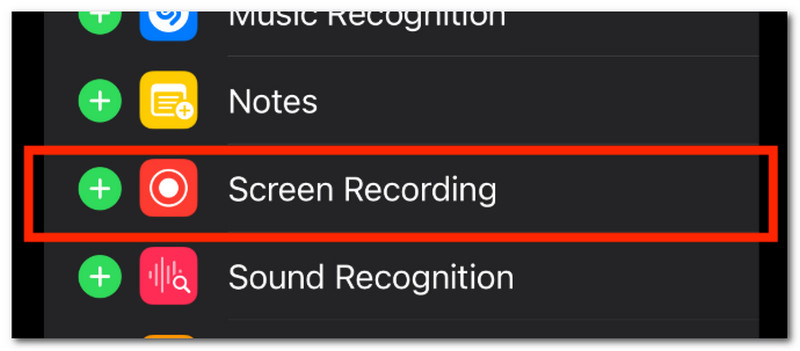
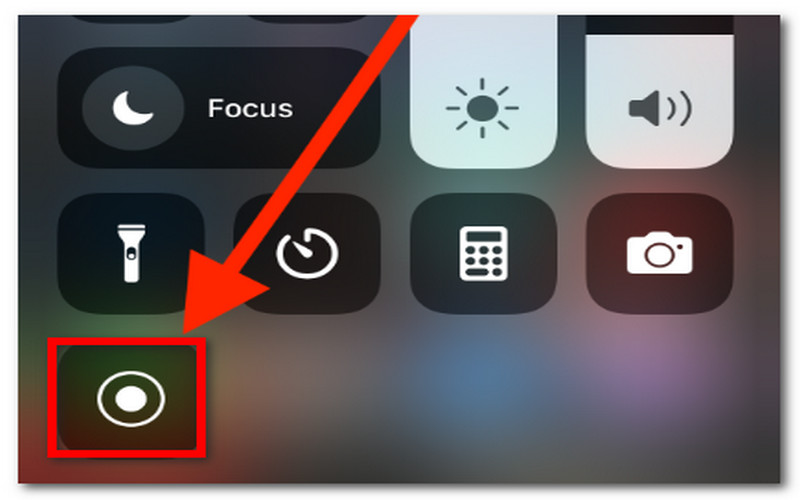
ステップ2画面の右上隅から下にスワイプしてタップします。 記録 ボタンをタップします。録画が完了したら、コントロールセンターからもう一度ボタンをタップしてください。録画した動画は写真アプリで視聴できます。
アンドロイド用:
ステップ1スマートフォンの上部からスワイプしてクイックパネルにアクセスします。 スクリーンレコード.
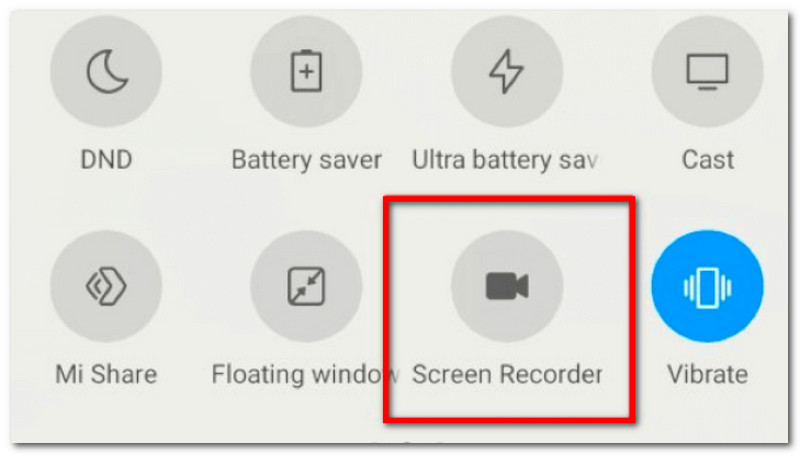
ステップ2必要に応じて、動画にデバイスの音声を録音するように設定できます。その後、画面録画通知をタップして録画を停止します。
パート3:XboxでYouTube動画を録画する方法(コンソール版)
ゲーム機を使ってYouTube動画をキャプチャする方法の一つは、PCキャプチャカードを使うことです。これを使うと、パソコンの画面をゲーム機に表示させることができ、Xboxに内蔵されている画面録画機能で録画できます。XboxでYouTube動画を録画する方法については、以下のガイドをご覧ください。
ステップ1挿入する X HDMIケーブル へ HDMI入力ポート 外部キャプチャカードのUSBケーブルを接続します。次に、キャプチャカードのUSBケーブルをコンピューターに接続します。
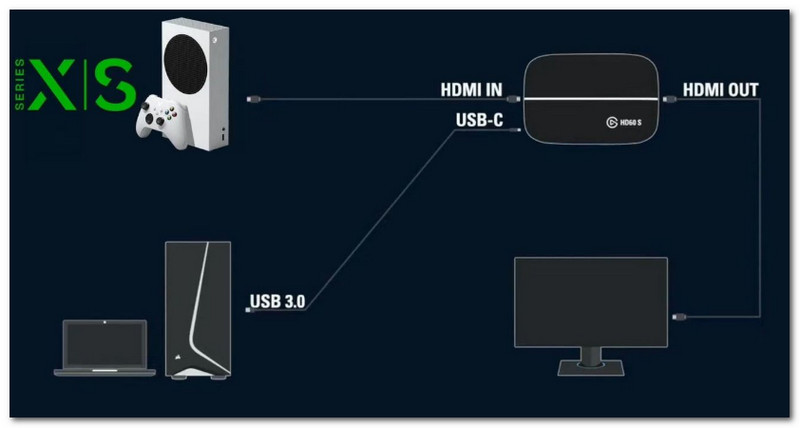
ステップ2キャプチャカードから HDMI出力ポートモニターに別のHDMIケーブルを接続します。キャプチャカードをモニターとして追加するには、PCにOBS Studioなどのソフトウェアが必要です。 ビデオキャプチャデバイス.
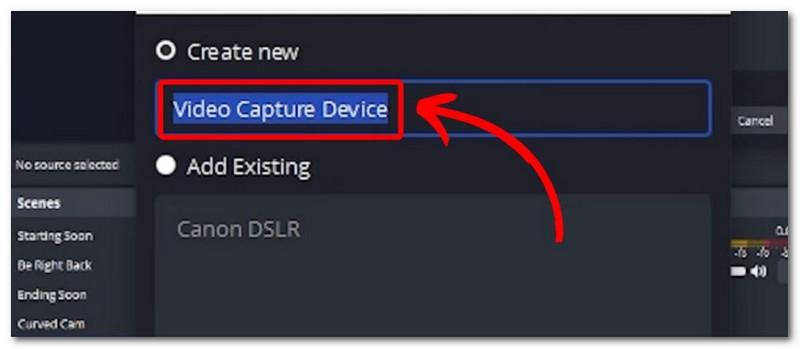
ステップ3YouTubeを開いて、 Xbox ボタンをクリックして キャプチャして共有 ウィンドウ。クリック 録音開始 YouTube動画をキャプチャする。
パート4:YouTubeから音声を録音する方法(音声のみ抽出)
YouTubeから音声を録音するには、確実な方法が2つあります。このセクションでは、WindowsとMacで利用できる無料の音声録音ソフト「Audacity」の使い方と、YouTube動画を音声ファイルとしてダウンロードするためのYouTube MP3変換ツールの使い方を説明します。
方法1:システムオーディオレコーダーソフトウェア(Audacity)
ステップ1 お使いのコンピューターにAudacityをダウンロードしてインストールしてください。ソフトウェアを開き、お好みの設定を行ってください。
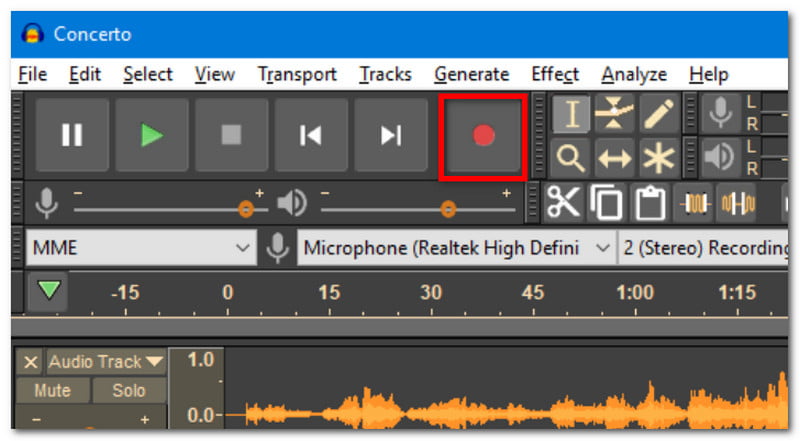
ステップ2クリック 記録 YouTube動画をキャプチャするには。 オーディオトラックを編集する 音声クリップの最初と最後をトリミングして、フォルダにエクスポートします。
方法2:オンラインYouTube MP3変換ツール
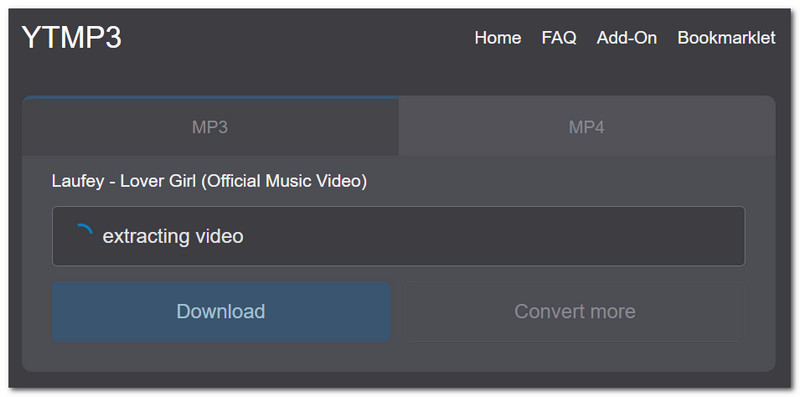
ステップ1YouTubeアプリを開き、音声に変換したい動画を検索します。リンクをコピーし、次に「YouTubeからMP3への変換」を検索してリンクを貼り付けます。
ステップ2次に、クリックします 変換 動画を音声に変換するには、処理が完了するまでお待ちください。 ダウンロード 音声ファイルを保存する。
パート5:YouTubeチャンネル向けに高品質なコンテンツを録画する方法
自分のコンテンツを撮影しようと計画しているときに、Redditで「YouTube動画を撮影するのに三脚は必要ですか?」と質問したことがあるかもしれません。撮影を始めるにはいくつかの機材が必要になりますが、初心者の方は以下のものから始めると良いでしょう。
機器に関する推奨事項
スマートフォンを持っているだけでも、動画撮影のスタートとしては十分です。では、iPhoneでYouTube動画を効果的に撮影するにはどうすれば良いでしょうか?まずは、三脚やリングライトといった小型の撮影機材に投資して、照明効果を高めることから始めましょう。
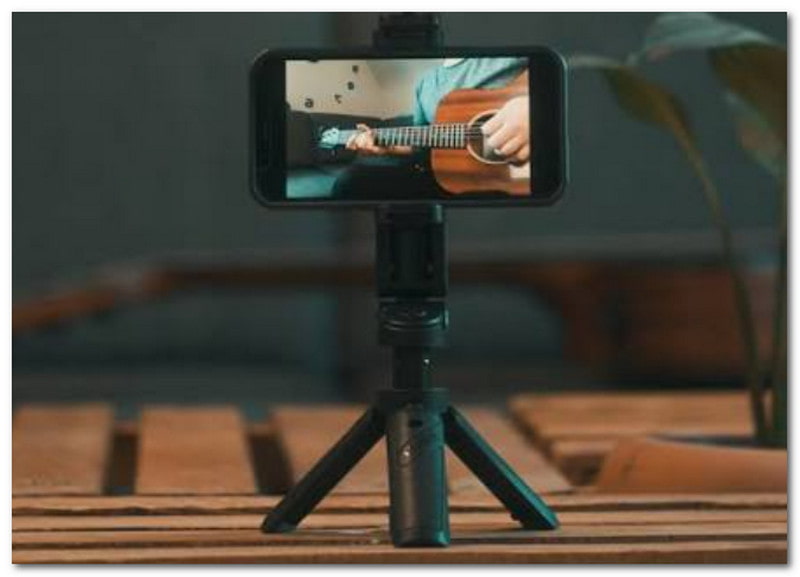
動画撮影に慣れるまでには何度か試行錯誤が必要です。慣れてきたら、グリーンスクリーン、照明設備、YouTube動画撮影用のカメラといったプロ仕様のツールについても深く学ぶことができます。
チュートリアル用に画面録画と顔出し録画をする方法
Twitchでチュートリアルやゲームをテーマにする場合は、 ミラーフロントカメラビデオその場合は、画面コンテンツとウェブカメラの同時録画に対応したソフトウェアを確認することをお勧めします。OBS Studioは良い選択肢ですが、習得に時間がかかるため、初心者には適していません。代わりに、ウェブカメラで画面と顔を同時に録画できるAVAide Screen Recorderを試してみてください。このYouTube向け画面録画ソフトウェアは、高画質の動画と簡単な操作性を提供します。
結論として、YouTube動画をキャプチャする方法はいくつかあります。この記事では、 YouTube動画から音声を録音する方法 簡単な方法もありますが、実際には、AVAide Screen Recorderを使えば、これらすべてをより簡単に実現できます。このソフトウェアは、数回クリックするだけで、コンピューターから高品質のビデオとオーディオをキャプチャできる機能を備えています。WindowsまたはMac用の多機能スクリーン録画ソフトウェアを今すぐダウンロードして、お試しください。
著者について

オーディオ、オンライン会議、ゲームプレイビデオ、音楽、Webカメラなどで画面アクティビティをキャプチャします。