


Androidに内蔵されている画面録画機能は、機能が十分ではないかもしれません。しかし、スマートフォンの画面をより簡単かつ多機能に録画するための実用的なヒントがいくつかあります。この記事では、それらを包括的に紹介します。 Android画面録画 チュートリアル。
ゲーム、チュートリアル、プロフェッショナルなデモなど、高度な画面録画をご希望の場合は、不要な情報を排除し、現在利用可能な最高のAndroid画面録画方法とアプリをご紹介します。鮮明で高解像度の結果を得るためのステップバイステップのチュートリアルもご用意しています。
パート1:Android内蔵スクリーンレコーダーの使い方
Android 11以降を搭載したほとんどのデバイスには、クイック設定パネルに標準の画面録画アプリが搭載されています。これを使ってスマートフォンの画面を録画できます。
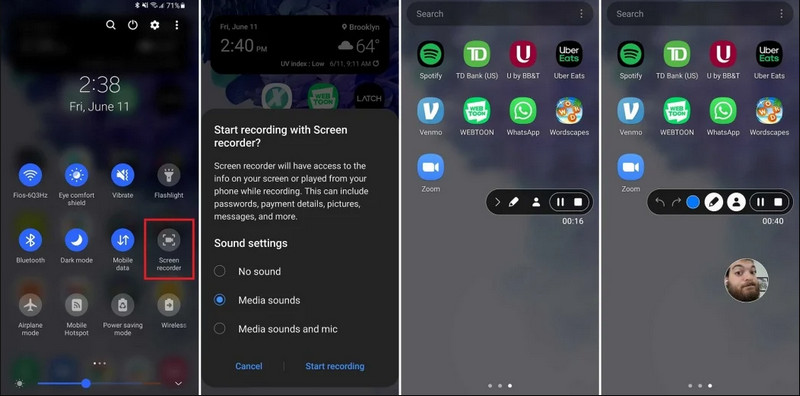
ステップ1クイック設定にアクセス
画面上部から下に2回スワイプすると、クイック設定メニュー全体が表示されます。
ステップ2スクリーンレコーダーを選択
探す スクリーンレコード表示されない場合は、 編集 ボタン(鉛筆アイコン付き)をクリックし、画面録画タイルをアクティブなグリッドにドラッグします。
ステップ3録画設定を構成する
Androidを見つけたら スクリーンレコーダー このツールには、複数の録画オプションがあります。適切なオプションを選択することで、Android画面の録画を効果的に行うことができます。
- 音が出ません: システム音声や外部音声を録音せずに、スマートフォンの画面のみを録画します。
- メディアの音: スマートフォン内のすべてのアプリの音を含む、すべてのシステムサウンドを画面に録画してください。
- メディアの音声とマイク: システム音と外部音(スマートフォンの内蔵マイクまたはイヤホンのマイク)の両方を録音します。
ステップ4画面録画の開始と停止
選択してタップしてください コーディングを開始する ボタンをタップします。ステータスバーにカウントダウンが表示されます。Android の画面録画を停止するには、 やめる ボタン(録画ステータスバーがある場合)または通知シェードを下にスワイプして赤い やめる ボタン。
パート2:ブランド固有のAndroidレコーダーツール
多くのAndroidスマートフォンメーカーは、セルフィーカメラのオーバーレイなどの高度な機能を備えた独自の画面録画機能を提供しています。人気のあるAndroidブランドの特別な録画機能をいくつかご紹介します。
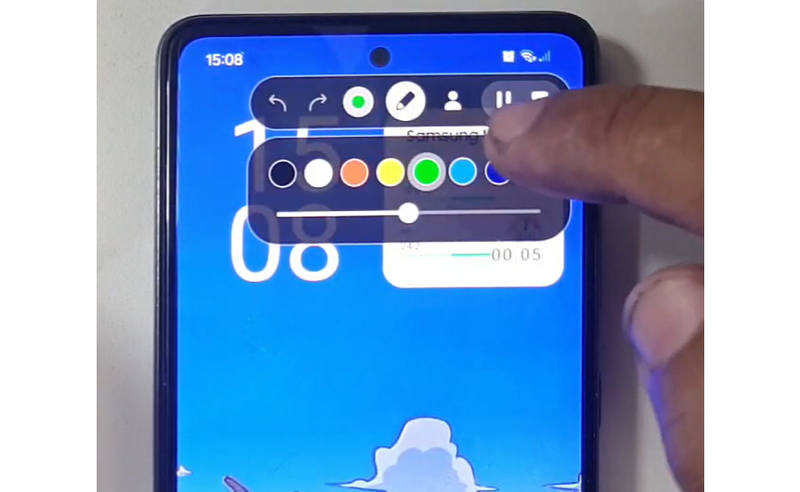
サムスン(One UI): 画面録画機能と、画面上にリアルタイムで描画できるツールバーが付属しています。
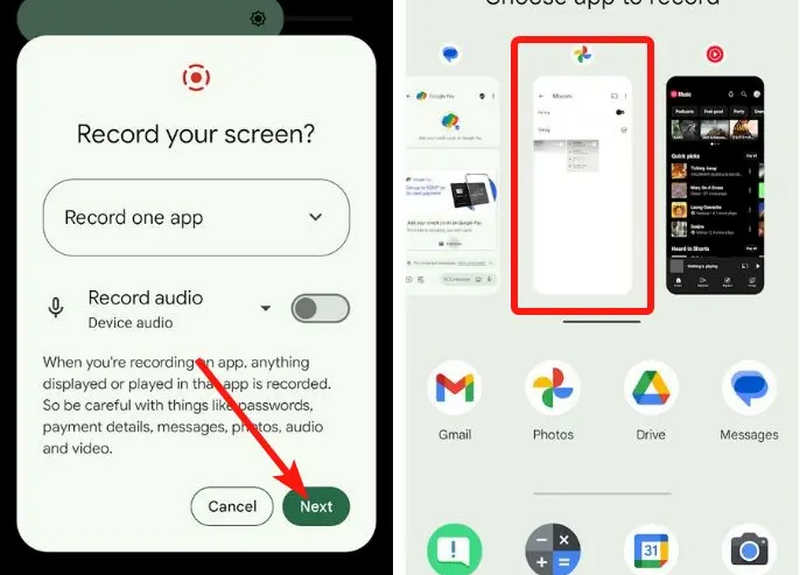
Google Pixel: 録画するアプリ(例:銀行アプリやWhatsApp)を個別に選択できます。録画中にアプリを終了したり、通知シェードを開いたりしても、それらの操作は最終的な動画には反映されません。
Xiaomi(MIUI/HyperOS): フレームレート(FPS)とビットレートを詳細にカスタマイズできる専用の「スクリーンレコーダー」アプリを搭載しています。
Huawei と Honor (HarmonyOS / MagicOS): 独自のハードウェアとソフトウェアの統合により、指の関節2つで画面を2回軽く叩くだけで録画を開始または停止できます。
OPPO、vivo、および realme (ColorOS / OriginOS): ゲームが起動すると、スクリーンレコーダーはCPU/GPUリソースを自動的に最適化し、4K/60FPSのクリップを録画してもゲーム内のラグやフレームレートの低下が発生しないようにします。
パート3:Androidで画面録画を行うための4つの多用途な方法
お使いのAndroidスマートフォンに満足のいく画面録画機能が搭載されていない場合は、以下の4つのAndroid画面録画アプリを試してみてください。これらのアプリは、便利で実用的な機能を提供してくれます。
1. AZ スクリーンレコーダー
AZ スクリーンレコーダー Playストアで非常に人気のあるAndroid画面録画アプリです。Androidスマートフォンの画面を高解像度で録画できます。また、録画目的に応じて解像度、フレームレート、ビットレートを調整することも可能です。
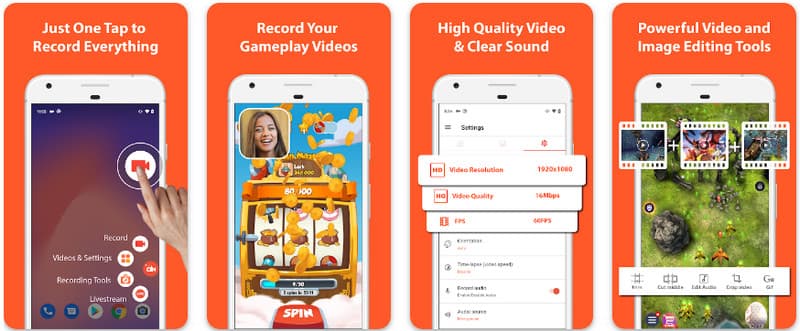
さらに、AZ スクリーン レコーダーを使用すると、マイクを使用してデバイスで再生されたサウンドを録音できます。これにより、最も複雑で高品質の録音が可能になります。ボタンのシンプルな配置と一貫したパフォーマンスにより、このアプリは多くの人に愛されています。以下のチュートリアルを使用して、これを使用して Android 画面を録画する方法を学びます。
ステップ1Androidにアプリをダウンロードしたら起動します。次に、 カメラ ボタンを押すと、画面録画機能にアクセスできます。
ステップ2タップ 今すぐ始める Android端末で画面録画を開始すると、画面にカウントダウンが表示されます。
ステップ3Android スマートフォンで画面録画を停止するには、 記録 もう一度ボタンを押してください。このアプリでは、 iPhoneでサウンド付き画面録画 有効化されました。
2. Mobizenスクリーンレコーダー
Mobizen スクリーンレコーダー Mobizenは、Playストアで無料で入手できるAndroid用スクリーン録画アプリで、簡単かつ高品質な録画を約束します。調整可能なパラメーターによる高解像度録画と、ウォーターマークを削除するクリーン録画のオプションを提供します。さらに、Mobizenには録画に使用できる内部音声録音機能、顔カメラ、GIF機能も搭載されており、録画に彩りを添えることができます。また、さまざまな機能とコントロールが分かりやすく配置されているため、アプリの操作に迷うことなく、Androidのスクリーン録画を開始したり、コンテンツを編集したりできます。このアプリを使ってAndroidでスクリーン録画する方法をご覧ください。
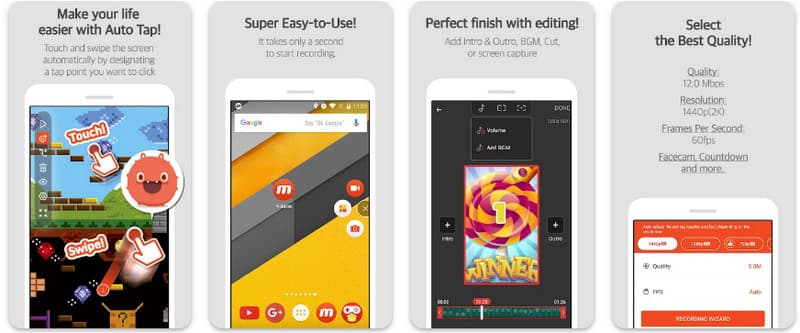
ステップ1今すぐ Android にダウンロードしてアプリを開いてください。
ステップ2画面録画機能を使用する前に必要な設定を行ってください。画面上にフローティング録画バーが表示されます。 カメラ ボタン、次に 今すぐ始める 画面録画を開始するには。
ステップ3完了したら、 ま そしてその 止まる Androidスマートフォンで画面録画を停止するには、このボタンをクリックしてください。
3. スクリーンレコーダー - Inshot の XRecorder
スクリーンレコーダー - XRecorder は、ルートアクセスやウォーターマークを必要とせず、最大1080p/60FPSの高解像度録画を提供することで、画面キャプチャを簡素化する強力なオールインワンAndroidユーティリティです。Android 17/16での画面録画の主要方法として、フローティングコントロールウィンドウを通じてシームレスなユーザーエクスペリエンスを提供し、内蔵ブラシツールを使用してリアルタイムで画面に開始、一時停止、描画できます。シンプルなビデオキャプチャに加えて、内部オーディオ録音、ストリーマー向けのフェイスカムオーバーレイ、統合ビデオ編集をサポートしているため、モバイルデバイスから直接プロフェッショナルなチュートリアル、ゲームプレイクリップ、または明確なデモンストレーションを作成する必要があるすべての人にとって理想的な選択肢です。
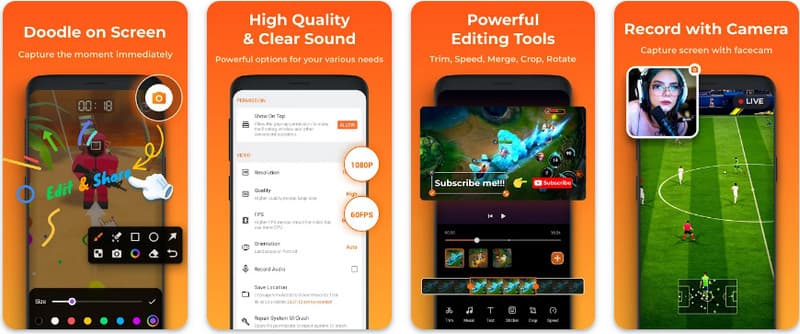
ステップ1XRecorderのダウンロードが完了したら、XRecorderを開いて フローティングアイコンを有効にする.
ステップ2その後、をタップします 記録 録音を開始するボタンと 今すぐ始める 確認するために。
ステップ3ご覧の通り、録音の長さはフローティングアイコンとして表示されます。 止まる ボタンをクリックして録音を保存します。
4. スーパースクリーンレコーダー
スーパースクリーンレコーダー Super Screen Recorderは、最大限の柔軟性を備えたプロフェッショナルな方法でAndroidの画面録画を行いたいすべての方に最適なソリューションです。この強力なアプリは高解像度のキャプチャを実現し、無料版でもウォーターマークなしの体験を提供することで、コンテンツをクリーンでプロフェッショナルな状態に保ちます。リアルタイムの反応をキャプチャするための統合フェイスカムと、録画中に画面に描画できる多機能ブラシツールを備えており、魅力的なチュートリアルやウォークスルーを作成するのに不可欠な機能です。初心者でも上級者でも、Super Screen RecorderはAndroidの画面録画を簡単にマスターするために必要な強力なカスタマイズ機能を提供します。
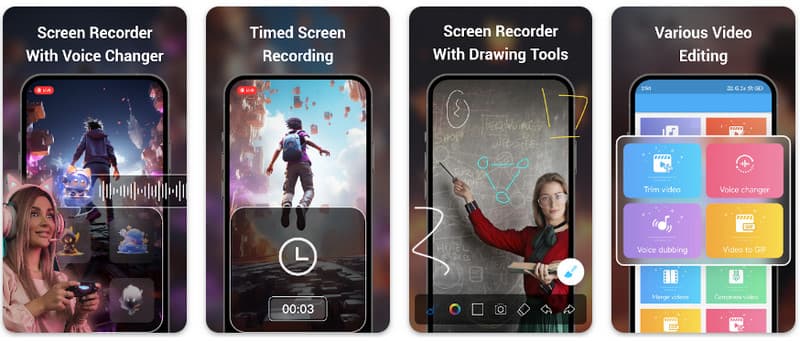
ステップ1Android でスーパー スクリーン レコーダーを開き、アプリのフローティング機能を有効にして使用します。
ステップ2画面上で、 カメラ ボタンを押して設定を確認し、タップします 今すぐ始めるその後、録画が始まる前に 3 秒間のカウントダウンが表示されます。
ステップ3をタップします 四角 ボタンを押すと録画が終了し、Android デバイスに保存されます。
ボーナス:デスクトップと携帯電話の画面を最高画質で録画
Androidスマートフォンの画面をパソコンに録画できると思いますか? AVAideスクリーンレコーダー このソフトウェアは主にWindowsとMacでの画面録画向けに設計されていますが、Androidスマートフォンの画面全体を録画することも可能です。これは、Android端末での特定の操作に関するチュートリアルを作成し、MacやWindowsで直接ビデオを編集する必要がある場合に特に役立ちます。
WindowsとMacでの画面録画において、AVAide Screen RecorderはAV1とHEVCコーデックをサポートしており、最高のビデオ品質を維持しながら録画結果を高度に圧縮できます。フルハードウェアアクセラレーションにより、CPU使用率を非常に低く抑えながら長時間のビデオを録画できます。さらに注目すべきは、背景音やエコーをキャンセルして明瞭度を高める改良されたマイクを搭載している点です。このソフトウェアは、トリミングや注釈などのシンプルなナビゲーションと編集機能を備え、優れた録画を実現します。価格は高めですが、個人用にもビジネス用にも使用できるため、強くお勧めします。
- AndroidまたはiOSデバイスを最高のビデオ品質で録画しましょう。
- 描画機能と注釈機能を使って、簡単にチュートリアル動画を作成できます。
- 出力ビデオを高圧縮するために、AV1およびHEVC出力コーデックをサポートします。
- Android端末で録画した動画を簡単に編集できる、使いやすい動画編集機能を提供します。

 安全なダウンロード
ステップ1ここでダウンロード ボタンをクリックすると、スクリーン レコーダーを PC にダウンロードできます。次に、画面の指示に従ってアプリをインストールし、起動して次のステップに進みます。
ステップ2システムですでに実行されているので、録画を開始する領域に録画フレームを配置します。ここで、領域オプションの代わりに全画面オプションを選択すると、画面全体を録画できます。

ステップ3次に、必要に応じてシステムとマイクの録音を設定します。録音に自分の顔を追加したい場合は、ここでウェブカメラオプションを有効にします。次に、 REC カウントダウンを開始し、録画を開始します。

ステップ4録音が終了したら、 止まる 赤い四角のボタンをクリックする。次に表示されるウィンドウでは、ここで利用可能なオプションを使用して、先ほど録音した内容を編集できます。次に、録音内容にカーソルを合わせて ダウンロード 保存ボタンをクリックするだけで、このアプリは 最高のオープンソースレコーダー 利用可能。

パート4:Androidで画面録画する方法に関するよくある質問
設定画面で画面録画はどこにありますか?
組み込み機能にアクセスするには Androidでの画面録画 サードパーティ製アプリなしで、画面上部から2回下にスワイプして開きます クイック設定 パネルを探して スクリーンレコード (または「画面録画」)アイコン。表示されない場合は、 編集 (鉛筆)ボタンをクリックして、画面録画の切り替えボタンをアクティブなタイルにドラッグします。追加したら、アイコンをタップし、システム内部のサウンドやマイクの録音など、オーディオ設定を選択して「開始」を押すだけで、システム設定から直接画面のキャプチャを開始できます。
Android端末で画面録画機能が見つからないのはなぜですか?
Androidで画面録画のネイティブオプションがないのは、通常、デバイスが古いオペレーティングシステムを実行しているためです。組み込み機能は、 Android 11ソフトウェアが最新であれば、トグルは単に非表示になっているだけかもしれません。 クイック設定 メニュー。通常はタップすることで表示できます。 編集 通知シェードのボタンをクリックし、「画面録画」タイルをアクティブビューにドラッグします。また、一部のエントリーレベルの「Go Edition」デバイスや特定のメーカーのスキンでは、システムリソースを節約するためにこの機能が無効になっている場合があります。その場合は、XRecorderやSuper Screen Recorderなどのサードパーティ製アプリを使用するのが最も効果的な回避策です。
画面録画ボタンが消えたのはなぜですか?
画面録画ボタンが消えるのは、クイック設定のアクティブ領域から誤って移動されたことが原因であることが多いです。多くの場合、タップすることで復元できます。 編集(鉛筆アイコン) 通知シェードでタイルをドラッグして戻します。また、省電力モード、ワークプロファイルによる制限、またはソフトウェアアップデート後にUIを更新するためにシステムを再起動する必要があるため、非表示になっている場合もあります。
ここで紹介したチュートリアルでは、 Android Samsungで画面を録画する方法このチュートリアルは、特に Android ユーザーの場合、画面録画タスクに関して非常に役立ちます。この情報を Android ユーザーの友人と共有して、その方法を知ってもらいましょう。
著者について

画面、オーディオ、ウェブカメラ、ゲームプレイ、オンライン会議、およびiPhone/Android画面をコンピューターに記録します。


